Cash Account Book
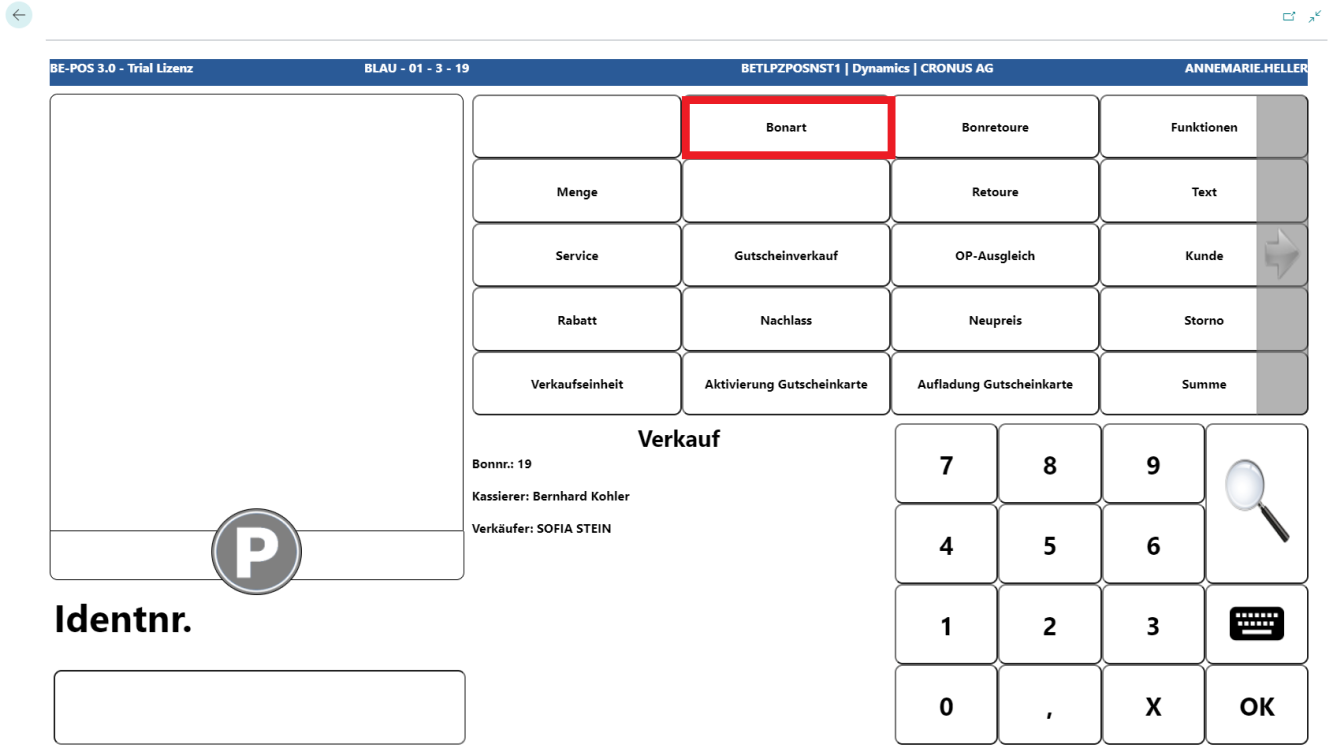
If you are in sales mode, the Cash Account Book functionality is available under Receipt Type.
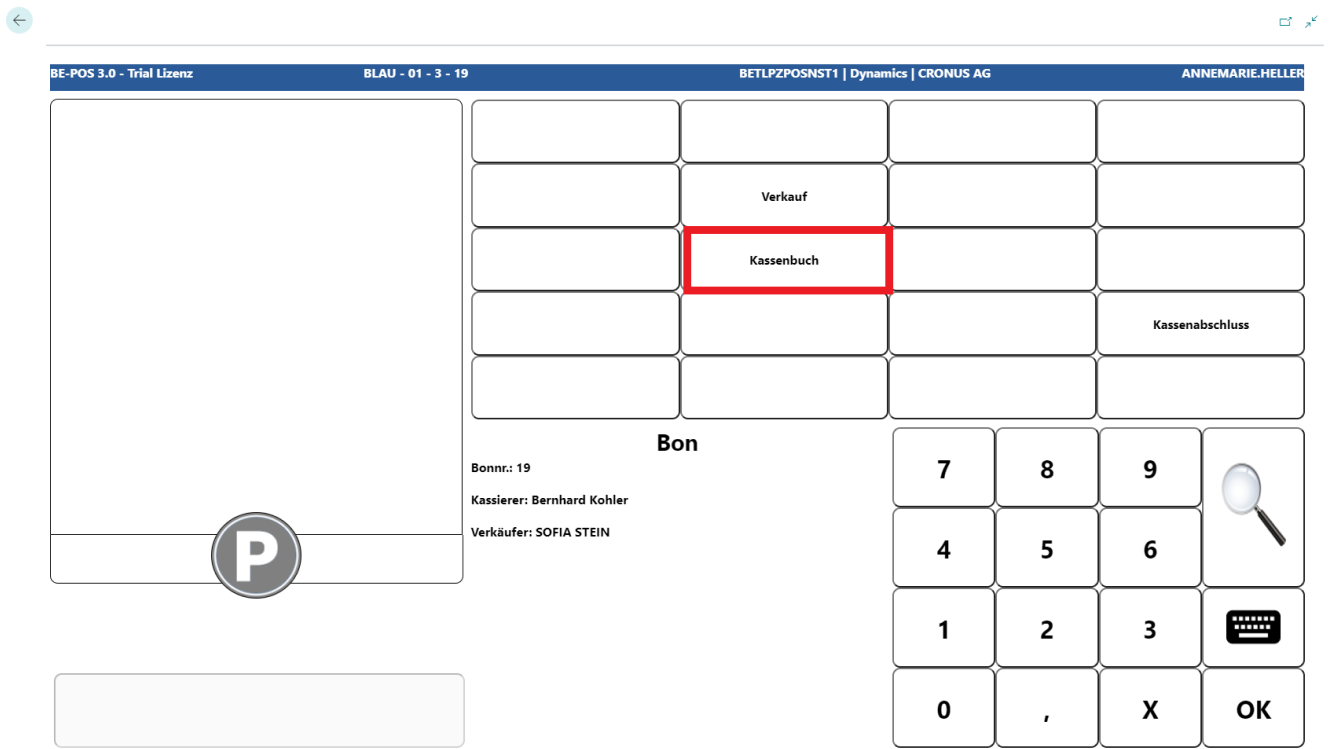
Deposit
Use the Deposit button to post cash amounts into the POS.
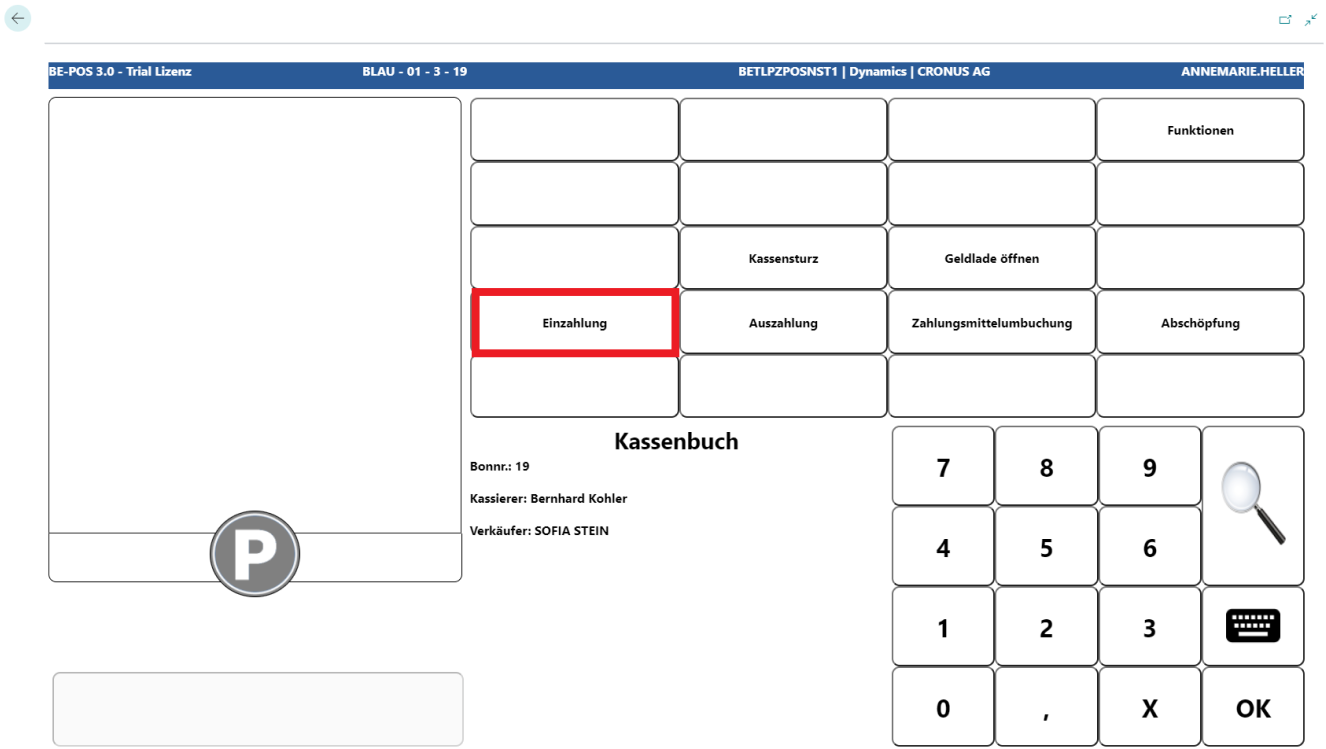 Click to enlarge
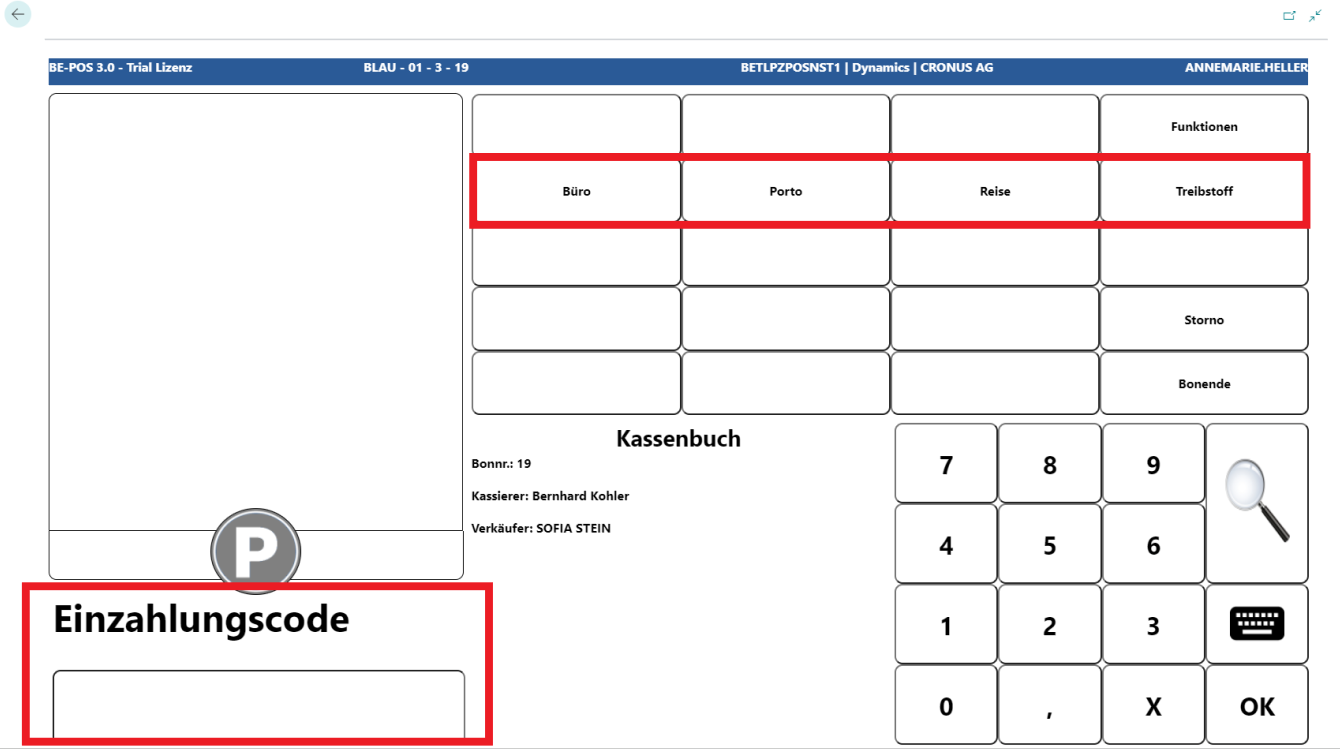
First, enter the reason for the deposit. This can be done using the code, the configured shortcut buttons, or the magnifying glass button.
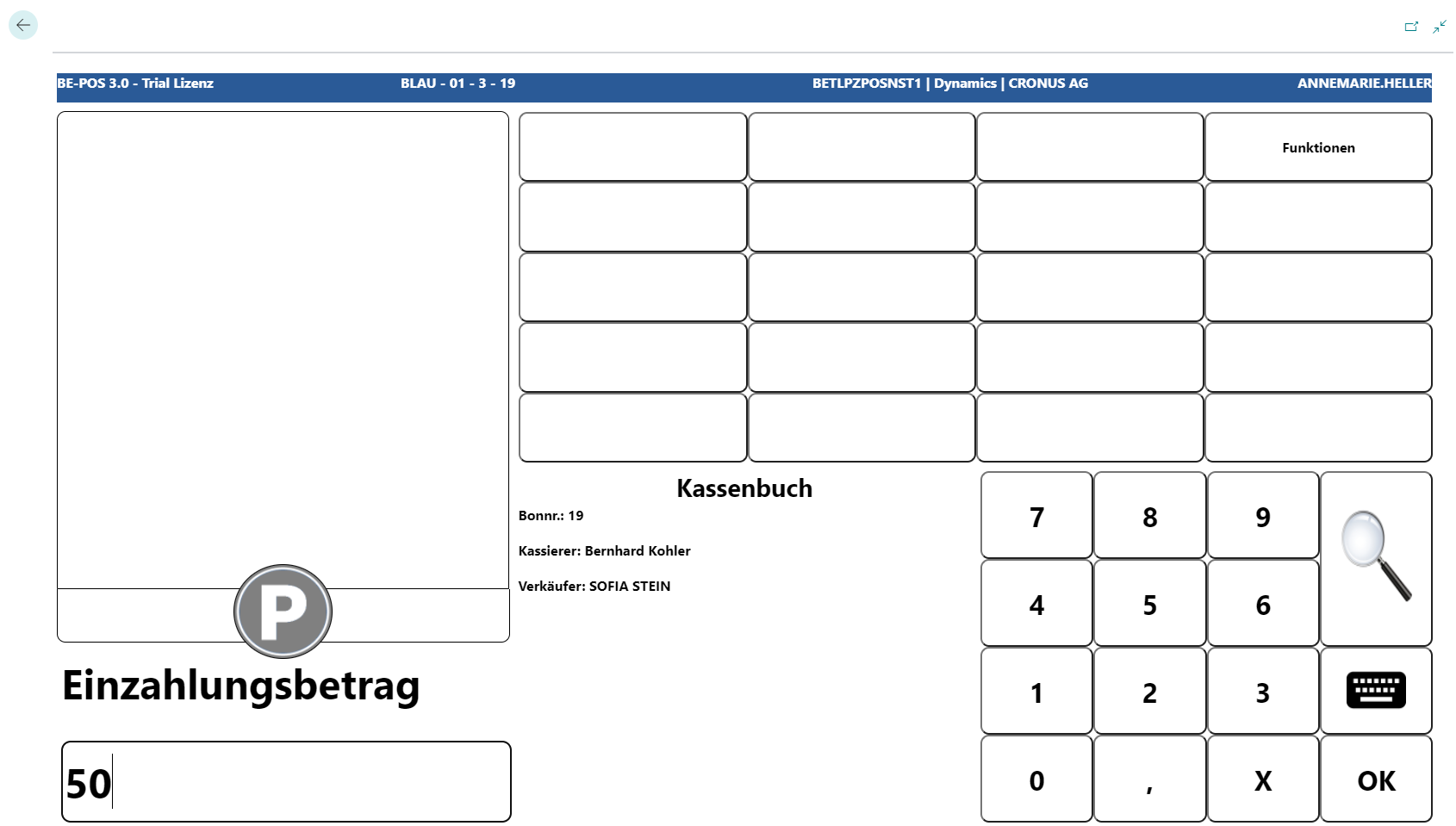
The amount is then entered.
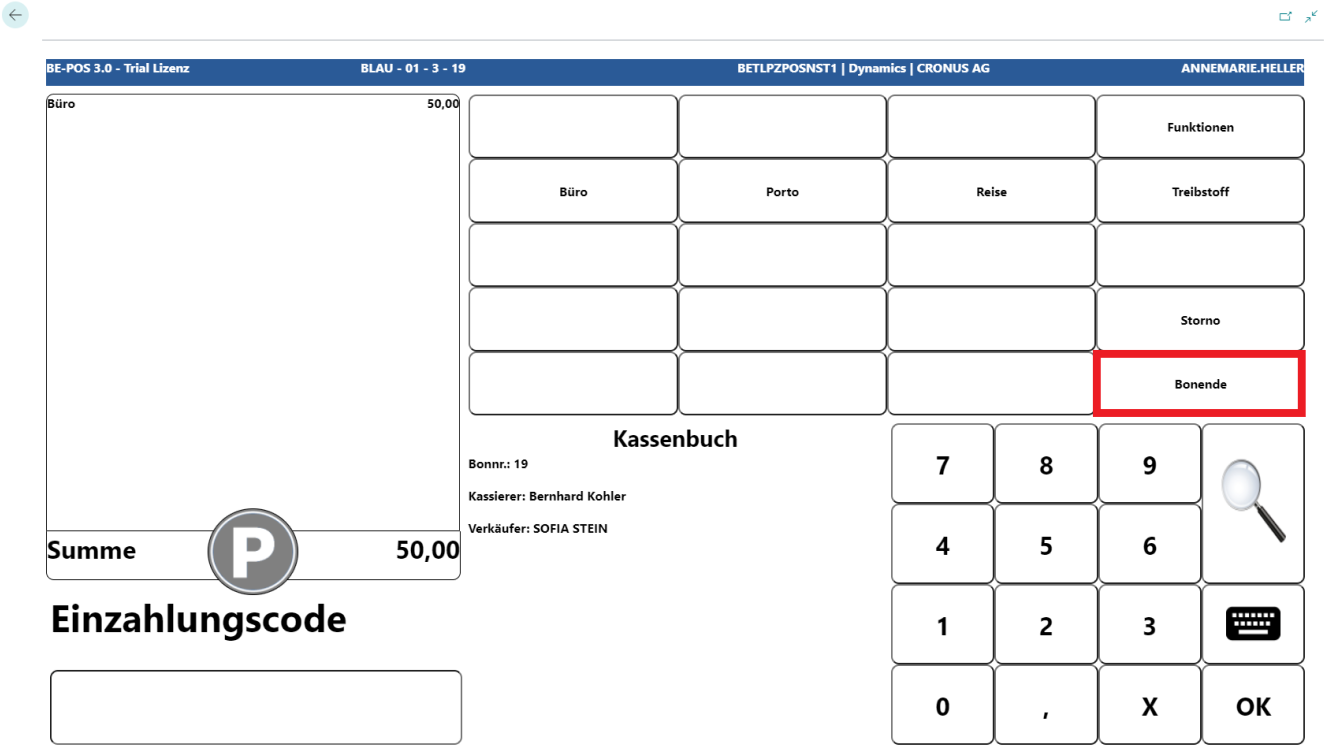
Additional deposits can be entered, or the deposit receipt can be completed with Receipt End.
Payout
Use the Payout button to post cash amounts out of the POS.
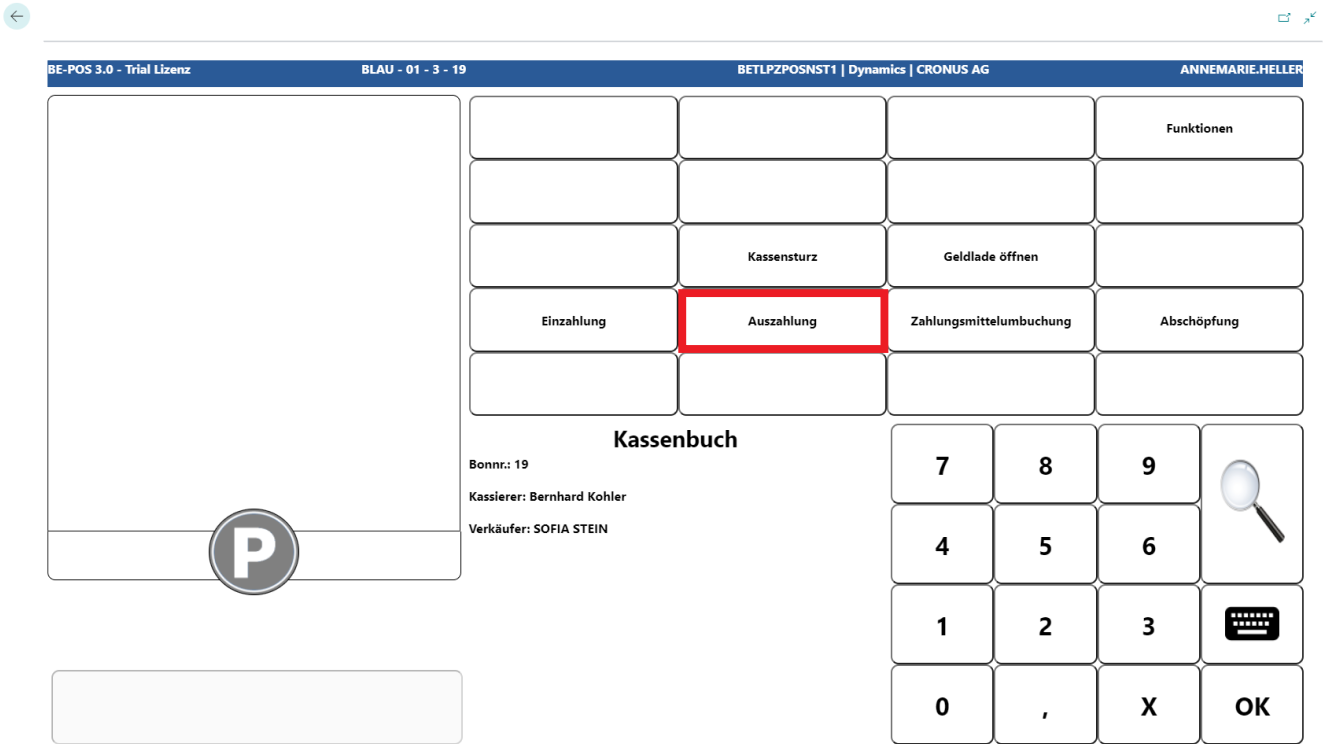
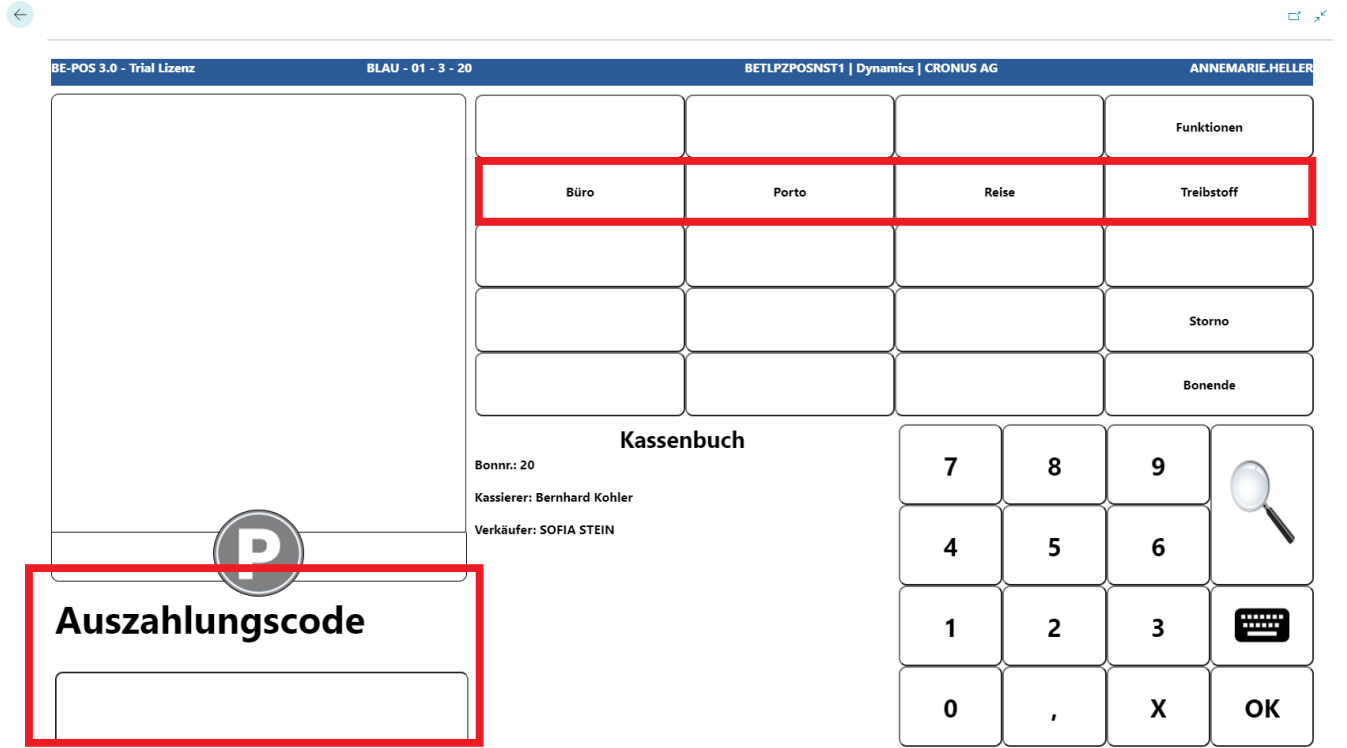
First, enter the reason for the payout. This can be done using the code, the configured shortcut buttons, or the magnifying glass button.
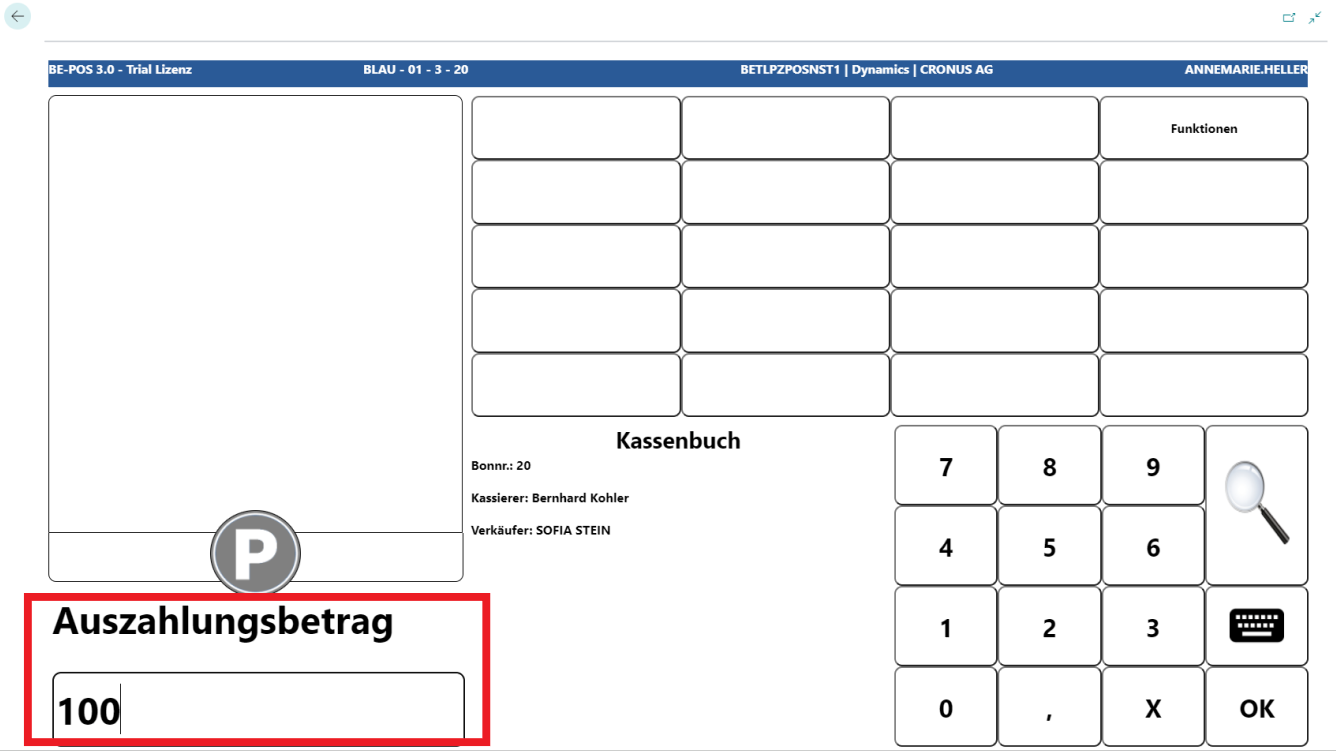
The amount is then entered.
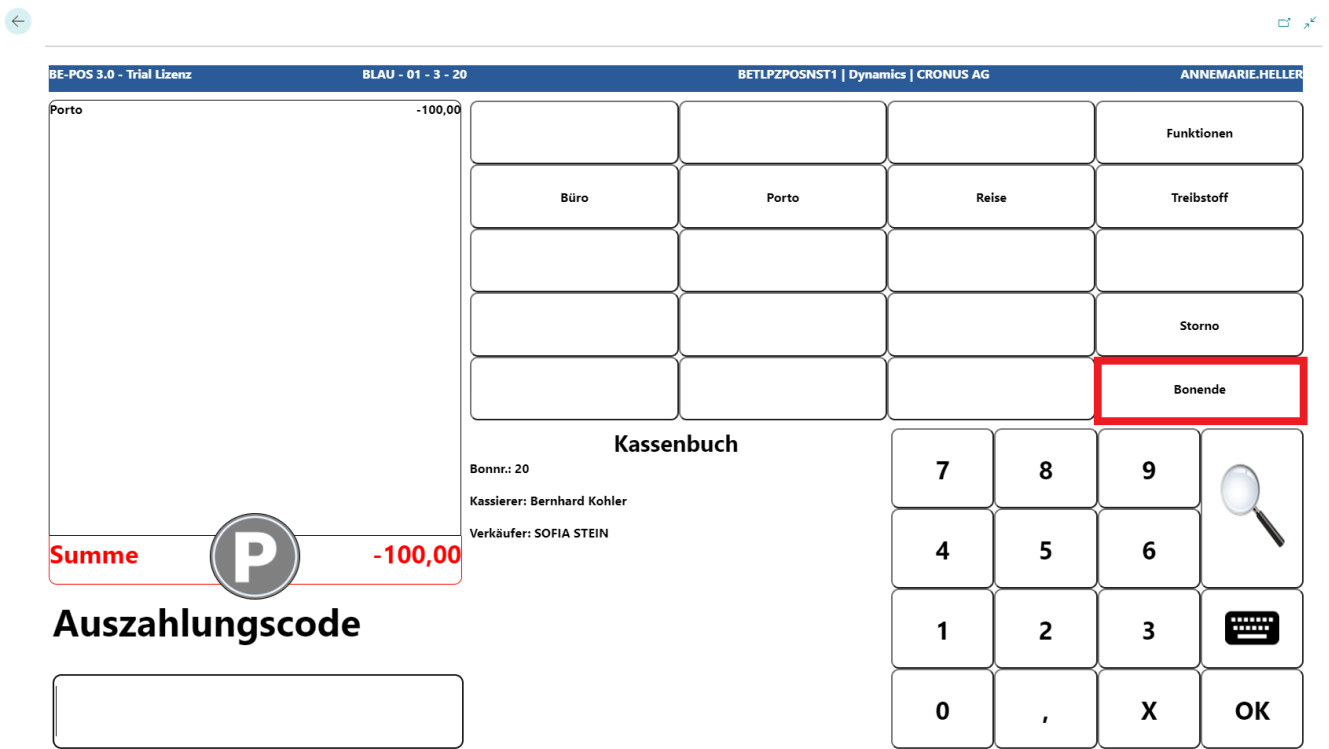
Additional payouts can be entered, or the payout receipt can be completed with Receipt End.
Transfer
This function can be used to transfer amounts from one tender to another. In this example, the transfer is from cash to card.
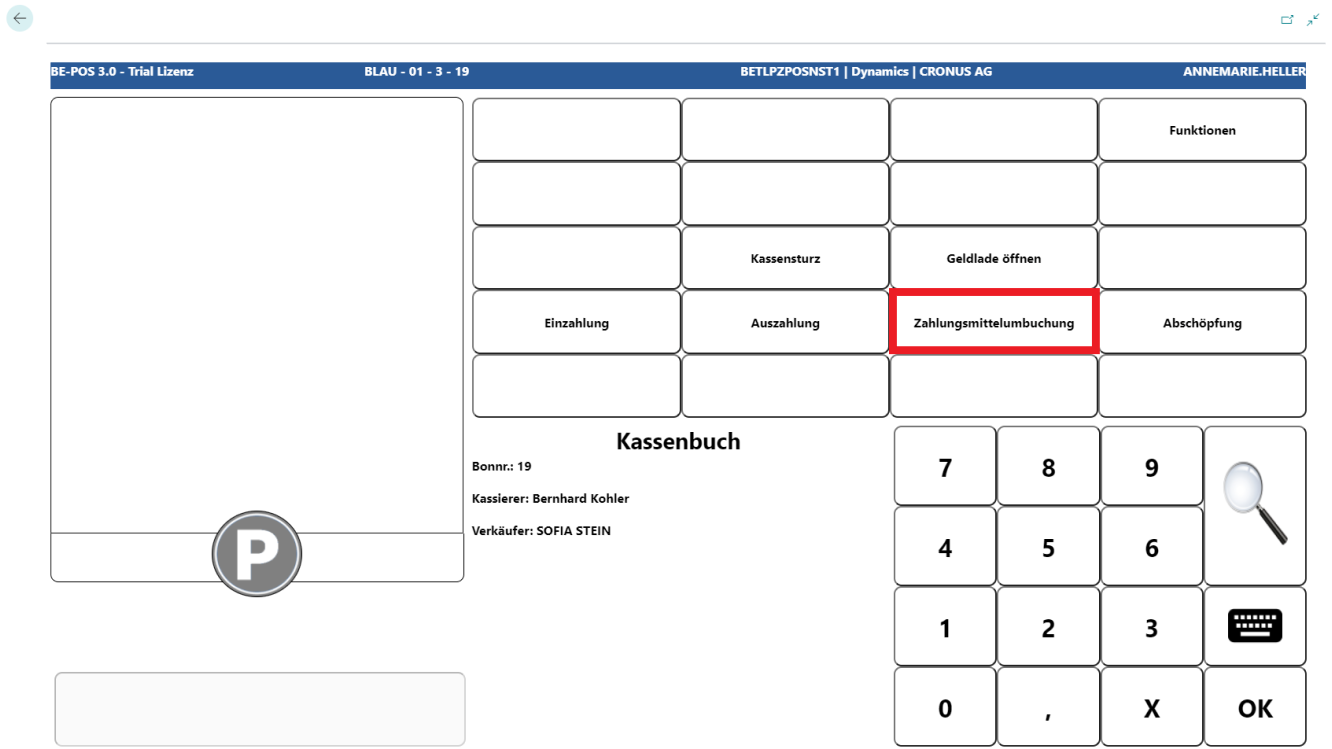
First, enter the tender from which the amount is to be deducted. If the tender code is not known, the magnifying glass button can be used to search for it.
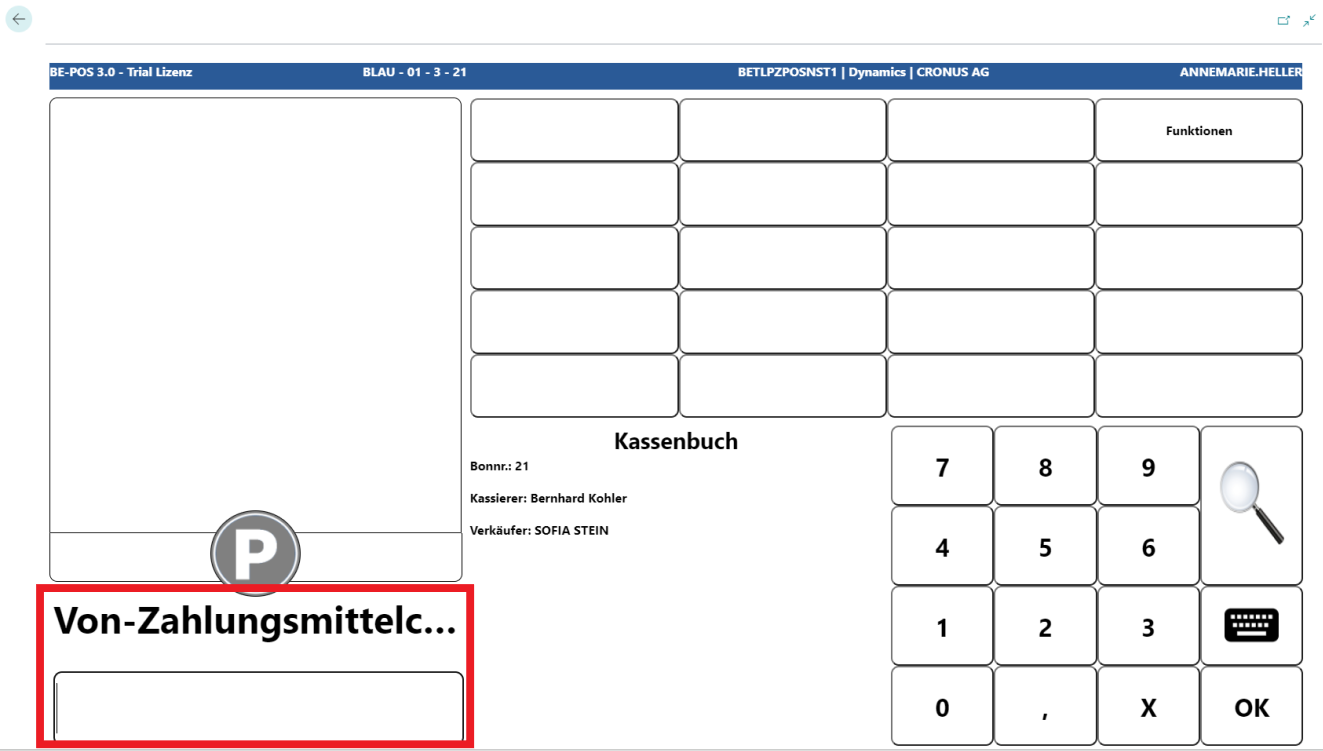
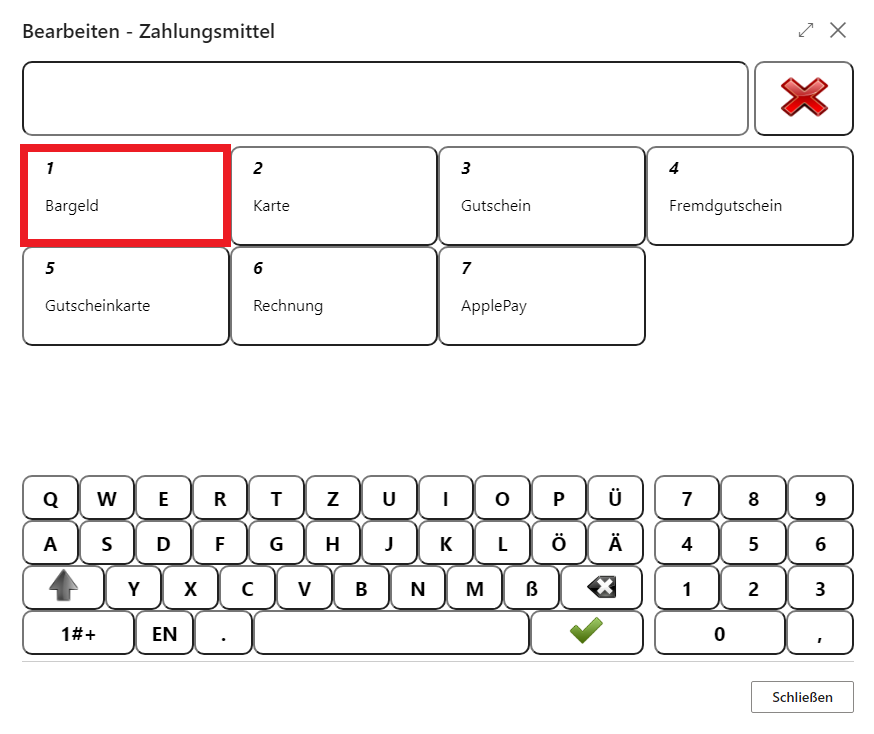
Then enter the tender to which the amount is to be transferred. If the tender code is not known, the magnifying glass button can be used to search for it.
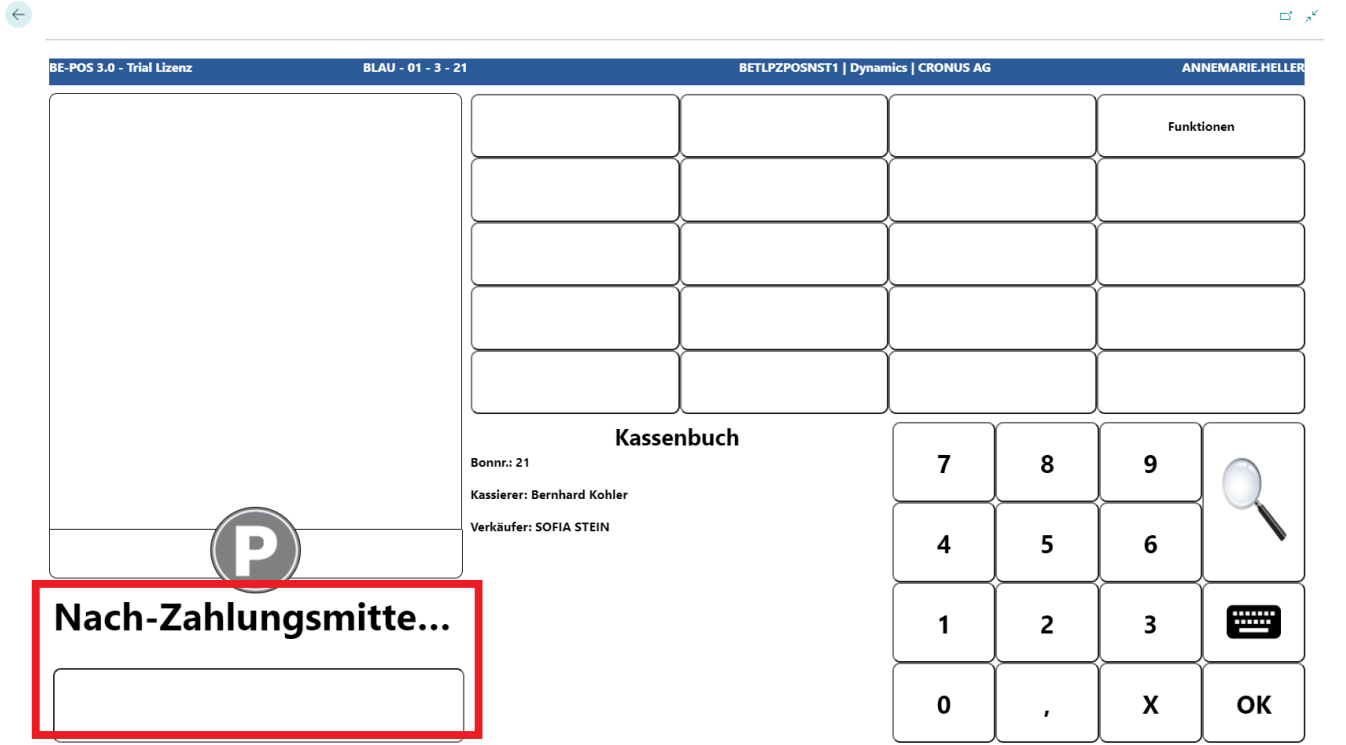
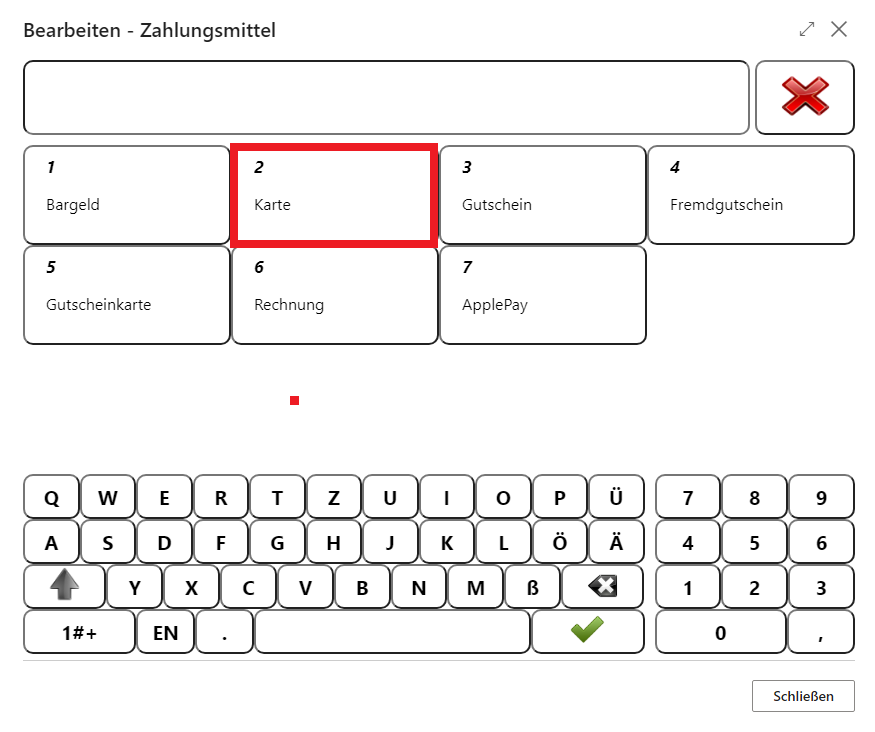
Once the source and target tenders have been entered, enter the amount to be transferred.
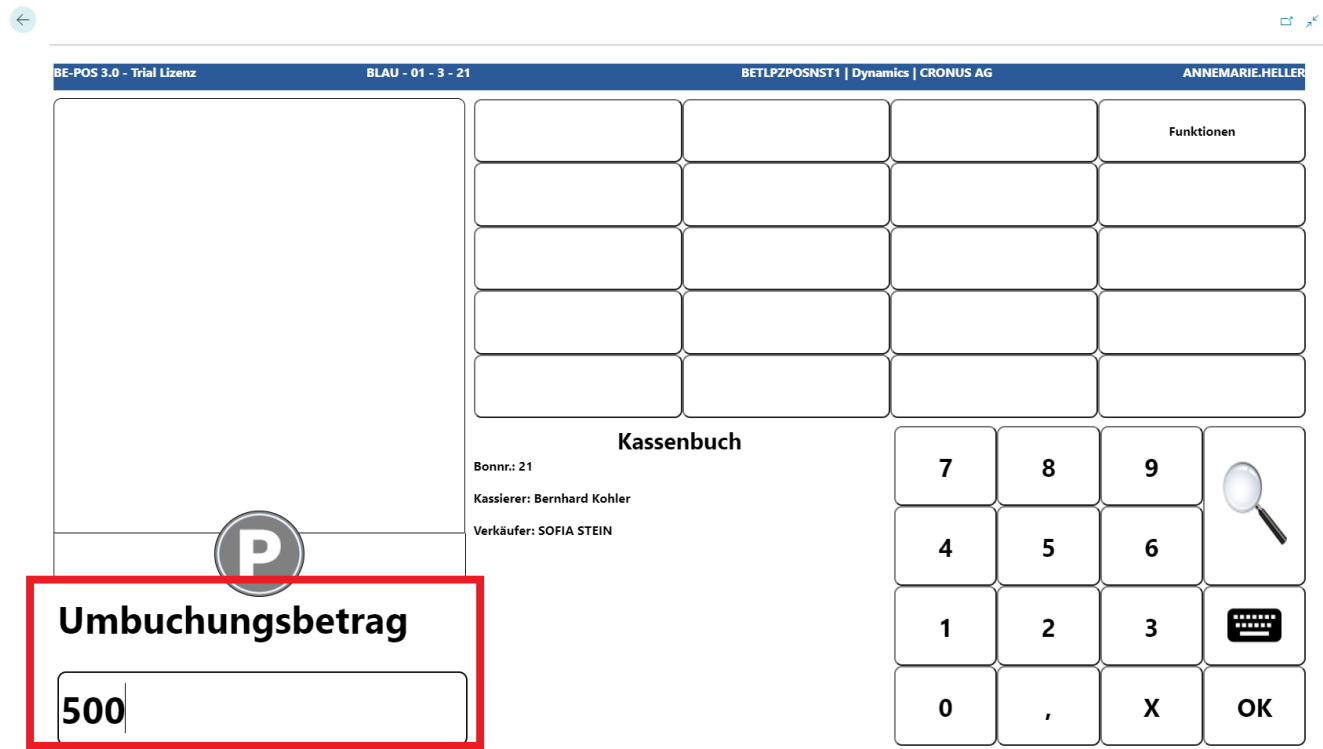
The transfer is completed when the amount is confirmed.
Cash to Bank
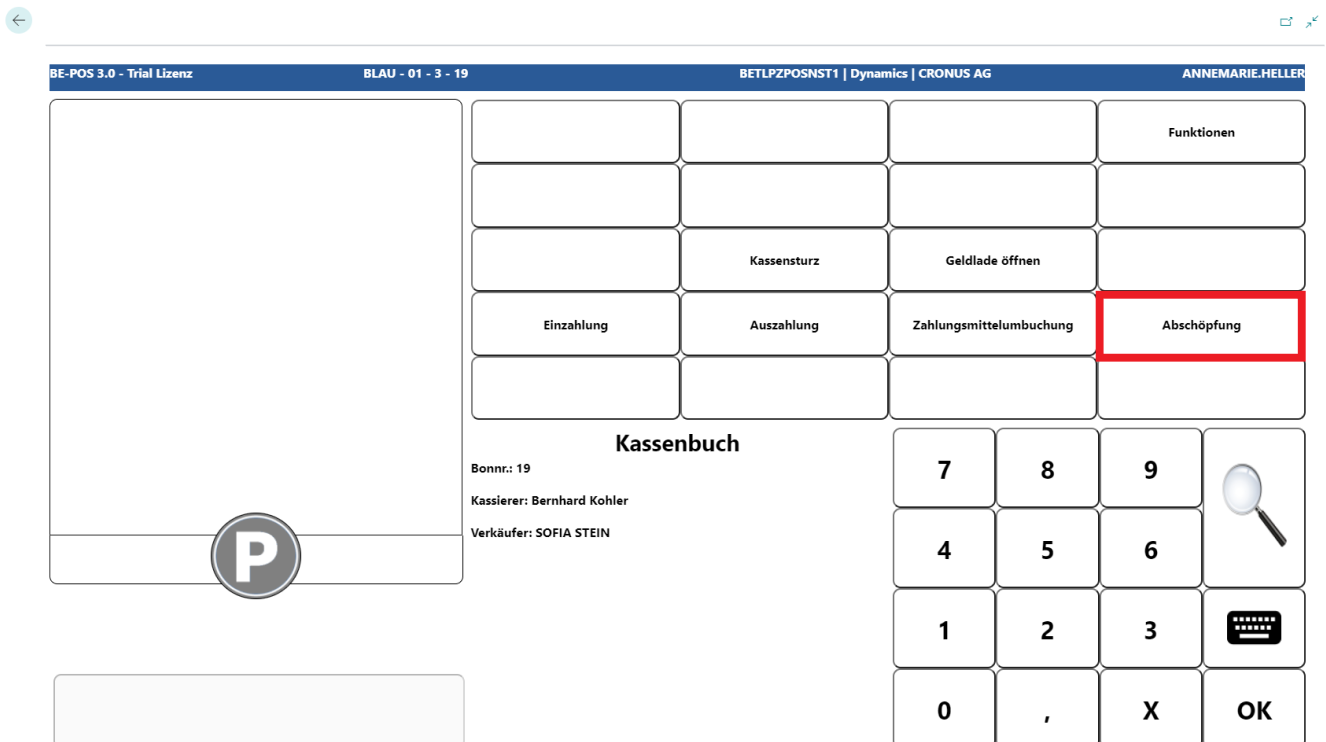
Use the Cash to Bank button to start recording a transfer from the cash drawer to the bank. Normally, this means moving cash from the POS to the bank account.
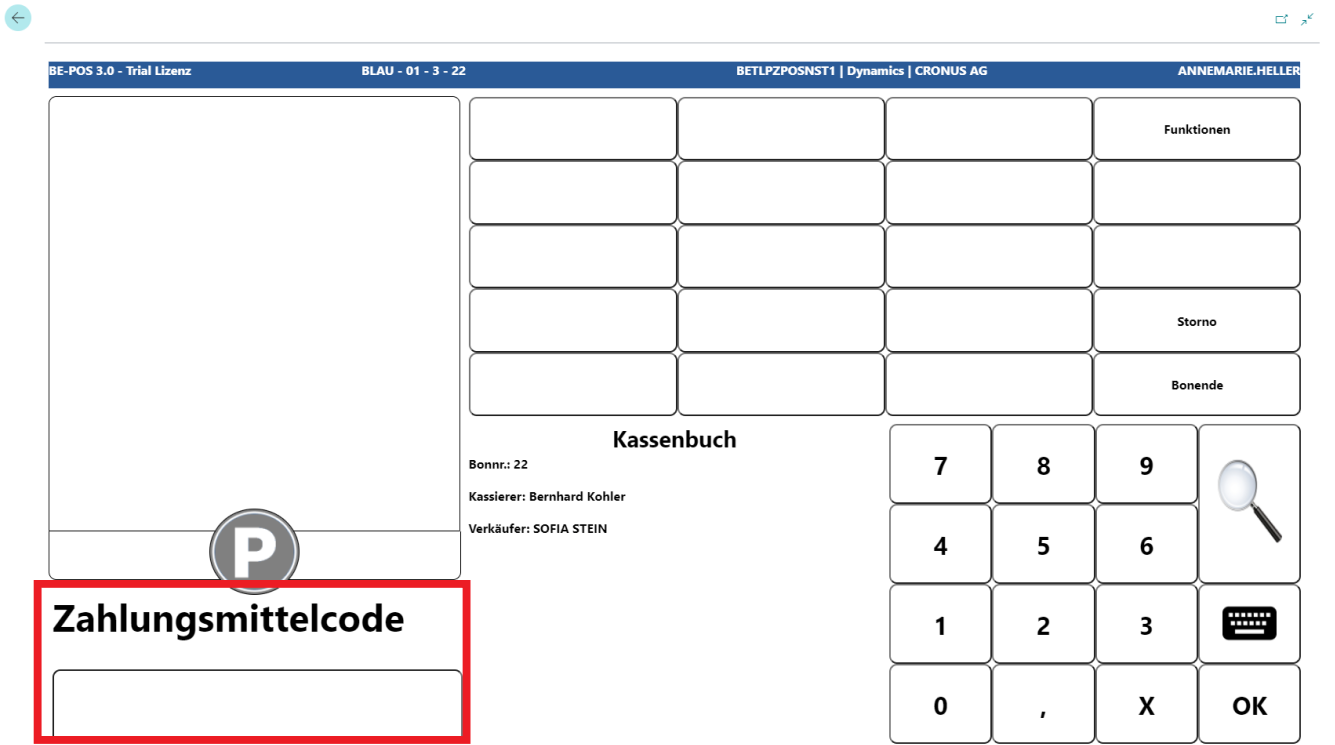
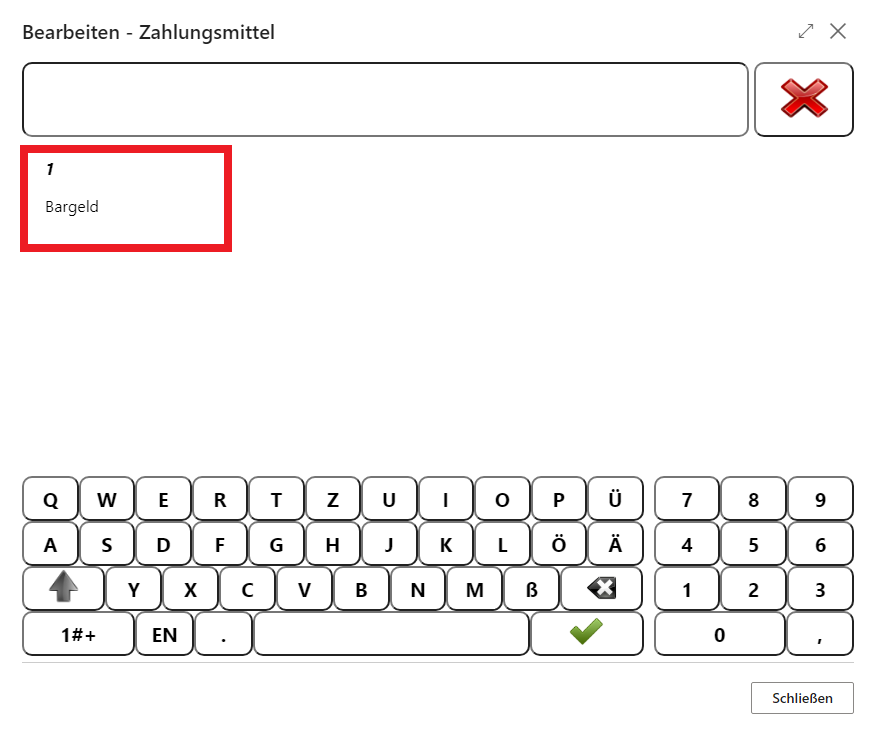
Enter the tender from which the amount is to be transferred to the bank. If the tender code is not known, the magnifying glass button can be used to search for it.
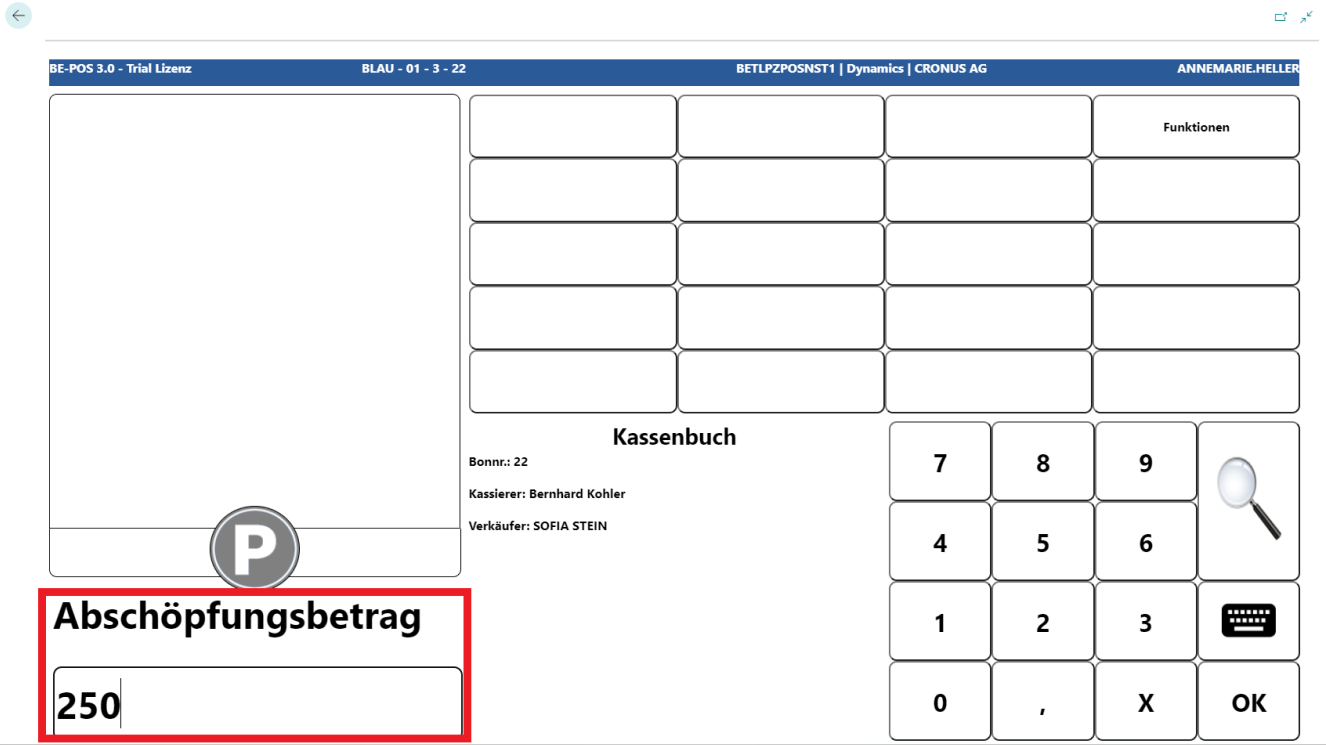
The amount is then entered.
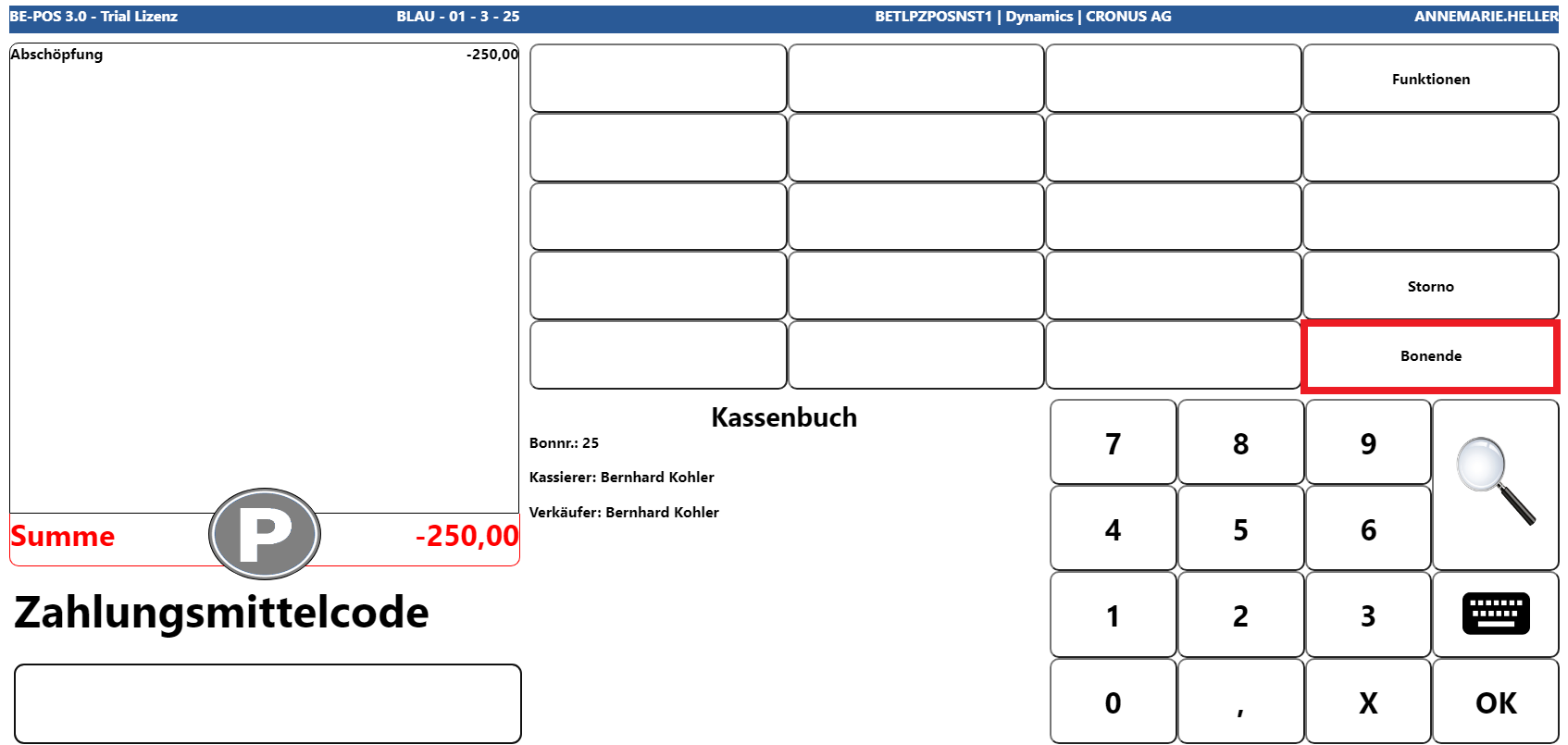
After confirming the amount, additional cash-to-bank entries can be entered or the receipt can be completed with Receipt End.
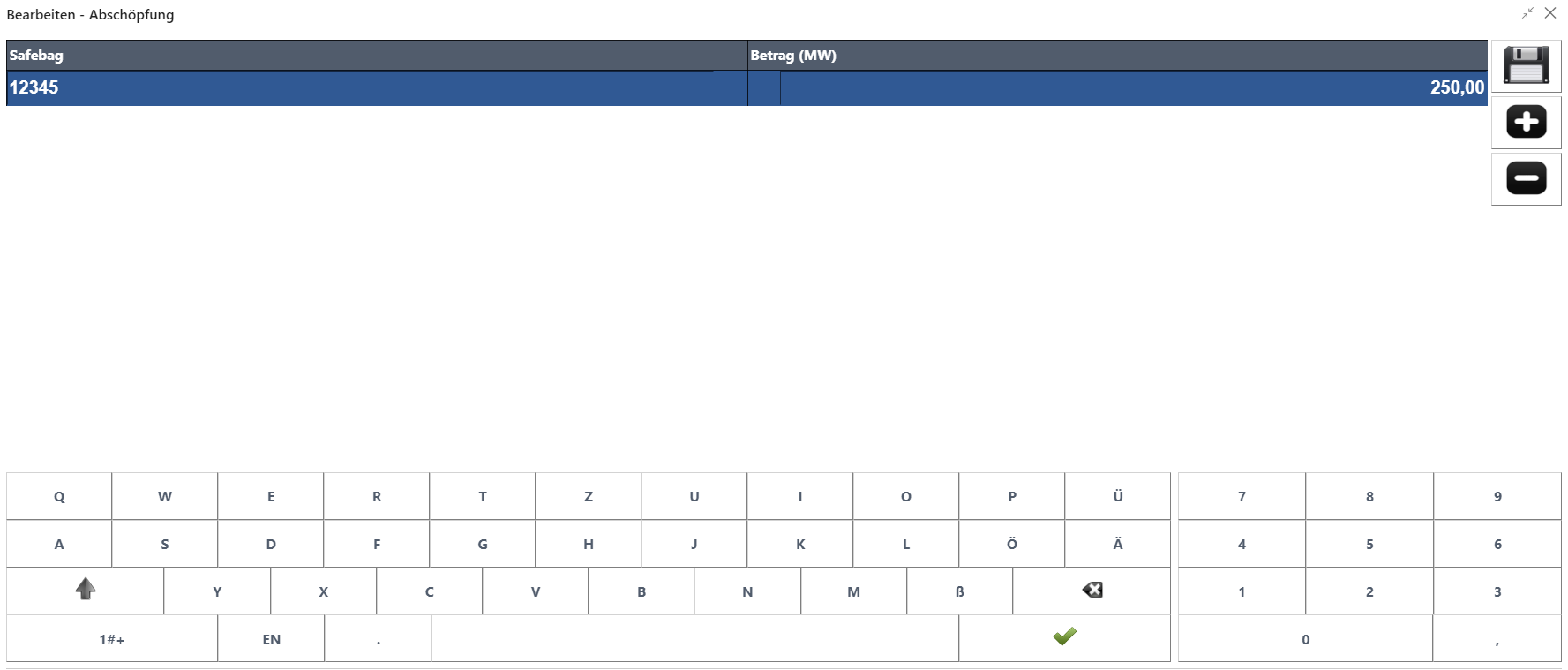
If the Record Safebag setting is enabled in the POS setup, a screen opens for cash-to-bank processing in which safebags can be entered with the relevant amounts. It is possible to record multiple cash-to-bank entries in the same safebag. The total amount is shown on the cash-to-bank receipt. Receipt End is performed automatically when the disk symbol is activated. The +/- actions can be used to add or remove multiple safebags.
Cash Count
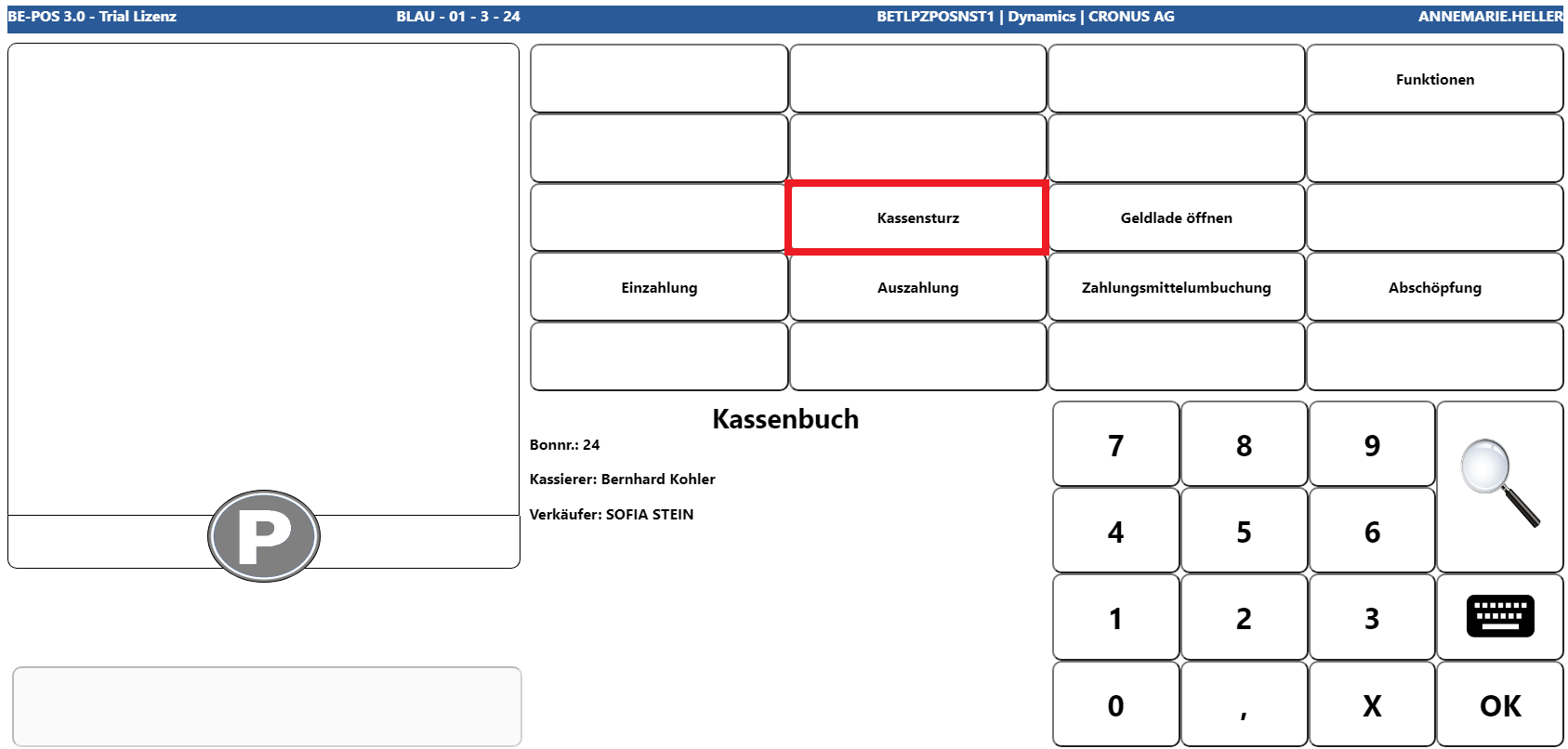
The Cash Count functionality offers the option to perform an interim count of the current cash balance.
 Click to enlarge
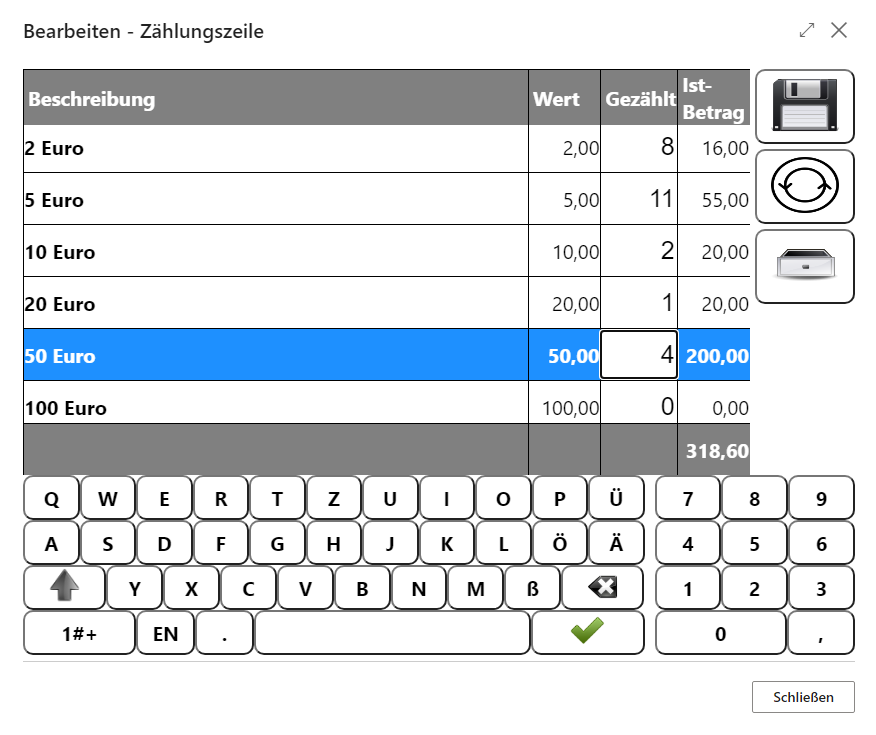
This opens a new window with the stored denominations of the relevant cash default tender.
 Click to enlarge
To complete the entry, use the Save button, after which the receipt is automatically completed and the relevant receipt is printed. Alternatively, the current count can be reset using the Back button, and if required, the cash drawer can be opened using the Drawer button.
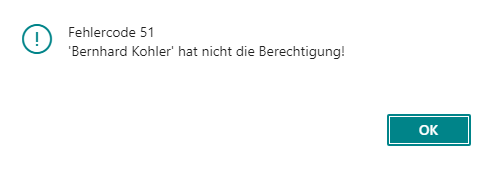
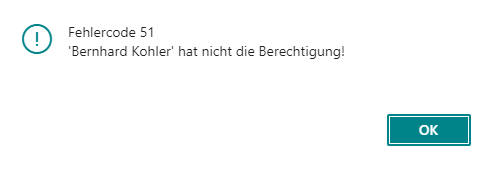
If the current salesperson does not have permission to perform a cash count, this is acknowledged with the following message:
Open Cash Drawer
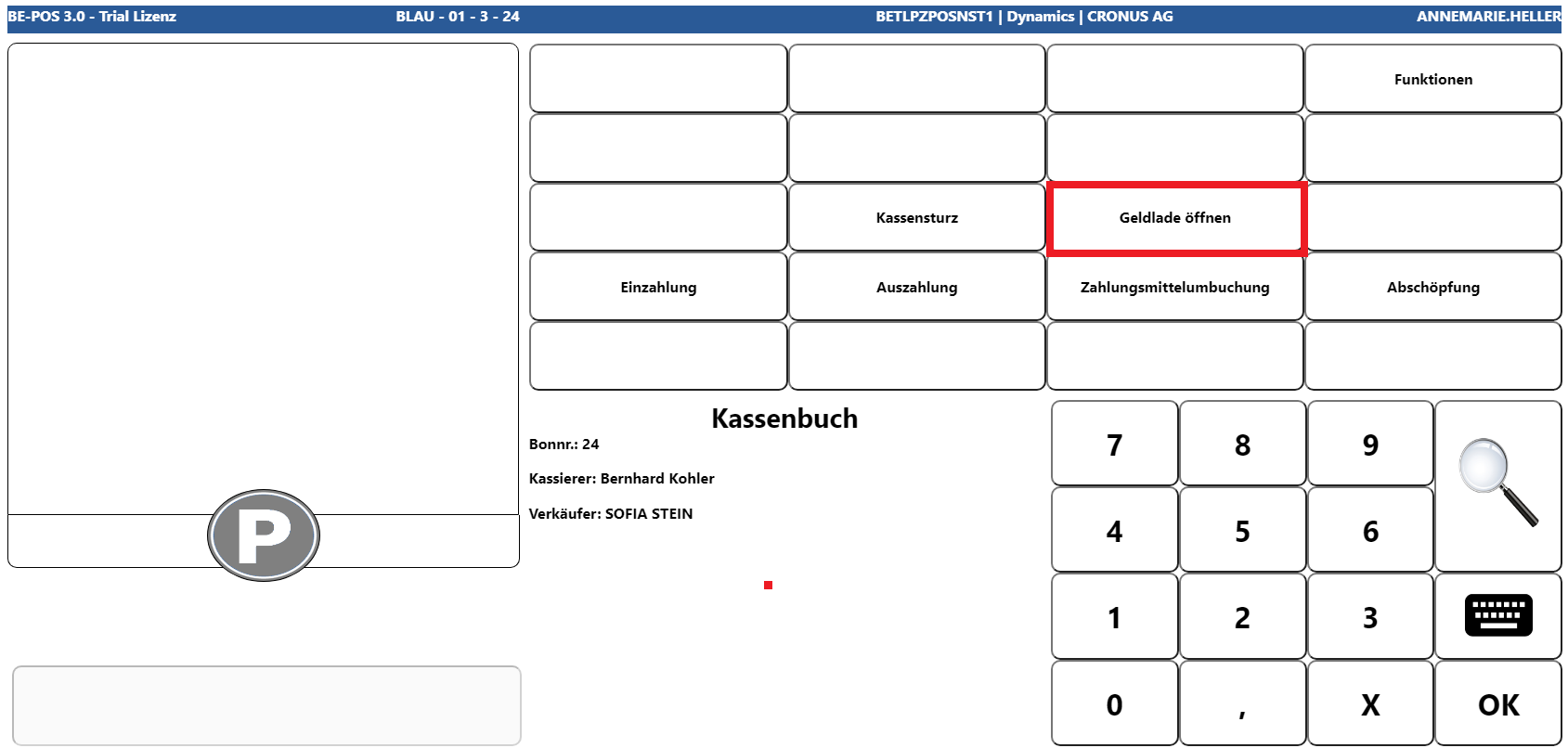
Using the Open Cash Drawer functionality, the cash drawer can be opened at any time in an authorized and logged manner.
 Click to enlarge
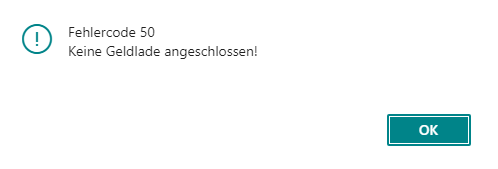
If no cash drawer is connected, or the current salesperson does not have the required permission, a corresponding message is displayed: