Cash Register Closing
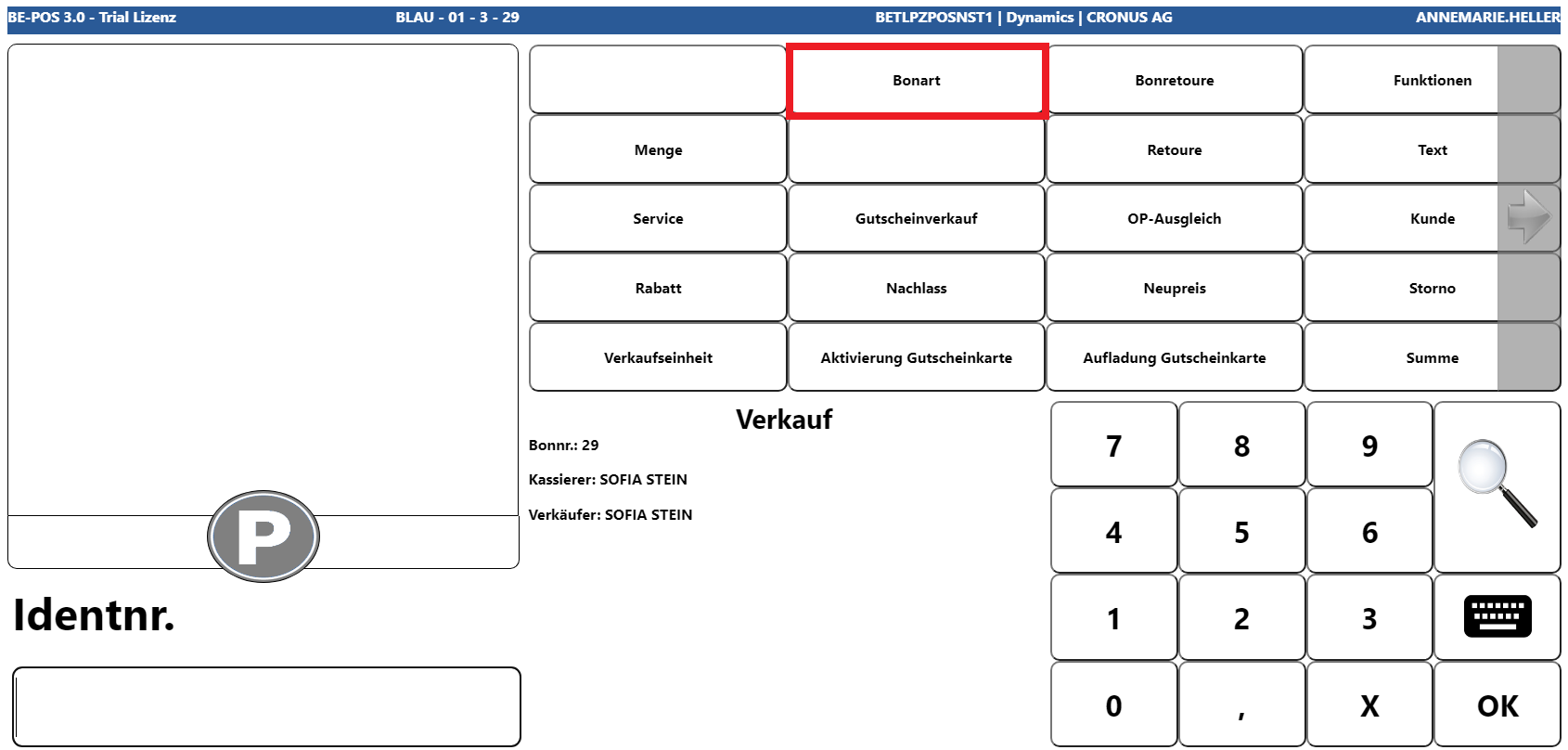
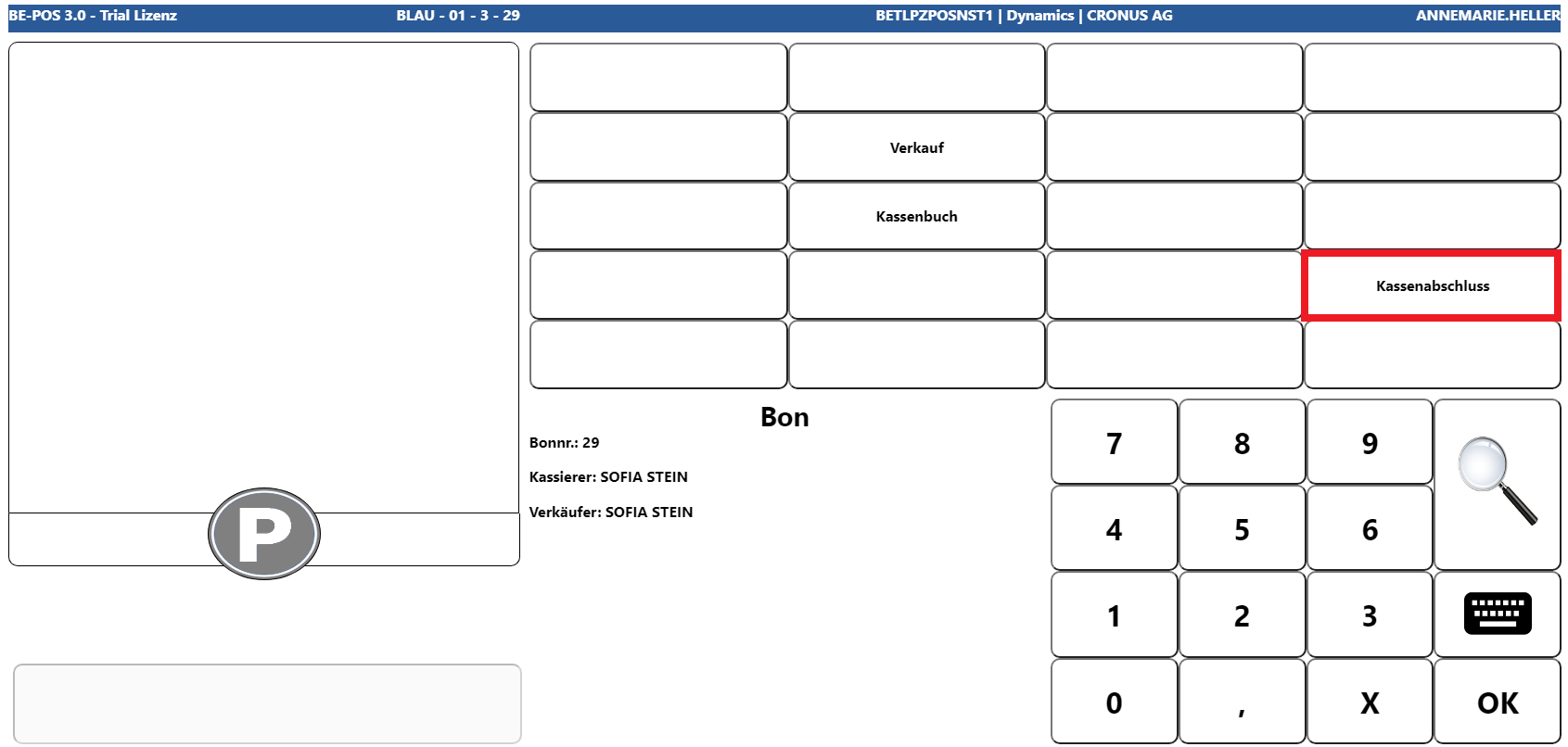
To perform a POS closing, you must first be on an empty receipt and then initiate it via Receipt Type -> POS Closing.
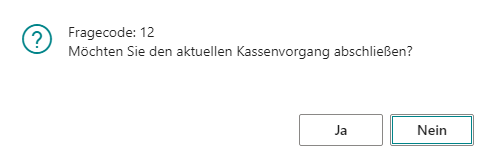
If the following prompt is confirmed with Yes, the process for carrying out a closing is started.
Cash Revenue Registration
After that, based on the corresponding setting in the POS setup, there are initially two ways to enter the cash revenue: either as a denomination or as a total amount.
Denomination
For the cash denomination, the denominations stored for the cash default tender are displayed. The cashier can enter the counted quantity currently in the cash drawer for each denomination line, for example 5x 100-euro notes.
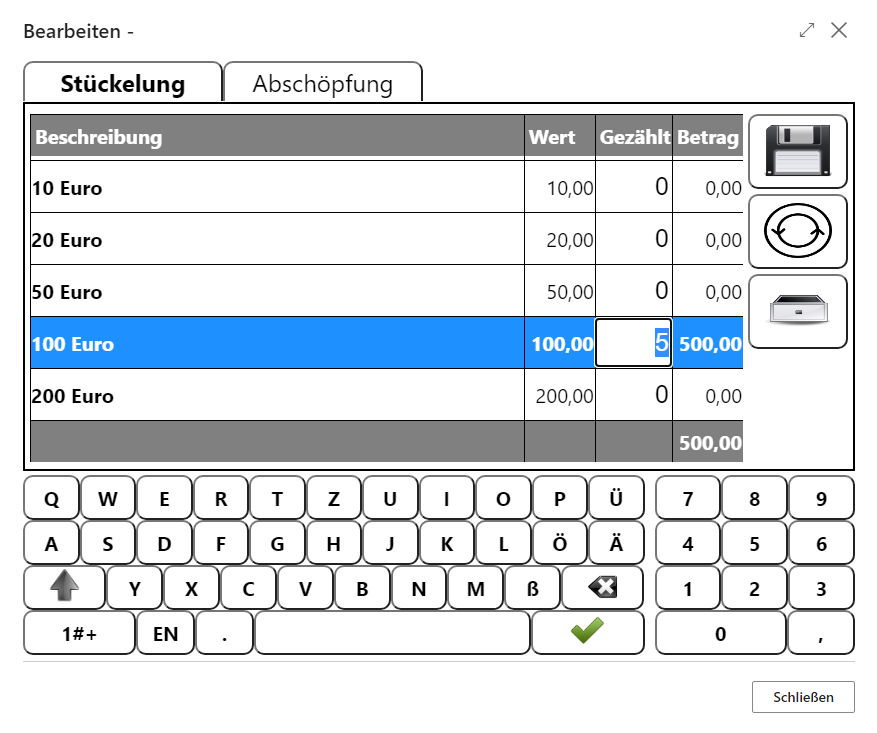
The entry is completed using the Save button. Alternatively, the current count can be reset using the Back button, and if required, the cash drawer can be opened using the Drawer button.
There is also the option to enter a Cash to Bank amount, meaning the amount that should not remain in the cash drawer but should be taken directly to the bank. For example, if EUR 500.00 was counted and a Cash to Bank amount of EUR 100.00 was entered, the POS expects an opening balance of EUR 400.00 at the next POS start.
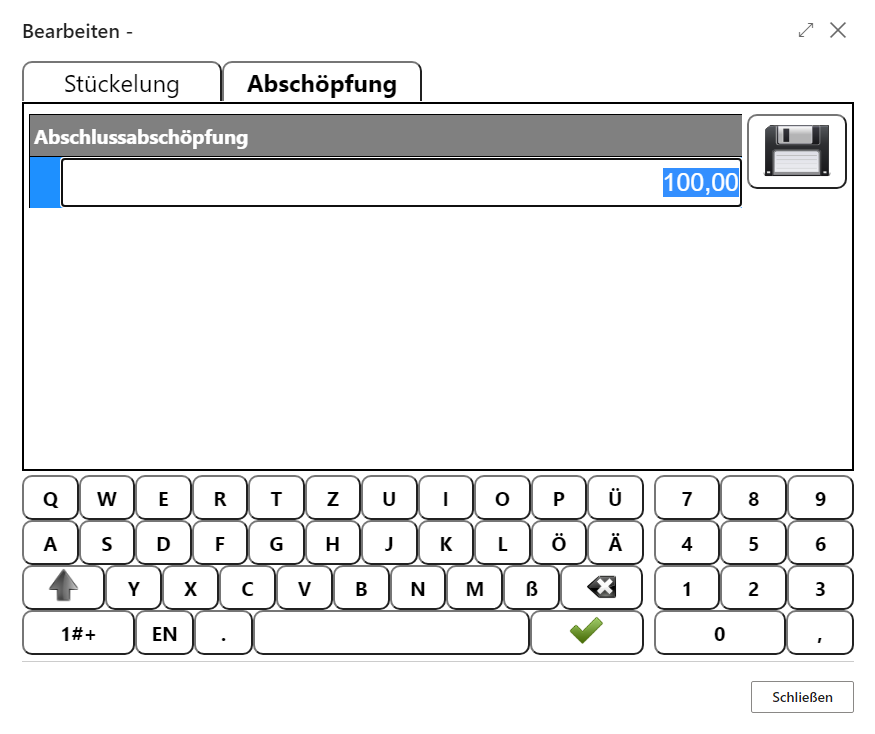
If the Safebag entry setting is enabled in the POS setup, the Cash to Bank screen opens separately with safebag number entry.
Amount
If Cash Revenue Registration is configured as Amount in the POS setup, no denomination screen appears. Instead, the cash closing balance must be entered directly as a total for the cash default tender.
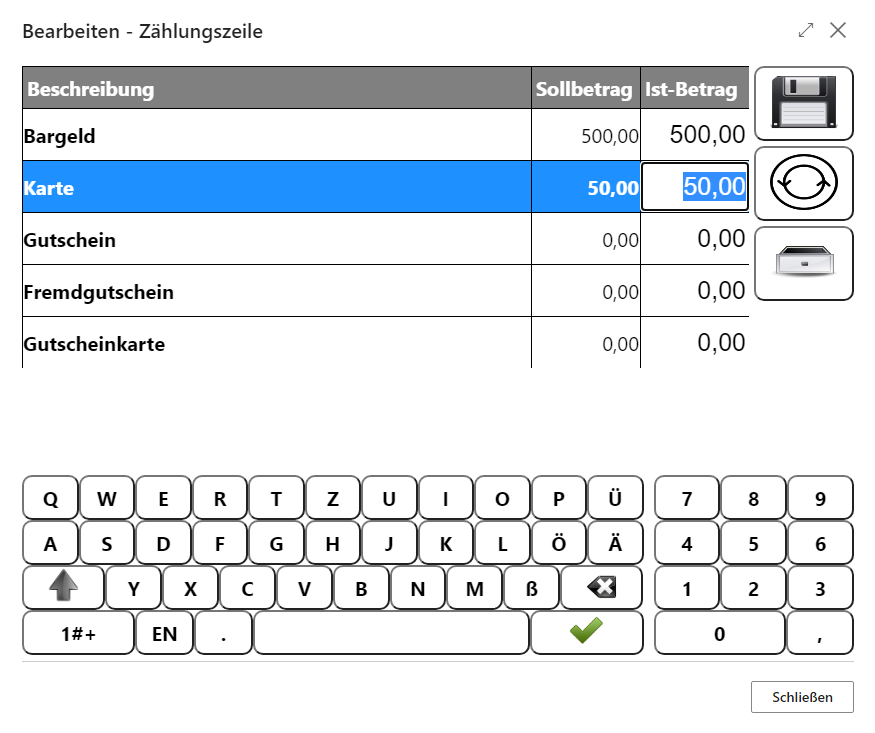
Revenue Registration
After entering the cash revenue, all other tenders that are marked for counting in the setup must be entered or checked. For example, an expected target amount of EUR 500.00 for all card payments is displayed, which the cashier can verify by totaling all merchant receipts.
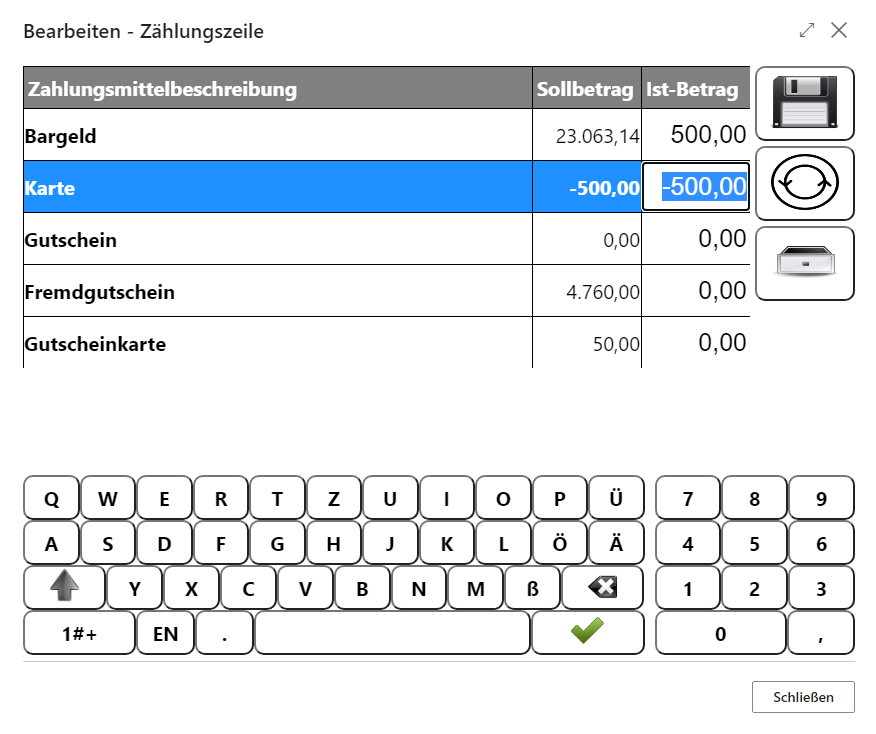
Once everything has been entered successfully, the process is also completed using the Save button. You can then either perform the Count again or finalize the current POS process using Close POS.
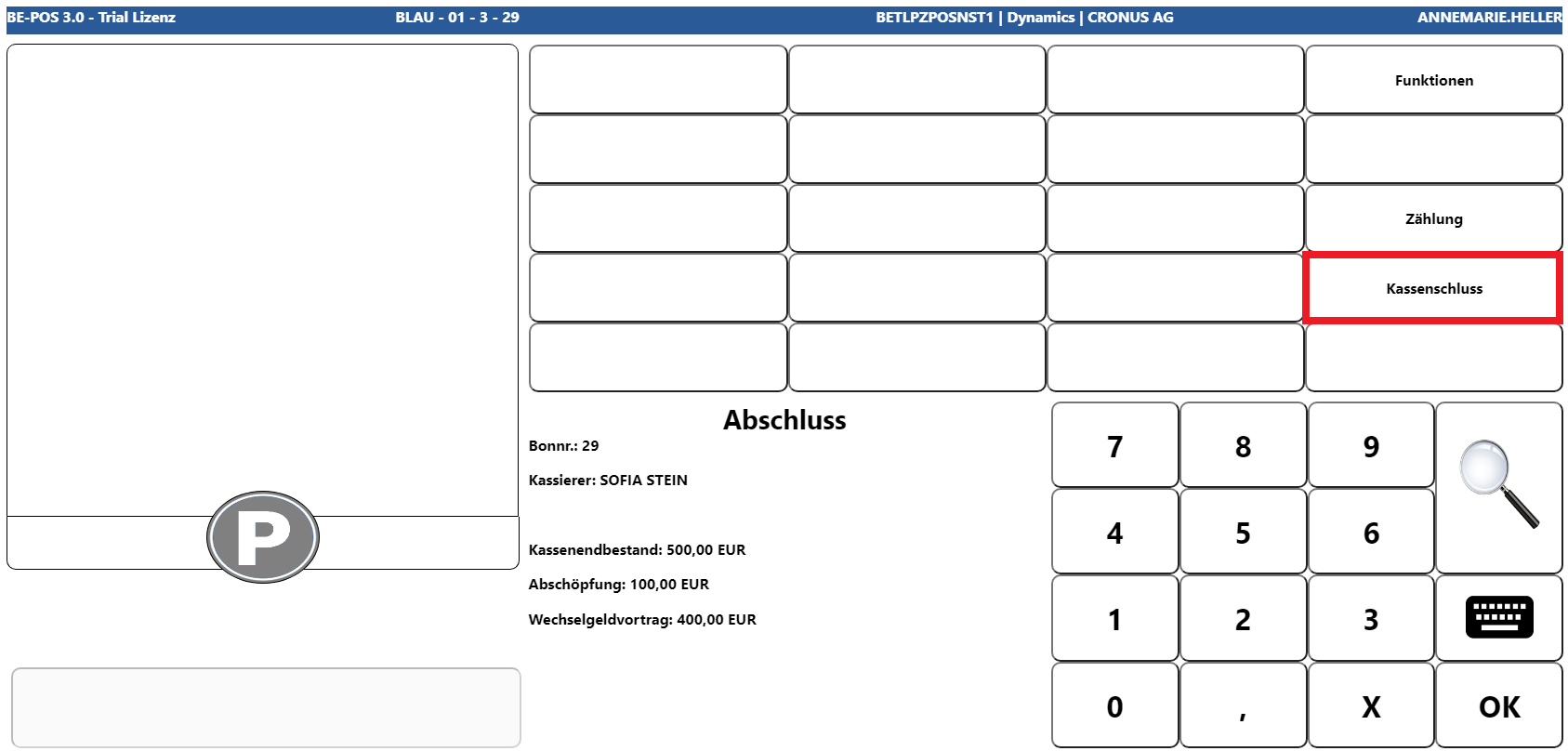
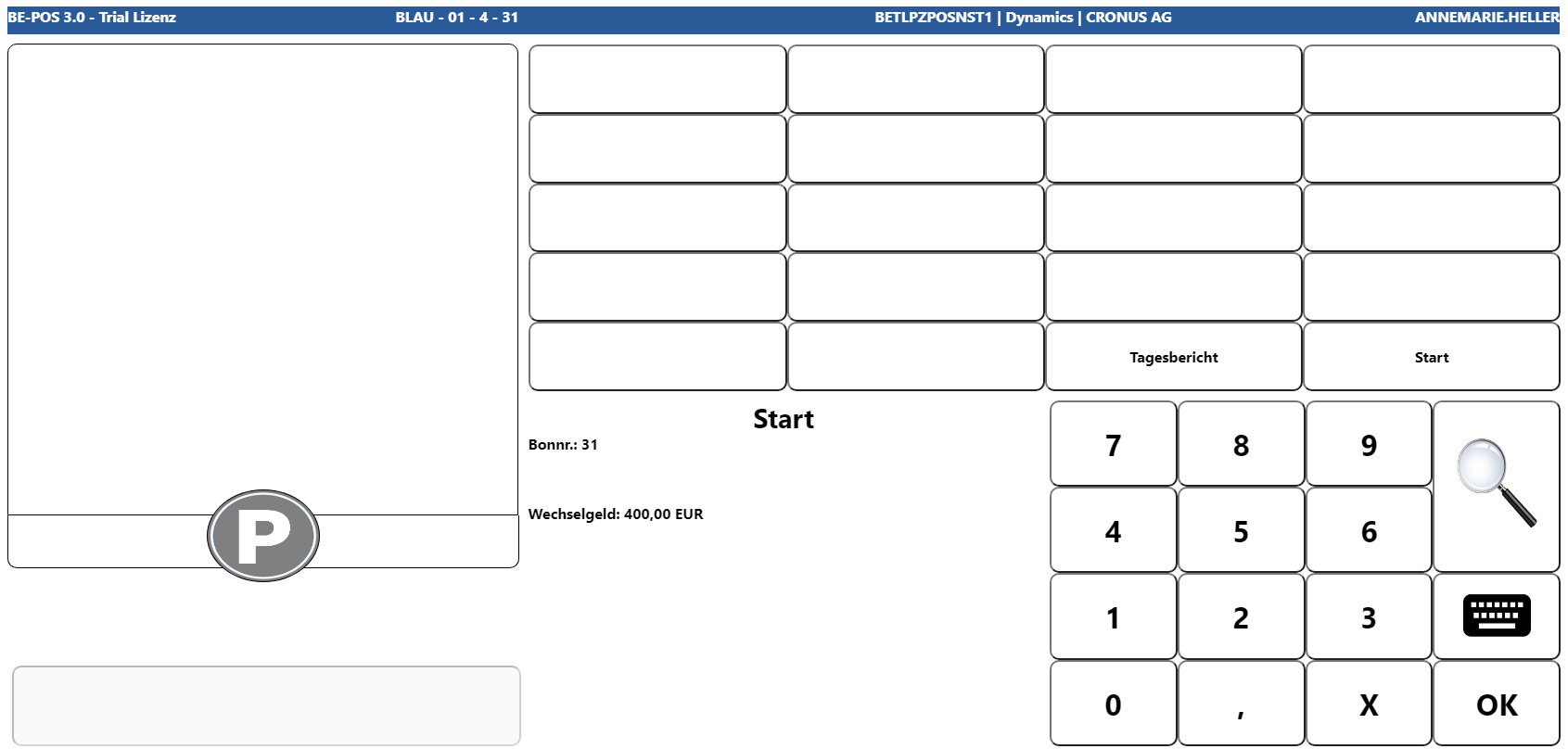
The POS closing receipt is then printed and the POS returns to start mode.