(Costing)Article
Costing articles
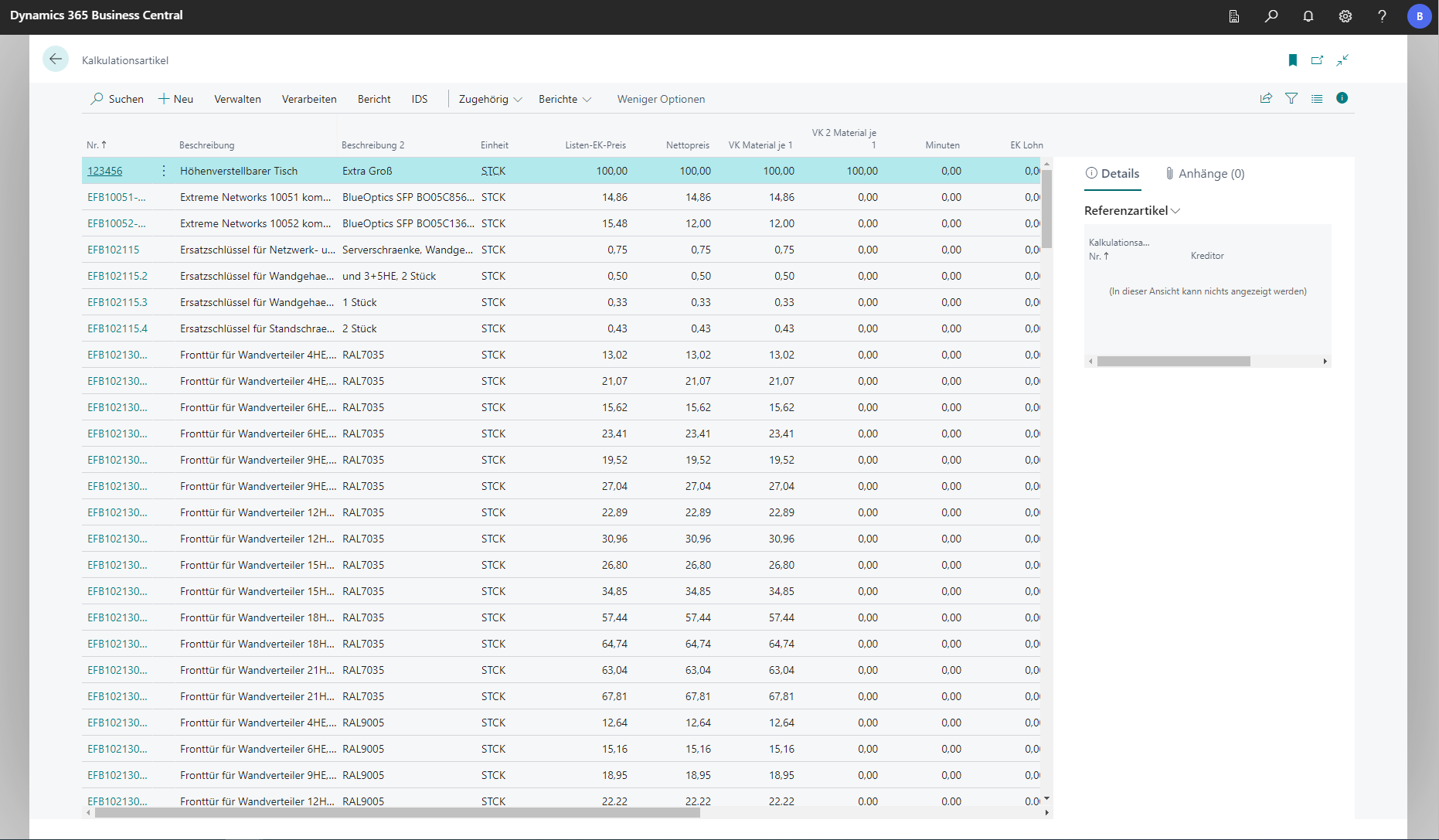
By importing catalogs from external suppliers, such as wholesalers, costing articles can be created via the DATA standard interface. A distinction is made between items and catalog items to keep inventory low, as wholesalers carry an extensive quantity of items. The search function with the input Costing Item takes you to the costing item card.
Costed item card
The DATA-NORM import already pre-fills the costing item card. You can access it by clicking on the number of a corresponding item in the list of costing items.
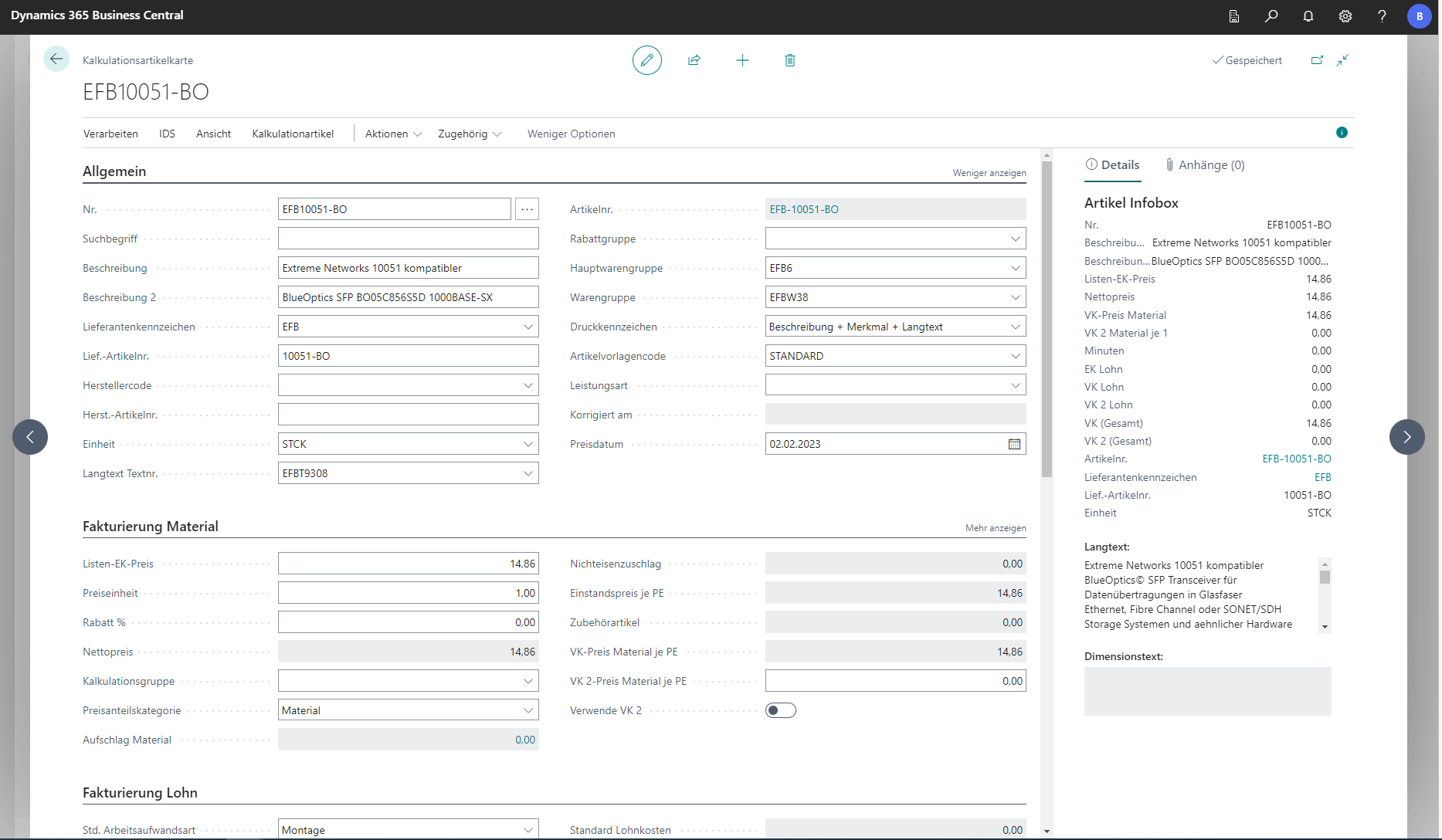
In the General tab, you will find information on filtering products according to various criteria.
The printing code determines how the individual texts are composed. This plays a role when creating an article from the calculation article. This indicator is used to determine how the text module is created. Description + Feature + Long Text is an example.
Dimension Texts
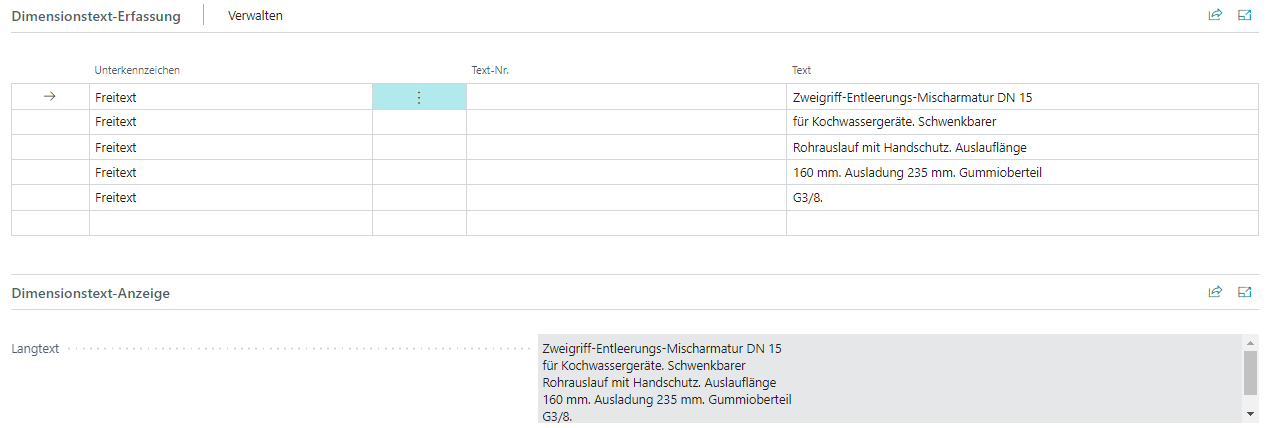
For some suppliers, dimension texts are stored and imported. They are displayed in the info box on the right. Further down in the item card is the Dimension Text Capture tab. Here the dimension texts are entered and can be edited.
Invoicing Material
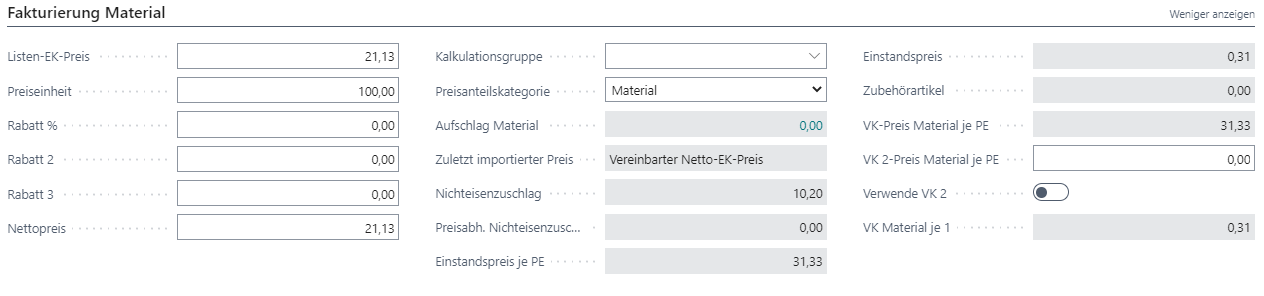
The list purchase price is the supplier’s gross price. In the example shown, the price refers to 100m of the sheathed line. After deducting agreed discounts, the net purchase price is obtained. In addition, a [Costing Group](/BE%2Dterna-Project-Documentation/Master Data/Costing Groups) can be stored at this point.
The gray fields are calculated from other data and are not editable.
It is possible to specify a sales price fixed in the article master under VK-2 price material per PE. Otherwise, when the costing item is transferred to the calculation, the sales price is calculated separately on the basis of the surcharge calculation in the bill of quantities.
Workload
Workloads can also be read in via DATA-NORM. Depending on the manufacturer, these are included and so-called minute files can be imported.
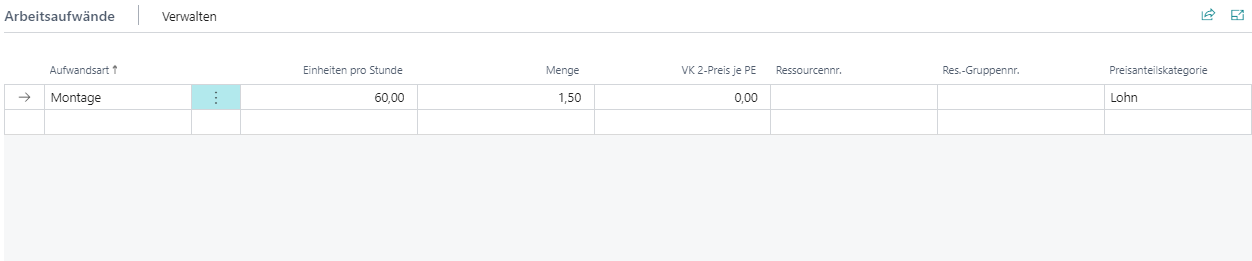
A workload type specifies how a line is to be processed. In the BE-Project, there are the cost types of production, assembly, repair and disassembly.
In the example below, “60 units per hour” and a “quantity 1.50” mean that it takes 1.5 minutes to assemble one unit of the costing item. Furthermore, you can add a [Resource group](/BE%2Dterna-Project-Documentation/Master Data/Resources) to use the stored prices. In addition, the price share category is specified here.
Accessories
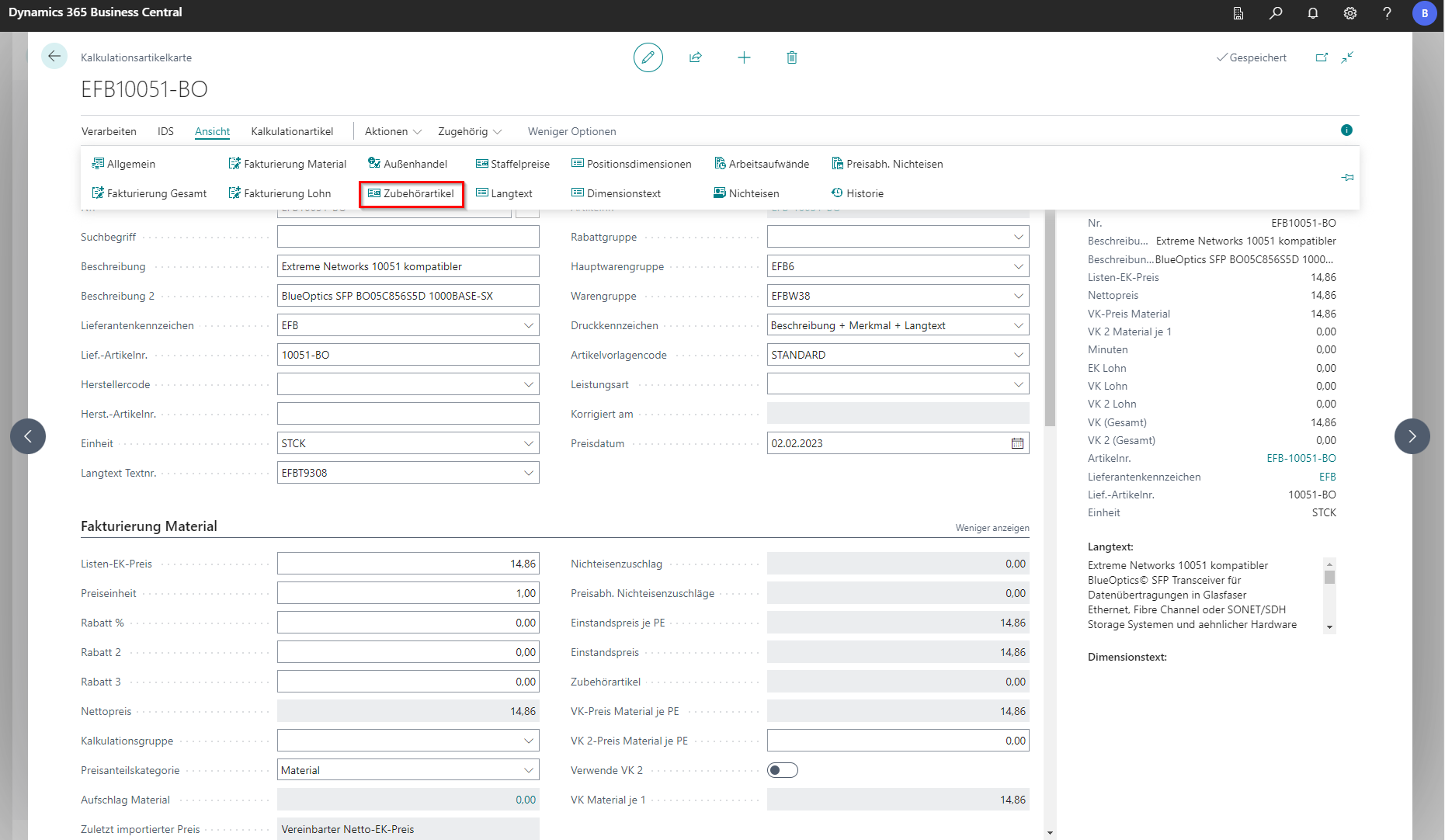
When the costing item is used in the bill of quantities, the accessory items stored in the master are added as subitems. These can be other costing items or items. The Accessories tab is not visible at first. In order for the tab to appear, click on Accessories in the costing item card via the menu item View.
 Click to enlarge
 Click to enlarge
Costed Item History
A costing item history entry is made after a change has been made to the agreed purchase price, the list purchase price, the discount, the discount 2 or the discount 3. Only one entry is created per calendar day. If several changes are made on a calendar day, the last change is saved. The user who made the change is displayed in the username column. Price changes by the vendor are also taken into account. The corresponding tab is opened via the menu item View and then via History.
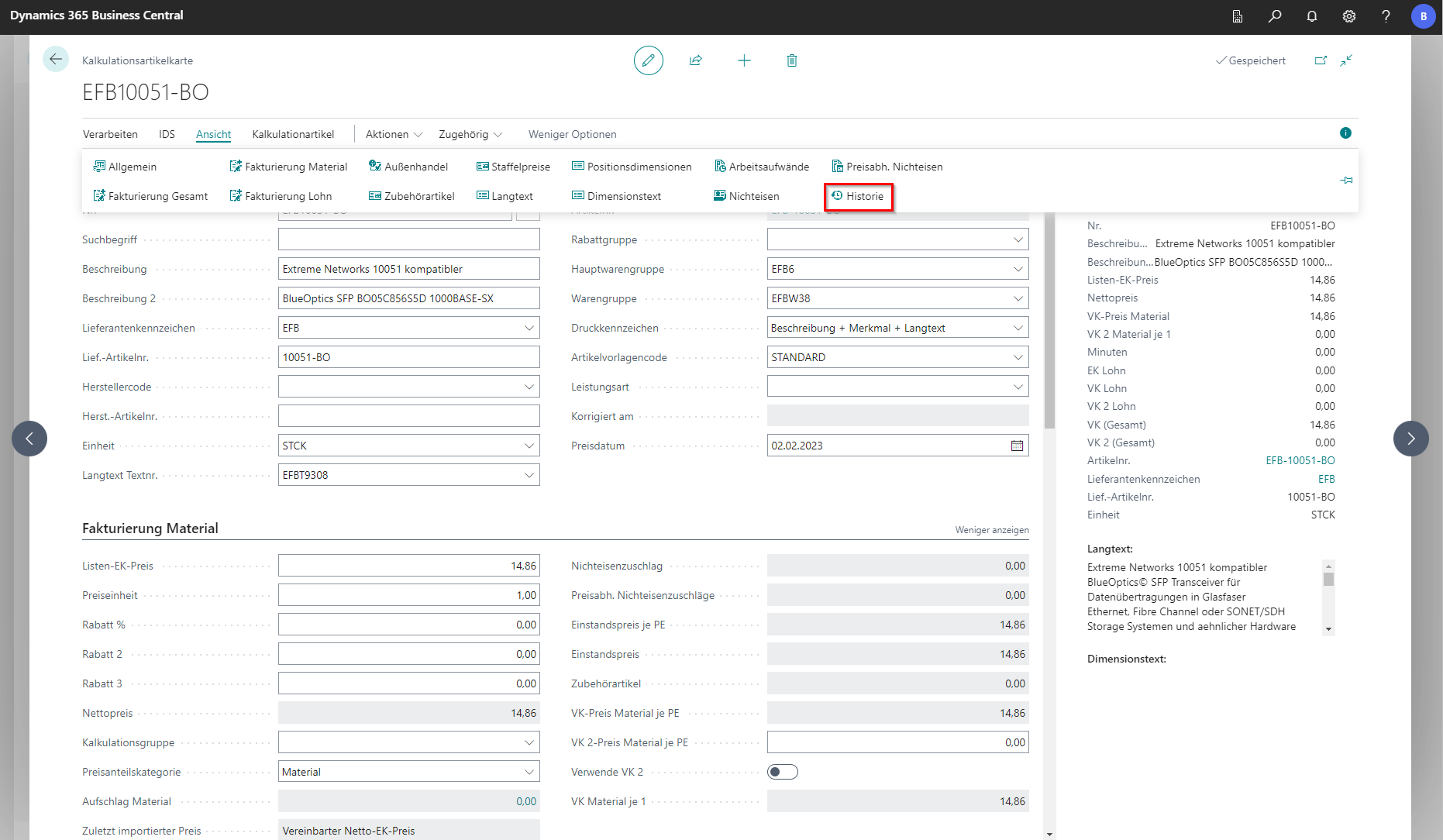 Click to enlarge
 Click to enlarge
Article
Creation of an article
If you want to keep costing items in your inventory, you can create an article from them. This function is located under Process at Create article. Now there is an article of the same name in the article list. If an article of the same name already exists, the message “Article X already exists” appears.
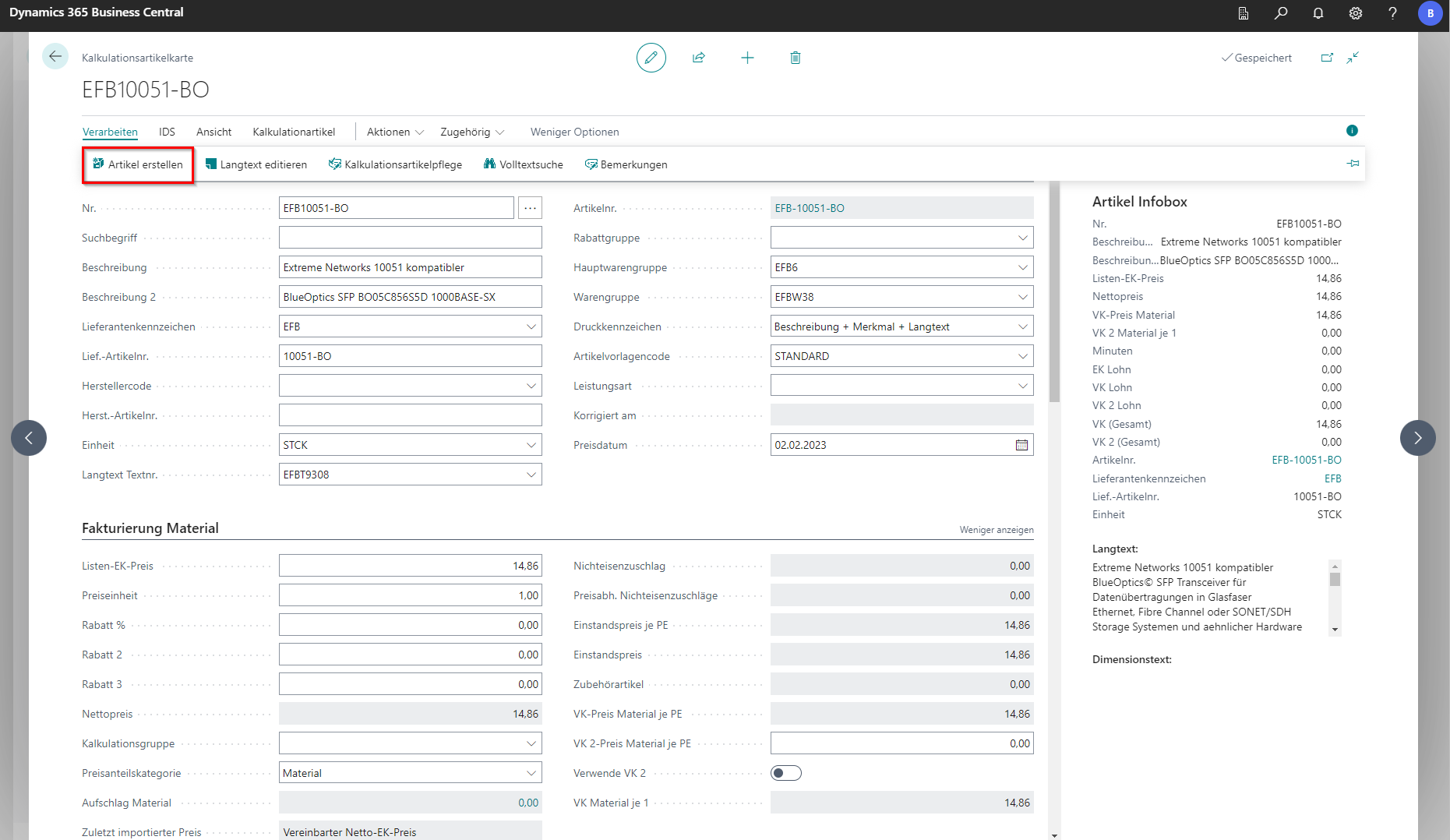
All the information that was stored in the costing article is copied. These include, for example: Long texts and non-ferrous surcharges.
Regardless of this feature, items can also be created manually.
In the “Prices and Sales” tab in the item card, the purchase price calculation method for the item can be selected, which is to be used to transfer to the document.
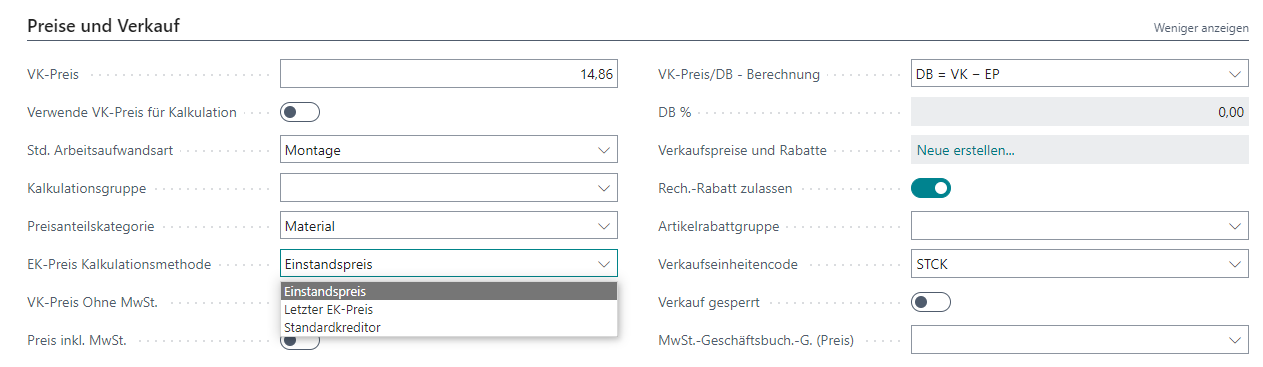
Link to costing items
It is possible that there are several suppliers for an article and that the articles are maintained as different costing articles. By linking costing items to items, costing items can be used in costing. When an order is placed, the stored item is automatically entered into the order.
When a supplier sets new prices for the costing items, the prices of the items are also updated via a launch. The article maintenance is located via the article list under Process. The update can be started there.
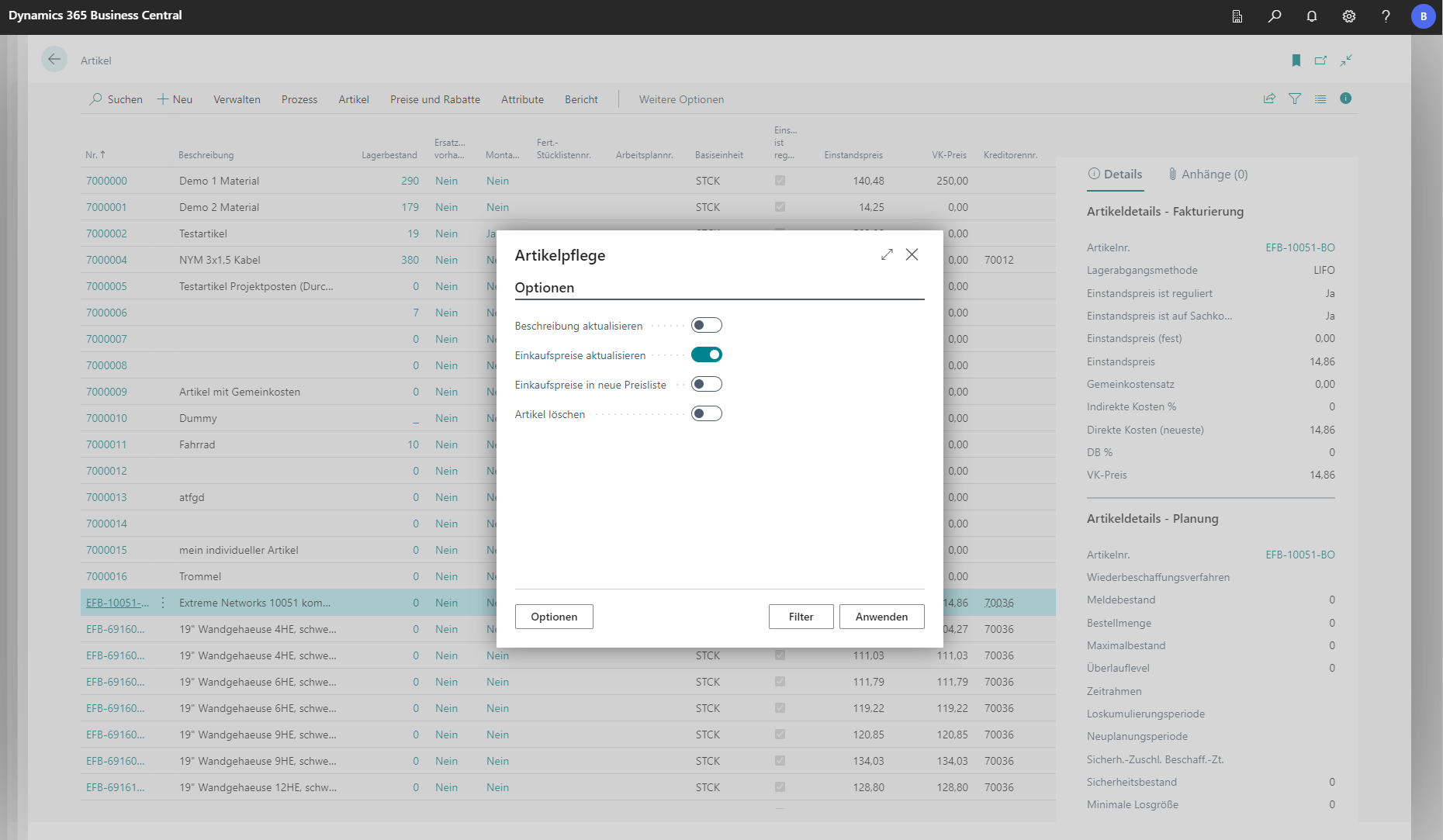
To link a costing item to an item, go to Actions in the menu bar of the costing item card and click on Assign item. The article list opens, in which an article can be selected. It should be noted that a vendor must be defined for the associated supplier. If the EAN numbers are maintained, the link can be made automatically by means of a launch.
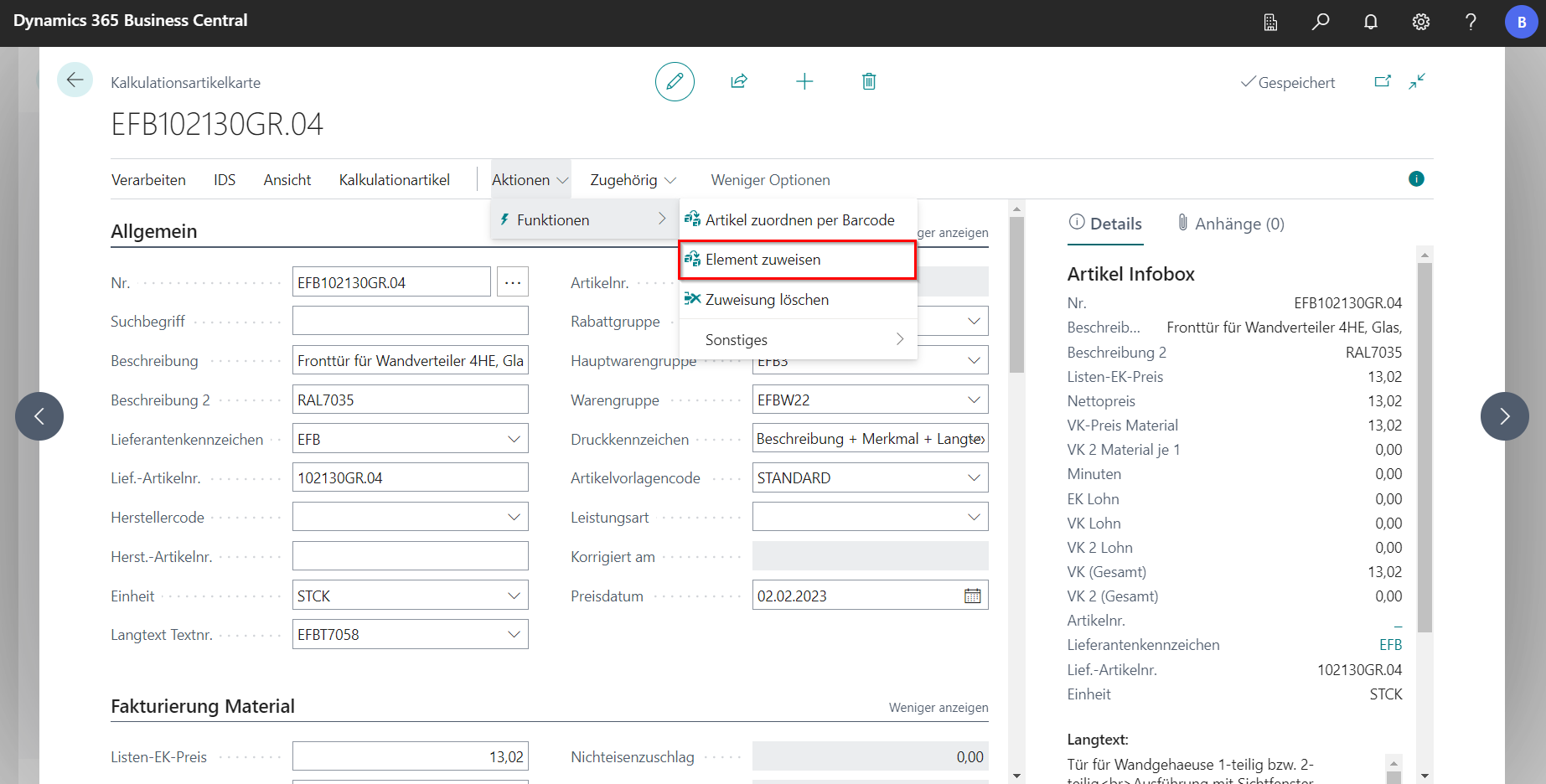 Click to enlarge
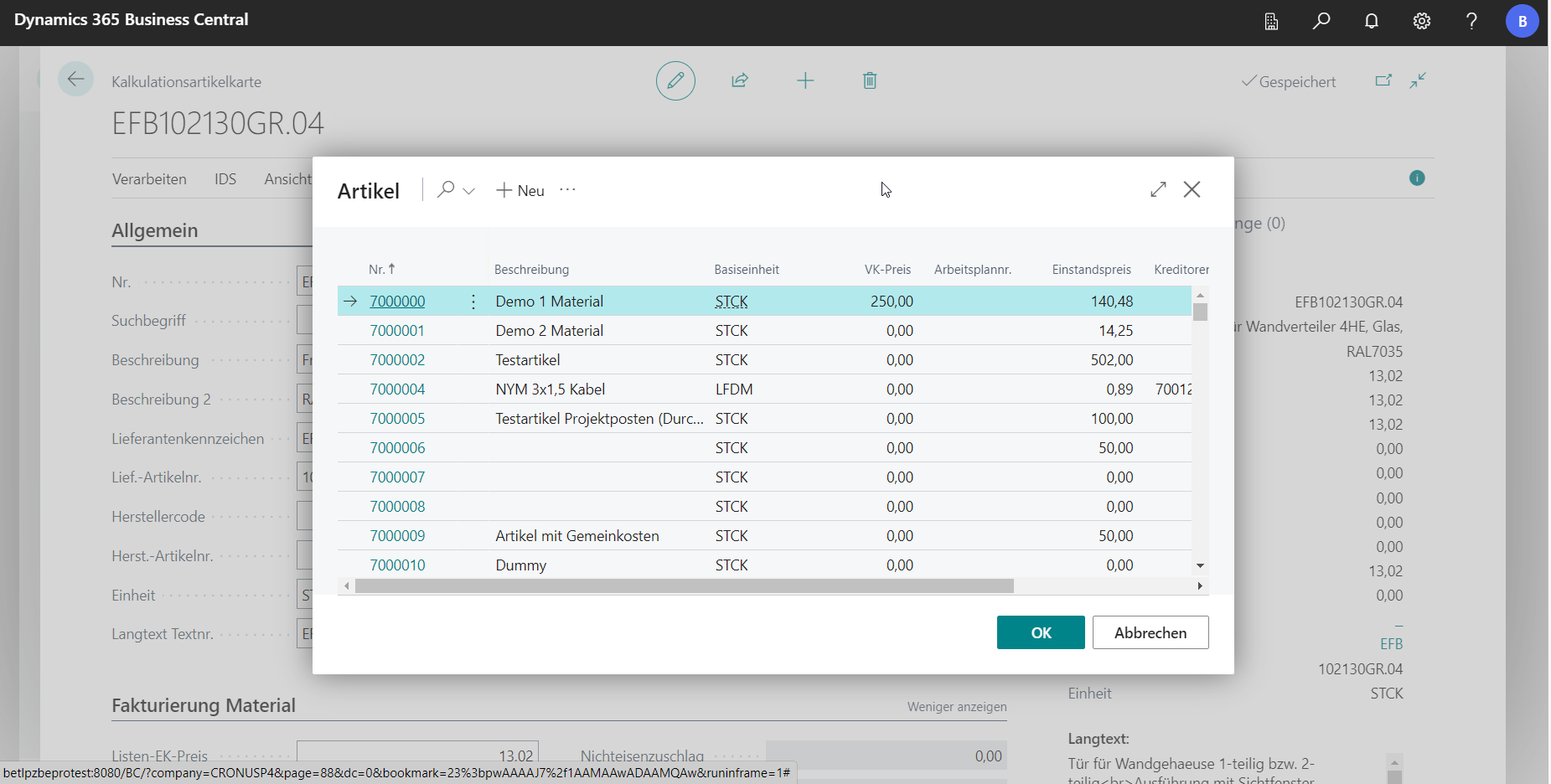 Click to enlarge
Overhead Costs
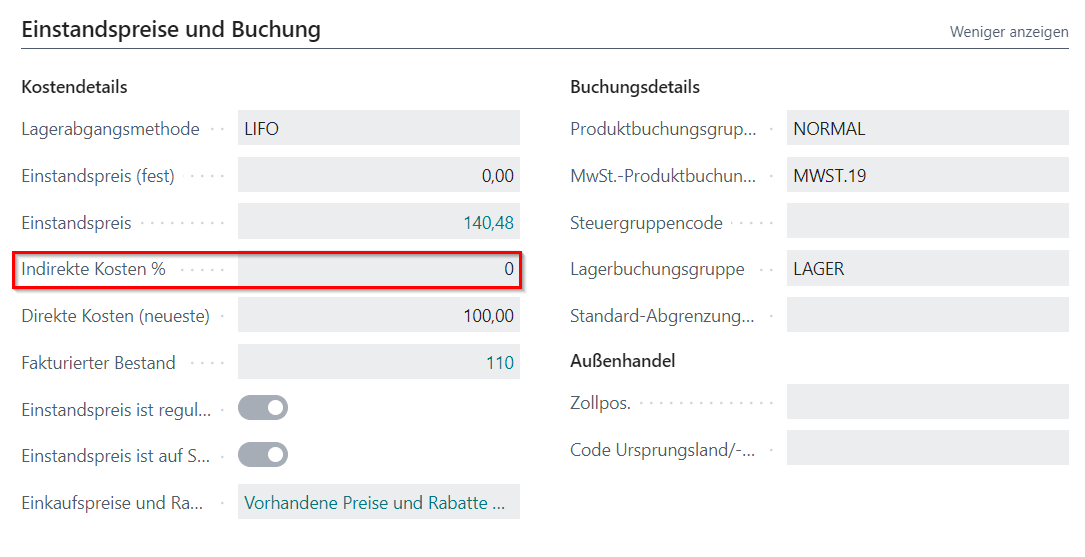
Overhead costs can be stored directly on the article. For this purpose, the explanations under [Price shares](/BE%2Dterna-Project-Documentation/Calculation/Price Shares) must be observed. The Indirekte Cost % field is located in the item card in the Cost Prices and Booking tab in the Show more view. The desired overhead cost percentage is stored there, but this is not used in the calculation.
Costing Groups
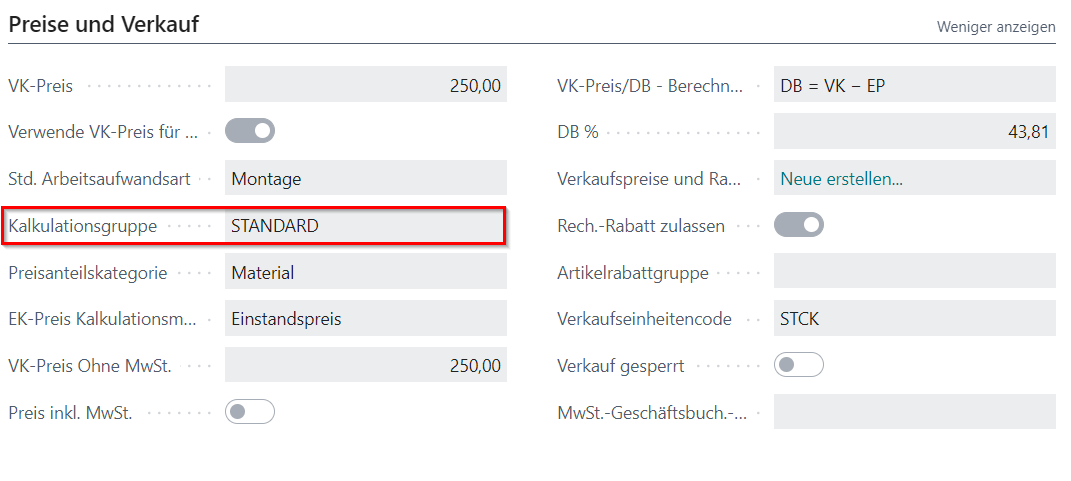
A [Costing Group](/BE%2Dterna-Project-Documentation/Master Data/Costing Groups) can be stored in the master data of the item in the Prices and Sales tab in order to define certain markups.
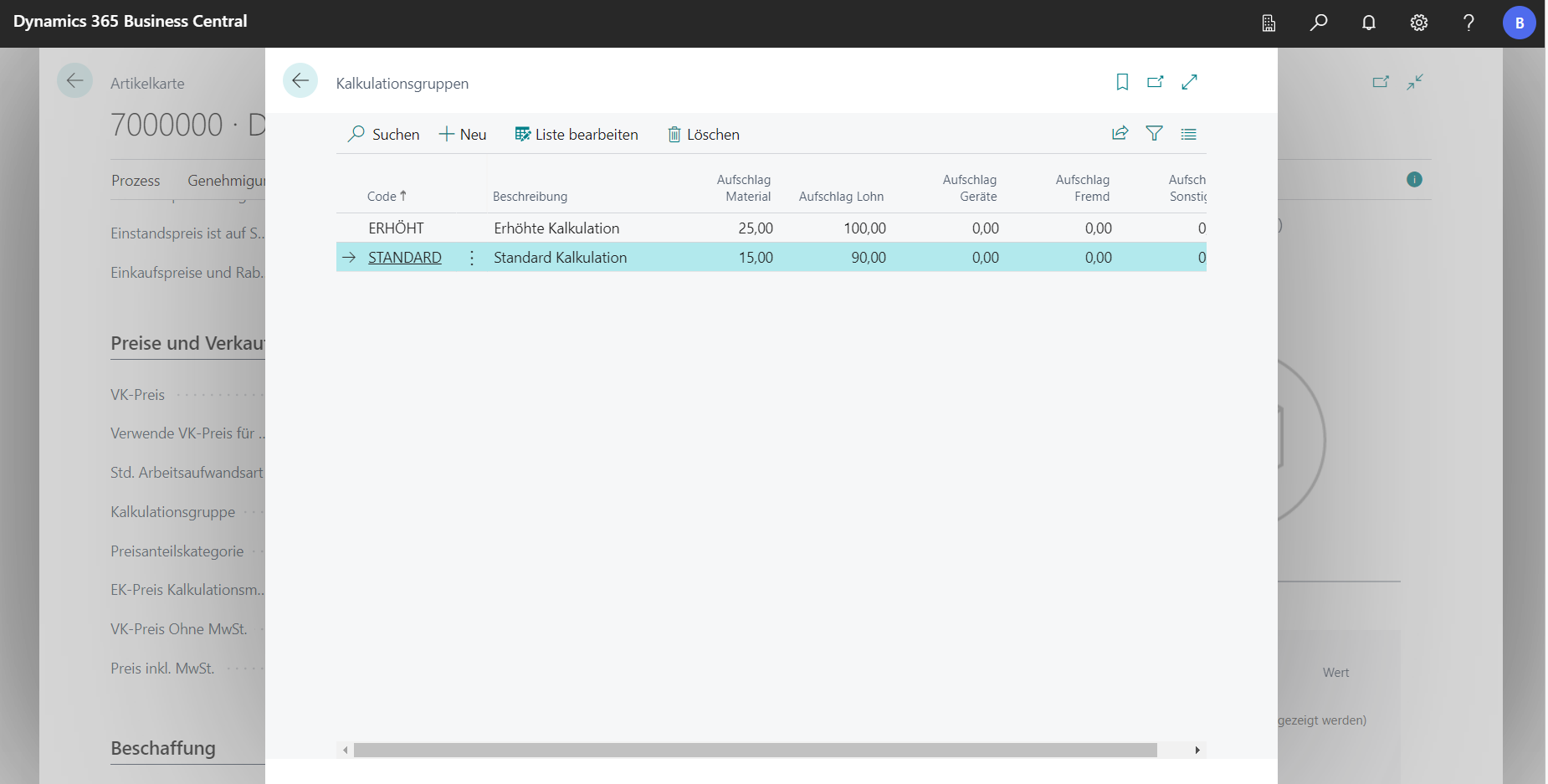
In the Calculation Group look-up in the Prices and Sales tab, there is the possibility to create additional calculation groups.