BE POS Listener Setup
Download
The BE POS Listener can be downloaded here.
Installation
-
Start the bepos_listener_setup.exe application.
-
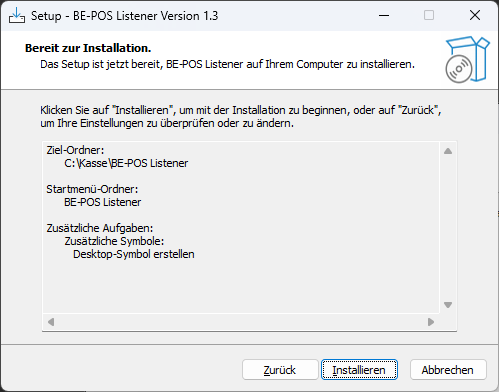
Select the target folder and continue with Next.
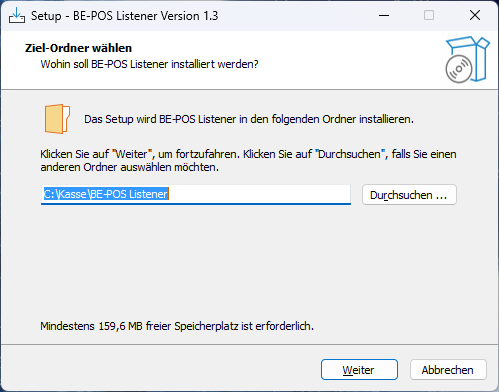
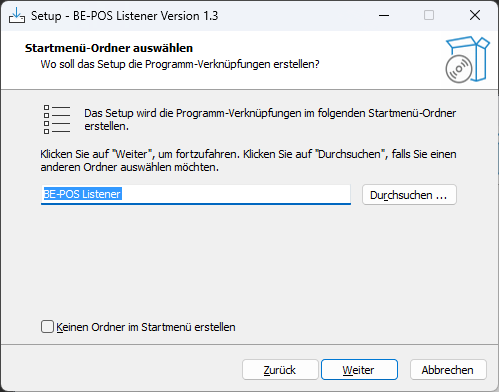
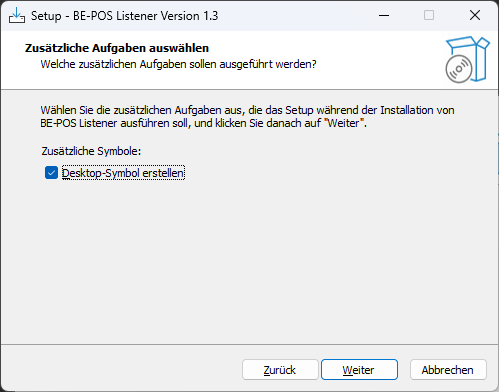
- Run the installation with Install.
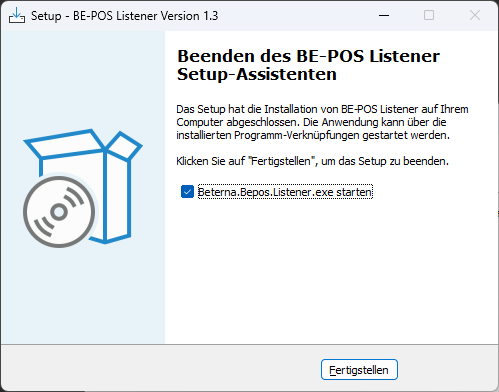
- Finish the installation with Finish. This lets you start the BE-POS Listener directly.
Communication
There are two ways to communicate with the BE-POS Listener, directly through the browser or through Microsoft Azure.
Browser
Configuration
-
Navigate to the relevant installation directory and start the Beterna.Bepos.Listener.Controller.exe application (alternatively via the desktop shortcut).
-
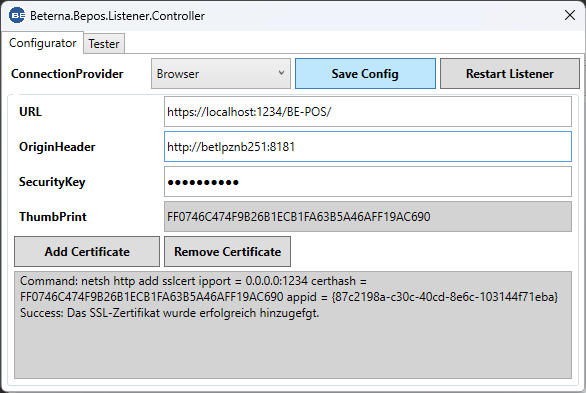
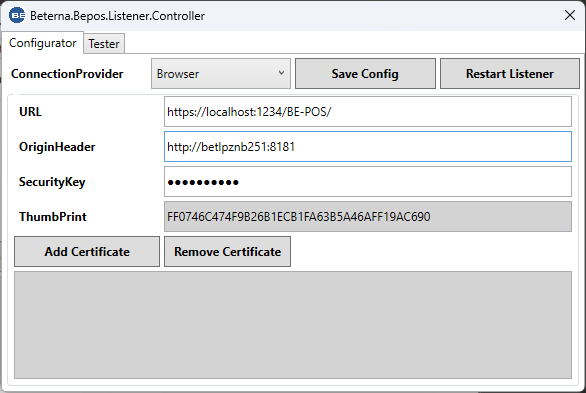
Switch to the Configurator tab and configure ConnectionProvider as Browser.
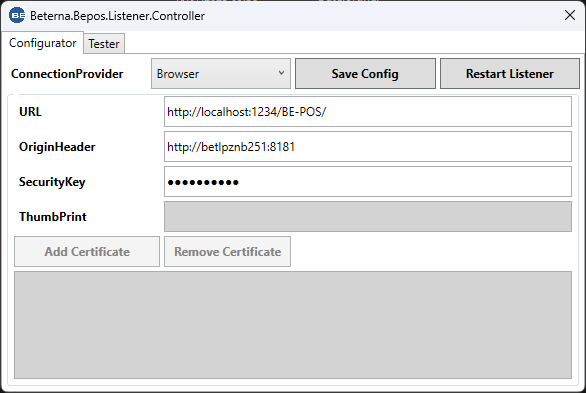
- Configure the URL as https.
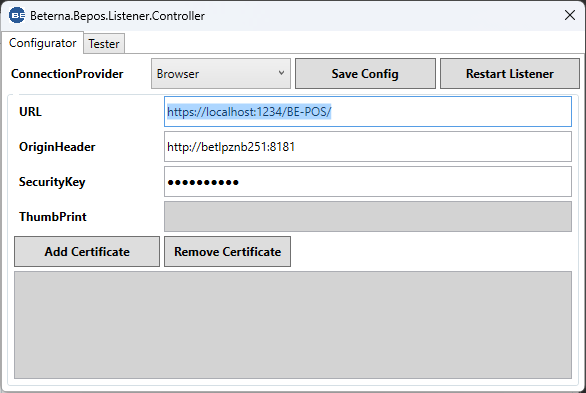
- Generate an SSL certificate via Add Certificate.
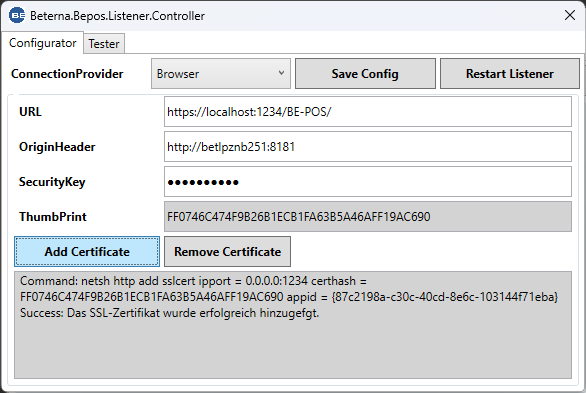
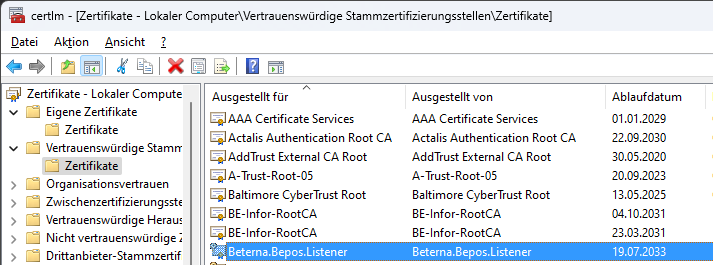
The self-signed certificate is stored under Personal and Trusted certificates and is valid for 10 years.
- Under OriginHeader, enter the BC address that is being used.
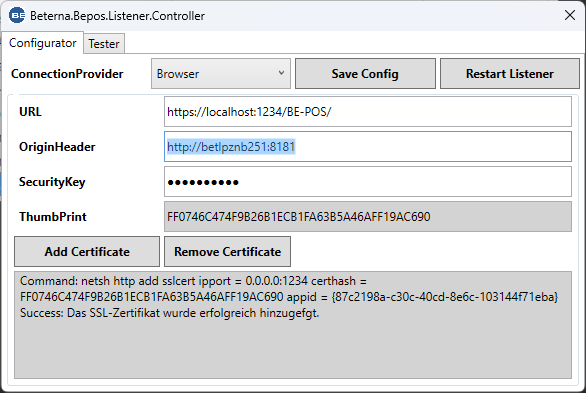
The exact Origin header can be identified in the browser developer tools (F12) when calling the BE-POS Listener application:

- If required, adjust the SecurityKey.
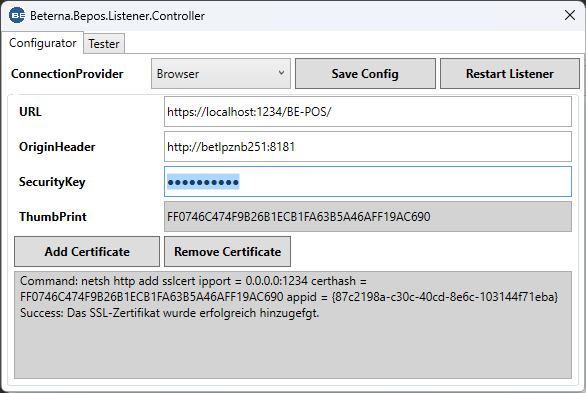
The password used must match the one stored in BC under Device Setup -> Listener -> Security Key.
- Then save the settings with Save Config.
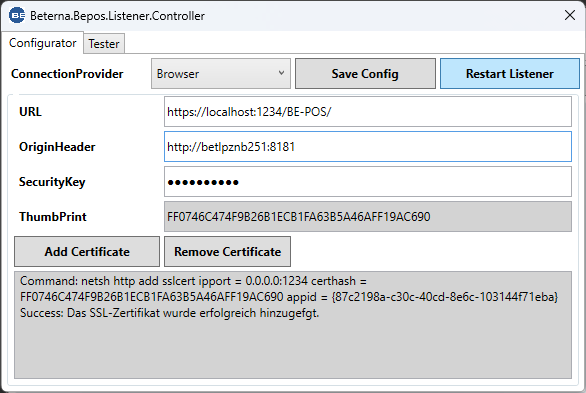
- Finally, restart the BE-POS Listener application via Restart Listener so that the settings take effect.
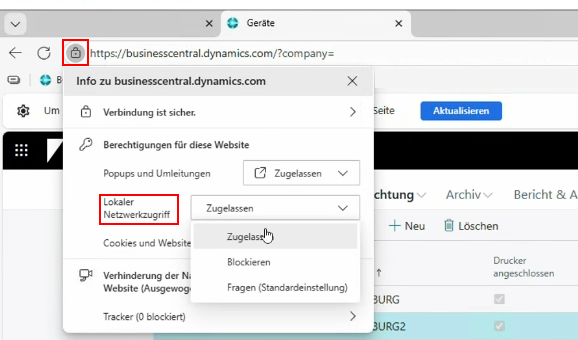
Note: If the following error occurs when calling the service in the Edge browser: "Permission was denied for this request to access the unknown address space.":

In that case local network access must be allowed. Click the lock icon in the address bar and allow the access:
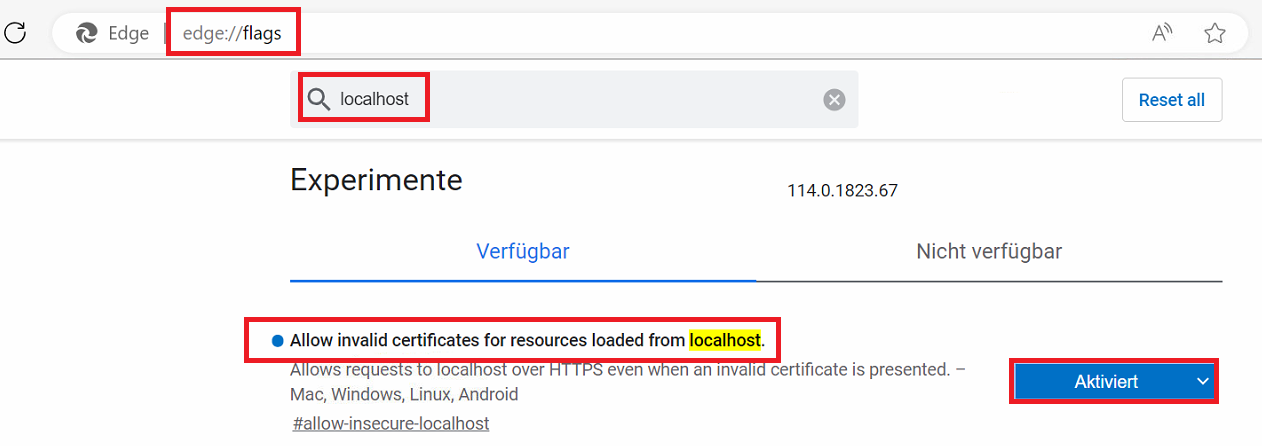
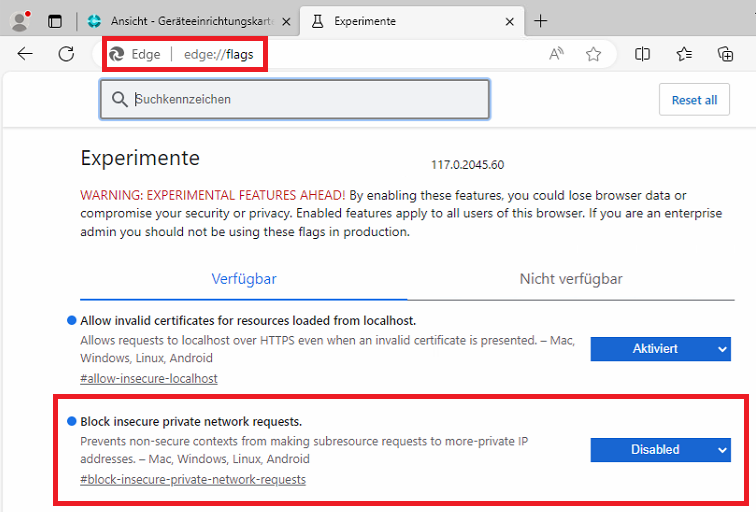
Note: If an ERR_CERT_INVALID error occurs in the Edge browser, the following setting must be enabled:
Note: If the following error occurs in the Edge browser: "The request client is not a secure context and the resource is in more-private address space 'local'", the following setting must be enabled:
Test
-
Navigate to the relevant installation directory and start the Beterna.Bepos.Listener.Controller.exe application (alternatively via the desktop shortcut).
-
Switch to the Tester tab.
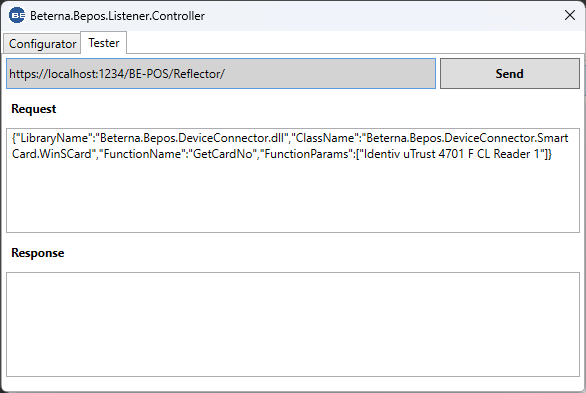
- Initiate a test call via Send.
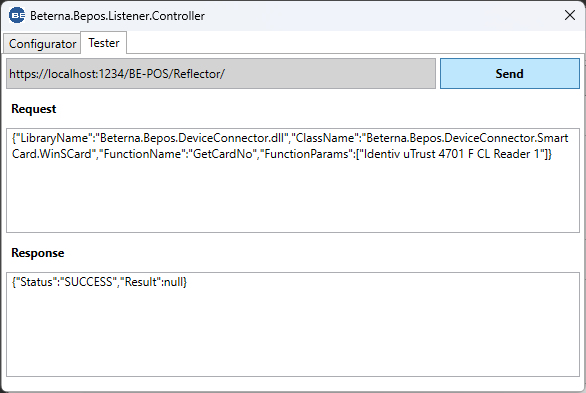
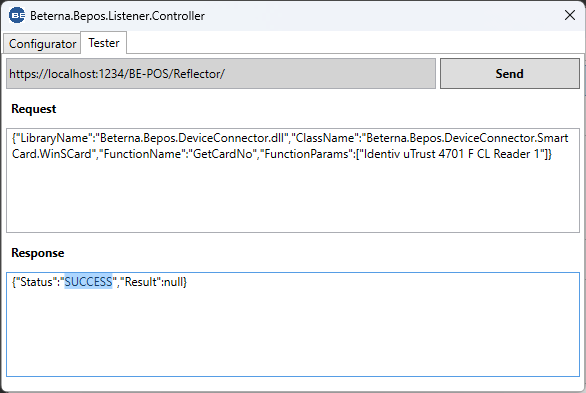
- The status must be SUCCESS.
Azure Relay
Configuration
-
Navigate to the relevant installation directory and start the Beterna.Bepos.Listener.Controller.exe application (alternatively via the desktop shortcut).
-
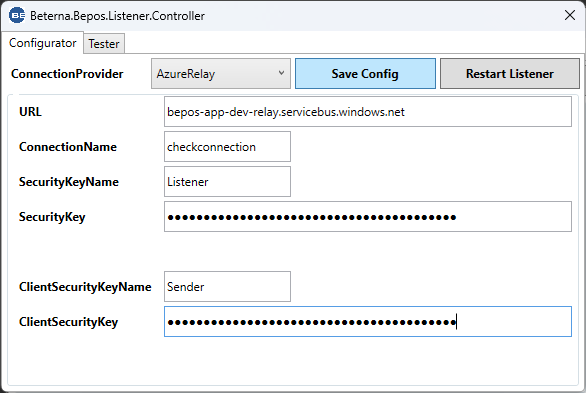
Switch to the Configurator tab and configure ConnectionProvider as AzureRelay.
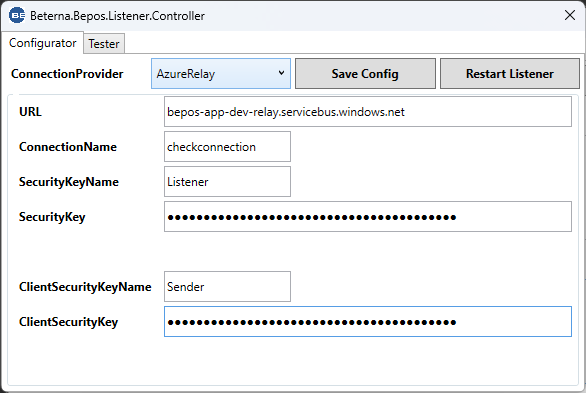
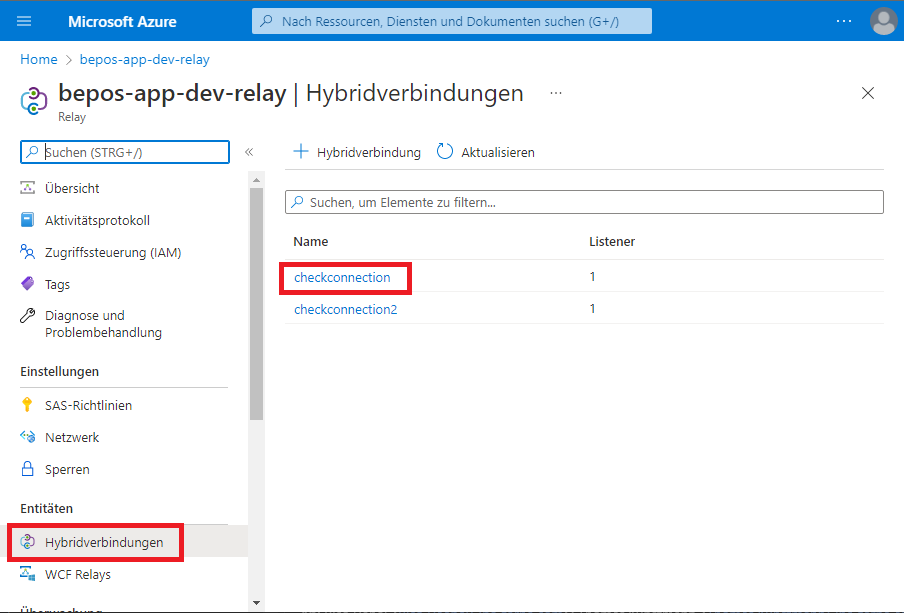
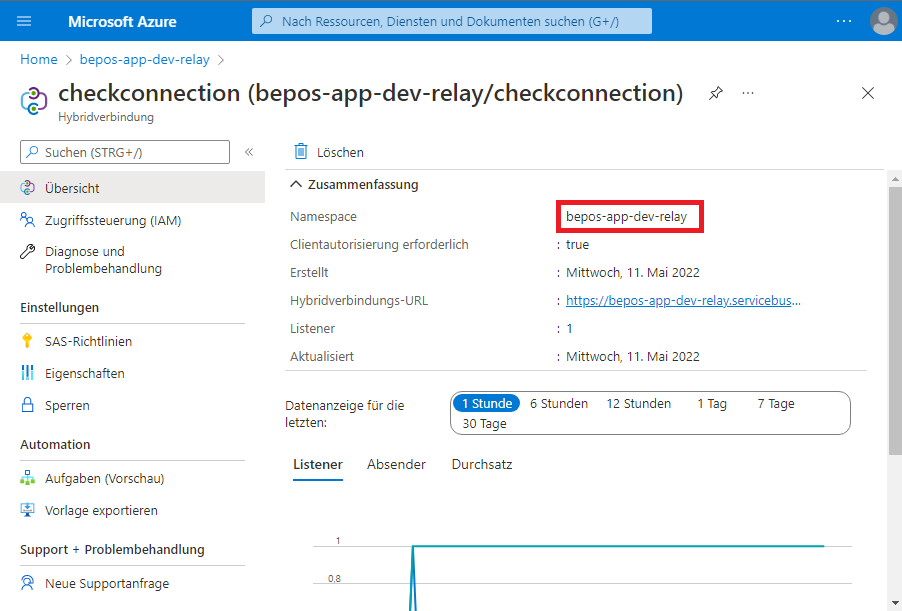
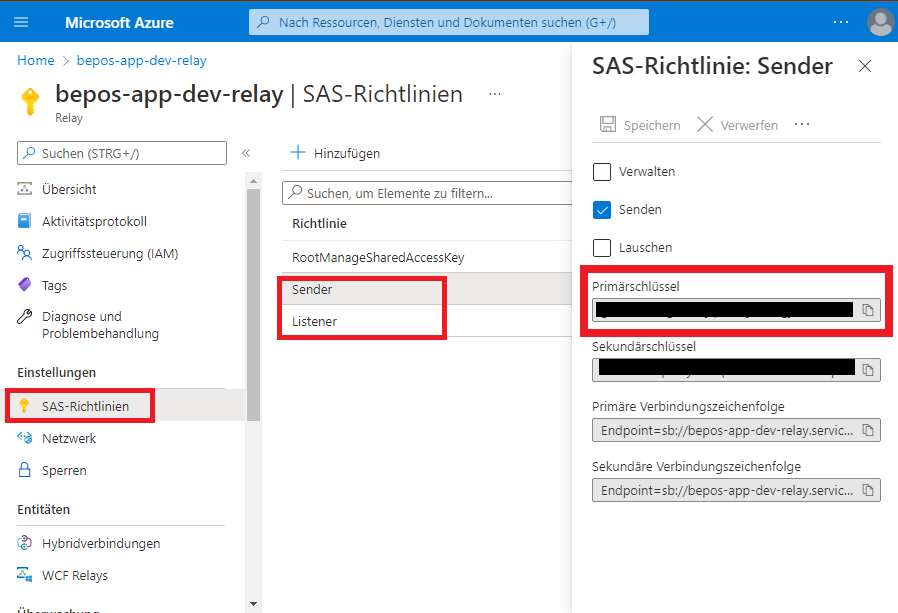
- Enter URL (always ending in .servicebus.windows.net), ConnectionName, SecurityKeyName, and SecurityKey according to the setup created in Microsoft Azure. These values can be found in the respective Azure account in the following places:
URL & ConnectionName:
SecurityKeyName & SecurityKey:
-
For testing purposes, also enter the intended parameters in ClientSecurityKeyName and ClientSecurityKey.
-
Then save the settings with Save Config.
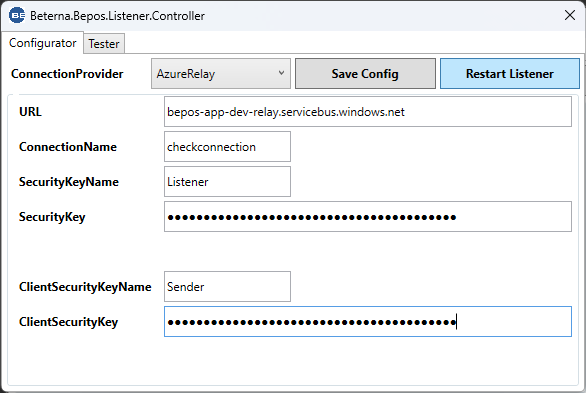
- Finally, restart the BE-POS Listener application via Restart Listener so that the settings take effect.
Test
-
Navigate to the relevant installation directory and start the Beterna.Bepos.Listener.Controller.exe application (alternatively via the desktop shortcut).
-
Switch to the Tester tab.
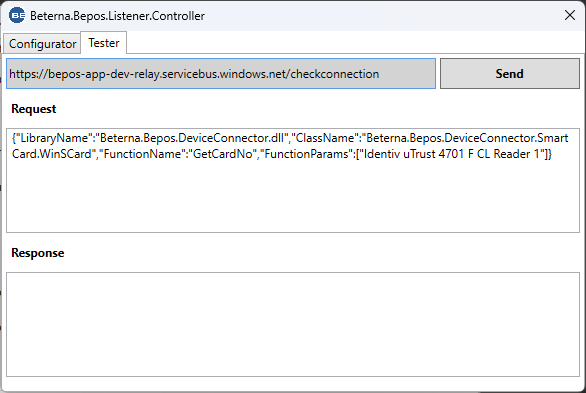
- Initiate a test call via Send.
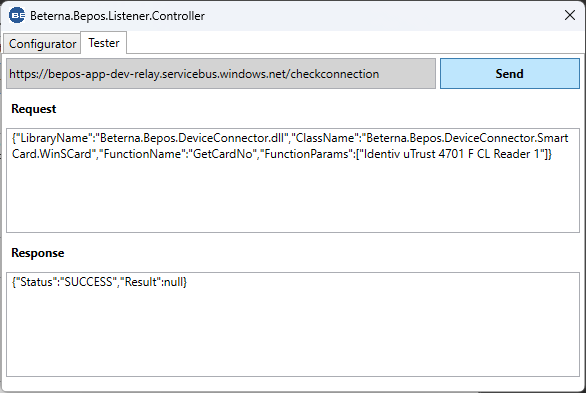
- The status must be SUCCESS.

Uninstallation
[Steps 1-3 are only required if the Browser connection type was used]
-
Navigate to the relevant installation directory and start the Beterna.Bepos.Listener.Controller.exe application (alternatively via the desktop shortcut).
-
Switch to the Configurator tab.
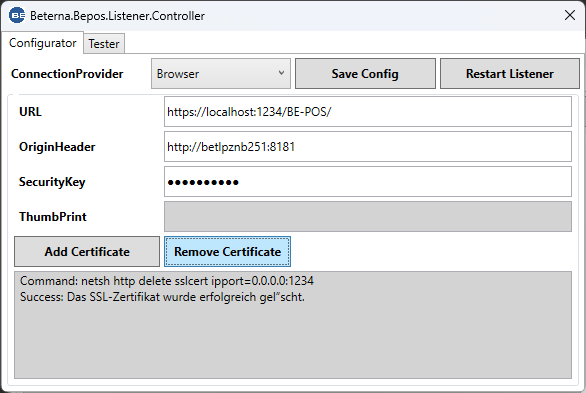
- Use Remove Certificate to delete the certificate and remove the SSL port binding.
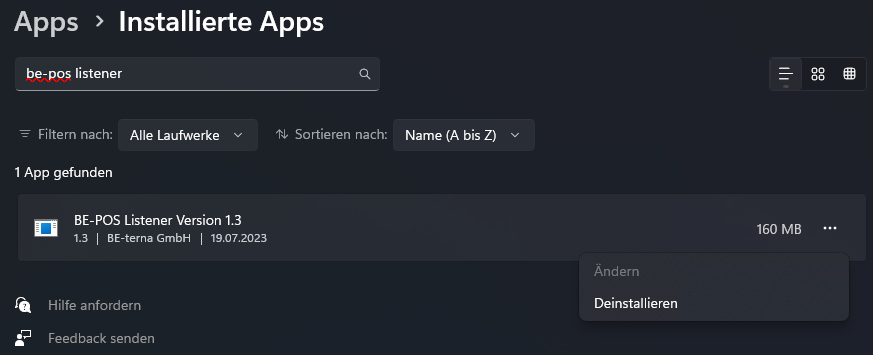
- Then uninstall the BE-POS Listener program.