Device management
The Device List in Dynamics 365 Business Central serves as a central overview of all tracked devices in the company. It enables the rapid management, tracking and control of devices, their location and inspection dates.

Navigation
The following standard actions are available in the header area:
-
New: Create a new device
-
Erase: Remove marked device
-
Device / Inspection / Handover: Special actions for device editing and management
-
Overview / More Options: Advanced Views and Filters
Structure of the device list
The list contains several columns with the most important information about each device:
| Spalte | Bedeutung |
|---|---|
| Nr. | Eindeutige Gerätenummer (automatisch oder manuell vergeben) |
| Beschreibung | Klartext-Bezeichnung des Geräts (z. B. „Kettensäge“) |
| Gerätetyp Code | Zugehöriger Typ oder Kategorie (z. B. Werkzeug, IT-Equipment) |
| Basisstandort Code | Hauptlagerort des Geräts (z. B. BASIS1, HAUPTLAGER) |
| Ressourcennr. | Verknüpfung zu Ressourcen, falls genutzt |
| Anlagennr. | Verknüpfung zur Anlagenbuchhaltung |
| Hersteller Code | Kürzel oder Name des Herstellers (z. B. BOSCH, APPLE) |
| Seriennummer | Eindeutige Seriennummer des Geräts |
| Ergebnis letzte Hauptprüfung | Dokumentiertes Ergebnis der letzten Geräteprüfung (z. B. „Keine Mängel“, „Offen“) |
| Datum letzte Hauptprüfung | Zeitpunkt der letzten Prüfung |
| Datum nächste Hauptprüfung | Vorgesehener Termin für die nächste Prüfung |
| Gesperrt | Kennzeichnung, ob das Gerät gesperrt ist |
| Aktueller Nutzer | Mitarbeiter, der das Gerät momentan verwendet |
| Aktueller Standort | Der aktuelle Standort des Geräts |
| Akt. reserviert für Nutzer | Falls reserviert, Name des Mitarbeiters, für den das Gerät vorgemerkt ist |
Create a new device (device card)
- Click New
- Enter device number, description, device type, serial number, etc.
- Capture Base Location
- Define whether inspection is required
- After leaving the page, the device appears in the device list
Functions in the device card:
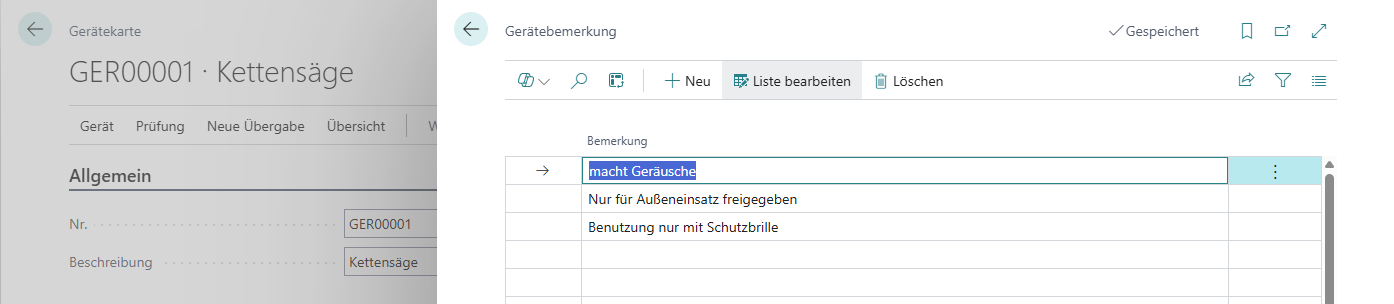
Device Notes
The menu item Device - Comments can be used to document additional information or notes about a device. These comments are used for internal communication and help to make the condition or special features of a device comprehensible. The list of all device observations can be opened from Global Search.
Parameters
Devices can be provided with parameters in order to document technical characteristics and operating conditions in a structured way. For more information, see Setup.
Check the device
The test protocol is used to document equipment checks, such as safety checks or maintenance. Each entry ensures a traceable history of the condition of a device.
Create a new test report
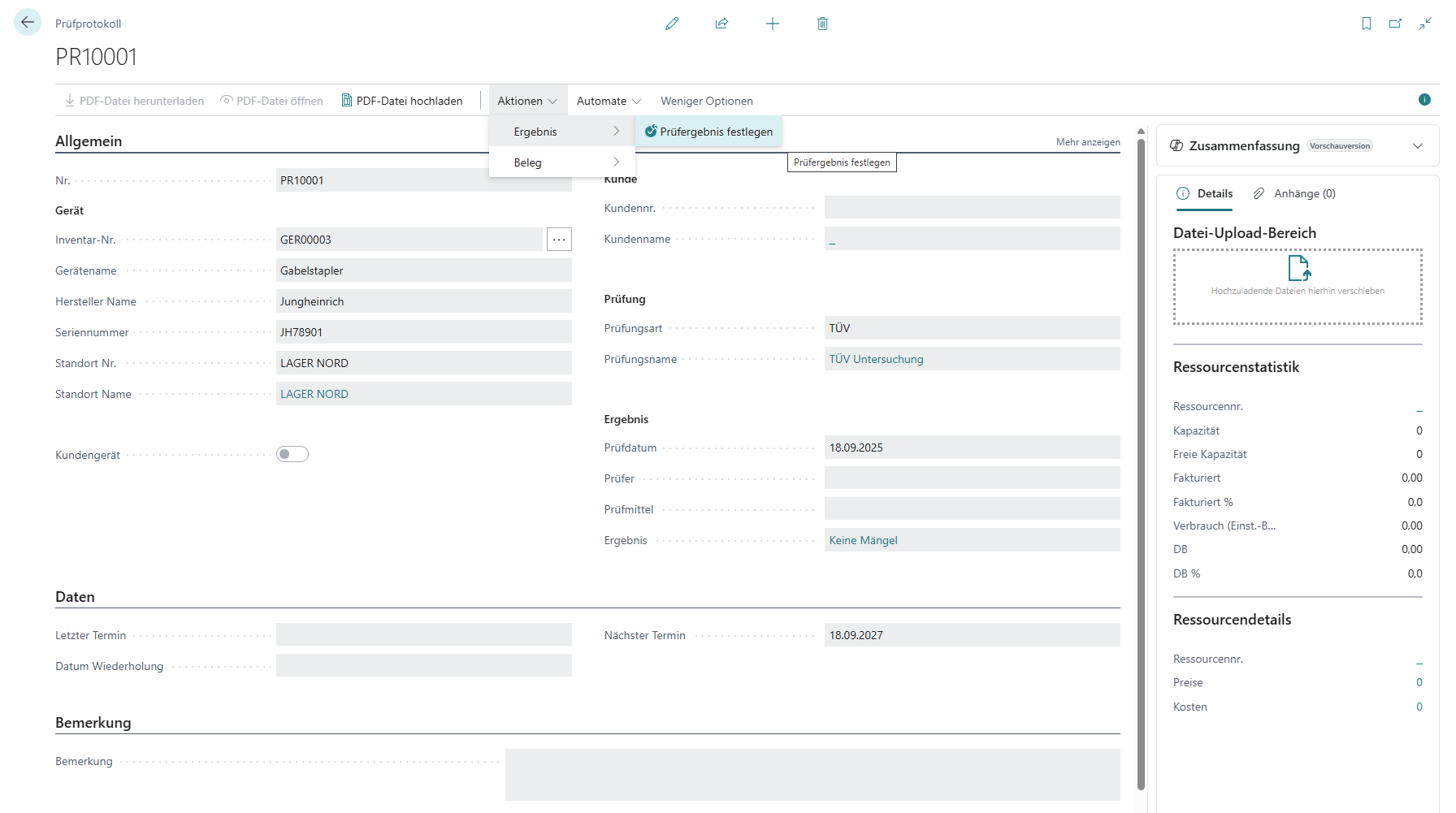
- Select device
- Menu item Check → “New test report”
| Bereich | Feldname | Erklärung |
|---|---|---|
| Allgemein | Nr. | Eindeutige Nummer des Prüfprotokolls (automatisch oder manuell vergeben). |
| Inventar-Nr. | Verknüpfte Gerätenummer aus der Geräteliste (z. B. GER00001). | |
| Gerätename | Automatisch aus Gerätedaten übernommen (z. B. „Kettensäge“). | |
| Hersteller Name | Hersteller des Geräts (z. B. Stihl, Bosch). | |
| Seriennummer | Seriennummer zur eindeutigen Identifikation des Geräts. | |
| Standort Nr. | Code des Standorts, an dem sich das Gerät aktuell befindet. | |
| Standort Name | Klartextname des Standorts (z. B. „Hauptlager“). | |
| Kundengerät | Kennzeichnung, ob es sich um ein externes Kundengerät handelt. | |
| Kunde | Kundennr. | Nummer des Kunden (nur relevant bei Prüfungen für Kunden). |
| Kundenname | Automatisch zum Kundennummer-Eintrag zugehöriger Name. | |
| Prüfung | Prüfungsart | Auswahl der Art der Prüfung (z. B. UVV-Prüfung, Sichtprüfung). |
| Prüfungsname | Detaillierte Bezeichnung der Prüfung (z. B. „Jährliche Hauptprüfung“). | |
| Ergebnis | Prüfdatum | Datum, an dem die Prüfung durchgeführt wurde. |
| Prüfer | Name der Person, die die Prüfung durchgeführt hat. | |
| Prüfmittel | Eingesetzte Prüfmittel oder Hilfsmittel (z. B. Messgerät, Checkliste). | |
| Ergebnis | Dokumentation des Ergebnisses (z. B. „Keine Mängel“, „Offen“, „Mängel“). Das Ergebnis kann über die Funktion in der Menüleiste: Aktionen - Ergebnis - Prüfergebnis festlegen ausgewählt werden. | |
| Daten | Letzter Termin | Datum der letzten durchgeführten Prüfung. |
| Nächster Termin | Termin für die nächste geplante Prüfung. | |
| Datum Wiederholung | Falls eine Nachprüfung erforderlich ist, hier das geplante Datum eintragen. | |
| Bemerkung | Bemerkung | Freitextfeld für zusätzliche Hinweise oder Prüfvermerke. |
| Attachments | File Upload Area | Ability to upload test reports, photos or documents. |
Handing over the device (reservation, issue, return)
Via the menu item New handover a device can be reserved, issued and returned.
Reserve a device
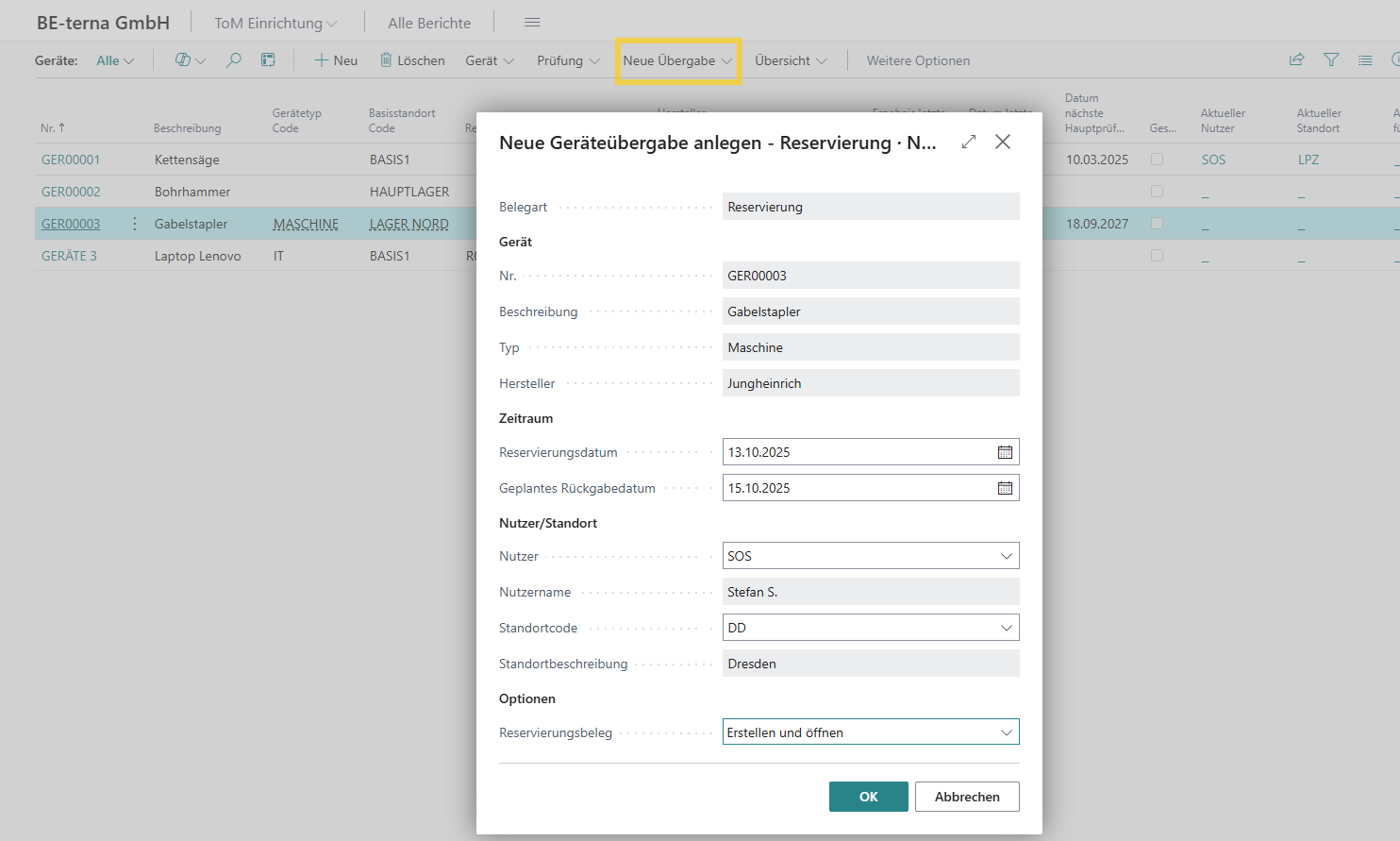 Click to enlarge
Procedure
-
Select New Handover → Reservation.
-
Device is automatically pre-assigned with No., Description, Type and Manufacturer.
-
Set Period:
-
Reservation date (start of use)
-
Planned return date (end of use)
-
-
Assign user and location:
-
Select user abbreviation and name
-
Enter location code and location description
-
-
Select options:
- Create a reservation receipt (e.g. “Create and open”) or directly “Book” In the reservation document, additional devices can be added in the lines that are to be reserved and remarks can be entered. To output the reservation** must be selected in the menu item Reservation the function Book or Book and Print. A handover protocol can then be printed and a booked reservation is created.
Output device, create output
- Document: Booked reservation Start → Create issue log
- Set posting date
- Output → Posting: A transfer protocol can be posted, a posted expense document is created
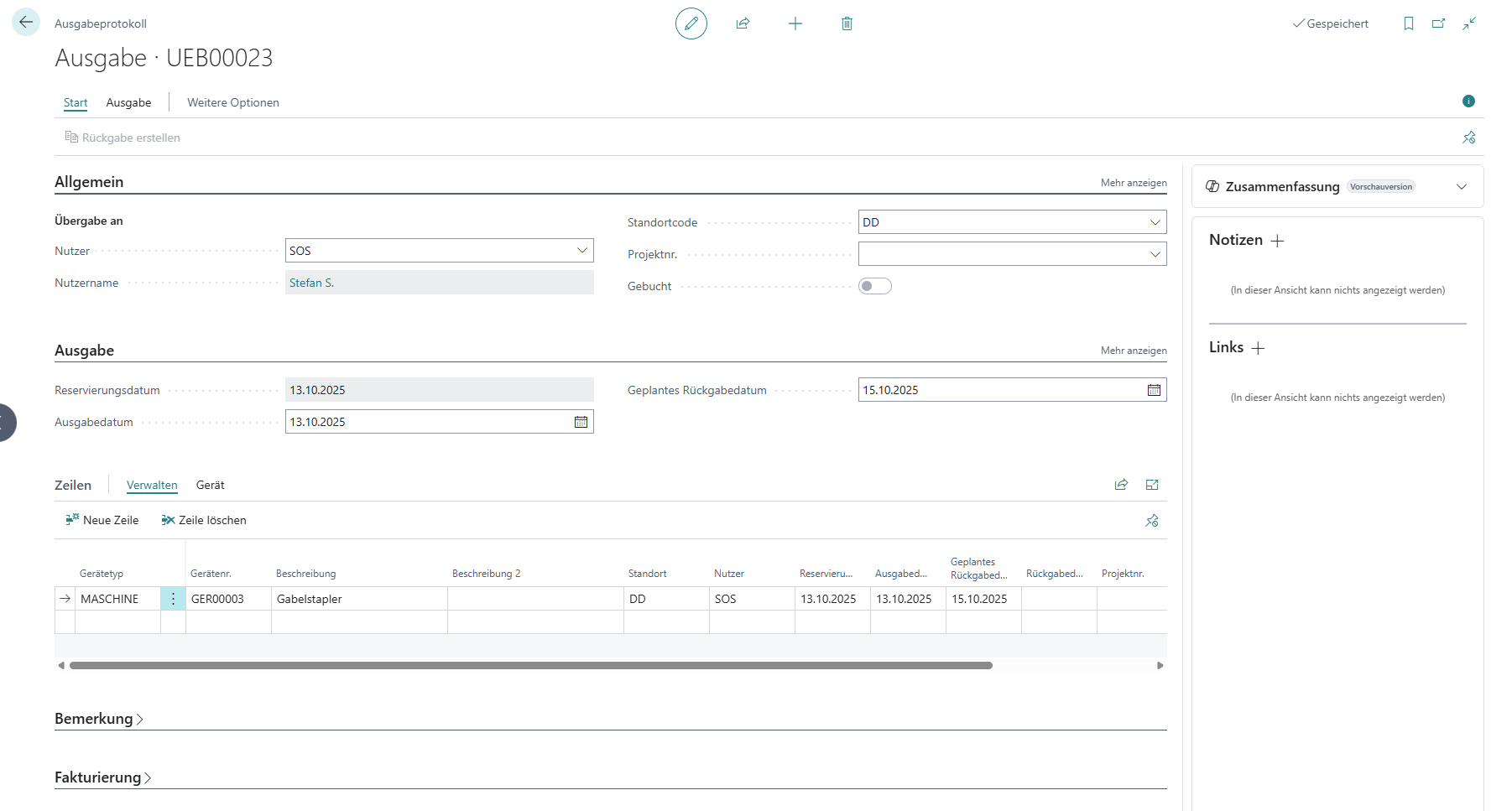 Click to enlarge
Alternatively, the device can be selected in the device list and a new device transfer can be created via New Transfer → Output.
Return device, create a return
- Document: Booked expense Menu item Create return a return log is created
- In the return report, for example, defects etc. can be recorded under remark.
- Book a return under Return → Book, a handover protocol is posted and can be printed
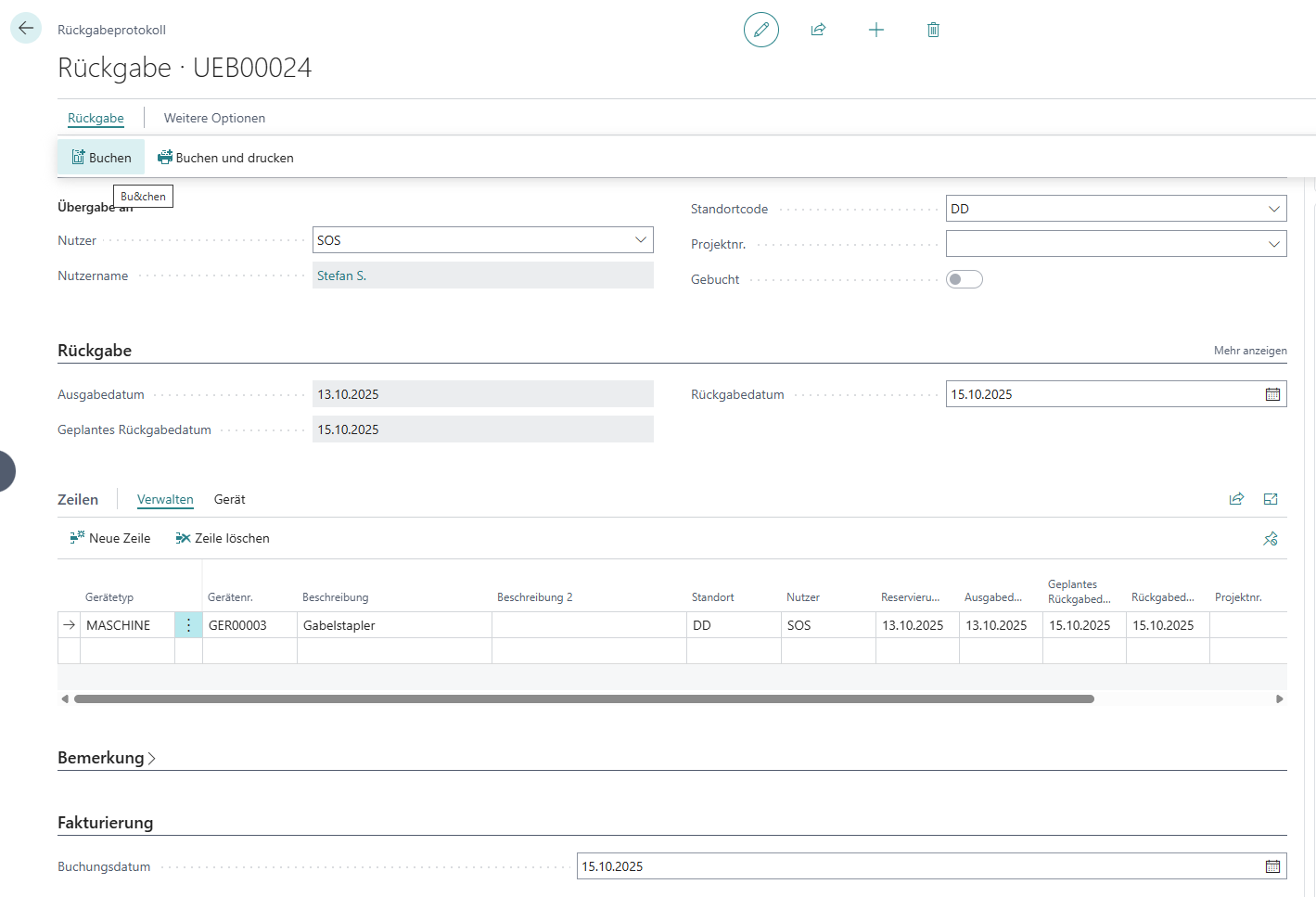
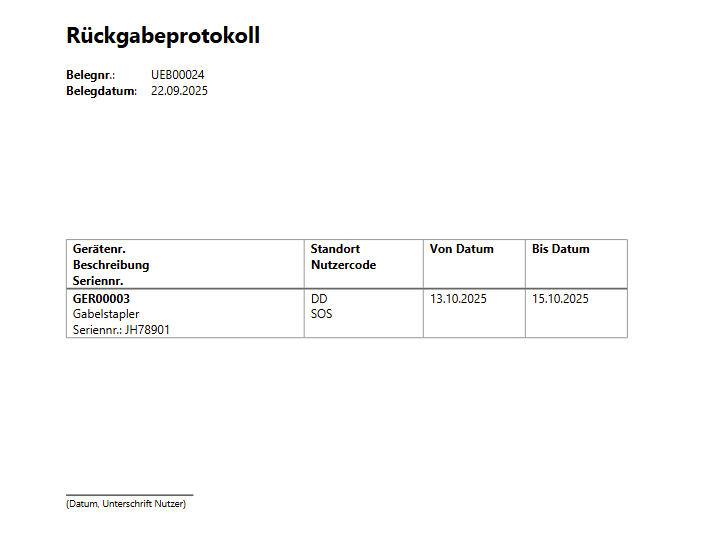
Alternatively, the device can be selected in the device list and a new return protocol can be created and posted via New handover → return.
Calendar (Device Calendar)
The Device Calendar in Dynamics 365 Business Central displays all scheduled reservations, expenses, and returns from devices in a calendar view. It serves transparency and facilitates planning and coordination of device availability. It can be opened directly in the device list via Overview → Calendar.
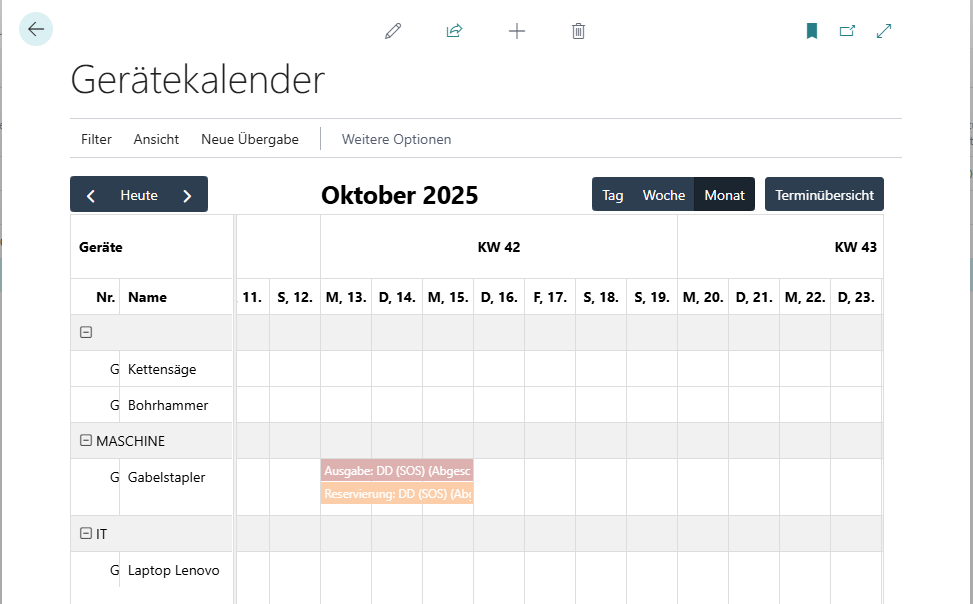 Click to enlarge
Structure
-
View Selection: Day, Week, Month, or Event Overview.
-
Device list on the left: All recorded devices, grouped by category (e.g. tools, machines, IT).
-
Calendar columns: Presentation of the periods (here October 2025, week 42/43).
-
Calendar entries:
-
Reservations (e.g. highlighted in orange)
-
Editions (e.g. marked in red)
-
Display with location, user and status
-
Features
-
Use Filters/View to narrow down devices or time periods.
-
Create a Reservation, Issue or Return directly from the calendar via New Transfer.
-
Click on a calendar entry to view details of the respective handover.
Device Search
The Device Search makes it possible to find specific devices by type, location or manufacturer and to view their status. In addition, new processes (reservations, expenses, returns) can be created directly from the search results. It can be opened directly in the device list via Overview → Device Search.
Filter options
In the upper area of the Device Search, specific search criteria can be entered. These filters help to narrow down the number of hits and find the desired devices more quickly.
-
The Device Type Code field allows you to select all devices in a specific category, such as MACHINE, IT, or TOOL. This allows the search to be limited to a specific type of equipment.
-
The Base Location Code can be used to restrict devices to specific storage or deployment locations. This is especially helpful when devices are available in different offices or locations.
-
The manufacturer code allows devices to be filtered by the respective manufacturer, such as “Jungheinrich” or “Bosch”.
-
Additionally, Parameters can be used as filters. Parameters are freely definable properties such as load capacity, year of manufacture or battery capacity. They enable a very precise search, for example for “forklifts with lifting height ≥ 4 m”.
After all the desired criteria have been entered, the user must click on Apply filter. Only then will the list be filtered accordingly and only show the devices that meet the set conditions.
Actions from the search results
Operations can be started directly from the hit list without having to open the device in the device list or device card first.
-
With New Reservation a device can be immediately reserved for a certain period of time. This prevents other users from booking the device in the same time period.
-
New Edition allows a device to be output directly to a user. A handover protocol is automatically created.
-
New Return records the return of a device. Comments, such as identified defects, can also be documented.
These actions make the device search not only a pure information tool, but also an entry point into operational work. Users can find devices while performing the most important work steps directly.