Setup
Setup Goal
This page describes the core setup for Connector Commerce Interface to Fashion from an end-user perspective. It shows which additional settings must be checked compared to BE-Commerce and how to prepare the fashion-specific master data for daily operations.
Who this page is for
- Key users who set up or extend a fashion webshop.
- Users who align colors, attributes, and country logic for the webshop.
- Teams that need to make sure the business setup is ready before the first live run.
Prerequisites
- Access to the relevant setup pages in the Commerce Interface and BE-Commerce context.
- Defined webshop channels, languages, and countries for the connected shops.
- A dedicated integration user for data exchange via web services.
Setup Steps
- First confirm that the general BE-Commerce setup is complete.
- Create the required webshop channel with languages, countries, and core parameters.
- Add the fashion-specific master data such as colors, attributes, and categorization.
- Align validation options and release logic for later data publication.
- Finally clarify the technical connection and test one full process with sample data.
Relevant Setup Areas
| Area | Why you need it | Typical decision |
|---|---|---|
| Webshop Channel | Business basis per shop | Which languages, countries, and sales locations apply? |
| Country and Pricing Logic | Correct posting and assignment | Which price groups, shipping charges, and voucher types apply per country? |
| Validation Options | Data quality before release | Which mandatory checks must be active per channel? |
| Fashion Master Data | Variant and attribute logic | Which colors, attributes, and categories are needed in the shop? |
| Technical Connection | Coordination with data exchange | Which endpoints and handover rules are relevant for operations? |
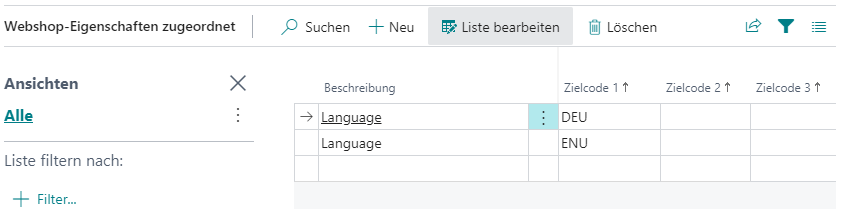
Define the Webshop Channel
Create one channel per shop and maintain the control data relevant to the connector. This includes the location group, the sales location for webshop documents, allowed contact changes, and the active languages.

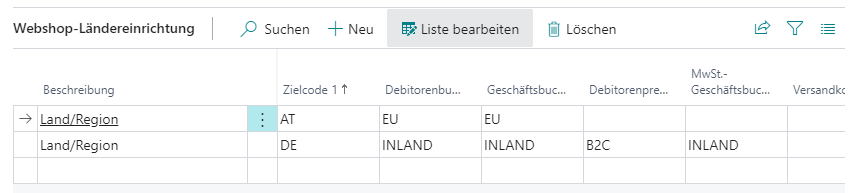
Maintain Countries and Pricing Logic
Store the required posting groups, price groups, and the control setup for shipping charges, voucher types, and discount types per country. This provides the basis for new customers, price transfer, and correct posting behavior.
Assign Validation Options per Channel
Assign the validation options used for item releasing to each channel. At least one validation per channel is required so releasable data can be evaluated consistently.
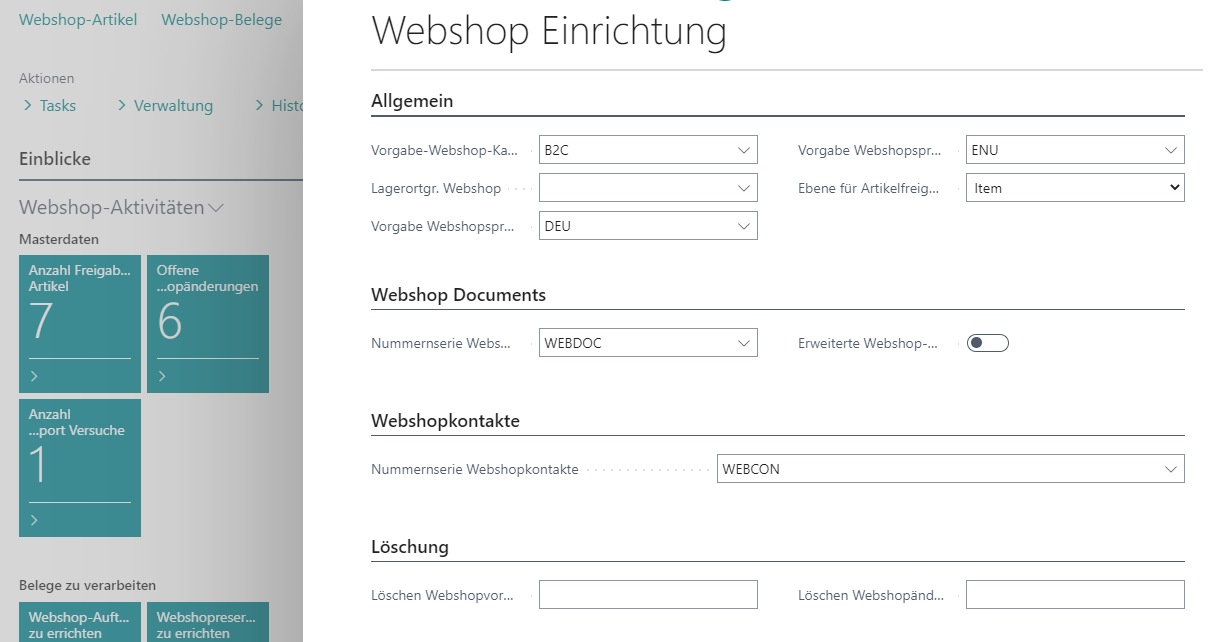
Extend the Webshop Setup
Extend the global webshop setup with defaults such as webshop language, location group, release level, and number series. These defaults apply whenever no channel-specific override is maintained.
Configure the HTTP Connection
Set up the HTTP communication per channel so changes to master data, prices, inventory, and documents can be signaled to the shop.
Initial Master Data
For a productive start, at least these master-data elements should be ready:
- webshop channels with language and country assignments,
- categories and attributes for fashion-relevant items,
- webshop colors and supplier colors,
- validation options for release and data transfer.
Best Practices
- Verify the shared BE-Commerce baseline first and then add only the connector-specific settings.
- Use the screenshots on this page as orientation, not as a replacement for textual field validation.
- After setup, test at least one full release, import, or export scenario with sample data.
Result
- Channels are prepared for fashion-specific master data and transaction data.
- Language, country, and validation logic is maintained consistently per channel.
- The technical connection for web service and HTTP-based communication is in place.
Links