Process catalog
Operational processes for creating, downloading, and reviewing shipping labels in Shipping Labels.
Goal
This process catalog shows the main day-to-day workflows in Shipping Labels. It explains how label creation starts from different Business Central documents and how users can continue with downloaded labels, tracking information, and shipping reports.
Context
Shipping Labels supports several operational entry points because companies do not always ship in the same way. Some teams create labels directly from sales orders, others rely on warehouse shipments, and some use shipment orders for scenarios outside the classic warehouse flow.
Prerequisites
- The shared setup and the relevant carrier-specific setup are complete.
- Assigned source types, Incoterms, shipping agents, shipping agent services, and shipping agent service setups are maintained.
- Sender, recipient, location, and package data are available in the required quality.
- At least one productive or test-ready carrier scenario has been validated end to end.
Process catalog
Process Create a shipping label from a sales order Use the sales order as the operational source when the label should be generated directly from the order document.
- Complete the sales order header and make sure that the delivery address, recipient contact data, and location country information are correct.
- Maintain the sales order lines with the sold items and their relevant shipping data.
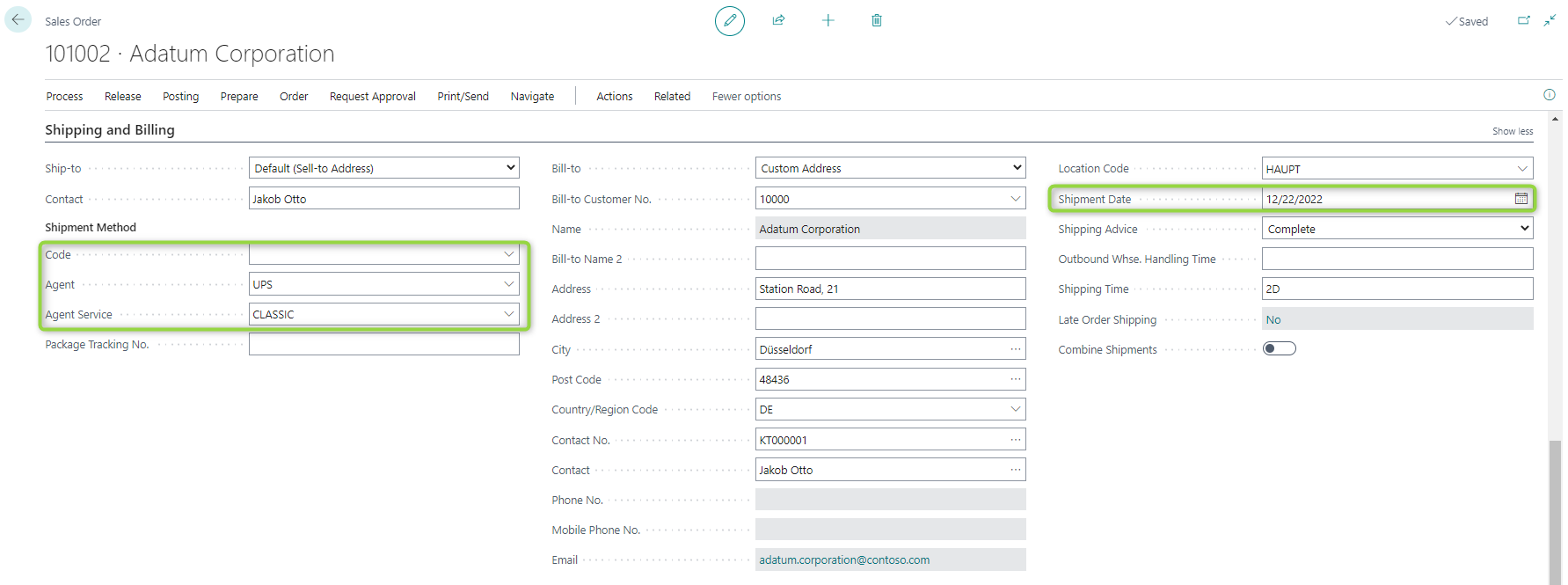
- In Shipment Method, fill the fields Code, Agent, Agent Service, and Shipment Date completely. The shipment-method date is the date used in the request.
- Treat Code, Agent, Agent Service, and Shipment Date as one mandatory field set. Missing one of these values usually prevents label creation or causes the later carrier request to fail.
- Use an Incoterm only when it is required for the scenario, for example for shipments outside the EU.
- Maintain Agent Service only with a service combination that already exists in Shipping Agent Service Setups. A service code on the document alone is not enough if the operational setup line is still missing.
- Use real sender and recipient data. Several carriers validate address quality, phone-number format, and country mapping directly in the request.
- Prefer maintained item dimensions and weight on article level. Fallback package data on the carrier setup should stay an exception path, not the default source.
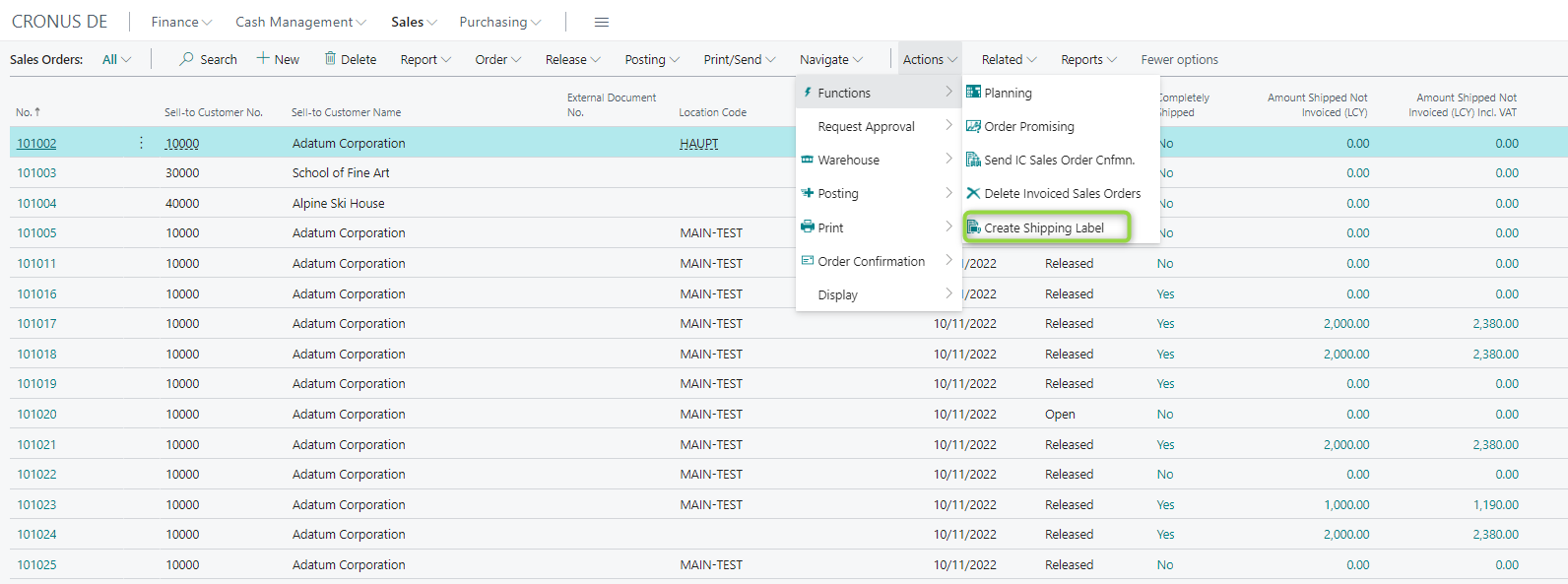
- Generate the label through Functions > Create Shipping Label from the sales-order context.
- Multiple labels can be created for the same sales order. Every execution creates a new label request.
- After a successful request, the carrier tracking number is written back to Package Tracking No..
- If PCH is used, limit the destination to Switzerland or Liechtenstein.
The following screenshots show the relevant shipment-method fields and the action that triggers label creation from the sales-order flow:
Process Create a shipping label from a warehouse shipment Use the warehouse shipment flow when shipping is controlled through warehouse processing before the label is requested.
- Start with a correctly prepared sales order and create the warehouse shipment from it.
- Verify again that the shipment-method fields are complete, especially Code, Agent, Agent Service, and Shipment Date.
- Make sure the selected shipping agent service is also fully maintained in Shipping Agent Service Setups. A sales order can carry the service code before the detailed setup exists, but label creation will then fail later.
- Open the warehouse shipment and run Create Shipping Label.
- Multiple labels can be created for the same warehouse shipment if the business process requires repeated requests.
- Review the created request in the request log if the warehouse-based process behaves differently than expected.
Process Create a shipping label from a shipment order Use shipment orders when the label should be created without the classic warehouse-shipment process.
- Create a new shipment order. The document number is assigned automatically.
- Enter the sender and recipient data completely and use real addresses and contact information.
- Follow the required phone-number format strictly for carriers such as DSV.
- Maintain package data such as weight, height, length, and width directly on the shipment order.
- Fill the shipping information with shipping agent code, shipping agent service code, shipment date, and shipment-method code where required.
- Recheck sender and recipient data before the first test request. Shipment orders are often entered manually, so incomplete contact or country information is easier to overlook than in sales-order scenarios.
- Run Create Shipping Label from the shipment-order list.
- If PCH is used, only Swiss or Liechtenstein addresses are valid for that scenario.
Process View and download a generated shipping label Use the request log and the label details page when you need to inspect or download the created file again.
- If the label was created from a sales order, a quick view is also available in the sales-order FactBox.
- For the general workflow, open Shipping Label Setup and navigate to Request Log.
- Mark the relevant request-log entry and open Request Shipping Labels.
- Use Show Label to download the selected file. At present, labels are handled one at a time in this flow.
- On the label detail page, also review the tracking ID, return tracking ID, and file extension.
Process Create a shipping report Generate a same-day shipping report per carrier for operational follow-up.
- Shipping Labels supports same-day shipping reports per carrier as part of the operational follow-up.
- Use the available report function in Business Central for the configured carrier scenario and review the generated output in the required format.
- Treat report availability and output details as dependent on the configured carrier, account scope, and environment.
Outcome
- You know which source documents can trigger shipping labels in daily business.
- You understand the operational differences between sales orders, warehouse shipments, and shipment orders.
- You know how to continue with generated labels, tracking information, and shipping reports after the request succeeds.
Links