Setup
Purpose
This page explains the shared setup logic of Shipping Labels in Microsoft Dynamics 365 Business Central. Before you configure a specific carrier, prepare the common master data, create the required shipping agents and services, and complete the global Shipping Labels setup so that later label requests are based on consistent data.
Prerequisites
- Shipping Labels is installed and available in the Business Central environment.
- The required carrier accounts, API credentials, customer numbers, or onboarding data are available from the shipping provider.
- Sender and recipient master data such as addresses, contact data, phone numbers, and email addresses are maintained with the quality required by the target carrier.
- Users can access the pages for shipping agents, shipping agent services, shipping agent service setups, and the central Shipping Labels setup.
Recommended sequence
- Clarify which carriers, products, and service options are required in the business process.
- Prepare the master data for addresses, package handling, weights, dimensions, and Incoterms.
- Create the shipping agents and shipping agent services in Business Central.
- Maintain the shared Shipping Labels setup, including assigned source types and Incoterms.
- Build the shipping agent service setup matrix for the valid carrier and service combinations.
- Complete the carrier-specific properties, credentials, and tests on the corresponding carrier setup pages.
Setup components
Prepare master data before the first label request
Successful label requests depend on consistent business data. In practice, the most important preparation is not the carrier page itself, but the quality of the sender and recipient data that later flows into the request.
Review at least these areas before productive use:
- ship-from and ship-to addresses
- contact names, phone numbers, and email addresses
- package dimensions, weights, and units of measure
- customer-specific delivery rules and Incoterms
- internal defaults for warehouse, shipment, sales, or other source documents
This preparation reduces avoidable request errors and makes the later carrier-specific setup more predictable.
For a first productive rollout, review the underlying master data in a more deliberate way:
Keep company information and sender data realistic
- Maintain real sender addresses and contact data. Several carriers validate the authenticity of the sending address instead of accepting placeholder data.
- Review the company and location records that actually act as sender in the business process. A correct company card alone does not help if the request later uses a warehouse-specific sender address.
- If DSV is part of the rollout, treat the sender phone-number format as a strict carrier rule and validate it before the first request.
Maintain country and region data before REST testing
- For DHL Shipping REST, the relevant countries require maintained ISO Alpha-3 values as well as a filled ISO Code field.
- Review the countries that are really needed for the rollout, including return destinations and cross-border scenarios. REST requests are not processed correctly if these country mappings are incomplete.
Complete customer and recipient logistics data
- Use real recipient names, addresses, phone numbers, and email addresses on customer and document level.
- Some carriers validate recipient address quality directly and reject incomplete or implausible combinations.
- Recheck whether the operational document uses the expected sell-to, ship-to, and location data. Label failures often come from a different source record than the user expects.
Prepare item attributes before relying on fallback package values
- Shipping Labels can work with four logistics-relevant item attributes: height, width, length, and weight.
- Create these attributes first on the Item Attributes page, then assign values on the relevant item cards.
- Item-level dimensions and weight should be treated as the preferred source. Carrier-specific fallback package values are useful as a safety net, but they should not hide missing logistics master data in productive use.
Use a meaningful work date and shipment date
- Some carriers validate the work date or the operational shipment date as part of the request context.
- Validate both values before testing if the environment uses copied demo data, older documents, or delayed order processing.
Maintain shipping agents and shipping agent services centrally
Shipping Labels uses the standard Business Central entities for shipping agents and shipping agent services as the shared entry point for all supported carriers. Each carrier should therefore be represented consistently through a shipping agent card and the relevant service combinations that are used in daily business.
When you maintain these records, focus on the business meaning of each combination:
- which carrier should be available to the user
- which products or service levels belong to that carrier
- which internal code should be used consistently in master data and documents
- which combinations are productive, test-only, or obsolete
The later carrier setup does not replace this modeling. It depends on it.
Use Shipping Labels setup as the shared control point
The shared Shipping Labels setup defines which source documents can request labels and which common business rules apply across carriers. This is where you maintain the base behavior that should not be configured repeatedly on every carrier page.
In particular, review these shared setup areas:
- assigned source types for the supported document origins
- assigned Incoterms for export and carrier-specific requirements
- global request behavior and general defaults where applicable
- the operational setup needed for request inspection and later troubleshooting
This shared layer is also the right place to separate common rules from truly carrier-specific data. Carrier credentials, product properties, and provider-specific restrictions belong on the carrier pages, while the general document and mapping model belongs here.
Understand Assigned Source Types before you test documents
Assigned Source Types defines which Business Central source documents are allowed to generate shipping labels and which additional table information is included in the request context.
- The Table ID defines from which Business Central table additional information should be read.
- The Source Type defines through which document origin the label can be created.
- The table name is filled automatically after the Table ID is chosen, which makes it easier to validate the mapping.
Typical source types include sales order, warehouse shipment, posted warehouse shipment, transfer order, transfer shipment, package header, and package header archive. The delivered setup usually starts with a smaller set of recommended standard combinations. Extend it only when a carrier or document scenario really needs additional Business Central data.
Understand Assigned Incoterms as a translation layer
Assigned Incoterms links the standard Incoterms from Business Central with the internal codes expected by a specific carrier.
- Standard Incoterms explain responsibilities, cost ownership, and risk transfer in international trade.
- Carriers often do not accept the plain standard code directly in the API request.
- Instead, Shipping Labels must translate the standard business term to the carrier-specific internal code.
For example, a carrier can use an internal code such as F1 to represent the standard Incoterm FOB. In that case, the mapping must be maintained before export or cross-border requests can be processed correctly. This setup becomes especially important as soon as the business process leaves a purely domestic or intra-EU scenario.
Use global switches and fallbacks deliberately
The shared Shipping Labels setup also contains global switches that affect multiple carriers and should therefore not be treated as harmless convenience fields.
- A globally activated Test Mode effectively forces the downstream carrier setups into test behavior and, in practice, overrides the local test switches on individual shipping-agent-service setups. Use it deliberately for controlled test phases instead of alongside productive processing.
- Default Country and Default Recipient Country act only as fallbacks when the operational document does not contain a country value. As soon as the document itself contains a country value, that document value takes priority. If neither the document nor the default provides a usable value, the request can fail.
- Convert Special Characters is not a cosmetic toggle but a technical preprocessing step for carriers that do not reliably accept characters such as
Ä,Ö, orÜin requests. Enable it deliberately when the carrier or the observed error pattern points to this issue. - The Log Deletion Date Formula should be chosen so that enough request history remains available for troubleshooting. Do not delete old request logs so aggressively that recurring error patterns or go-live problems can no longer be reconstructed.
Build the shipping agent service setup matrix carefully
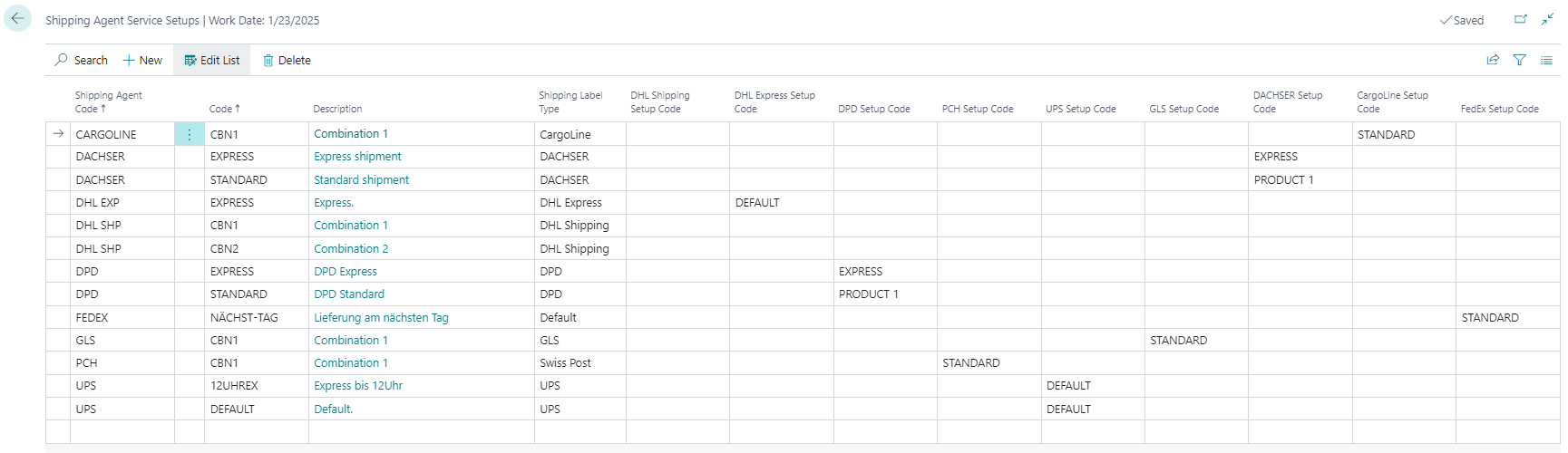
The shipping agent service setup matrix is the operational core of Shipping Labels. It connects the Business Central shipping model with the carrier-specific service combinations that are actually allowed in productive use.
For each active combination, make sure that the setup answers these questions clearly:
- which shipping agent and service code are used
- which carrier product is requested
- which service options or additional properties apply
- which credentials or account context belong to the combination
- whether the combination is intended for productive requests, testing, or a limited business case
Treat the matrix as a controlled catalog. If too many inconsistent or duplicate combinations are maintained, users may select a technically possible setup that does not fit the real shipping process.
Example of a maintained shipping agent service setup matrix in Business Central:
Complete carrier-specific settings and validate them end to end
After the shared setup is ready, finish the carrier-specific fields, credentials, product mappings, and optional service settings on the dedicated carrier pages. Then test the full flow from the source document to the generated label.
Use at least one realistic end-to-end test for each relevant carrier scenario:
- Create or open a supported source document.
- Select the intended shipping agent and service.
- Generate the label request.
- Check the returned label and the request details.
- Correct missing properties, data mappings, or credentials before rolling out the setup broadly.
Process Important setup rules These checks reduce avoidable request failures and inconsistent carrier setups.
- Prepare addresses, contact data, package data, and Incoterms before you test any carrier integration.
- Keep the shared Shipping Labels setup focused on common document logic and mappings, not on provider-specific credentials.
- Maintain only the carrier and service combinations that are actually approved for productive use.
- Test each relevant carrier scenario end to end after the shared setup and the carrier-specific page are both complete.
- Use request inspection as part of the setup phase so that later troubleshooting is easier in productive operation.
Links