References
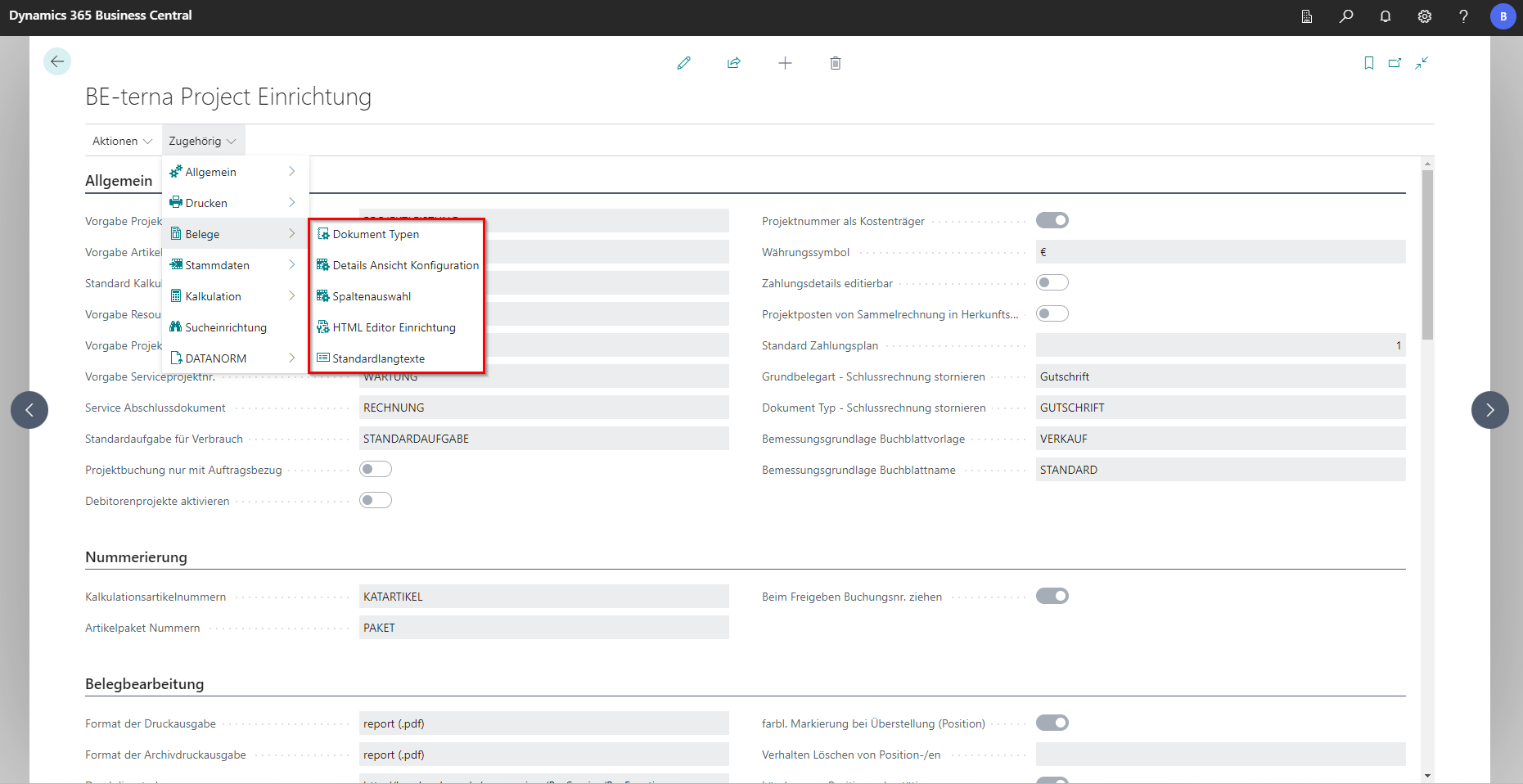
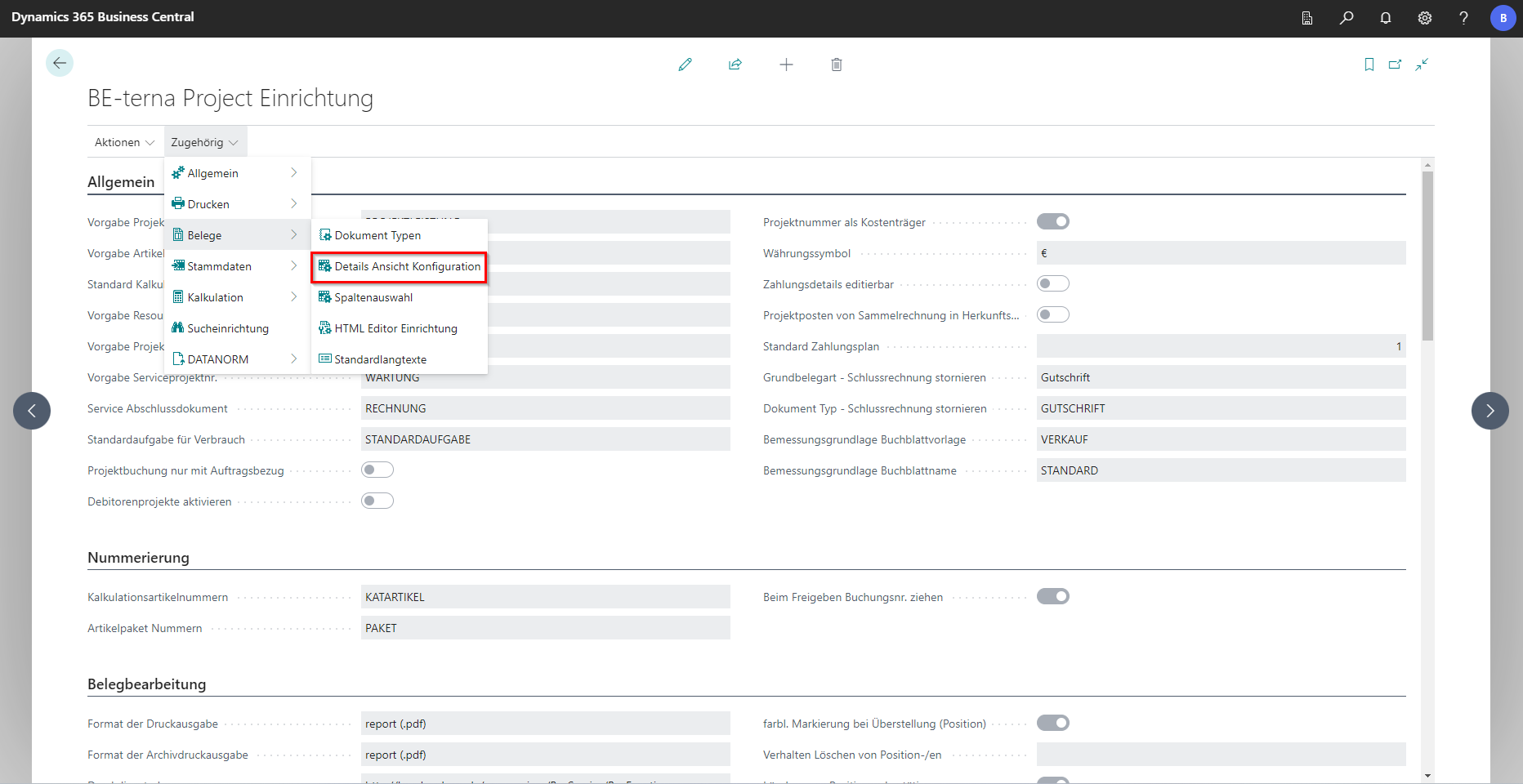
In the BE-terna Project setup, the following areas can be set up under Related in the Documents tab: Document Types, Details, View, Configuration, Column Selection, HTML Editor Setup and Standard Long Texts.
Document Types
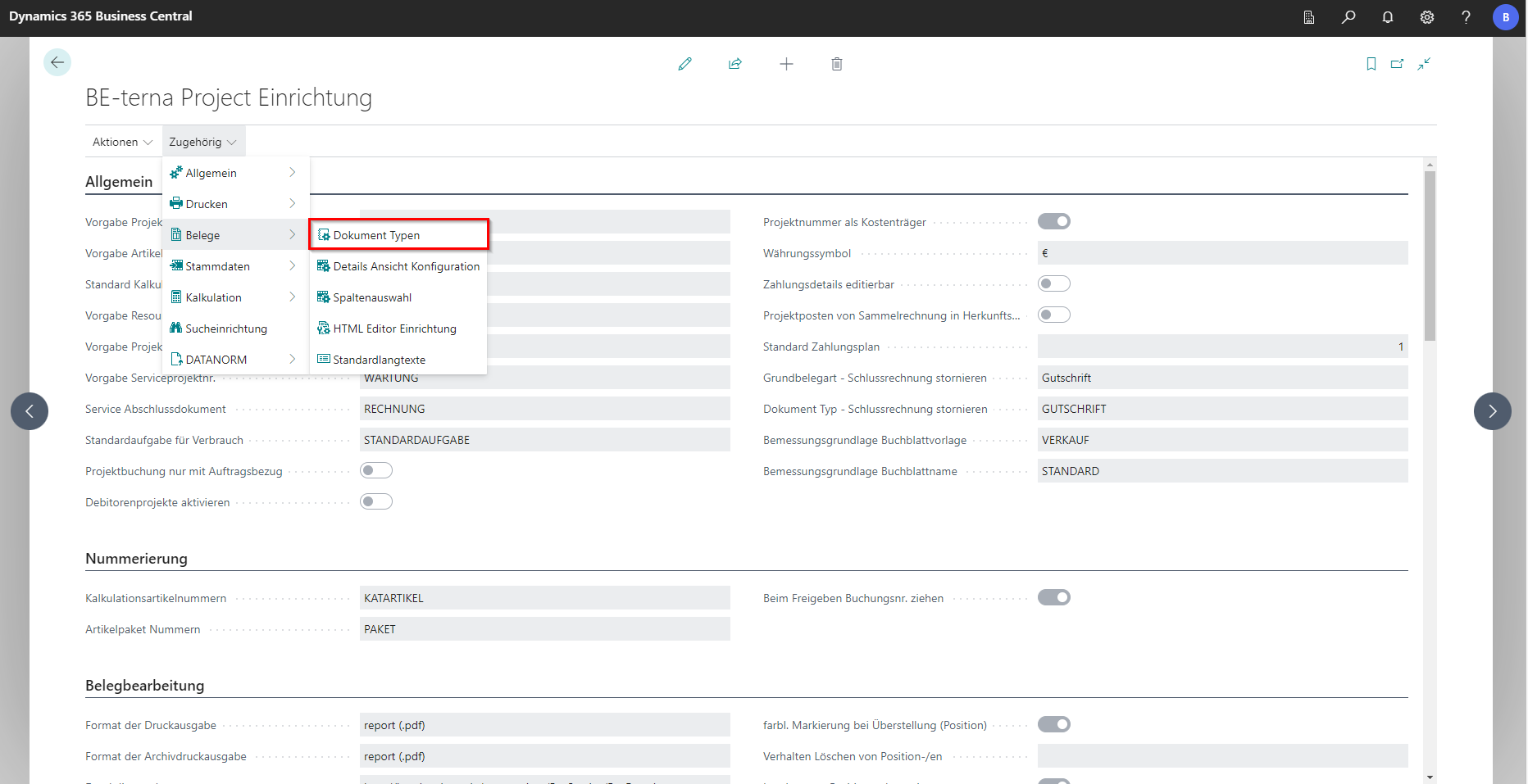
In the BE-terna Project setup, the document types can be called up and edited via Related and Documents. This maps the basic document types of the system in order to be able to create specific documents from a bill of quantities.
 Click to enlarge
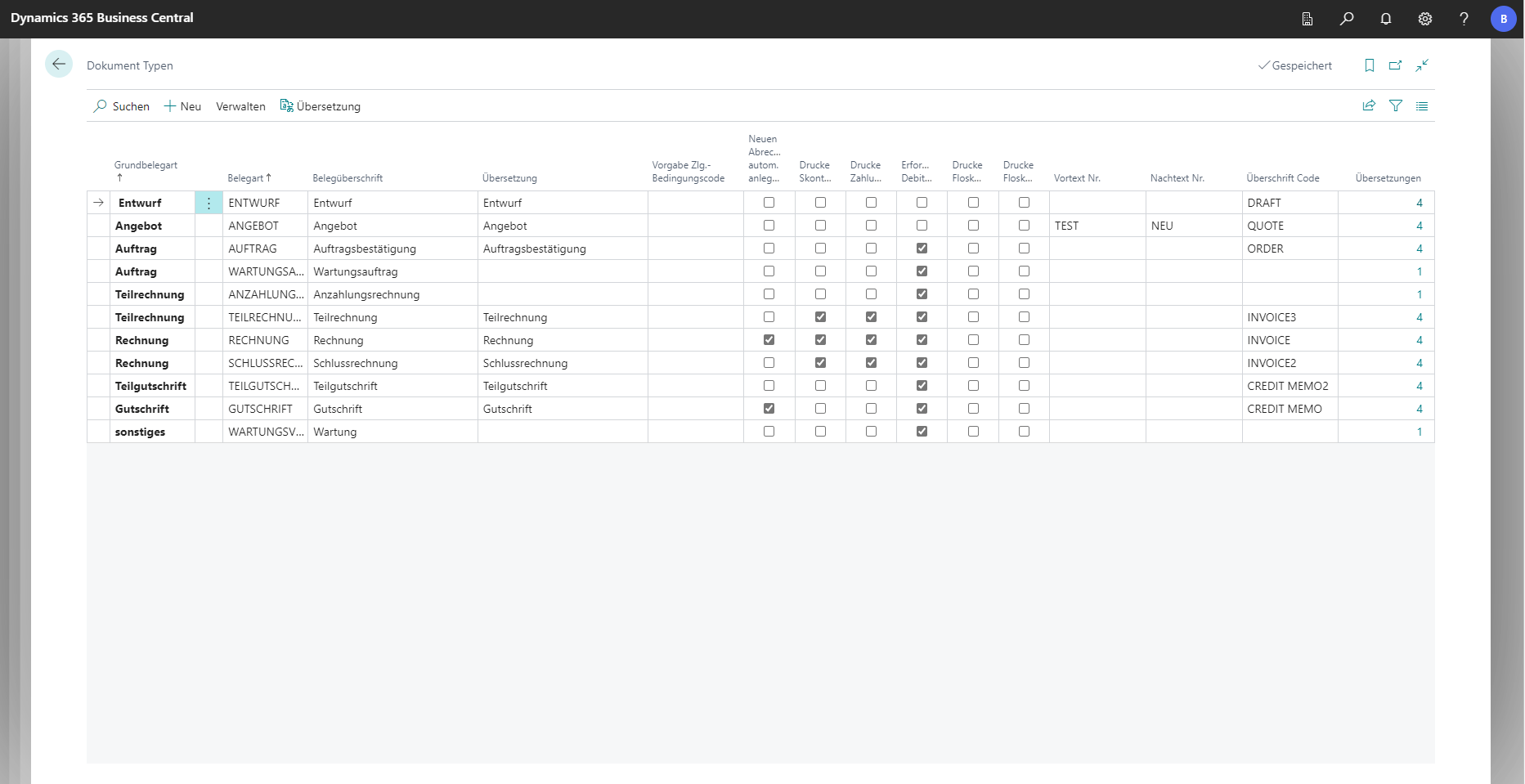 Click to enlarge
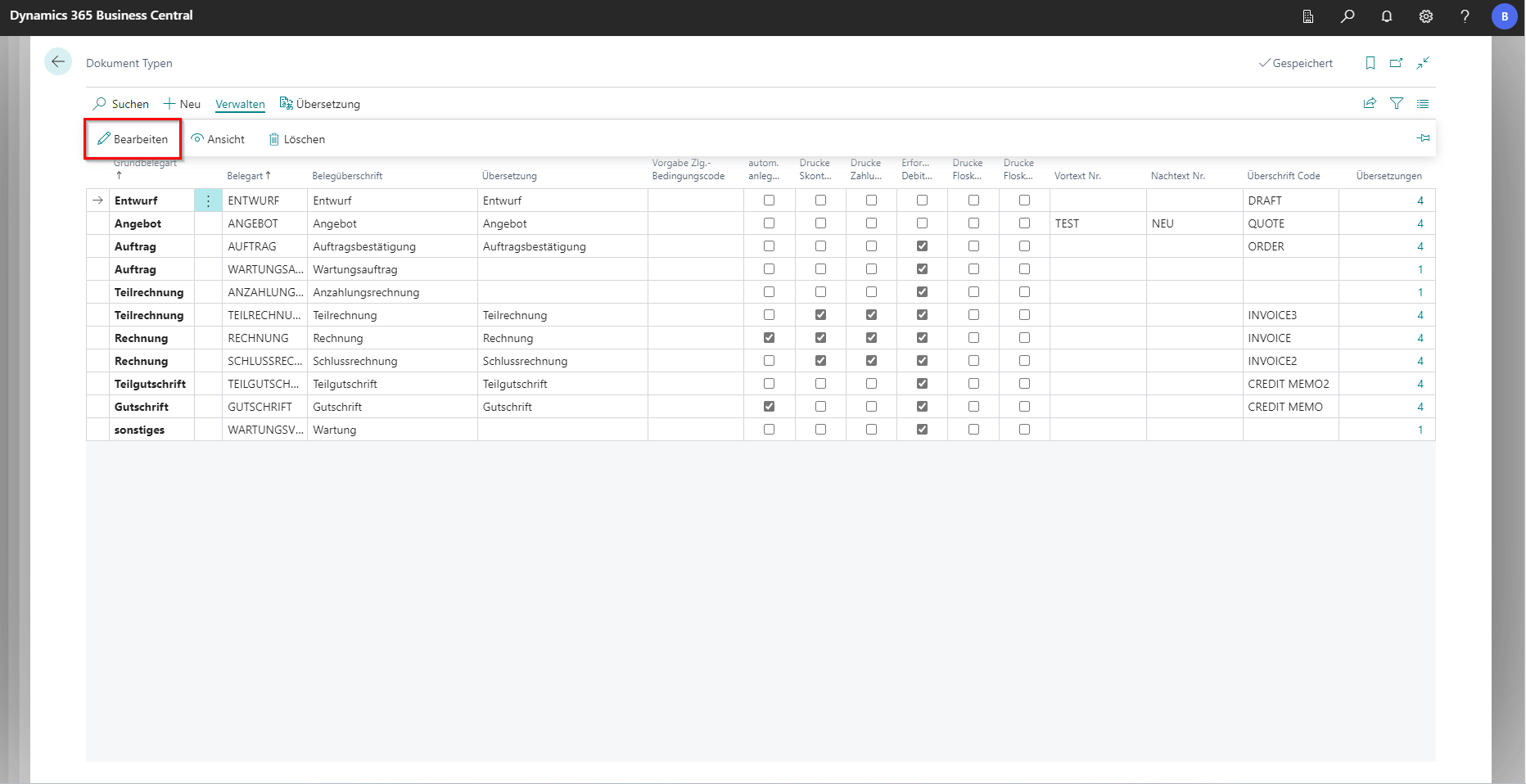
The corresponding basic document type can be edited via Manage and Edit.
In the window that follows, you can make some settings for the behavior of the documents.
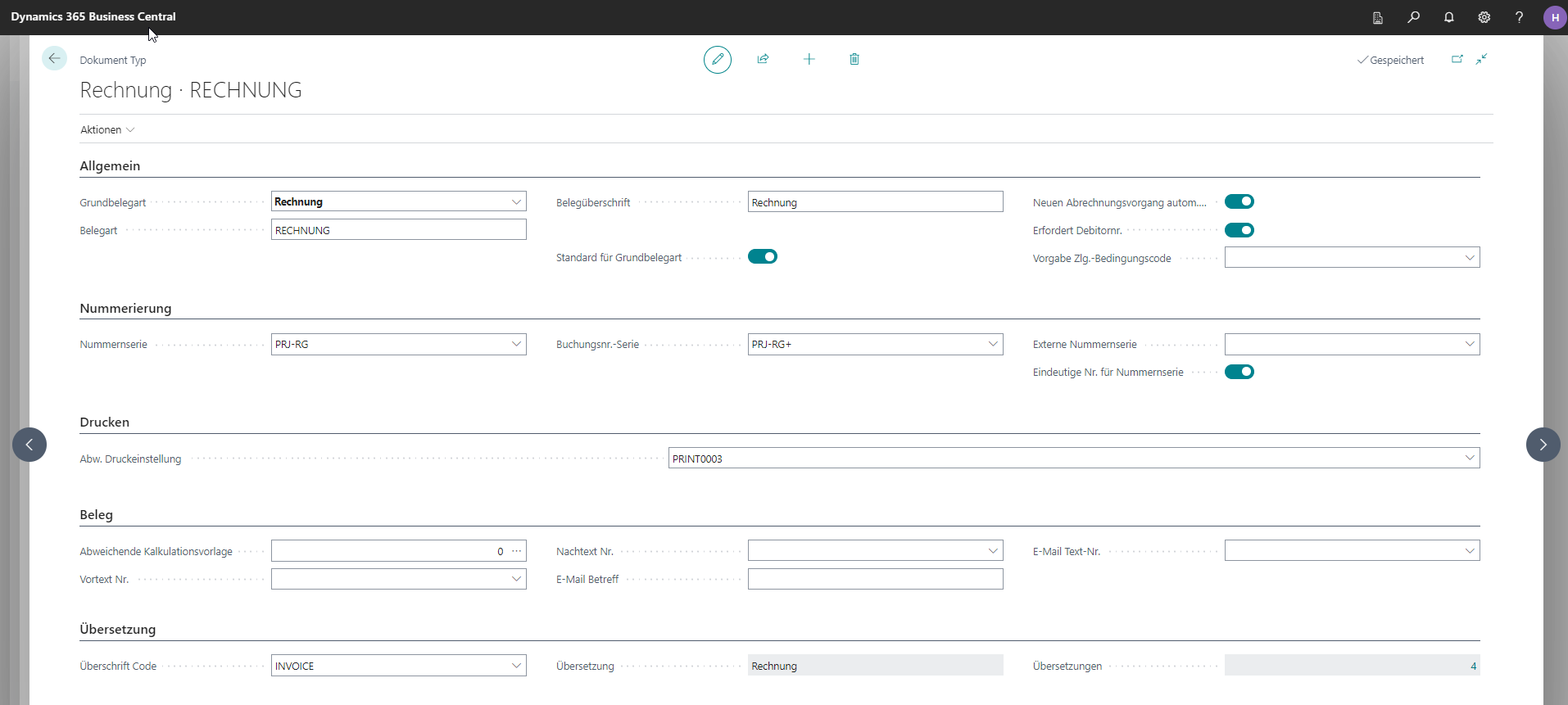
General
| Field | Explanation |
|---|---|
| Base document type | The base document type. |
| Document type | Specific variant of the base document type. |
| Document heading | Content in this field is printed as the document heading. |
| Default for base document type | Important so this document type is preselected when creating a new document. Otherwise, an error message is shown. |
| Auto-create new billing cycle | Partial invoices that belong to one overall invoice are handled as one billing cycle. A new billing cycle starts only when a new invoice is created. |
| Requires customer no. | If selected, entering a customer is mandatory when creating the document. |
| Default payment terms | Customer-independent payment terms can be defined per document type. |
Number series
| Field | Explanation |
|---|---|
| No. series | Selects the default number-series code for the document type. |
| Posting no. series | Number series of the document type for financial accounting. |
| Unique no. across series | If selected, this document number exists only once across all projects. |
Pressure adjustment
| Field | Explanation |
|---|---|
| Alternative print setting | Select an alternative print setting from the print-setting templates. |
Receipt
| Field | Explanation |
|---|---|
| Alternative calculation template | Define a calculation template for this document type that differs from the default. |
| Pre-text no. | Select a pre-text from the long-text list. It is shown before positions. |
| Post-text no. | Select a post-text from the long-text list. It is shown after positions. |
| Email subject | Enter text that appears as email subject when an email is generated from the system for this document type. |
| Email text no. | Select a long text used as email body when an email is generated for this document type. |
Translation
| Field | Explanation |
|---|---|
| Heading code | Select a heading code from the list for translation of the document type. |
| Translation | Shows the document type for which translation is maintained. |
| Translations | Shows the number of translation variants, for example American or British English. |
Details View Configuration
The Details View Configuration setup area allows you to configure how the detail view is structured in a document and how it is calculated there. Labels such as “PART_PURDISC2” are placeholders. The translation table can be found elsewhere. In customer projects, if there is a need to adjust the column view and calculation methods, developers must make the appropriate changes based on the translation table in the Details Editor.
 Click to enlarge
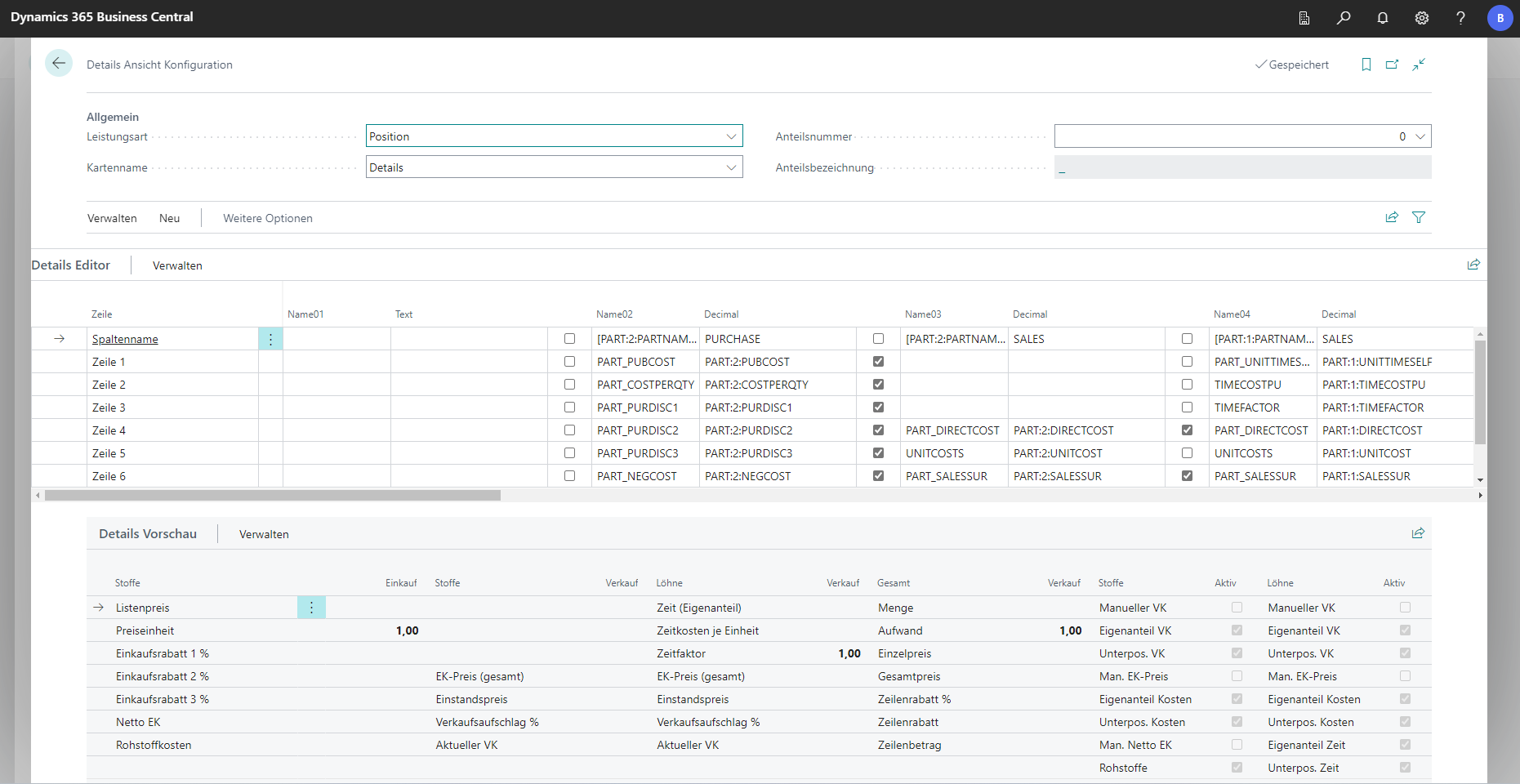 Click to enlarge
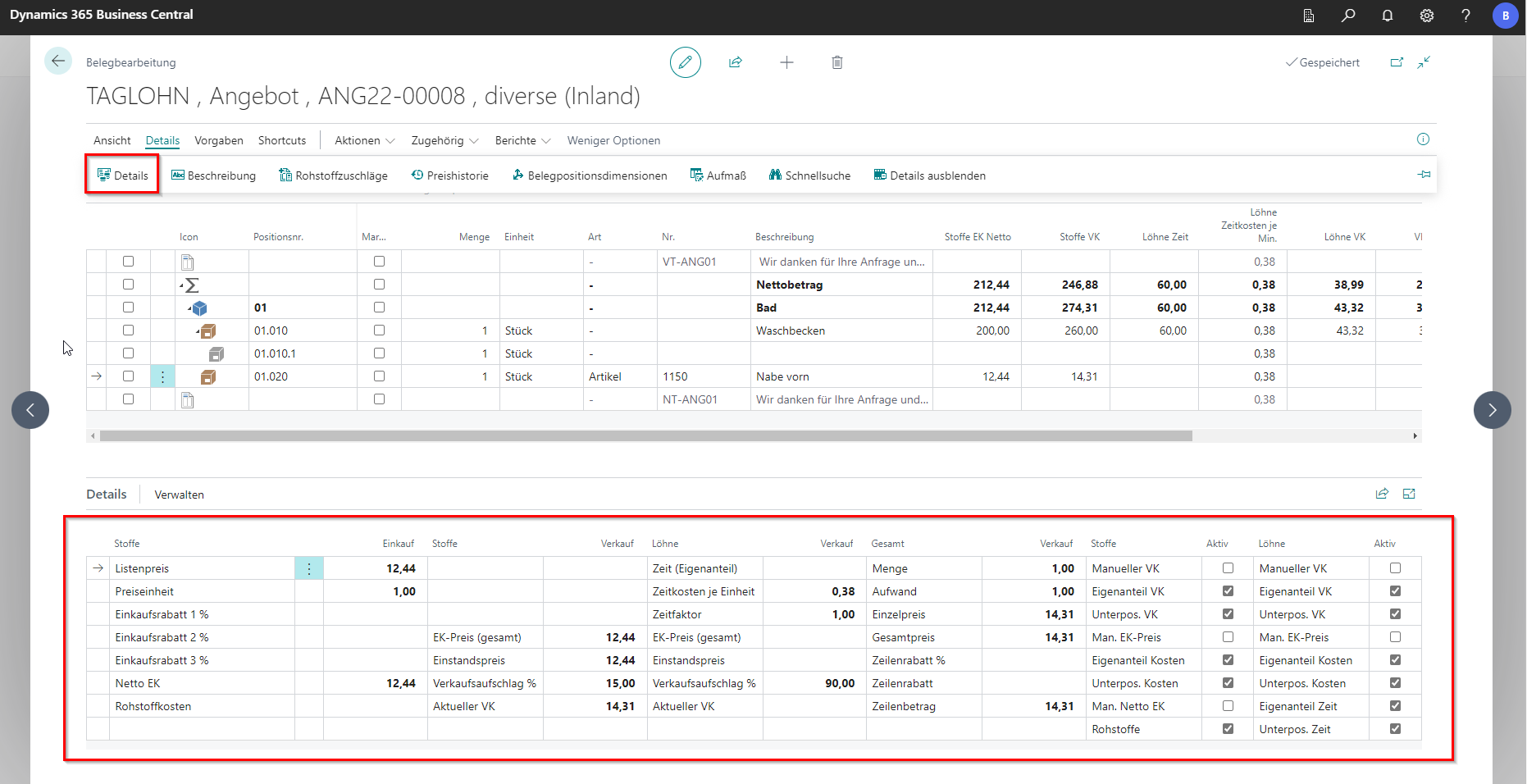 Click to enlarge
Column Selection
In the BE-terna Project setup Column Selection you can edit which columns are displayed in the project document. There you can select different column views via View, depending on which one is relevant to you. As an accountant, the Invoicing view is the most important. If you are often on site on the construction site, measurement is probably more relevant for you. In addition, you can define which view is the default view in the setup. This means that this is then preset and is automatically displayed when a new document is opened.
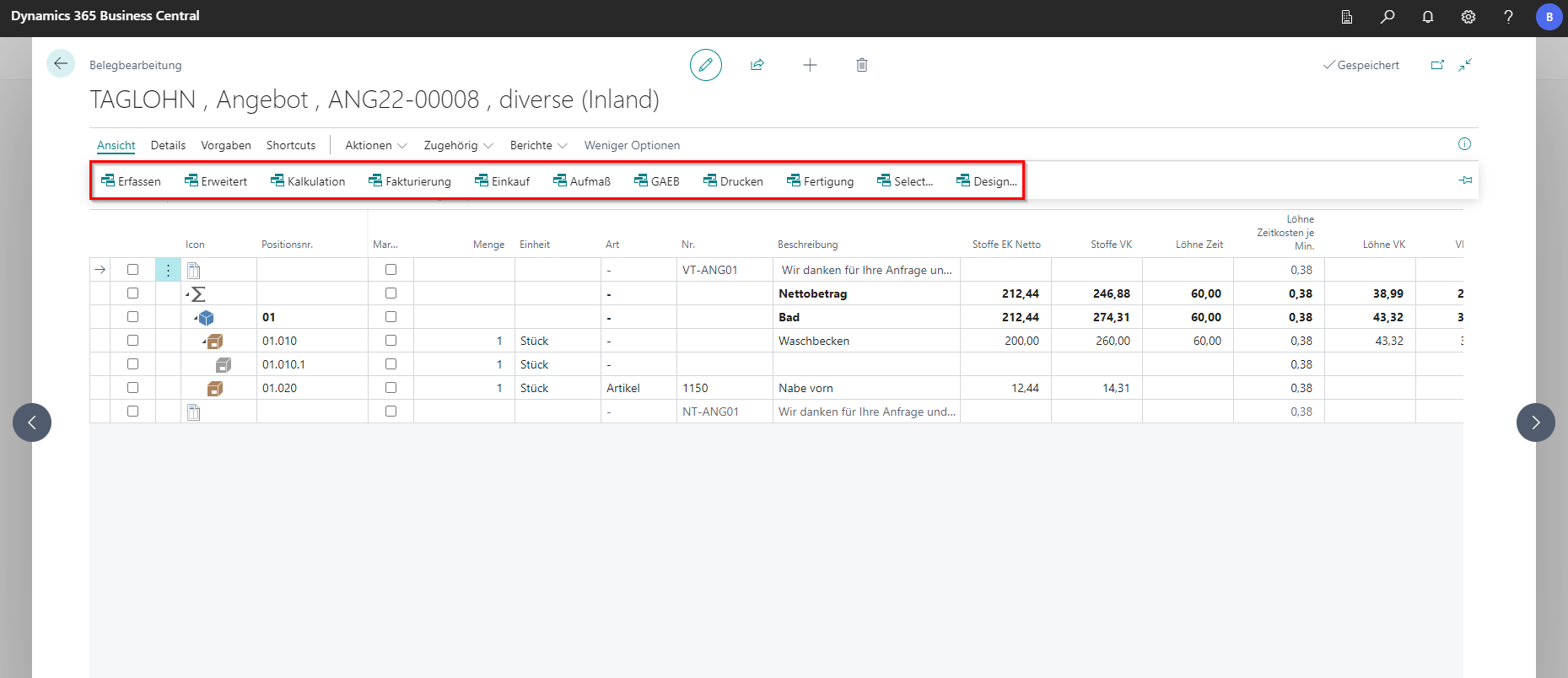 Click to enlarge
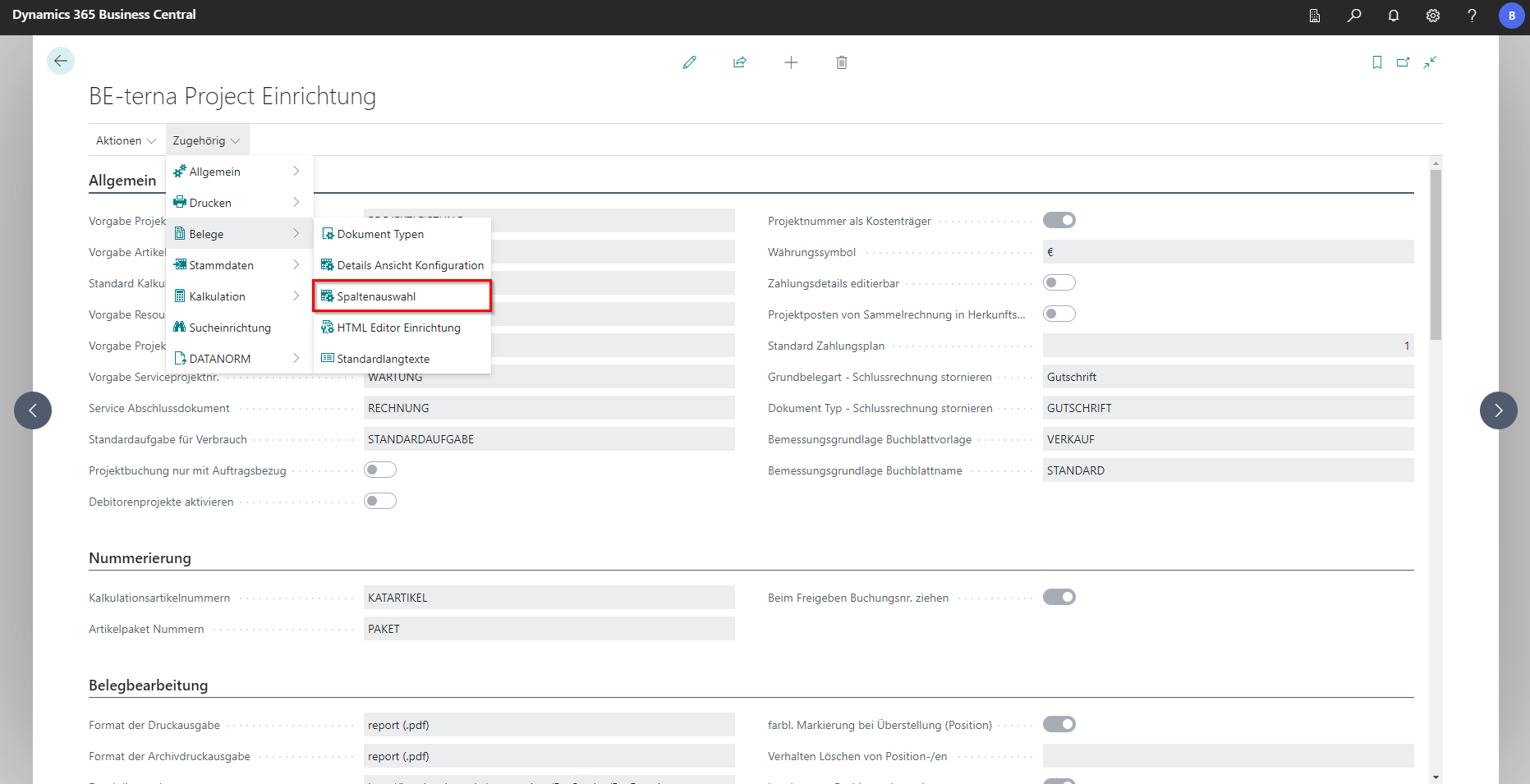 Click to enlarge
 Click to enlarge
There are 2 types of columns in the column selection, Page Columns and User Columns. Page columns are fields that exist directly on the project document item. The contents of User Column can be found in different tables.
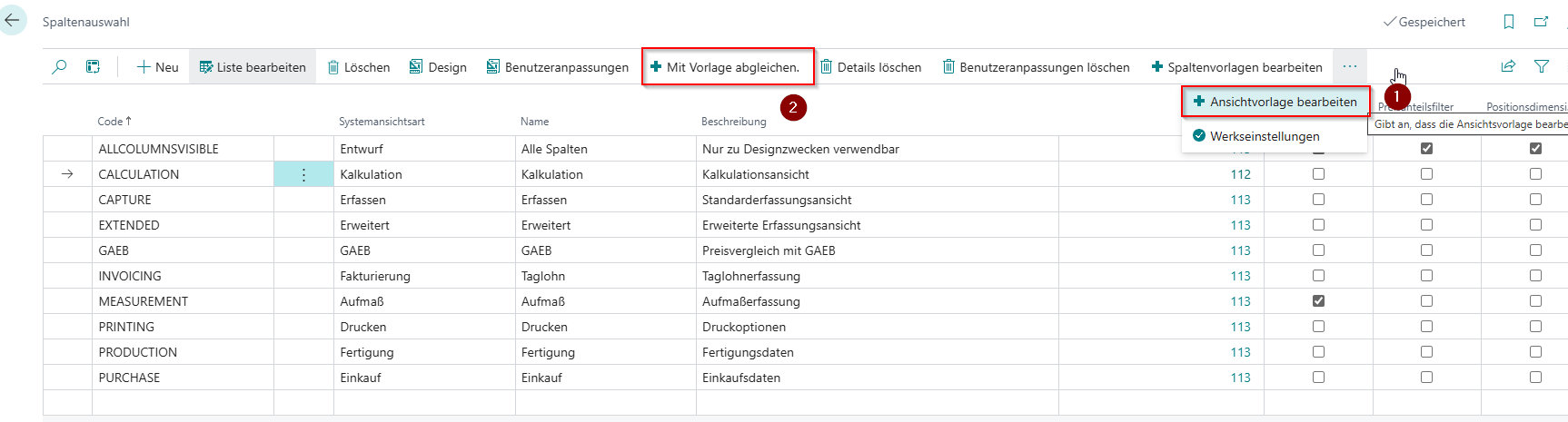
In order to add more page columns in the views, the view template (1 in the image above) should first be extended by the new columns.
When inserting new rows in the view template, do not use sort numbers that are already contained in other views.
Once the view template has been supplemented, the “Match with Template” action (2 in the image above) should be performed for each individual view. This will add the new page columns to the appropriate views. It is important that the new columns are also included in the views where they are NOT displayed. Afterwards, the visibility in the different views can be controlled via the “Visible” field.
There is no need to add user columns in the view template. User columns can be easily modified in the individual views in the existing rows with an existing user column index.
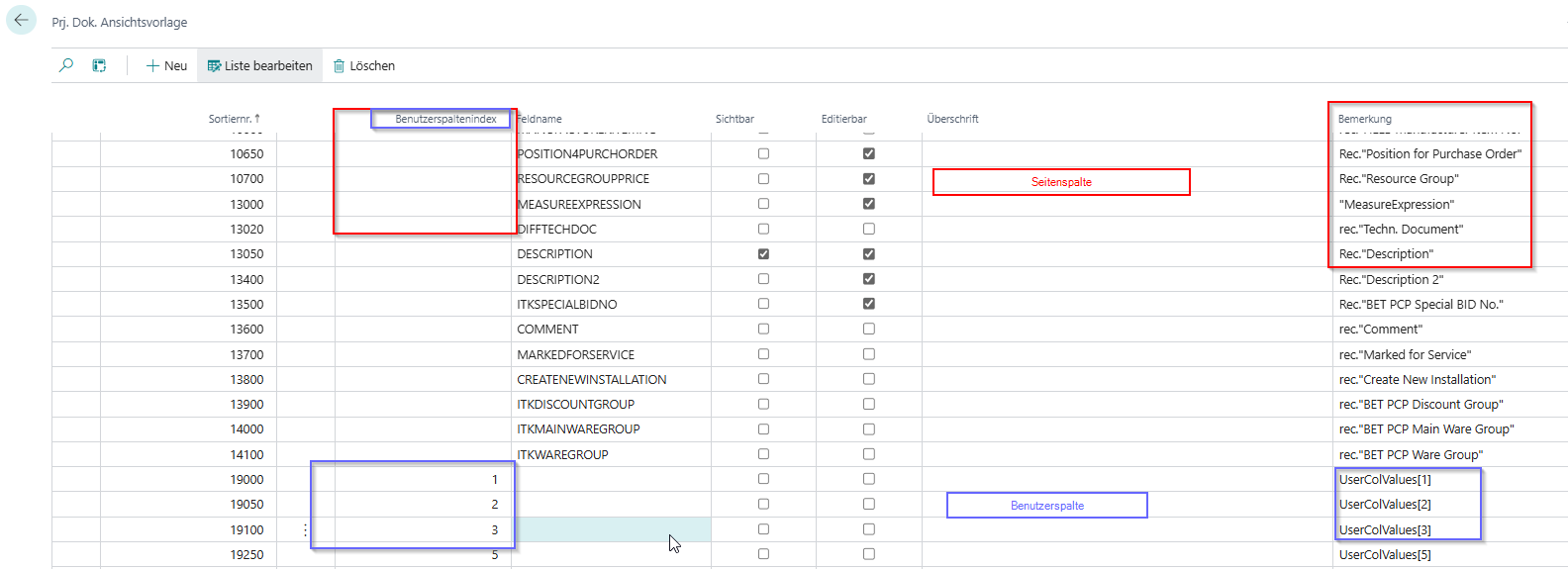
The column template contains pre-assignments for the different columns. The columns can be selected in the view template or in the individual views.
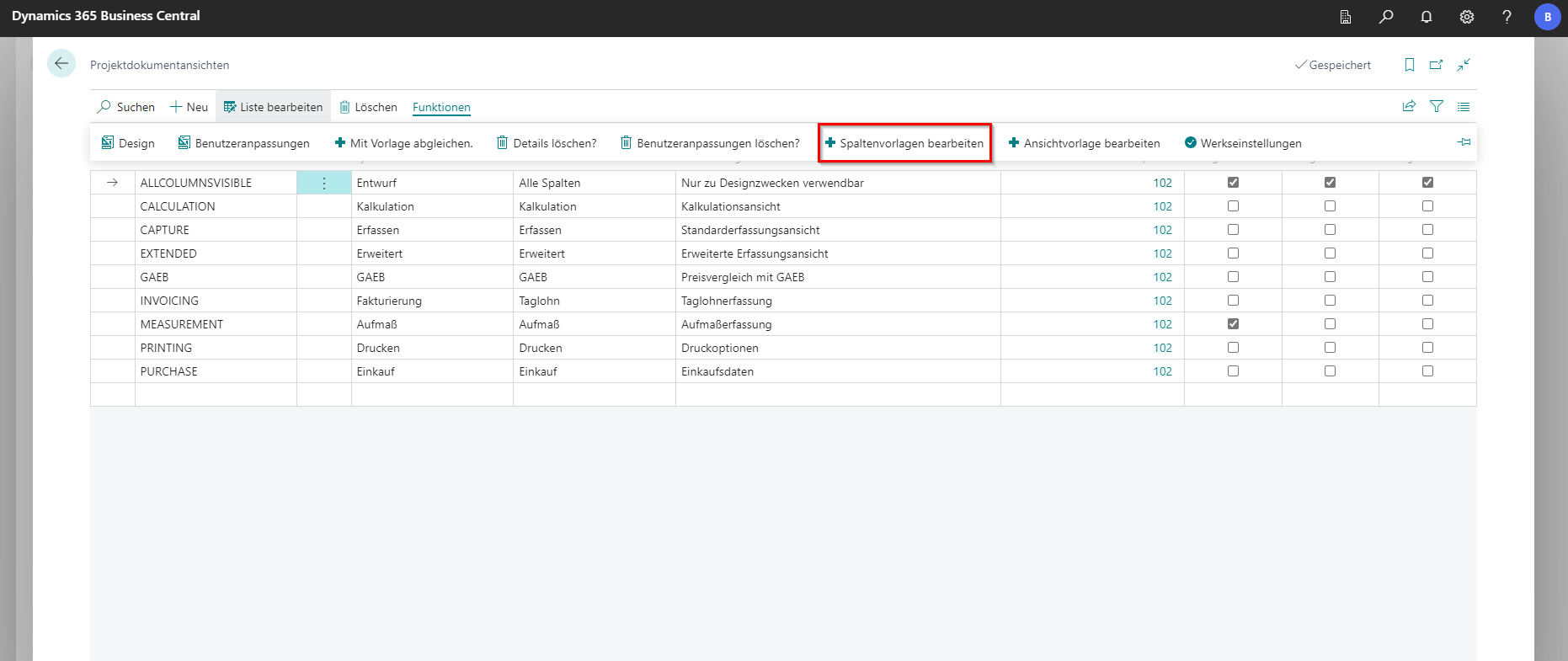 Click to enlarge
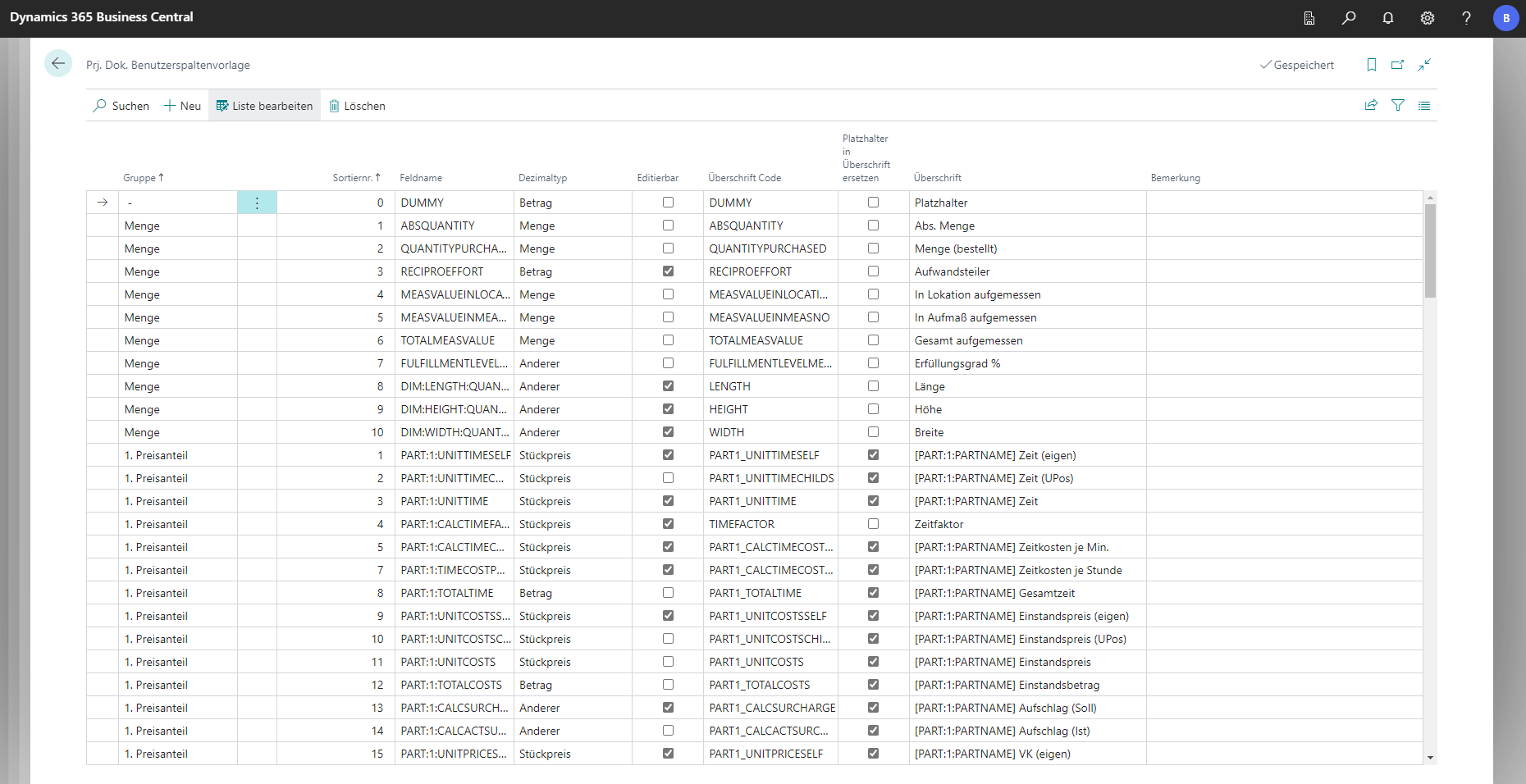 Click to enlarge
HTML Editor Setup
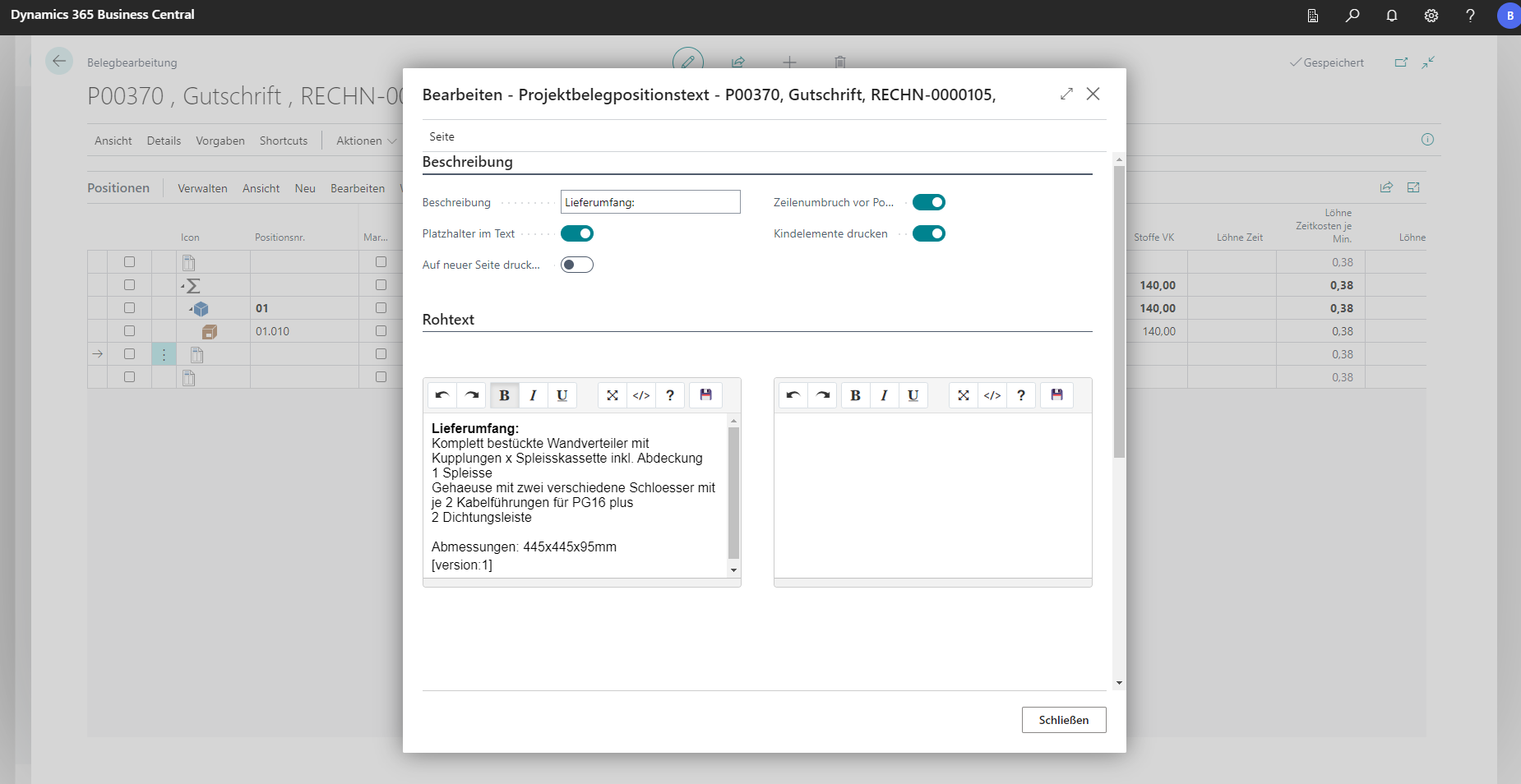
With the help of the HTML editor setup, the behavior of an HTML editor can be customized. These appear in project documents to add additional content.
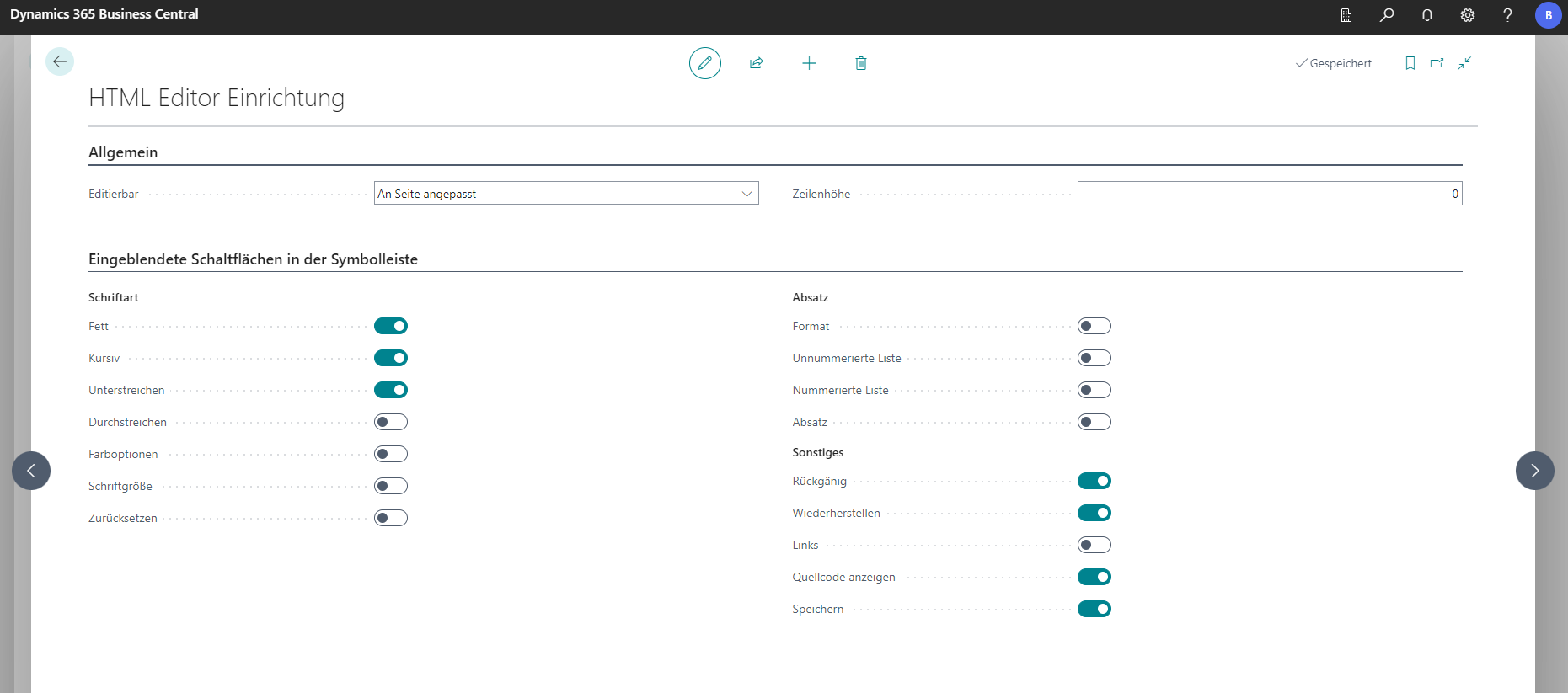
In the Editable dropdown, there are the options of “Fit to Page”, “Always” and “Never”. Depending on which page the HTML editor is on, this setting determines whether the editor can be used or not. For example, if the page is editable and “Fit to Page” is selected, the HTML editor can be used.
All other ticks define which text formatting and setting options the editor allows in the documents.
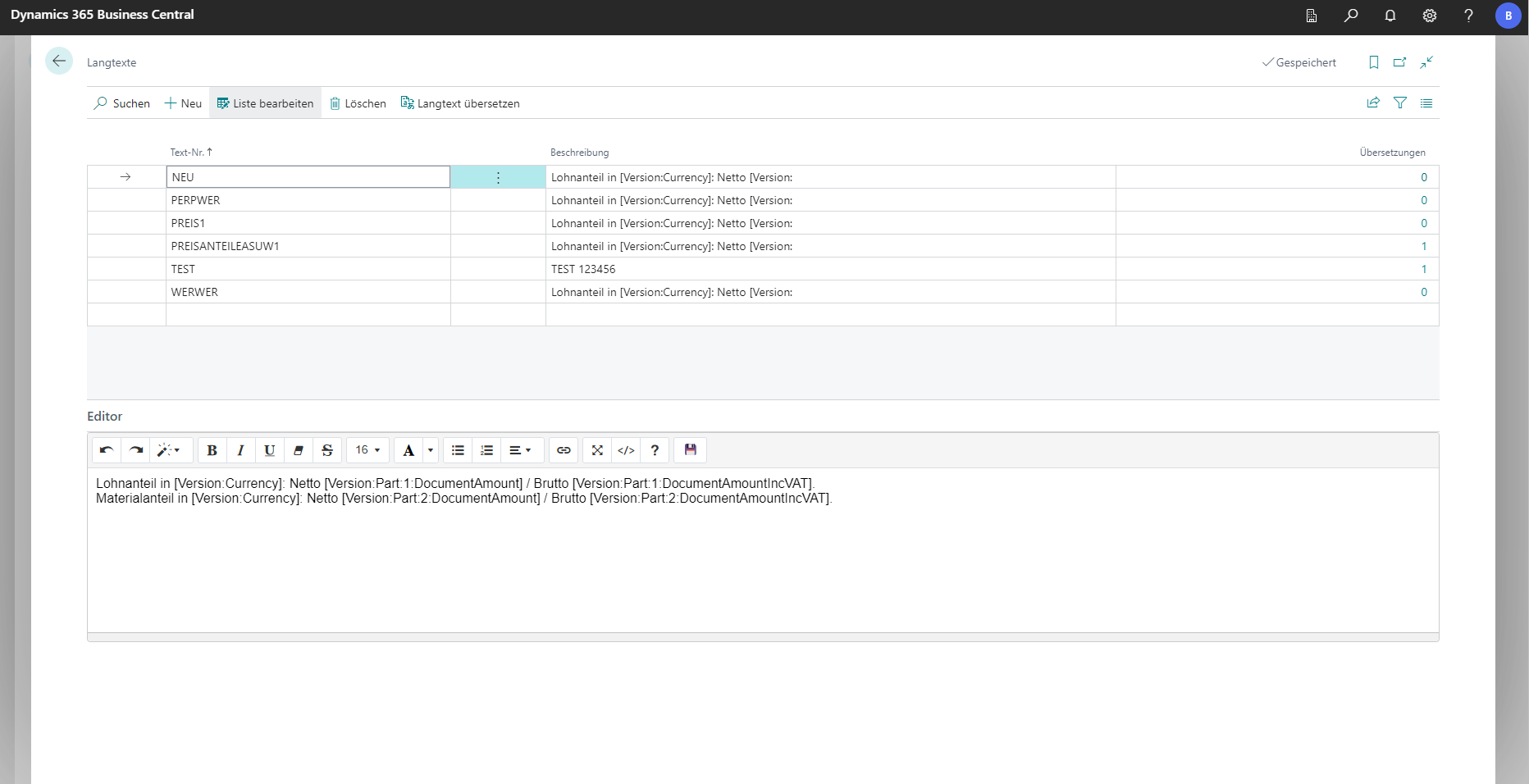
Standard long texts
At this point in the setup, standard long texts can be created and viewed. Translations of the long texts can also be created. These can then be inserted in the document before or after items. In addition, placeholders in the text can be used to specify specific information, such as the document version.