Administration
Purpose
This page describes the operational administration of Shipping Labels after the shared and carrier-specific setup is in place. It focuses on URLs, reusable setup packages, request analysis, retention settings, and the support information that helps key users and administrators keep the solution stable.
Access in Business Central
- Open Shipping Label Setup for global settings, request logs, deletion settings, and access to related setup pages.
- Open Shipping Label URL when productive or test endpoints must be created or updated.
- Open Configuration Packages when setup data should be exported, imported, or rolled out across companies or environments.
- Open BE-terna Support Info and the BE-terna license update page when support or license maintenance is required.
Prerequisites
- Shared setup and at least one carrier setup are already maintained.
- The user has permission to change setup data, URLs, and configuration packages.
- Productive and test credentials or URLs are available from the relevant carrier.
- Customer number, ident, and other support metadata are available where license or support actions are required.
Activities
Maintain shipping label URLs for productive and test use
Shipping label URLs define which carrier endpoint is called by the respective setup. In practice, this usually means that you maintain separate entries for test and productive access and assign them to the relevant carrier setups.
Each URL entry should be treated as controlled technical master data:
- define a clear code for the URL entry
- maintain the exact endpoint supplied by the carrier
- keep productive and test endpoints separate
- remove outdated or duplicate URLs once the rollout has stabilized
Changing URLs is a small technical change with a large operational impact. Test a label request immediately after every relevant change.
Use configuration packages to reuse validated setup data
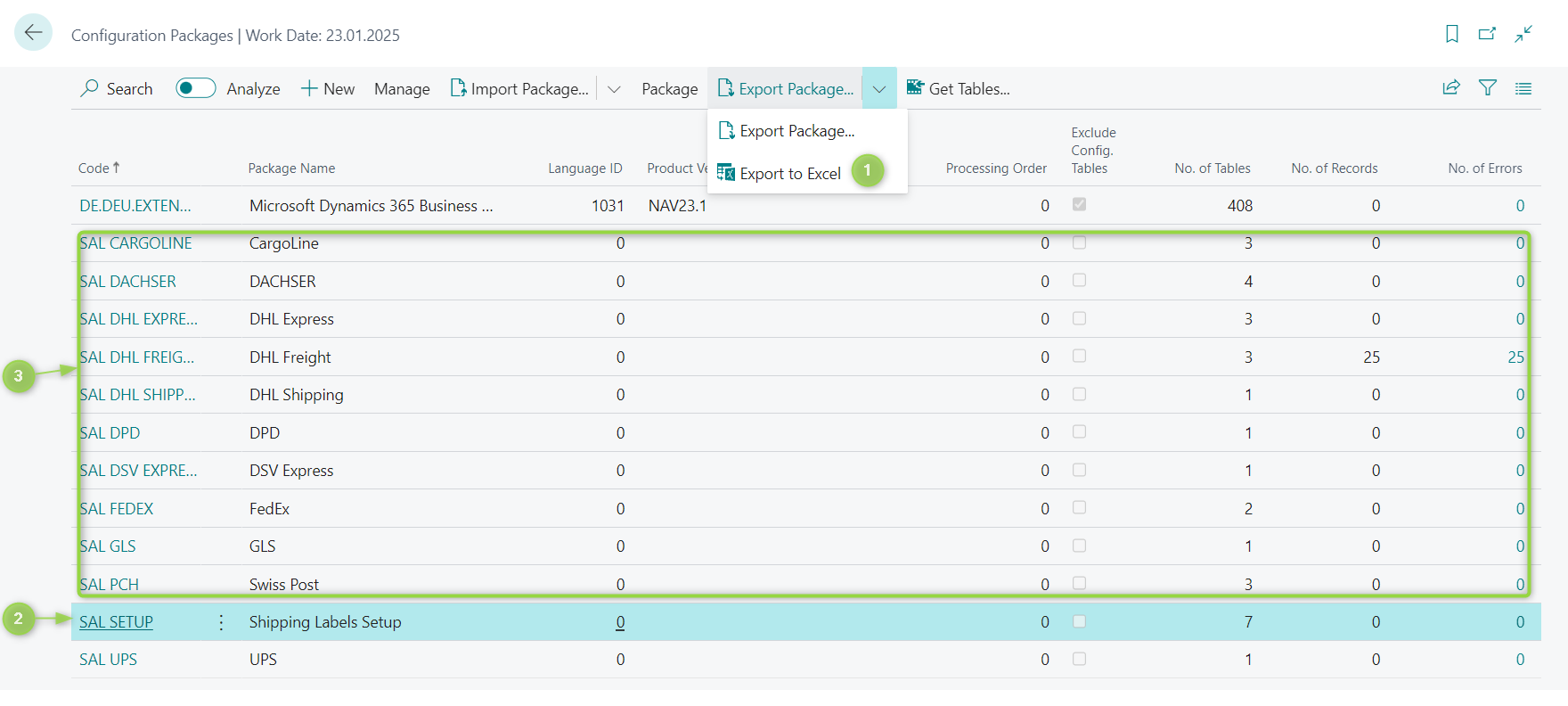
The first Shipping Labels setup should be created manually so that the functional relationships are understood and validated. After that, Configuration Packages can be used to export and import the shared setup and the carrier-specific setup packages.
The shared setup packages usually cover the common setup areas such as shipping agents, shipping agent services, assigned source types, shipping agent service setups, shipping label setup, shipping label URLs, and assigned internal commercial terms. Carrier-specific packages then complement this common baseline.
This is especially useful when you need to:
- replicate a validated baseline to another company
- move a tested setup from a nonproductive environment to a productive environment
- compare carrier setups or restore a known-good configuration state
In practice, the shared baseline usually includes these setup areas:
- shipping agents
- shipping agent services
- assigned source types
- shipping agent service setups
- Shipping Labels setup
- shipping label URLs
- assigned internal commercial terms
Carrier-specific packages then complement this shared baseline with the properties, credentials, and codes of the selected carrier. After the first setup has been validated, export the shared baseline together with the relevant carrier package for reuse.
Example of shared and carrier-specific configuration packages for Shipping Labels:
Review request logs and follow the request details
The request log is the main operational entry point for diagnostics. It records successful and unsuccessful requests and exposes the technical details that are needed when a request does not behave as expected.
The most important log information includes:
- entry number and request timestamp
- source type, user, and shipping label type
- error flag, error text, and HTTP status
- URL, HTTP method, request payload, and response payload
For day-to-day troubleshooting, read the request log fields in this order:
| Field | Why it matters |
|---|---|
| Error Text | Shows local send problems such as connection issues before the request reached the carrier |
| Response | Usually contains the most specific carrier-side validation message |
| HTTP Status | Separates transport issues from rejected business requests |
| URL | Confirms whether the correct test or productive endpoint was used |
| Request | Shows which data was actually sent from Business Central |
| Source Type / User | Helps identify which document flow and which user created the request |
| Entry No. / Timestamp | Makes it easier to reference the exact request in support communication |
Use this sequence when diagnosing a failure:
- If the request never reached the carrier, start with URL, credentials, internet connectivity, and local Error Text.
- If the carrier rejected the request, read Response and HTTP Status first, then compare the request payload with the expected source data.
- If a label exists, continue into Request Shipping Labels to inspect file, tracking ID, and return tracking ID.
From the selected request, you can also open the related detail pages:
- Request Parameters for the request header information
- Request Shipping Labels for the generated file, tracking ID, return tracking ID, and file extension when the request succeeded
Maintain global defaults and housekeeping settings
The global Shipping Label Setup page is also the place for operational defaults and cleanup rules that affect all carrier scenarios.
The most relevant settings are:
- Log Deletion Date Formula to define which request logs are removed by the cleanup action, for example
-6M - Test Mode in the global settings when all carrier setups should work in test mode temporarily
- the default phone number needed for DHL Shipping callback scenarios
- default country and default recipient country as fallbacks when the source document does not provide the required country information
- Convert Special Characters when requests should replace characters that some carriers do not accept reliably
These settings should be reviewed together. A missing default or an overaggressive cleanup rule can make diagnostics much harder later.
Keep support and license information available
For escalations, the BE-terna Support Info function summarizes customer and app metadata such as customer number, ident, Business Central version, environment type, publisher, app name, and app version. This helps the support team identify the affected installation quickly.
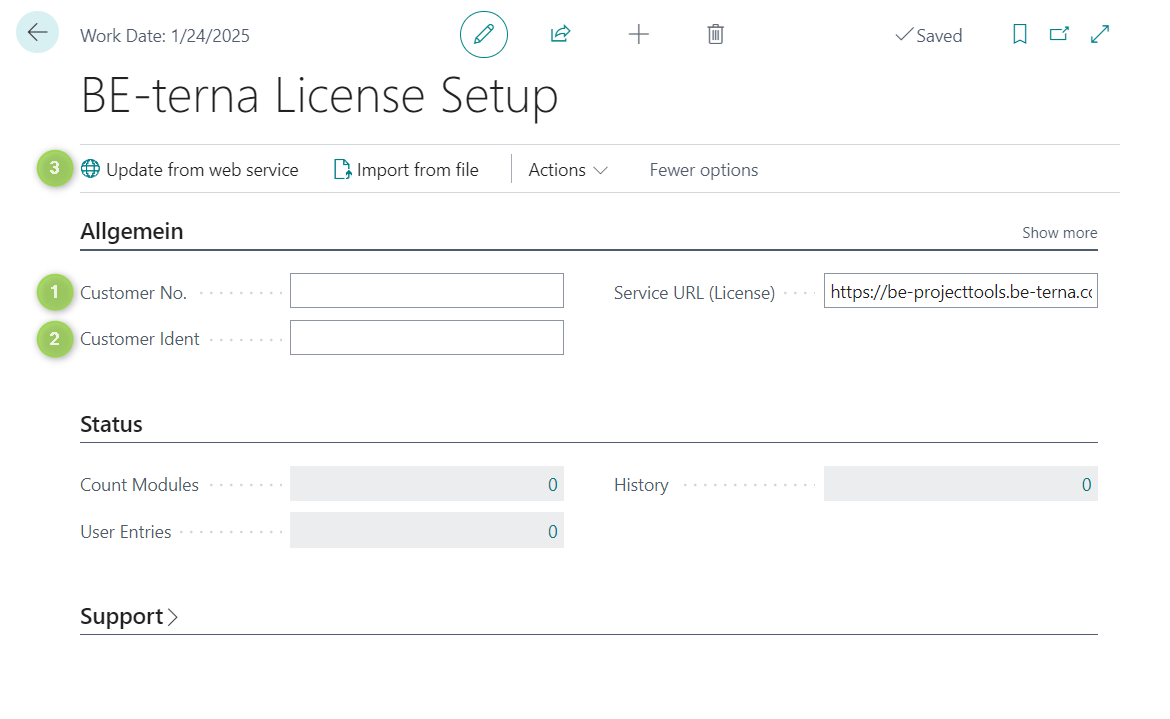
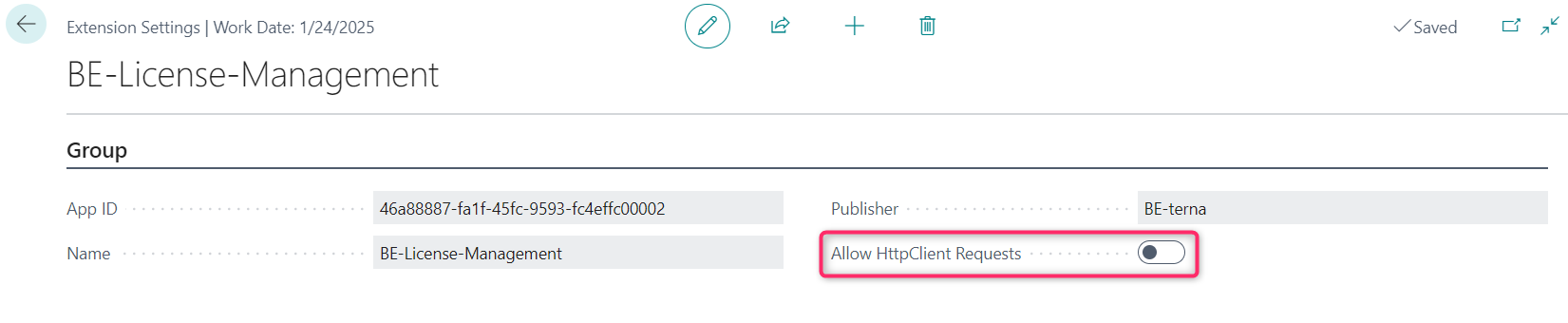
If the BE-terna license must be refreshed, the update is performed with the customer number, the customer ident, and the Update from Web Service action. Make sure Allow HttpClient Requests remains enabled, otherwise the update cannot be completed.
For a controlled license refresh, use this sequence:
- Open the BE-terna license setup page.
- Enter Customer No. and Customer Ident from the maintained BE-terna customer metadata.
- Trigger Update from Web Service.
- Verify the result before the current license period ends.
If the update fails, check internet connectivity, the maintained customer metadata, and the extension setting Allow HttpClient Requests first. A disabled outbound HTTP setting blocks the renewal process even when the business data is correct.
The license page highlights the two required customer fields and the update action clearly:
Keep the extension setting for outbound requests enabled during the update:
Fields and Actions
| Field / Action | Meaning |
|---|---|
| Shipping Label URL code | Identifies the endpoint entry used by a carrier setup |
| URL | The carrier-specific API endpoint for test or productive use |
| Log Deletion Date Formula | Defines which request log entries are deleted by the cleanup action |
| Test Mode | Forces test behavior globally or on the carrier-specific setup where supported |
| Default Country / Default Recipient Country | Fallback country values if the source document does not provide them |
| Convert Special Characters | Replaces characters that some carriers do not process reliably |
| Request Parameters | Opens the header details of a selected request log entry |
| Request Shipping Labels / Show Label | Opens the generated label details and lets the user download the file |
| Update from Web Service | Refreshes the BE-terna license by using the maintained customer metadata |
Monitoring and Troubleshooting
- Start with Error Text, Response, and HTTP Status in the request log. This shows whether the problem is a connectivity issue, a rejected request, or an incomplete setup.
- Use Request Parameters and the request payload to verify which source values were actually sent to the carrier.
- If repeated requests fail, check URLs, credentials, assigned source types, assigned Incoterms, and the mandatory master data on company, customer, location, or document level.
- Keep enough request history to analyze recurring incidents. Delete only genuinely old log entries.
Best Practices
- Separate productive and test URLs clearly and validate every URL change with a real label request.
- Build the first setup manually, then use configuration packages only after the baseline is proven.
- Keep request logs long enough to support recurring troubleshooting and go-live stabilization.
- Activate global test mode only deliberately and reset it after the test phase.
- Keep support metadata and license information current so that escalations do not start with data collection.
Links