Cash Register Setup
A cash register setup contains the individual configuration for its assigned cash register. This results in a 1:1 assignment between cash register and cash register setup. Setup is done under Setup → Cash Register Setup.

Actions
Several action buttons are available on the cash register setup card. They are briefly described below.

| Field | Description |
|---|---|
| Initialize | Initializes the cash register setup for the current Windows user |
| Device Setup | Opens device setup |
| Receipt Text Setup | Opens receipt text setup |
| Copy | Copies the selected cash register setup |
| Store Management | Lets you manage multiple stores |
| Dimensions | Opens dimension management |
Initialize
Defines this cash register setup for the user.
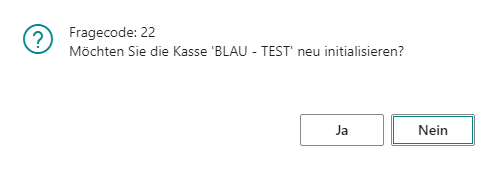
If you confirm the prompt with Yes, the current Windows user is assigned to this cash register setup. This assignment is unique, so one Windows user cannot be assigned to multiple cash register setups. Existing assignments are removed automatically.
Copy
This action can be used to copy cash register setups.
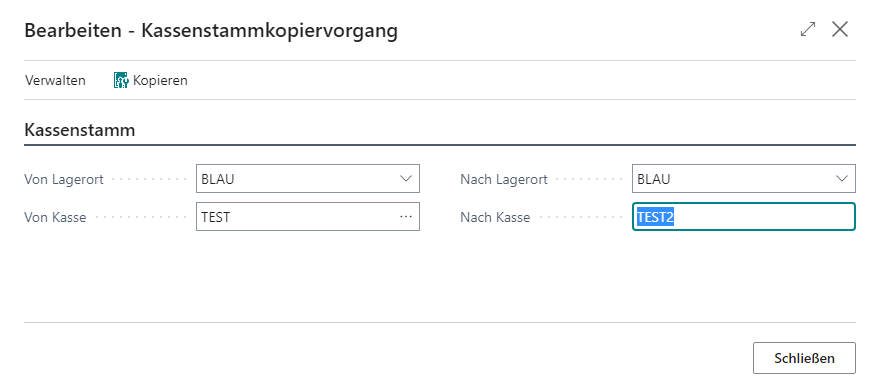
| Field | Description |
|---|---|
| From Location | Defines the source location |
| From Cash Register | Defines the source cash register code |
| To Location | Defines the target location |
| To Cash Register | Defines the target cash register code |
Selecting Copy creates a new cash register setup.
Store Management
Store management makes it possible to transfer settings from one cash register setup to all or selected cash register setups.
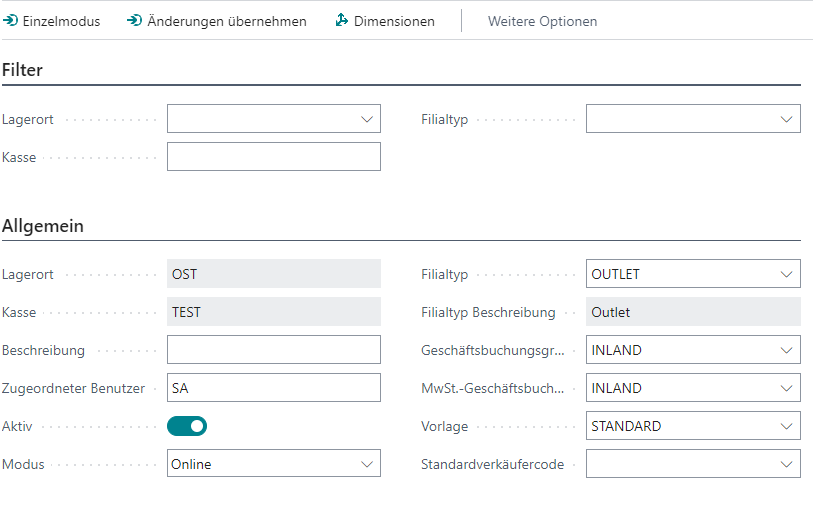
| Field | Description |
|---|---|
| Filter | Lets you define a cash register setup filter for which the settings should be transferred |
| Single Mode | Leaves store management mode |
| Apply Changes | Applies all changes made to all or the selected cash register setups |
Setup
General
This tab is used to maintain the general parameters for each individual cash register.
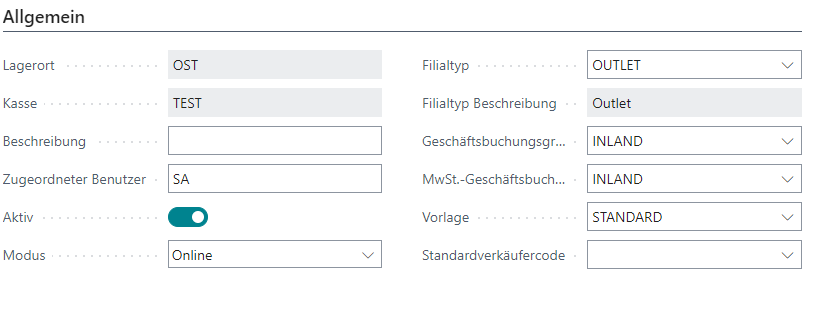
| Field | Description |
|---|---|
| Location | The location code |
| Cash Register | The cash register code |
| Description | Description, for example Backup Register |
| Assigned User | The uniquely assigned Windows user for this cash register setup |
| Active | Indicates whether the cash register is active and can be used |
| Mode | Online: The cash register runs directly in the main system and therefore has access to all master data and functions Offline: The cash register runs independently from the main system via a separate database; for more information, see the data transfer section |
| Store Type | The stored store type, which can be used as a filter in store management |
| Business Posting Group | The default business posting group to use |
| VAT Business Posting Group | The default VAT business posting group to use |
| Template | Stores the interface template to use, including design and key layout |
| Default Salesperson Code | Assigns a default salesperson to the cash register, who is automatically assigned to every new receipt |
Settings
This tab contains settings that influence cash register behavior during checkout.

| Field | Description |
|---|---|
| Cashier Sign-In During Cash Closing | Cash closing with cashier sign-in |
| Print VAT Matrix | Prints the VAT matrix on the receipt |
| Print Original Price | Always prints the original price when a new price is entered |
| Close Receipt Automatically | Closes the receipt automatically once it has been paid in full |
| Cash Account Book Receipt Type | Activates the cash account book receipt type |
| Card Payment Total | Automatically transfers the remaining amount for card payments |
| Cashier = Salesperson | Cashier is automatically also the salesperson |
| Rights from Salesperson | Uses salesperson permissions |
| Capture Return Reasons | Makes return reasons mandatory for returns |
| Campaigns Allowed | Allows the use of campaigns |
| Pre-Filter Search | Activates the category pre-filter in item search |
| Cross-Selling Allowed | Activates the display of suggested products based on the current sale |
| Combine Items | Activates automatic quantity consolidation of identical items during the sales process |
Defaults
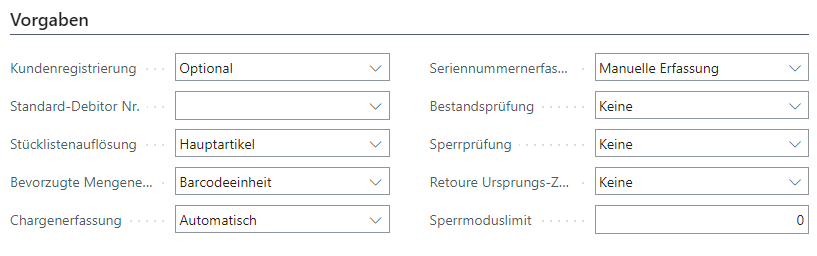
This tab manages various parameters for data capture during checkout.
| Field | Description |
|---|---|
| Customer Registration | Type of customer registration Never: No customer registration possible Optional: Customer registration possible Always: Customer registration mandatory |
| Default Debtor No. | Stores a default debtor for unnamed customers and when debtor entry is mandatory |
| BOM Explosion | Defines in which form sold BOMs should be exploded Main Item: The main item is transferred to the receipt, printed, and later posted accordingly Subitems: All subitems of the main item are transferred to the receipt, printed, and later posted accordingly. Subsequent quantity changes or line cancellations affect all subitems equally Main Item with Subitem Print: The main item is transferred to the receipt, printed together with all subitems, and later posted accordingly |
| Preferred Unit of Measure | Defines which priority should be used to determine the unit of measure Barcode Unit: Default behavior. If a scanned barcode has a unit stored, that unit is used; otherwise the item’s unit of measure is used, and if that is empty as well, the base unit is used Unit of Measure: If a scanned barcode has a unit stored, it is ignored and the item’s unit of measure is used; if that is empty as well, the base unit is used Base Unit: The base unit is always used, regardless of whether barcode unit or unit of measure is maintained on the item |
| Lot Capture | Defines how lots that may be assigned during item sales should be captured Automatic: When item or order lines are imported, the lots stored for the respective item are determined automatically and the sales quantity is split across them until either the sales quantity is fully allocated or the available stock of the lots is exhausted Manual (Input): The lot is captured manually during the sales process, with entering the lot number favored Manual (Selection): The lot is captured manually during the sales process, with selecting the lot number favored |
| Serial Number Capture | Controls manual capture of a serial number |
| Inventory Check | Defines whether an inventory check should be performed for item sales and how the system should react if inventory is insufficient. Item number, variant code, location, and lot number are taken into account None: No inventory check is performed, so items can be sold even if insufficient stock is available Information: If stock is insufficient, an informational message appears; the process continues if confirmed with Yes or is canceled with No Error: If stock is insufficient, an error message appears and the process is canceled |
| Block Check | Defines whether a block check should be performed for items/debtors and how the system should react if a block exists None: No block check is performed for item sales/debtor assignment Information: An informational message appears if the item/customer is blocked; the process continues if confirmed with Yes or is canceled with No Error: If items/debtors are blocked, an error message appears and the process is canceled |
| Check Return Original Tenders | Defines whether, for a receipt return, a note should be shown about the tenders from the original receipt None: No check is performed Information: The tenders used are shown when the payment status is opened Information with Amounts: The tenders used and their complete amounts are shown when the payment status is opened |
| Lock Mode Limit | Defines after how many seconds checkout should automatically switch to lock mode |
Prices
This tab manages price determination during checkout.

| Field | Description |
|---|---|
| Price Group | Stores the default price group to be used for price determination |
| Use Customer Prices | Defines whether the price group stored for the assigned customer, or the customer invoice discount for automatic discount application at receipt level, should be considered in price determination |
| Price Determination | Defines how item prices should be determined Price List or Item Price: The system first tries to determine a valid price from the sales price list; if this is not possible, the sales price from the item is used Price List: Only the sales price list is used for price determination Item Price: Only the item is used for price determination |
| Price Change Allowed | Allows prices to be changed afterwards |
Counting
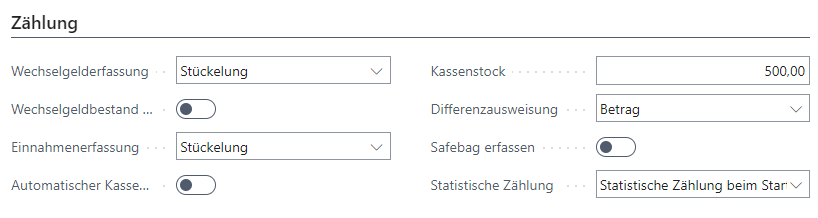
This tab contains settings that affect behavior during cash register start, change registration, cash register closing, and Revenue Registration.
| Field | Description |
|---|---|
| Change Registration | Type of change registration during cash register start None: Capture not required Amount: Capture as a total amount Denomination: Capture as denominations |
| Always Count Change Amount | The change amount must be captured for every cash register start |
| Revenue Registration | Type of Revenue Registration during cash register closing None: Capture not required Amount: Capture as a total amount, requires a default cash tender with a variance account Denomination: Capture as denominations, requires a default cash tender with a variance account |
| Automatic Cash Register Closing | Automatically indicates that cash register closing is required if the current date differs from the start date of the current POS process; this does not apply if the POS process is still in start mode or already in closing mode |
| Cash Float | Defines which amount should automatically be reserved for the next cash register start after counting during cash register closing; the difference is posted automatically as Cash to Bank |
| Difference Display | Defines how counting differences at cash register start and end should be shown None: Counting differences are not shown Information: A message indicates the counting difference, but the specific difference amount is not shown Amount: A message and the cash register screen both show the counting difference, including the exact difference amount |
| Capture Safebag | Safebag number is requested during Cash to Bank operations |
| Statistical Counting | Defines the type of statistical counting At Start: Statistical counting required at cash register start At Closing: Statistical counting required at cash register closing At Start and Closing: Statistical counting required at cash register start and closing None: No statistical counting required |
Limits
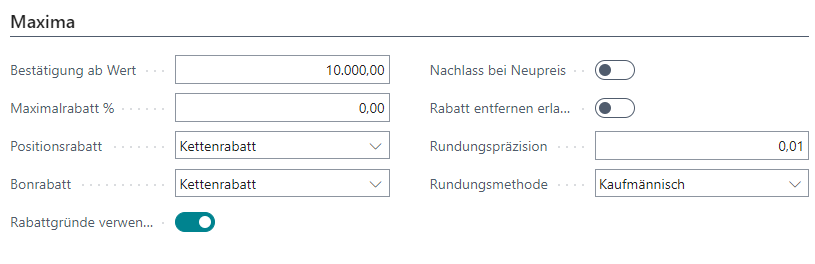
This tab stores permitted maximum values for checkout and manages discount and reduce controls.
| Field | Description |
|---|---|
| Confirmation Above Value | Defines the threshold at which value entries must be confirmed, for example amount or quantity |
| Maximum Discount % | Maximum item discount in % |
| Line Discount | Type of discount change at line level No Discount: No discount can be granted Single Discount: Only one discount can be granted once Multiple Discount: Several discounts can be granted, with each discount based on the original line amount Chain Discount: Several discounts can be granted, with each discount based on the original line amount minus discounts already granted |
| Receipt Discount | Type of discount change at receipt level No Discount: No discount can be granted Single Discount: Only one discount can be granted once Multiple Discount: Several discounts can be granted, with each discount based on the original receipt amount Chain Discount: Several discounts can be granted, with each discount based on the original receipt amount minus discounts already granted |
| Use Discount Reasons | Defines that entering a discount reason is mandatory when granting discounts/reduces |
| Reduce for New Price | Interprets a new price as a reduce, with corresponding reporting for later analysis |
| Remove Discount Allowed | Allows discounts to be removed from the sales line |
| Rounding Precision | Defines the rounding precision |
| Rounding Method | Defines the rounding method Commercial: Amounts with decimals are always rounded to the nearest value up or down Round Up: Amounts with decimals are always rounded up Round Down: Amounts with decimals are always rounded down |
| Use Customer Prices | Defines whether specific customer prices should be used |
Posting
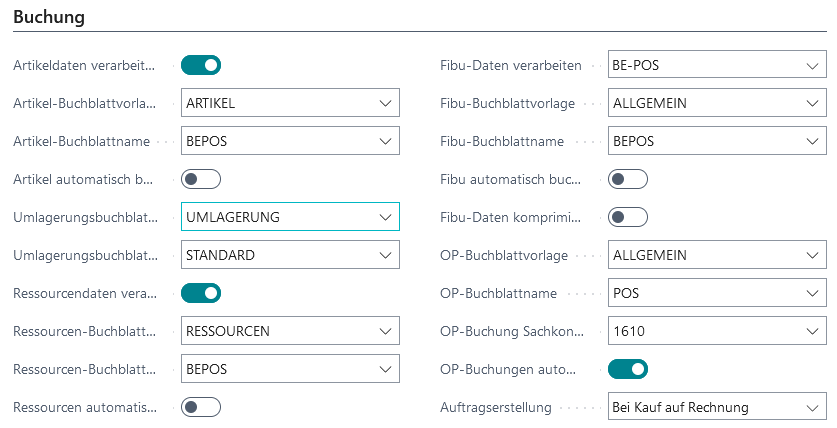
This tab manages all posting-relevant settings. In detail, these are the journals for posting items, resources, finance, and customer actions.
| Field | Description |
|---|---|
| Process Item Data | Processes the item data from every receipt |
| Item Journal Template | Journal template for item postings |
| Item Journal Batch Name | Journal batch name for item postings |
| Post Items Automatically | Activates automatic item posting |
| Transfer Journal Template | Journal template for item transfer postings, reservations |
| Transfer Journal Batch Name | Journal batch name for item transfer postings, reservations |
| Process Resource Data | Processes the resource data from every receipt |
| Resource Journal Template | Journal template for resource postings |
| Resource Journal Batch Name | Journal batch name for resource postings |
| Post Resources Automatically | Activates automatic resource posting |
| Process Finance Data | Processes the finance data from every receipt Never: No sales data is provided Standard: Sales data is validated into the relevant journal for further processing BE-POS: Sales data is prepared for the BE-POS Finance Cockpit |
| Finance Journal Template | Journal template for finance postings |
| Finance Journal Batch Name | Journal batch name for finance postings |
| Post Finance Automatically | Activates automatic finance posting |
| Compress Finance Data | Activates compression of revenue and discount lines in finance postings |
| Open Item Journal Template | Journal template for debtor postings |
| Open Item Journal Batch Name | Journal batch name for debtor postings |
| Open Item Posting G/L Account | Specifies the G/L account for debtor postings |
| Post Open Items Automatically | Activates automatic debtor posting |
| Order Creation | Note: Use of this feature requires module activation in the relevant cash register license. Invoice: When debtors are used at the cash register, a sales order is created by default for every purchase completed with tender Invoice and is delivered or delivered and invoiced depending on the setting. Receipts with Customer No.: A sales order is created and processed for every receipt with a stored customer number, regardless of the tender used. Receipts with Customer No. (Except Default Debtor): A sales order is created and processed for every receipt with a stored customer number, regardless of the tender used, except for the stored default debtor. This also enables analysis of customer purchases via the documents. Payments made are parked in the journal and, once the order has been invoiced, are applied against the created posted invoice so that it is fully settled if the receipt was paid in full. |
Vouchers
This tab contains settings for voucher management.

| Field | Description |
|---|---|
| Voucher Issue | Defines the type of voucher issue Self-Printed: The voucher is printed by the cash register, the next free voucher number is determined automatically during issue, and the voucher amount can only be defined through checkout Pre-Printed: The voucher already exists in pre-printed form; the voucher number to be used for issue must be chosen manually, and the voucher amount can be defined either through checkout or directly during voucher creation |
| Carry Forward Voucher Value | Activates carry-forward of voucher value if the receipt amount is lower than the remaining voucher value |
| Return Voucher from Amount | Defines the minimum amount from which an automatic return voucher should be issued at the end of the receipt; this requires a return-related refund within the receipt |
| Remaining Voucher from Amount | Defines the minimum amount from which an automatic remaining-balance voucher should be issued at the end of the receipt if overpayment with a voucher is required |