Price shares
Price shares are partial costs and break down the unit price according to the cost types that cause it. As standard, these are wages, fabrics, equipment and other costs. Also included are any surcharges. Price shares can be defined and adjusted at document and item level.
Any number of price shares can be created. Due to the dynamic property of the price components, they must always be assigned a base category for master data transfer and project statistics.
Document Level
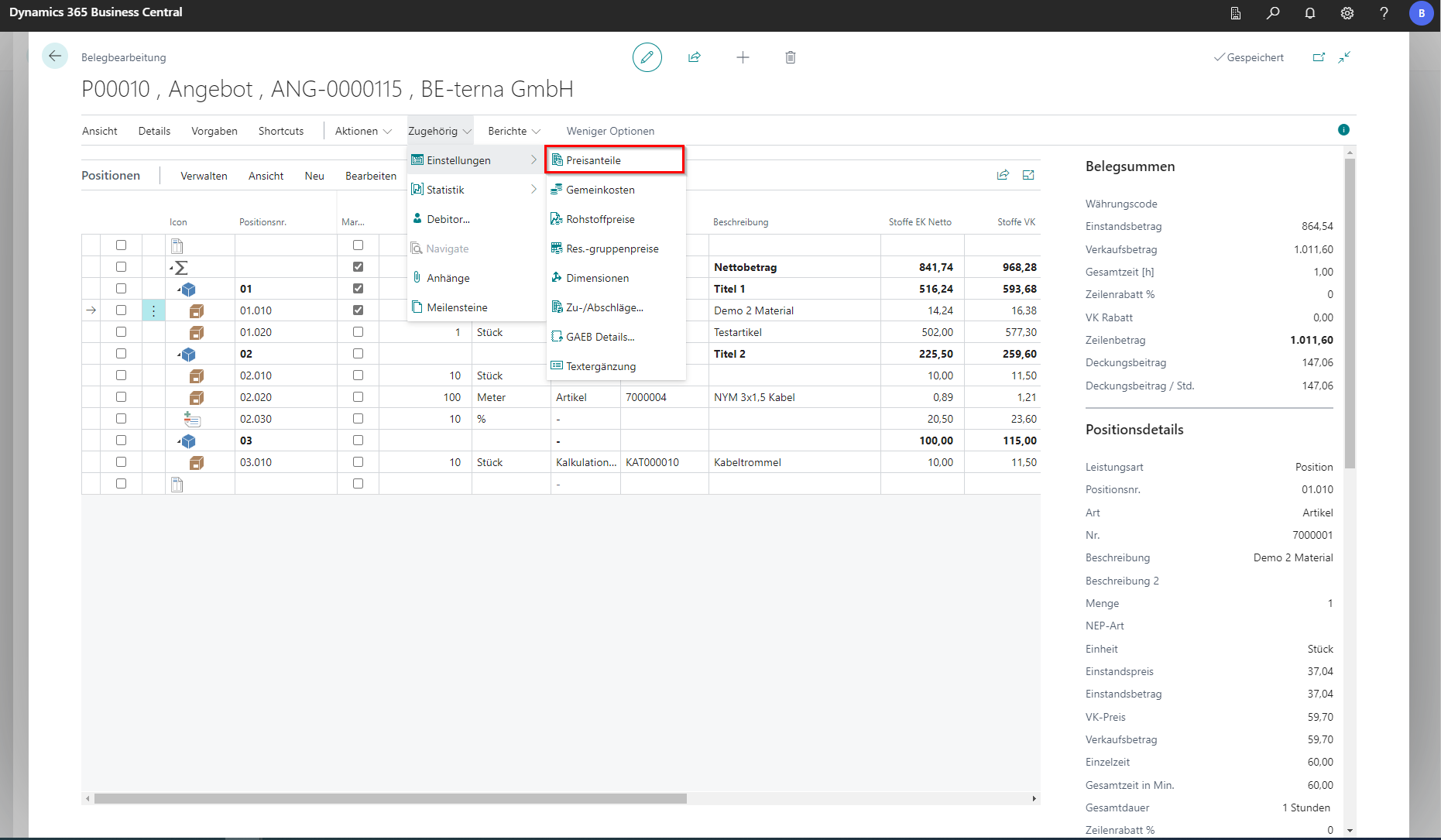
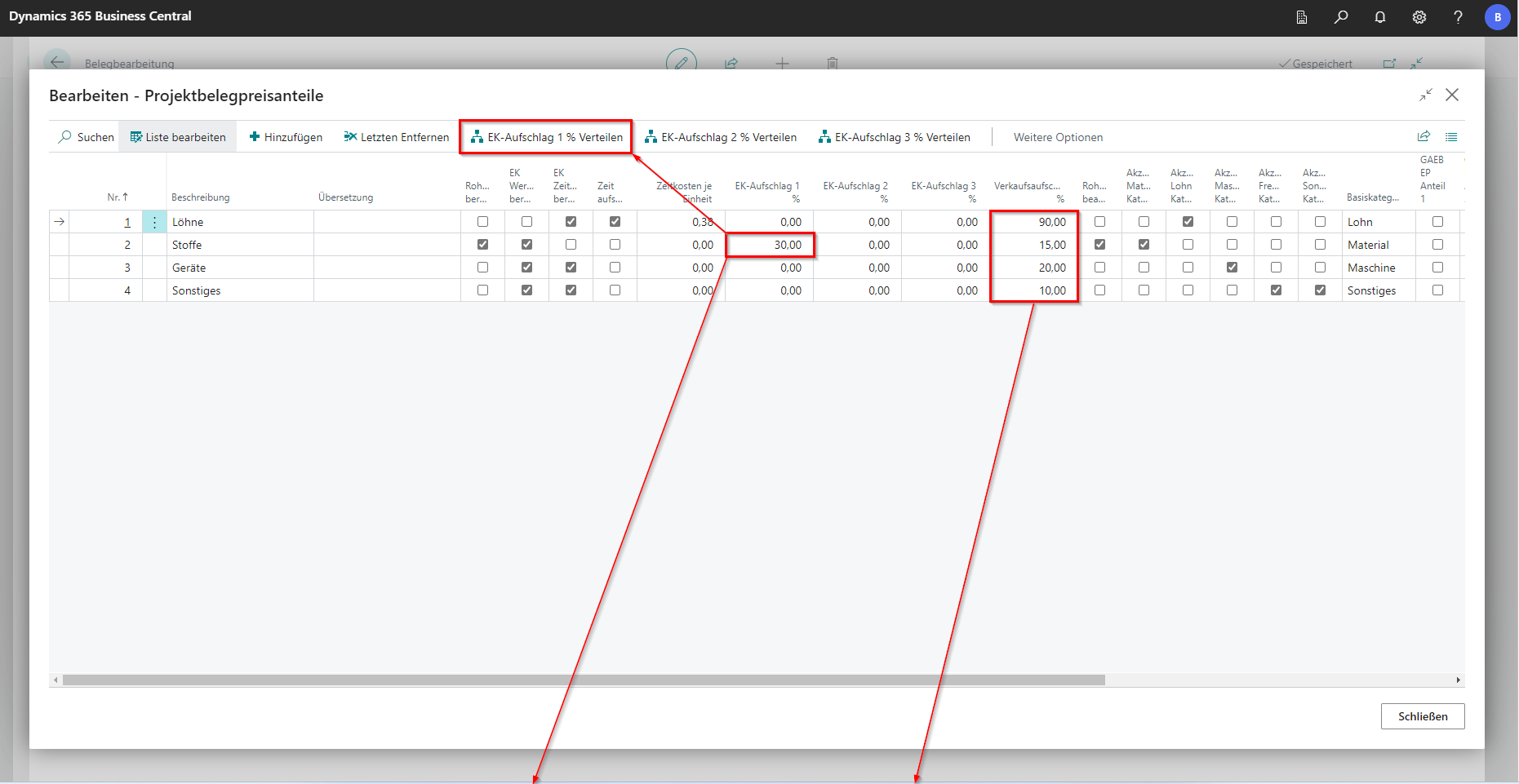
At document level, price shares can be maintained in the navigation menu under Related in Settings using the Price Shares function.
 Click to enlarge
 Click to enlarge
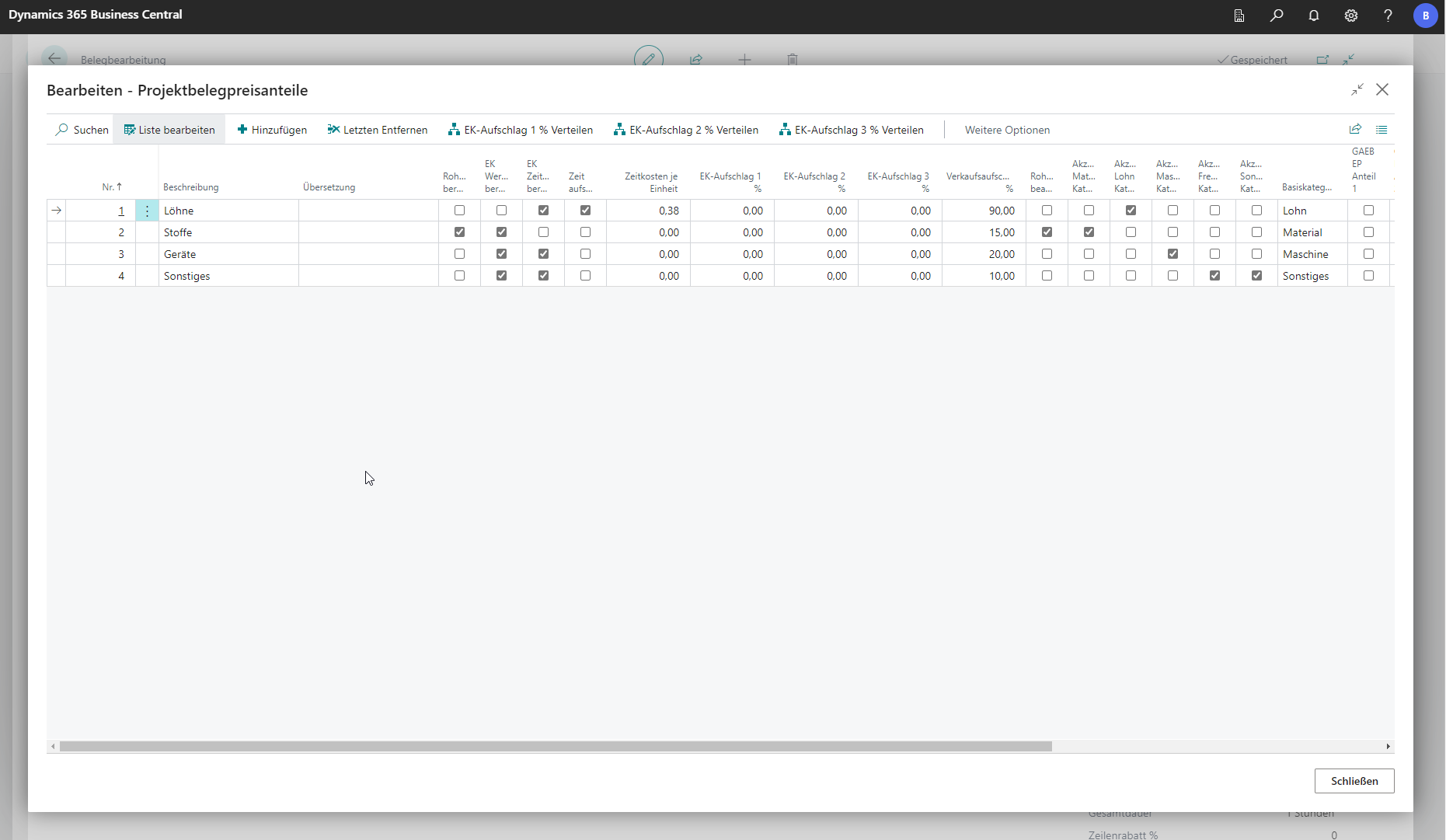
Under Time cost per unit, enter the desired value for the category. Under Sales surcharge % a percentage value is entered, which is then added to the respective cost amount in the bill of quantities. Furthermore, up to three percentage markups can be stored for the purchase in the respective purchase surcharge % field. Via the corresponding purchase surcharge % distribute button in the menu bar, these are distributed to all positions in the category.
Please note:
The purchase surcharge of 2% is reserved for overhead costs, which may be stored in the master data (resource, article, etc.). The purchase mark-up of 3% is reserved for overhead costs, which are specifically entered on the document and allocated to the items. If overhead costs are not stored either via the overhead cost allocation or in the master data, all three surcharges can be used. Otherwise, only purchase surcharge 1% can be used, as the others could be overwritten.
The purchase mark-ups always refer to the purchase price and change the cost price. The sales premium refers to the cost price. Accordingly, a change in the overhead surcharges results in a changed sales price while the sales surcharge remains the same.
Project document price shares refer only to new items. If the markups are changed after some positions have already been entered, this will only be applied to positions that are created afterwards. Purchase markups, on the other hand, are always distributed to all positions in the corresponding categories, provided that the corresponding action is performed. Otherwise, they do not change the positions.
 Click to enlarge
 Click to enlarge
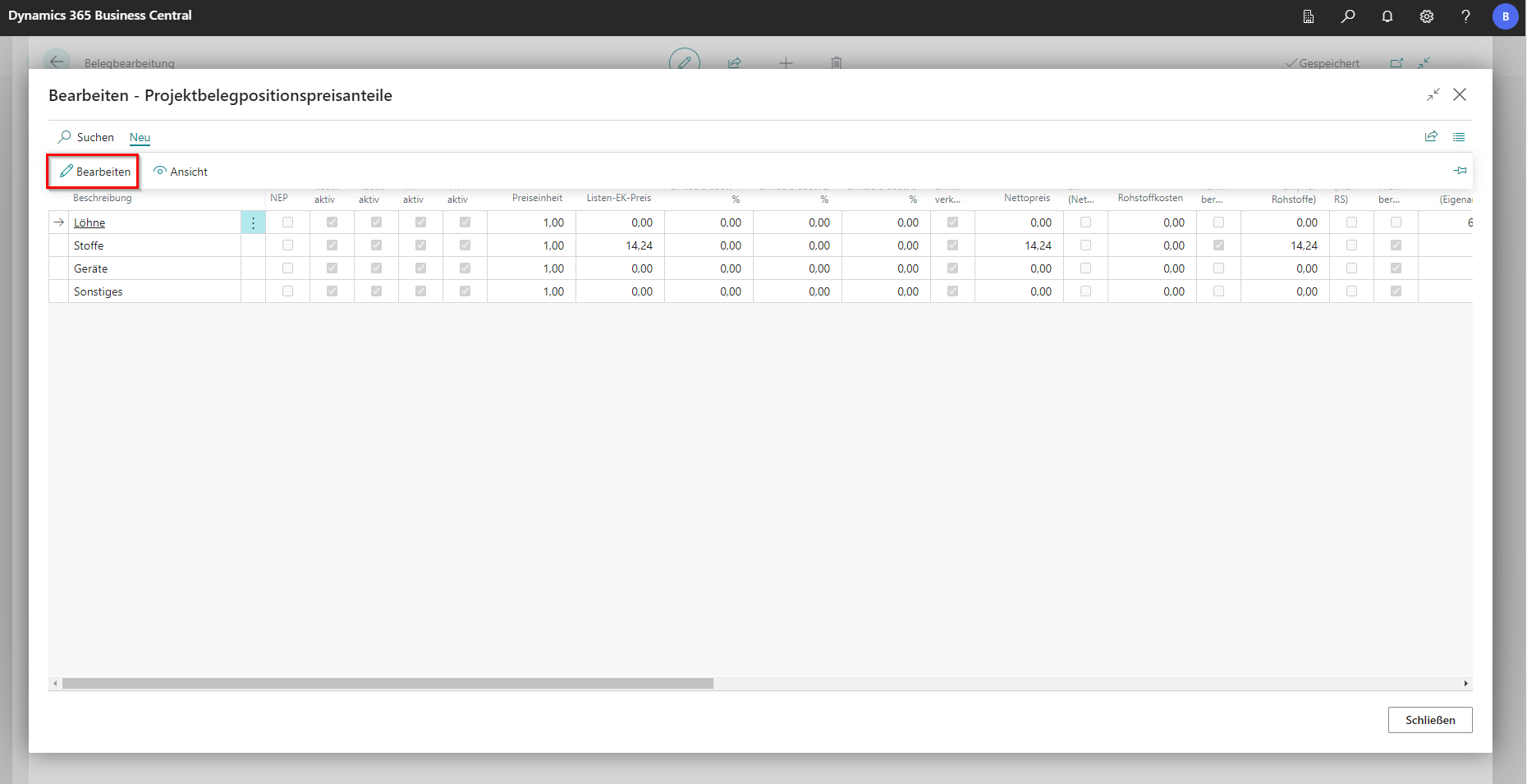
Project Document Line Price Shares
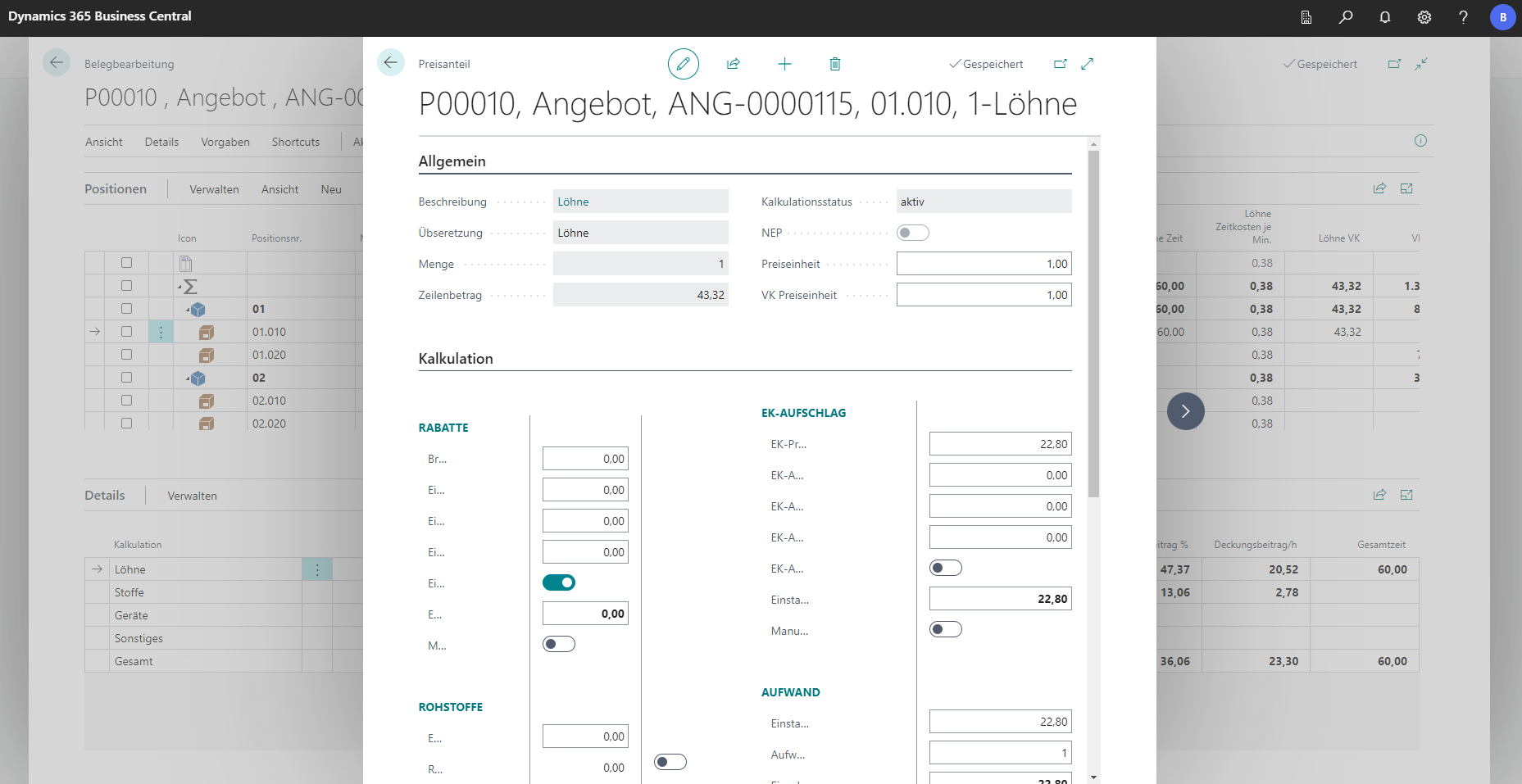
In order to edit price shares directly at the position, they must be selected beforehand. If you then click on Edit and on Price Shares in the FastTab, you will land in an item-specific edit window. All values for the calculation of the marked item are displayed here and are editable. Alternatively, this can be done via the corresponding fields in the table view of the document editor or via the details area.
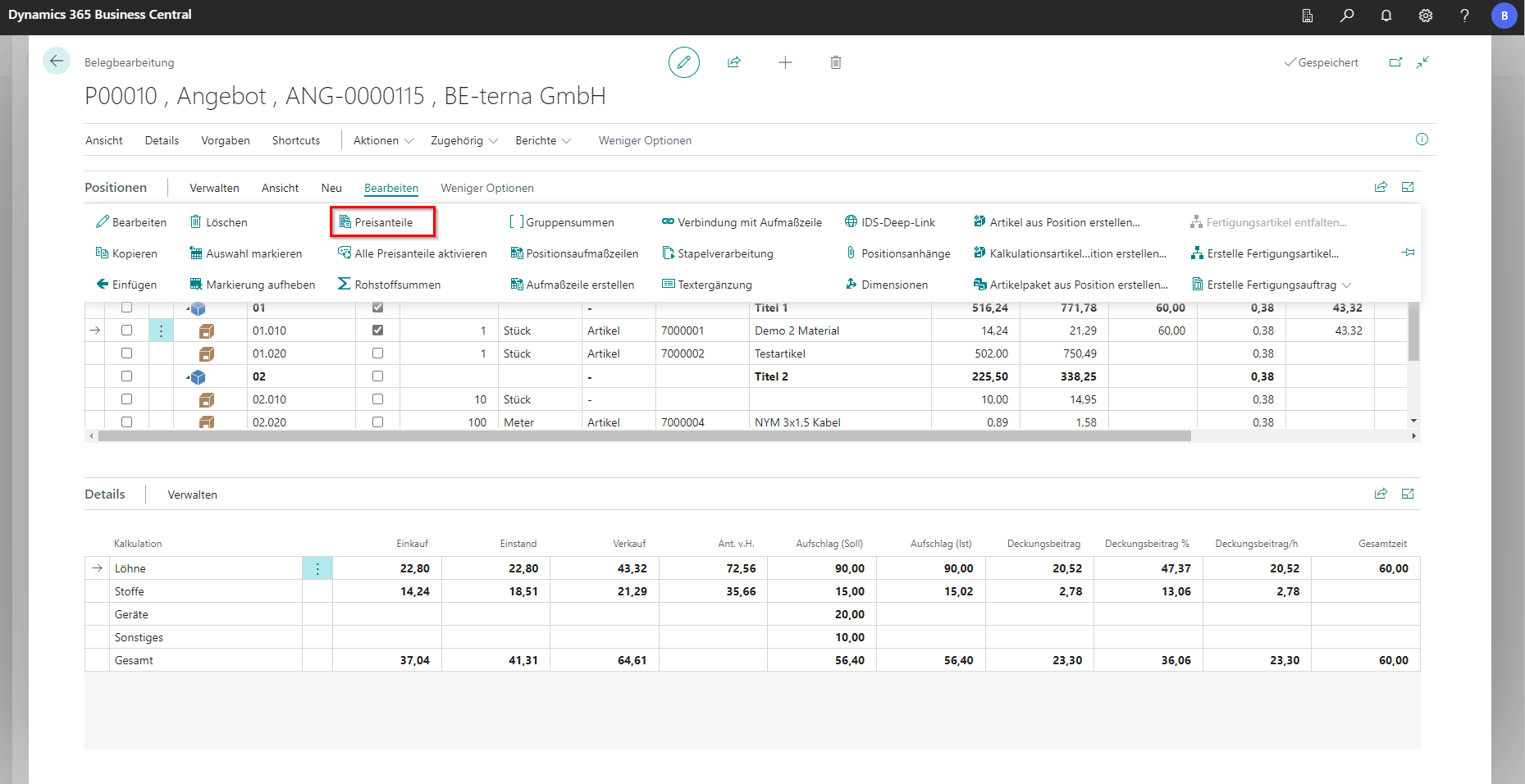
The New button takes you to Edit and allows you to edit the values for the selected row.