Setup
Purpose
This app generates a complete set of fashion-industry-specific demo data for the BE-terna Fashion solution in Business Central.
It builds directly on Microsoft’s Contoso Coffee Demo Framework and extends it with realistic content tailored to the fashion industry like colors, sizes, brands, seasons, and everything else that makes fashion tick.
Note: The setup wizard is currently only available in German. The screenshots and option labels below refer to the German UI.
Dependencies
Before getting started, make sure the following apps are installed on your environment:
| Dependency | Publisher |
|---|---|
| BE-terna Fashion (base app) | BE-terna |
| Contoso Coffee Demo Dataset | Microsoft |
| Contoso Coffee Demo Dataset (DE) | Microsoft |
Functional Modules
The demo data is organized into the following modules, each covering a specific area of the fashion business:
| Module | Content |
|---|---|
| Core | Master/setup data, labels, core entities |
| Consi | Consignment master data & transactional data |
| Finance | Financial setup & master data |
| Inventory | Inventory setup, items, labels |
| MerchandiseMgt | Fashion-specific item management (colors, sizes, brands, etc.) |
| Pricing | Price configurations & pricing rules |
| Purchase | Procurement data & vendors |
| Sales | Sales data & customers |
| Warehouse | Advanced warehouse processes |
Demo Data Creation Flow
Follow these steps to set up a fully populated fashion demo environment.
Step 1: Create a new company (with data)
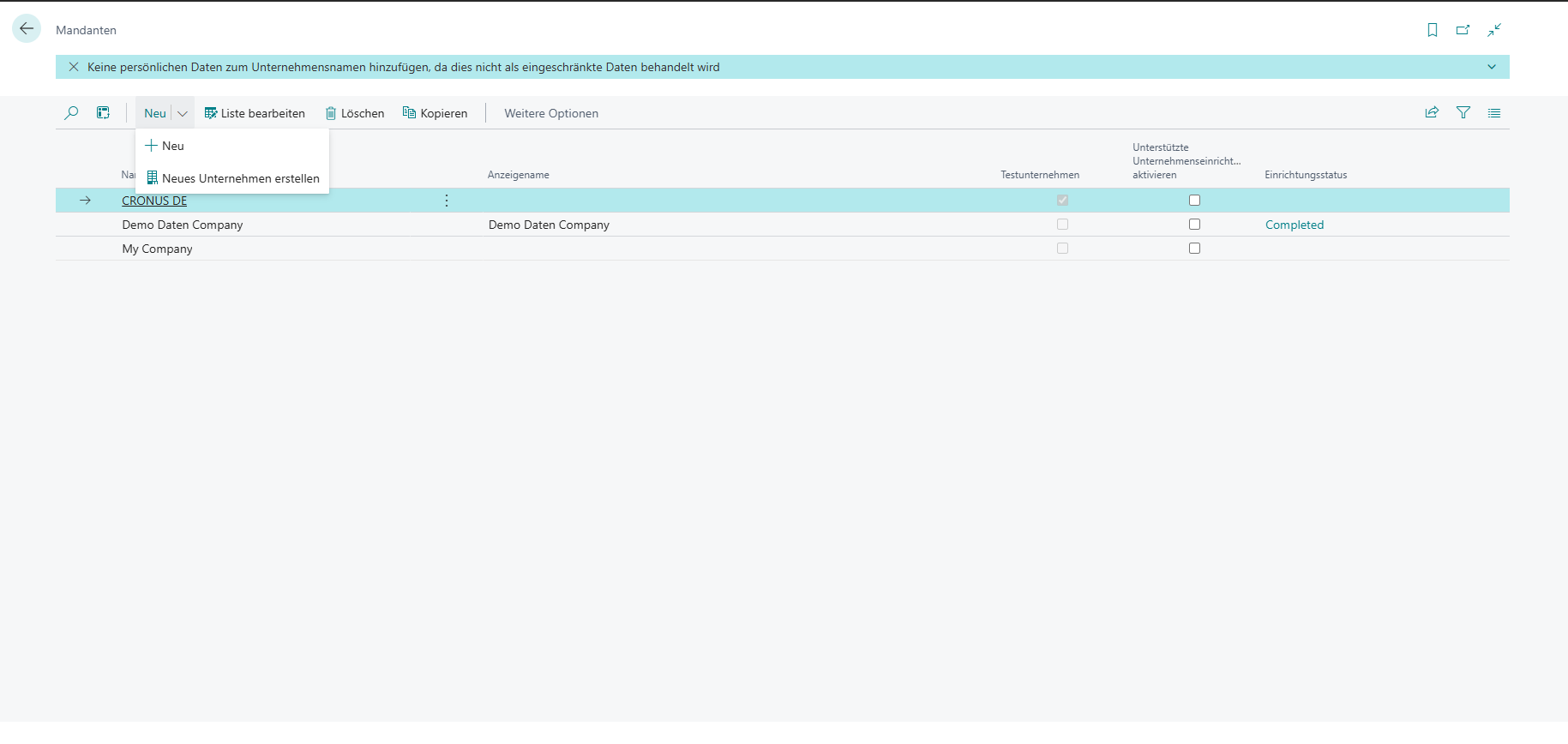
Navigate to Companies (DE: Mandanten) and click New (DE: Neu). Select the first option:
Step 2: Select the Setup Options
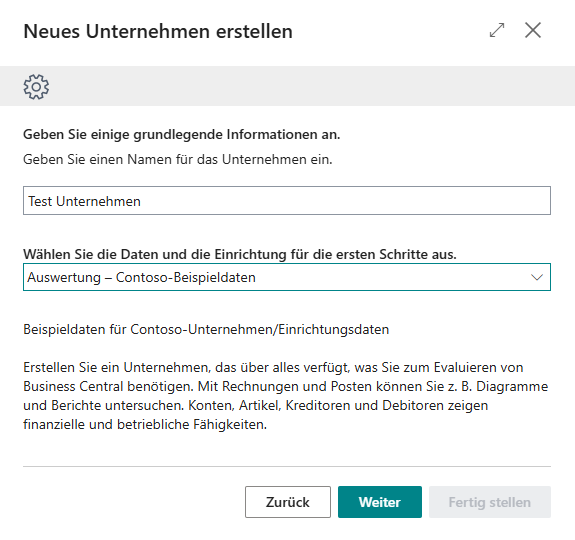
A setup window will appear. Enter a name for your new company (e.g., “Demo Data Company”) and choose Auswertung – Contoso-Beispieldaten. Then click Proceed.
Step 3: Select the sources for data creation
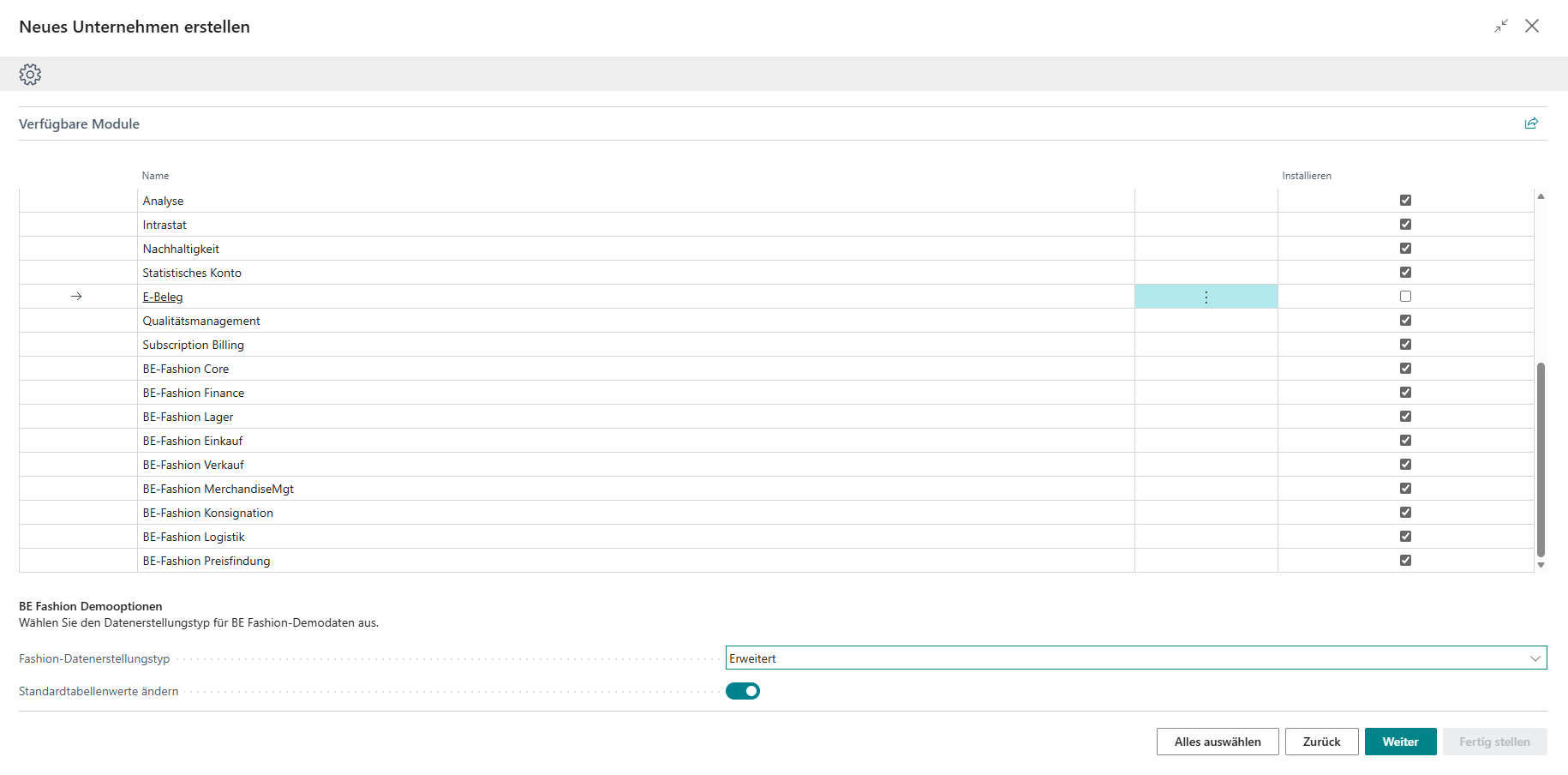
A new window will appear. Select everything except E-Belege (DE) / E-Services (EN), and choose whether you want to create minimal or extended data.
Enable the Standardtabellenwerte ändern toggle only for demo-only environments (it changes default values in certain setup tables), leave it off for production.
Click Proceed twice and continue to Step 4.
Step 4: Done!
That’s it, your fashion demo environment is ready to explore. Happy demoing!