Statistics and Project Controlling
Project Statistics
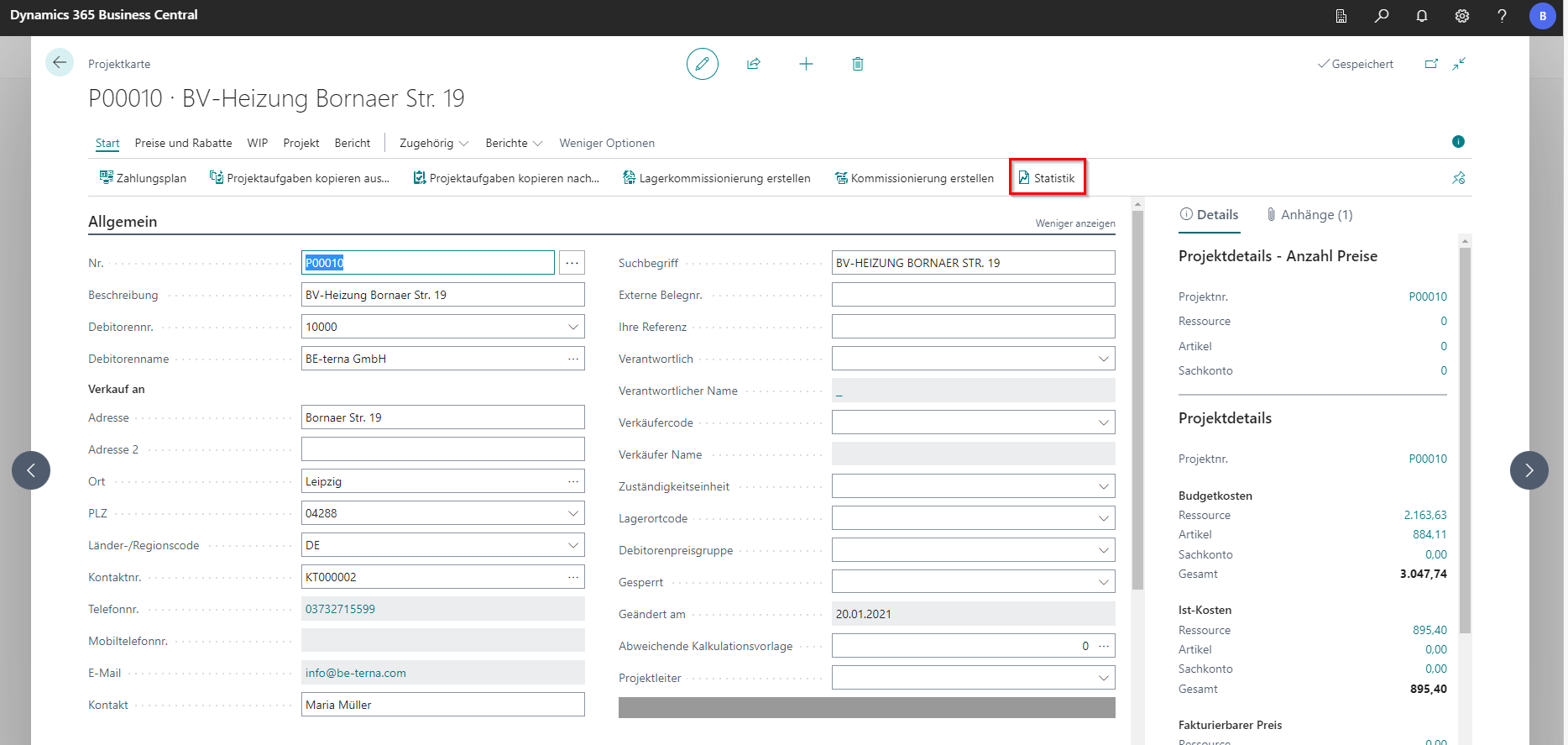
To view an evaluation for a project, go to Start on Statistics in the project map.
 Click to enlarge
 Click to enlarge
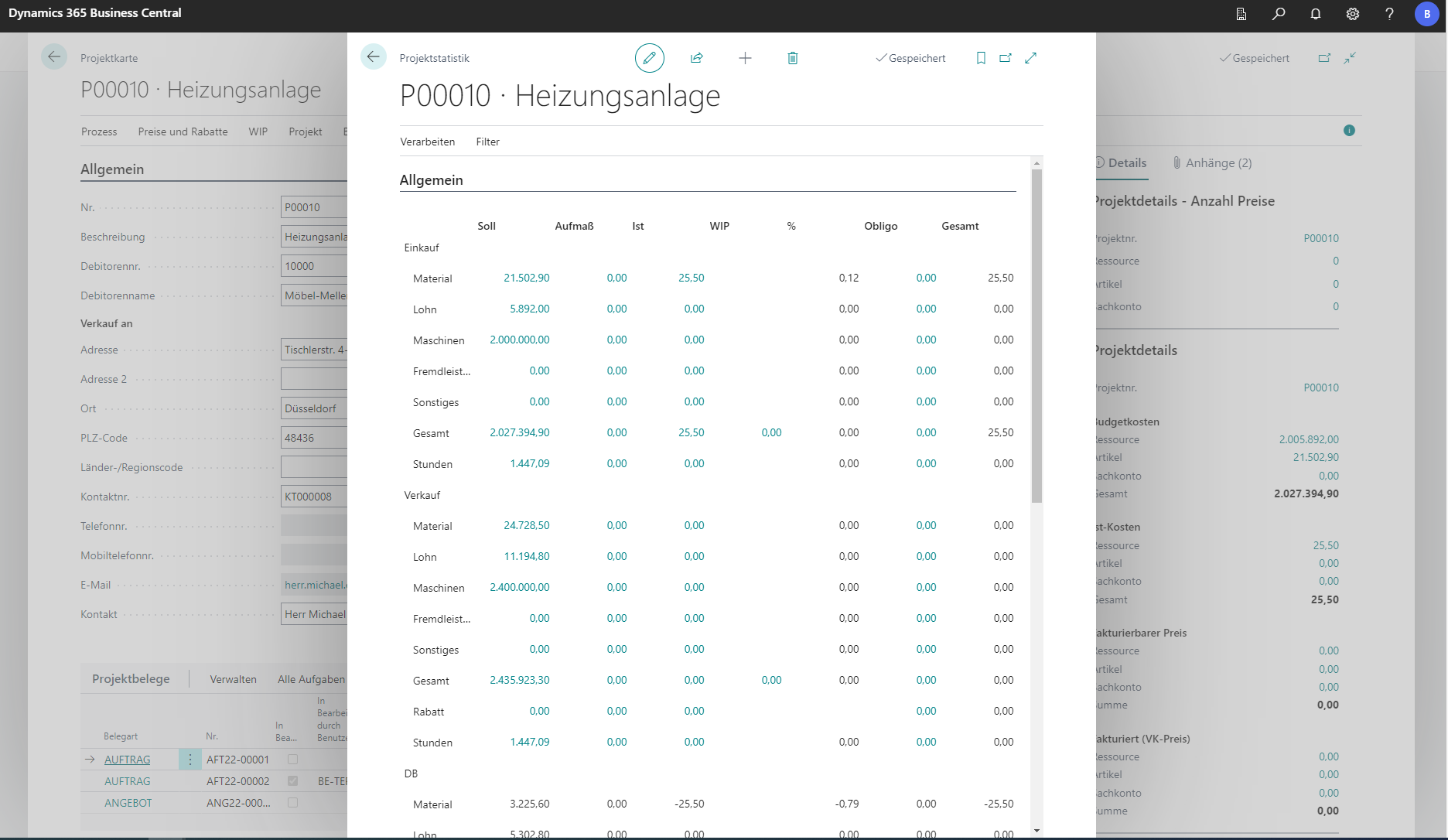
The project statistics display purchase and sales values as well as contribution margins with the respective price shares in the Target, Measurement, and Actual columns.
In order for the receipts to be recorded in the target, the tick must be ticked Budget-effective. Orders are automatically budget-effective.
 Click to enlarge
 Click to enlarge
The data in the Measurements column in the project statistics is made up of the measurements of the document and is summed up there. It should be noted that surcharge items are not taken into account in the measurement quantities, but are only included when invoicing.
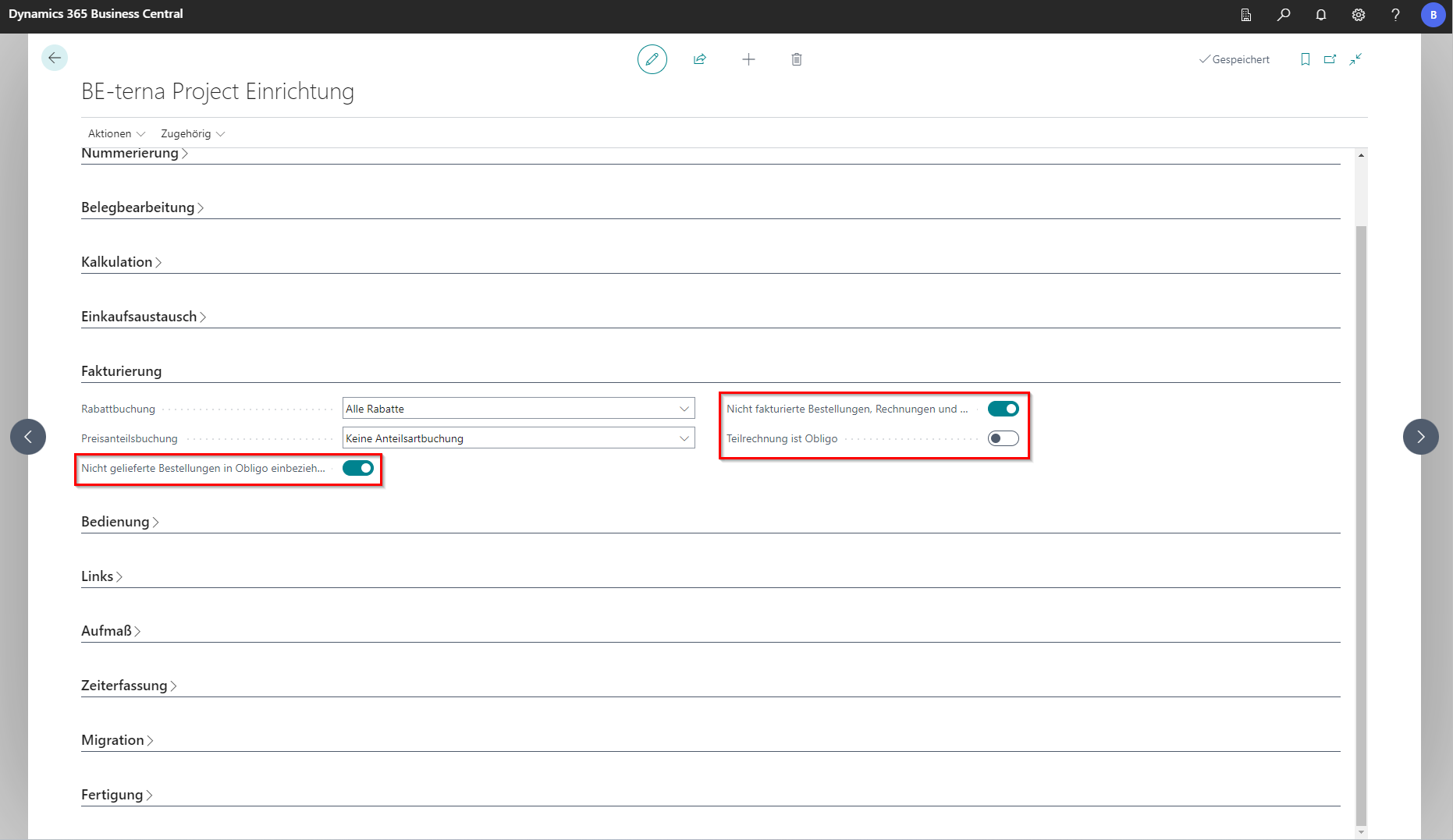
Under the Actual column are the purchase costs that have been posted to the project as consumption items. The Sales section lists the totals of posted invoices. In the setup, you can specify whether partial invoices are to be kept in the commitment and only the final invoice in the actual, as well as other purchase orders that have not yet been delivered or invoiced.
The % column compares the actual values with the target values.
The amount in the Total column is the sum of the columns Actual + Commitment.
The Commitment column shows which amounts are still outstanding but have not yet been posted. Depending on the facility, undelivered or invoiced orders are listed there. The setup is called up via the search function by entering BE-terna Project Setup. There you will find the corresponding setting options in the Invoicing tab.
 Click to enlarge
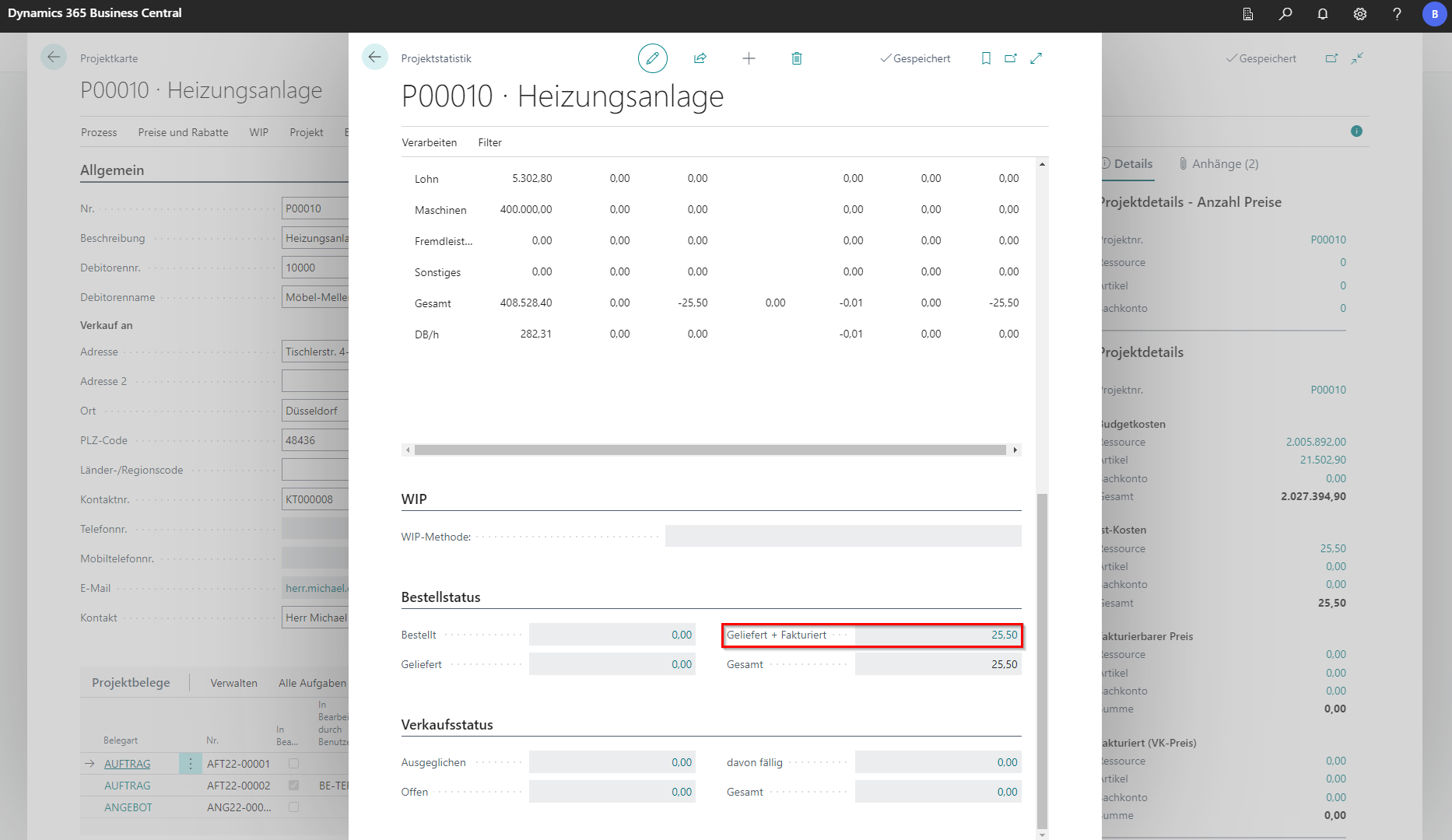
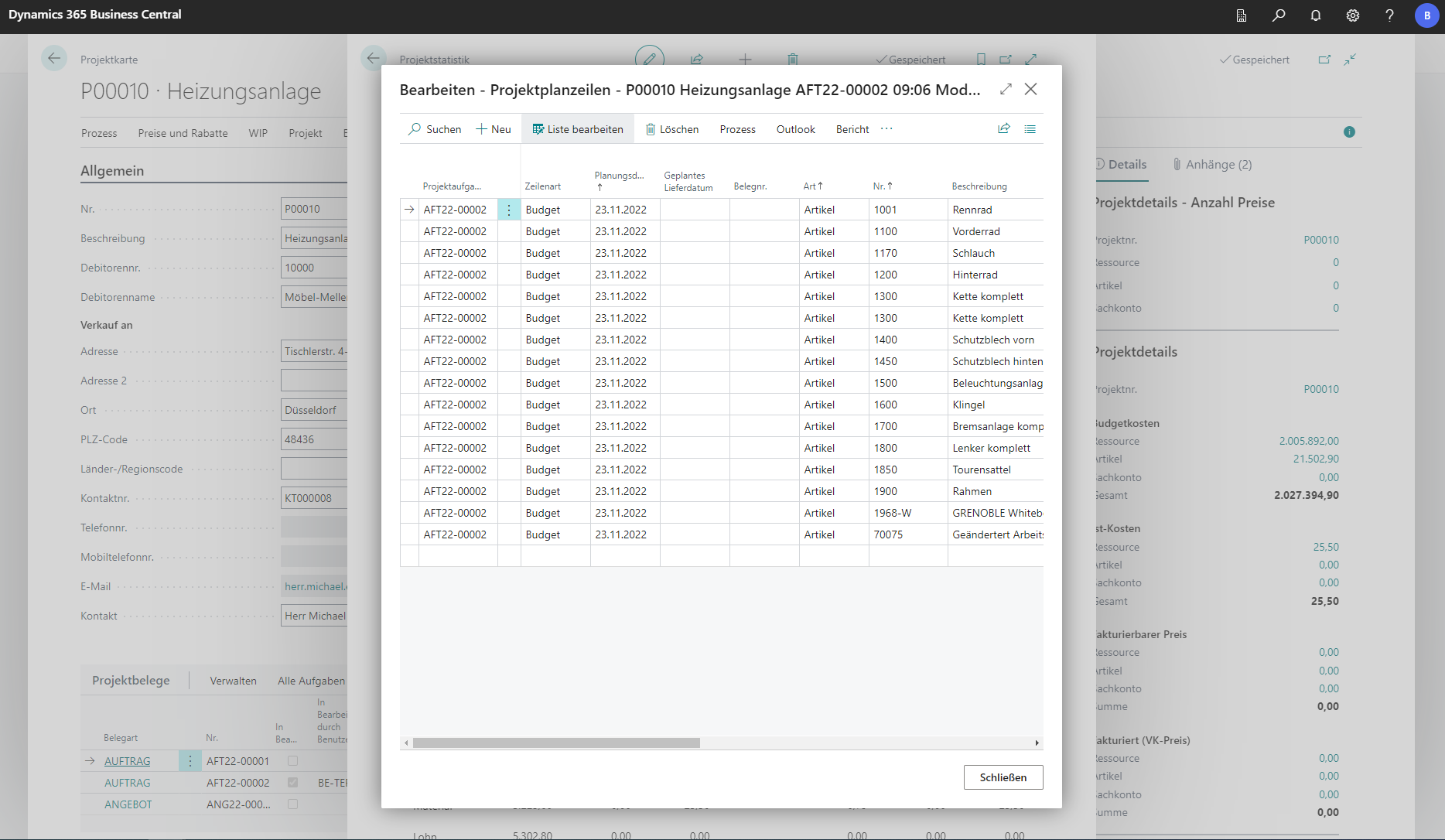
The project statistics are dynamic - so the data is updated continuously. If you click on the desired value in the corresponding row, you get a list of the corresponding project planning lines.
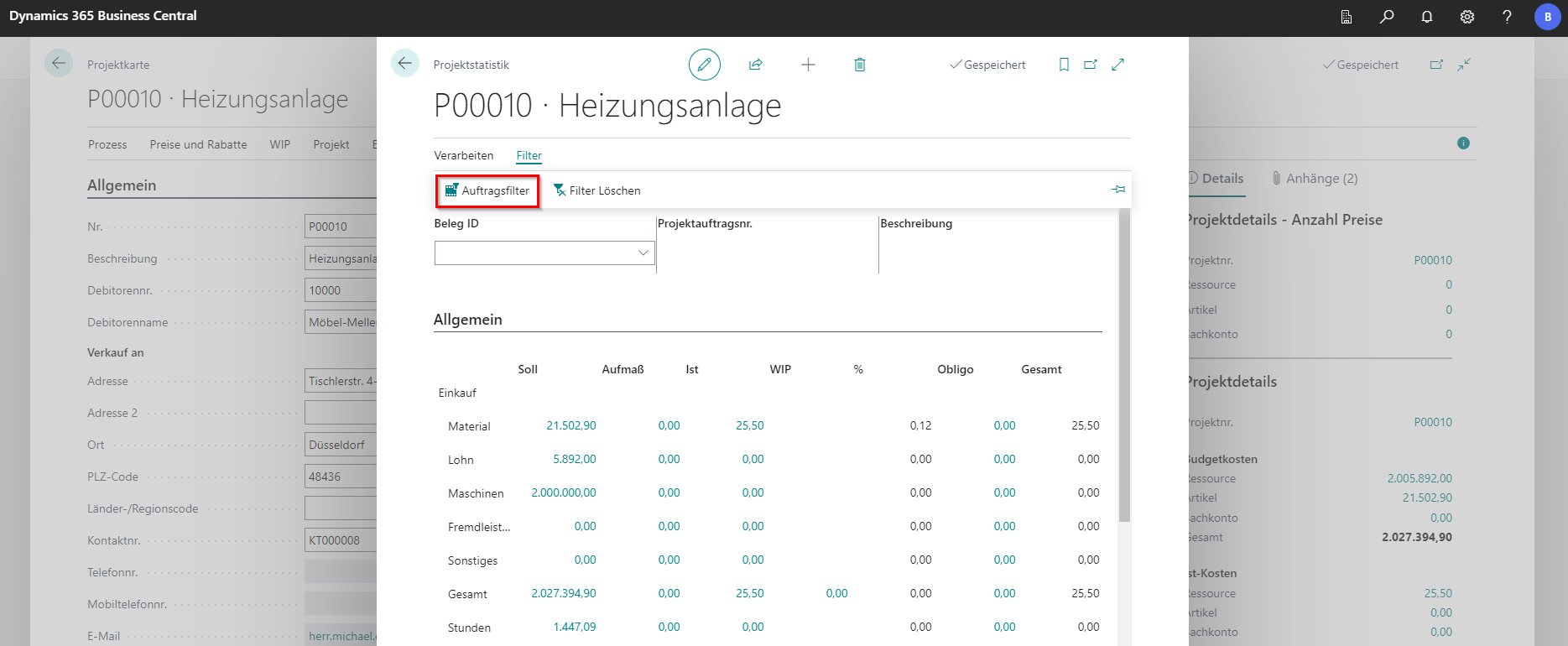
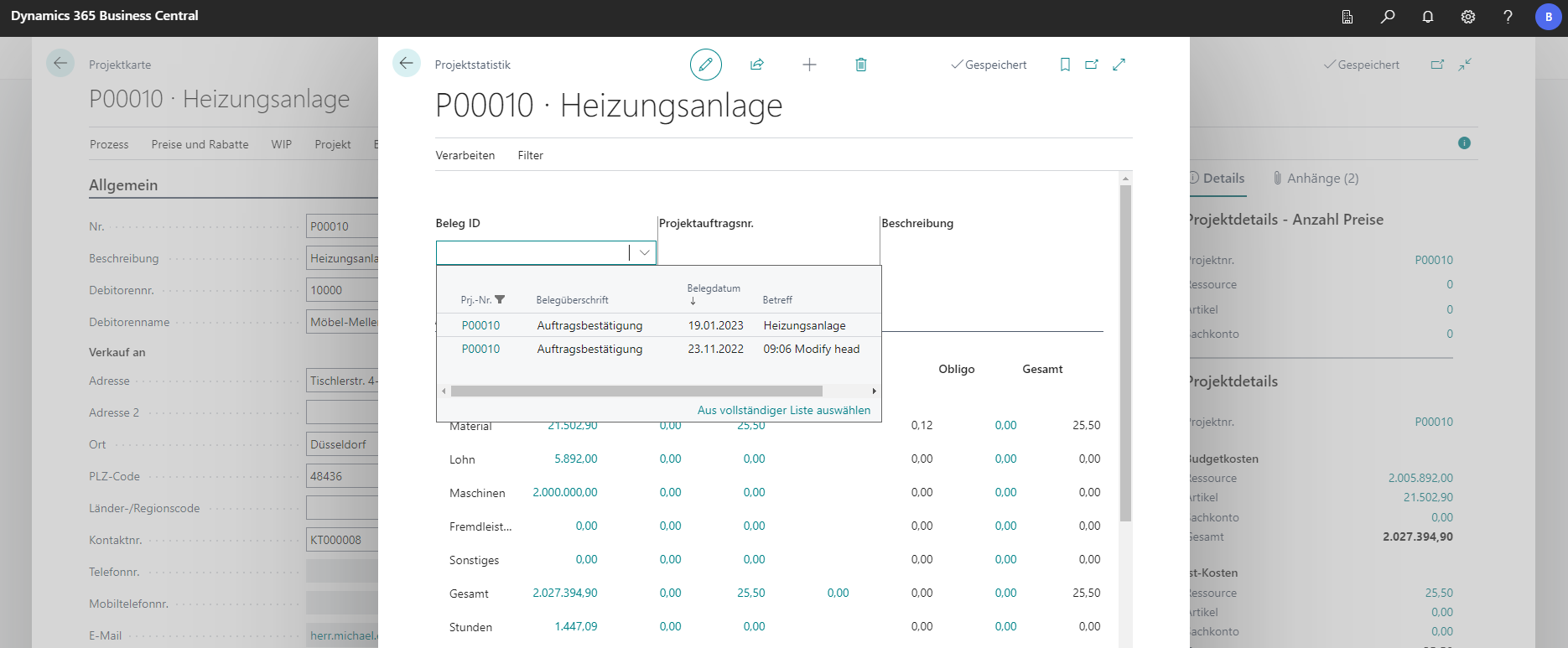
The project statistics can be filtered at the order level. Accordingly, only the statistics for the order that was selected from the Document ID look-up is displayed.
 Click to enlarge
 Click to enlarge
Order evaluation target/actual comparison
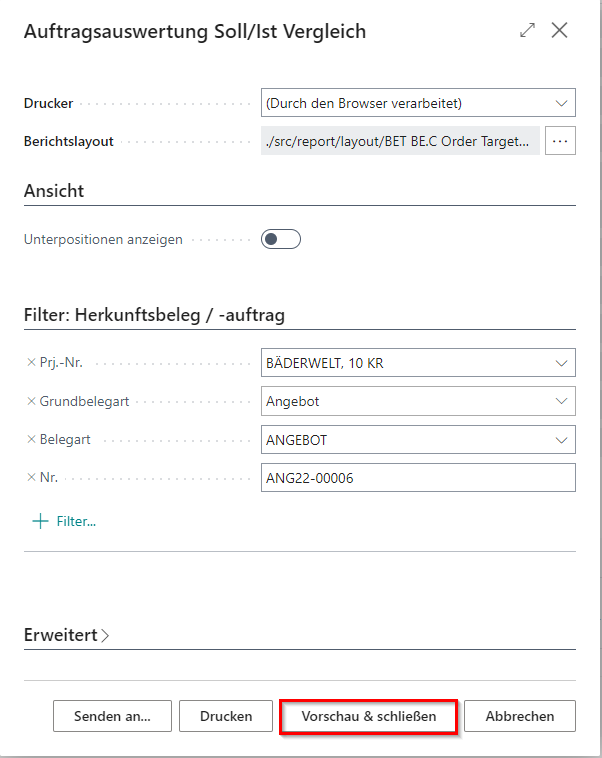
The order evaluation can be accessed in the Project Documents tab under the menu item All Tasks via the button Order Evaluation Target/Actual Comparison.

There you can display the report by clicking on the Preview & Close button, a print preview for the report. Sales values are only listed after the booking has been made.
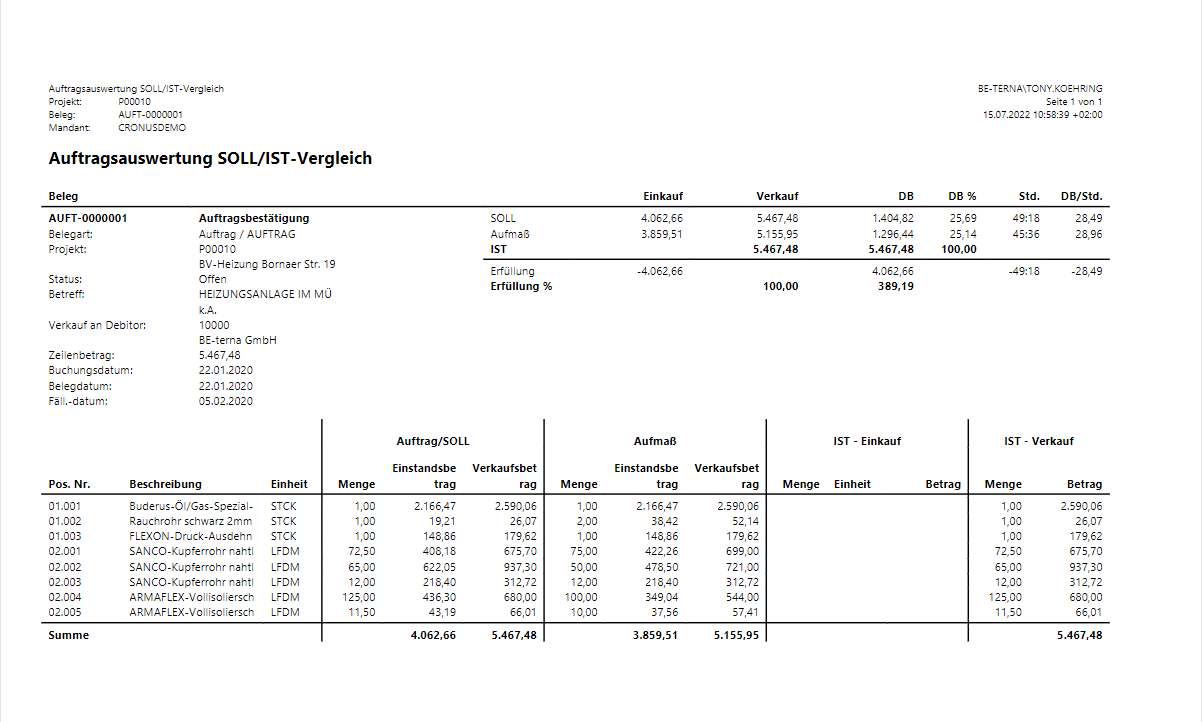
The Order Evaluation report compares target values from the order with the actual values from purchasing and sales, including the measurements. In the header of the order evaluation, the statistics for the entire document are displayed. In the rows are the statistics for the individual positions.
Spreadsheet
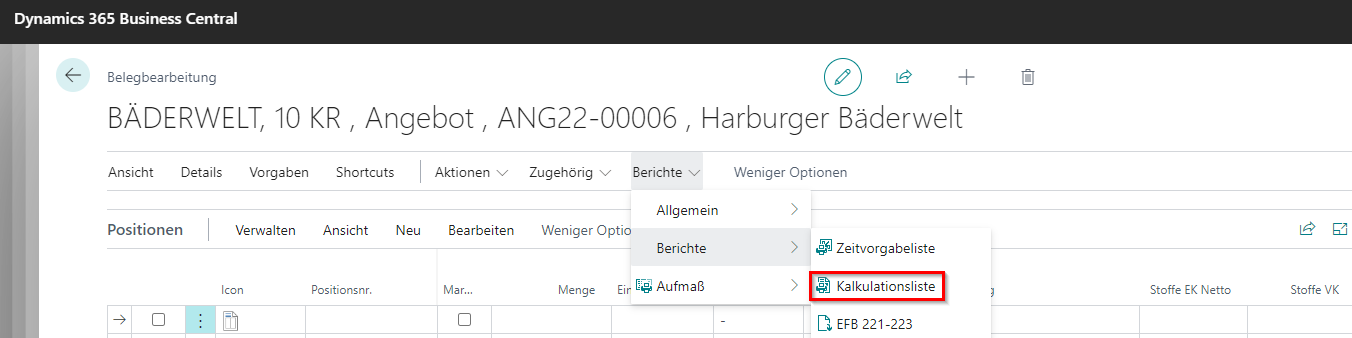
The costing list is called up via document processing. To do this, click on the button with the three dots on a project document and select Edit.

In the ribbon, go to Reports and Reports to the Calculation List.
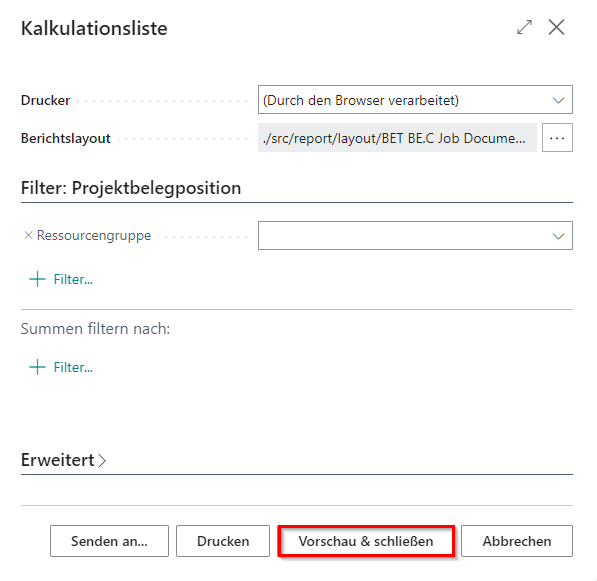
Then you land in a mask to display a print preview via Preview & Close.
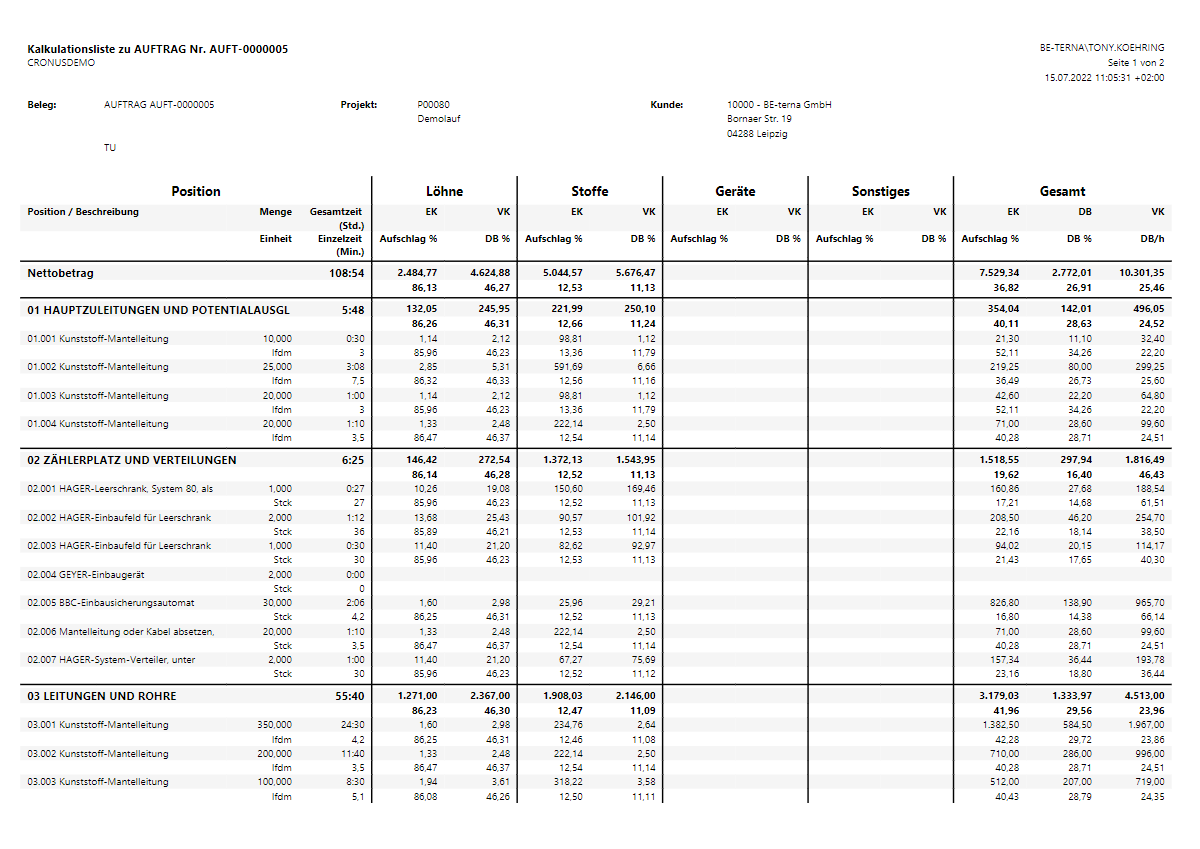
The costing list shows the bill of quantities in its structure with the price components.