Production Planning
Purpose
This page describes the extended planning workflows in BE-terna Manufacturing. It helps users process demand from sales orders or planning suggestions, set up automatic planning runs, and include special scenarios such as production families or additional personnel and tool requirements in a structured way.
Business Value
- Transfers the sales unit of measure and sales quantity directly into the production order during order planning.
- Speeds up planning worksheet handling through bulk actions for action messages.
- Enables automatic planning runs with reusable filters, planning horizons, and target worksheets.
- Supports production families for co-products or multiple outputs per operation.
- Makes additional personnel and tool requirements visible already in the routing and later in the production order.
Area: Production Planning
Order planning with sales units of measure
When you derive a production order from a sales order through Actions > Plan > Planning, BE-terna Manufacturing transfers not only the demand but also Unit of Measure and Quantity from the sales line. This keeps planning in packages or pallets intact instead of automatically converting to the base unit.
This is especially helpful when sales and production should work with the same quantity view. After creating a production order, verify quantities and units in sample cases, especially if BOMs or routings internally calculate in base units.
Recommended check sequence:
- Open the Sales Order.
- Choose Actions > Plan > Planning.
- Create the production order from that planning action.
- Review Quantity and Unit of Measure Code in the production order line.
- If needed, compare the resulting component and capacity quantities with the item’s base unit.
Process action messages in the planning worksheet in bulk
In the planning worksheet, you can mark several lines and then run Accept All Action Messages or Reset Action Messages in one step. This removes the need to toggle the field manually on every single line.
Typical workflow:
- Fill the planning worksheet through Prepare > Calculate Regenerative Plan.
- Mark one, several, or all relevant lines.
- Run the bulk action through Action > Function.
- Review only the remaining lines that should intentionally be handled differently.
Use this bulk processing especially when several planning worksheet lines belong to the same business decision and do not need separate approval logic.
Set up automatic planning runs through the job queue
For recurring planning, combine a Job Queue Entry with one or more Planning Run Setup records. The job queue controls when the run starts, while the planning setup defines which worksheet receives the result and which items are included through filters.
Set up the basic automation in this order:
- Open Job Queue Entries and choose New.
- Under General, maintain at least:
- Object Type to Run = Codeunit
- Object ID to Run = 5140456
- Description
- Earliest Start Date/Time
- Under Recurrence, maintain the required weekdays, Starting Time, and optionally the No. of Minutes between Runs.
- Open the Planning Run Setup List and create one or more Planning Run Setup records.
Important setup elements in the planning run setup are:
- Job queue entry with Object Type to Run = Codeunit and Object ID to Run = 5140456.
- Worksheet template name and worksheet name for the target planning worksheet.
- Item-related filters through Field Caption and Filter Expression.
- Planning parameters such as Starting Date Formula, Planning Horizon, Net Change, MPS/MRP, and optional automatic action message execution.
- Optional grouping through Planning Group when several planning runs should be separated.
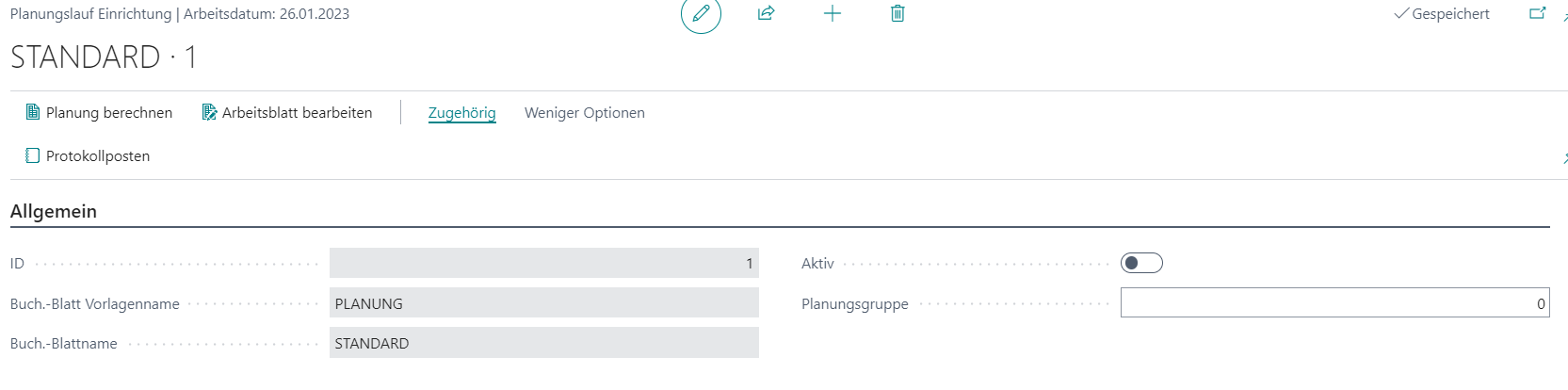
If several planning runs exist in parallel, pay close attention to overlapping item filters. If one item is processed in more than one planning run, the result may end up in the worksheet of the last run and seem to disappear from other worksheets. In that case, review Planning Group, Filter Expression, and the Parameter String of the calling job queue entry first.
Create production families from the planning worksheet
Production families are useful for co-products or processes where one operation produces several items or quantities at the same time. After activating Production Family Planning Active in Manufacturing Setup, you can use families in the planning worksheet and create production orders with Source Type = Family directly from the action message flow.
Recommended sequence:
- Activate production family planning in Manufacturing Setup.
- Create a production family with all related items, quantities, and the shared routing.
- Calculate demand in the planning worksheet through Prepare > Calculate Regenerative Plan.
- Verify that the relevant family item lines are set to Accept Action Message.
- Run Process > Carry Out Action Message and choose the target status of the new production order.
- Review the generated production order and confirm that all family lines are included.
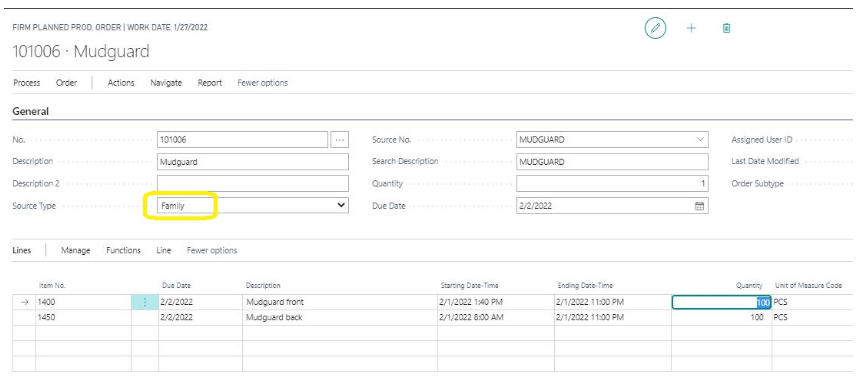
If you introduce production families for the first time, also verify that the participating items are actually maintained with Replenishment System = Prod. Order. Demo data often starts with different procurement settings.
Consider personnel and tool requirements in routing planning
In addition to primary capacities, routing lines can contain quantified requirements for personnel and tools. Work center groups and work centers therefore support the resource types Person and Machine. Through standard task codes and routing lines, you can describe setup personnel, run personnel, and required tools for setup and run time and transfer this information into the production order.
If fine planning is still performed outside Business Central, use these fields at least as a consistent business description of the requirement. This keeps bottlenecks caused by personnel or tools visible already in the routing, even if external detailed scheduling is used later.
Manage expectations accordingly: the information is made visible in the routing and later in the production order. Full automatic detailed scheduling based on these additional secondary capacities is not the primary focus of the current feature scope.
Result
- You can move demand from sales, planning worksheets, and recurring planning runs into production orders in a controlled way.
- You know the additional settings for bulk processing, automatic planning, and production families.
- You understand how additional personnel and tool requirements can become part of the planning model.
Links