Costing and Reporting
Purpose
This page describes the most important costing and reporting functions in BE-terna Manufacturing. It helps users print production orders in a structured way, trace costs across multiple production levels, evaluate WIP, and follow the value chain through related item ledger entries in both directions.
Business Value
- Structures production order output into readable reports with header, line, routing, and component information.
- Analyzes expected versus actual costs across all relevant production levels.
- Reduces WIP reports to the materially relevant production orders through a configurable threshold.
- Supports forward and backward navigation through related item ledger entries across the value chain.
- Simplifies operational and financial analysis without manually combining many separate views.
Area: Costing and Reporting
Production order printouts and job cards
With Prod. Order Printout BE and the extended Production Order Job Card, BE-terna Manufacturing provides reports with much more structure than the standard output. They include production order header data, production order lines, routing lines, and components. The job card also adds descriptions, quantities, unit codes, required times, QR information, and further line-level details.
These reports are especially useful as shop floor papers, for coordination in production, and for reviewing the complete order content outside list pages.
For Prod. Order Printout BE, the typical sequence is:
- Search for Prod. Order Printout BE.
- Set the required filters for the production order.
- Choose Print or Preview.
- Review in the report the hierarchical structure of header, lines, routing, and components.
For the Production Order Job Card:
- Search for and open Production Order Job Card BE.
- Set the required filters.
- Open or print the report.
- Use it especially when you need additional details per production order line such as description, quantity, unit, routing times, or BOM lines.
Final costing across all production levels
The Production Order - Final Costing report shows quantities and costs across all production levels that contributed to the monitored item. It compares expected and actual material and capacity costs and makes visible how costs from lower levels roll up into the finished item.
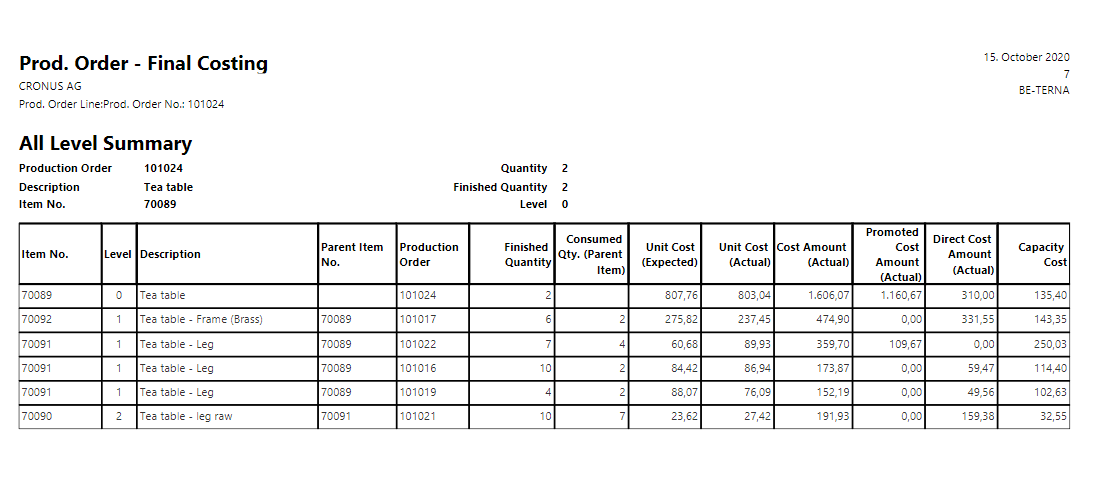
For each level, the report combines production order header data, routing lines, and components. The summary page aggregates the information by level and production order and is especially valuable for final costing and variance analysis.
To run the report:
- Open the finished production order card of the item you want to analyze.
- Mark the required production order line.
- Choose Line > Production Order - Final Costing.
- Decide on the request page whether the detailed analysis per production order should be shown.
- Open the report through Preview or Print.
Control WIP valuation with a threshold
An extended version of the standard WIP report is available for Work in Progress valuation. Through the Prod. Order WIP Threshold for G/L Posting field in Manufacturing Setup, you can define the minimum WIP amount that a production order must exceed before it is included in the report.
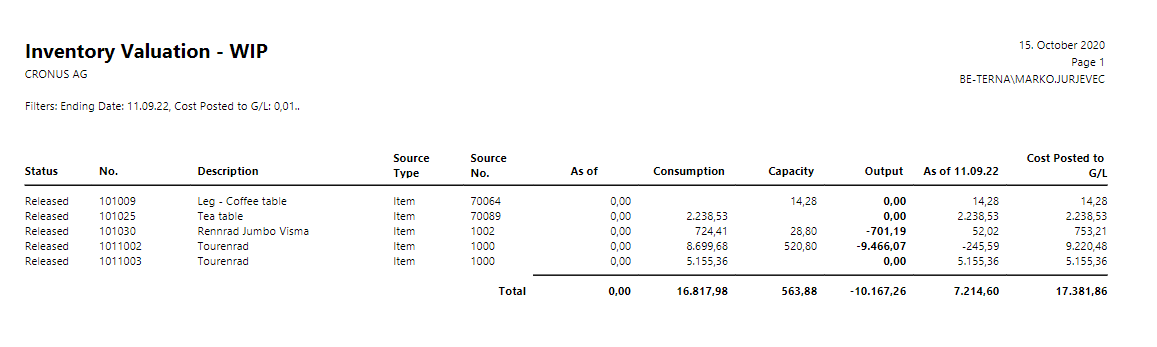
This makes reports with many zero or low-value orders much shorter and easier to review. Before running the WIP report, the Adjust Cost - Item Entries process should be completed so that the report works with posted and invoiced values.
Recommended sequence:
- Open Manufacturing Setup and set the Prod. Order WIP Threshold for G/L Posting.
- Run Adjust Cost - Item Entries.
- Start the report Production Order - WIP Extension.
- Set the starting date and ending date and optionally a filter on production orders.
- If needed, adjust the threshold once more on the request page.
- Open the preview and review which orders are visible or hidden because of the threshold.
Trace related item ledger entries in both directions
The Related Entries Forward/Backward function extends the standard view of applied item ledger entries with navigation in both directions. Users can therefore follow the value chain from inbound to outbound entries or the other way around, including scenarios involving production and assembly orders.
For root-cause analysis, lot traceability, and understanding stock or cost origins, this saves significant time because users are no longer limited to a one-directional item application view.
After switching with Related Entries Forward/Backward, the next level of the value chain becomes visible in the same view:
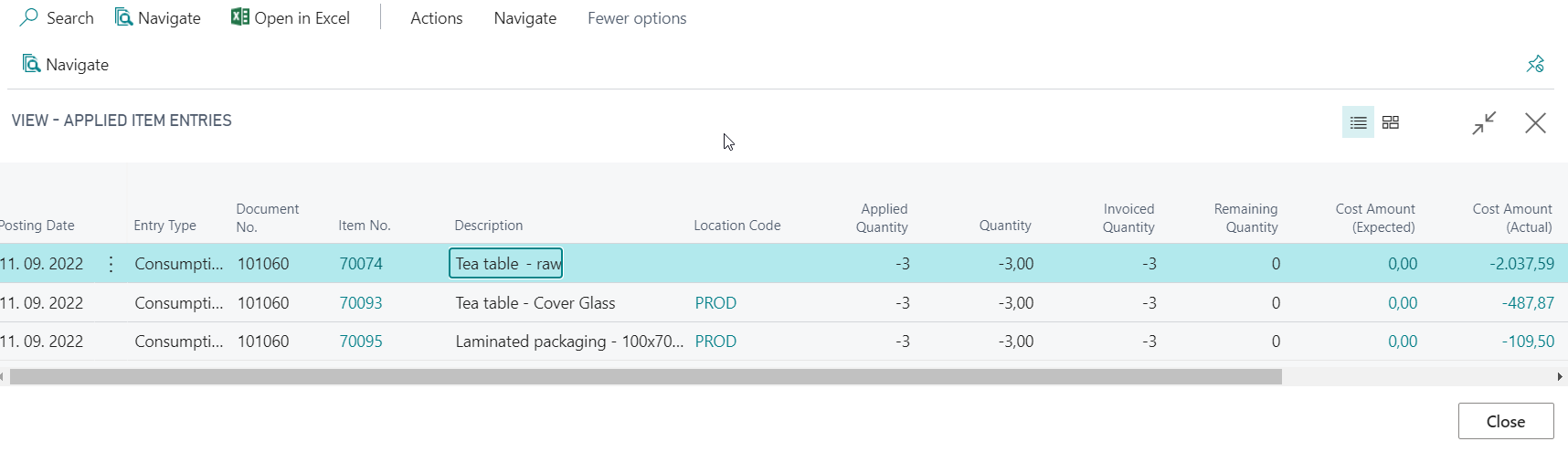
Use the following sequence for analysis:
- Open Item Ledger Entries.
- Select one entry, for example a sales or purchase entry.
- Open the first relation through Navigate > Application > Applied Entries.
- Then move step by step through the value chain with Related Entries Forward/Backward.
- Repeat this until the origin or target of the chain is fully understood.
Result
- You can print production orders in a structured way and read the most relevant detail information efficiently.
- You can analyze costs, WIP, and value chains across multiple levels in one system.
- You know which reports best support operational questions and which are intended for financial analysis.
Links