Item sales
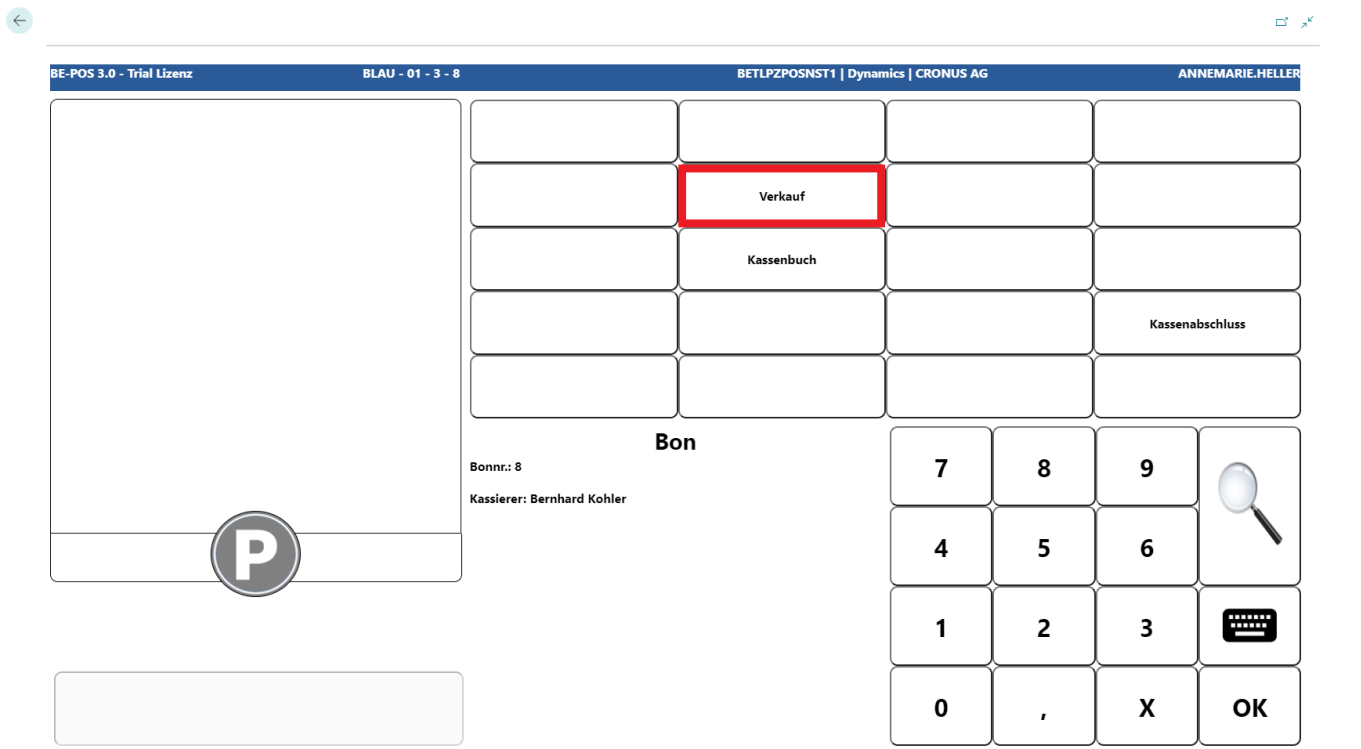
After the cashier sign-in, the sales mode opens with the Sales button.
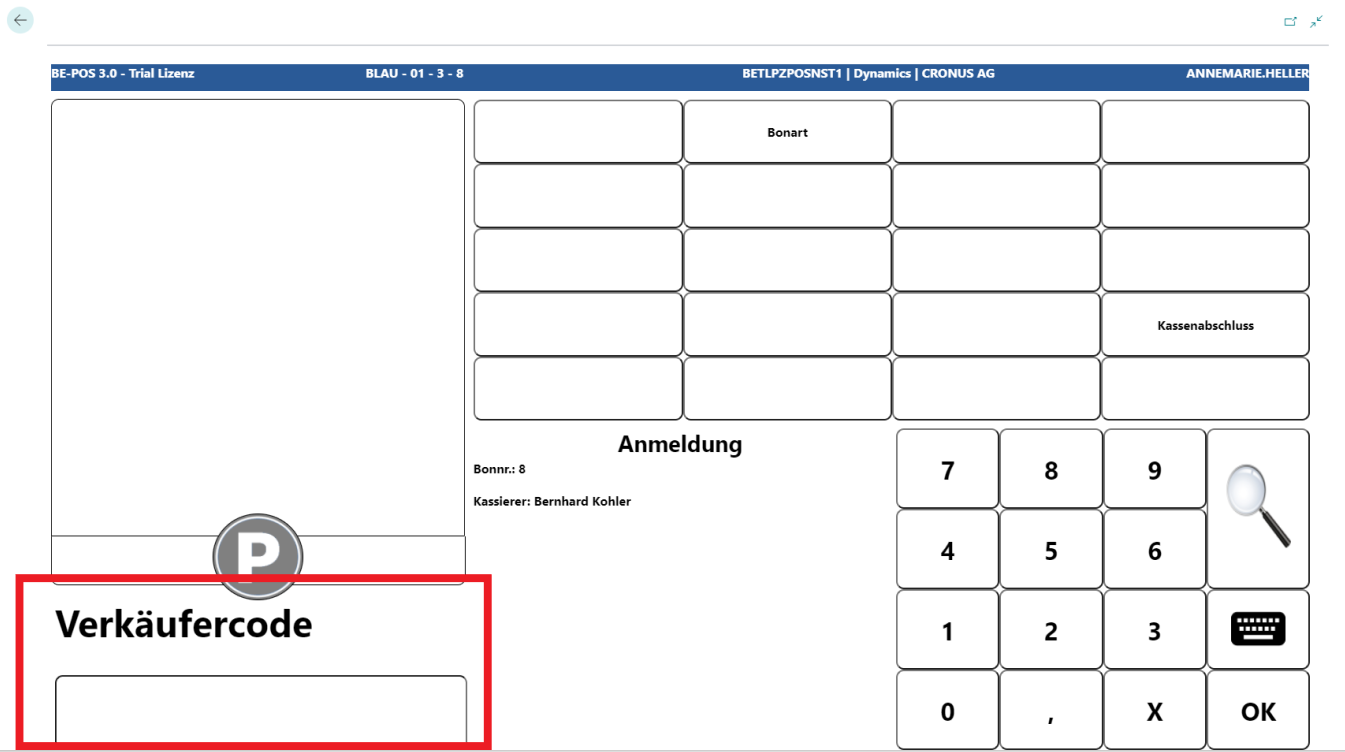
Salesperson Login
If the cash register is configured accordingly, a salesperson must be captured before each receipt.
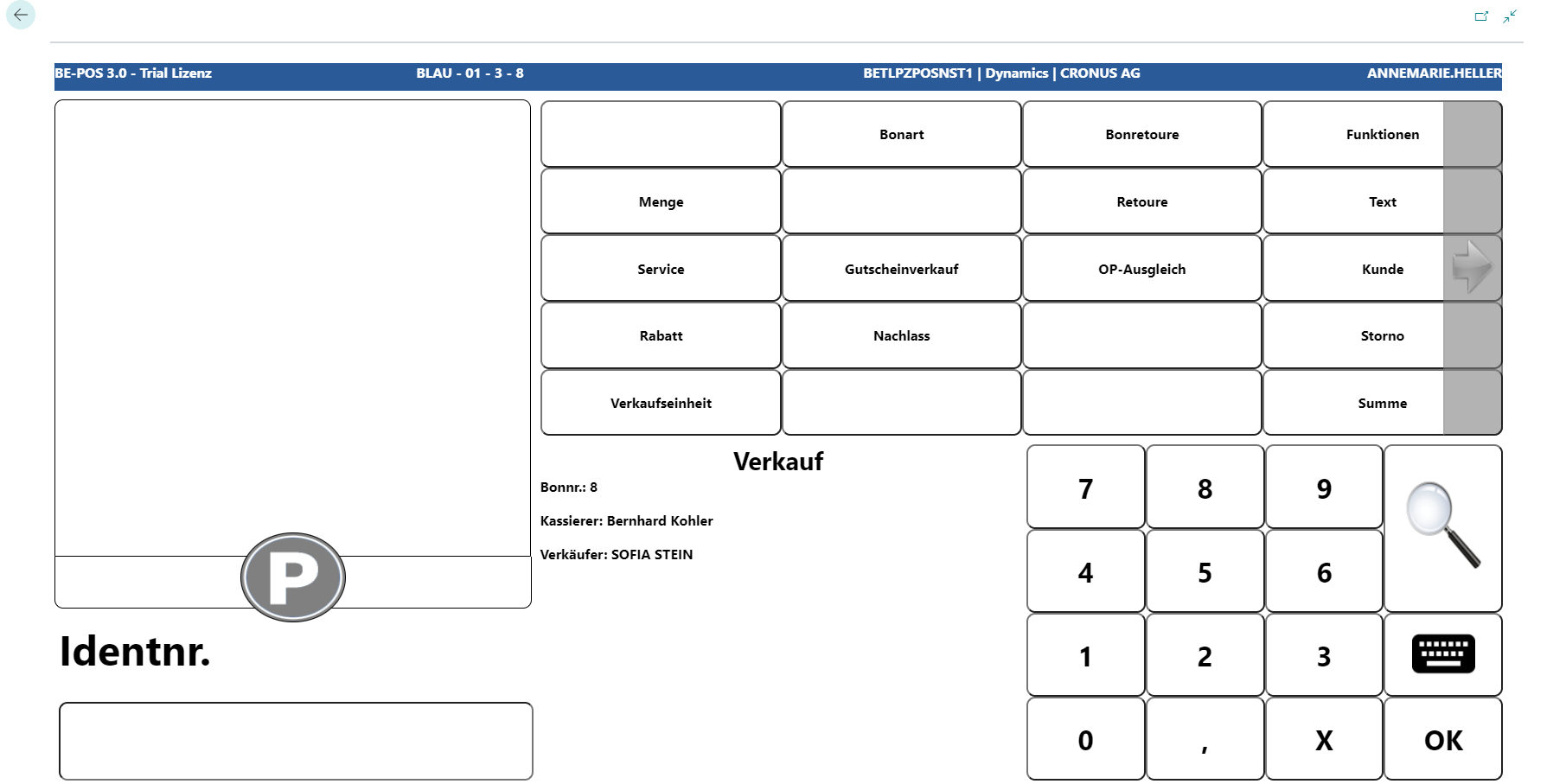
Input Item
After entering the salesperson number, the cash register is in sales mode.
For the sales process, the barcode can either be scanned or entered manually if the scanner does not work.
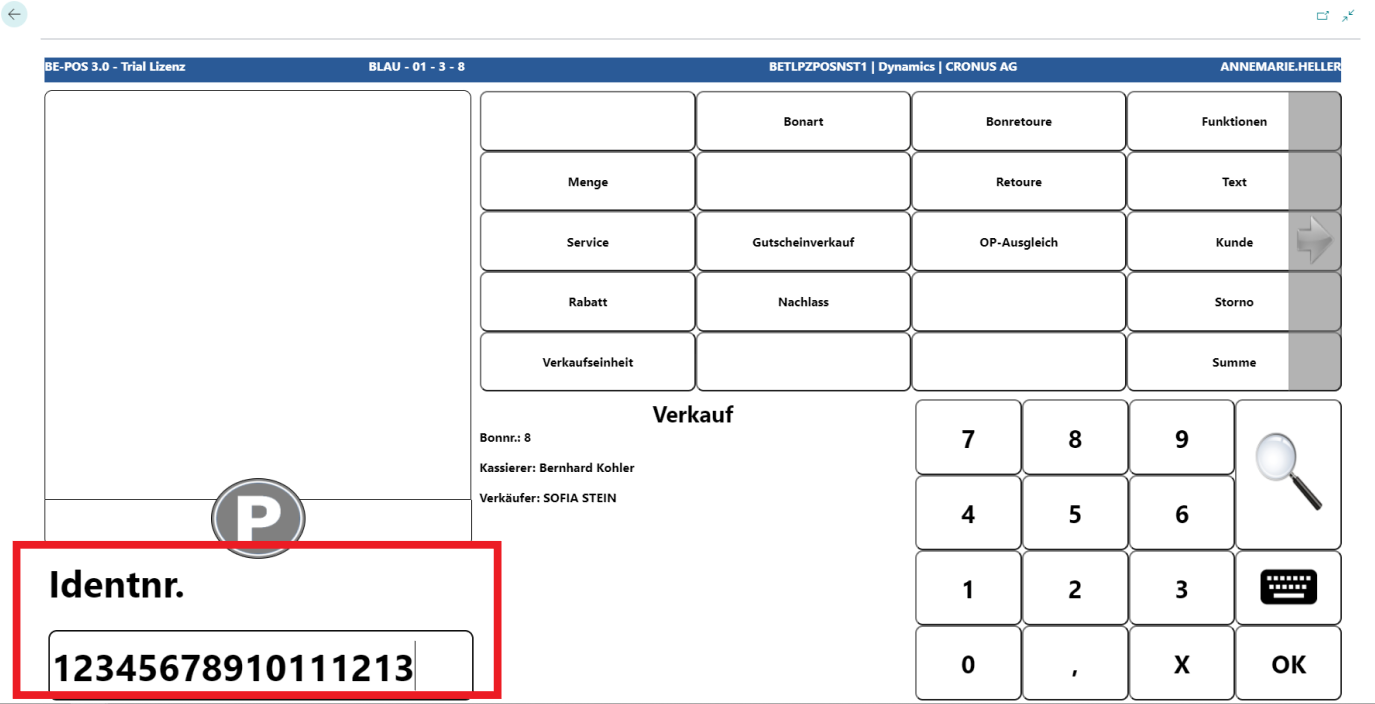
After the item number has been scanned or entered successfully, the item is shown on the receipt roll with its current price.
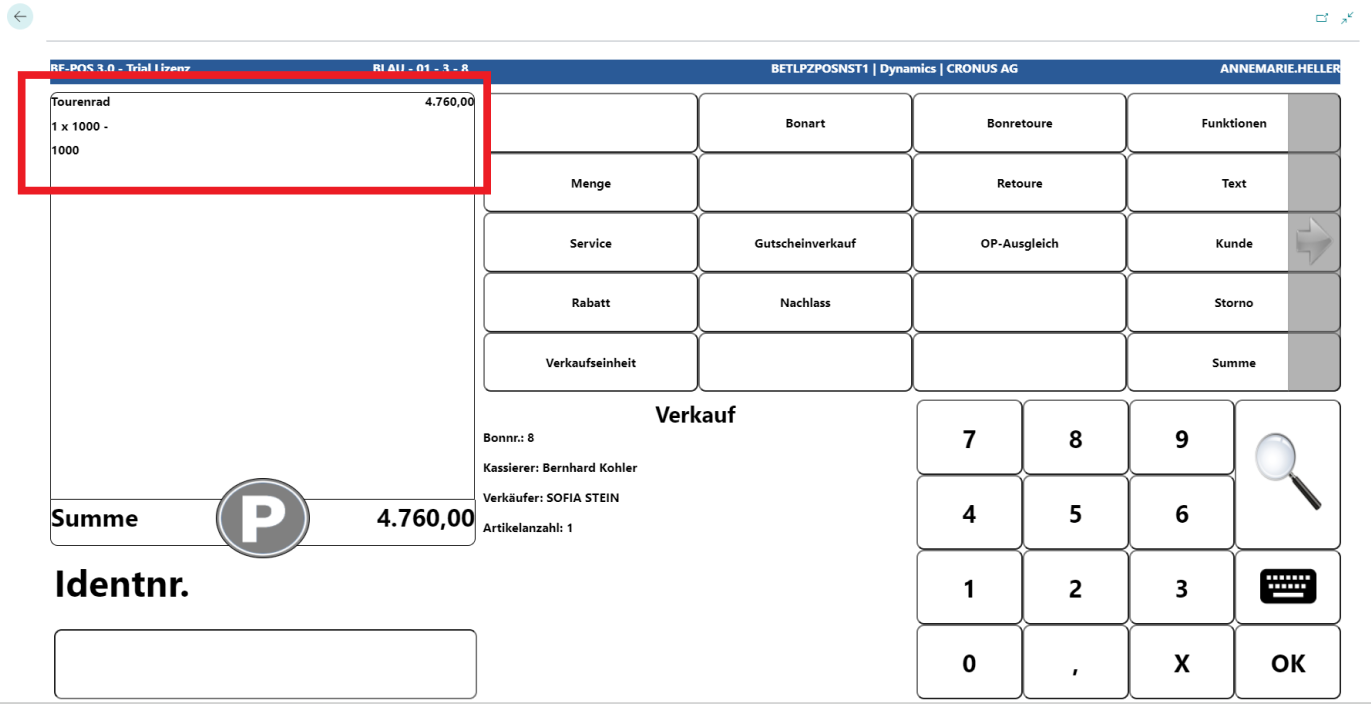
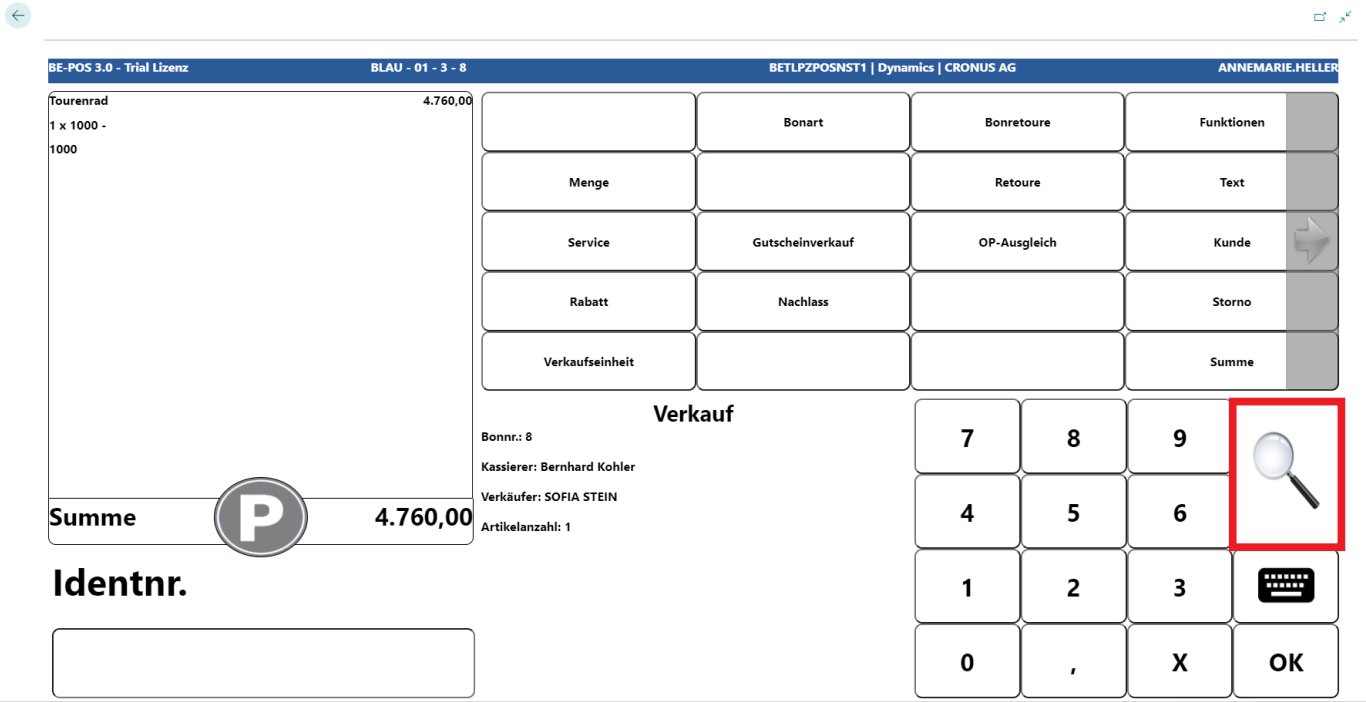
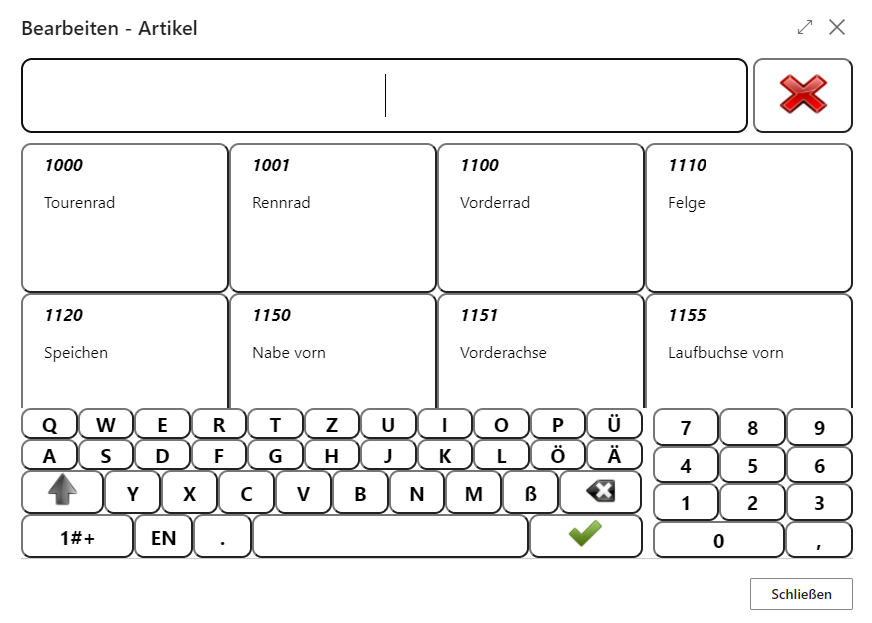
If no barcode is available or readable, items can be searched for via the magnifying glass function.
Sum and Payments
To complete the receipt, the Sum button is pressed.
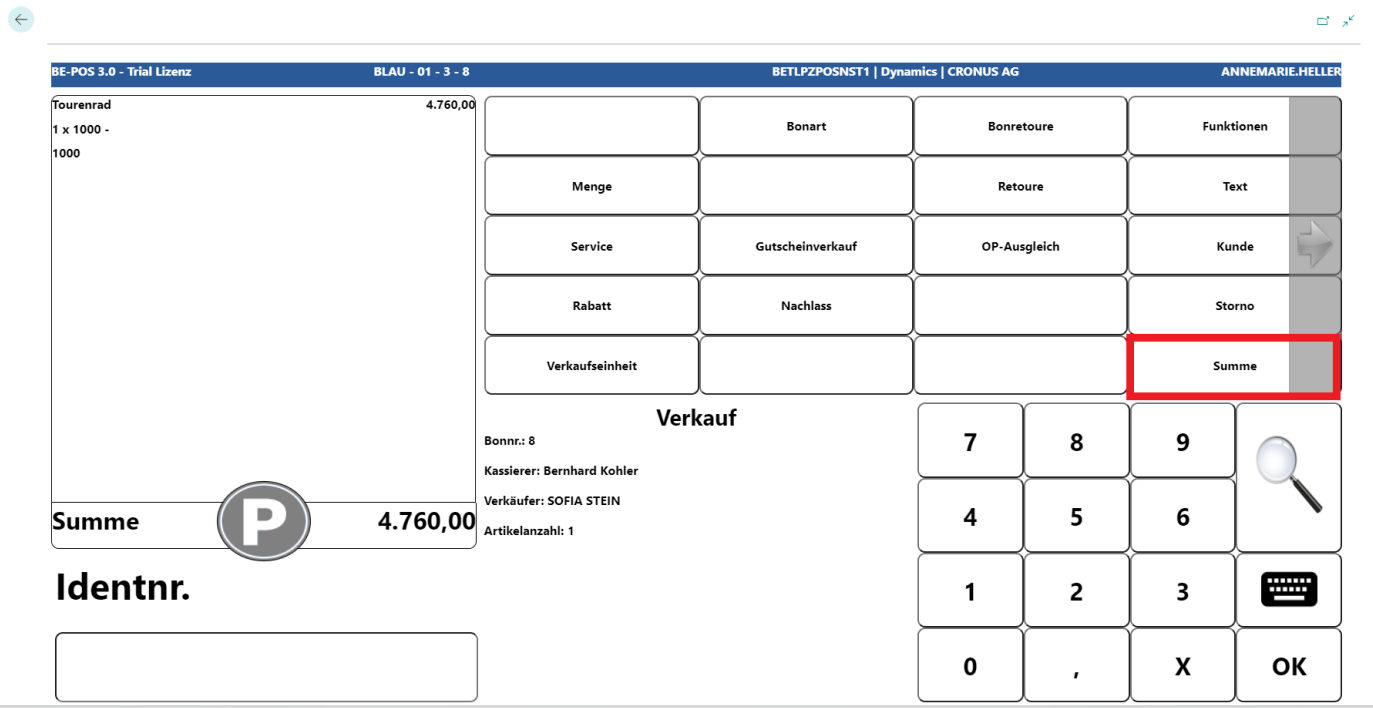
A new window opens in which the Payment button is selected.
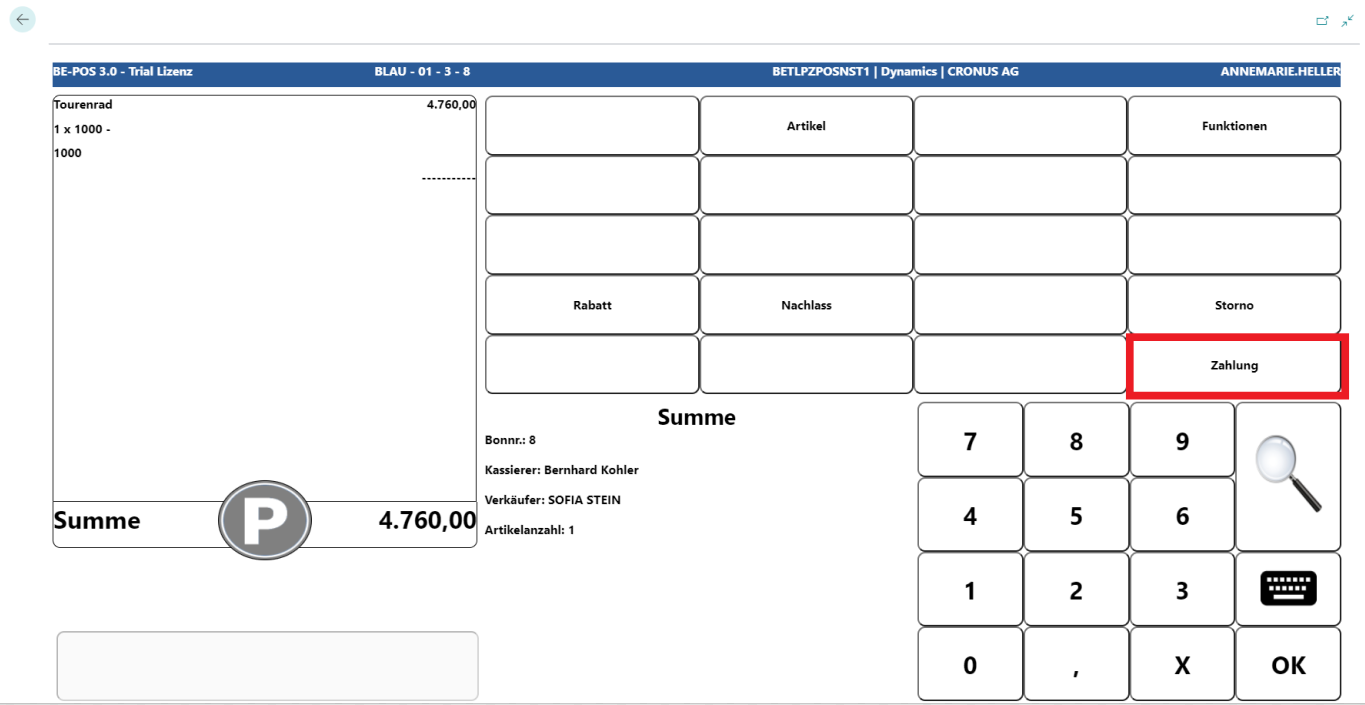
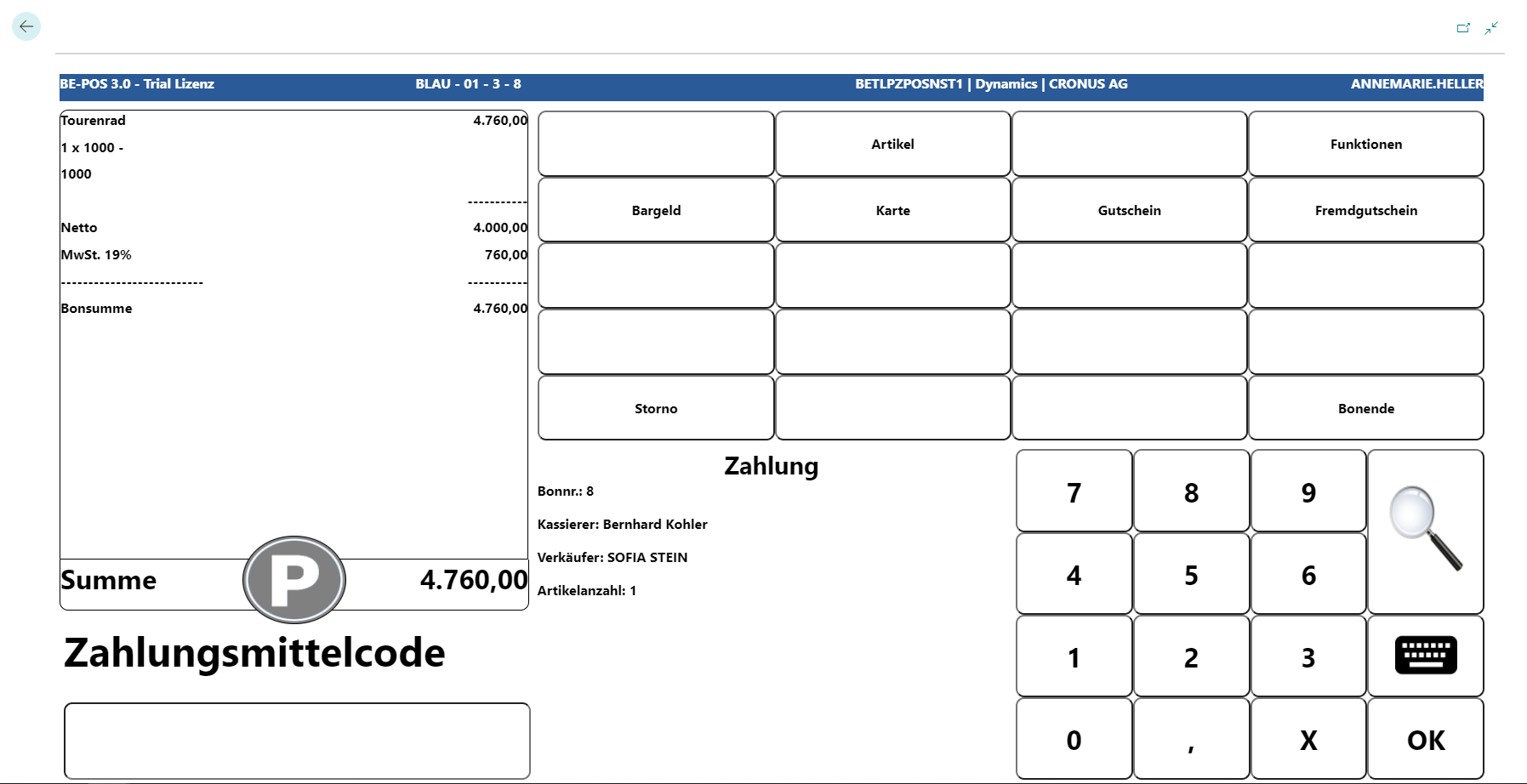
When Payment has been selected, the cash register is in payment mode and the receipt total, including VAT display, is shown on the receipt roll.
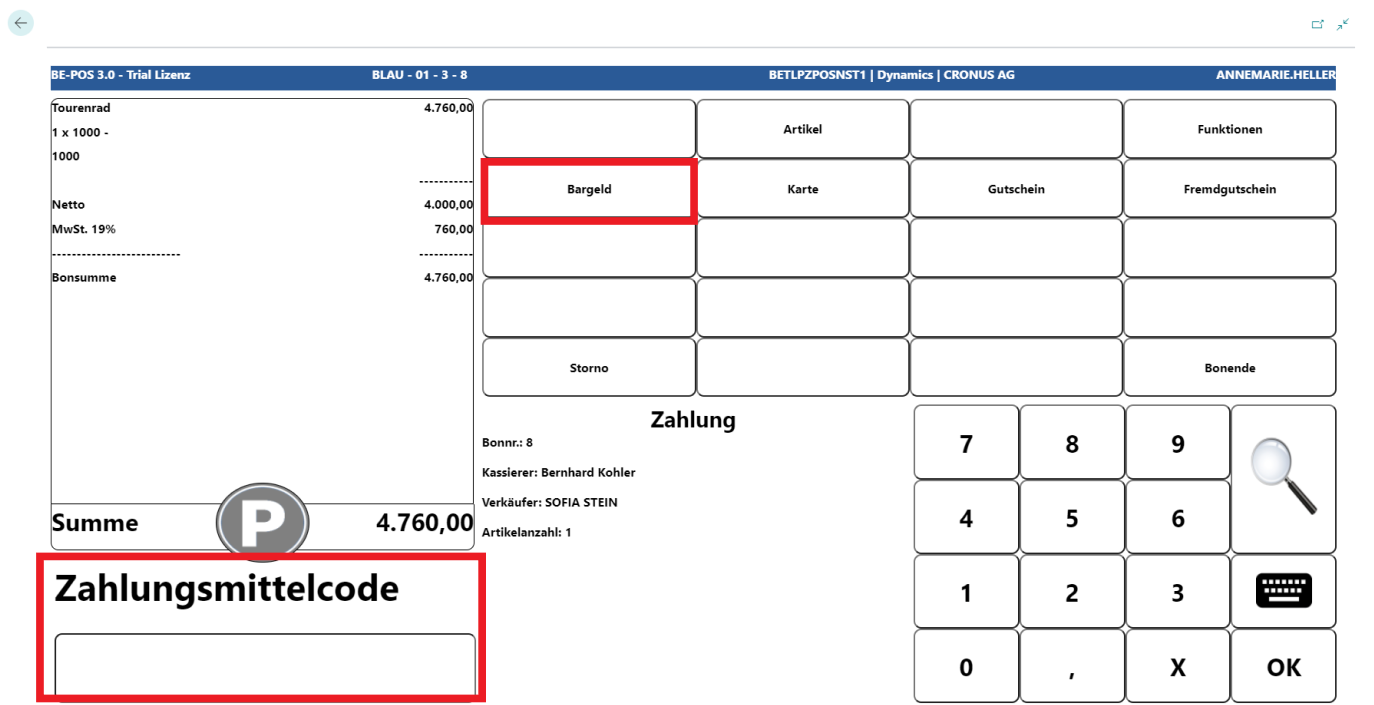
To enter the payment, the tender is captured first. In this example, Cash is used.
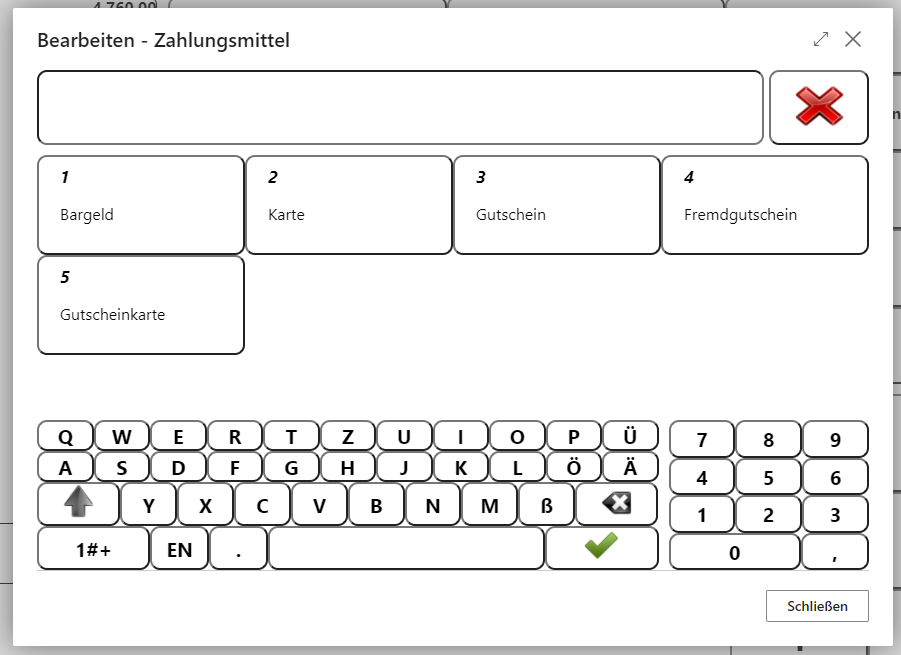
If no quick buttons are configured for tenders, they can be opened via the magnifying glass function.
Note: All tenders can be combined. The exception is the Invoice tender.
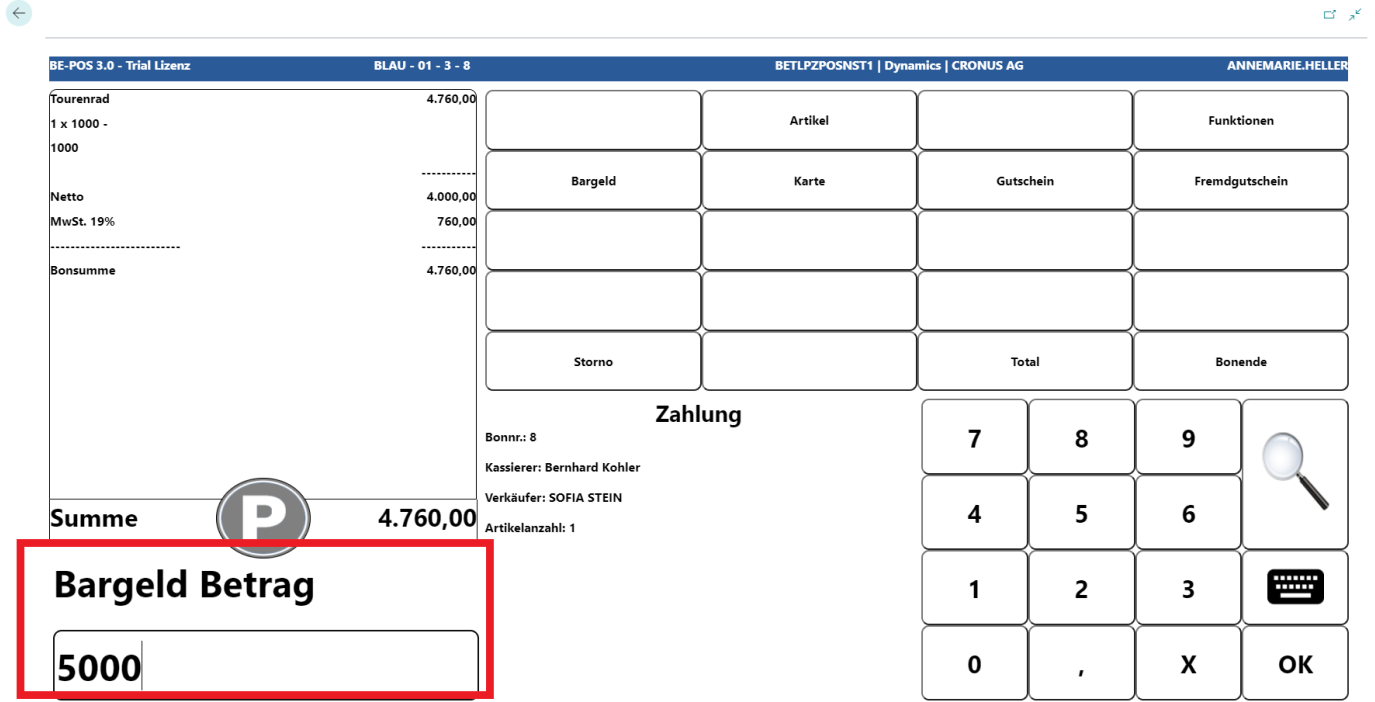
Now the amount handed over by the customer is entered.
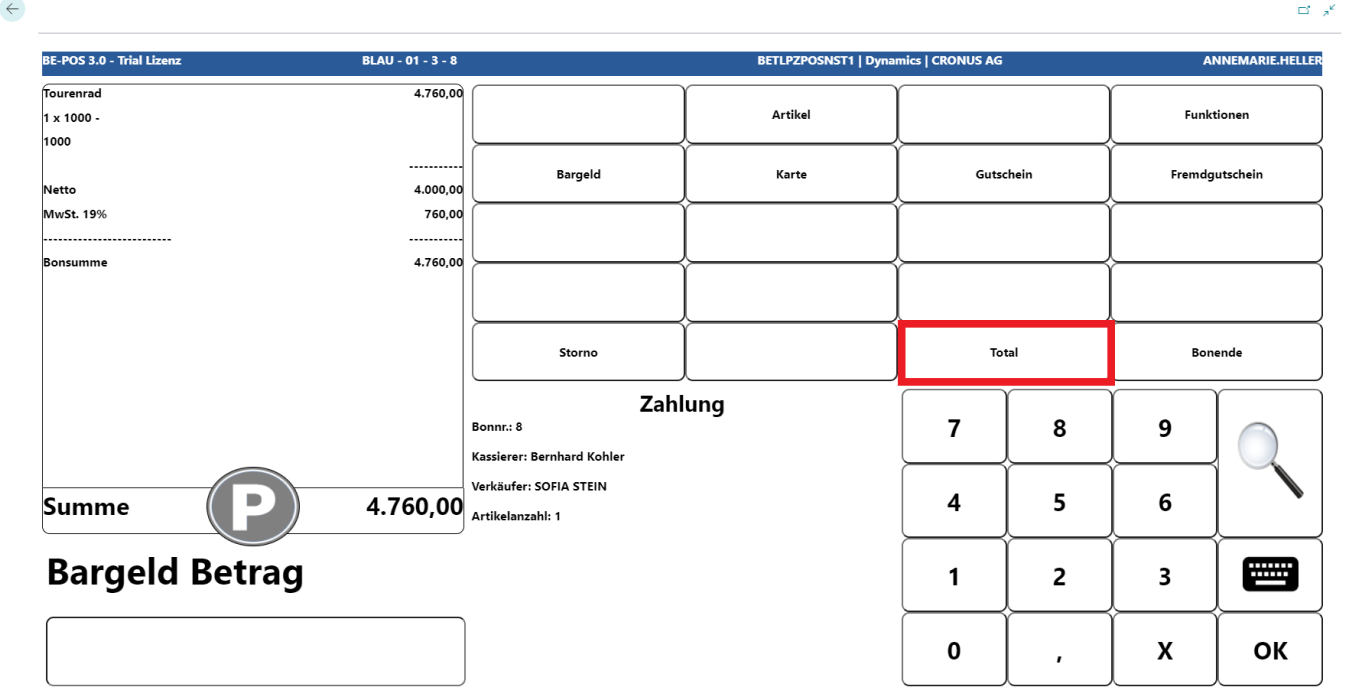
If the customer pays the exact amount, for example in card payment, the Total button can be used.
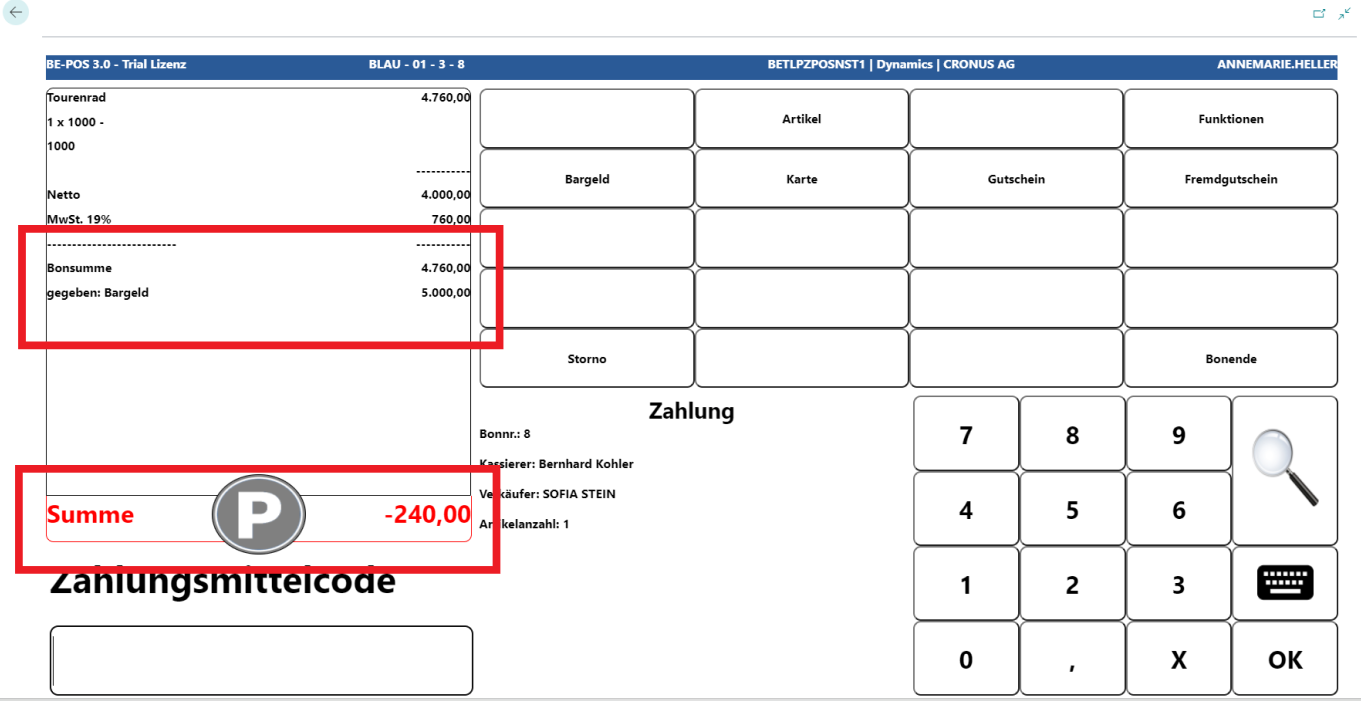
After the amount has been entered, the given amount is shown on the receipt roll and, if applicable, the change amount the customer receives back.
With Receipt End, the receipt is completed, printed, and the cash drawer opens.
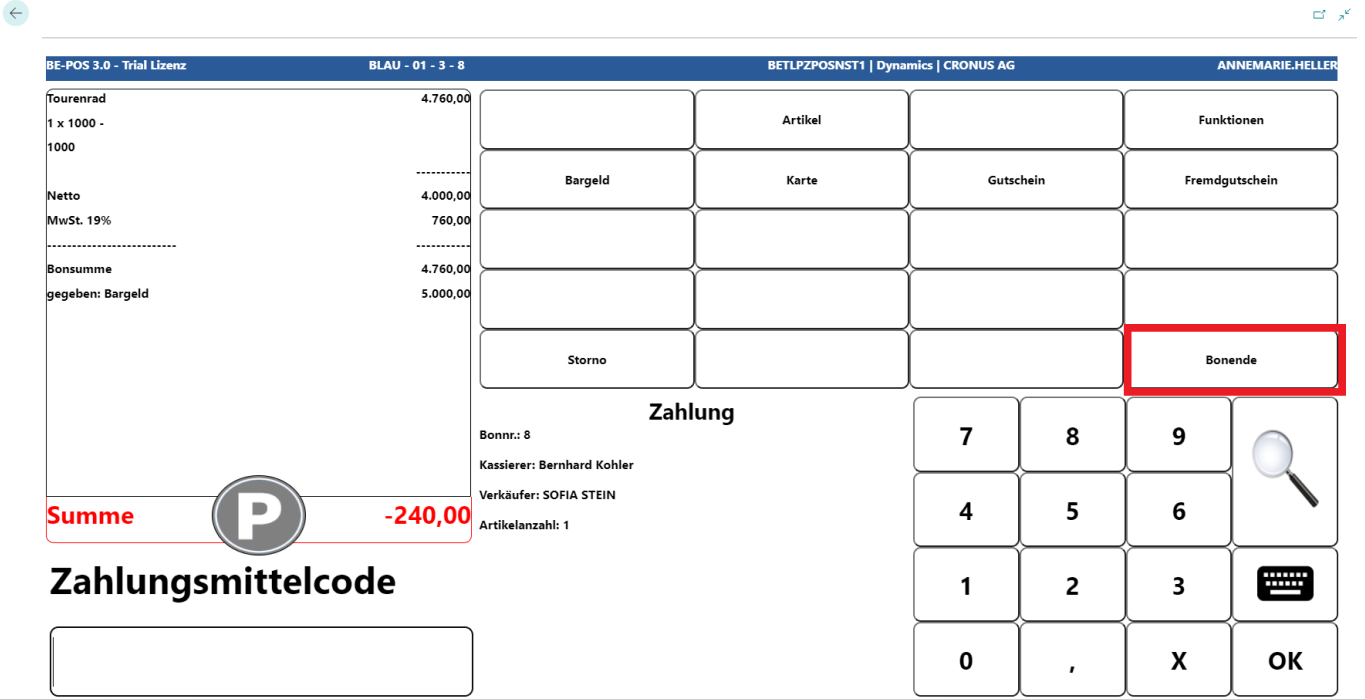
Note: Once the receipt is completed, no corrections or cancellations can be made.
Links