Import
Import is available for posting financial accounting, items, and resources, provided that the POS store setup is configured to import the data.

Sales Data
All sales data is available in the following table if it has not yet been imported and has therefore already been archived.

Importieren creates the corresponding journals.
Via Bon, you can navigate to the respective receipt.
Via the Zeilennummer, you can navigate to the import and correct the data in case of error messages.
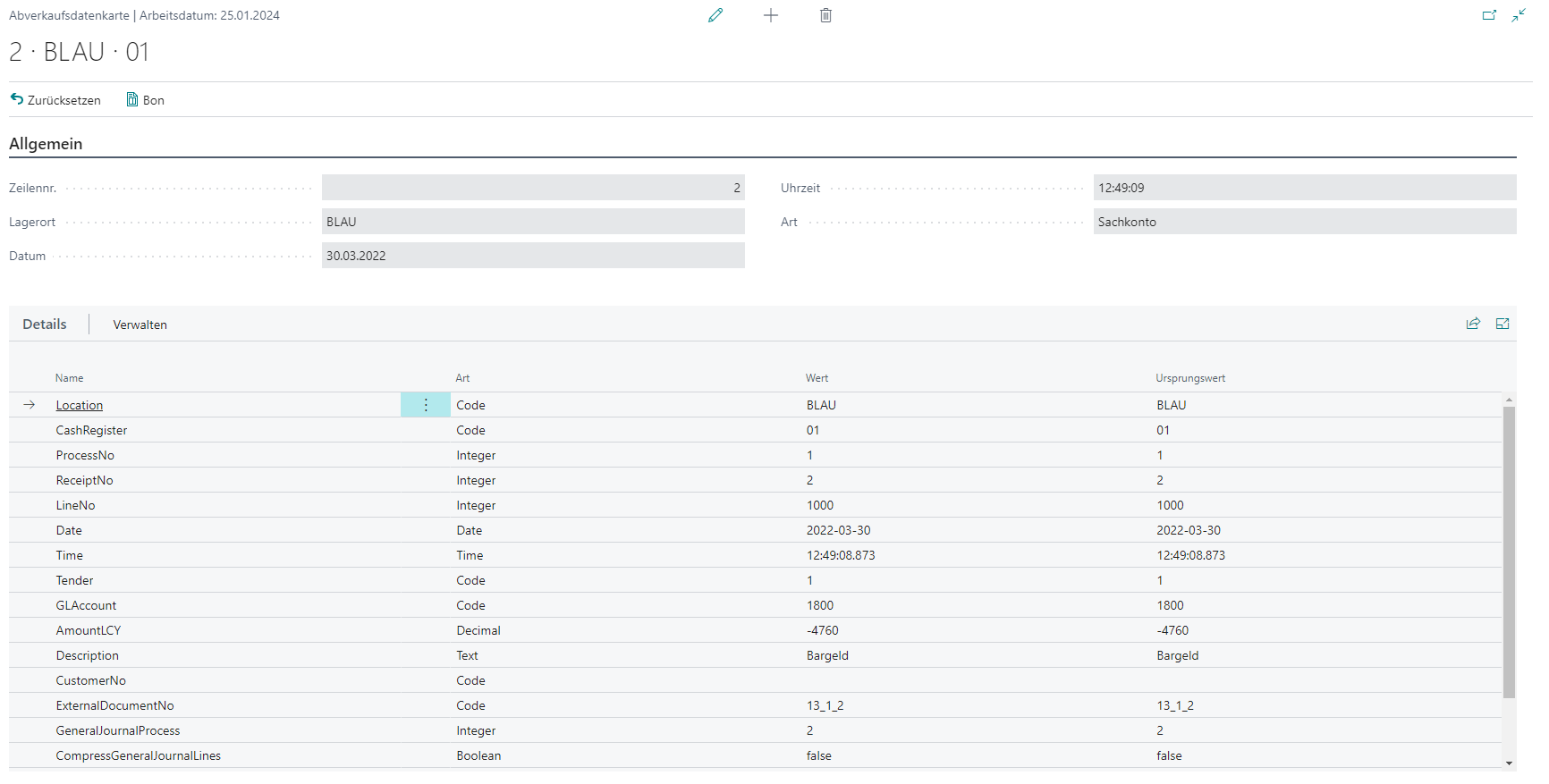
Note: Errors during processing are logged in the sales data. Corrections are saved; the original state remains unchanged.
BE POS Import
If the financial accounting interface of BE-POS is to be used, the corresponding imports are available here.
The financial accounting interface of the BE-POS cash-register module offers the user a simplified way to review the receipt data of the cash register in financial accounting and then post it correctly.
Note: The prerequisite is the setup in the POS store master where Process financial data = BE-POS.

Actions

In the action area of the table, all available imports can be rechecked via the Status prüfen button.
The Buchen (automatisch) action performs the same process as a possibly configured job queue entry.
The Stapelbuchen action makes it possible to post marked imports as a batch. If a filter is applied on the list, the filtered set is posted; otherwise the marked lines are posted. Faulty imports are not considered.
BE POS Import Card
The POS import card opens by double-clicking the desired record.
The import card is divided into three areas (General, Journal Lines, Tender Overview) and is provided with an extended standard action area. Statistics are also displayed on the right-hand side.
General
The first (top) area of the import card shows general information about the import.

| Field | Description |
|---|---|
| Location | Location code |
| POS Store | POS code |
| Date | Date |
| Document No. | POS receipt number |
| Posting Status | Current posting status / If a new document number was generated, the status is Inserted. When this import is posted, the status automatically changes to Processed. If the checks are not completed without errors, the status is Faulty. |
| Error Message | Last posting error |
The fields Location, POS Store, Date, Document No. form the primary key, meaning each combination of values exists only once.
Journal Lines
The cash register generates multi-line journal entries. At least two lines (posting and balancing entry) are created per business transaction. The lines are linked via the document number. This document number is later relevant for posting. The POS document number is only intended for linking the entire import.

The journal lines can be changed, deleted, and supplemented. When inserting a new line, the document number is assigned automatically.
Tender Turnover
This view lists the receipt turnover data by tender.

Visible are the tender code, the description, the type, and the turnover balanced with each tender on that import day. In addition, the posted G/L account, the difference account, and the Cash to Bank account are shown.
Action Area / Functions

Using the Buchen function, all POS journal lines from this import are posted and written to an archive table. In the import itself, the lines are deleted and the status is changed to Processed. If further receipts are imported into this import document after posting, the status is reset to Open.
Using Buchen und drucken, the journal lines are shown on the printout in the same way as the test report.
The Status prüfen function checks the import.
The Zurücksetzen function allows the user to reset manually changed import lines to the original state. Manually inserted lines are also deleted. Lines that have already been posted are not generated again.
The Vorgangsübersicht function opens the page of the related POS process or processes.
The Dekomprimierten Zeilen show the individual journal lines when they are displayed in compressed form.
The Navigate function opens the table with the related entries for the document number of the import.
Action Area / Journal Line Functions

Using the Dimensionen function, you can view the dimensions of the currently marked journal line. These are shown on a new page.
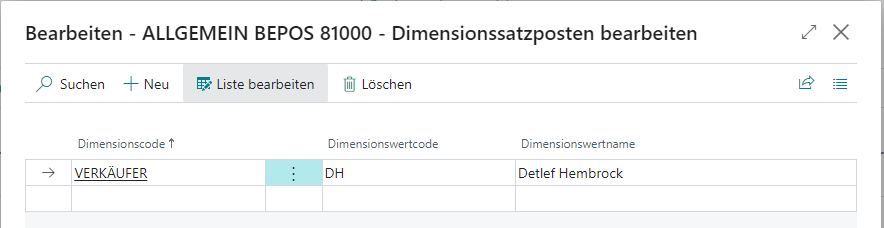
Action Area / Entry Archive Functions
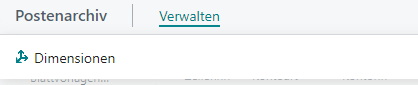
In the entry archive section, you can also use the Dimensionen function to view the dimensions of a journal line that has already been posted.
Action Area / Decompressed Journal Line Functions
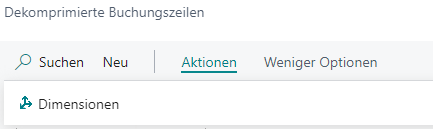
For the decompressed journal lines, you can once again use the Dimensionen function to display the dimensions of the currently selected journal line.
Statistics
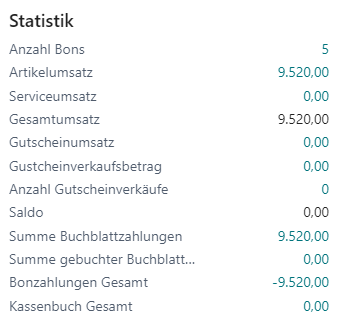
| Field | Description |
|---|---|
| Number of Receipts | Number of receipts in the import |
| Item Turnover | Revenue from merchandise sales |
| Service Turnover | Revenue from service sales |
| Total Turnover | Revenue from all sales |
| Voucher Turnover | Revenue from voucher sales |
| Voucher Sales Amount | Sum of sold vouchers |
| Number of Voucher Sales | Number of sold vouchers |
| Balance (Journal) | Balance of the journal |
| Sum of Journal Payments | Sum of the imported payments still in the journal |
| Sum of Posted Journal Payments | Sum of the posted journal lines |
| Total Receipt Payments | Sum of the actual payments of all receipts |
| Total Cash Account Book | Sum of all cash account book receipts |
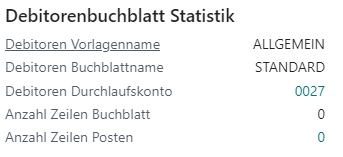
Customer Journal Statistics
For the open-item settlement and deposit processes, postings are created against a clearing account. Depending on the setup, the customer-related postings are posted immediately in a separate journal. The posting with the clearing account is included in the BE-POS import, so that reconciliations between receipt and journal lines can be carried out.
Fiskaly DSFinV-K Export
The abbreviation DSFinV-K stands for “Digitale Schnittstelle der Finanzverwaltung für Kassensysteme”. It is a business and technical definition for exporting electronic data to the tax office.
