Replication
Under Data Transfer → Replication, the publications and their subscribers are configured, thereby controlling the transfer of master data to the cash registers.
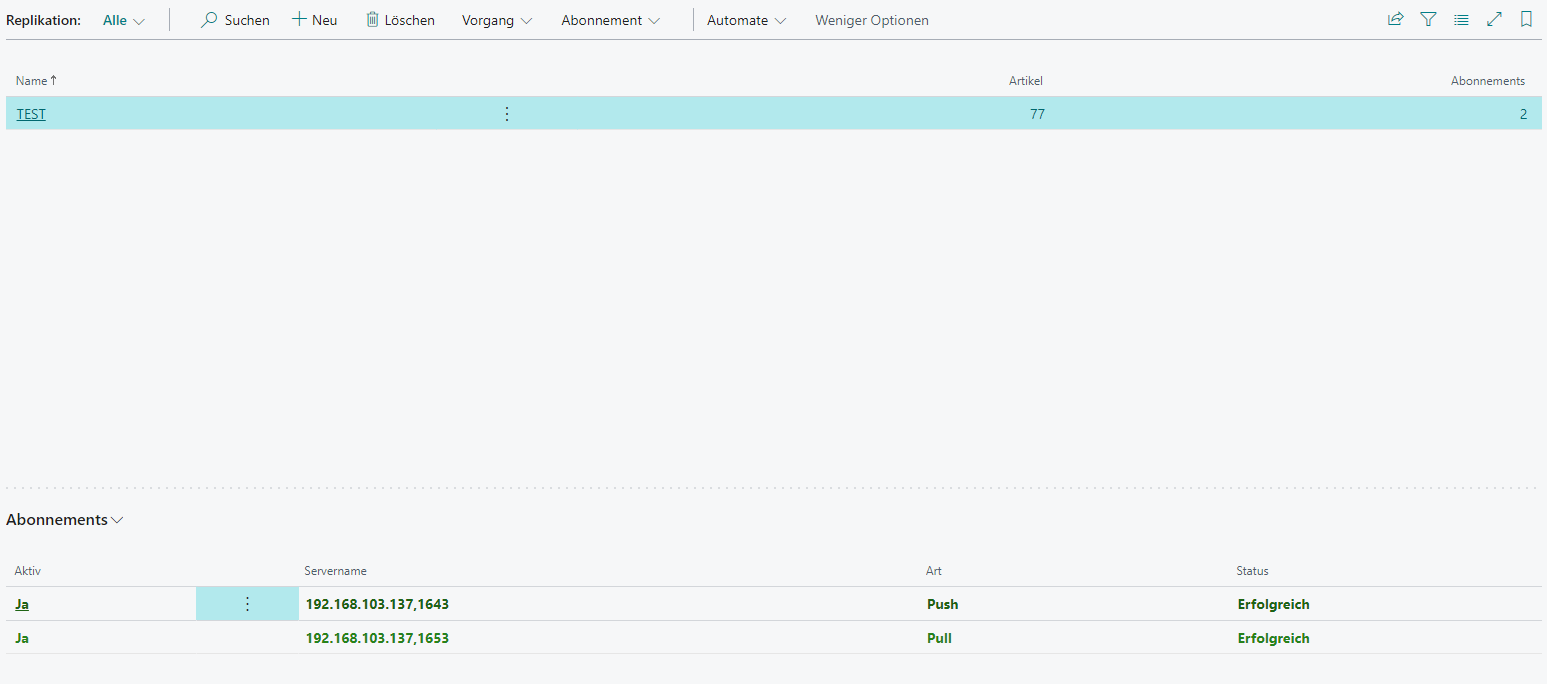
Publication
A publication is the combination of multiple tables whose data or data changes are to be synchronized to the cash registers.
General

| Field | Description |
|---|---|
| Name | The name of the publication |
| Description | The description of the publication |
| Items | Number of monitored tables |
| Subscriptions | Number of assigned cash registers |
Items
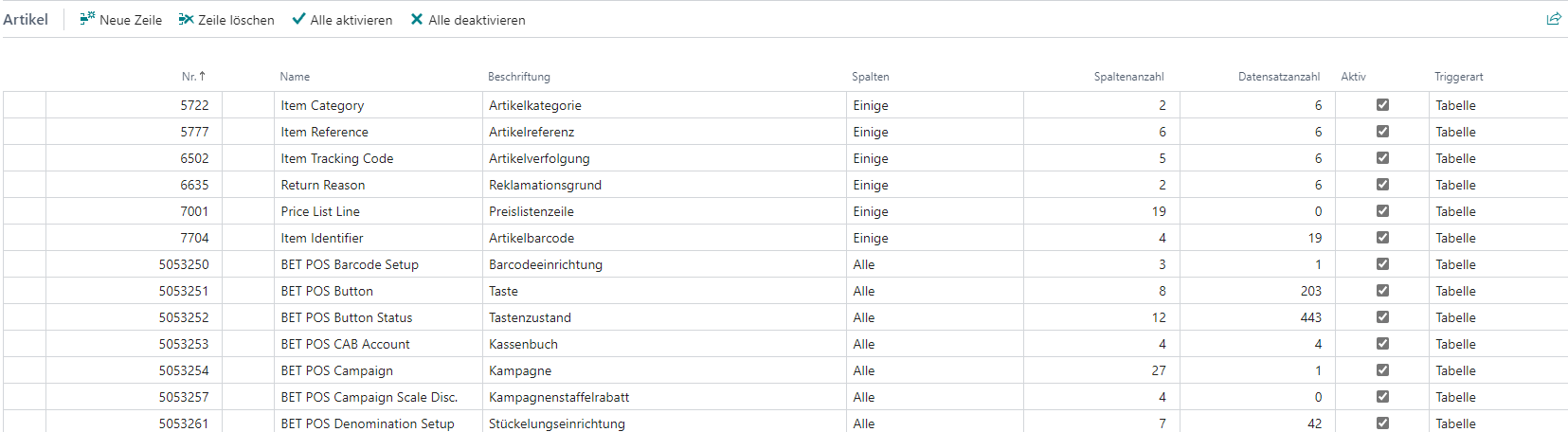
| Field | Description |
|---|---|
| No. | The table number |
| Name | The table name |
| Caption | The table caption |
| Columns | Defines whether All or Some columns of the table are to be monitored |
| Number of Columns | Depending on the settings under Columns, this shows the number of all monitored columns |
| Number of Records | Depending on the filters stored under Columns, this shows the number of records currently affected |
| Active | Defines whether the respective table monitoring is active |
| Trigger Type | Defines the monitoring type. Database: Database triggers are used for monitoring (recommended default setting). Table: Custom programmed table triggers are used for monitoring (required if only the changed data is to be transferred for Modify, because in previous BC versions this distinction was not or is not possible within the other trigger types). Global: Global triggers are used for monitoring (analogous to Database). |
Columns
If Some was selected under Columns, a selective choice of the desired table columns is possible, whereby primary key fields must always be transferred.
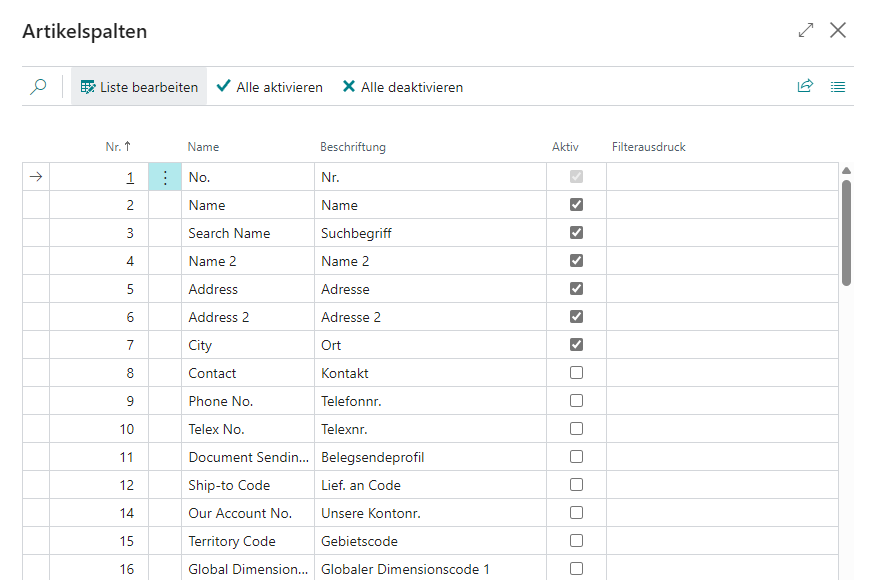
| Field | Description |
|---|---|
| No. | The column number |
| Name | The column name |
| Caption | The column caption |
| Active | Defines whether this column is to be monitored |
| Filter Expression | Offers the option to filter records for generating snapshots |
Replication Setup
The replication setup is located under the Start menu item.
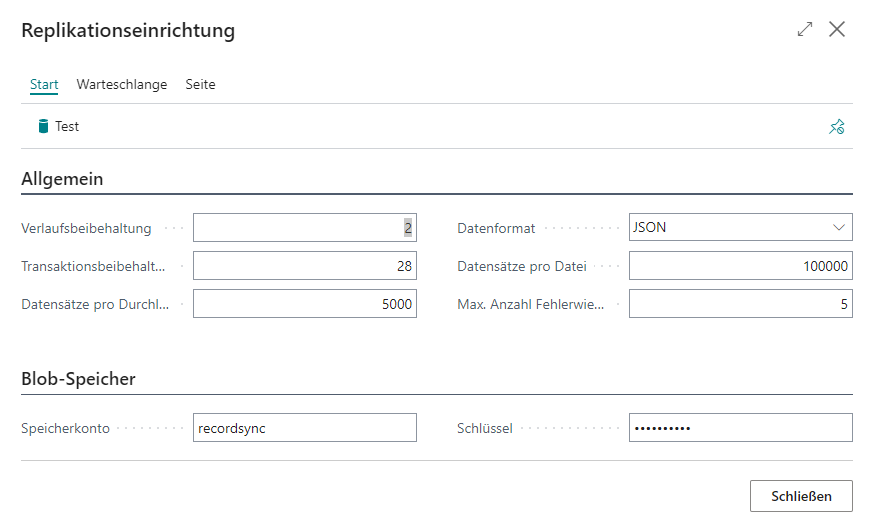
General
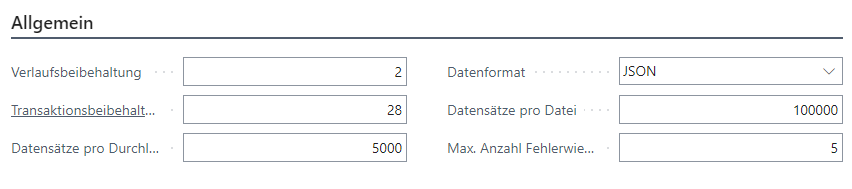
| Field | Description |
|---|---|
| History Retention | Defines how many days a generated snapshot remains valid |
| Transaction Retention | Defines how many days the changes of all replication tables are retained |
| Records per Run | Defines how many changes per update are transferred to the subscribers |
| Data Format | Defines the format of change logging. XML: Logging in XML format (high storage requirement, high fault tolerance). JSON: Logging in JSON format (normal storage requirement, high fault tolerance). CSV: Logging in XML format (low storage requirement, low fault tolerance). |
| Records per File | Number of records per file when creating a snapshot |
| Max. Number of Retry Errors | Number of retry attempts in case of transfer errors |
Blob Storage

| Field | Description |
|---|---|
| Storage Account | The Azure Relay storage account for storing the snapshot |
| Key | The Azure Relay key for storing the snapshot |
Queues
The replication setup can be used to create the required job queues for ERP and POS.
ERP
| Queue | Task |
|---|---|
| Synchronizes Master Data Changes | Synchronizes the master data changes for all push subscribers |
| Cleans Up/Imports Snapshots | Cleans up all expired snapshots |
| Synchronizes Sales Data | Synchronizes the sales data for all pull subscribers |
POS
| Queue | Task |
|---|---|
| Synchronizes Master Data Changes | Synchronizes the master data changes for all pull subscribers |
| Cleans Up/Imports Snapshots | Imports provided snapshots at the respective point in time |
| Synchronizes Sales Data | Synchronizes the sales data for all push subscribers |
File Import
If the initial snapshot is not to be imported via Azure Relay but via a ZIP file, this can be done via Start → File Import.
If the import is performed in the ERP system, the following security prompt appears:
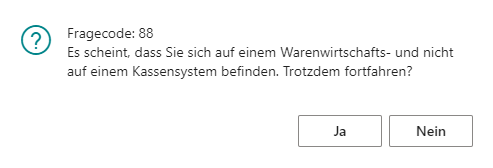
After selecting the respective ZIP file, the subscription wizard appears:
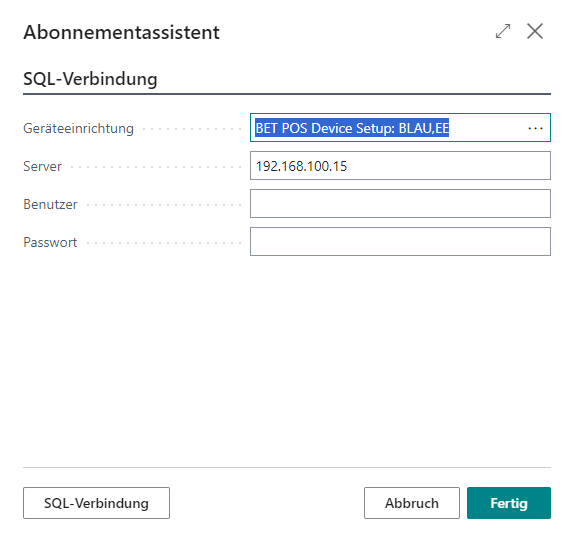
This allows the selection of a device setup and the storage of a local SQL login. If this data is stored correctly, the replication tables are cleared using SQL truncate/delete (fast); otherwise directly via BC (slow for large tables/data volumes).
Replication Entries
Via Start → Entries, it is possible to inspect the open replication entries. Each entry symbolizes a data change.
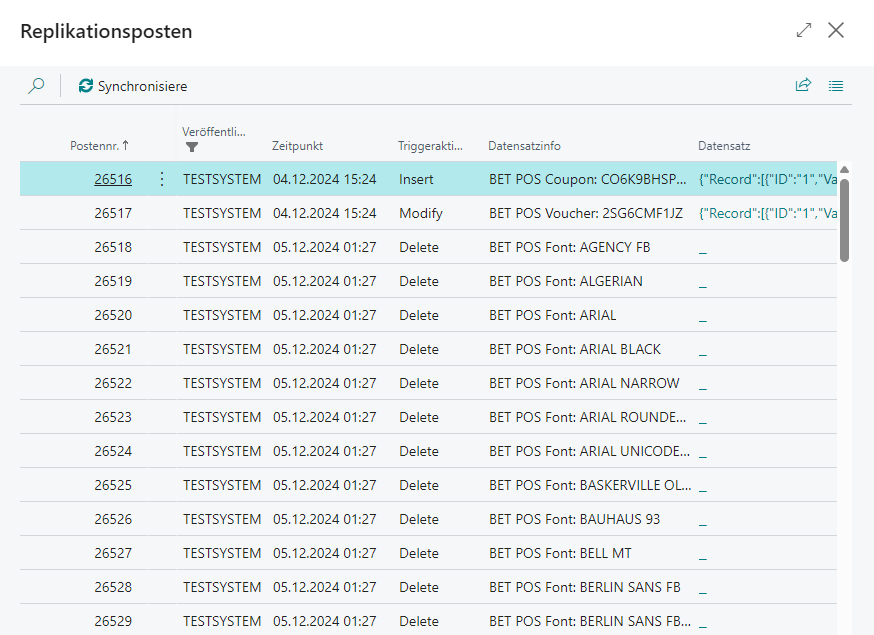
| Field | Description |
|---|---|
| Entry No. | Sequential and therefore unique entry number |
| Publication | The name of the publication/replication |
| Time | Date and time of the data change |
| Trigger Action | Type of data change. Insert: Record was added. Modify: Record was changed. Delete: Record was deleted. |
| Record Information | The primary key of the affected record (record ID) |
| Record | For Insert and Modify, the contents of the monitored fields are stored here in the preferred format |
With the Synchronize action, an update run is initiated in ERP for all push subscribers or in POS for a pull subscription. This primarily serves error analysis; under normal circumstances the update is performed by the responsible job queues.