Brief context for Quick Start in BE-terna Project.
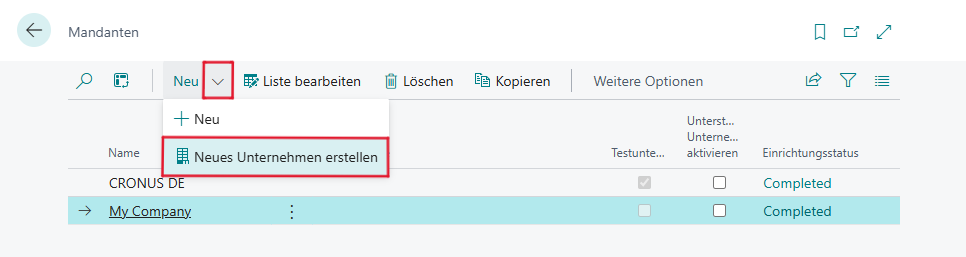
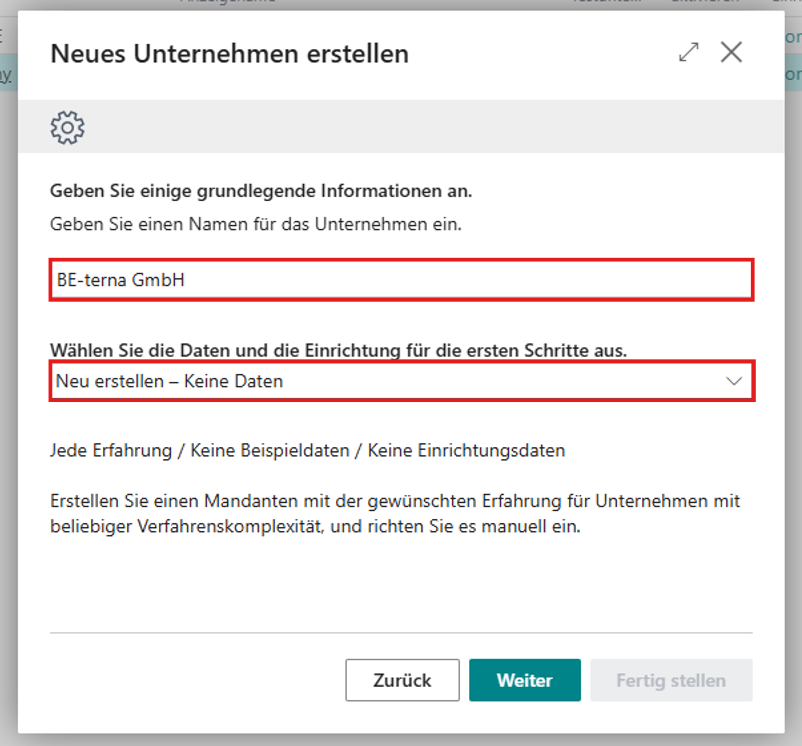
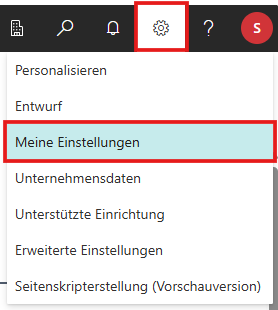
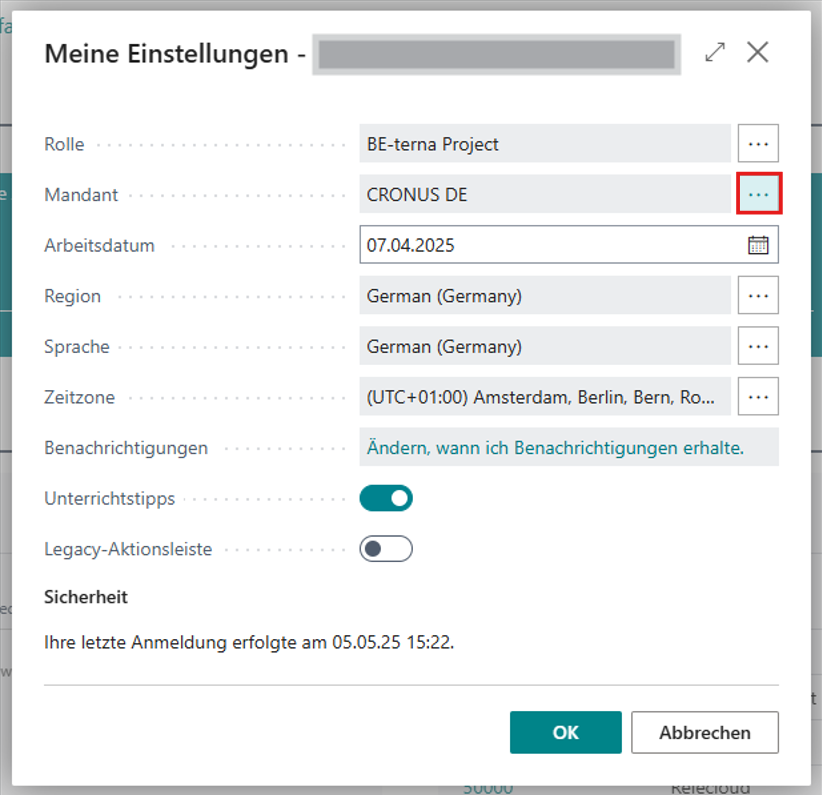
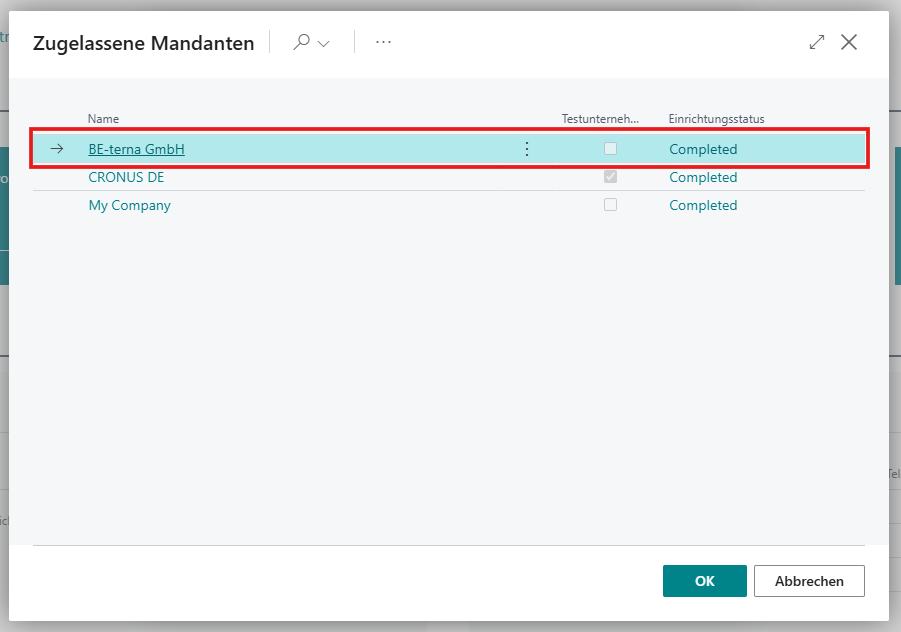
The following steps explain how to create a new BE-terna Project client in the BC Client and import initial or demo data.
Note: After each step, Seite aktualisieren (F5).
Schritt 1
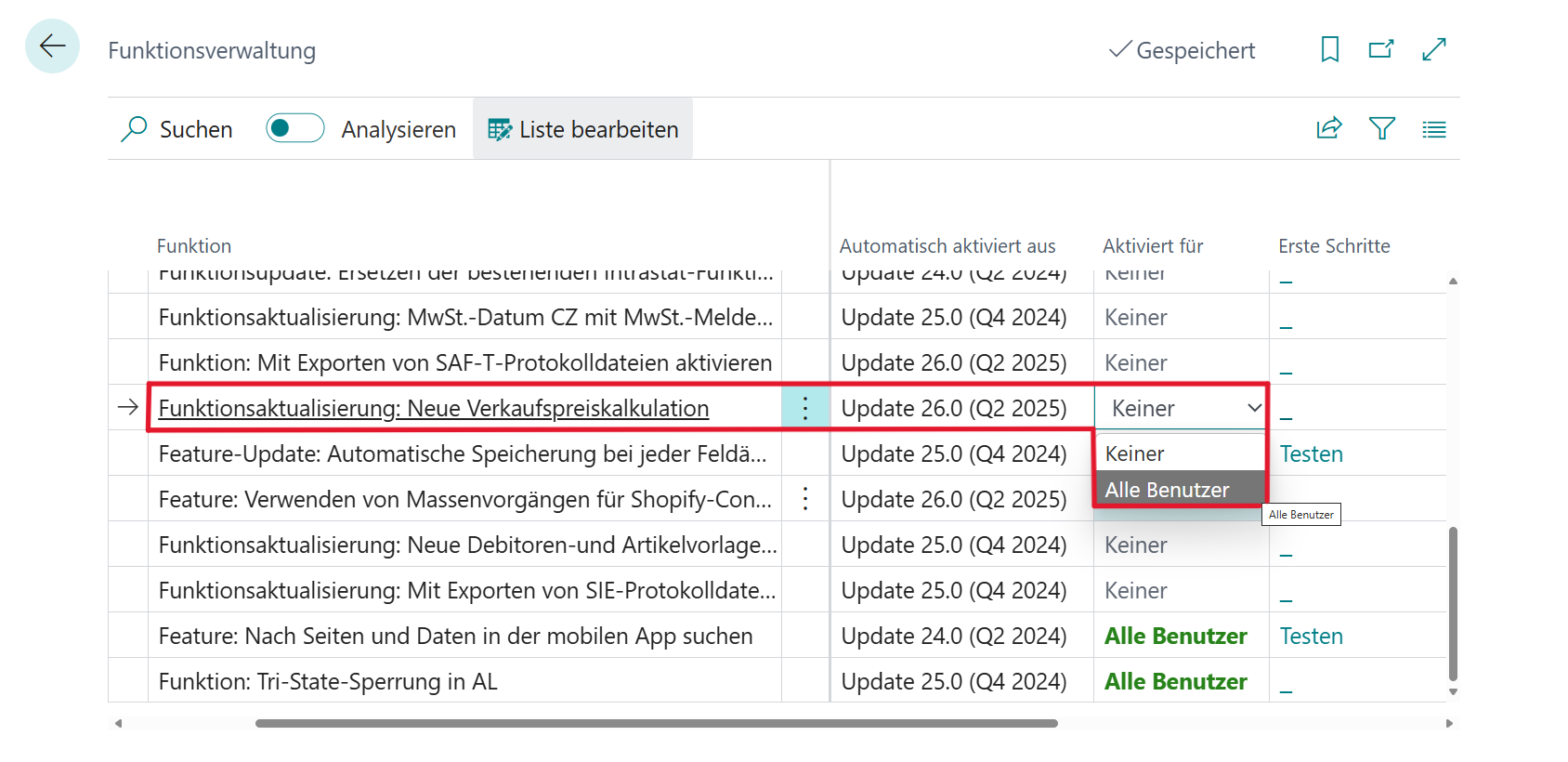
Open the Function Management list in the current client
→ Enable Feature Update: New Sales Price Calculation for all users
Click to enlargeBackground:
Some time ago, a change was introduced in the standard version of Business Central regarding sales price calculation. This feature is not currently automatically updated by default, so it must be manually enabled for each tenant.
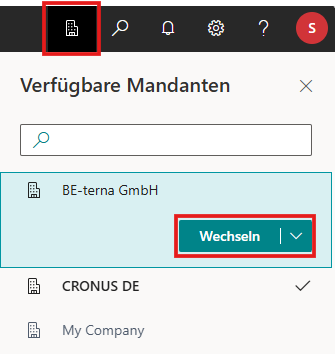
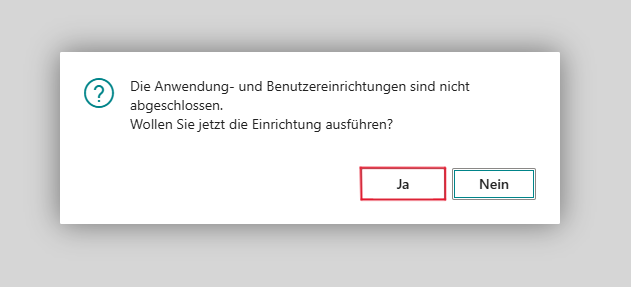
Wizard opens automatically after switching clients
→ Setup: “Yes” Click to enlarge
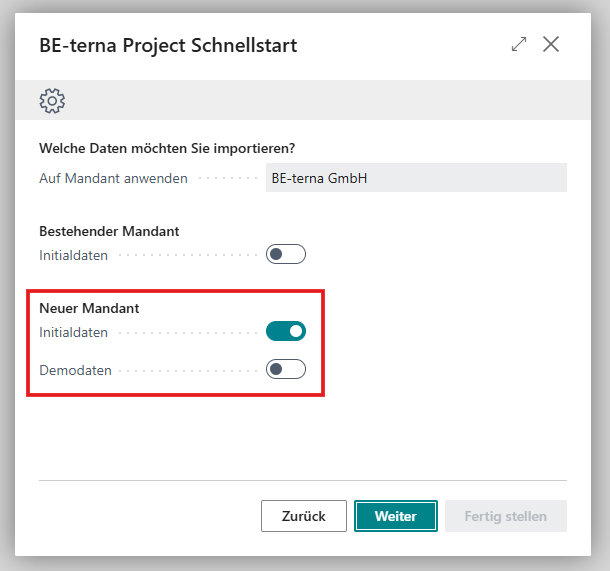
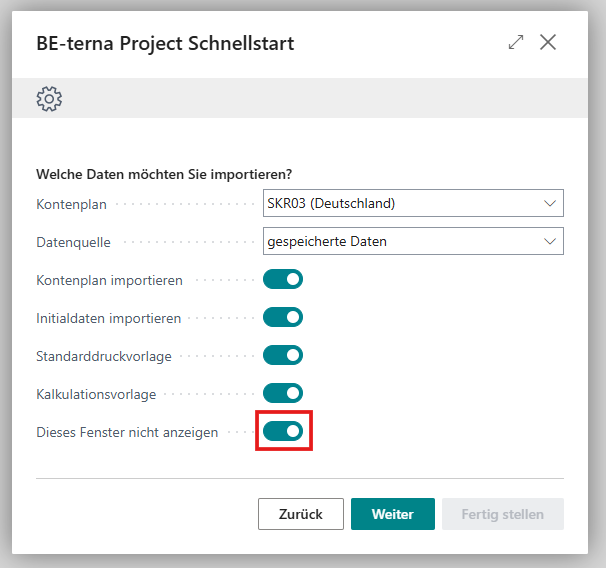
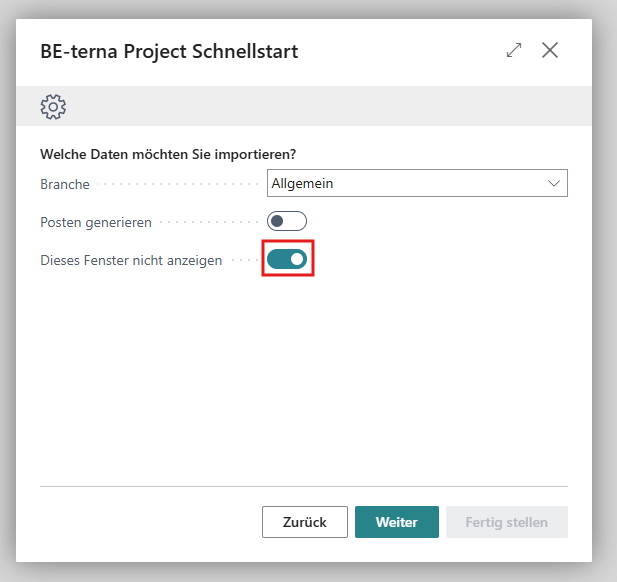
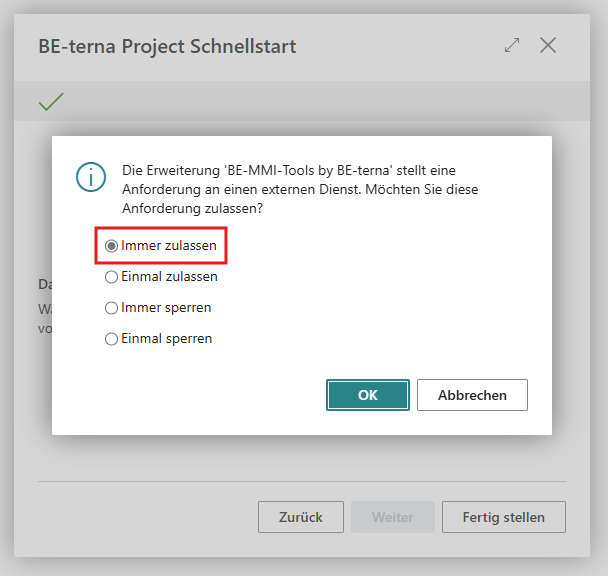
Import data for new tenant Click to enlarge Initial data
A completely empty client without master data is created. Only setup data is imported to enable work with BE-terna Project.
Demo data
The initial data is included, and master data as well as project documents, projects, etc. are also generated for demo purposes.
Note: Once the client is populated with initial or demo data, this cannot be undone. To modify imported data, a new tenant would need to be created.
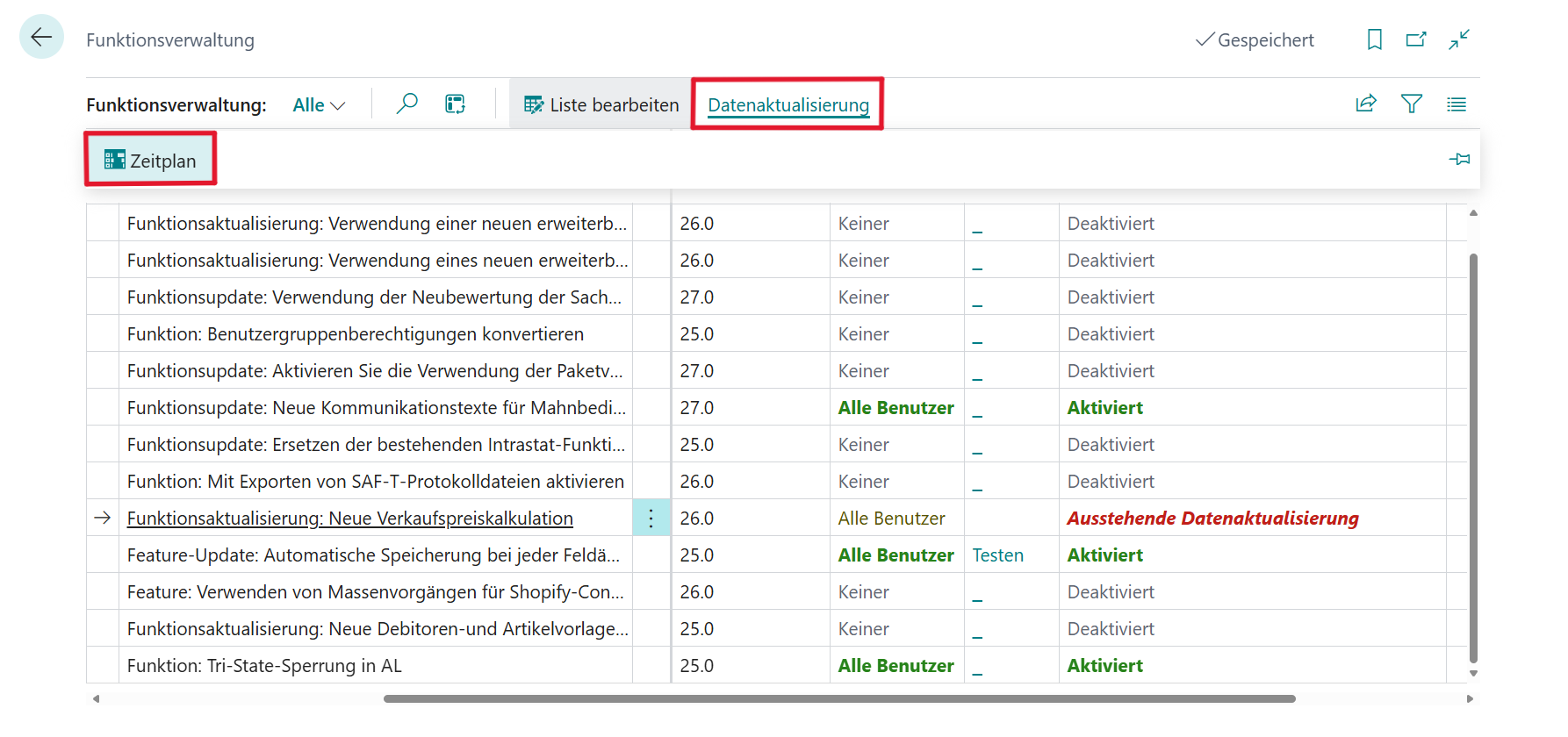
Open the Function Management list in the new client:
→ Select “Feature Update: New Sales Price Calculation”
→“Data Update” →“Schedule” Click to enlarge
After that, the status of the data update should change to “Completed” Click to enlarge
If all steps have been successfully completed, a new BE-terna Project client should be created at the end and all initial or demo data should be imported.
Cookie consent
We use cookies to recognize your repeated visits and preferences, to measure the effectiveness of our documentation, and to understand whether users find what they are looking for. The analysis is completely anonymous: we do not store any personal data and do not create user profiles. With your consent, you help us improve our documentation.
 Click to enlarge
 Click to enlarge
 Click to enlarge
 Click to enlarge
 Click to enlarge
 Click to enlarge
 Click to enlarge
 Click to enlarge
 Click to enlarge
 Click to enlarge
 Click to enlarge
 Click to enlarge
 Click to enlarge
 Click to enlarge