Terminal
Under Setup → Terminal, you can configure card terminal settings per cash register.

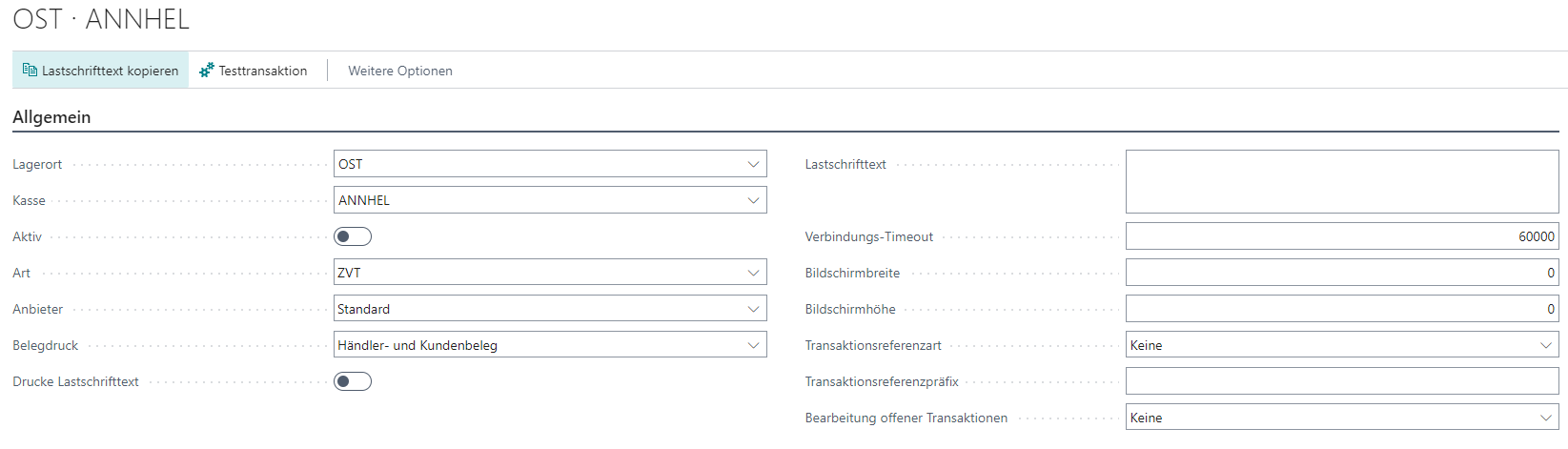
Actions
The following actions are available both in the overview and on the card:
| Field | Description |
|---|---|
| Card Assignment | Starts a test transaction with the currently stored settings |
| Copy Direct Debit Text | Distributes the direct debit text of this setup to all other terminal setups. |
| Test Transaction | Starts a test transaction with the currently stored settings |
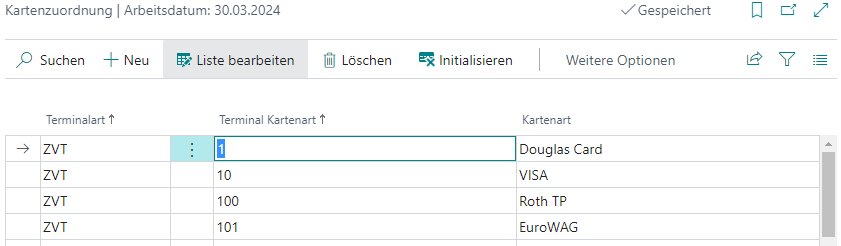
Card Assignment
In this overview, you can assign a corresponding card to each return value of a terminal protocol. Under Setup → Tender, you can assign the stored card types to individual card tenders.
Test Transaction
For test purposes, this sends a login and a direct debit transaction of EUR 0.01 to the configured terminal. It is recommended to cancel the test directly on the terminal, because it is already considered successful as soon as the amount is shown on the terminal.
Setup
General
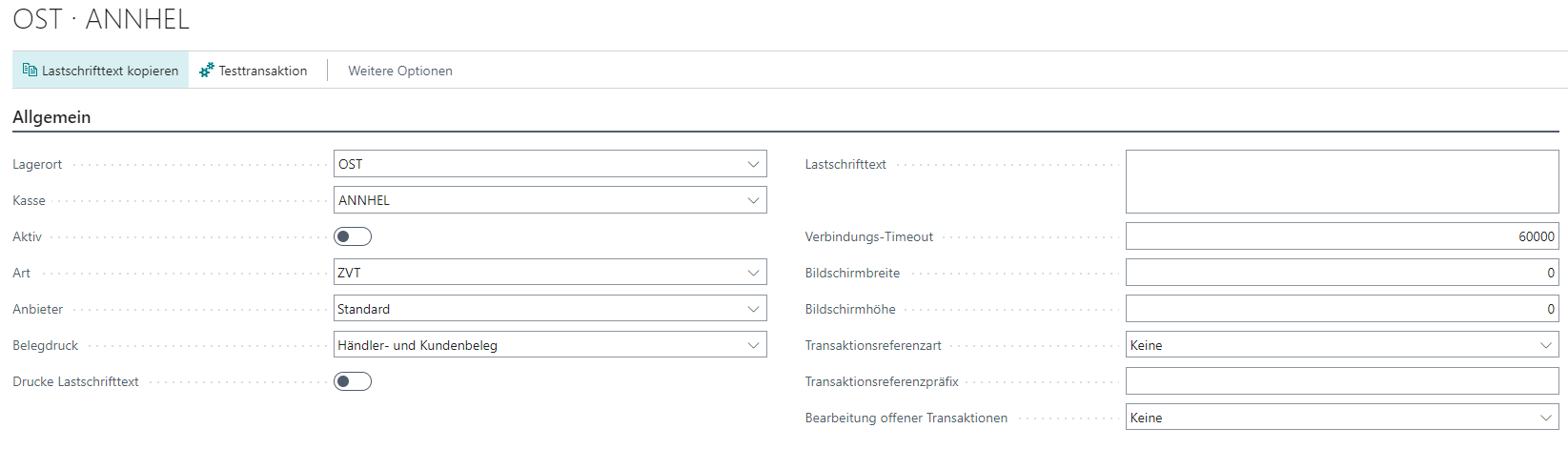
This tab contains general information, such as the assignment of a cash register setup and the selection of the protocol type.
| Field | Description |
|---|---|
| Location | The location code of the cash register setup to be used |
| Cash Register | The cash register code of the cash register setup to be used |
| Active | Activates control of the terminal |
| Type | Defines the protocol type ZVT: Control via the ZVT protocol (primarily Germany) Worldline: Control via the Worldline interface (primarily Switzerland; requires installation of the TIM server) Adyen: Control via the Adyen Terminal Cloud API (requires an Adyen account) |
| Provider | Defines the terminal provider (ZVT only) Standard: ZVT standard, no provider-specific implementations are taken into account Ingenico: Ingenico-specific implementations are taken into account |
| Receipt Print | Defines how the terminal receipt should be printed Blank: The terminal prints the receipt Merchant and Customer Receipt: The cash register prints both receipts Merchant Receipt: The cash register prints only the merchant receipt Customer Receipt: The cash register prints only the customer receipt No Receipt: No receipt is printed |
| Cash Register Prints Receipt | Prints the terminal receipt via a connected receipt printer |
| Print Direct Debit Text | Specifies whether the stored direct debit text should be printed on the terminal receipt (if receipt rolls are used whose back side does not contain the legally required direct debit text) |
| Direct Debit Text | Defines the direct debit text |
| Screen Width | Used for image display on the terminal and specifies the width of the terminal screen in pixels |
| Screen Height | Used for image display on the terminal and specifies the height of the terminal screen in pixels |
| Transaction Reference Type | Defines whether a reference is sent to the terminal for each transaction or a transaction reference is received from the terminal None: Deactivates the transaction reference Send: The cash register creates and sends a transaction reference to the terminal Read: The cash register reads and stores the transaction reference received from the terminal |
| Transaction Reference Prefix | If a transaction reference is sent to the terminal, this prefix is added to the reference |
| Handling of Open Transactions | Defines how open transactions should be handled |
ZVT
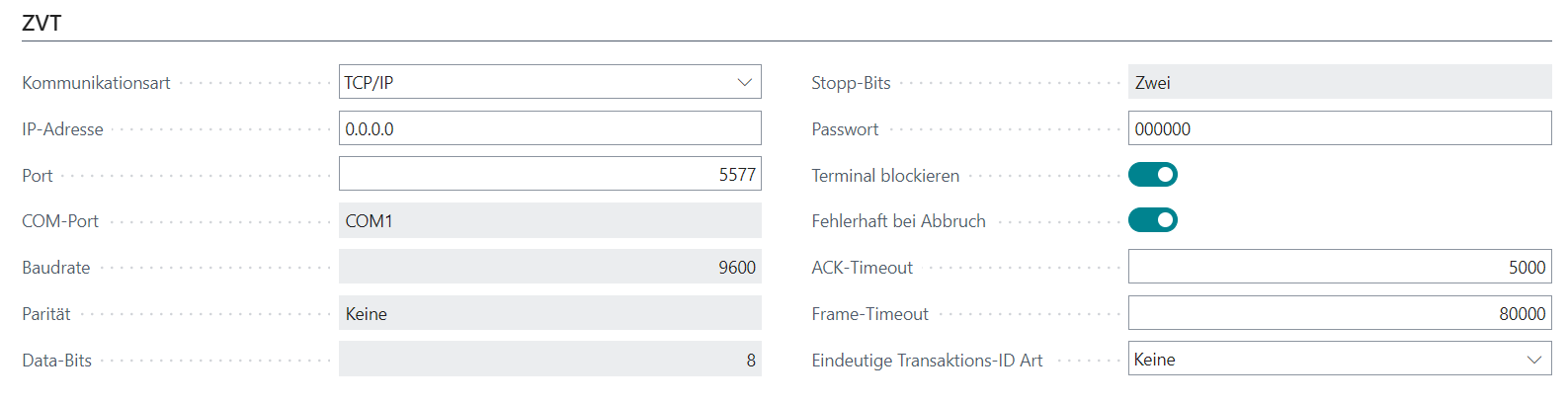
Note: The additional ZVT tab appears only when this type has been selected.
| Field | Description |
|---|---|
| Communication Type | Defines the communication type TCP/IP: Control via IP and port (network) COM: Control via RS232 connection (cable) |
| IP Address | Specifies the IP address of the terminal (TCP/IP) |
| Port | Defines the communication port of the terminal (TCP/IP) |
| COM Port | Defines the COM port (COM) |
| Baud Rate | Defines the baud rate of the COM port (COM) |
| Parity | Specifies the parity of the COM port (COM) |
| Data Bits | Specifies the number of data bits of the COM port (COM) |
| Stop Bits | Specifies the number of stop bits of the COM port (COM) |
| Password | Specifies the terminal password |
| Block Terminal | This setting prevents manual transactions from being carried out on the terminal while the cash register is connected to it |
| Faulty on Abort | Treats every occurring error as making the entire transaction faulty, even if it was ultimately successful |
| ACK Timeout | Sets the timeout in milliseconds for an acknowledge |
| Frame Timeout | Sets the timeout in milliseconds for a complete frame |
| Unique Transaction ID Type | Defines whether and how a unique transaction ID should be sent to the terminal |
Intermediate Status

| Field | Description |
|---|---|
| Show Intermediate Status | Shows the current intermediate status of the terminal |
| Caption | Defines the caption for the intermediate status window |
| Font Size | Sets the font size |
| Font | Font used for the intermediate status |
| Screen Number | Sets the screen number on which the intermediate status window should be displayed. A negative number displays it on the first primary screen |
| Window Width | Sets the width of the intermediate status window in pixels |
| Window Height | Sets the height of the intermediate status window in pixels |
Worldline
Note: The additional Worldline tab appears only when this type has been selected.
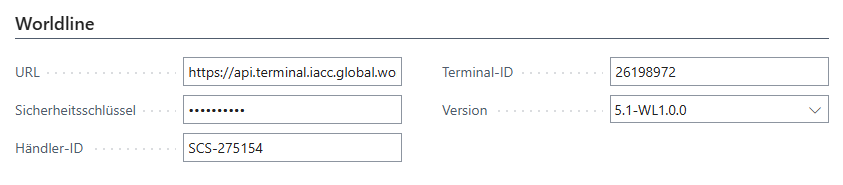
| Field | Description |
|---|---|
| URL | Specifies the URL for the Worldline web service. The following endpoints are currently distinguished: Production system: https://api.terminal.global.worldline-solutions.comIntegration system: https://api.terminal.iacc.global.worldline-solutions.com Development system: https://api.terminal.dev.global.worldline-solutions.com |
| Security Key | Specifies the security key for communication with the Worldline web service and is provided in encrypted form by Worldline for each customer |
| Merchant ID | Specifies the unique customer ID and is provided by Worldline for each customer |
| Terminal ID | Specifies the unique terminal ID and is provided by Worldline for each terminal |
| Version | Specifies the Worldline protocol version to be used |
Adyen
Note: The additional Adyen tab appears only when this type has been selected.

| Field | Description |
|---|---|
| URL | Specifies the URL for the Cloud API. Separate URLs exist for the live and test systems. The URL can be found in the Adyen account under Developers → API URLs → Terminal Cloud API. Important: The path /sync must be appended at the end of the URL. |
| API Key | In order for the cash register to authenticate with Adyen, a security key must first be created in the Adyen account under Developers → API credentials. The generated API key is then entered in this field. |
| Terminal Model | Specifies the terminal model. This information is available in the Adyen account under Point of sale → Terminals → Device model. |
| Terminal Serial No. | Specifies the terminal serial number. In the Adyen account, the serial number is listed under Point of sale → Terminals → Serial number. Any hyphens should be omitted. |