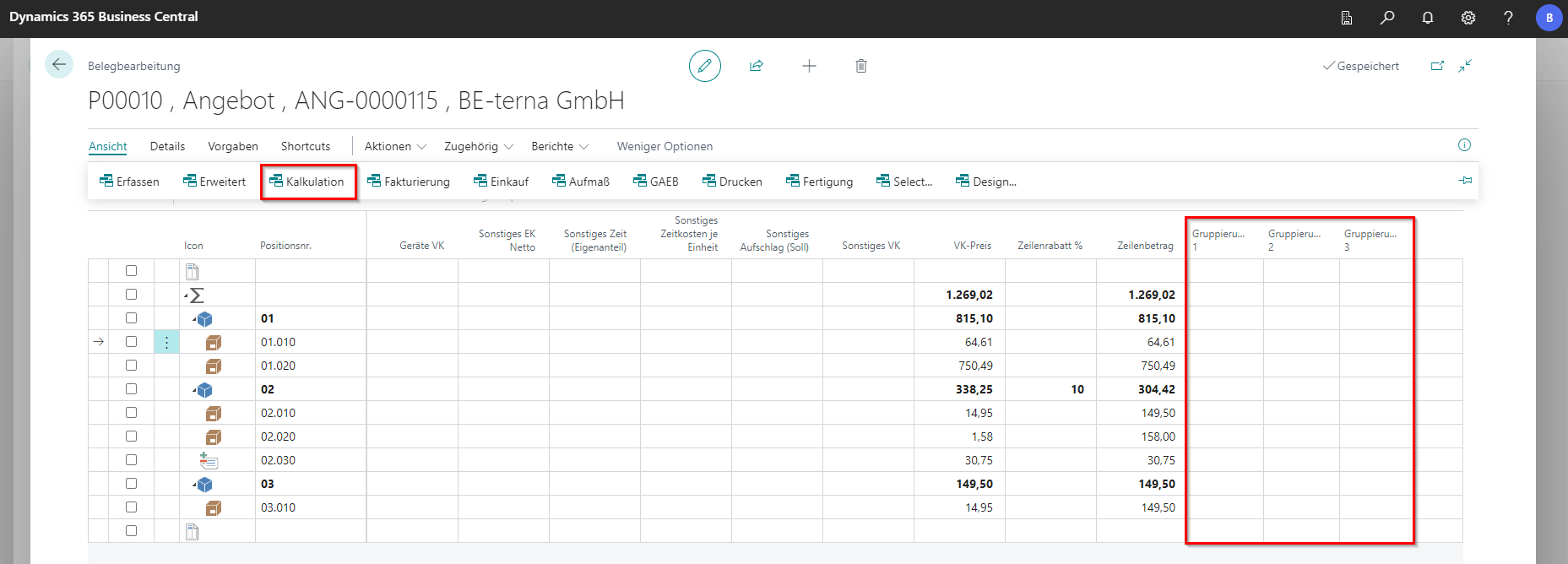
Forming group totals
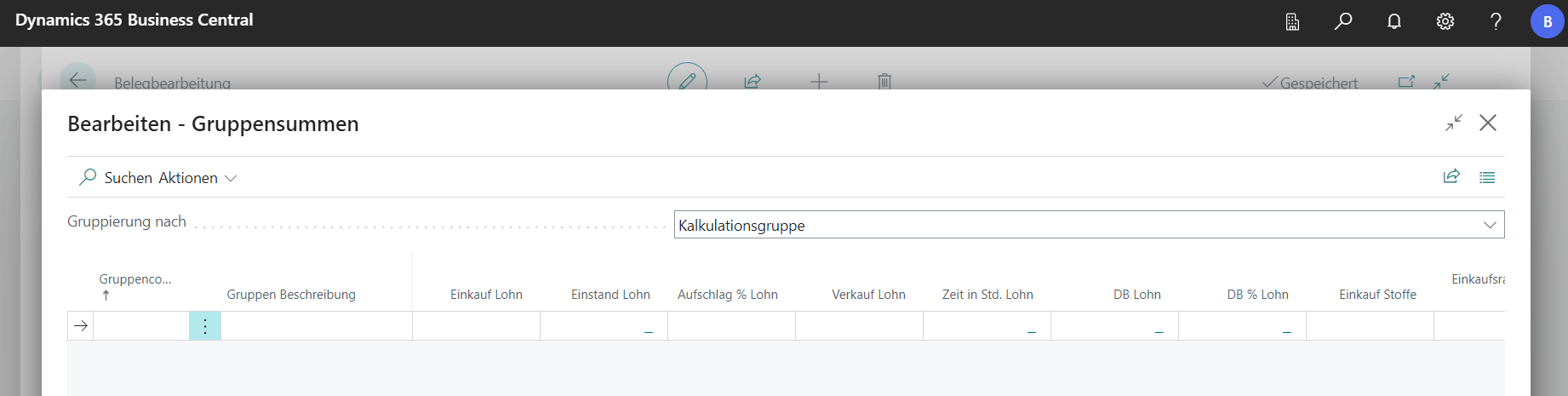
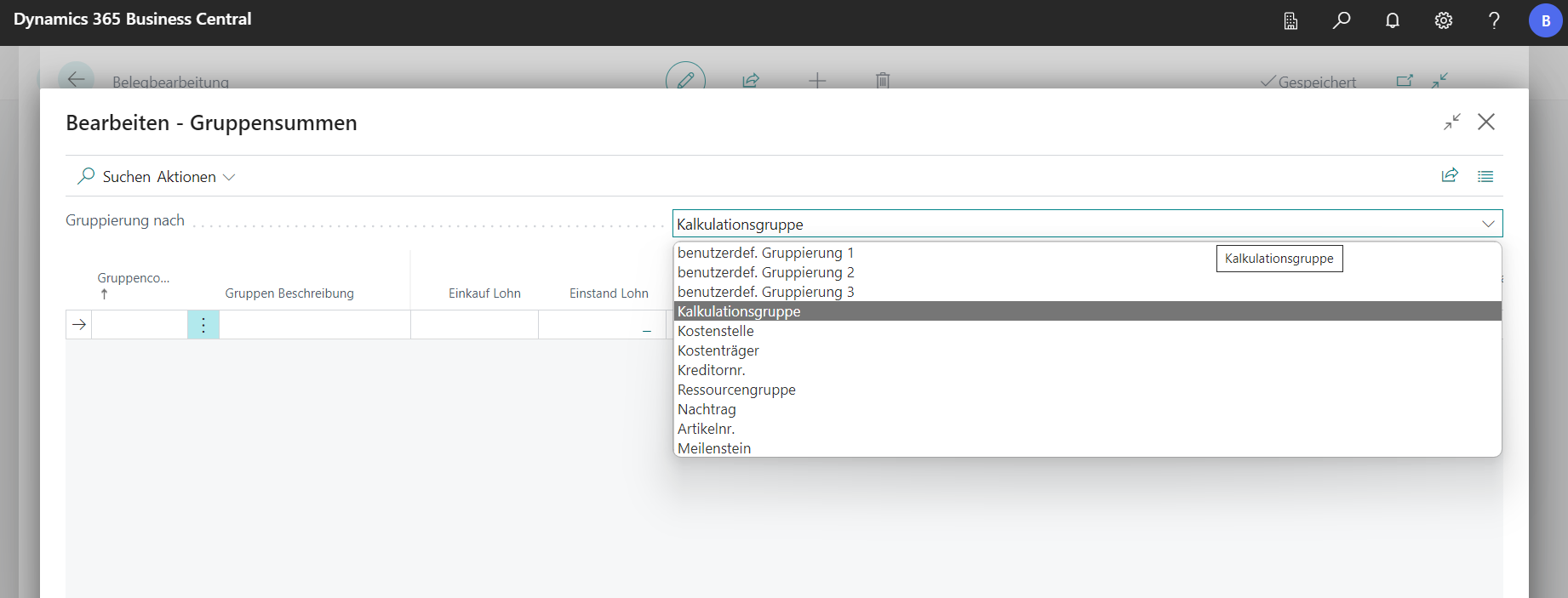
Group totals can be used to group items in the document according to various criteria and to perform a Final Total Calculation based on the groupings. The function can be called in the document via Edit and Group Totals. It can be grouped according to various characteristics. It is possible to switch between different grouping characteristics via the dropdown. It should be noted that the sum is only calculated from the level at which the document was navigated (title level – total level). The available grouping criteria are customizable by BE-TERNA. It is therefore possible to sum according to your own criteria.
 Click to enlarge
 Click to enlarge
Costing Group
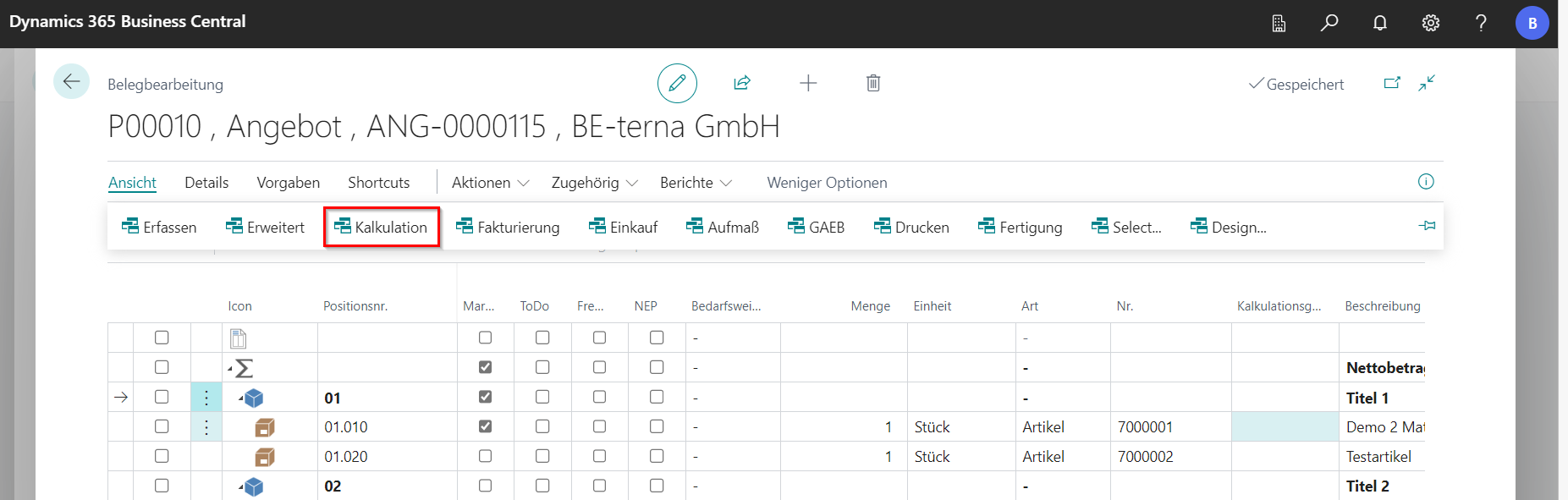
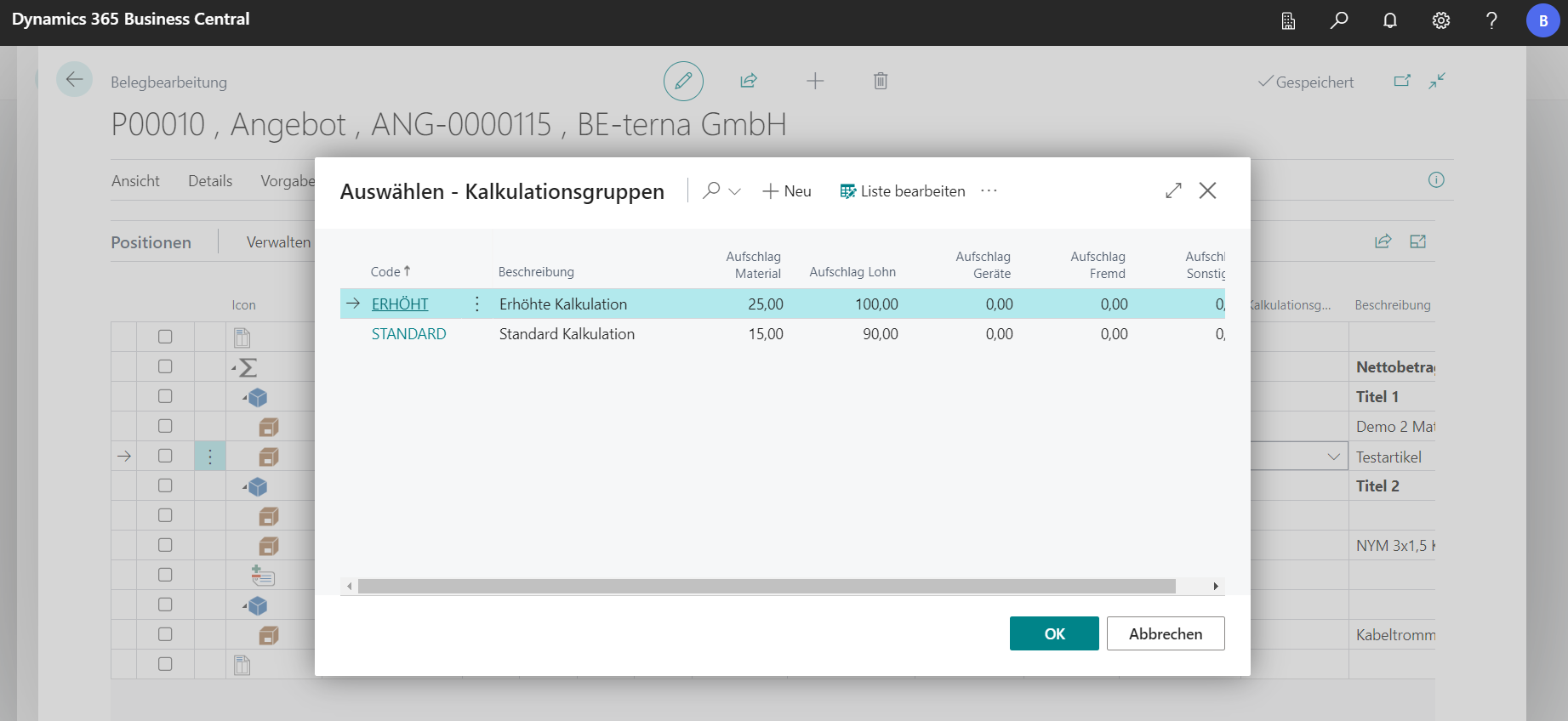
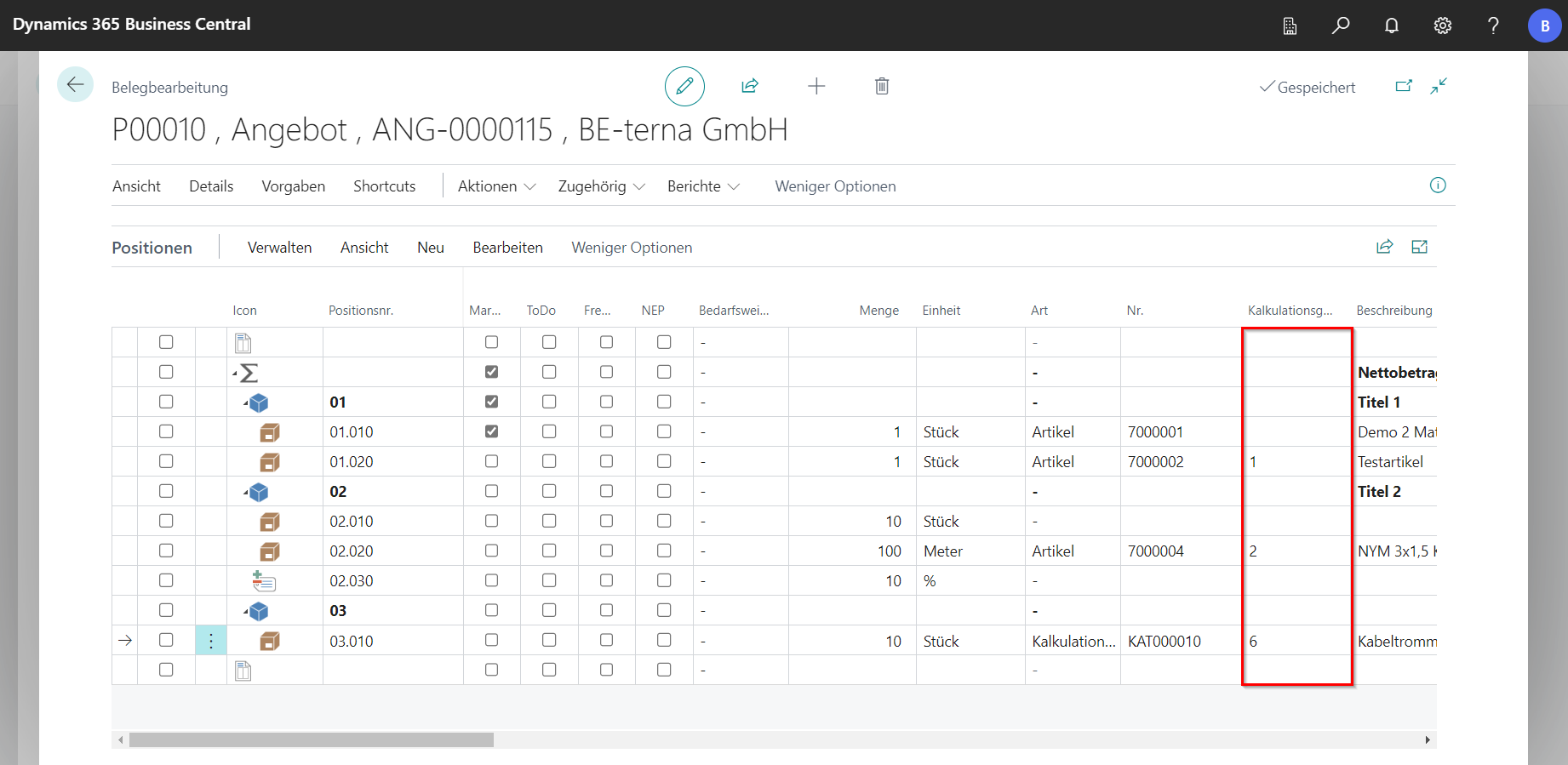
In the event that no costing groups are defined on the (costing) article, a costing group can be displayed in the bill of quantities via View and Costing in the Costing Group column in the bill of quantities. If you click in a row and select Choose from complete list, the selection window for the calculation groups opens, in which new ones can also be created.
 Click to enlarge
 Click to enlarge
Costing groups can also be entered in the bill of quantities, which do not exist in the master data. In this case, the system does not apply any markups, but the costing group can be adjusted in the group total view.
Cost Center and Cost Object
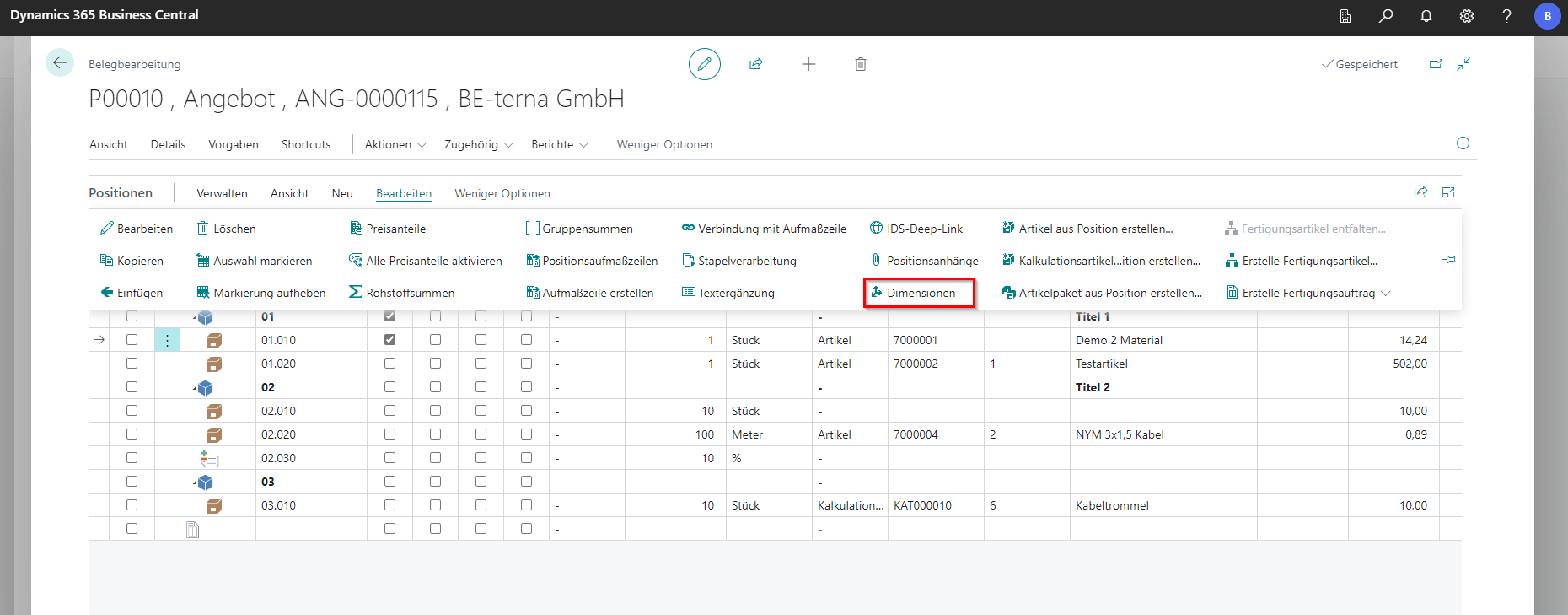
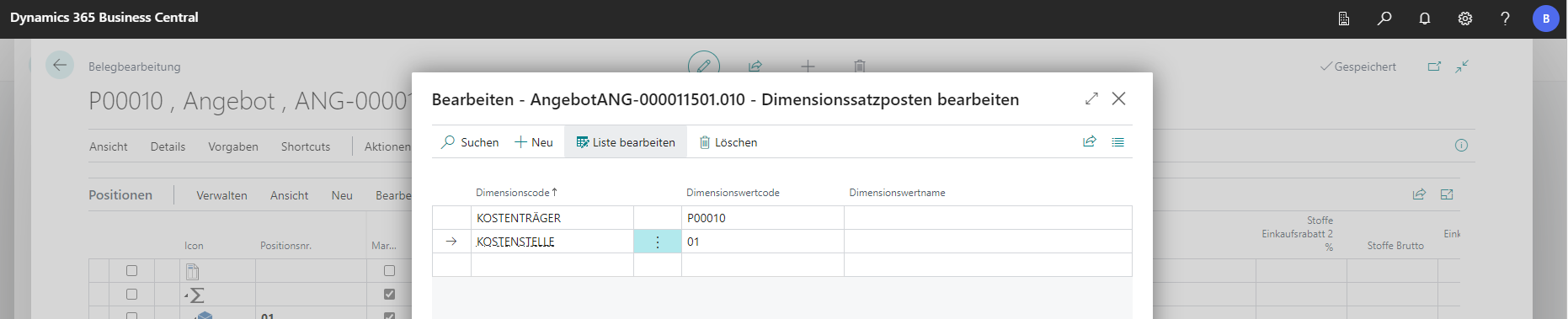
Under Edit it is possible to use the Dimensions function to define a cost center and a cost object at the item. This can then be summed up. However, this depends on the settings in the Financial Accounting setup. There it is determined what the global dimensions 1 and 2 are called. Normally, these are called cost centers and cost units. However, it is also possible to rename them.
 Click to enlarge
 Click to enlarge
Supplier identifier and supplier article number
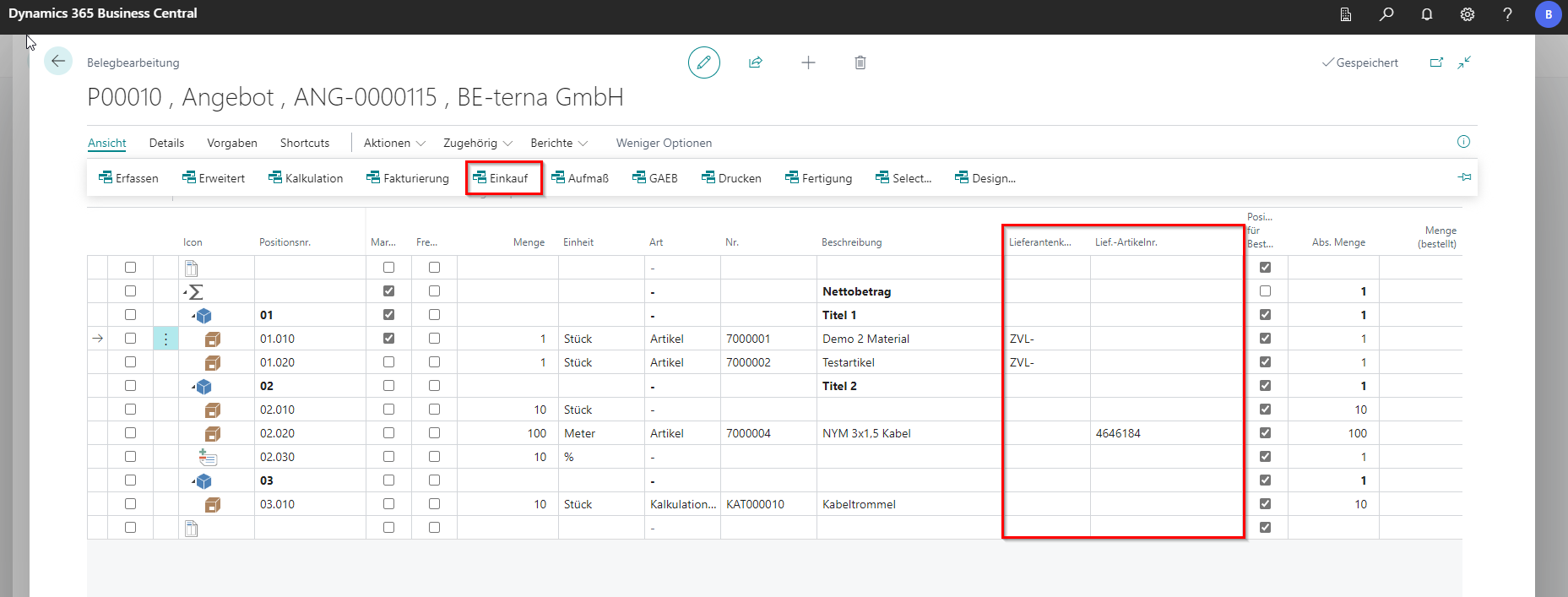
In the purchasing view, a supplier and an article number from the supplier can be defined at the item. To do this, go to View and Purchase in the menu. The corresponding columns will then be displayed. With this data, a grouping can be made and a shopping discount can be awarded, for example.
User-specific grouping 1 to 3
In addition to the grouping options mentioned above, up to three individual groups can be defined. These are located as columns under View and Costing. In the columns Grouping 1, 2 and 3, items can be grouped with the desired values.