Receipt Layout
Adjusts the layout of individual receipt types and their line types in POS Core.
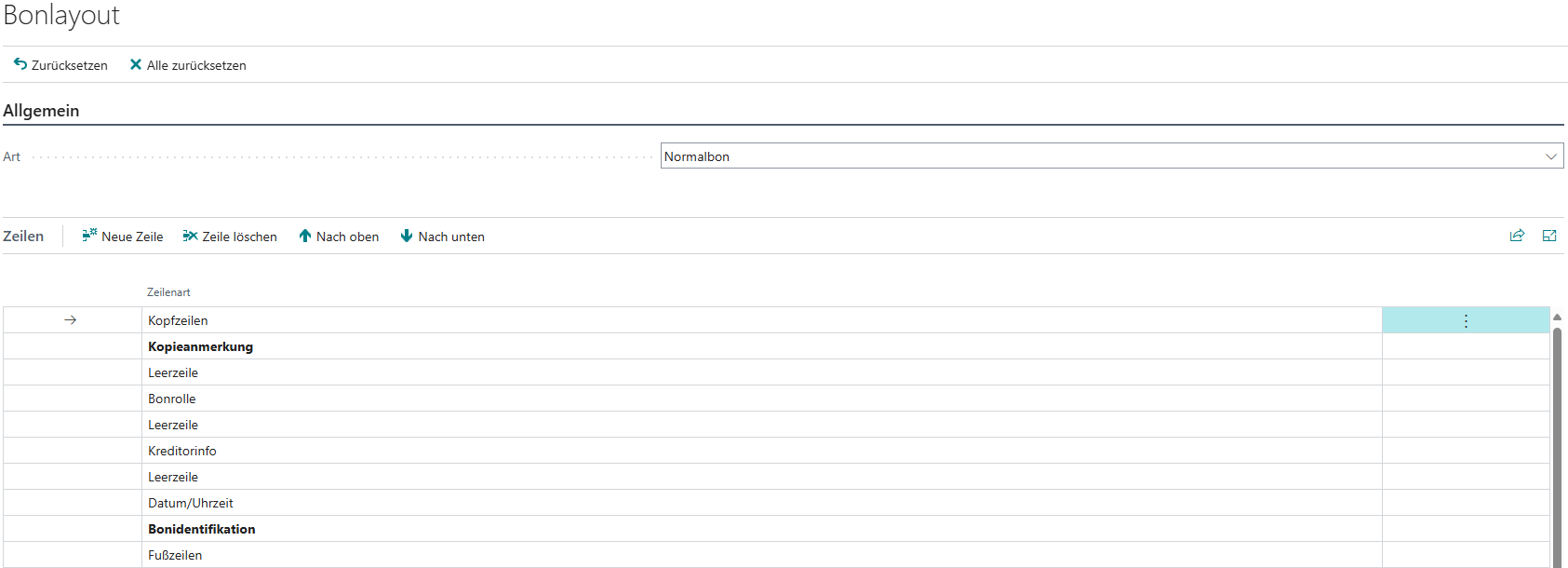
The layout of each individual receipt type can be adjusted under Setup → Receipt Layout.
Actions
The following actions are available in the header of the receipt layout setup:
| Action | Description |
|---|---|
| Reset | Resets the currently selected receipt layout. |
| Reset All | Resets all receipt layouts. |
Setup
In the Type field, select the receipt type whose layout is to be adjusted. Afterwards, the lines of the selected receipt layout can be changed by direct input or via AssistEdit.
Important: Lines shown in bold are mandatory and cannot be deleted or changed.
The following actions are also available for adjusting the receipt layout:
| Action | Description |
|---|---|
| New Line | Adds a new line to the receipt layout. |
| Delete Line | Deletes the current line from the receipt layout. |
| Move Up | Moves the current line upward. |
| Move Down | Moves the current line downward. |
Line Types
The individual line types are described below. Only certain line types are available per receipt type. When a line type is selected via AssistEdit, only the available line types are shown.
| Line Type | Description |
|---|---|
| Closing Reports | Prints the closing reports configured under Setup → Receipt Text → Report. |
| Closing Header | Prints general POS process information such as start receipt no. and end receipt no. |
| Closing Counts | Prints total fields of the POS process, including the number of returns and cancellations. |
| Closing Additional Lines | Prints additional closing lines from customer customizations. |
| Barcode | Prints a barcode. |
| Caption | Prints the name of the receipt type. |
| Hyphens | Prints a separator line consisting of hyphens. |
| Receipt Identification | Prints receipt ID, receipt no., and cash register number. |
| Receipt Roll | Prints all lines from the receipt roll of the current receipt. |
| Coupons | Prints the receipt text configured under Setup → Receipt Text → Coupon. |
| Date/Time | Prints the receipt date and time. |
| Differences | Prints the count differences. |
| Fiscal Signature | Prints the legally required fiscal signature if an active fiscal setup exists. |
| Footer Lines | Prints the footer lines configured under Setup → Receipt Text → Footer. |
| Cash Account Book Entry | Prints the values of the current cash account book receipt, such as deposits or transfers. |
| Cashier | Prints the receipt text lines configured under Setup → Receipt Text → Cashier for the signed-in cashier. |
| Header Lines | Prints the header lines configured under Setup → Receipt Text → Header. |
| Copy Note | Prints a copy note if the receipt is a reprint. |
| Vendor Info | Prints the receipt text lines configured under Setup → Receipt Text → Vendor. |
| Customer Info | Prints the receipt text lines configured under Setup → Receipt Text → Customer for the customer signed in on the receipt. |
| Blank Line | Prints a blank line. |
| Employee Info | Prints the receipt text lines configured under Setup → Receipt Text → Employee for the employee registered on the receipt. |
| Centered Dots | Prints a separator line consisting of vertically centered dots. |
| Scan Code | Prints the receipt ID as a barcode, QR code, or text according to the setting under Setup → Devices → Receipt Scan Code. |
| Daily Sales | Prints daily sales, including sales from items and resources. |
| Terminal Direct Debit Text | Prints the text stored under Setup → Terminal → Direct Debit Text. |
| Terminal Text | Prints the merchant, customer, or terminal slip received from the terminal. |
| Signature | Prints a signature line. |
| Underscores | Prints a separator line consisting of underscores. |
| Salesperson | Prints the receipt text lines configured under Setup → Receipt Text → Salesperson for the signed-in salesperson. |
| Advertising Text | Prints the advertising texts configured under Setup → Receipt Text → Advertising. |
| Values | Prints the relevant amounts for cash register closing, reservations, or vouchers. |
| Tender Denomination | Prints the count values of the tender count. |
| Count | Prints the count values of the cash count, float count, and takings count. |