E-Receipt
The interface is configured under Setup → E-Receipt. The Initialize All Cash Register Setups action creates all cash register setups available under Setup → Cash Register Setup.

Setup
General
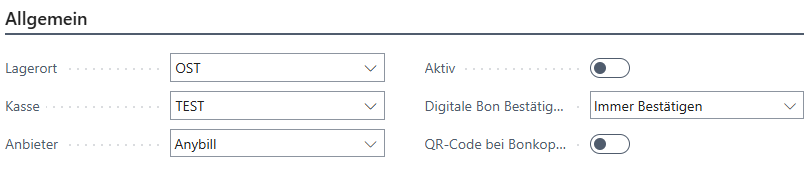
| Field | Description |
|---|---|
| Location | The location code of the cash register setup to be used |
| Cash Register | The cash register code of the cash register setup to be used |
| Provider | Defines the e-receipt provider Email: With email, a PDF is generated natively by the cash register software and sent to the customer by email. Anybill: Anybill is an external provider for the digital storage of receipt documents. In cooperation with this provider, the cash register or the customer receives the option to archive the documents created by the cash register digitally and access them at any time. The customer receives the link to the respective receipt via a QR code, so printing the receipt is not necessarily required |
| Active | Activates the interface |
| Digital Receipt Confirmation | Defines whether and when a prompt for creating the digital receipt is executed Always Confirm: At the end of every receipt, a prompt appears asking whether it should be digitized. Confirm for Customer: The prompt appears at the end of the receipt only if a customer is signed in on the receipt. No Confirmation: The digital receipt is created and displayed automatically at the end of the receipt. Upstream QR Code: The digital receipt is already created and displayed at the beginning of the receipt. |
| QR Code on Receipt Copy | If the original receipt was already generated with Anybill, this QR code can be shown again on the receipt copy |
Display
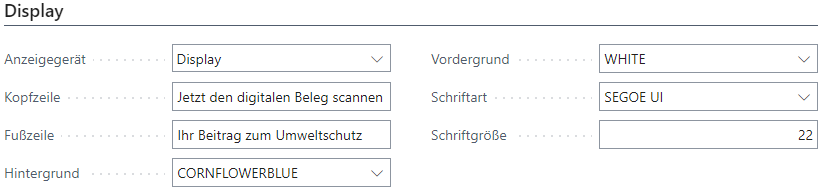
| Field | Description |
|---|---|
| Display Device | Defines the display device Blank: Shows the QR code in a dialog on the cash register screen Display: Shows the QR code on the configured screen (see Setup → Devices) Terminal: Shows the QR code on the configured card terminal (see Setup → Terminal) |
| Header Line | This text is shown above the QR code of the digital receipt |
| Footer Line | This text is shown below the QR code of the digital receipt |
| Background | Sets the background color |
| Foreground | Sets the text and QR code color |
| Font | Sets the display font |
| Font Size | Sets the display font size |
Note: The Email tab appears only if this provider has been selected.
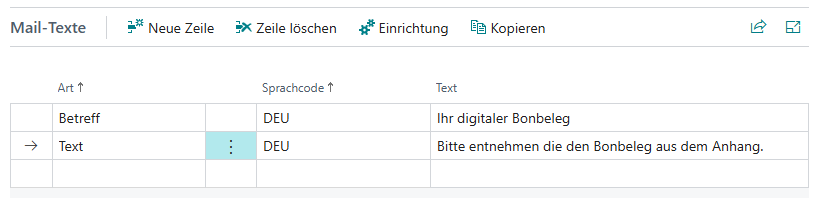
The actions can be used to create, copy, or delete new lines. The email setup is also available here. In this standard Business Central setup, the sender must be defined.
| Field | Description |
|---|---|
| Type | Defines the line type, Subject or Text |
| Language Code | Defines the language code |
| Text | Defines the text used to create the email |
Anybill
Note: The Anybill tab appears only if this provider has been selected.
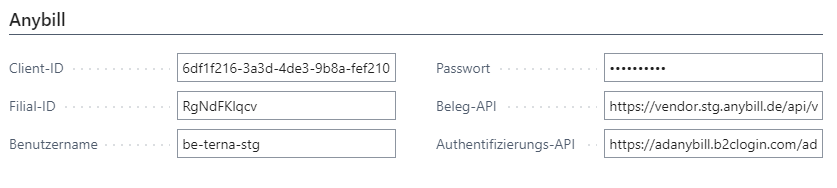
| Field | Description |
|---|---|
| Client ID | The authentication ID of the respective cash register provider |
| Store ID | The identification number for the respective store |
| User Name | The user name assigned by Anybill |
| Password | The password assigned by Anybill |
| Receipt API | The URL for the bill API from Anybill |
| Authentication API | The URL for the authentication API from Anybill |
Useful Anybill Links
| Field | Description |
|---|---|
| Test Client ID | 6df1f216-3a3d-4de3-9b8a-fef210197e31 |
| Live Client ID | 63afdf4f-121d-4c48-a63f-99ab124f1dee |
| Test Receipt API Link | https://vendor.stg.anybill.de/api/v3/bill/ |
| Live Receipt API Link | https://vendor.anybill.de/api/v3/bill/ |
| Authentication API Link | https://adanybill.b2clogin.com/ad.anybill.de/oauth2/v2.0/token?p=b2c_1_ropc_vendor |
Usage
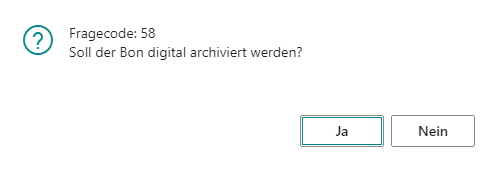
If the e-receipt interface is active, the following prompt always appears in the cash register program at the end of a sales receipt. It can be suppressed with the Automatic setting:
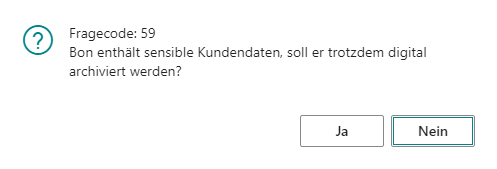
If a customer was signed in on the receipt, the following prompt always appears in order to prevent the receipt, including the customer’s contact details, from being transferred automatically to the e-receipt interface without the customer’s consent (data protection):
Display of the QR Code
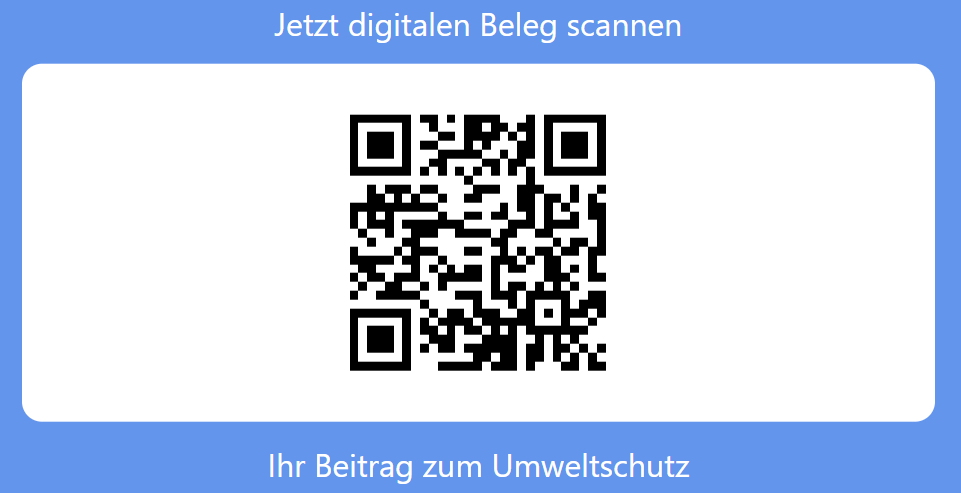
If Anybill has been selected as the provider, a QR code appears after the receipt has been successfully archived digitally. The customer can scan it to obtain the link to the current receipt document, which can then be downloaded or sent by email.
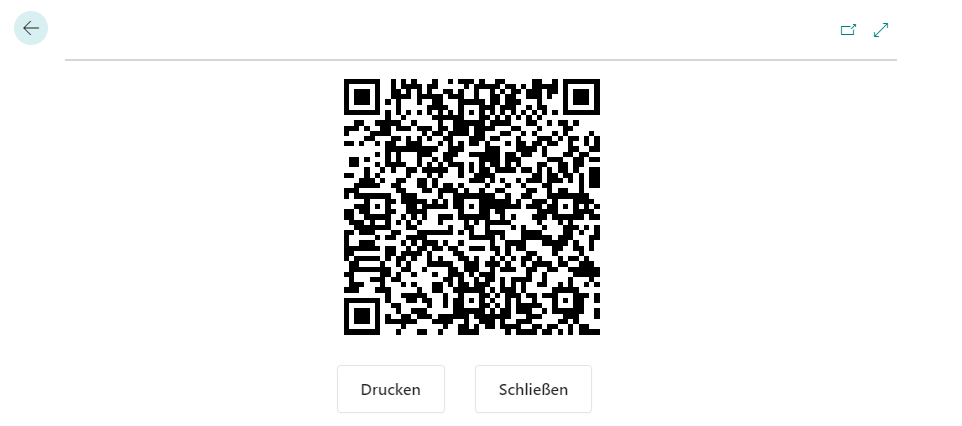
If a physical receipt is also desired, it can be printed by selecting the Print action. Printing happens automatically if digital receipt archiving is inactive, was declined by the customer, or could not be completed successfully.
If the display has been activated and configured in device setup (see Setup → Devices), the QR code appears instead on the stored screen. At the same time, a dialog appears in the cashiering screen that can also be used to print the receipt.
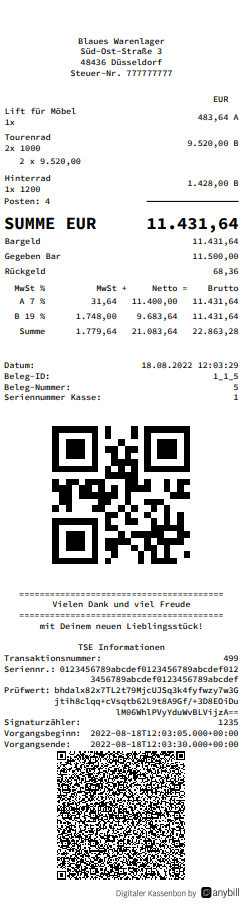
The following shows an example receipt as provided by Anybill: