Item Packages
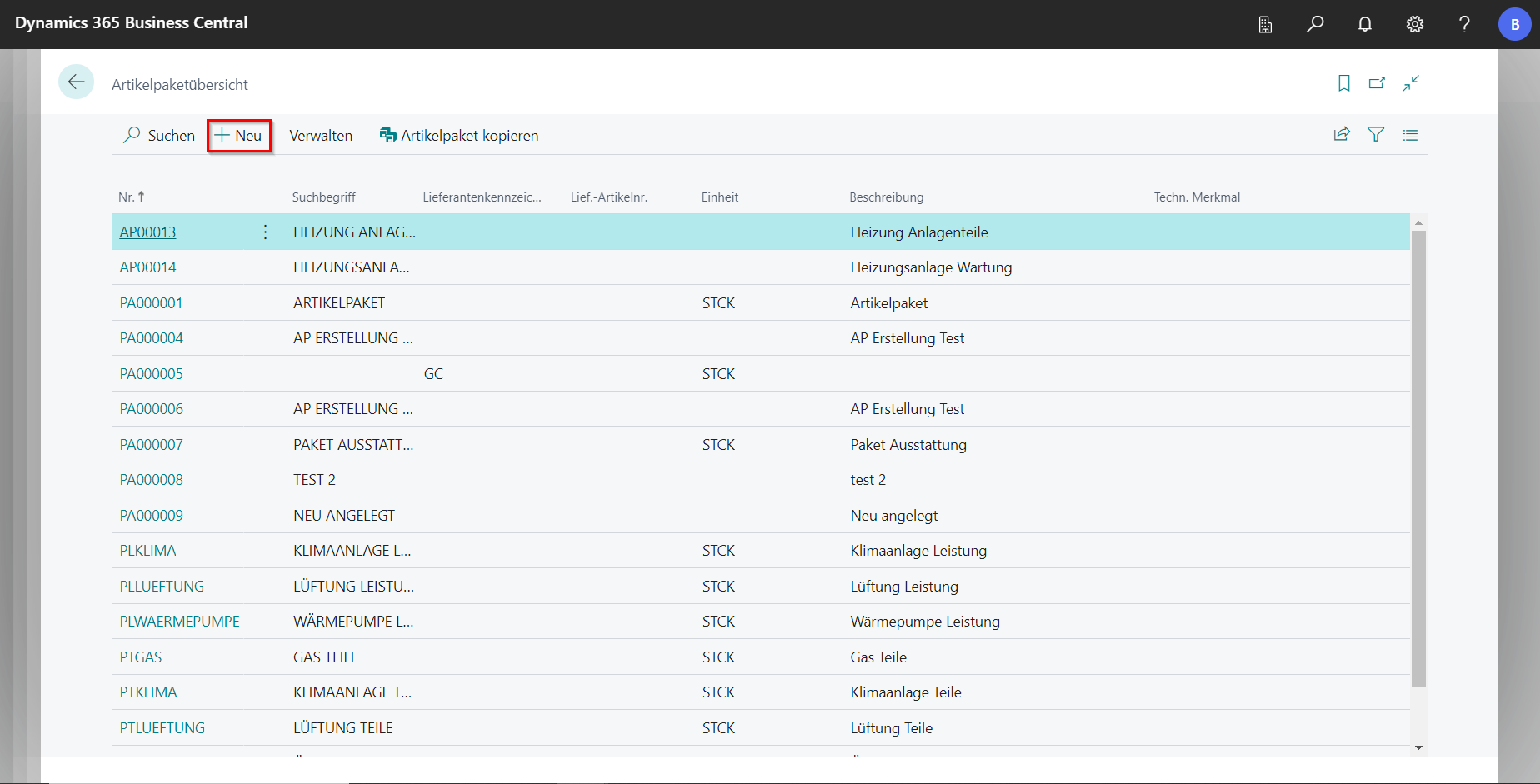
An article package is made up of various (costing) articles and resources. It is possible to create these in advance. To do this, use the search function to call up the article package overview.
The list for viewing and editing catalog items can be found in BE-Project in the master data, which can also be accessed via the search function under Catalog Items.
To use the article packages, first create a new item in the service specification and select the desired article package under Type and No. The item package then appears as an item and the associated components as subitems.

Creating Article Packages
In the master data
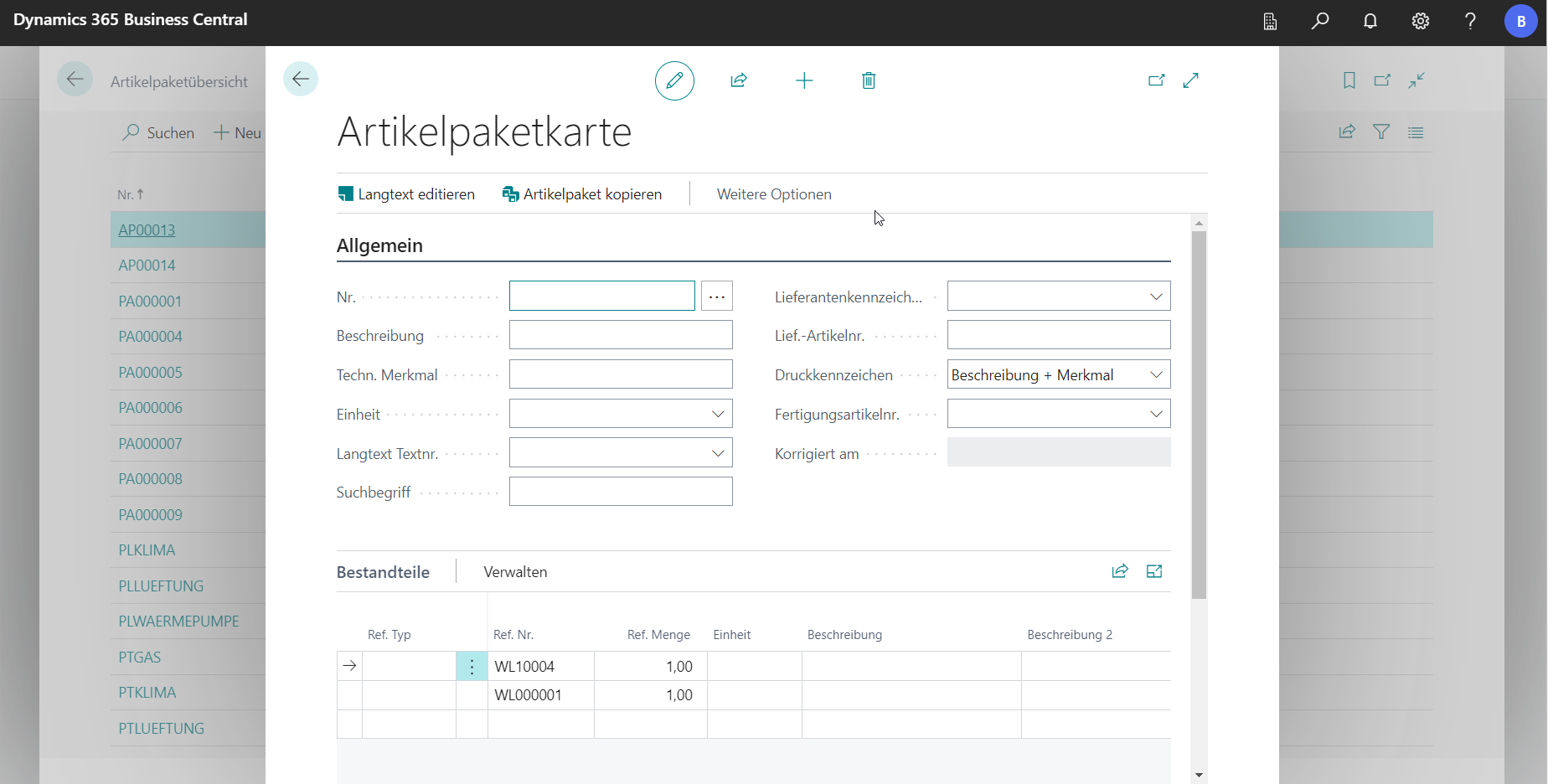
To create a new article package, click on New in the article package overview. In the article package card that opens, the master data is created in the General tab. The number is either automatically pulled from the facility or can be assigned manually. The menu item Edit long text is used to store a text on the article package, which can later be printed on the receipts. In addition, the print indicator can be specified. A look-up can be used to select what should be printed on the receipt.
In the tab Components the components of the article package are entered. The following components are permissible: articles, costing articles, resources and already created article packages. The As needed tick can be used to define whether the component of the article package should only be used later as needed.
 Click to enlarge
 Click to enlarge
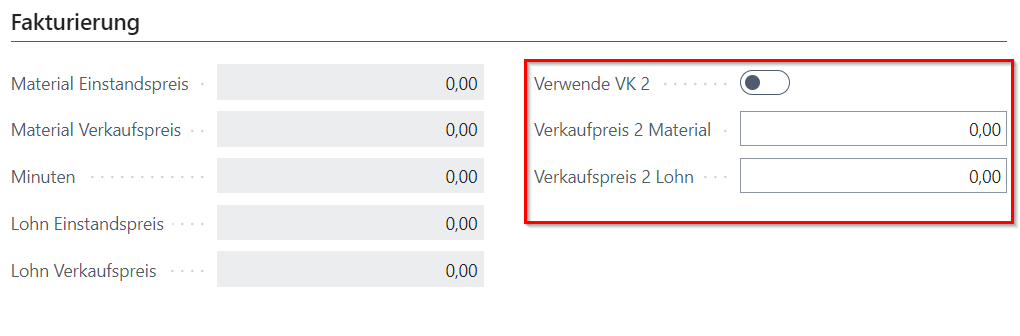
The Invoicing tab displays the material and wage prices for the entire work package. The prices result from the sum of the individual components. A second sales price can also be stored at this point, which is transferred to the bill of quantities as a manual sales price.
In the bill of quantities
It is also possible to create a new article package from the bill of quantities. To do this, a new, free position must be created and the individual components must be inserted as subheadings. In the Fasttab under Edit, click on Artikelpaket from position erstellen. In this case, a new article package is created from the selected item in the master data. The subheadings are added as components.
Copying Article Packages
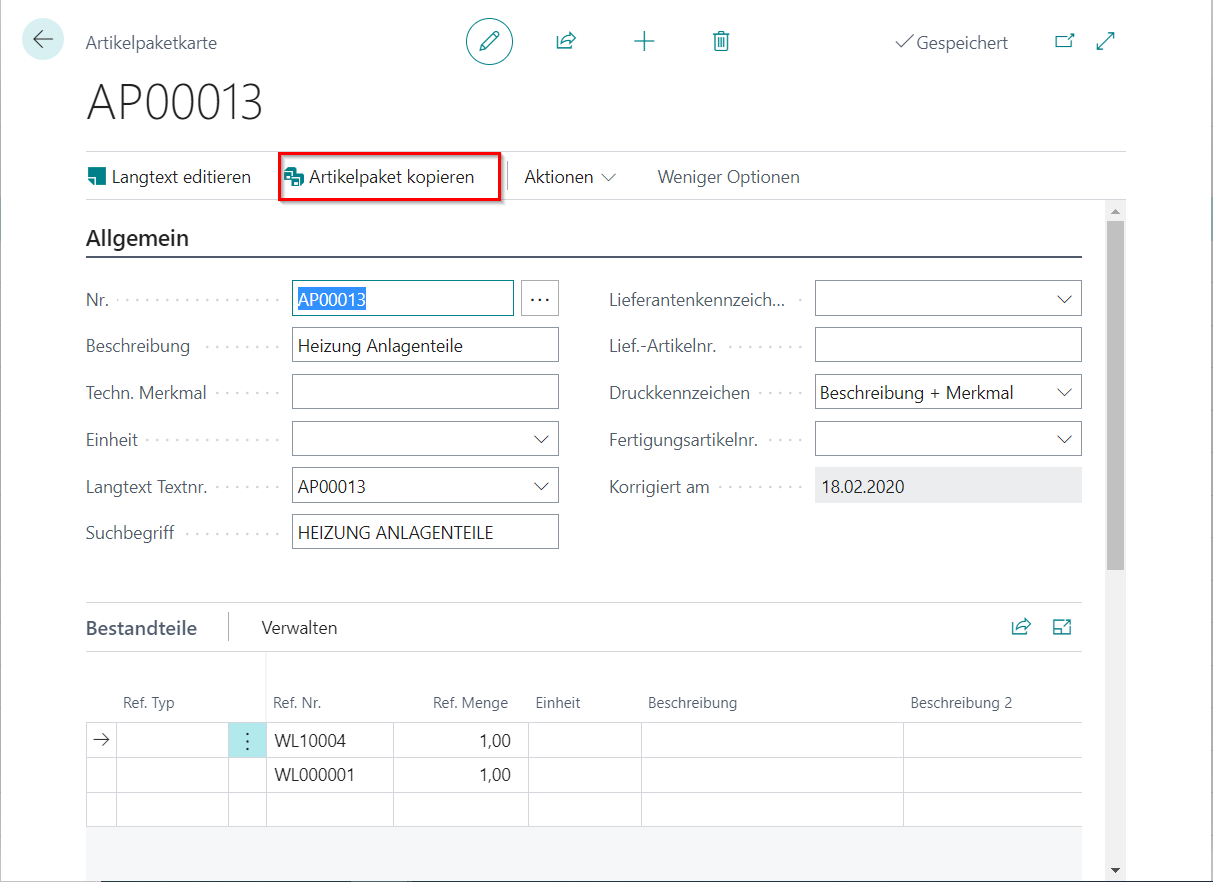
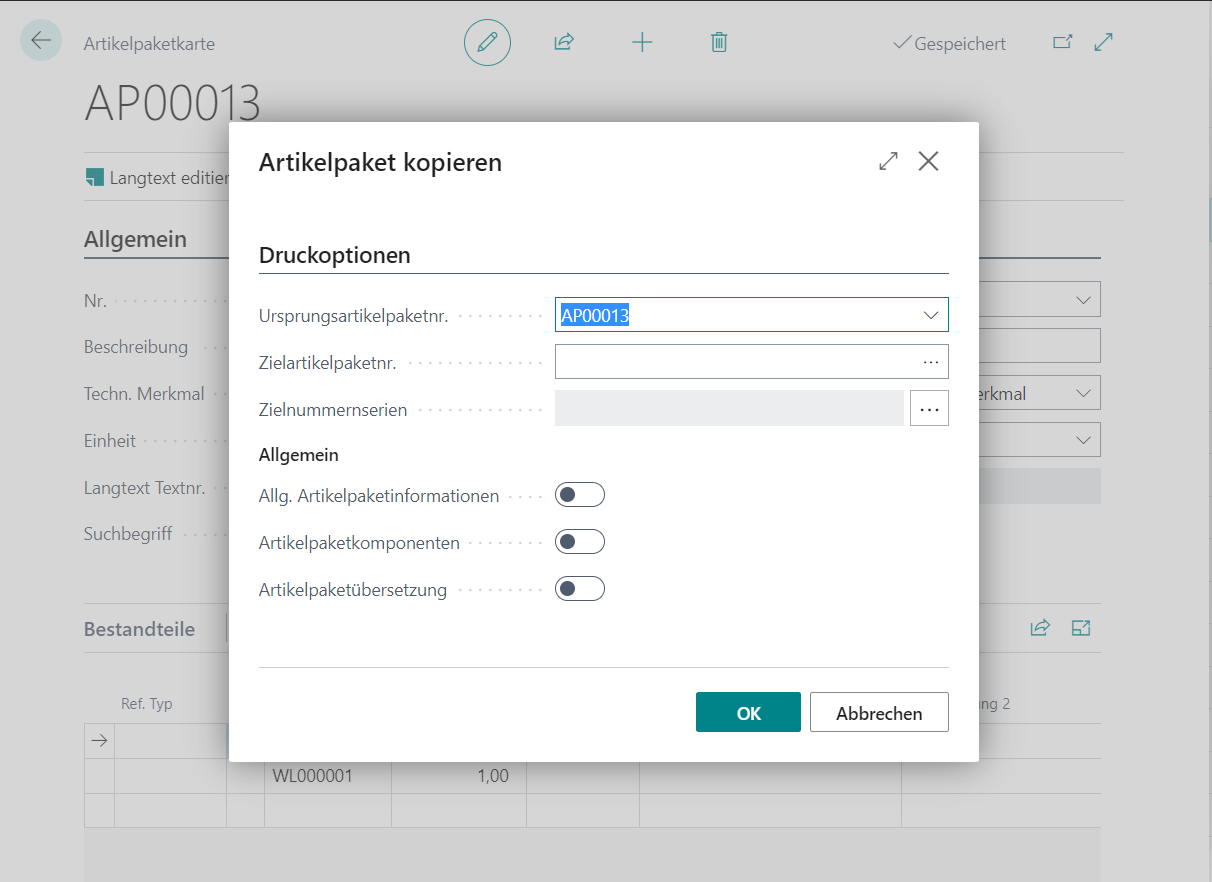
On the item package card, there is a button for copying item packages. When this function is executed, a new dialog box opens in which some settings can still be made. In the field Origin article package number you can select the article package that is to be copied. If the field Target Article Package No. is left empty, a new article package is created and a new number is drawn from the BE-Project setup (number series for article packages). In the General area, you can select the respective components that are to be copied.