Module
Production Order
The Production Order area describes functions for creating, reviewing, processing, posting, and analyzing production orders in BE-terna Manufacturing. Content is gradually moved from the old production order management page into dedicated user-facing pages.
Default Data for Production Orders
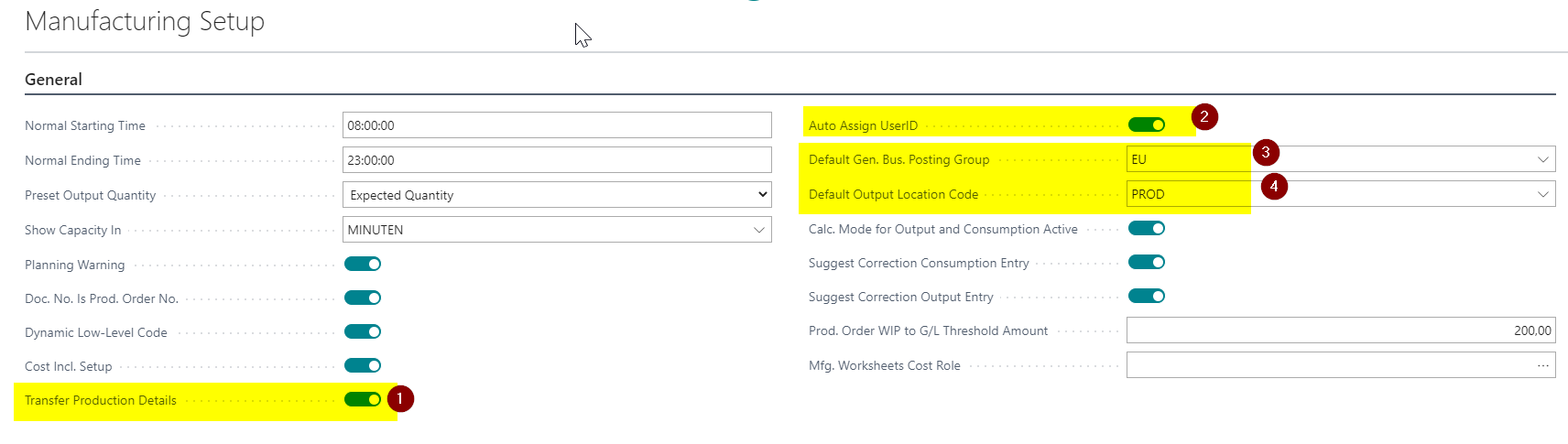
Production orders contain the field Assigned User ID. It references the signed-in user and can be used in role center cues such as My … as well as for filtering specific production orders. In standard Business Central, this field must be filled manually. BE-terna Manufacturing can automatically fill it with the current user when a production order is created.
In addition, a Default Gen. Bus. Posting Group can be defined for production. For internal postings such as item increases and decreases, inventory differences, and production postings with consumption and output, the general business posting group is often blank in standard processes. A defined default makes the posting logic more transparent and keeps the combination of business and product posting groups traceable in production orders and related postings.
Business Value
- Assigned User ID is filled with the current user when a production order is created.
- Gen. Bus. Posting Group is transferred from Manufacturing Setup into production orders and related postings.
- Location Code can be transferred from Manufacturing Setup if no item-specific output location applies.
- Defaults work for manual production orders, orders from planning worksheets, orders from sales orders, and orders from order planning.
Prepare Manufacturing Setup
- Open Manufacturing Setup.
- Enable Transfer Production Details.
- Enable Auto Assign UserID so that Assigned User ID is filled with the current user when a production order is created.
- Maintain Default Gen. Bus. Posting Group with the group that should identify internal production postings.
- Maintain Default Output Location Code.
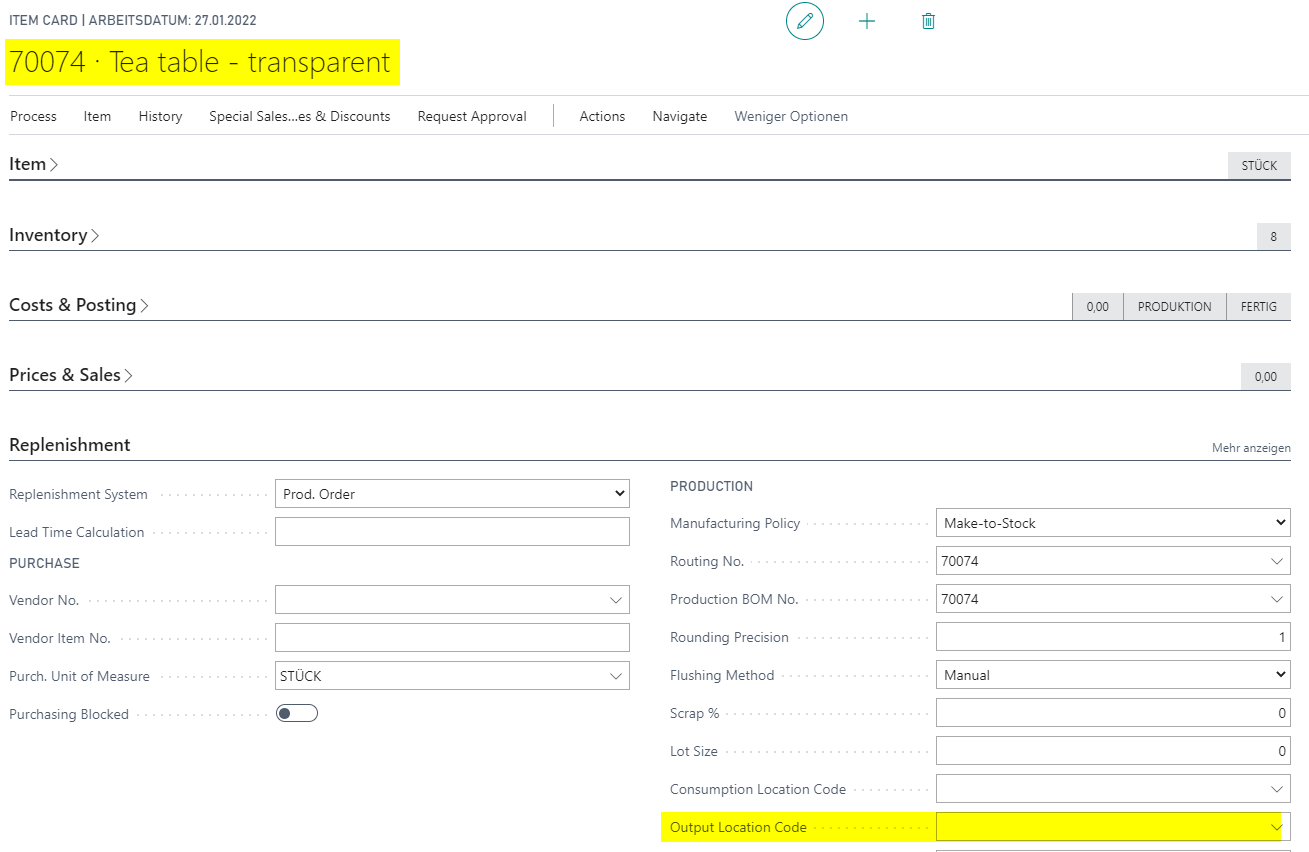
The Default Output Location Code is transferred into the production order and its lines as the location for the produced item. It is only used when the production order is created manually and no Output Location Code is maintained on the item card.
Create a Planned Production Order Manually
- Open Planned Production Orders.
- Choose New.
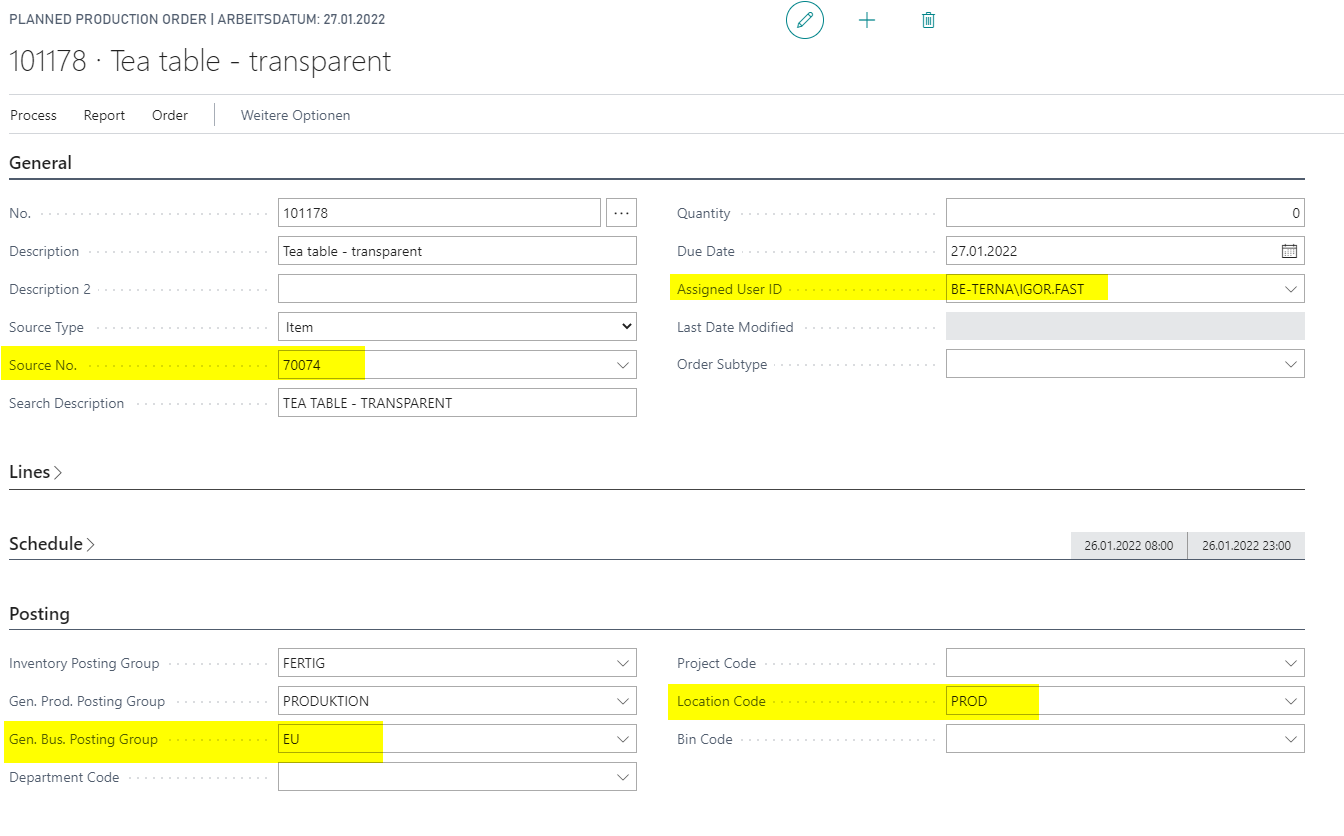
- Enter Source No. and all mandatory fields.
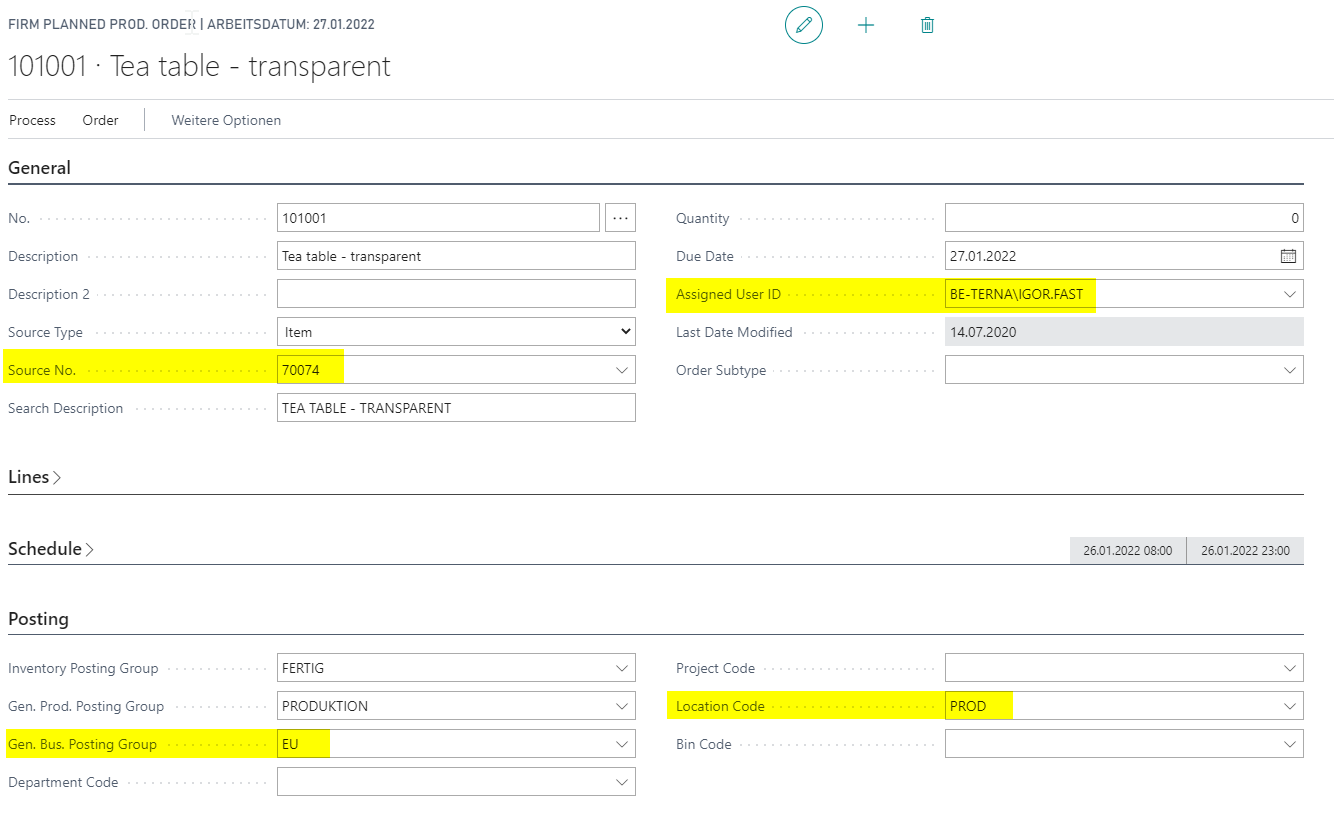
Assigned User ID, Gen. Bus. Posting Group, and Location Code are filled automatically.
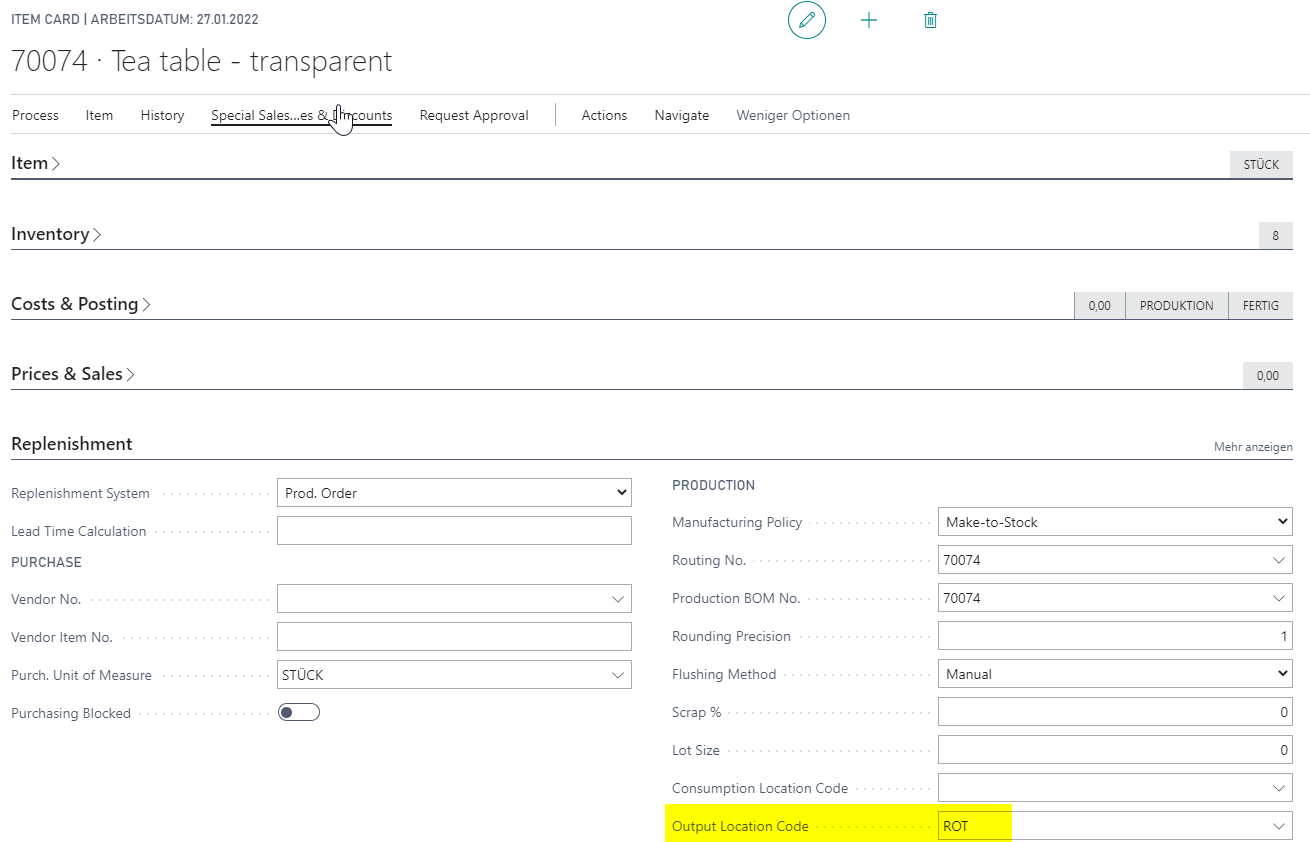
If Output Location Code is filled on the item card, this value is transferred to the production order. The value from Manufacturing Setup is then not used.
Create a Firm Planned Production Order Manually
- Open Firm Planned Production Orders.
- Choose New.
- Enter Source No. and all mandatory fields.
The defaults are also transferred to firm planned production orders.
Create a Released Production Order Manually
- Open Released Production Orders.
- Choose New.
- Enter Source No. and all mandatory fields.
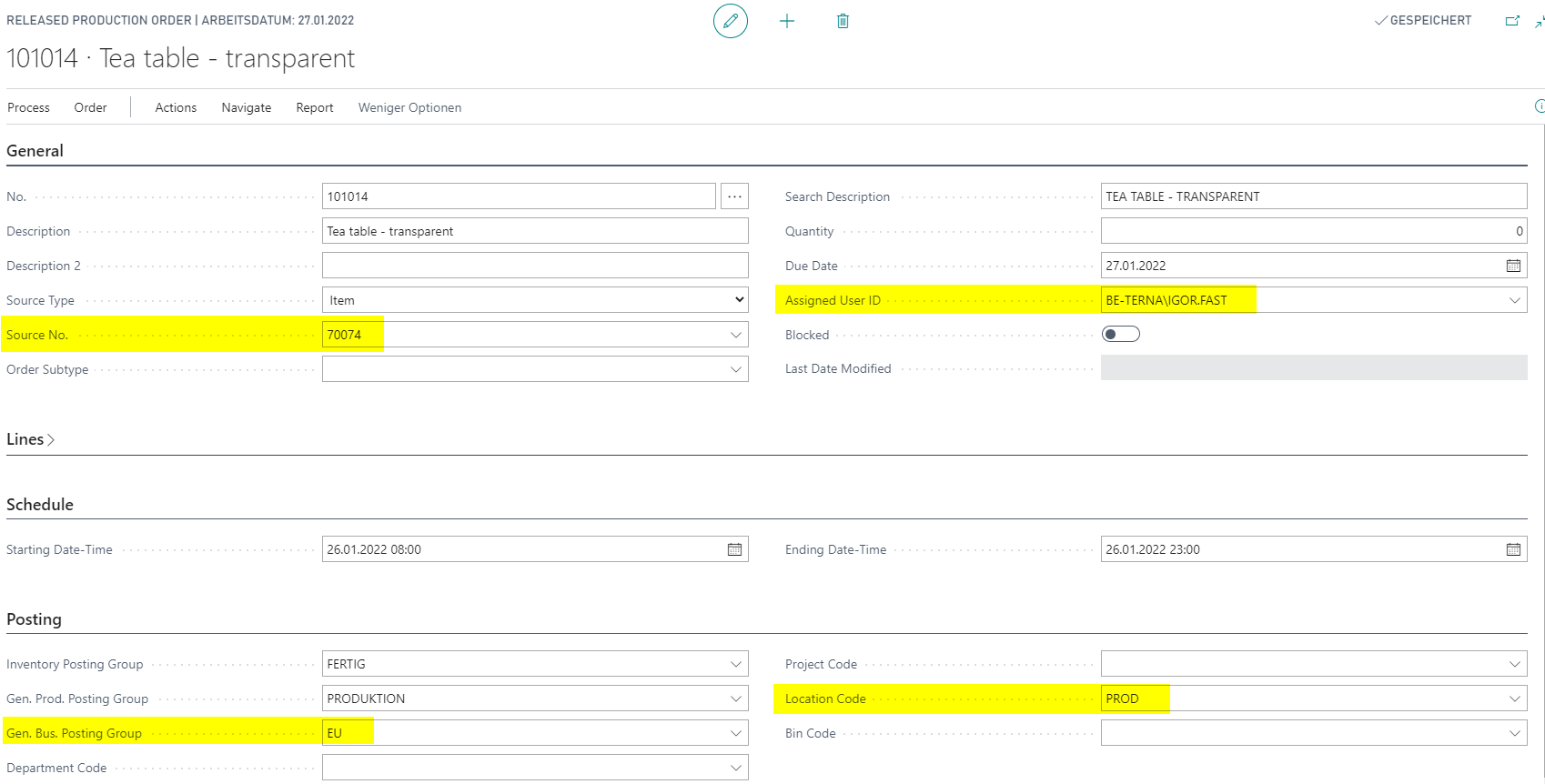
The defaults are also transferred to released production orders.
Create a Production Order from a Sales Order
- Open Sales Orders.
- Create a new order.
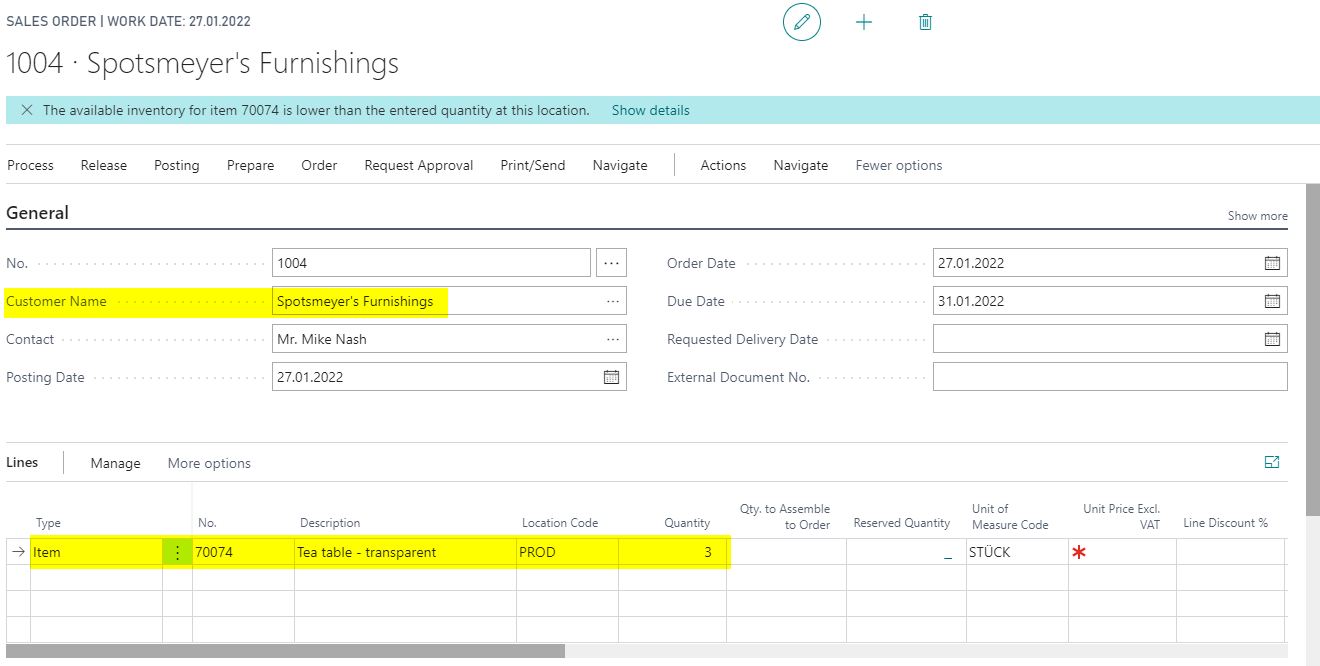
- Enter customer and mandatory fields.
- Add a line with item number and quantity.
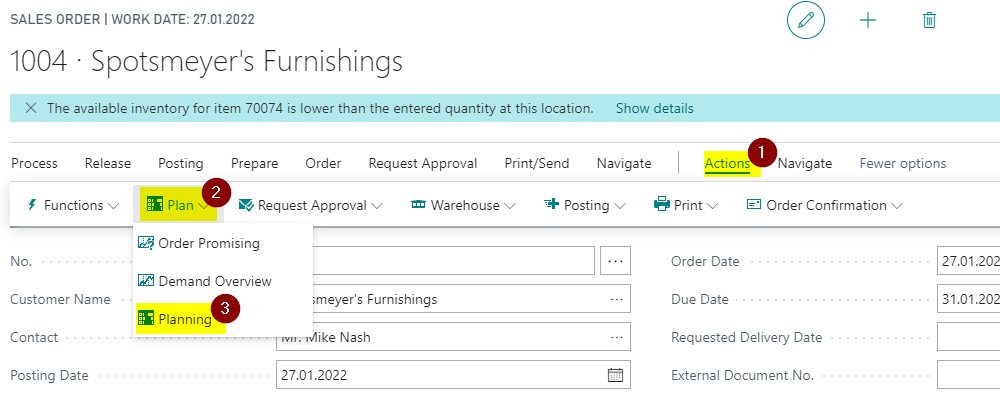
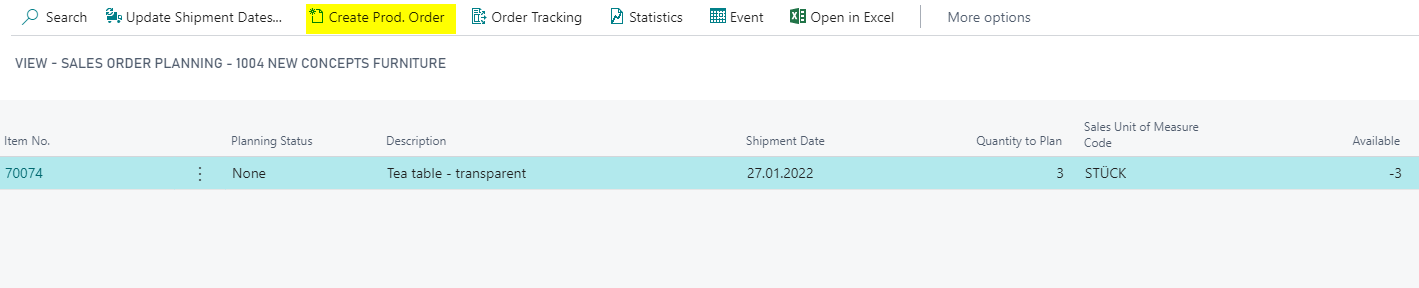
- Choose Actions > Plan > Planning.
- Choose Create Prod. Order.
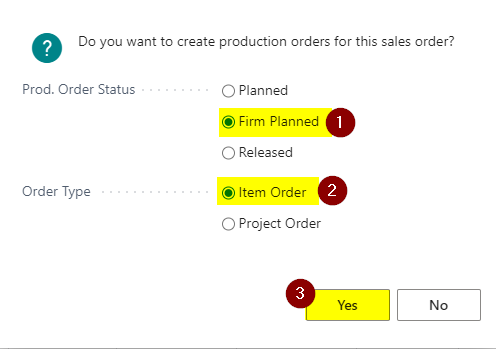
- Select Prod. Order Status and Order Type.
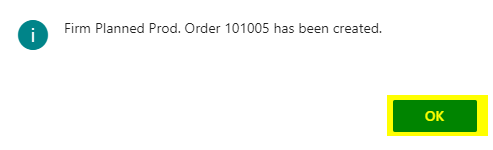
- Confirm with Yes.
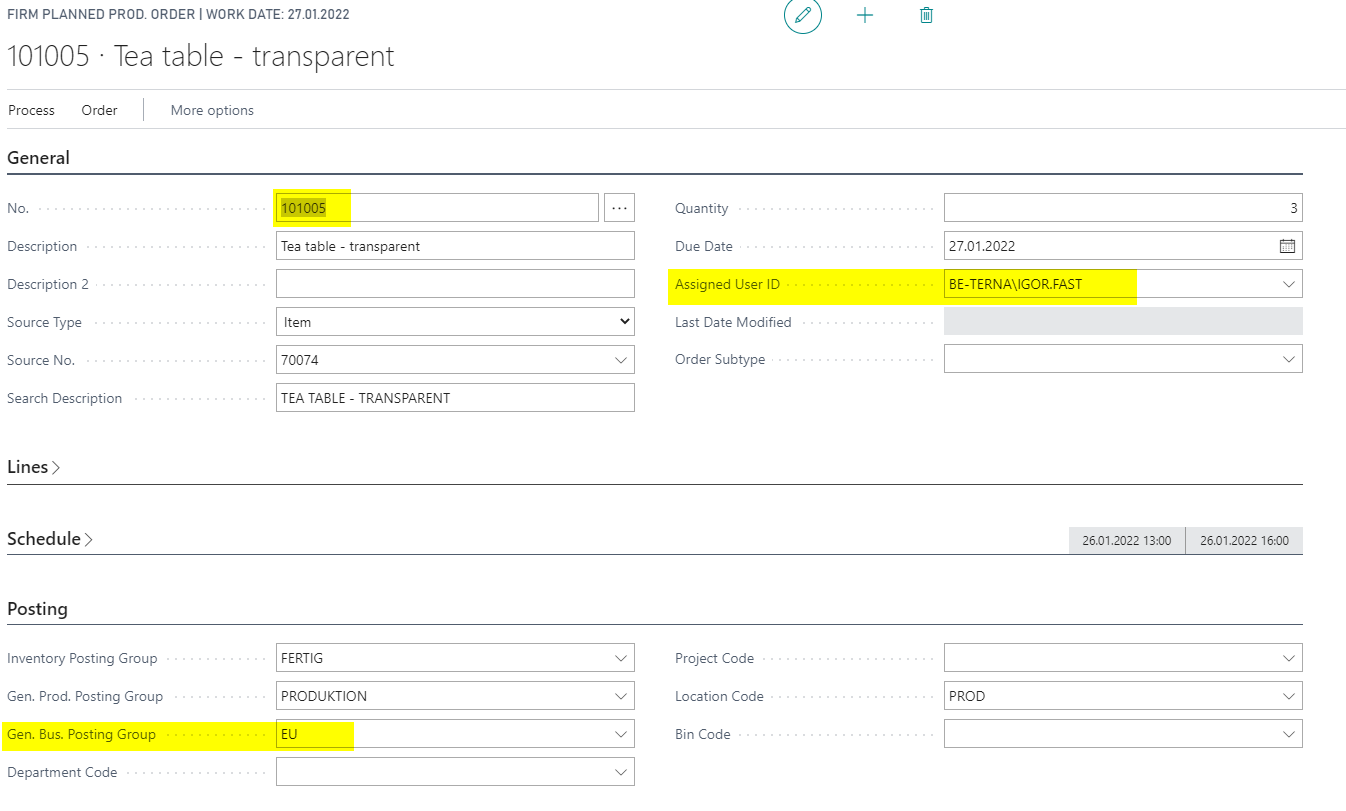
- Open the created production order.
- Check the transferred fields.
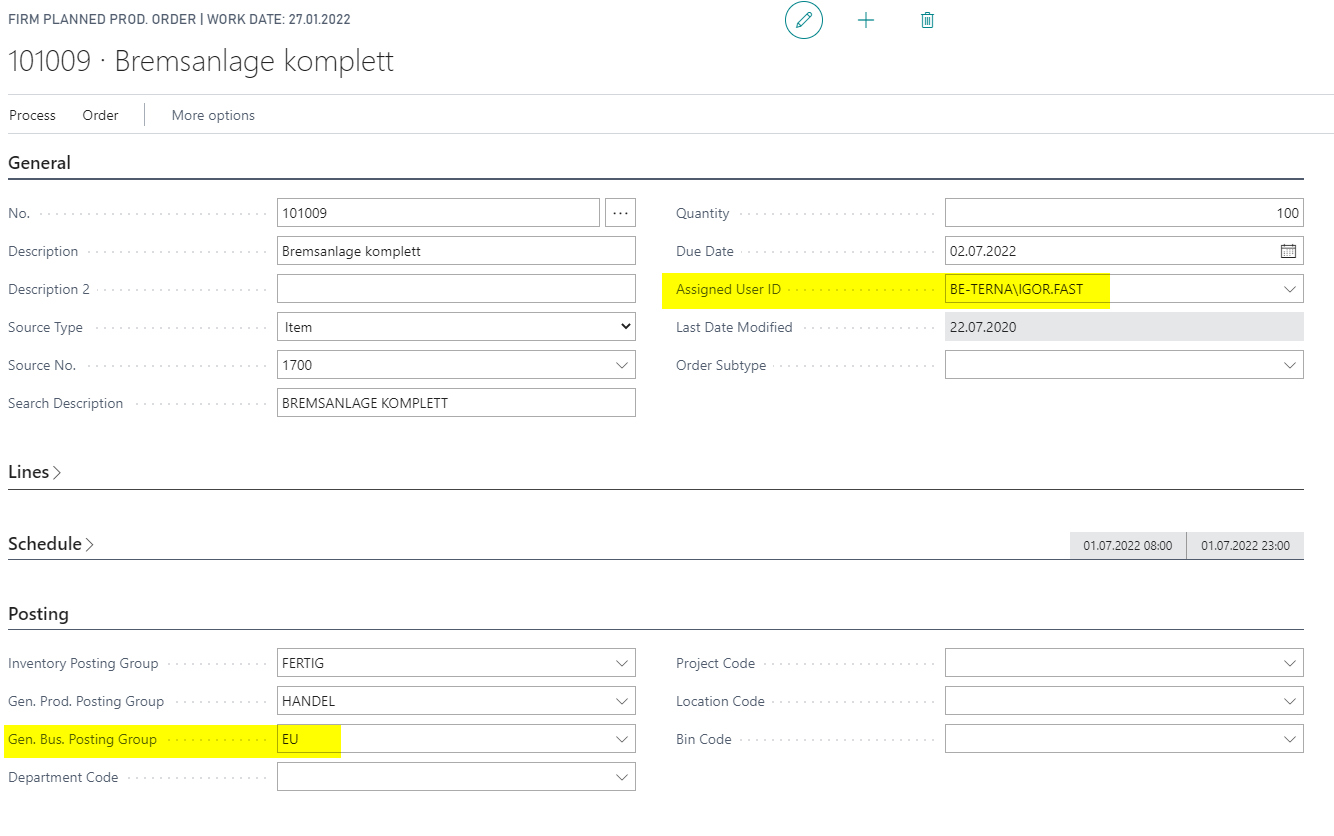
Gen. Bus. Posting Group is transferred from Default Gen. Bus. Posting Group in Manufacturing Setup. Assigned User ID is filled with the current user.
Create a Production Order from the Planning Worksheet
- Open Planning Worksheets.
- Prepare the lines.
- Choose Carry Out Action Message.
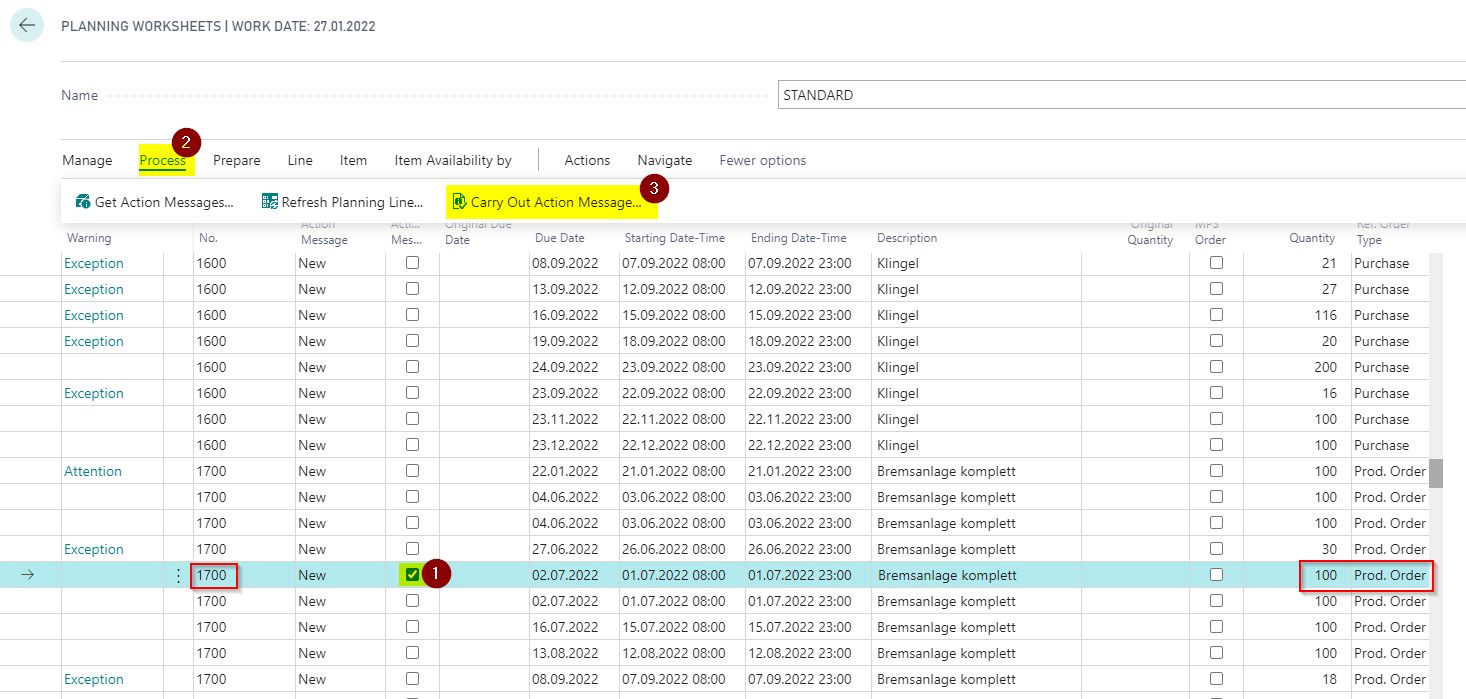
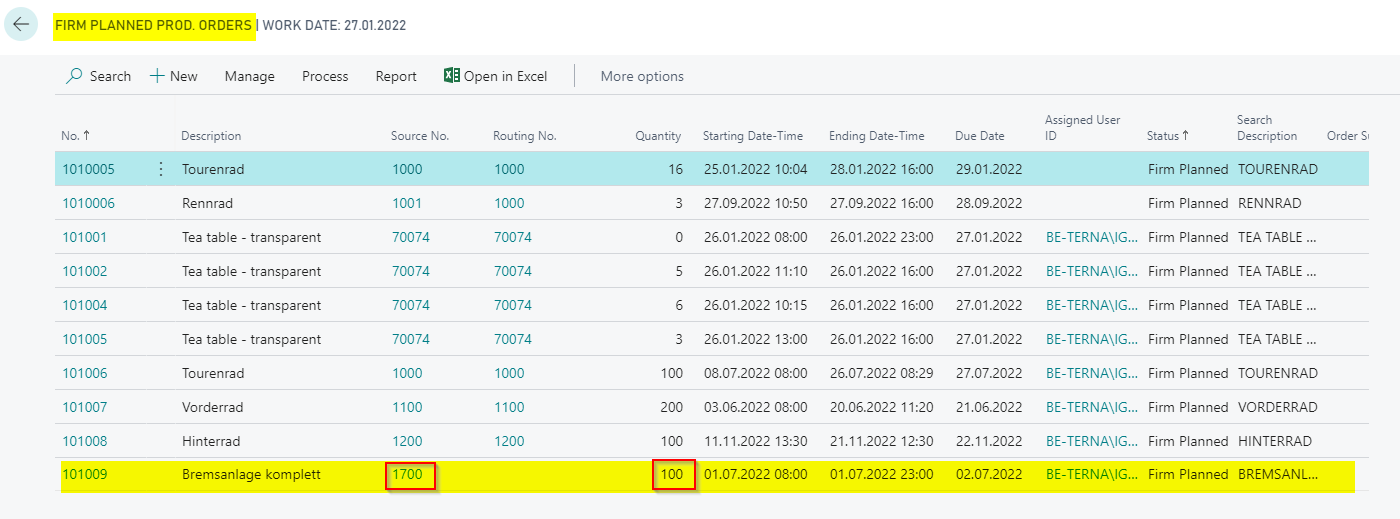
- Open the created production order.
- Check the transferred fields.
Gen. Bus. Posting Group is transferred from Default Gen. Bus. Posting Group in Manufacturing Setup and then transferred to the production journal for posting. Assigned User ID is filled with the current user.
Create a Production Order from Order Planning
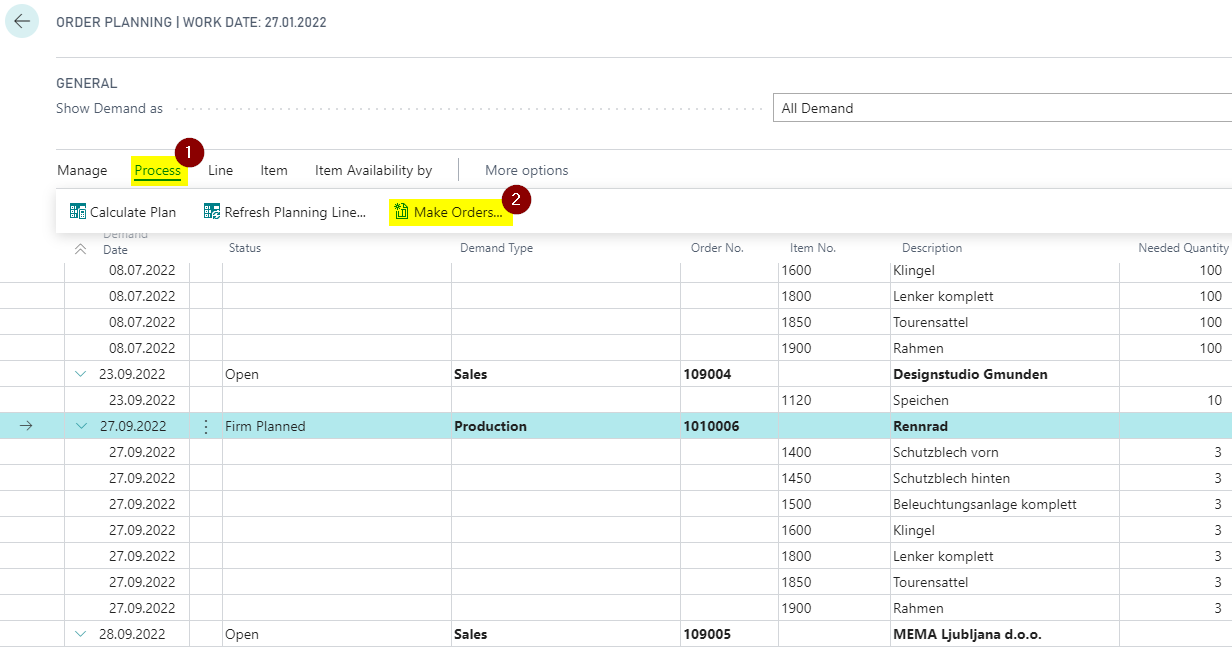
- Open Order Planning.
- Choose Calculate Plan.
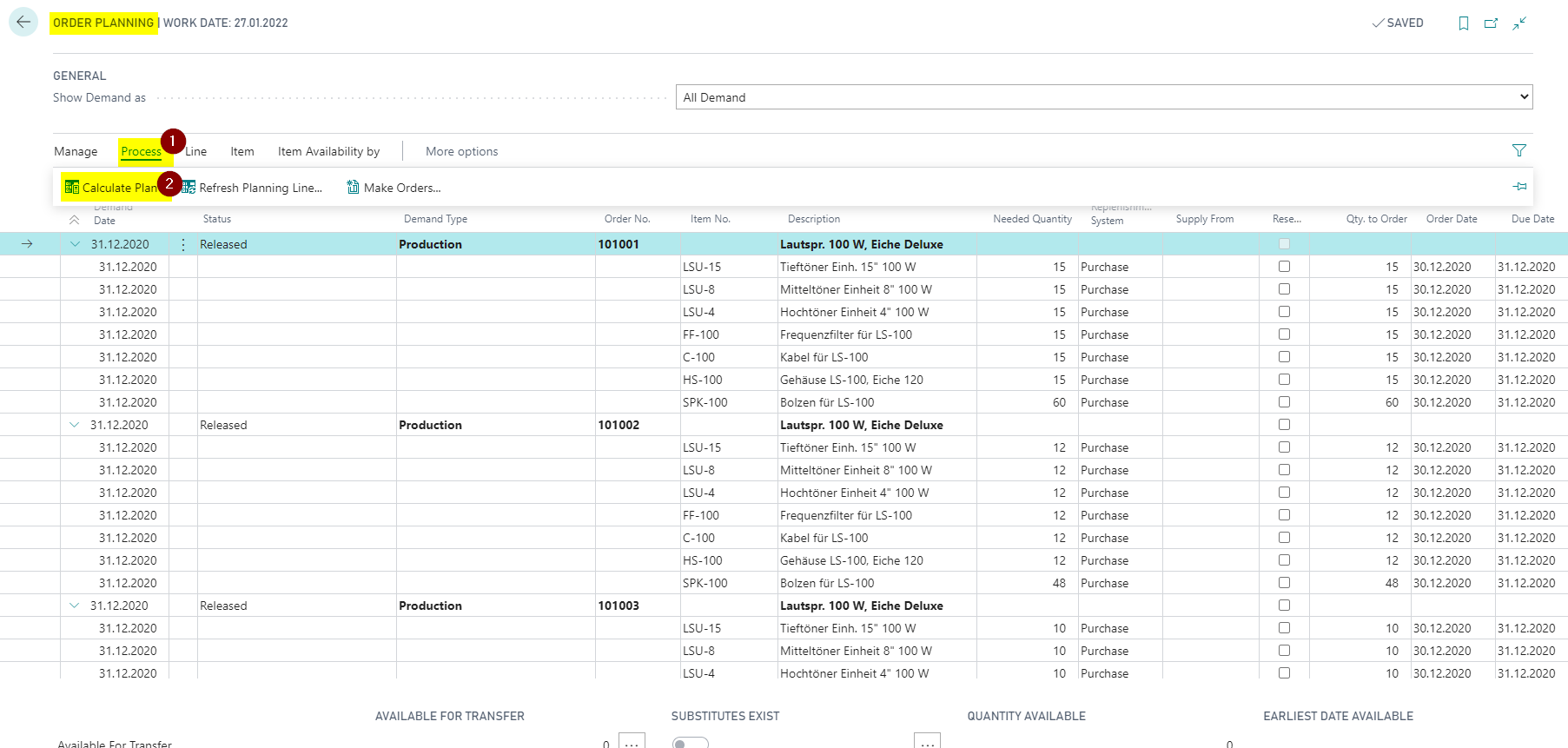
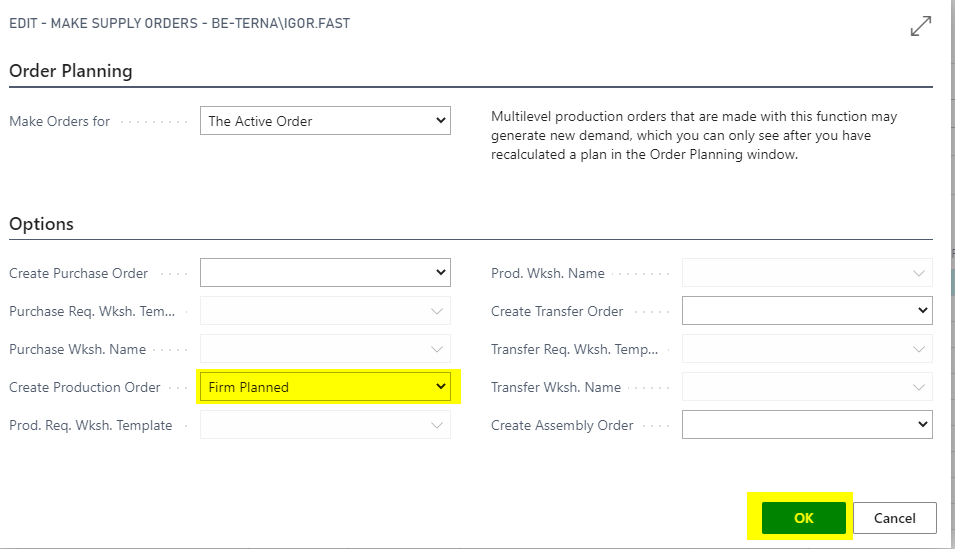
- Choose Make Orders.
- Select the status for the new production order and confirm with OK.
- Open the created production order.
- Check Gen. Bus. Posting Group and Assigned User ID.
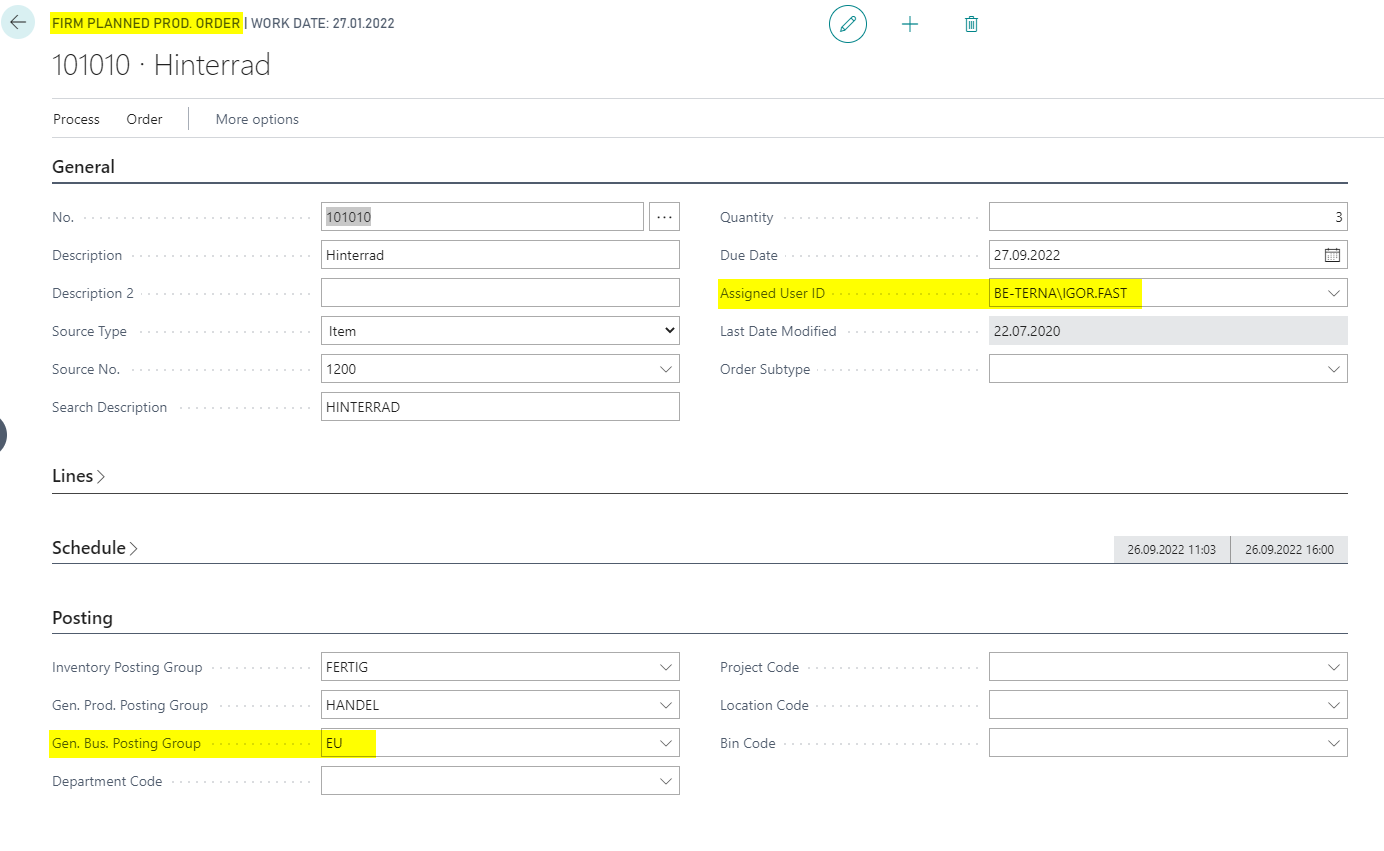
Result of the Default Data
After setup, Assigned User ID, Gen. Bus. Posting Group, and depending on the creation path Location Code are transferred into new production orders automatically. This provides consistent defaults for manually created production orders, orders from sales orders, planning worksheets, and order planning.