Item Tracking
Purpose
Item tracking in BE-terna Manufacturing extends the standard Business Central logic for production and assembly processes. Users can derive serial, lot, and package numbers automatically from number series, from the production or assembly order number, or from a main component. Production order lines can also be split by lot or serial number so that components, routings, reservations, picking, and item tracking remain traceable per partial quantity.
Business Value
- Serial, lot, and package numbers can be proposed automatically.
- A main component can transfer its tracking information to the output item.
- Serial-tracked output items can be split automatically into several production order lines.
- Lot-tracked output items can be separated into remaining lines after a partial output posting.
- Component and output item tracking remain assignable per partial quantity.
Define the Source of Item Tracking
Additional fields on the Item Tracking Code Card define where automatic tracking information comes from.
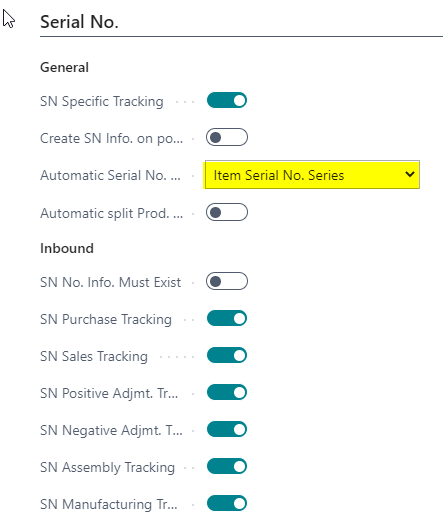
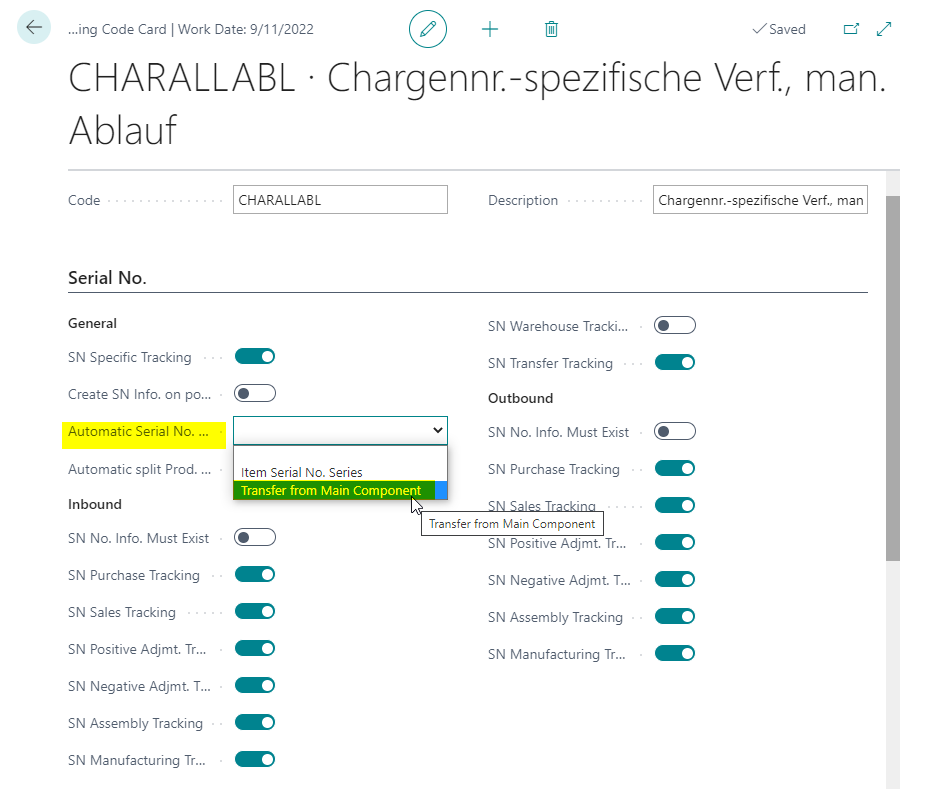
For Automatic Serial No. from, these options are available:
- Item Serial No. Series
- Transfer from Main Component
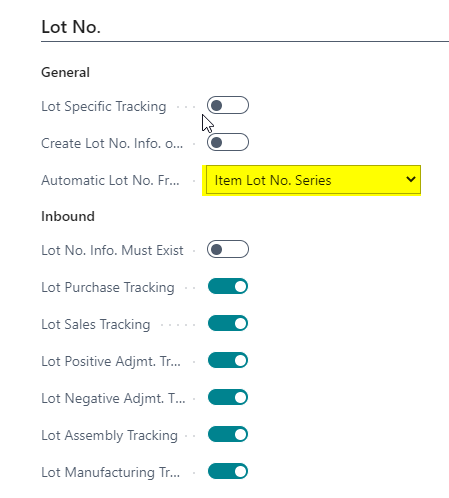
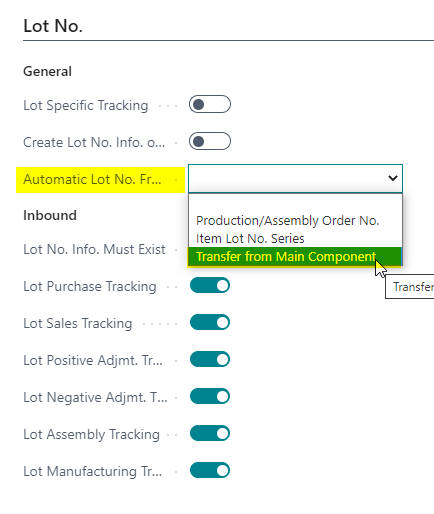
For Automatic Lot No. from, these options are available:
- Production/Assembly Order No.
- Item Lot No. Series
- Transfer from Main Component
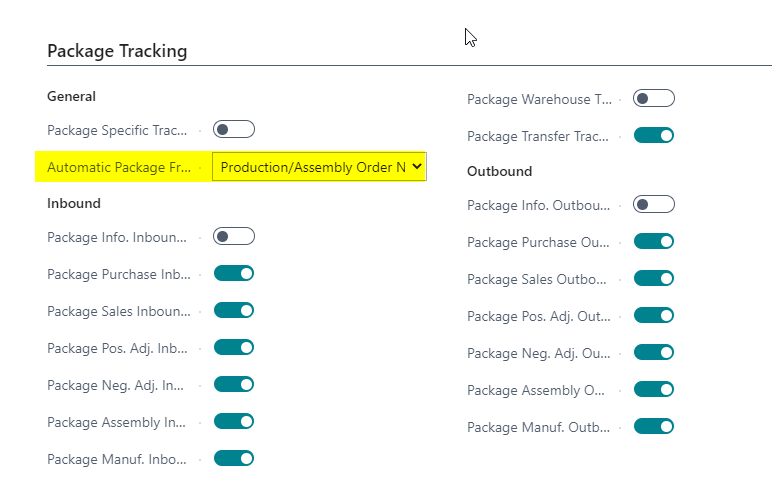
For Automatic Package No. from, these options are available:
- Production/Assembly Order No.
- Transfer from Main Component
The package number field is visible only when package tracking is activated in Feature Management.
Use Numbers from Item Number Series
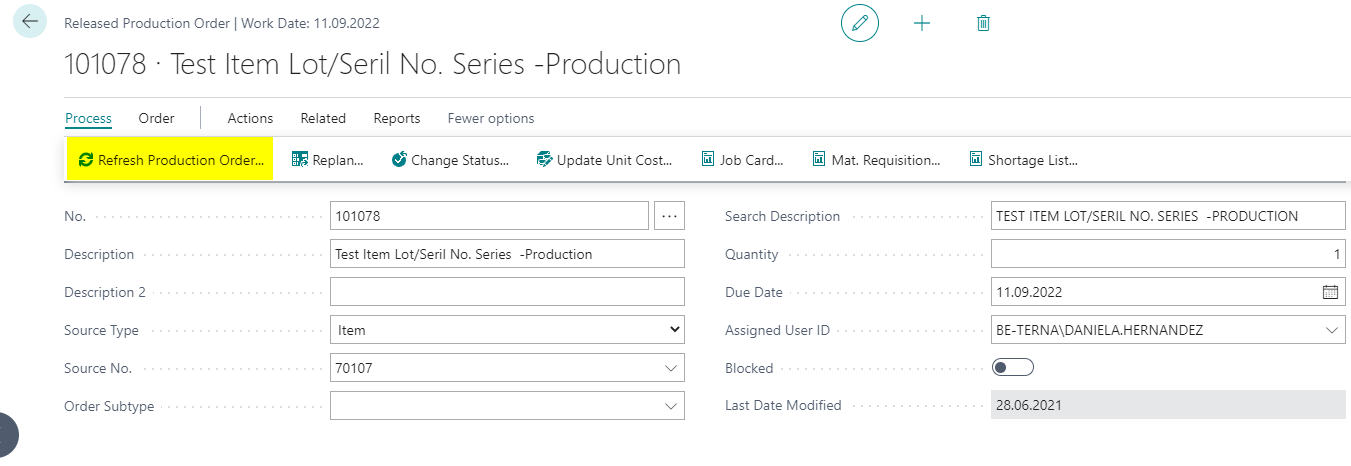
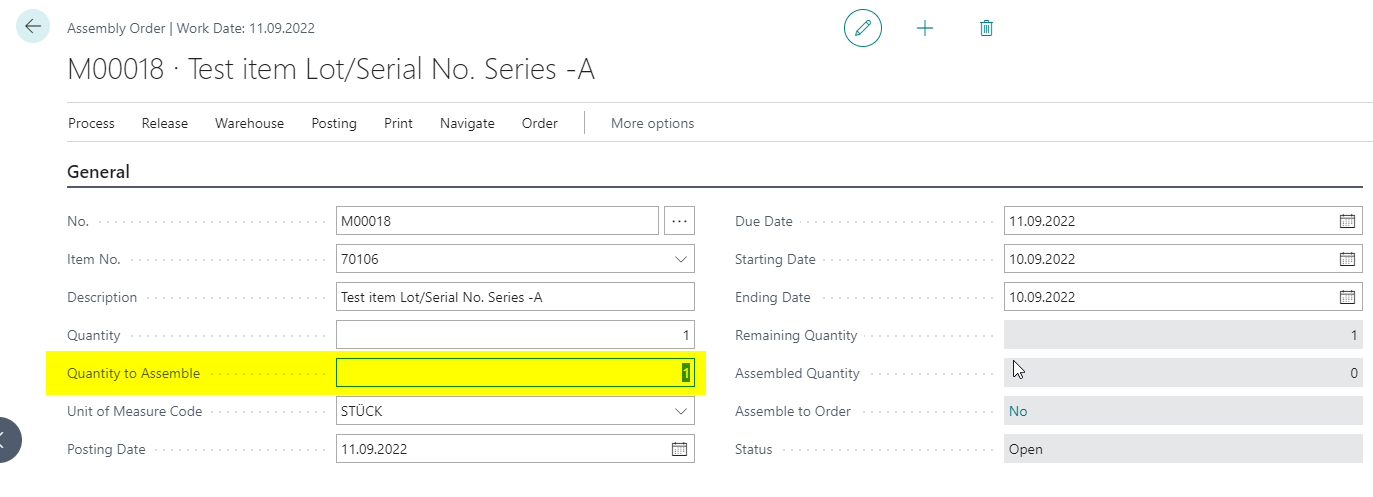
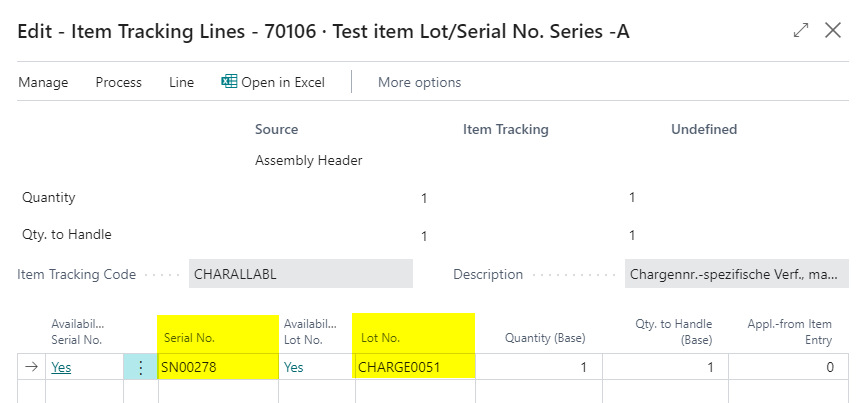
When you use item number series, the produced or assembled item automatically takes the next available serial or lot number from the number series assigned to the item. No separate action button is required. The assignment happens when you refresh the production order or validate the quantity in an assembly order.
Set Up the Item Tracking Code
- Open the Item Tracking Codes list.
- Select the code that you want to use for production or assembly.
- Open the Item Tracking Code Card.
- Set Automatic Serial No. from to Item Serial No. Series.
- Set Automatic Lot No. from to Item Lot No. Series.
Set Up the Item
- Open the Item Card for the item that you want to produce or assemble.
- Assign the item tracking code.
- Assign the required serial number and lot number series.

Trigger the Production or Assembly Order
- Create a released production order or an assembly order.
- Refresh the production order or validate the quantity in the assembly order.
- Check the Item Tracking Lines.
Use the Production or Assembly Order Number as Tracking Number
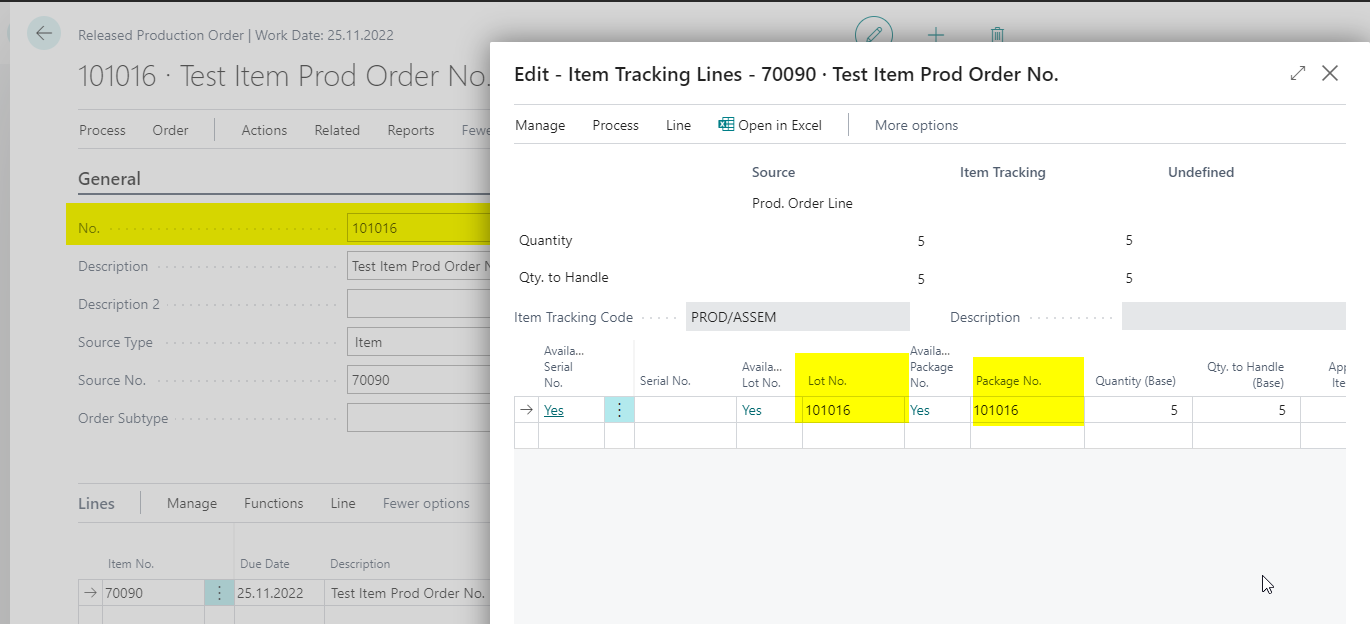
With Production/Assembly Order No., you can use the order number automatically as the lot or package number of the output item. This information is also created when the production order is refreshed or the assembly order quantity is validated.
- Open the Item Tracking Code Card.
- Set Automatic Lot No. from to Production/Assembly Order No..
- If needed, set Automatic Package No. from to Production/Assembly Order No..
- Assign the item tracking code to the output item.
- Create and refresh the production order or validate the quantity in the assembly order.
- Check the Item Tracking Lines.
Transfer Item Tracking from a Main Component
The Transfer from Main Component option transfers serial, lot, or package information from a defined component to the output item. This is relevant when a produced or assembled item must carry the tracking information of a specific component forward.
Review Supported Combinations
The item tracking code supports these combinations:
- Serial No.: Transfer from Main Component and Lot No.: Transfer from Main Component
- Lot No.: Transfer from Main Component and Package No.: Transfer from Main Component
Using Transfer from Main Component for both Package No. and Serial No. in the same item tracking code is not supported.
Set Up the Item Tracking Code
- Open the Item Tracking Codes list.
- Open the code that you want to use for the transfer.
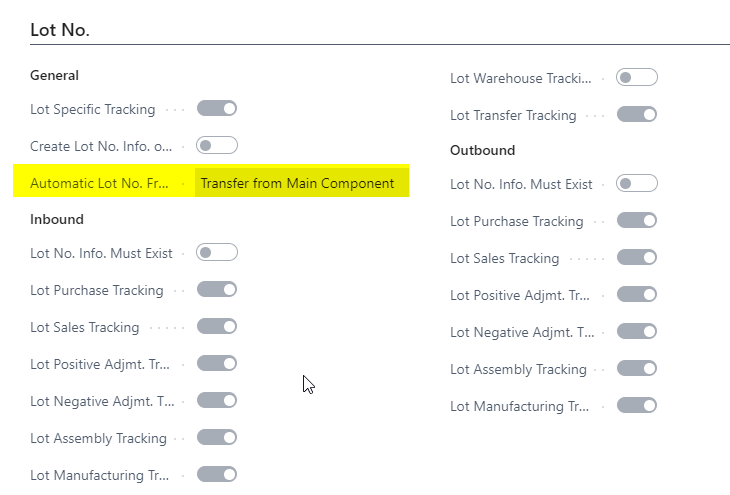
- Set Automatic Serial No. from to Transfer from Main Component.
- Set Automatic Lot No. from to Transfer from Main Component.
- If needed, set Automatic Package No. from to Transfer from Main Component.
Set Up the Main Component and Output Item
- Create the item that will act as the main component.
- Assign the item tracking code to the main component.
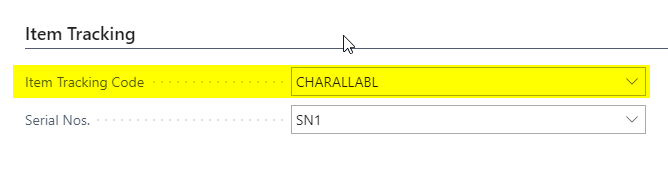
- Assign the same item tracking code to the output item.
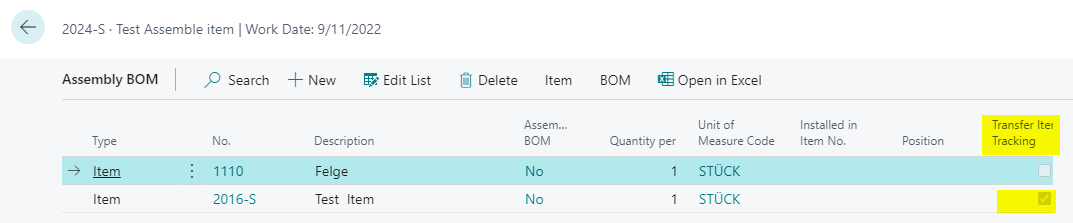
- Mark the component in the production BOM or assembly BOM whose tracking information should be transferred.
Transfer Tracking Information in a Production Order
- Create a new released production order.
- Open the production order components through Line > Components.

- Select the main component.
- Open Line > Item Tracking Lines.
- Assign the serial, lot, or package number to the main component.
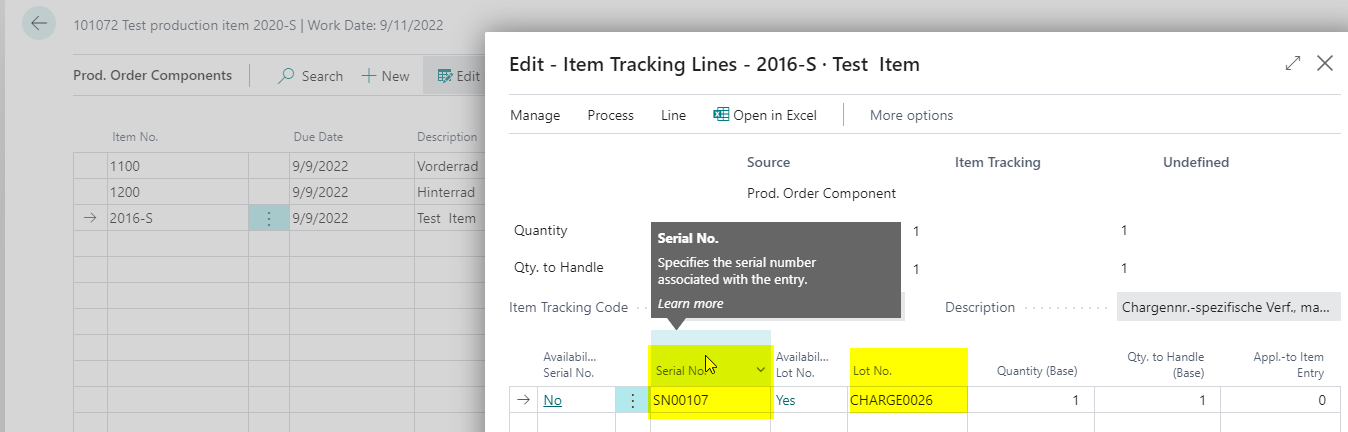
The transfer to the output item begins after consumption is posted.
- Open the Consumption Journal.
- Create the lines for the production order.
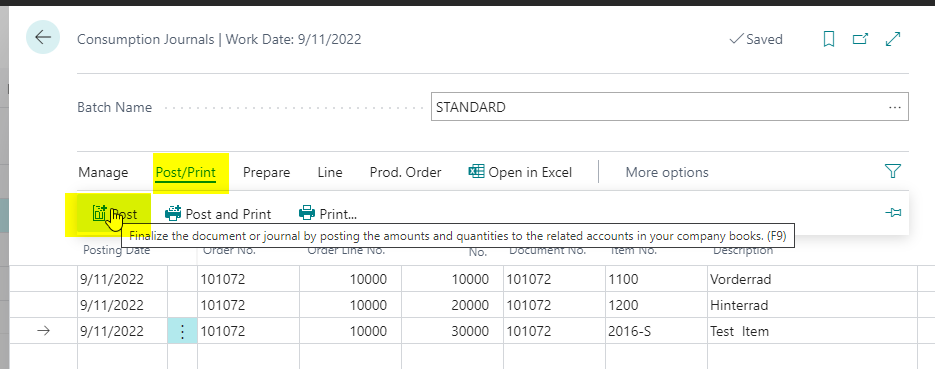
- Post the consumption line.
- Return to the production order and check the Item Tracking Lines of the output item.

Transfer Tracking Information in an Assembly Order
- Create a new assembly order.
- Select the main component and open Item Tracking Lines.
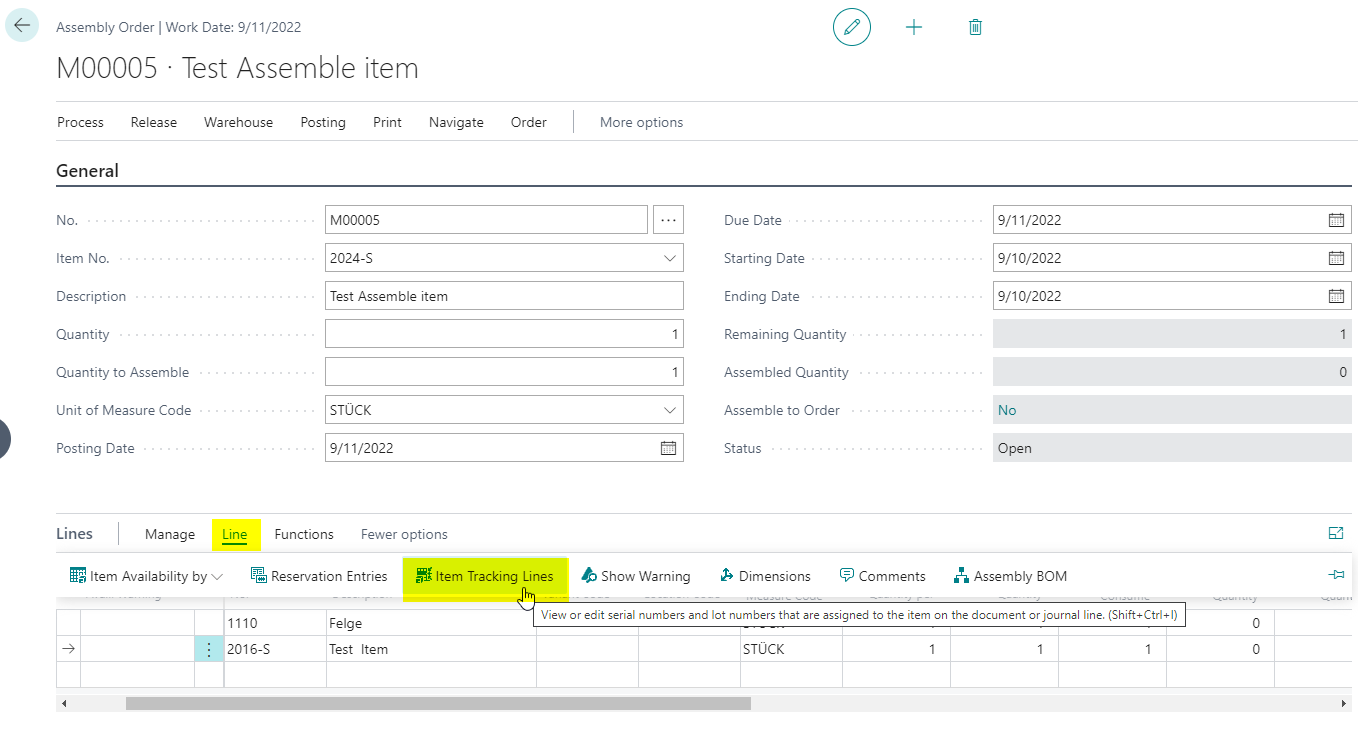
- Select a serial, lot, or package number for the main component.
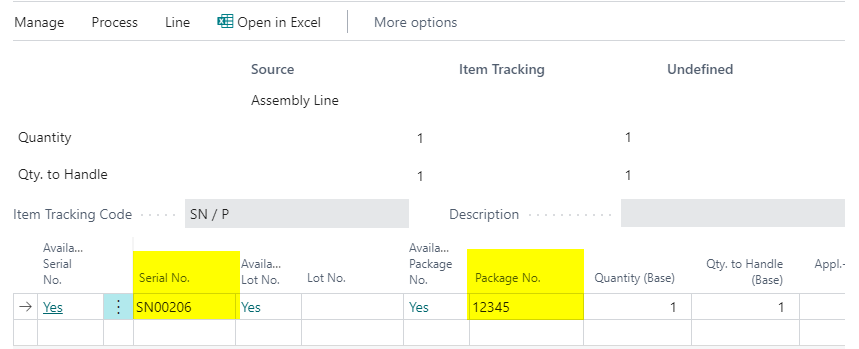
To transfer the tracking information to the output item, the validation trigger in Quantity to Consume must run.
- Enter or change a value in Quantity to Consume.
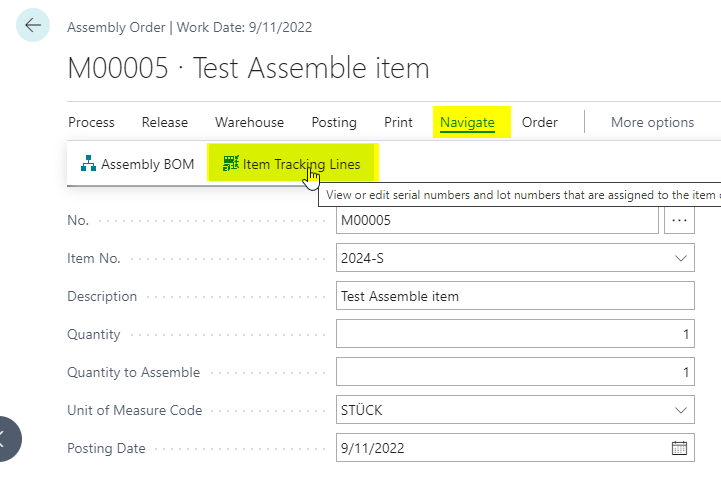
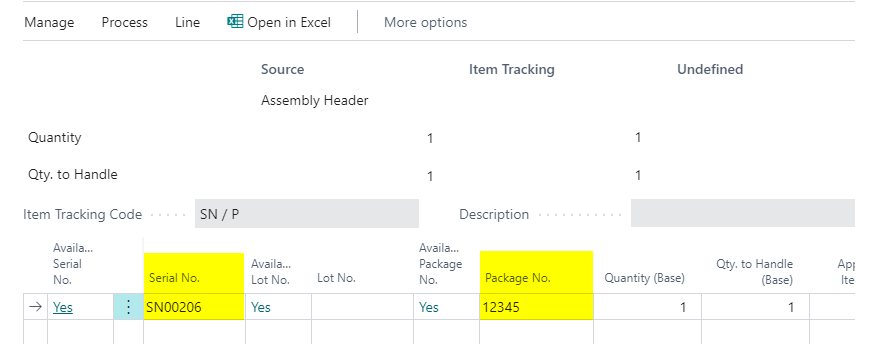
- Open the tracking lines of the output item through Navigate > Item Tracking Lines.
Split Production Order Lines Automatically by Serial Number
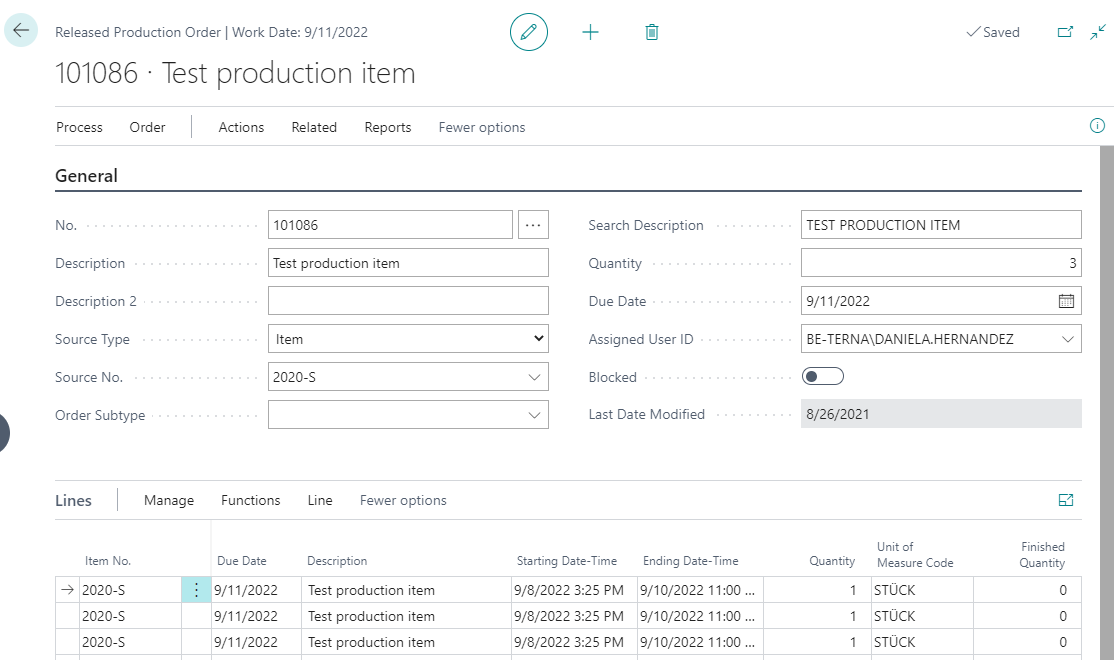
When an output item and its components are serial-tracked, one production order line is often not precise enough. With one line, users cannot clearly assign which component serial number belongs to which output serial number. BE-terna Manufacturing can therefore split one production order line automatically into several lines when the quantity to produce is greater than one.
During the split, routing and components are transferred to the new production order lines.
Prepare the Item
- Open the item card of the output item.
- Make sure the item has a routing.
- Check that the production BOM includes at least one serial-tracked component.
- Check that an item tracking code is assigned to the output item.
Prepare the Item Tracking Code
- Open the item tracking code card of the output item.
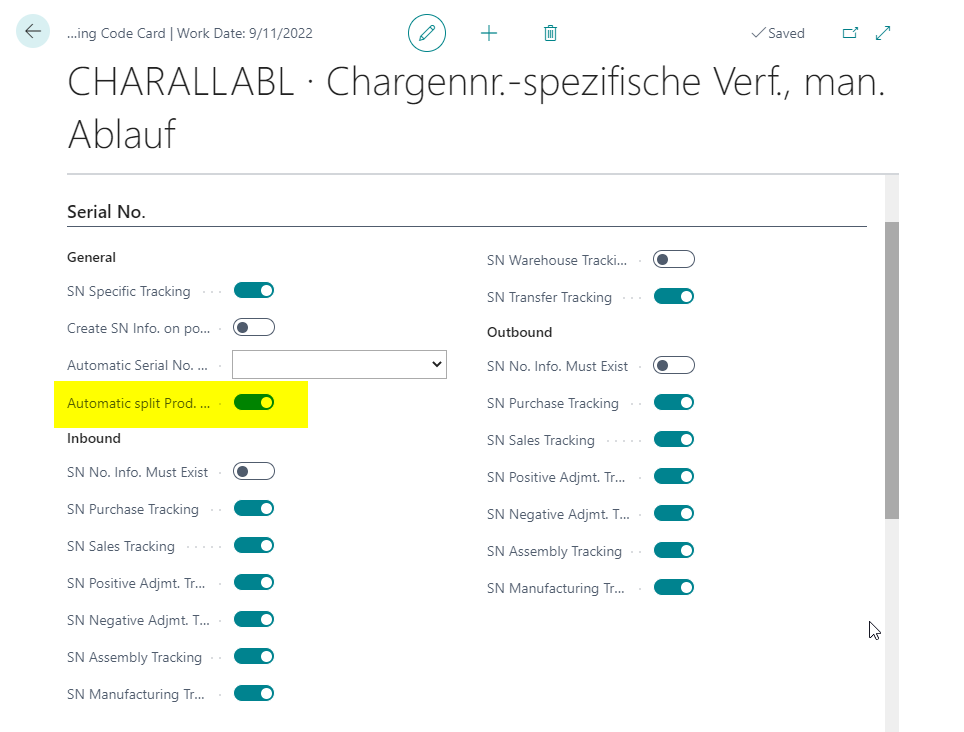
- Activate Automatic split Prod. Order Lines.
Refresh the Production Order
- Create a released production order.
- Select the output item.
- Enter a quantity greater than one.
- Refresh the production order.
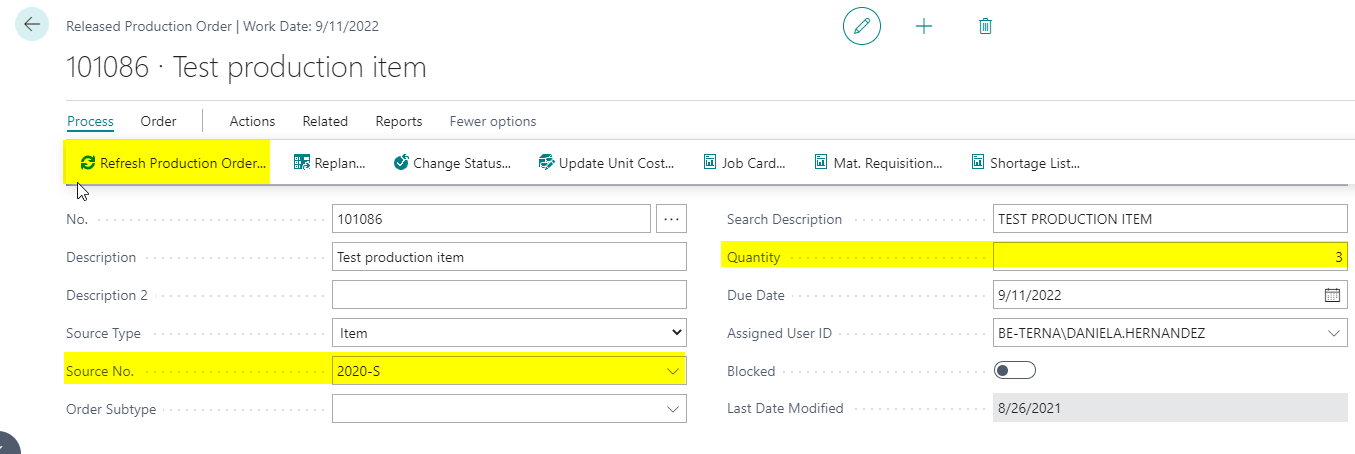
After the refresh, every production order line contains the corresponding components from the production BOM. You can then assign component serial numbers and output serial numbers per line. Routing information is also available for every production order line.
Split Production Order Lines by Lot Number
When an output item is lot-tracked, the output lot can change during one production order. In that case, each output lot should have its own production order line. This can be done manually or through Split Line for Lot No..
During the split, routing, components, reservation, picking, and item tracking information are transferred to the new line.
Prepare the Item and Item Tracking Code
- Open the item card of the output item.
- Make sure the item has a routing.
- Check that the production BOM includes at least one lot-tracked component.
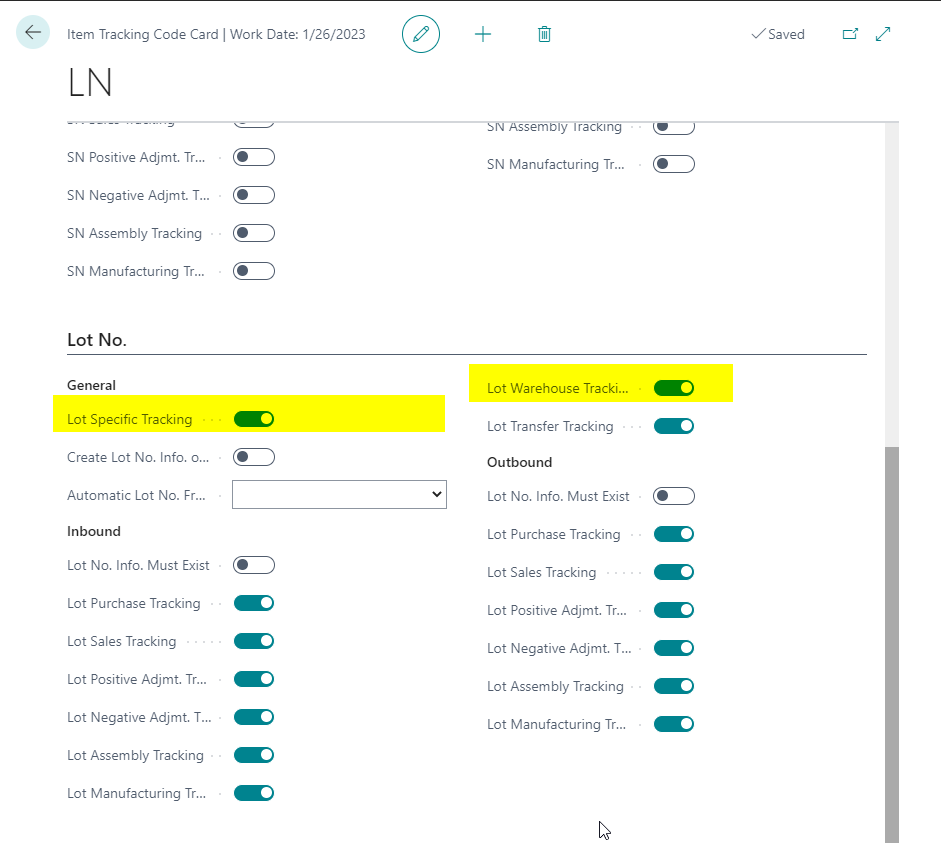
- Check that the output item uses an item tracking code with lot tracking.
- If needed, activate Lot Warehouse Tracking so that picking information is transferred to the new line.
Prepare the Production Order
- Create a released production order.
- Select the output item.
- Enter a quantity greater than zero.
- Refresh the production order.
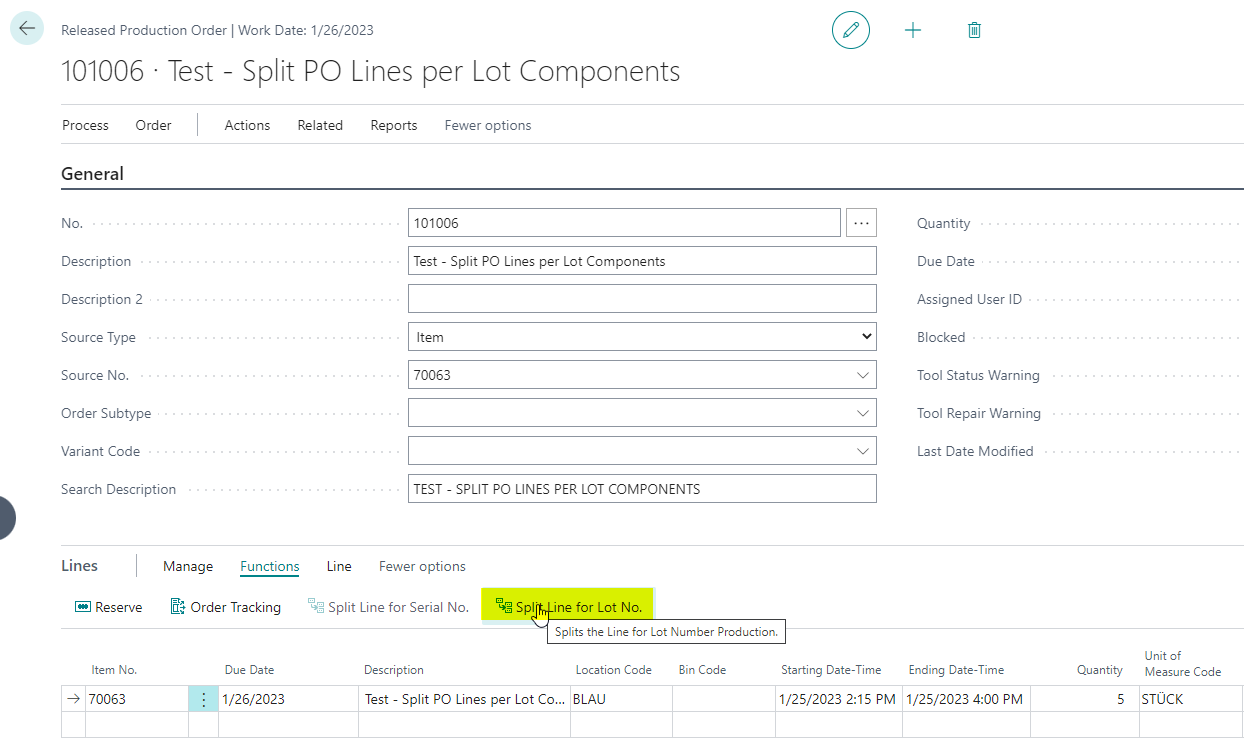
The Split Line for Lot No. function is not available at first. It becomes available only after a partial output posting.

Post Partial Output
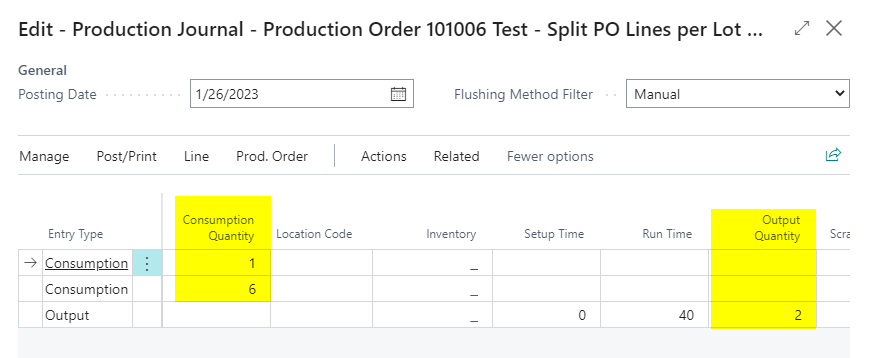
- Open the Production Journal from the production order lines.
- Enter consumption quantities for components and an Output Quantity for the output item.
- Post only a partial quantity, meaning a quantity lower than the production order quantity.
- Assign the required lot numbers to the components and the output item.
After posting, you might need to refresh the page with F5 before Split Line for Lot No. becomes available.
Split the Remaining Quantity into a New Line
- Run Split Line for Lot No..
- Check that a new production order line with the remaining quantity was created.
- Repeat output posting for the remaining quantity with the next output lot number and the related component lot numbers.
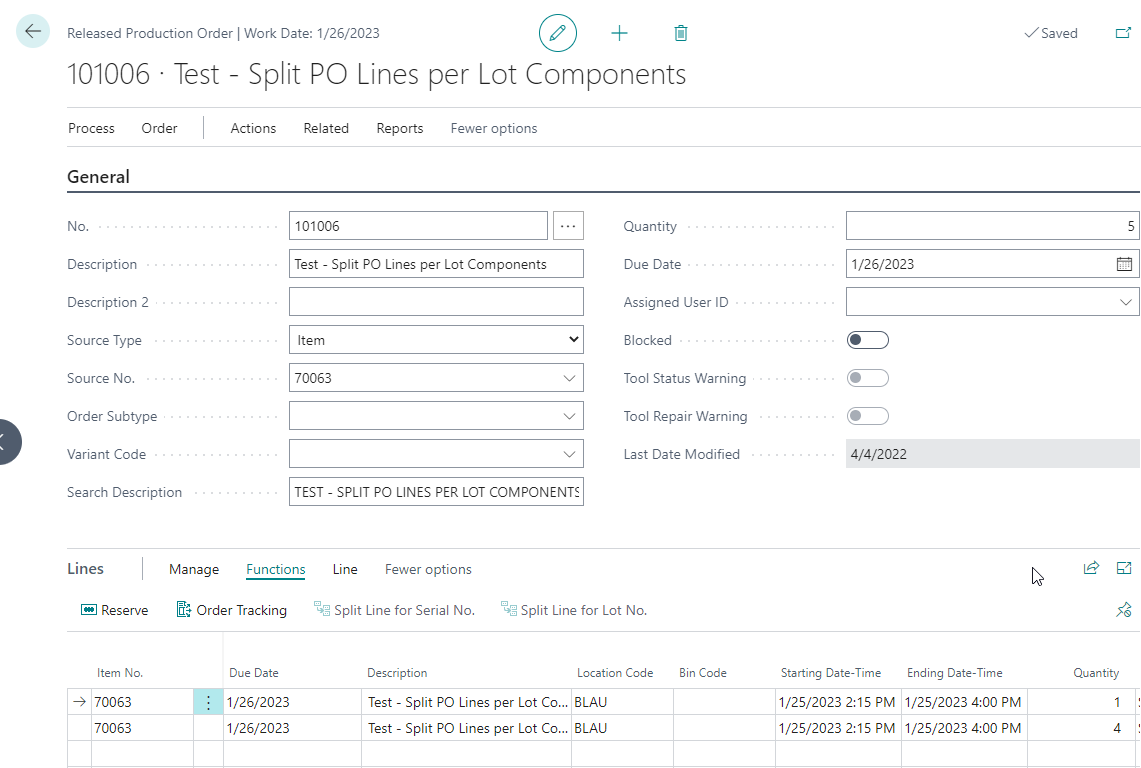
You can repeat this process until the complete quantity is finished.
Result
After setup, you can generate item tracking information automatically, transfer it from main components, and split production order lines by serial or lot number. Output items, components, operations, reservations, and picking information remain traceable even when several serial or lot numbers are used within one production order.
Links