Posting
Purpose
The posting functions in BE-terna Manufacturing support users in the Production Journal, Consumption Journal, and Output Journal. They calculate related output and consumption quantities automatically and suggest the matching application entries for corrections.
The goal is to enter consumption and output faster, more consistently, and with better costing transparency. Automatically suggested quantities and application entries can still be reviewed and adjusted manually before posting.
Business Value
- Consumption and output can be handled together in the production journal.
- Output quantity can be calculated from the consumption quantity of the main ingredient.
- Consumption quantity can be calculated from the output quantity.
- Run time is recalculated based on output quantity and routing.
- For negative consumption or output quantities, BE-terna Manufacturing suggests matching application entries.
Review Limits Before Posting
The automation does not replace a business review before posting. Check especially:
- Scrap quantities and existing item tracking lines.
- Whether there is only one output line in the production journal when Output is Sum of Consumption is used.
- Whether suggested consumption or output quantities fit the quantity, routing, BOM, and main ingredient.
- Whether suggested application entries really belong to the original posting that should be corrected.
Enable Quantity Calculation
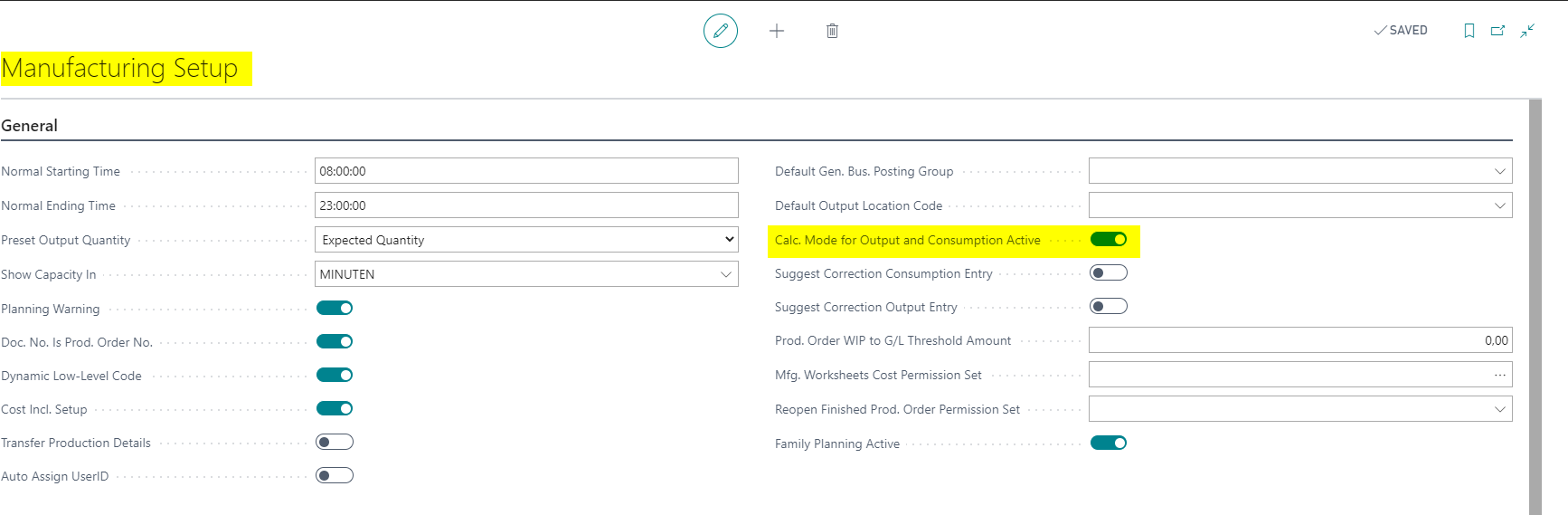
Automatic quantity calculation is enabled in Manufacturing Setup and then controlled on the item.
- Open Manufacturing Setup.
- Enable Calc. Mode for Consumption and Output Active on the General FastTab.
Prepare the Item for Quantity Calculation
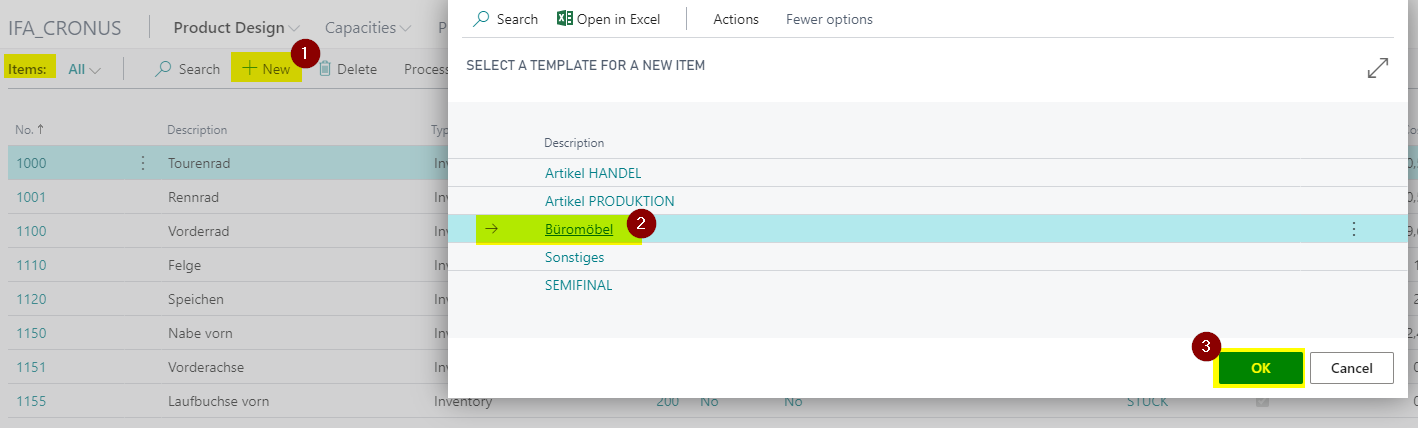
- Open Items.
- Create a new item or open the item that should be used in the production journal.
- Select an item template if needed.
Item templates can preset Production Journal - Calculation Mode for Output and Consumption and Is Output Sum of Consumption. Still review the values on the item before using them in production orders.
- Enter the required item parameters.
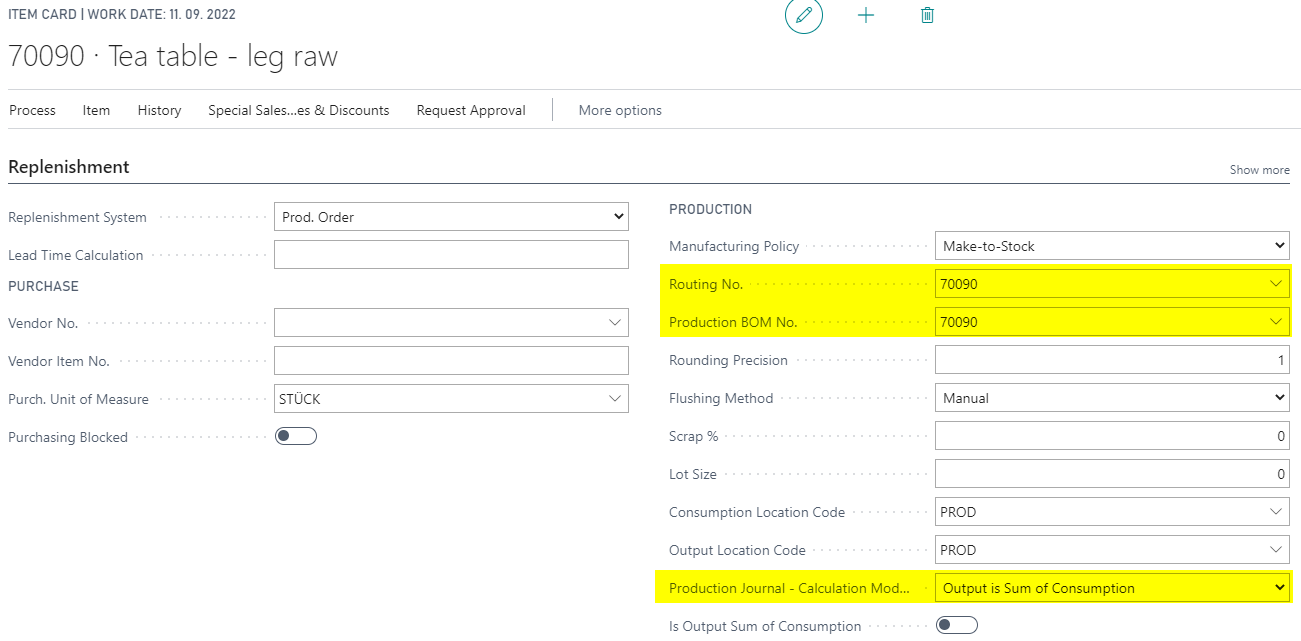
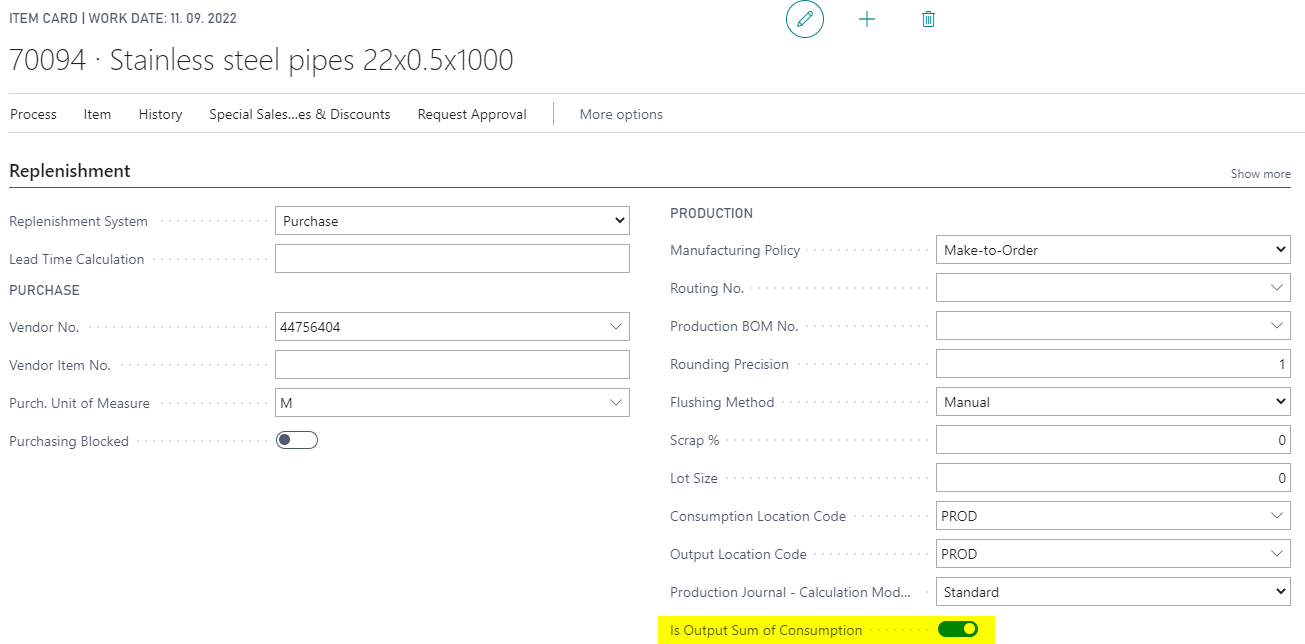
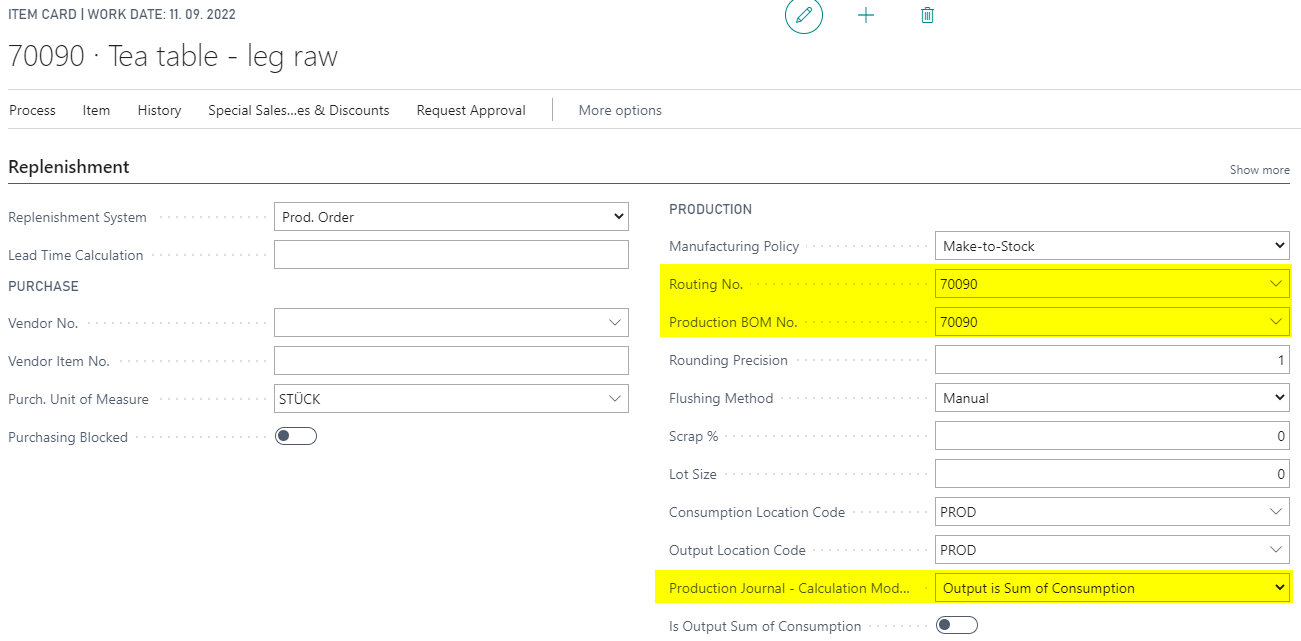
- On the Replenishment FastTab, select the required option in Production Journal - Calculation Mode for Output and Consumption.

The options work as follows:
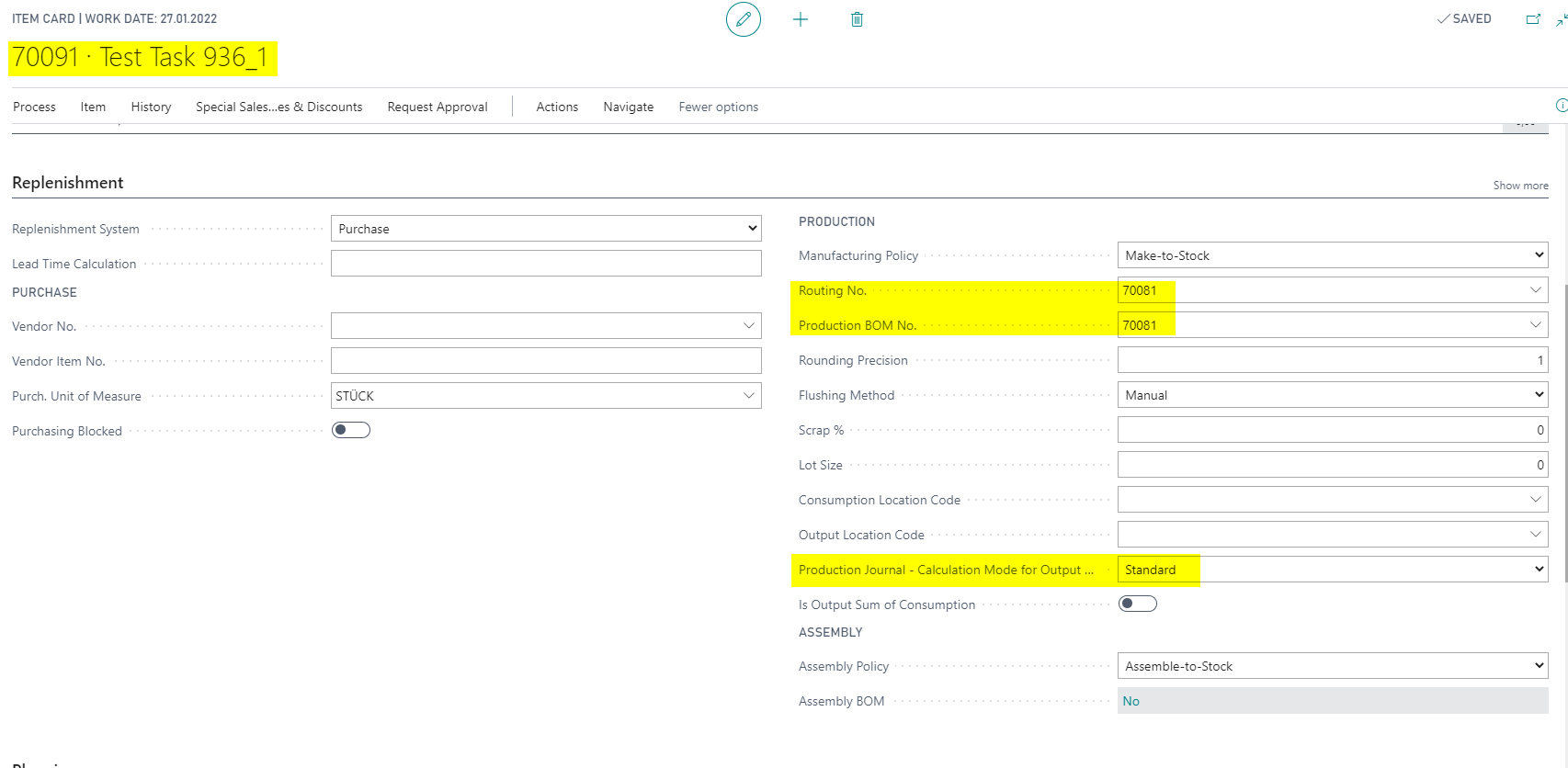
- Standard: Remaining output quantity comes from the production order line. Remaining consumption quantity comes from production order components. Consumption and output quantities do not update each other automatically.
- Output is Sum of Consumption: Output quantity in the production journal is calculated when consumption quantities are entered for items marked accordingly. This option is often used in process manufacturing where output is derived directly from raw materials.
- Consumption from Output Qty: Consumption quantity in the production journal is calculated from output quantity and, where relevant, scrap based on production order components. Run time is updated according to output and scrap quantity.
- Assign a routing.
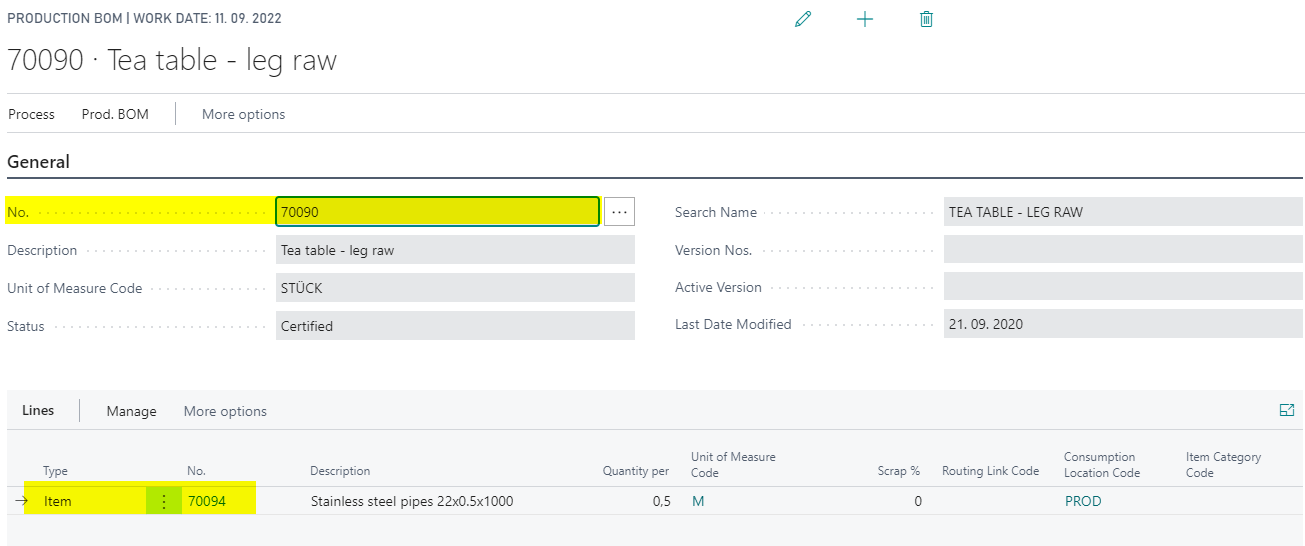
- Assign a production BOM.
- Select an item from the production BOM as the main ingredient when output should be calculated from consumption.
Review the Standard Option
With Standard, entering consumption quantity does not change output quantity. Entering output quantity does not change consumption quantity. Run time can be recalculated according to the routing.
- Open the item card and review the Standard setting.
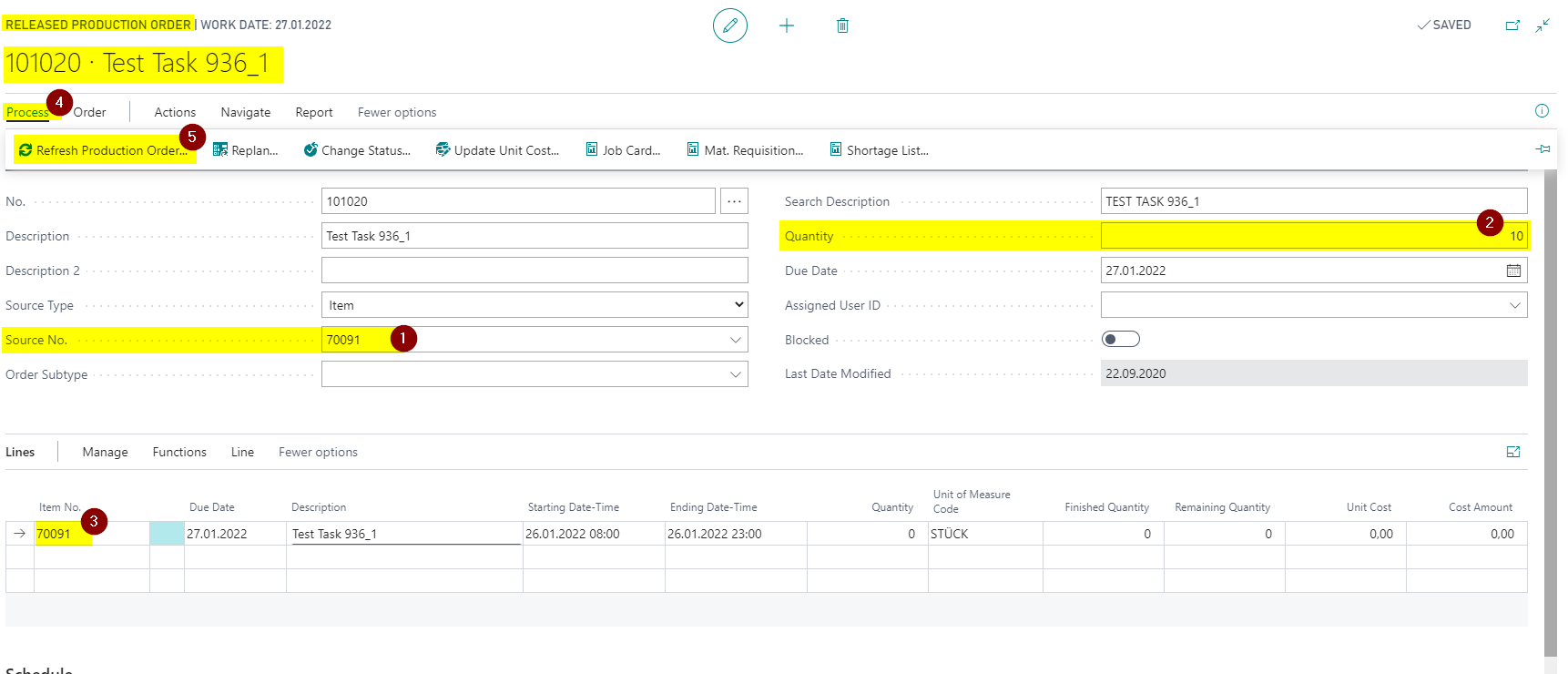
- Open Released Production Orders.
- Create a new production order.
- Enter the item in Source No. and enter the quantity.
- Choose Refresh Production Order.
- Open the Production Journal through Line.
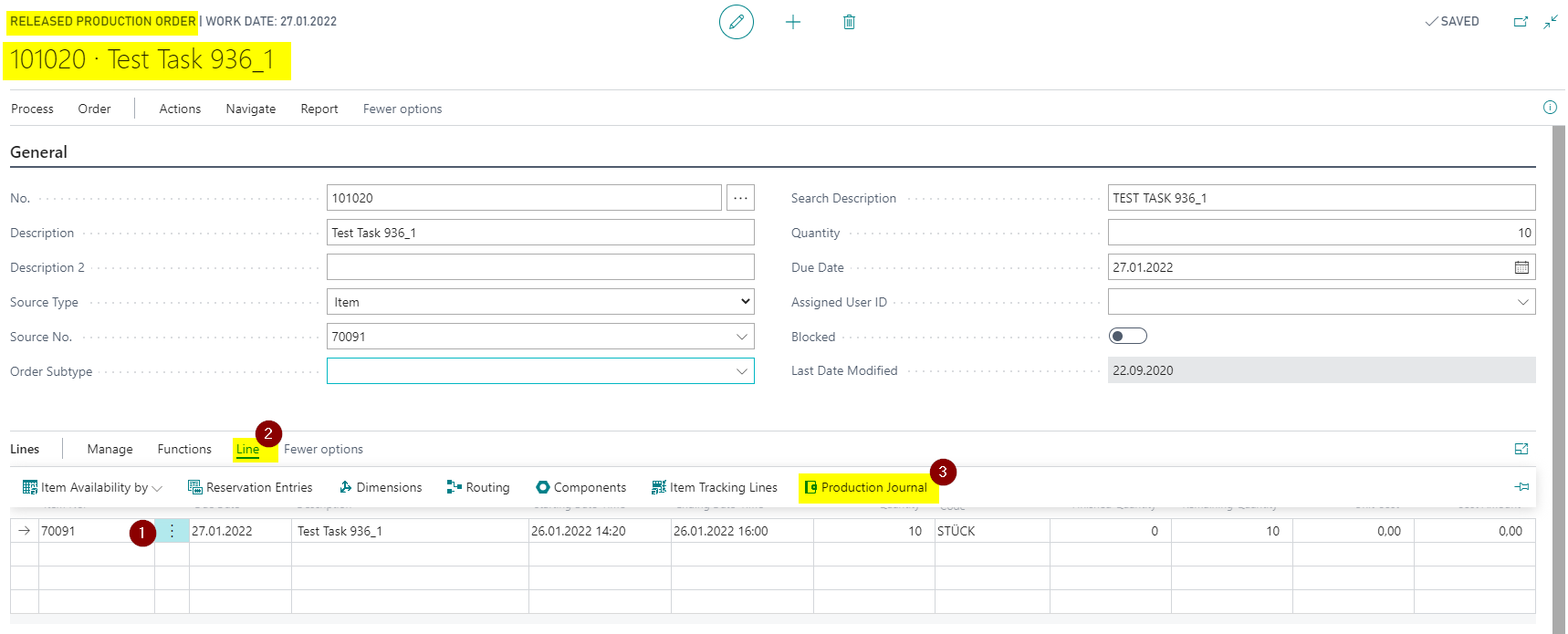
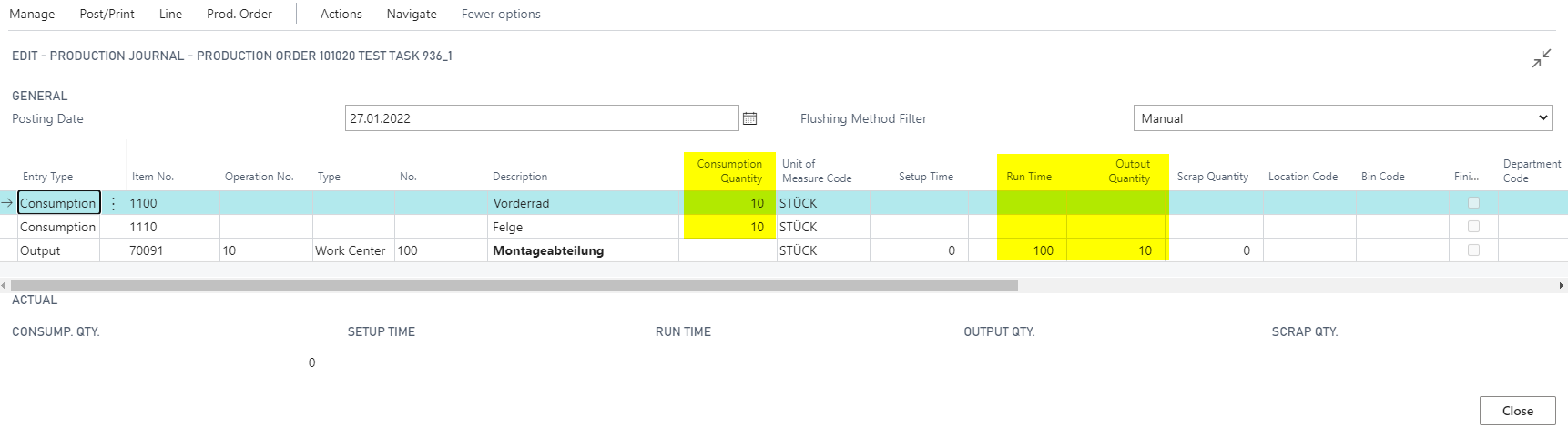
When you enter a consumption quantity, Output Quantity and Run Time remain unchanged.
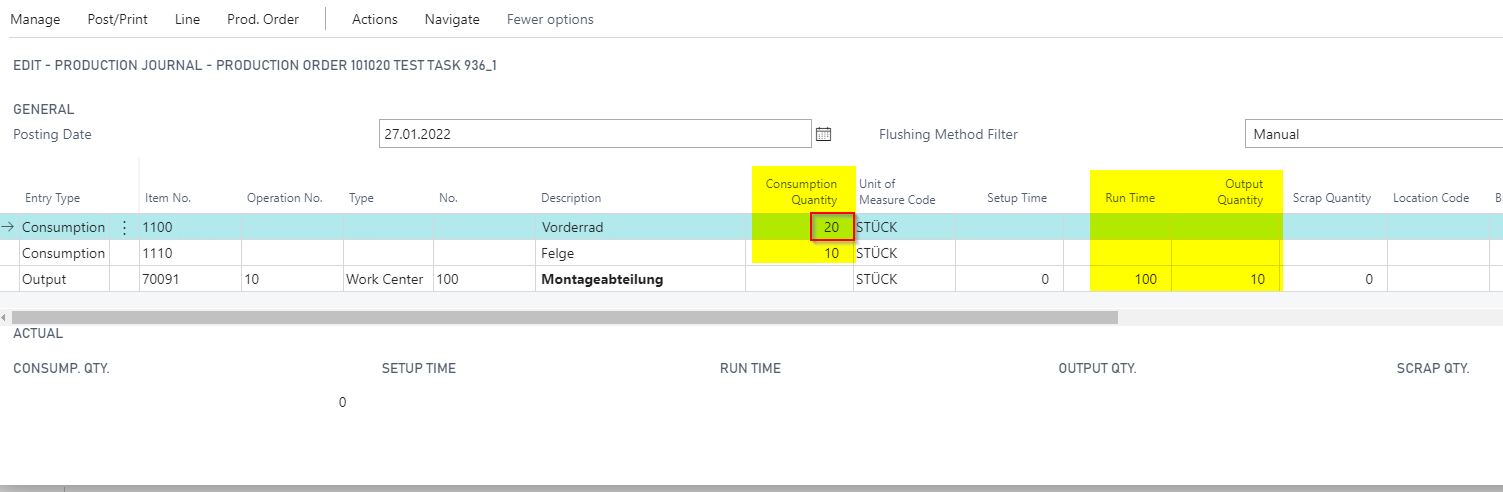
When you enter output quantity, consumption quantity remains unchanged. Run time is recalculated according to the routing.
Calculate Output from Consumption
This option is useful when output is derived from consumed raw materials or semi-finished products. The produced item uses Output is Sum of Consumption. The relevant main ingredient is marked as the calculation basis.
The function can be used only when there is one output line in the production journal.
- Open the item card and review the individual setting.
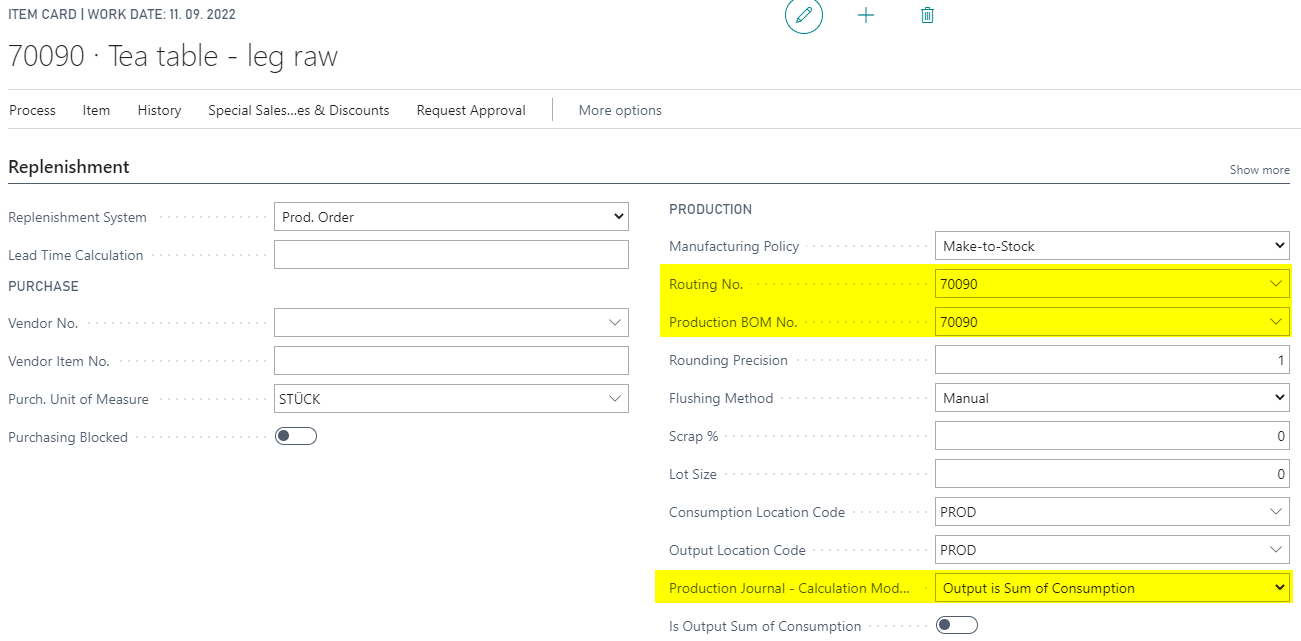
- Create or open a released production order.
- Enter item and quantity.
- Refresh the production order.
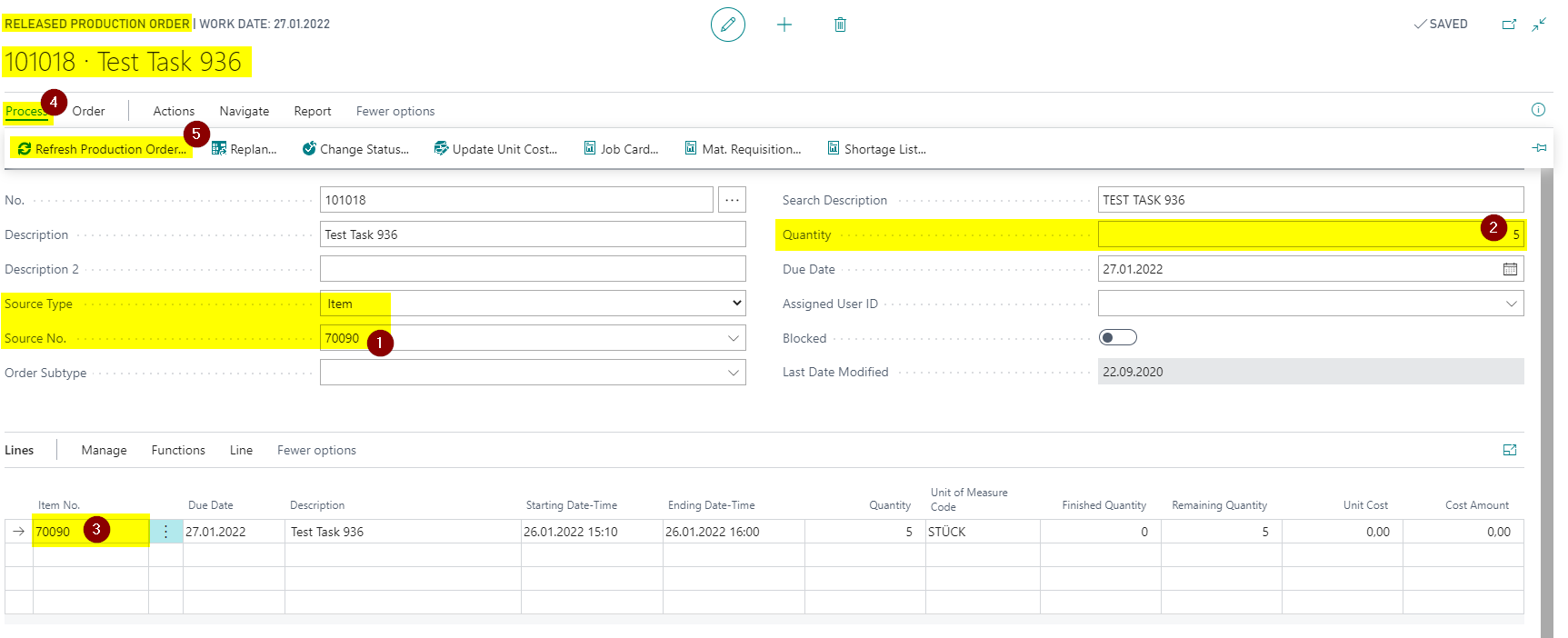
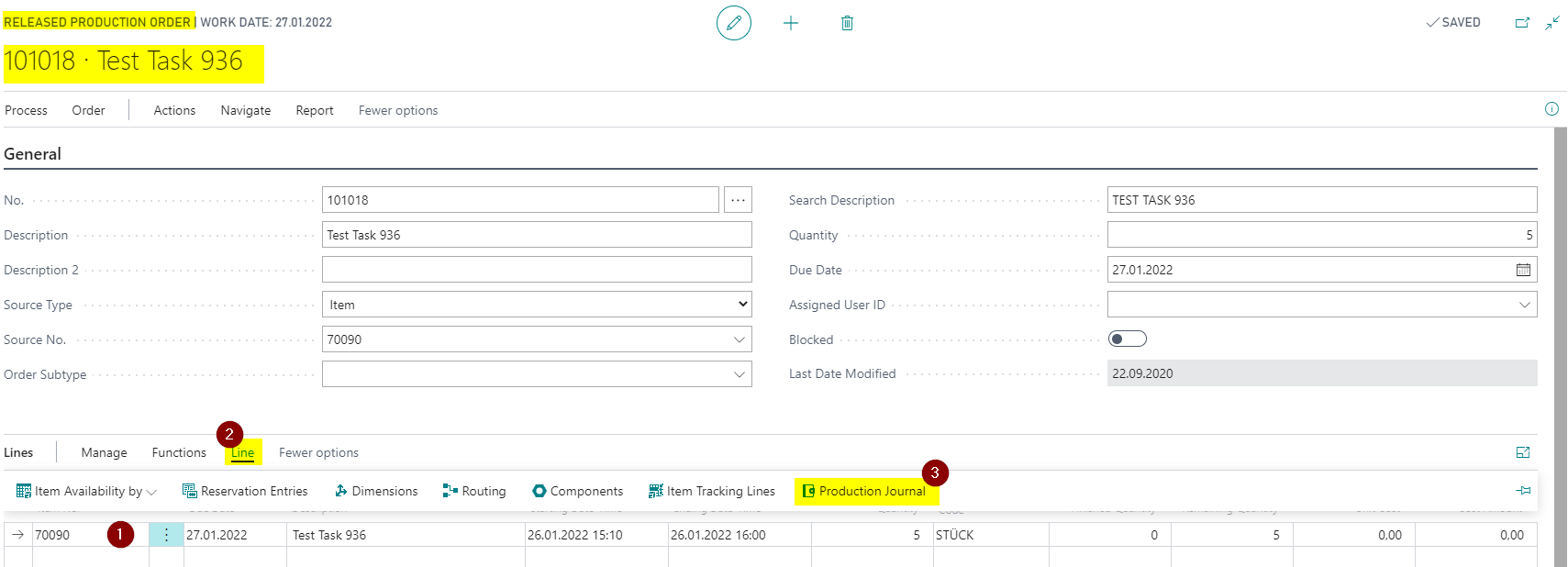
- Open the Production Journal.
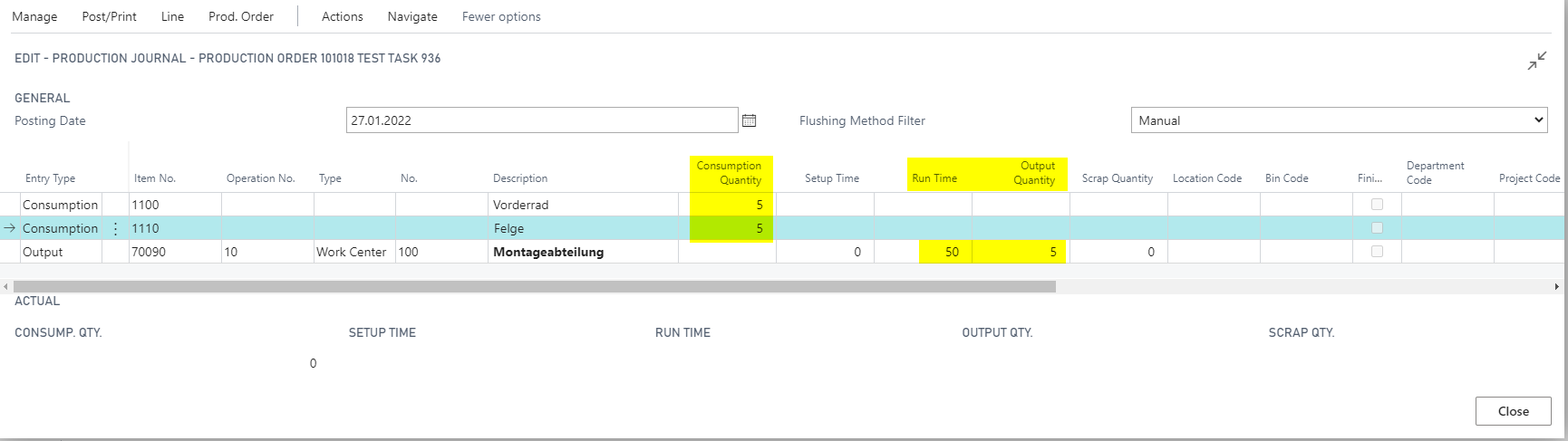
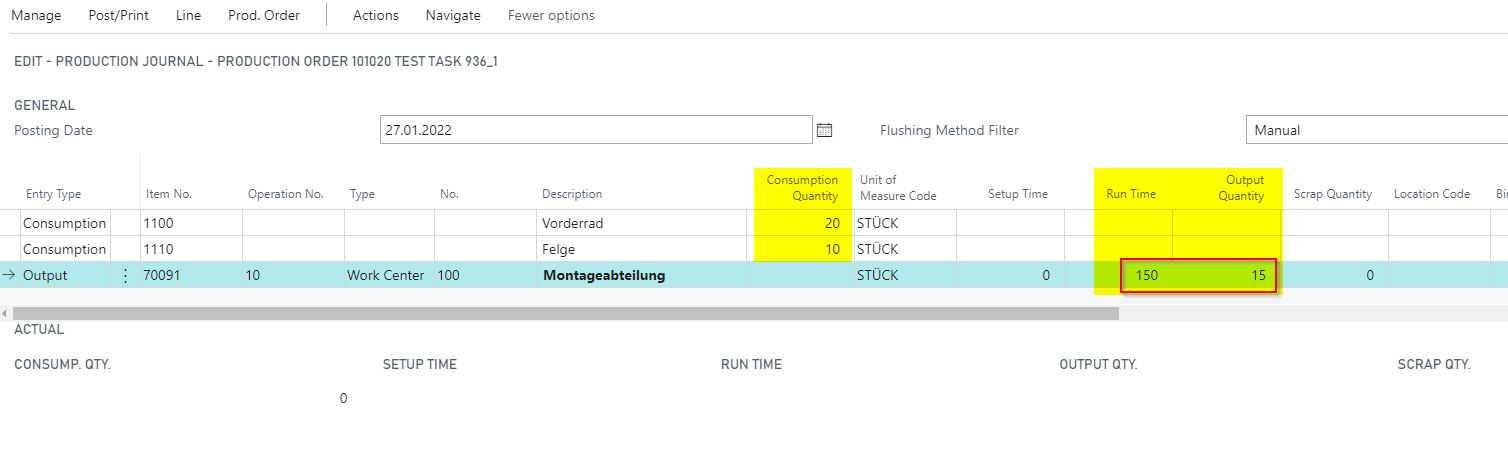
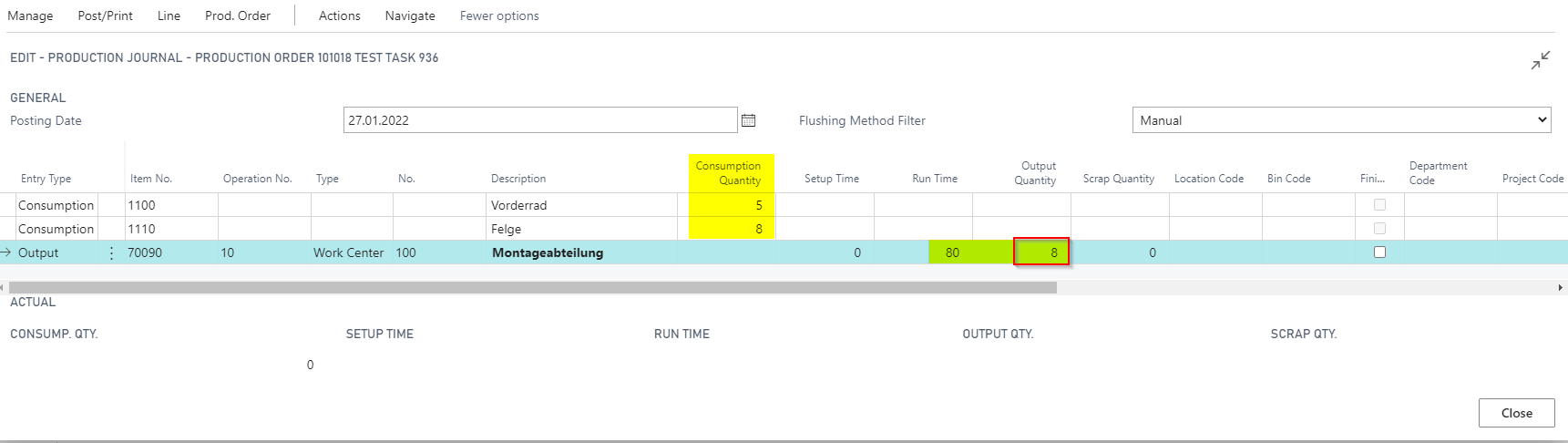
When you enter the consumption quantity, BE-terna Manufacturing calculates Output Quantity from the sum of the relevant consumption lines. Run Time is recalculated according to the routing.
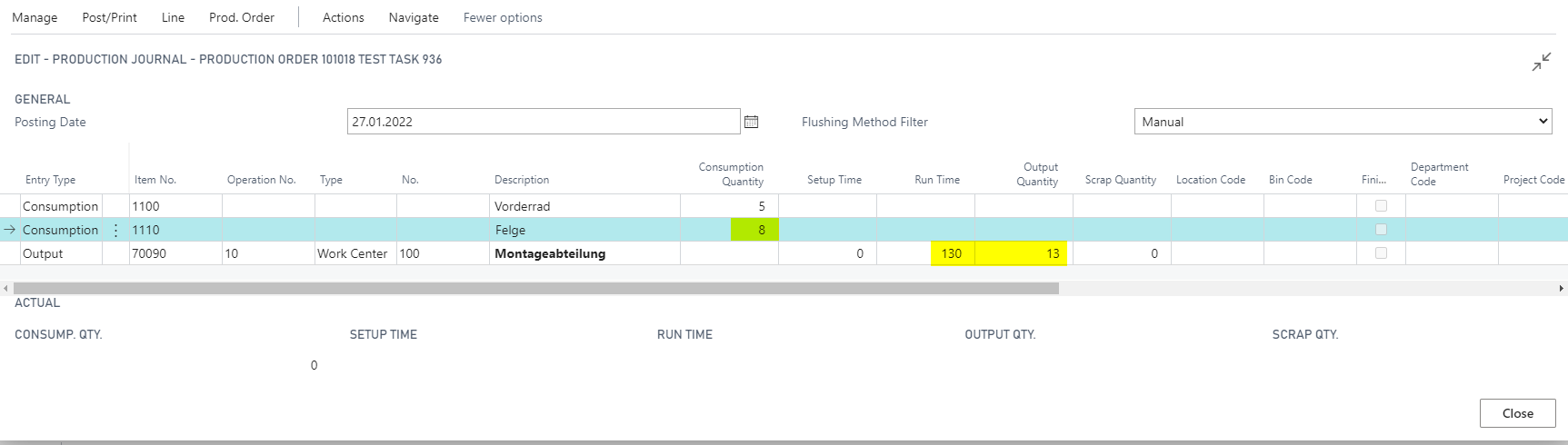
When you enter output quantity manually, consumption quantity does not change. Run time is recalculated according to the routing.
Calculate Consumption from Output Quantity
This option is useful when users report output quantity and component consumption should be suggested from it.
- Open the item card and review Consumption from Output Qty.
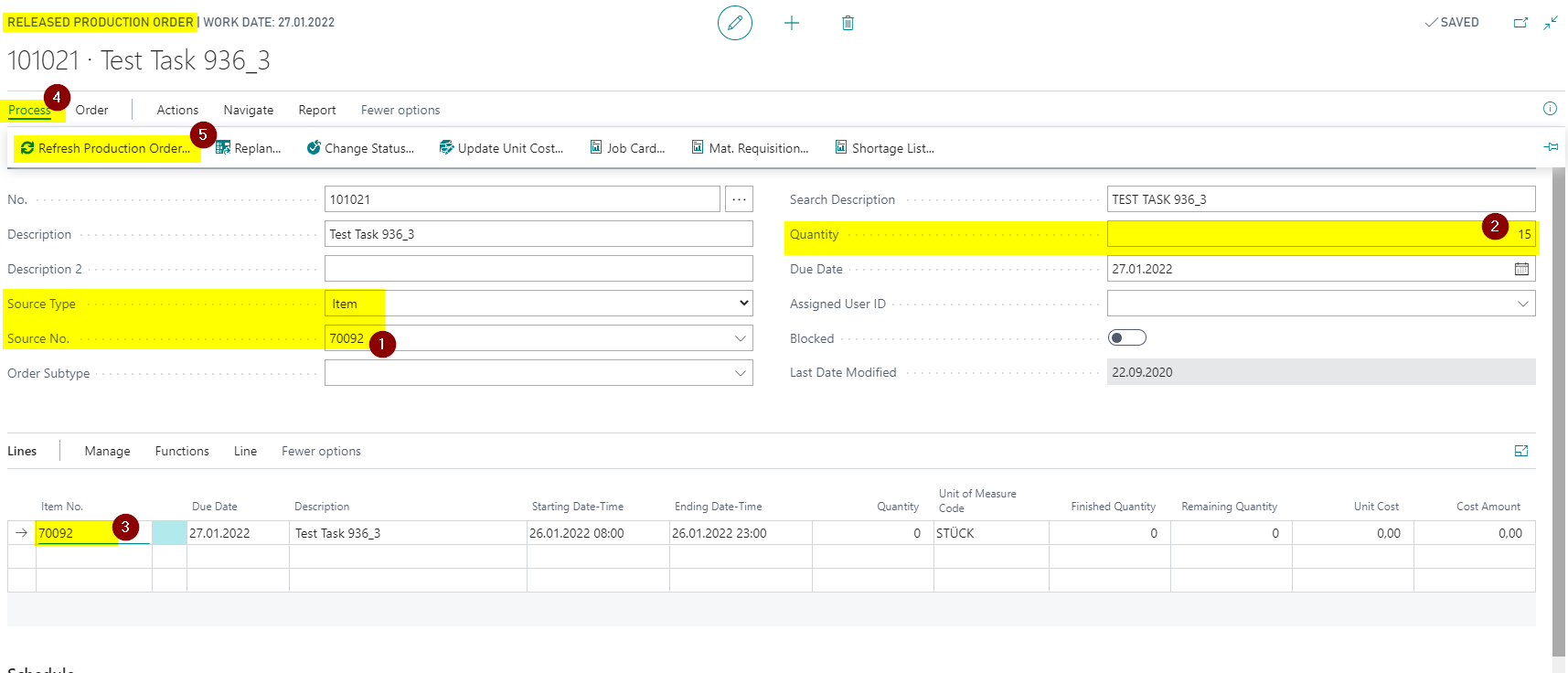
- Create or open a released production order.
- Enter item and quantity.
- Refresh the production order.
- Open the Production Journal.
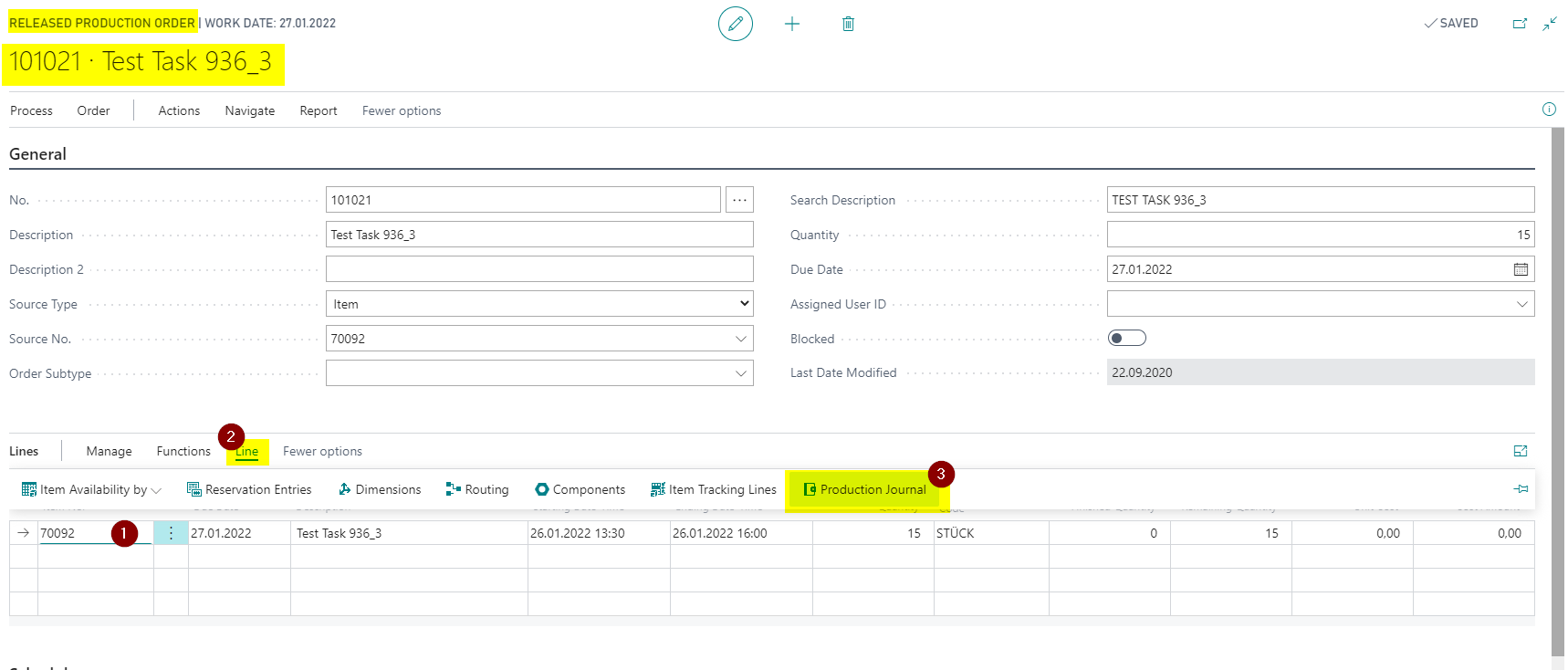
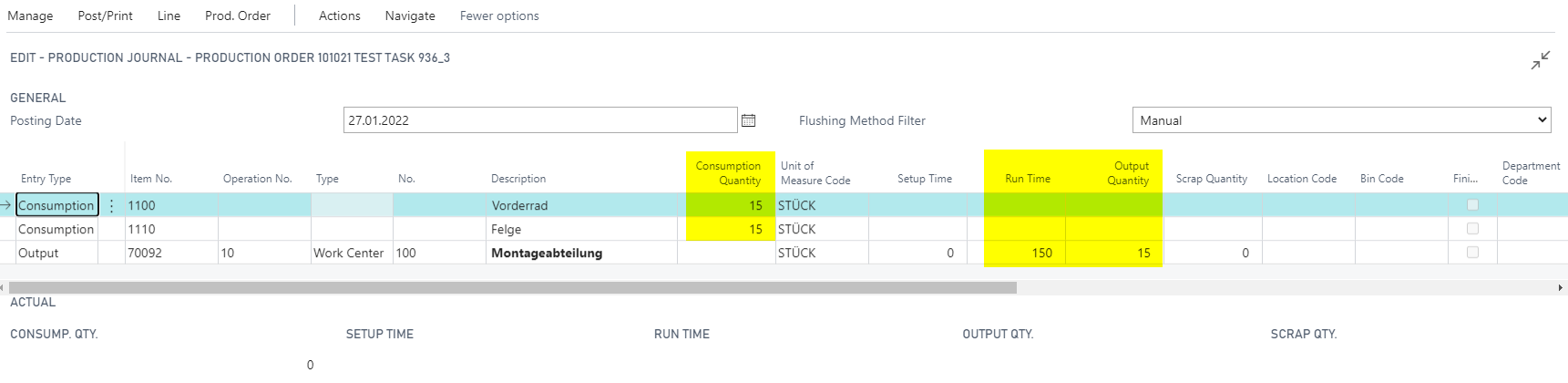
When you enter a consumption quantity, Output Quantity and Run Time remain unchanged.
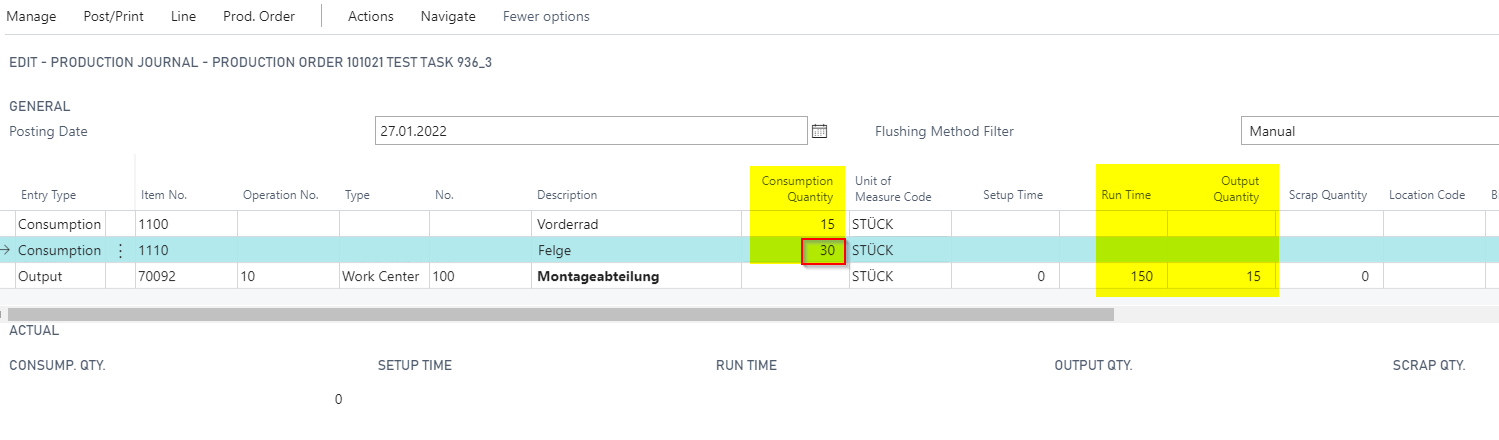
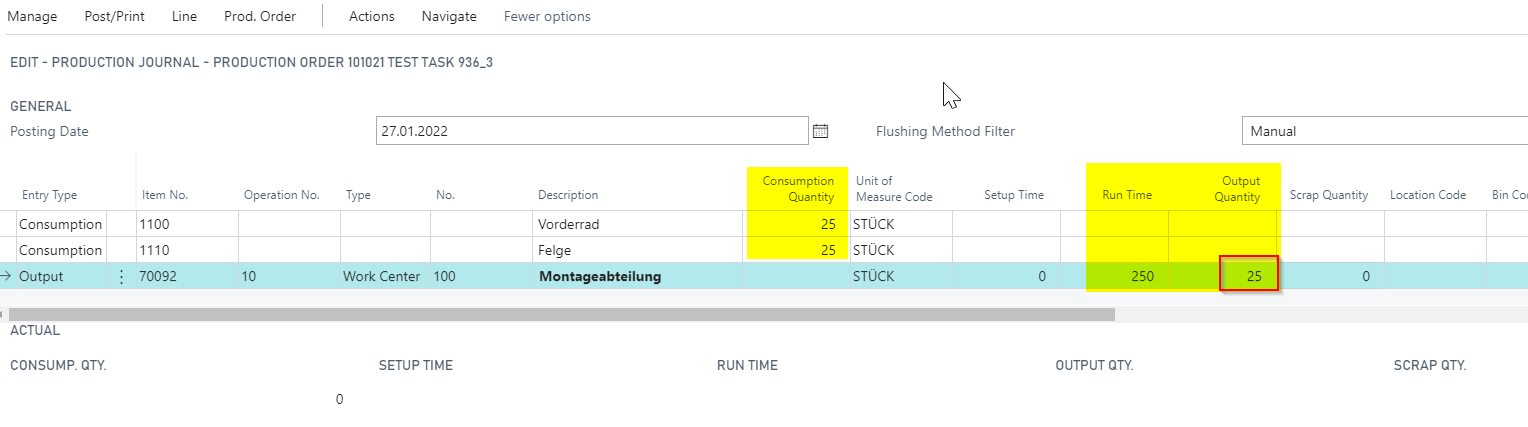
When you enter output quantity, BE-terna Manufacturing calculates consumption quantity automatically based on the production order components. Run Time is recalculated according to the routing.
Enable Correction Suggestions
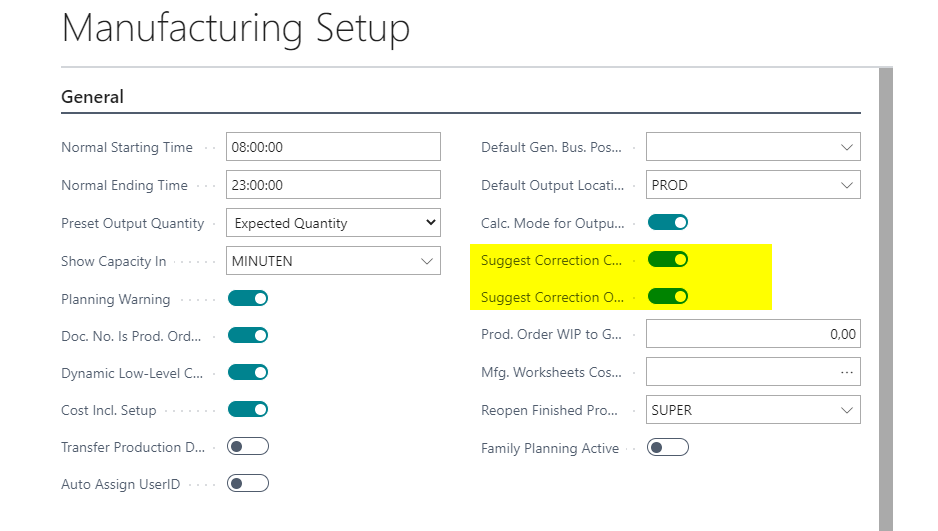
In standard processes, users often need to fill Applies-from Entry No. or Applies-to Entry No. manually during consumption or output corrections. BE-terna Manufacturing can suggest the matching entry automatically. The suggestion can be changed manually before posting.
- Open Manufacturing Setup.
- Enable Suggest Correction Consumption Entry.
- Enable Suggest Correction Output Entry.
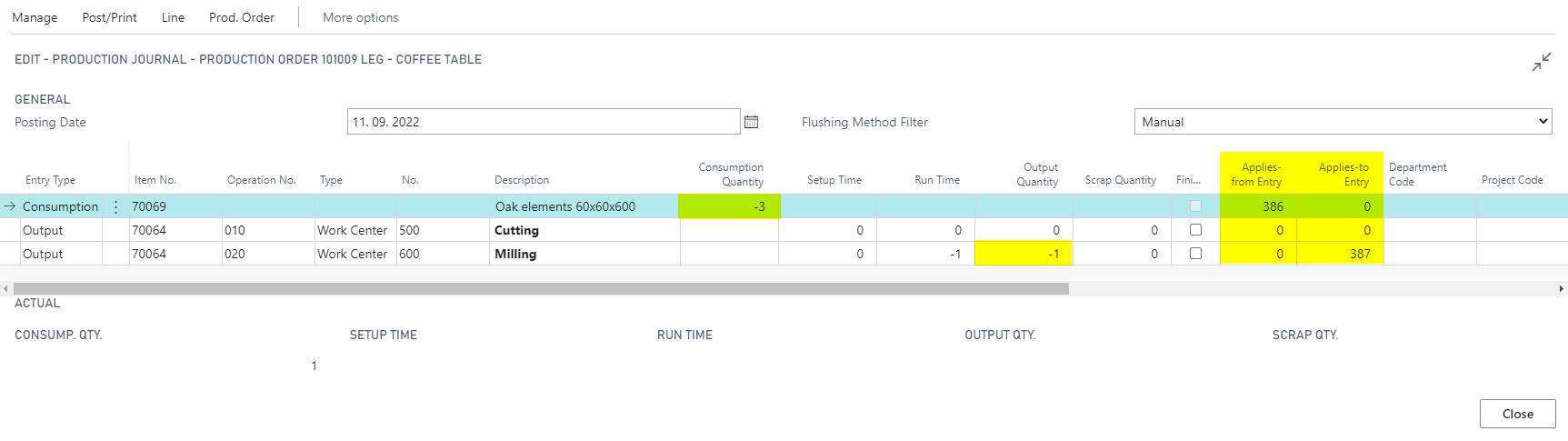
When you enter a negative consumption quantity in the production journal, the application field is filled from matching previous consumption entries. When you enter a negative output quantity, the matching output entry is suggested. If the item entry is already closed, the field stays empty.
Correct Consumption and Output in the Production Journal
- Open Released Production Orders.
- Open a released production order with existing postings.
- Open the Production Journal through Line.
- Enter a negative quantity in Consumption Quantity.
- Review the automatically filled Applies-from Entry No..
- If needed, enter a negative quantity in Output Quantity.
- Review the suggested Applies-to Entry No..
- Post the journal.
Business Central posts the corrections based on the related item entries.
Correct Consumption in the Consumption Journal
- Open Consumption Journals.
- Enter the posting date.
- Select the production order for which consumption was already posted.
- Check or correct the order line number if needed.
- Select the relevant production order component line.
- Check the document number.
- Select the item number for the correction.
- Enter a negative quantity.
When you enter the negative quantity, the system checks the related consumption item ledger entries from the original posting and enters the item ledger entry number in the application field.

- Check Unit of Measure Code.
- Check Unit Amount.
- Post the journal.
Correct Output in the Output Journal
- Open Output Journals.
- Enter the posting date.
- Select the production order for which output was already posted.
- Select the item number for the output correction.
- Select the operation number. For quantity corrections, this is normally the last operation.
- Enter a negative quantity for the output correction.
When you enter the negative quantity, Applies-to Entry No. is filled automatically. The related item entry is the original output entry from the production order. If that entry is already closed, the field remains empty.

- Check Unit of Measure Code.
- Check Unit Amount.
- Post the output journal.
Result
After setup, you can post consumption and output in the production journal with fewer manual quantity entries. During corrections, BE-terna Manufacturing suggests matching application entries so that consumption and output corrections remain more transparent for costing.
Links