Lists
Purpose
The Production Order lists give users a cross-order view of production orders, production order lines, routing lines, and components. They support daily control, analysis, follow-up questions, navigation into detail data, and recurring actions without opening each production order first.
BE-terna Manufacturing also provides a progress overview for released production orders and extended navigation through related item ledger entries. This helps users trace production progress, component usage, and value chains in the same working context.
Business Value
- Production orders can be filtered, reviewed, and processed across all statuses from one central working list.
- Production order lines, routing lines, and components can be analyzed independently of a single order.
- Non-editable lists protect operational data while still allowing navigation to cards, entries, dimensions, availability, and other detail pages.
- The progress overview shows capacities, quantities, scrap, and delayed operations by routing.
- Related item ledger entries can be followed forward and backward along the value chain.
Use the Production Order Worksheet
The Production Order Worksheet shows production orders of all statuses in one overview. Standard Business Central lists are often status-specific. This worksheet is intended for finding and filtering production orders across status boundaries and then moving into cards, journals, reports, or entries.
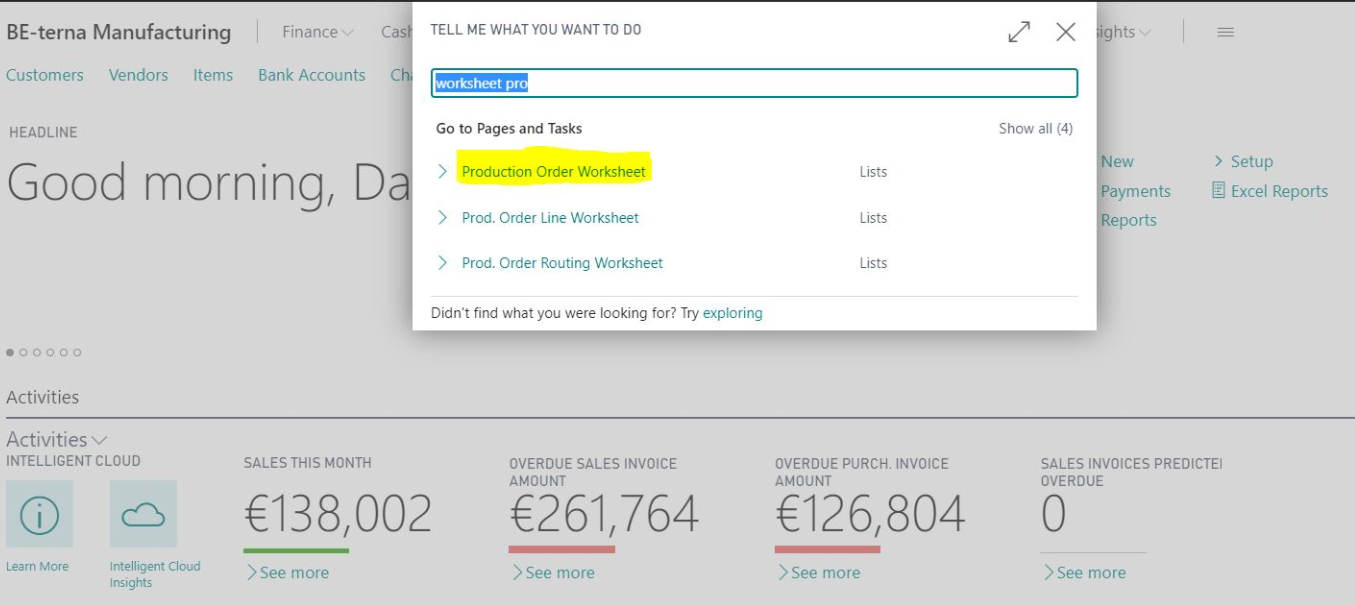
- Use Tell Me to open Production Order Worksheet.
The page shows production orders with these statuses:
- Simulated
- Planned
- Firm Planned
- Released
- Finished
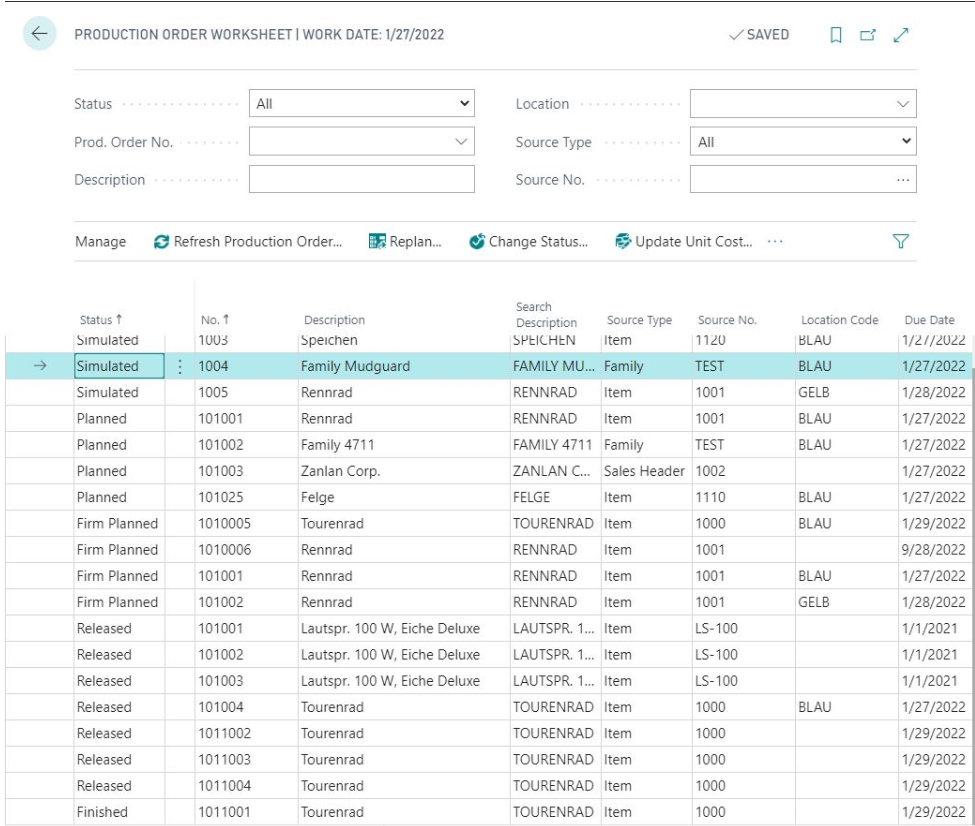
The page is not editable. If you want to change data, open the Production Order Card through Navigate or switch to the relevant journal.
The upper area provides predefined filters:
- Status
- Prod. Order No.
- Description
- Location
- Source Type / Source No.
With the filter icon, you can add any field from the production order table as a filter. This lets you analyze orders by item, customer, date, or other order-specific criteria.
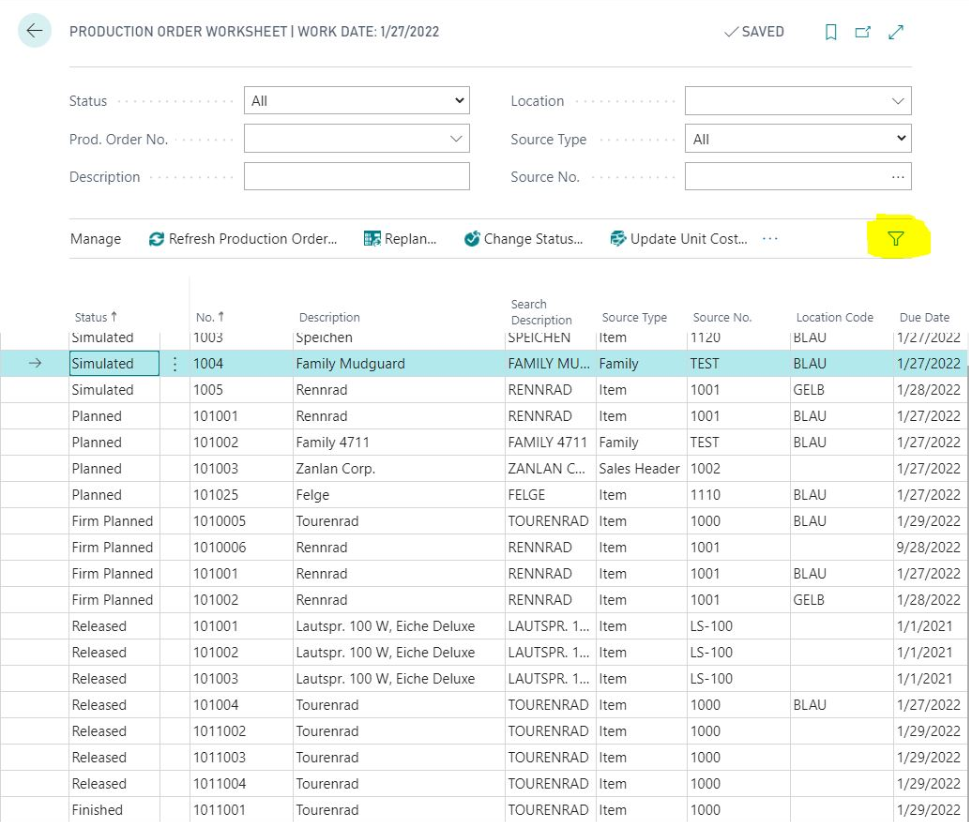
For text filters, such as Description, use the standard Business Central filter criteria.
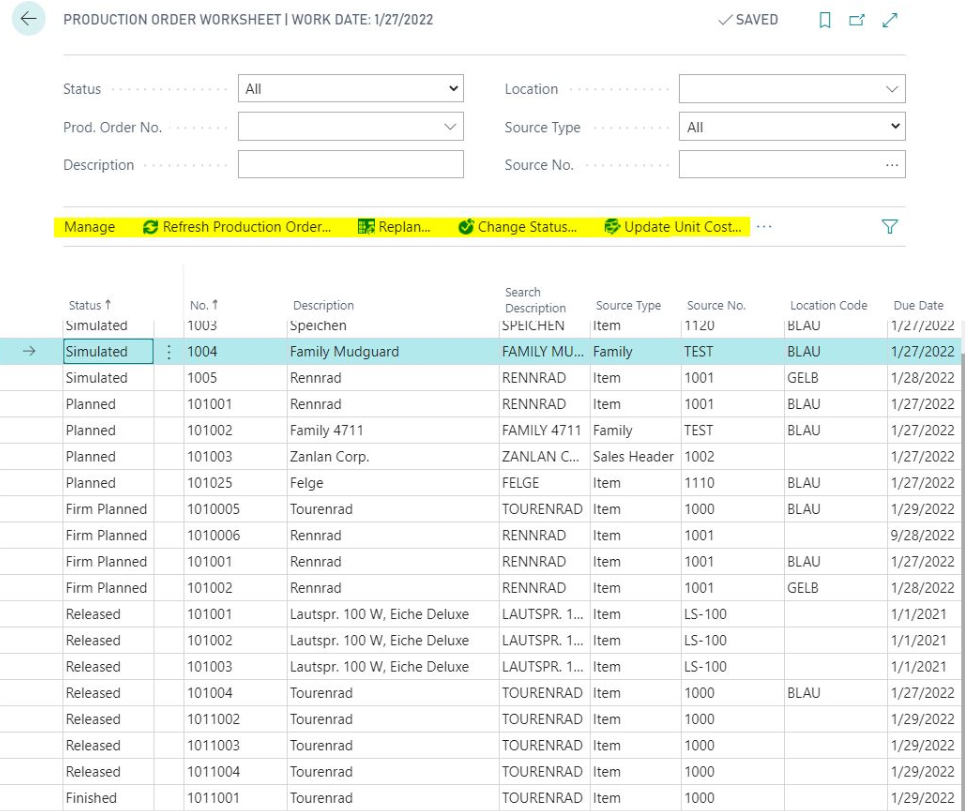
Depending on the status, the worksheet provides actions and navigation targets such as:
- Refresh Production Order
- Replan
- Change Status
- Update Unit Cost
- Open Production Journal
- Create Warehouse Documents
- Open the Production Order Card
- Print reports
- Navigate to entries
Use the Production Order Line Worksheet
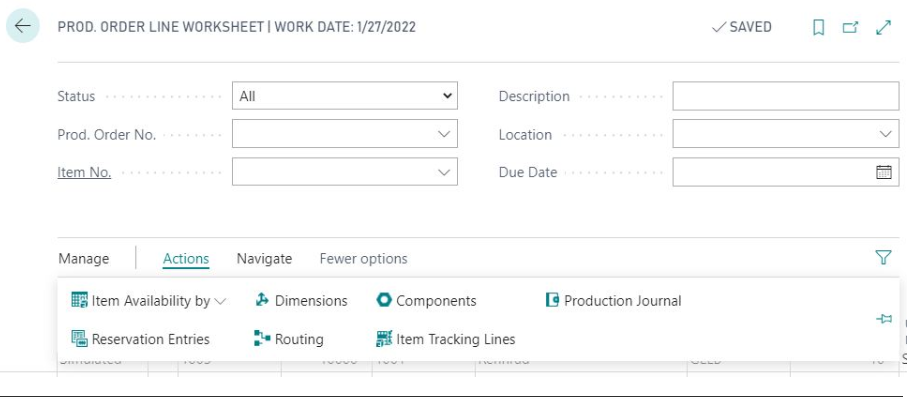
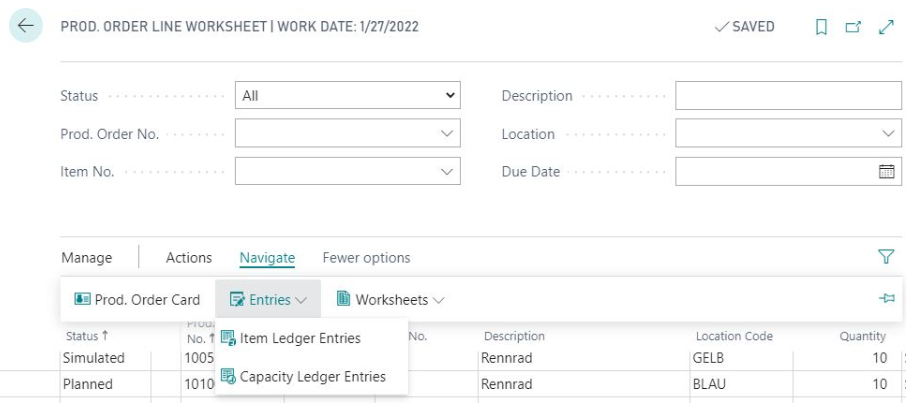
The Production Order Line Worksheet shows all production order lines across all statuses. This lets you analyze production positions without first opening a single production order. The worksheet is especially useful for analysis by item, location, due date, or production order number.
- Use Tell Me to open Prod. Order Line Worksheet.
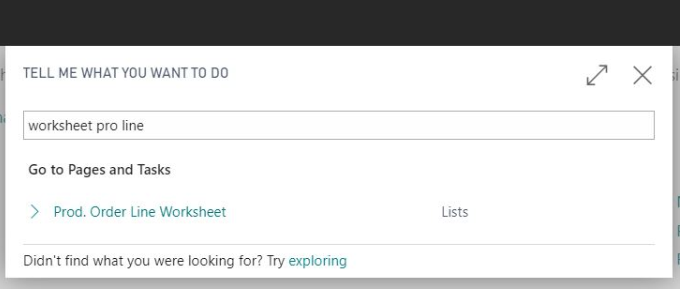
The page has three working areas:
- Filter
- Manage, Action, and Navigate
- Lines
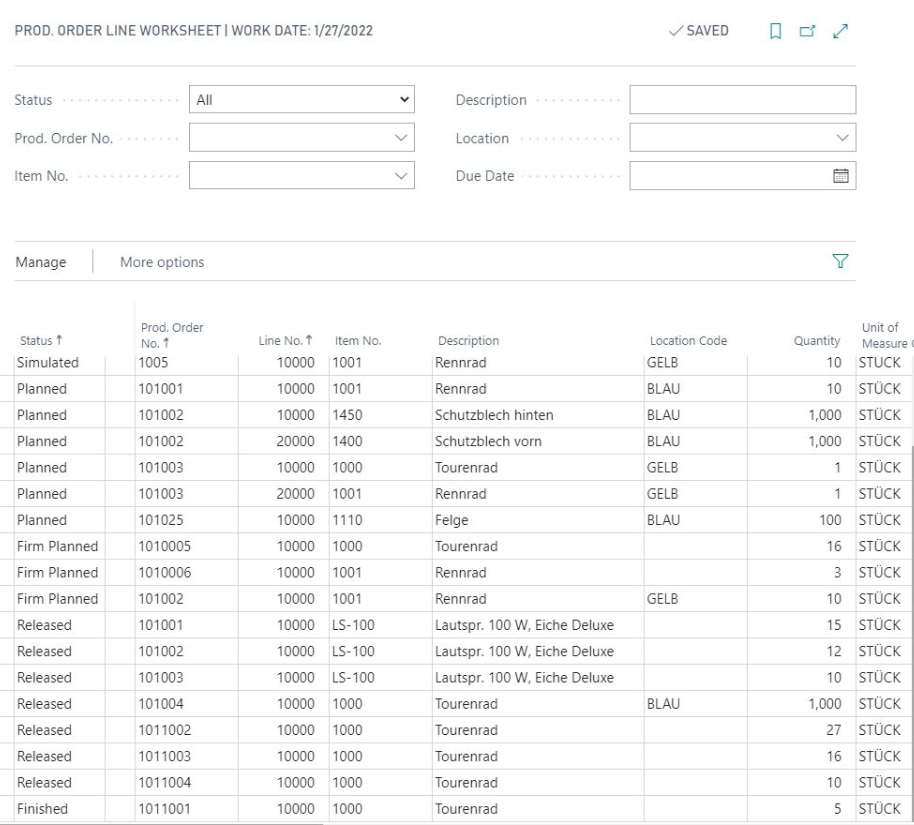
The page is not editable. If you want to change data, open the Production Order Card through Navigate.
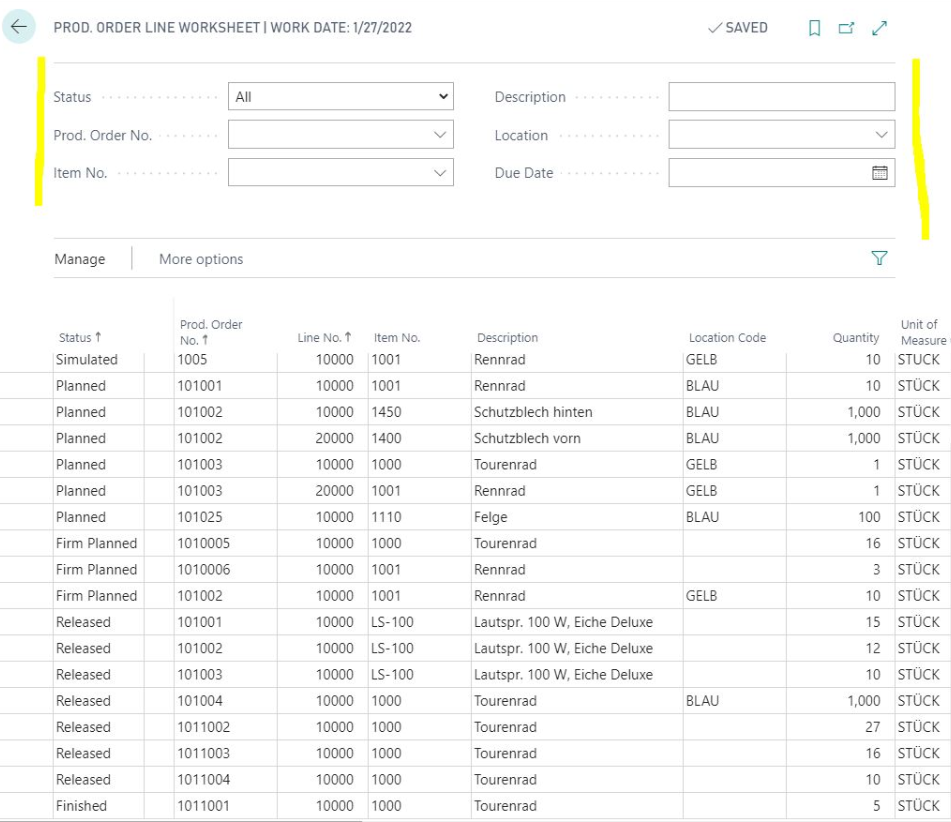
The predefined filters are:
- Status with Simulated, Planned, Firm Planned, Released, and Finished
- Prod. Order No.
- Item No.
- Description
- Location
- Due Date
With the filter icon, you can add any field from the production order line.
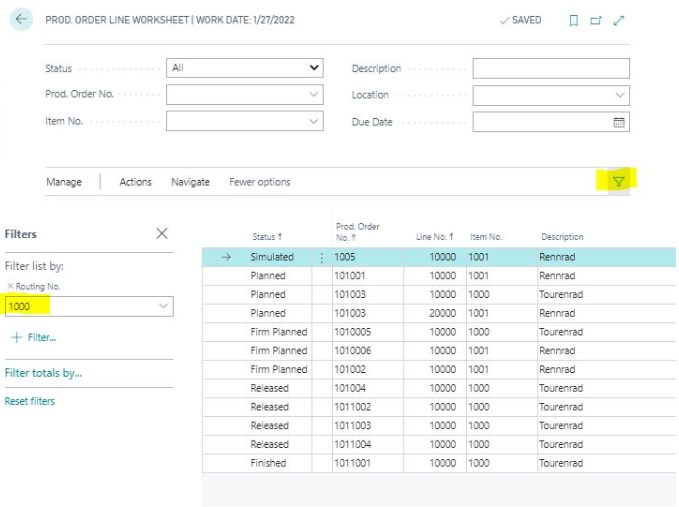
From the Production Order Line Worksheet, you can navigate into connected data and use actions known from the production order card.
Use the Production Order Routing Worksheet
The Production Order Routing Worksheet shows routing lines for all production orders in one list. It helps users review operations, work center groups, work centers, machine centers, and dates across several production orders. The worksheet is especially useful when daily control starts from capacities or operations rather than from the production order header.
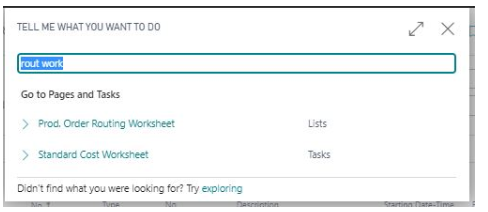
- Use Tell Me to open Prod. Order Routing Worksheet.
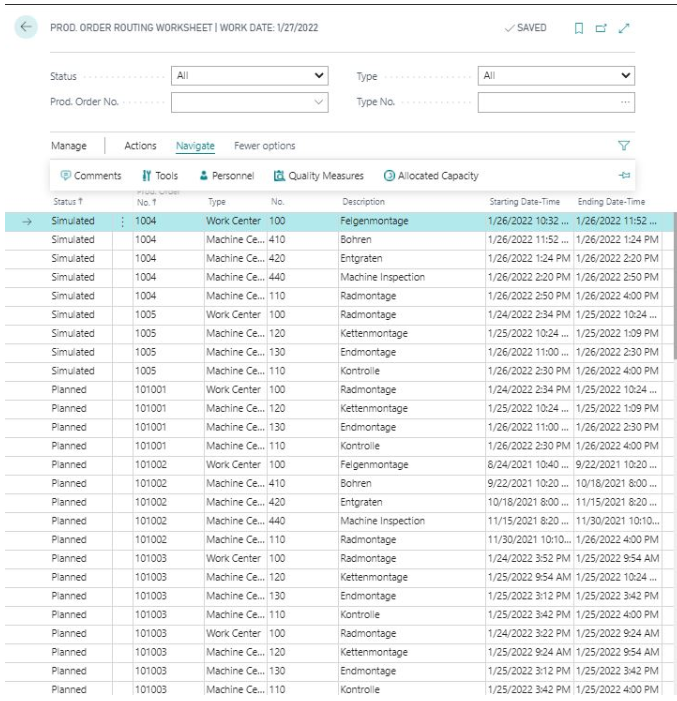
The page has three working areas:
- Filter
- Manage, Action, and Navigate
- Lines
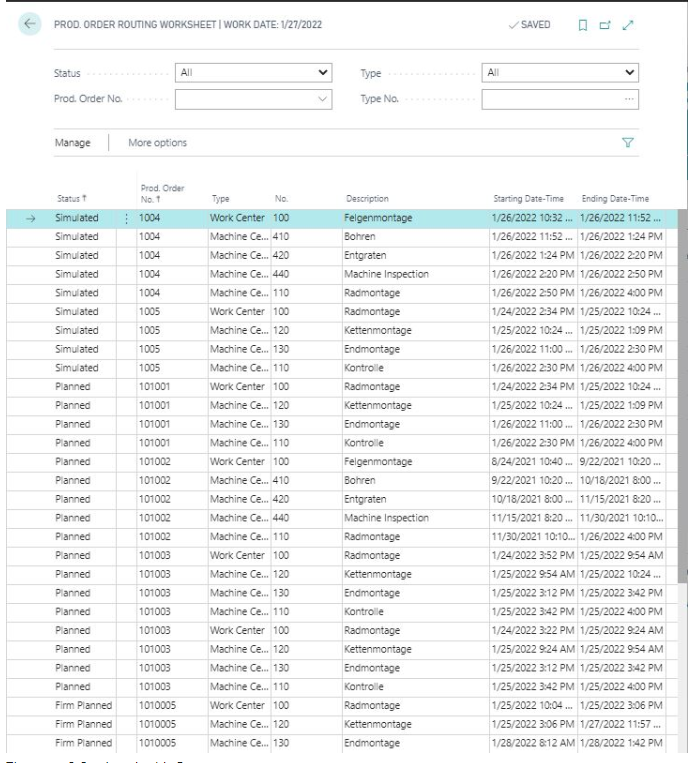
The page is not editable. If you want to change data, open the Production Order Card.
The filter area provides these fields directly:
- Status with Simulated, Planned, Firm Planned, Released, and Finished
- Prod. Order No.
- Type with Work Center Group, Work Center, or Machine Center depending on the implementation
- No. for the selected capacity number
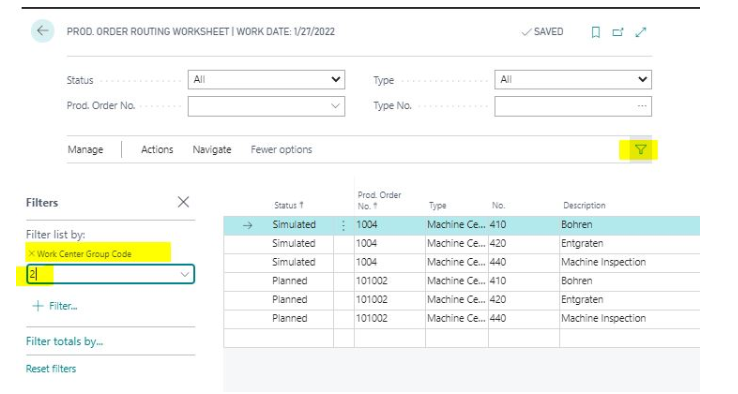
With the filter icon, you can select any field from the production order routing line table.
Through Navigate, you can open connected information such as Production Order Card, Comments, Personnel, Tools, Quality Measures, and Allocated Capacities.
Use the Production Order Component Worksheet
The Production Order Component Worksheet shows components for all production orders in all statuses. Without this worksheet, component demand for an item is often visible only indirectly from the item card, for example through quantity-on-component-line values. The component worksheet shows directly in which production orders an item is or was used.
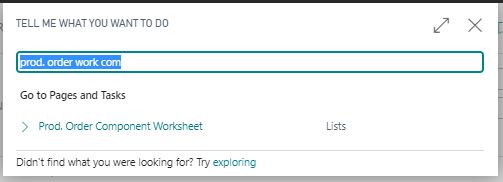
- Use Tell Me to open Prod. Order Component Worksheet.
The page has three working areas:
- Filter
- Manage, Action, and Navigate
- Lines
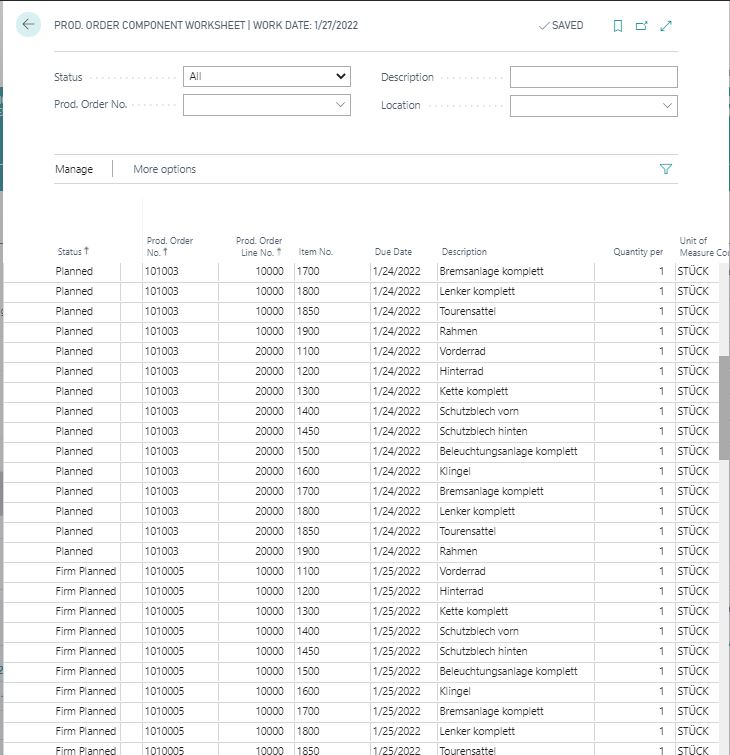
The page is not editable. If you want to change data, open the Production Order Card.
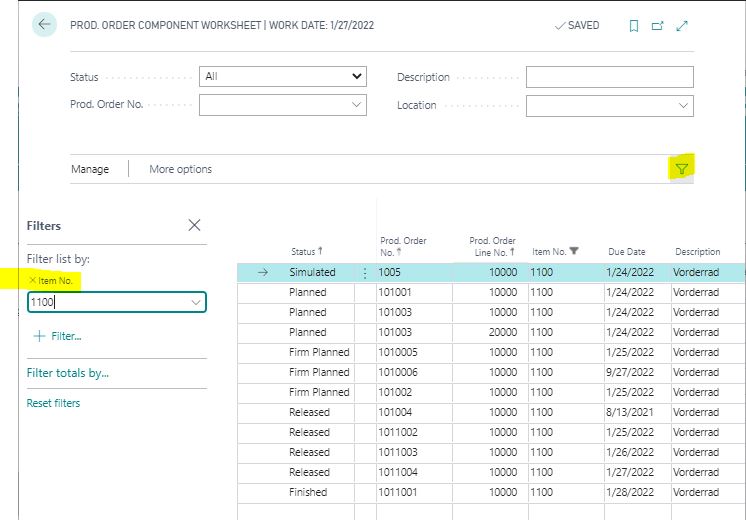
The filter area provides these fields directly:
- Status with Simulated, Planned, Firm Planned, Released, and Finished
- Prod. Order No.
- Description
- Location
With the filter icon, you can select any field from the production order component line.
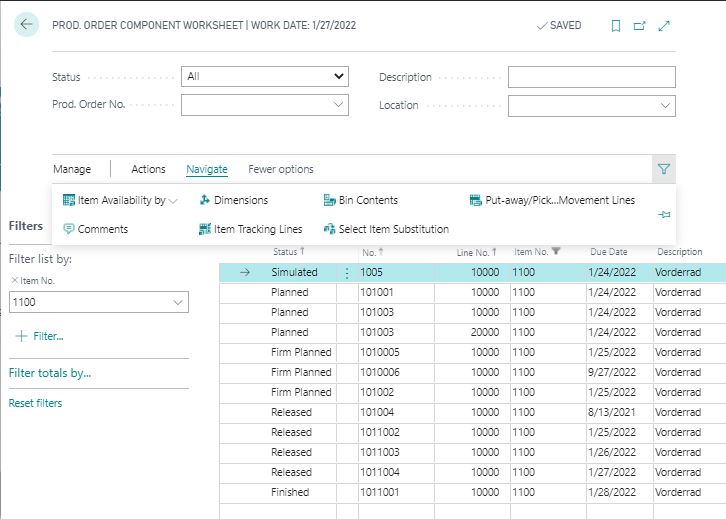
Through Navigate, you can open connected data such as Production Order Card, Dimensions, Availability, Item Tracking for lot or serial numbers, Substitutions, and Bin Contents.
Review production order progress
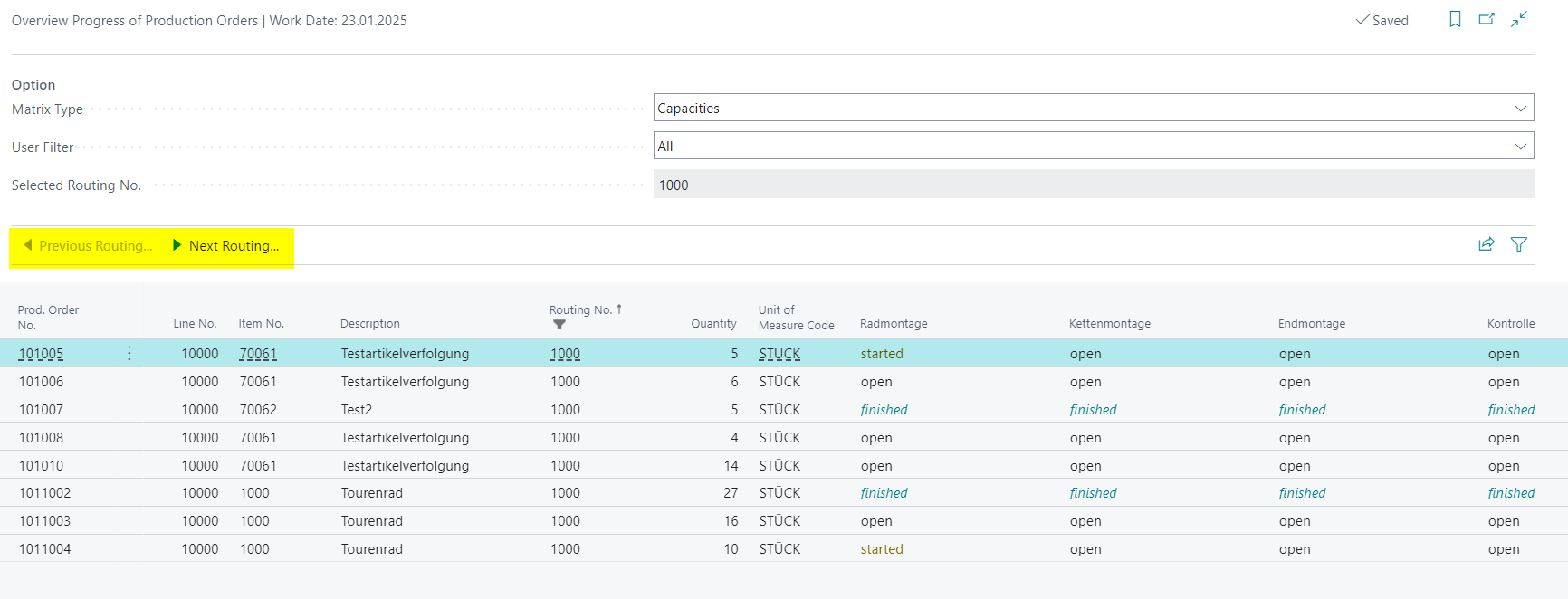
The Overview Progress of Production Orders helps users evaluate the progress of released production orders by production step. The overview can be opened from search, from the Production Order Worksheet, or from the Production Order Line Worksheet.
You select a matrix type, a user filter, and a routing number. The evaluation is based on the item routing number and changes according to the selected view.

These matrix types are central:
- Capacities: open, started, and finished quantity in assigned work center groups, work centers, or machine centers.
- Quantities Numbers: finished quantity in assigned work center groups, work centers, or machine centers.
- Quantities Percentage: ratio of finished to expected quantity in assigned work center groups, work centers, or machine centers.
- Scrap: scrap quantity in assigned work center groups, work centers, or machine centers.
- Delayed Operation: evaluation whether production start is not overdue and a capacity entry already exists.
The user filter changes the result. Use All for the complete view or My Routings to narrow the overview to the user’s routing responsibility.
Use the navigation buttons to move to the next routing number or back to the previous one.
Trace related item entries forward and backward
Positive and negative item ledger entries are applied to each other in Business Central. Standard functionality usually shows applied entries in one direction only. In practice, users often need to follow the value chain from beginning to end or the other way around, especially when production or assembly orders are part of the chain.
The Applied Entries Forward/Backward function extends analysis on the Item Ledger Entries and Applied Item Entries pages. You can start from any item entry and follow the chain in both directions.
- Open Item Ledger Entries.
- Select an entry, for example a sale or purchase entry.
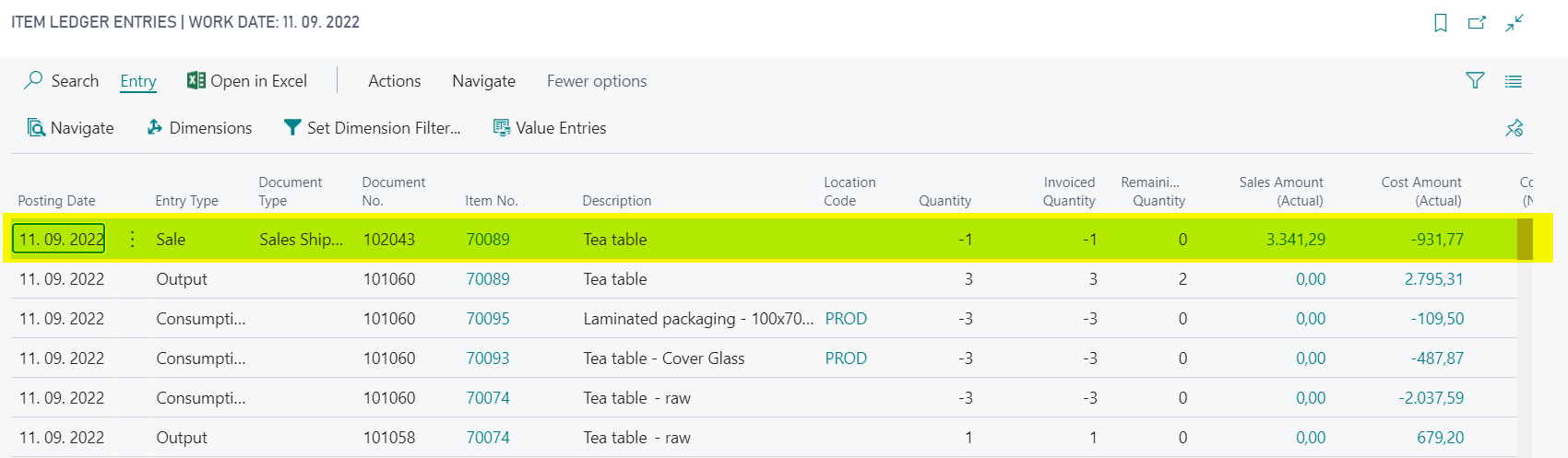
- Choose Navigate > Application > Applied Entries.
The View Applied Entries page shows the positive entries to which the negative entry is applied.
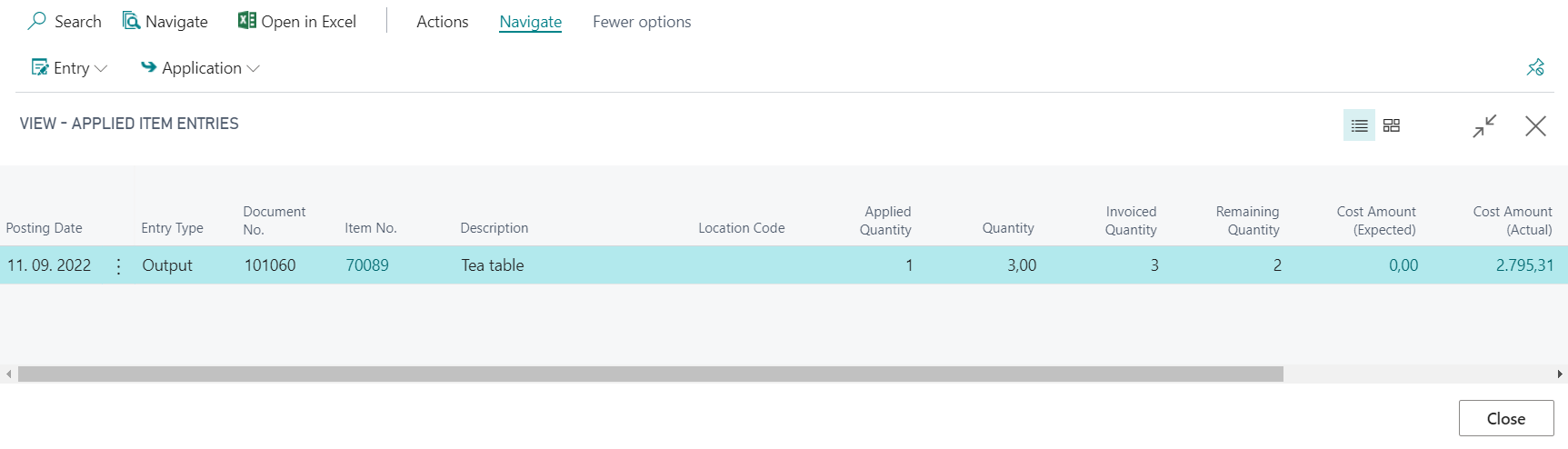
- Select one negative entry and choose Navigate > Application > Applied Entries Forward/Backward.
A new View Applied Entries page opens and shows the connected counter entries.
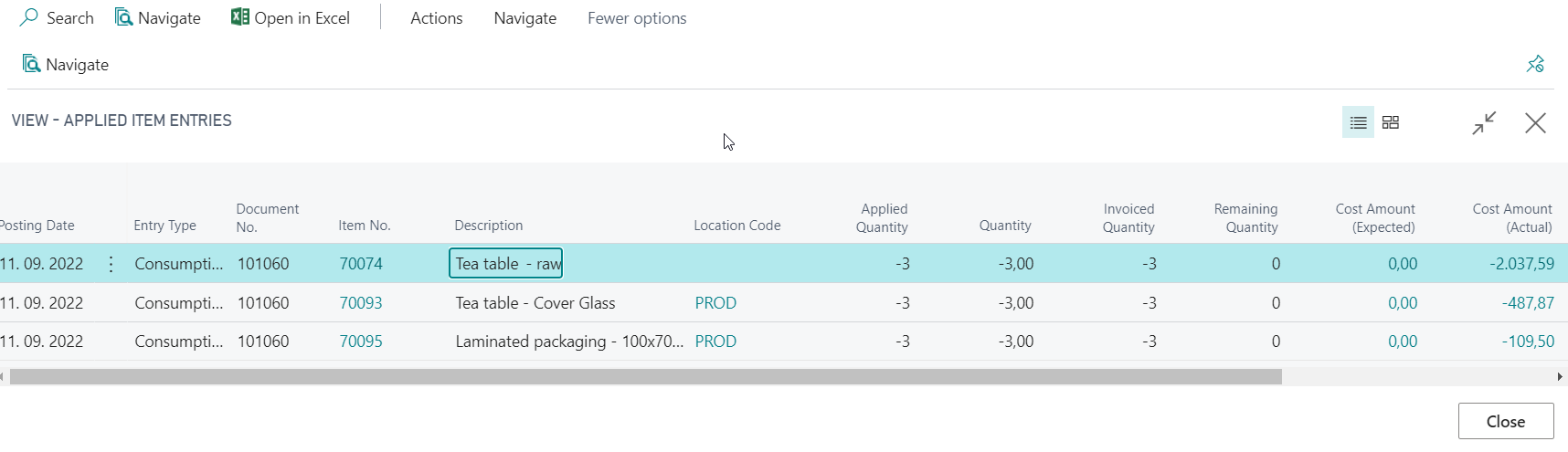
Repeat the switch between Applied Entries and Applied Entries Forward/Backward until you have traced the origin or target of the value chain. The functions show the opposite direction of usage and are useful for traceability, root-cause analysis, and stock clarification.
Result
After setup and use, you can analyze production orders, lines, operations, and components across statuses, open detail data deliberately, review production progress, and trace related item entries along the value chain.
Links