Status Management
Purpose
Status management bundles enhancements that make production order status changes safer and more efficient. BE-terna Manufacturing provides overview pages, checks, and additional options so that users can review material, component consumption, operations, and open postings before releasing or finishing production orders.
Business Value
- Planned and firm planned production orders can be checked for material availability before release.
- Released production orders can be checked before finishing based on components, routing lines, picks, and capacity entries.
- Status changes can be run for selected production orders and printed where required.
- Several released production orders can be changed to Finished in a more controlled way, even when warnings about remaining quantities occur.
- Predefined filters in production order control setup speed up work with large order volumes.
Check Firm Planned Production Orders Before Release
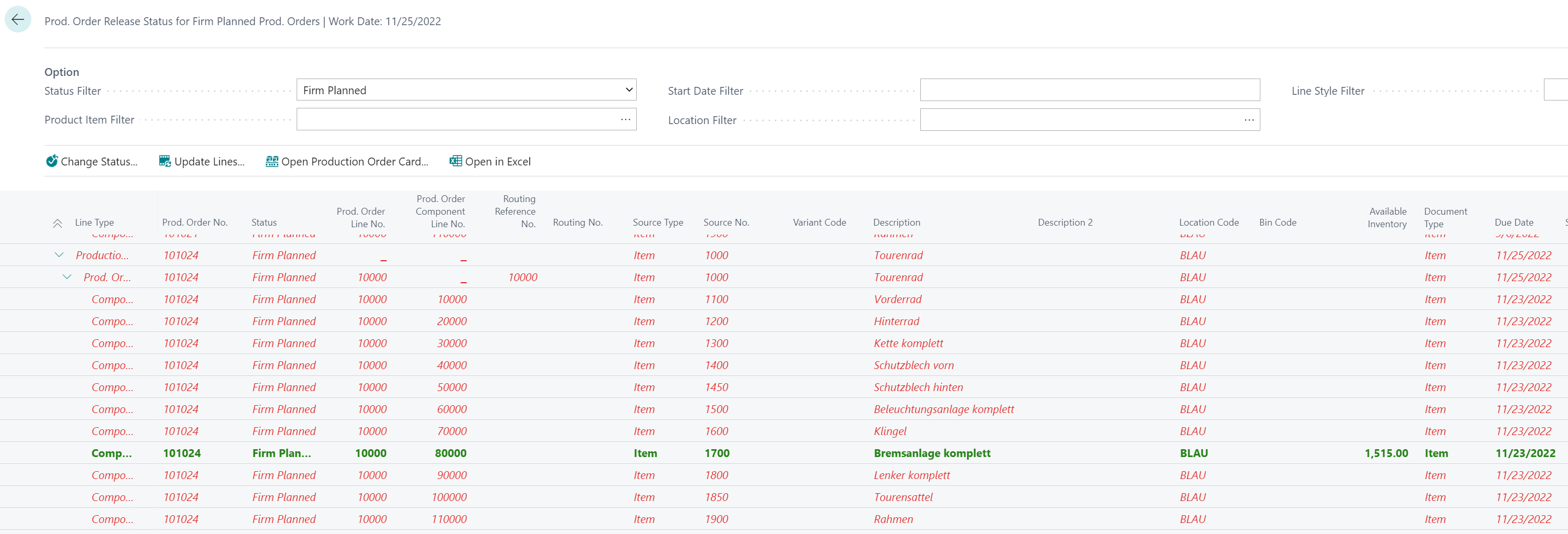
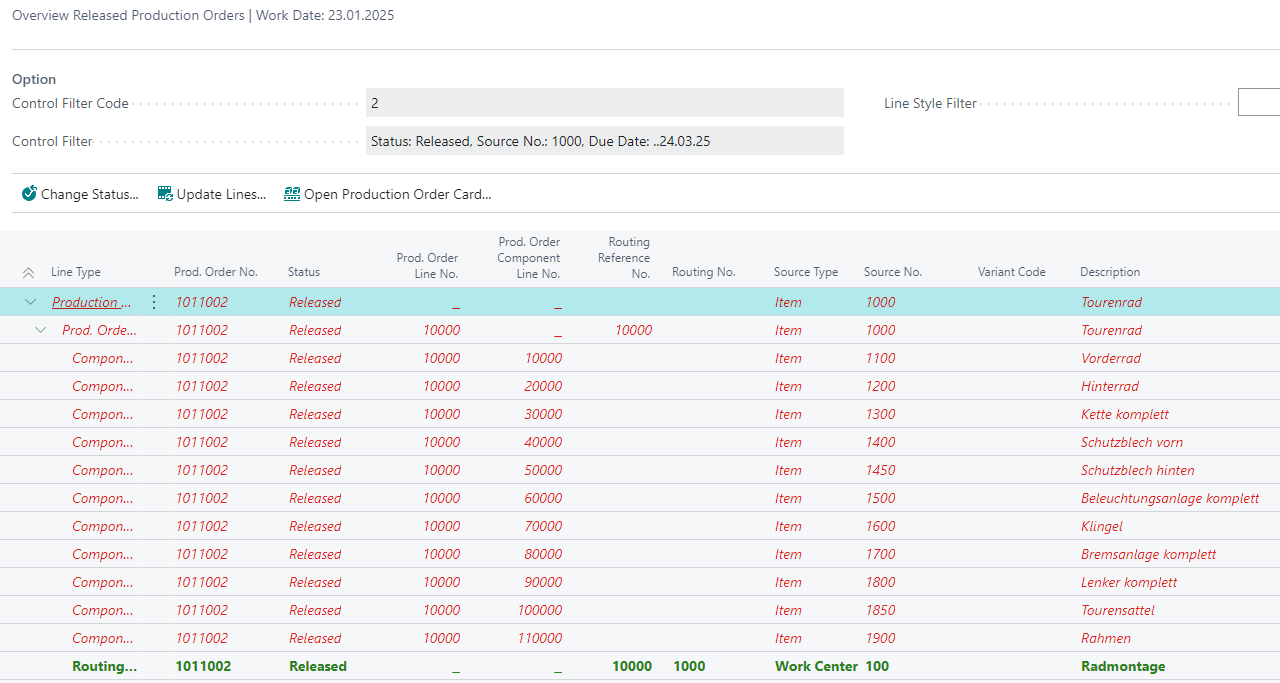
The Prod. Order Release Status for Firm Planned Prod. Orders page shows planned and firm planned production orders, their lines, and components in a structure. Required quantities and available inventory are calculated per component. If available inventory is lower than total requirement, the component is marked red. The parent production order line and production order header are also marked red.
- Open Prod. Order Release Status for Firm Planned Prod. Orders.
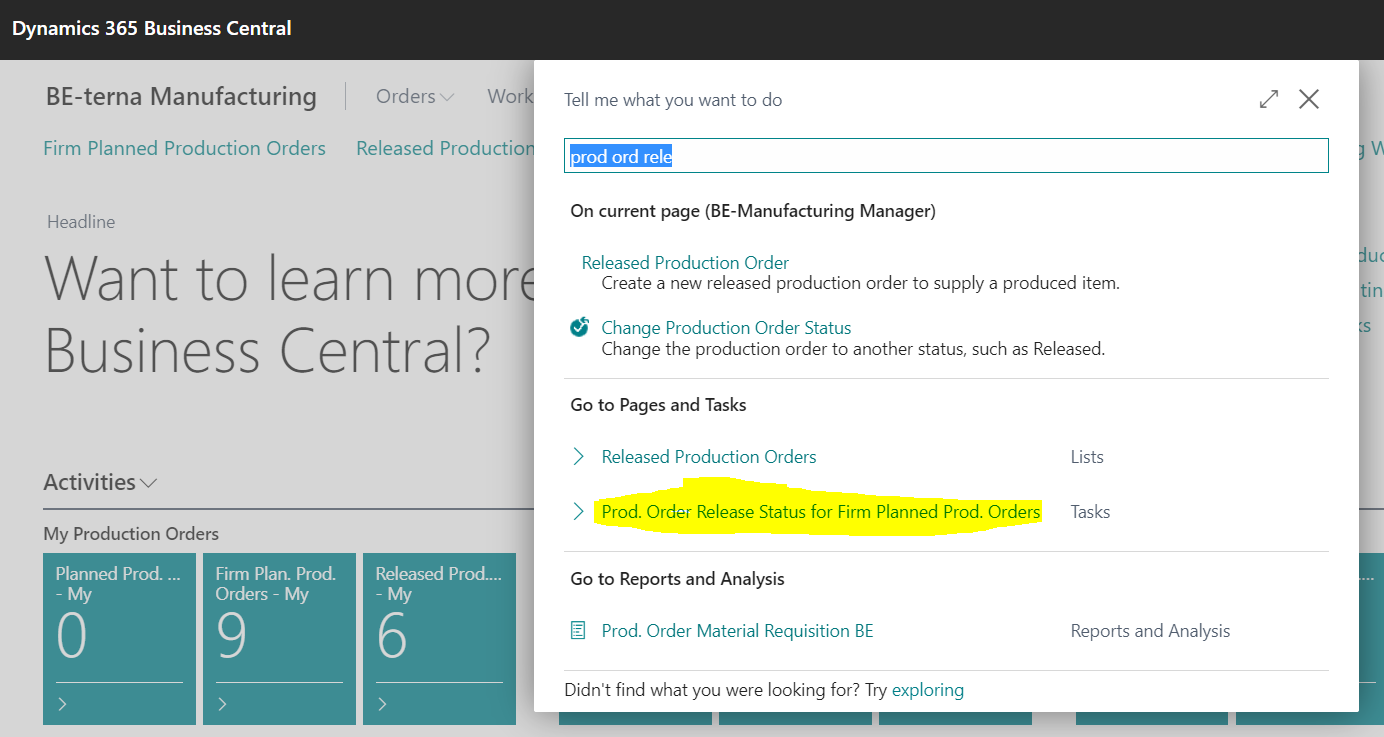
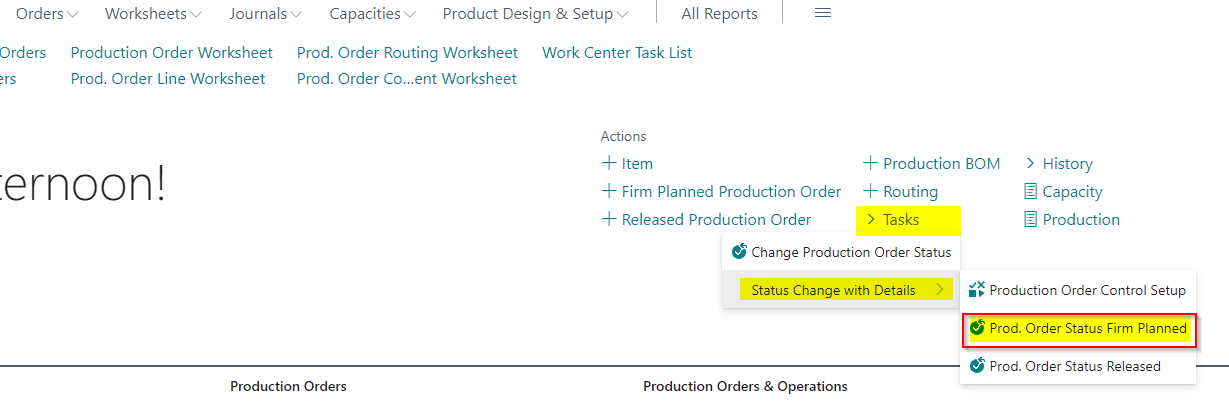
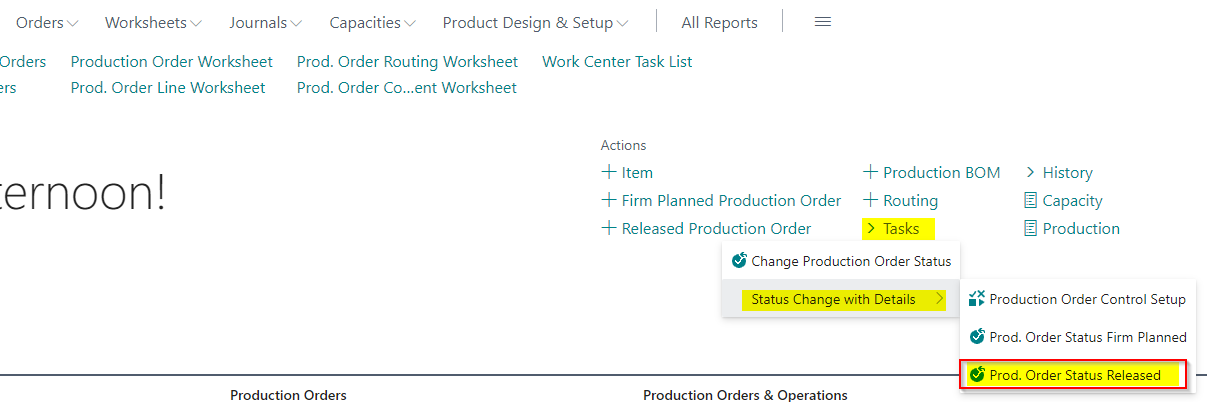
Alternatively, open the page from the BE-Manufacturing role center under Tasks.
The page displays production order header, line, and components in a structure.
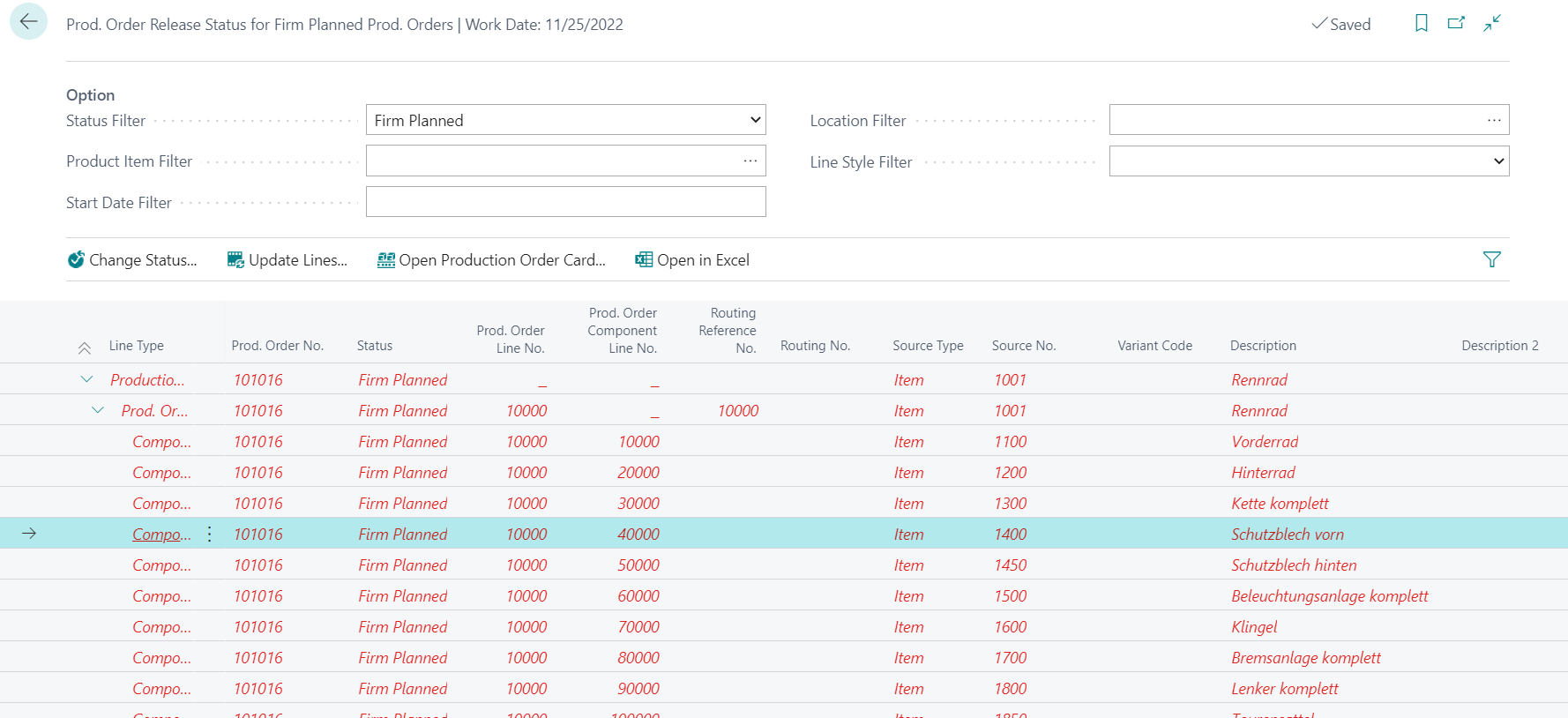
In the top area, you can set filters such as:
- Status: Planned or Firm Planned
- Item
- Starting Date
- Location
- Line Style / warnings
Use Update Lines to rebuild the view based on the filter. Actions such as Change Status, Update Lines, Open Production Order Card, and Open Excel are available for further processing.
A status change can still be carried out for production orders marked red. The color is an indication, not an interruption. Missing items may already be incoming or may only be required later.
Check Released Production Orders Before Finishing
The Overview Production Orders ready to finish page lists released production orders with lines, components, and routing lines on one page. It helps verify that relevant postings are complete and correct before the status is changed to Finished.
- Open Overview Production Orders ready to finish.
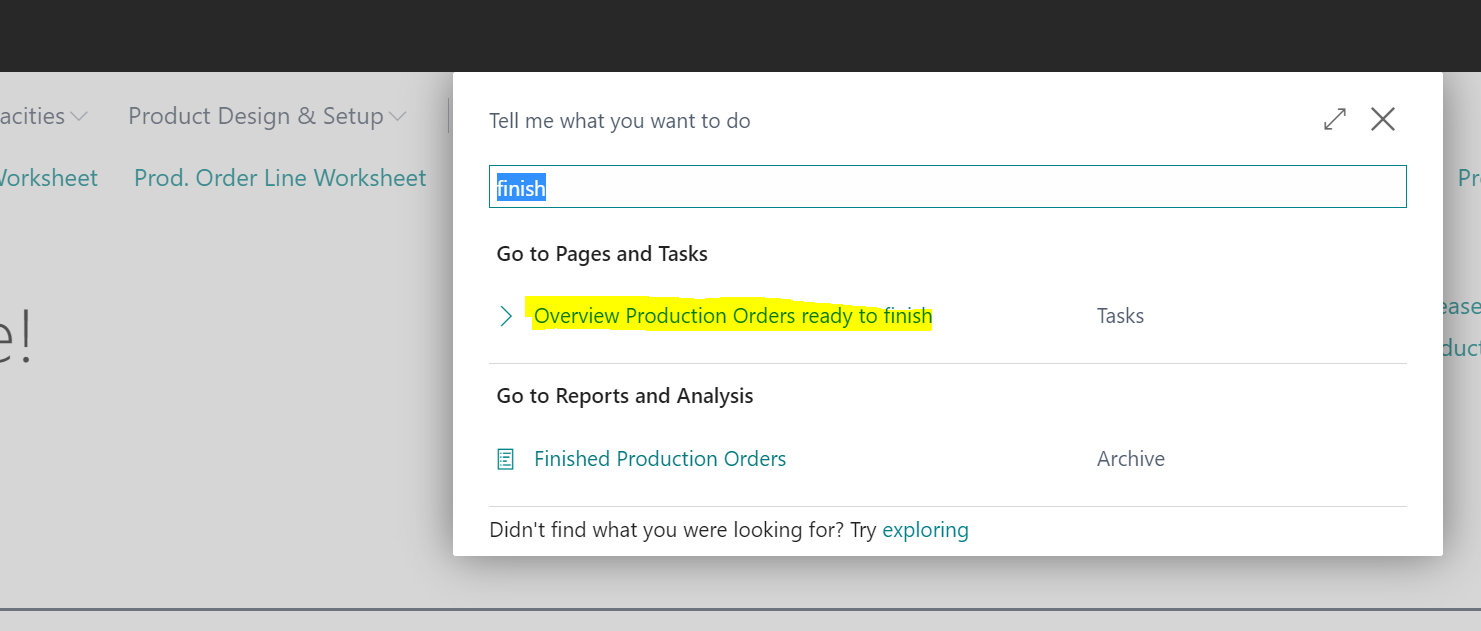
Alternatively, open the page from the BE-Manufacturing role center under Tasks.
The page displays this structure:
- Production Order Header
- Production Order Line(s)
- Production Order Components
- Production Order Routing Lines
- Production Order Line(s)
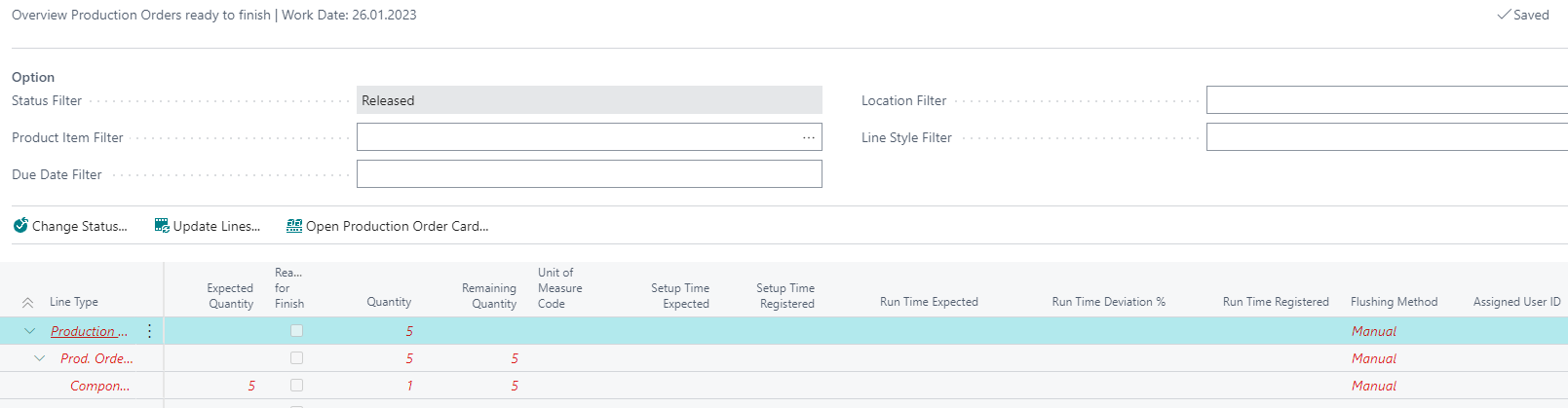
In the top area, you can set filters such as Item No., Due Date, Location Code, and Line Type.

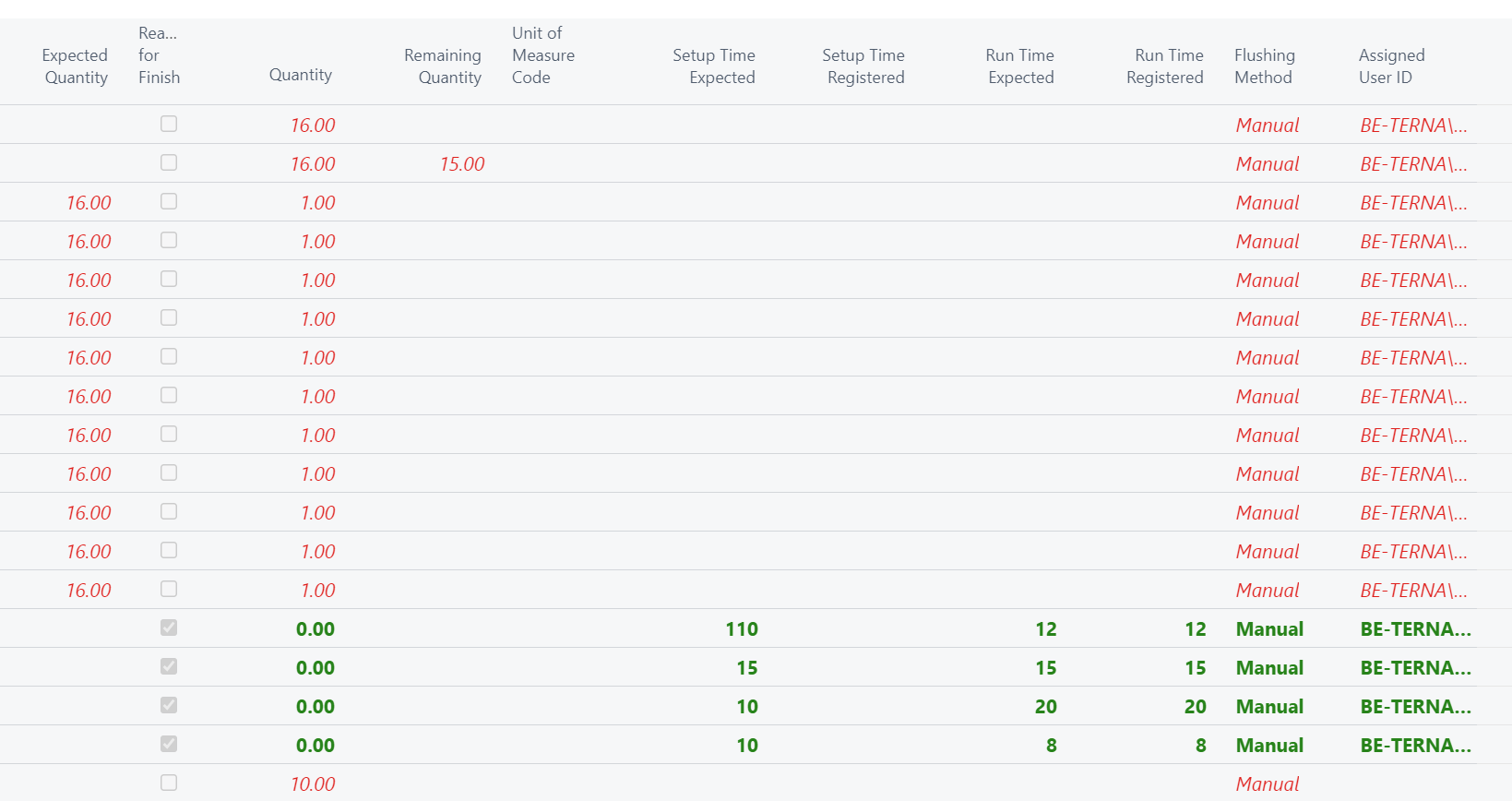
Every line is marked Ready to Finish. Yes is shown in green, otherwise the line is shown in red.
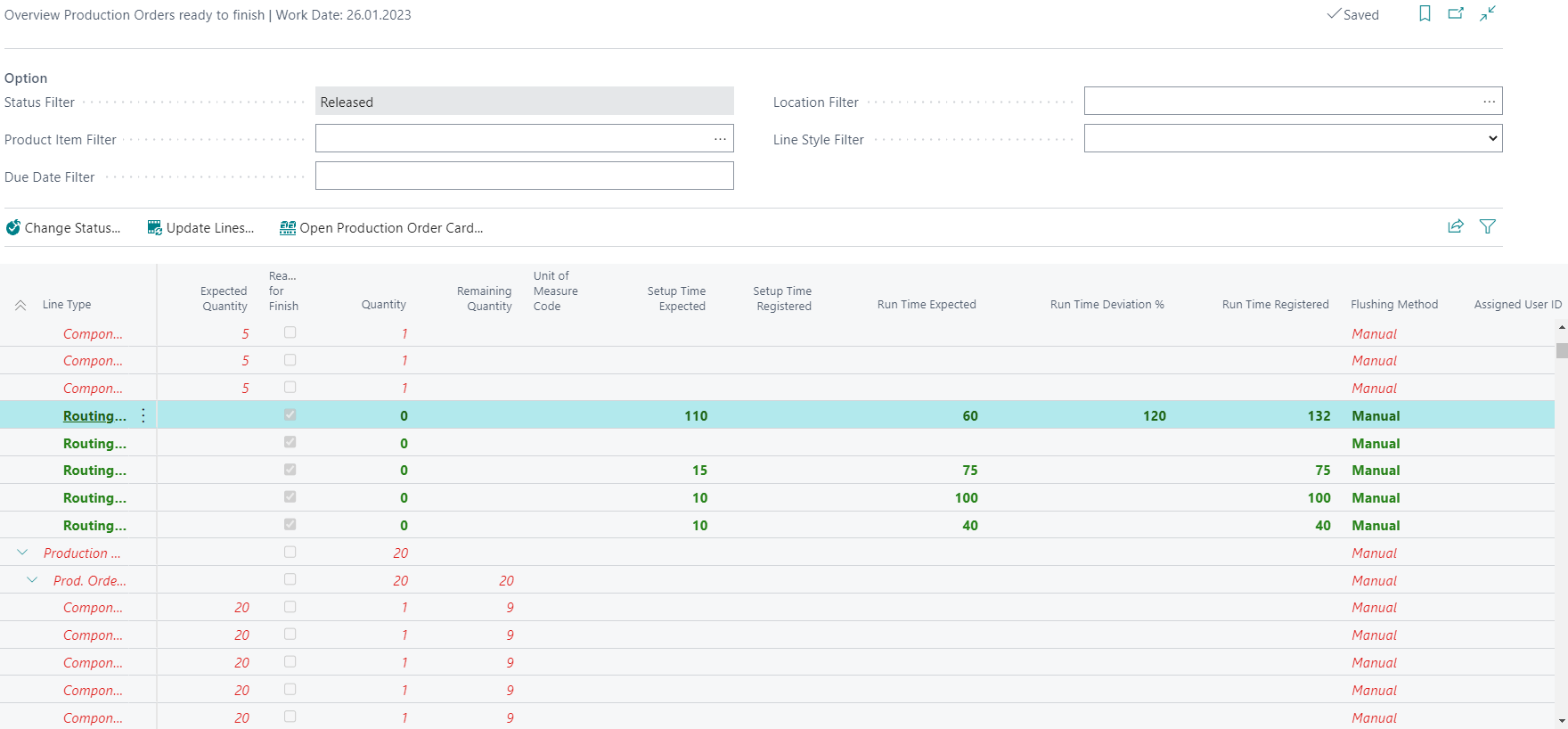
The definition differs by line type. Components and routing lines are checked by different rules.
Evaluate Components and Routing Lines
For components, reasons that may require attention before finishing include:
- Pick Order Exists = Yes: all pick orders must first be registered.
- Component consumption is still open where Flushing Method and Remaining Qty. indicate that consumption should already have been posted.
- With Flushing Method = Backward and no routing link code, sufficient inventory must be available for the expected quantity because consumption is posted when finishing the production order.
Use the Available Inventory drilldown to open the Bin Content List.
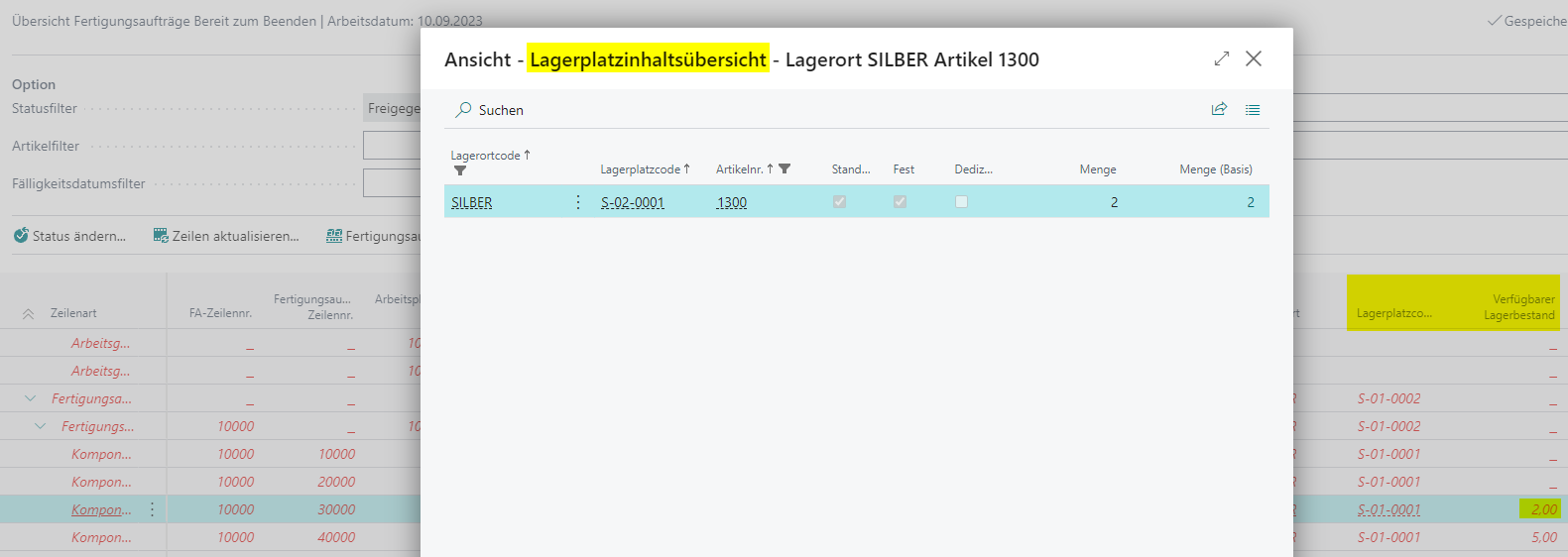
For routing lines, capacity consumption is relevant. For manual flushing methods, at least one capacity ledger entry must exist.
If a component or routing line is not Ready to Finish, the parent production order line and header are also marked as not ready. This is a check, not a technical blocker: the status can still be changed to Finished deliberately.
Use Production Order Control Setup
With many production orders, the overview pages can take a long time to build. Use Production Order Control Setup to provide predefined filters.
- Open Production Order Control Setup.
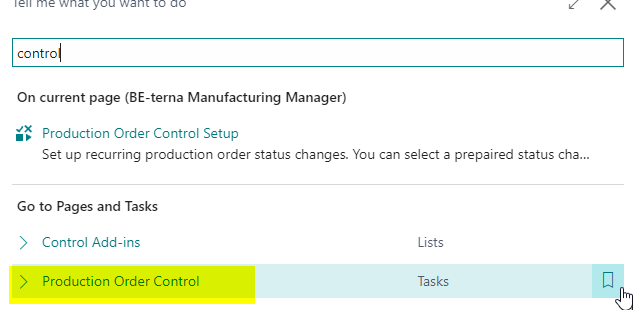
Alternatively, open the setup from the role center.
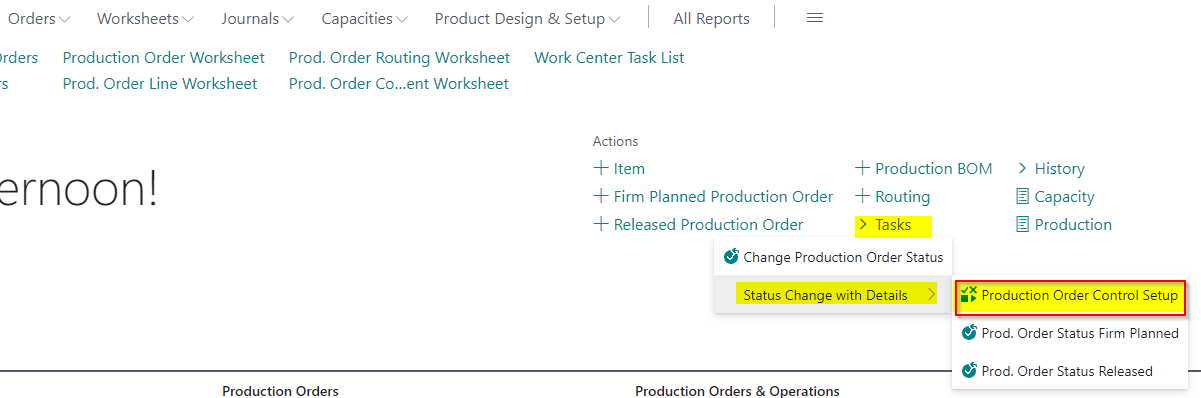
For finishing checks, define filters for released production orders.

You can maintain fields such as:
- Code
- Description
- Status Filter
- Due Date Formula
- Filter 1 to Filter 5
Use Start production control to calculate the corresponding overview page with the specified filter and selected setup line.
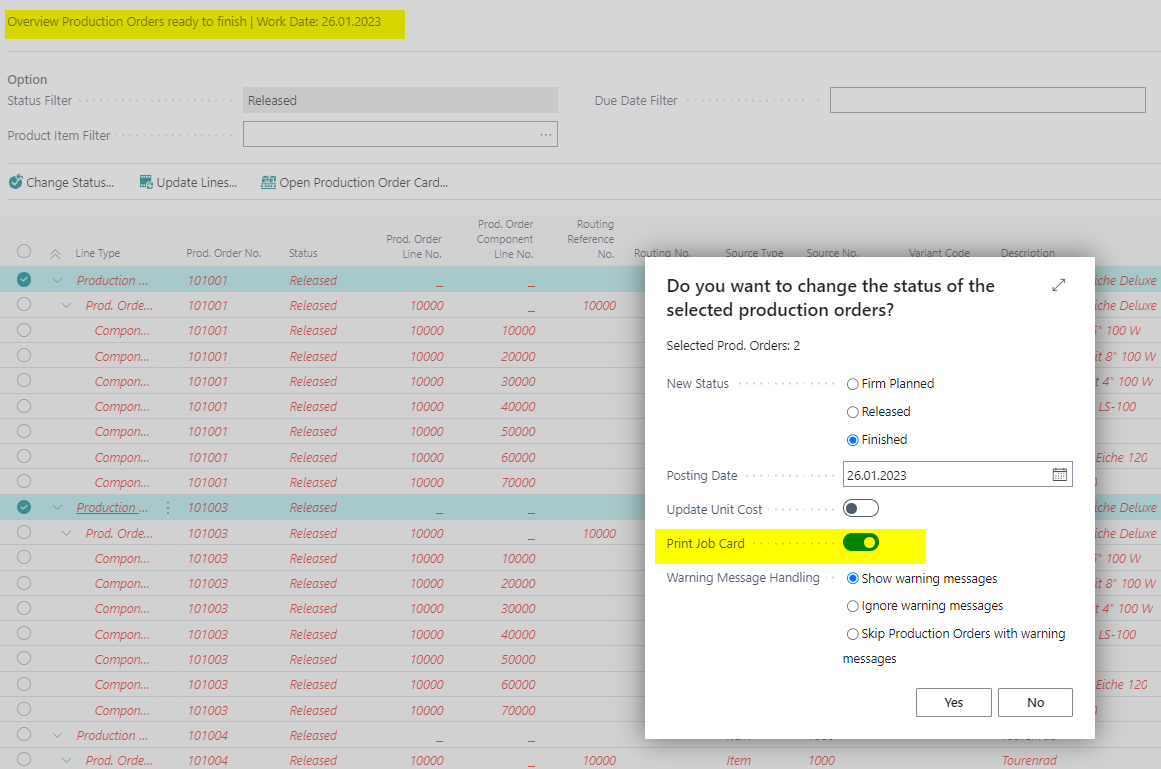
Print During Status Change
The Change Status function has been extended with a print option. This allows marked production orders to be printed when their status changes. No additional setup is required.
The function is available on these BE-terna Manufacturing pages:
- Production Order Worksheet
- Overview Production Orders ready to finish
- Prod. Order Release Status for Firm Planned Prod. Orders
Typical flow on the Production Order Worksheet or status-change page:
- Create two or more planned or firm planned production orders.
- Open the status-change page or worksheet and set the status filter.
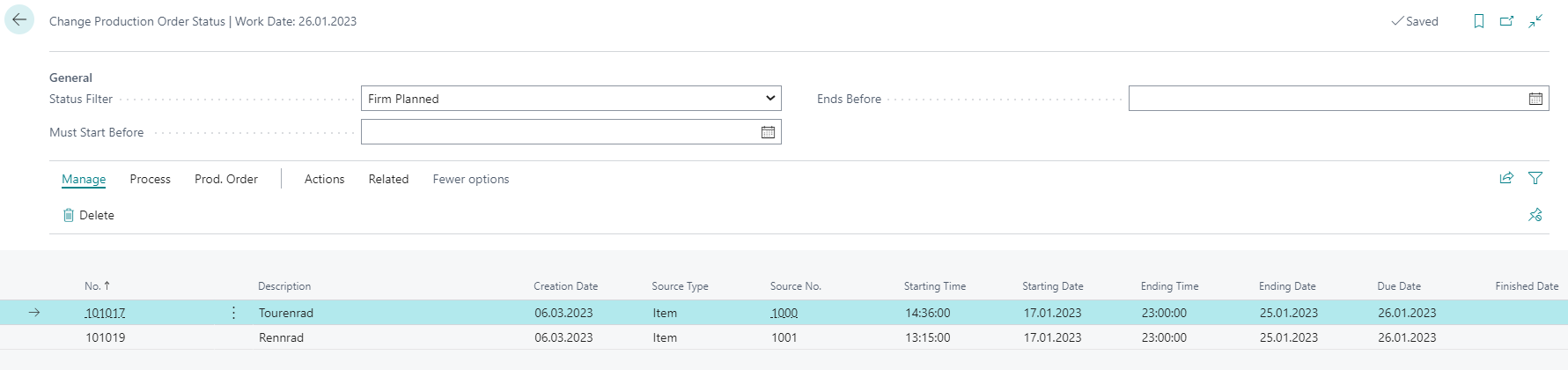
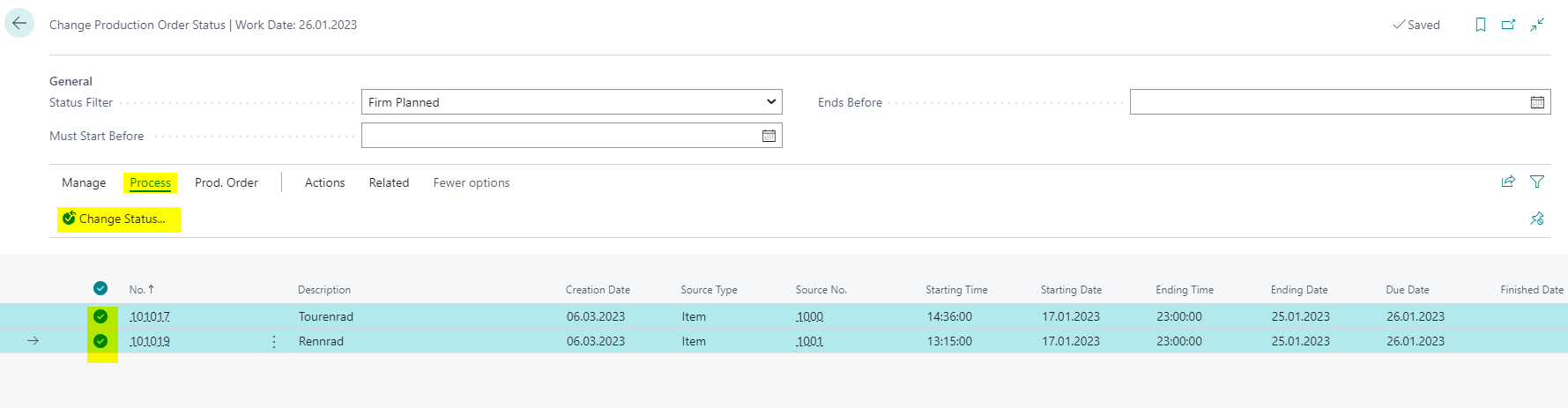
- Select all production orders whose status should be changed.
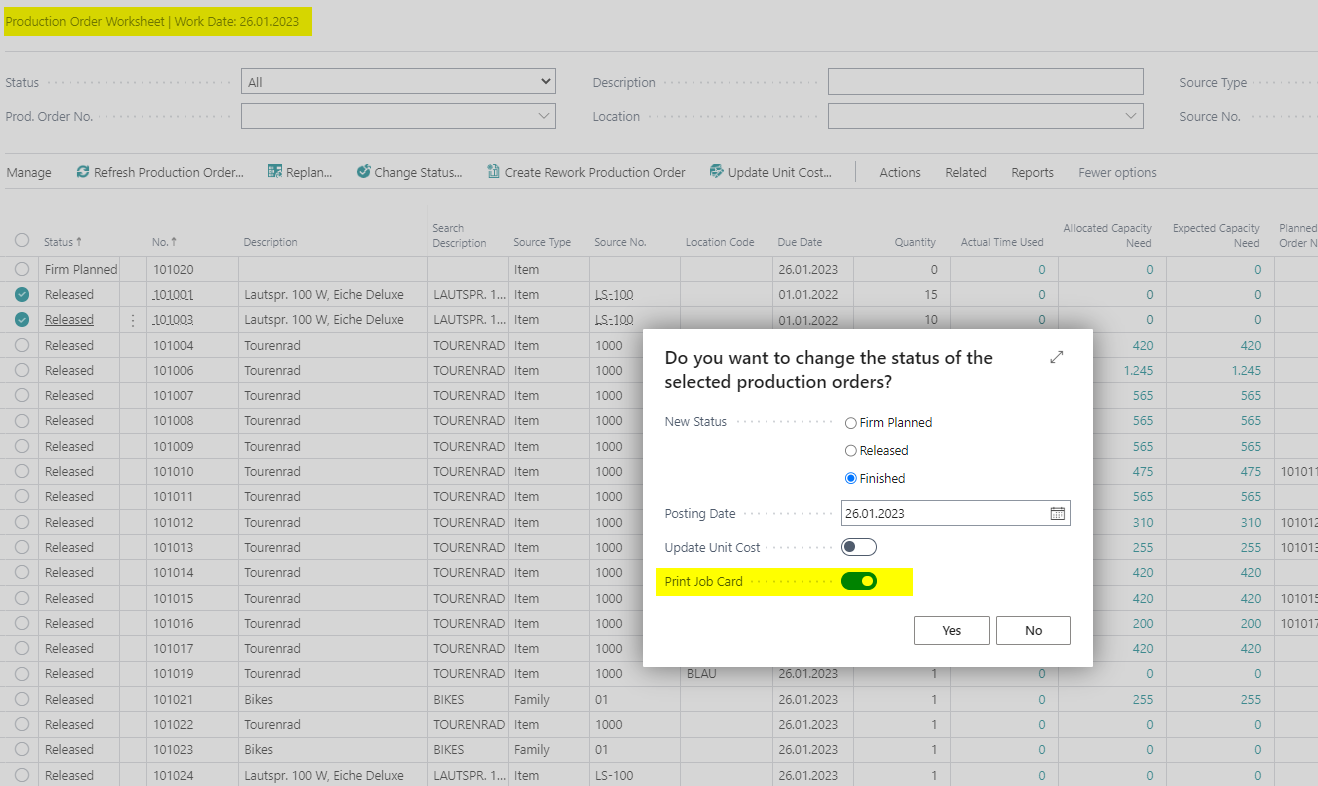
- Choose Process > Change Status….
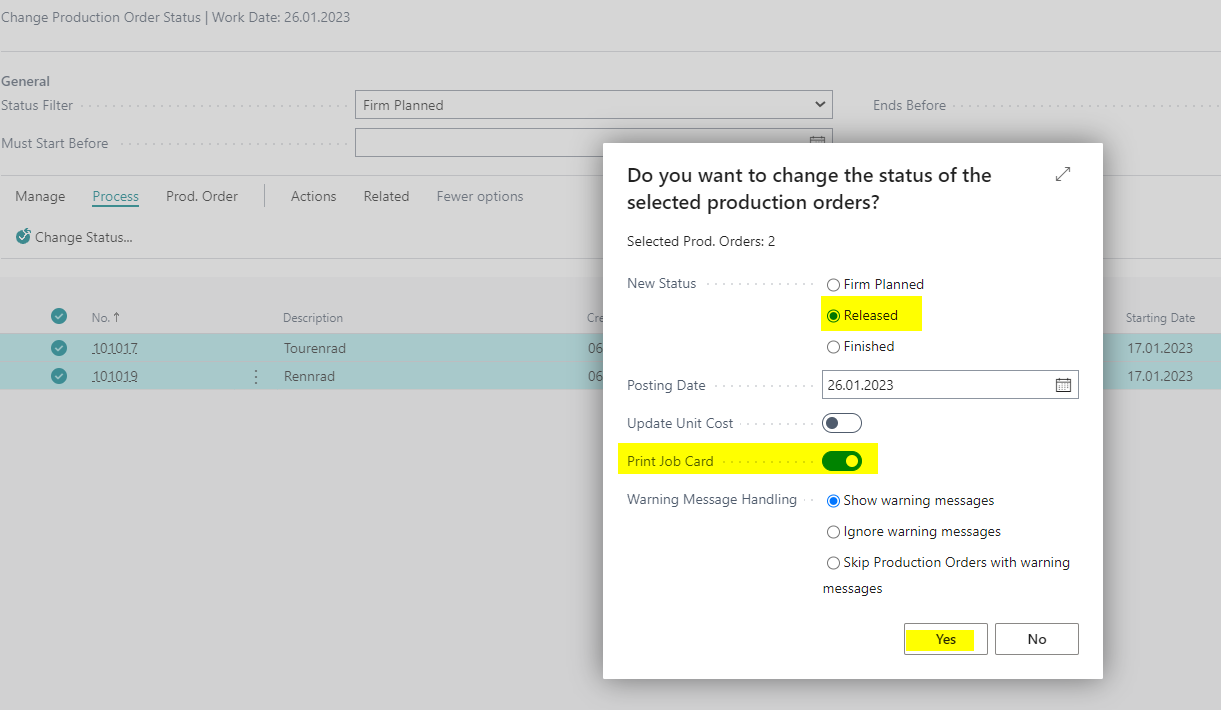
- On the request page, choose the new status, for example Released.
- Enable the print option.
- Confirm with Yes.
On the next print request page, you can print or preview the production orders whose status has changed.
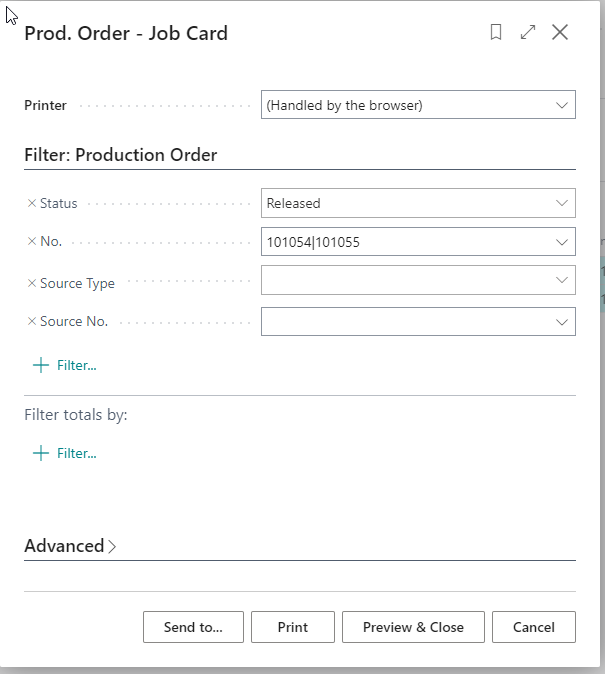
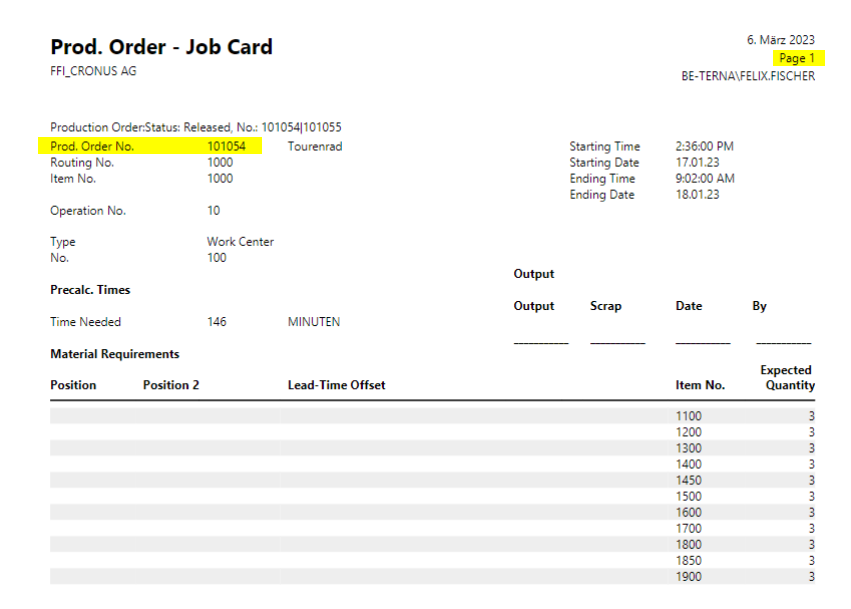
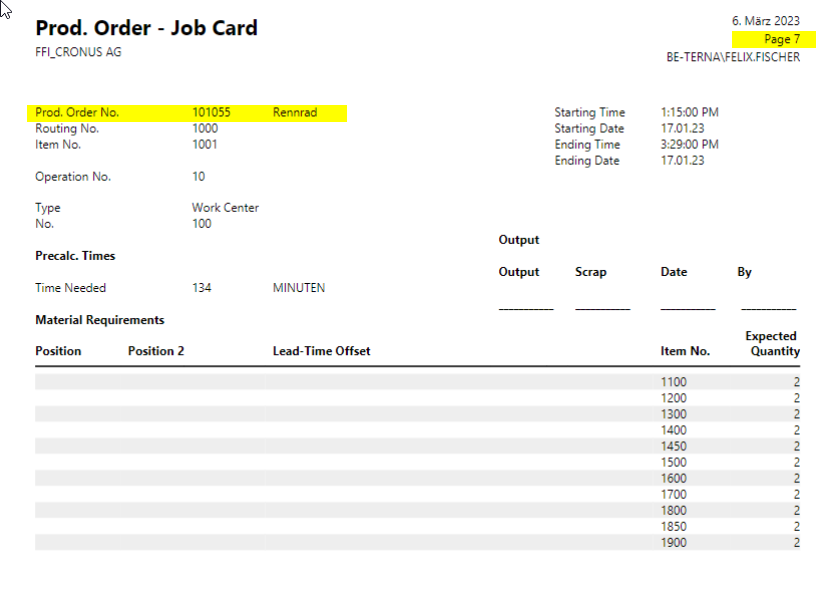
The print function is also available from Production Order Worksheet and Overview Production Orders ready to finish.
Finish Several Production Orders in a Controlled Way
BE-terna Manufacturing adds options for changing several production orders to Finished. This functionality comes from the EN-only source Friendlier PO Status Change to Finished.
In the standard application, production orders can be changed by filtering header values. This is less convenient when only selected lines should be changed. It is also cumbersome when many warning dialogs appear for remaining output or consumption quantities.
Set Up Thresholds
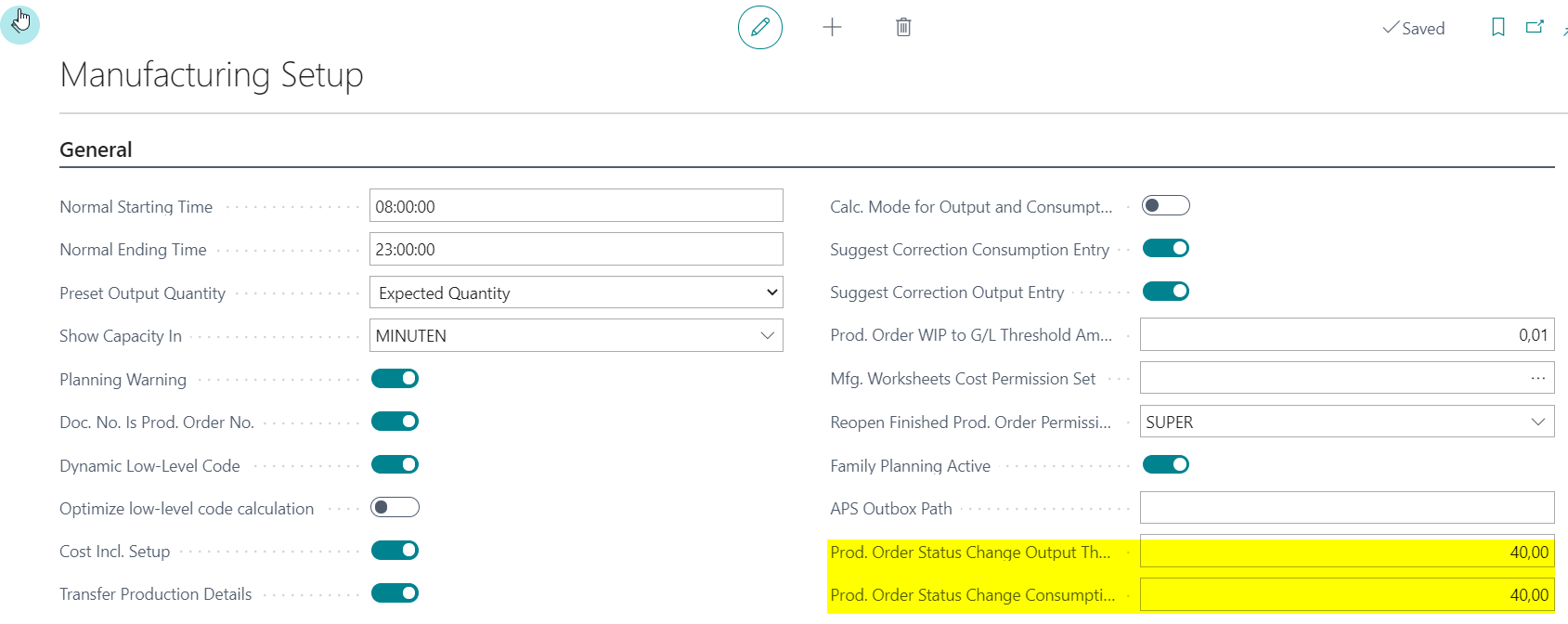
- Open Manufacturing Setup.
- Maintain Prod. Order Status Change Output Threshold Percentage.
- Maintain Prod. Order Status Change Consumption Threshold Percentage.
Posted output and consumption quantities must be equal to or greater than the thresholds to use warning-handling options in the next steps.
Run Status Change with Multiple Selection
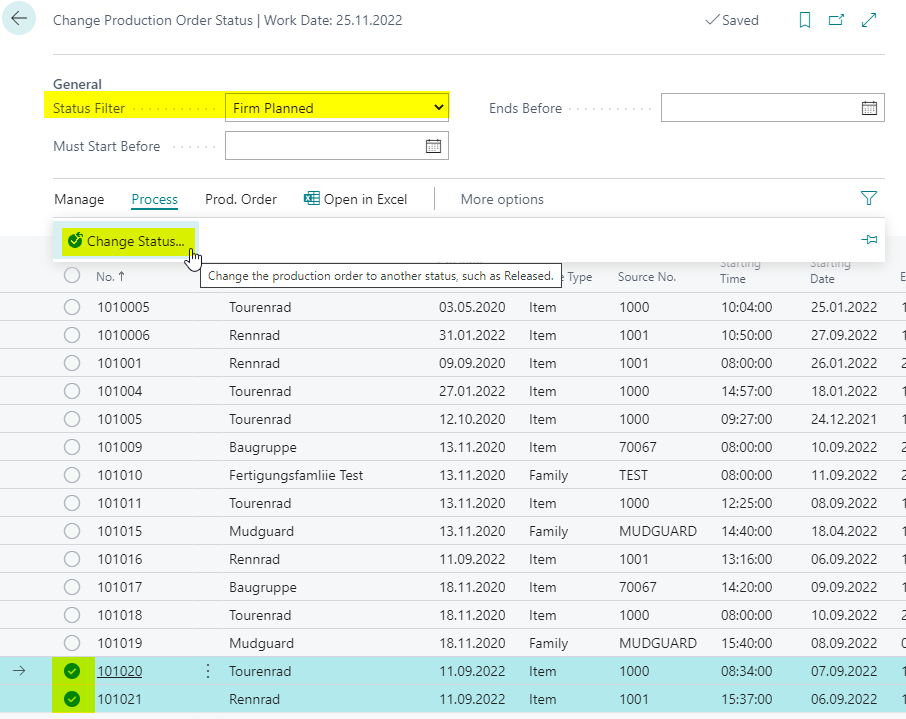
- Open Change Production Order Status.
- Select the status filter.
- Select the production orders whose status should be changed.
- Choose Change Status….
If multiple records are selected, the request page refers to the selected production orders. Without multiple selection, the standard behavior still changes all filtered production orders.
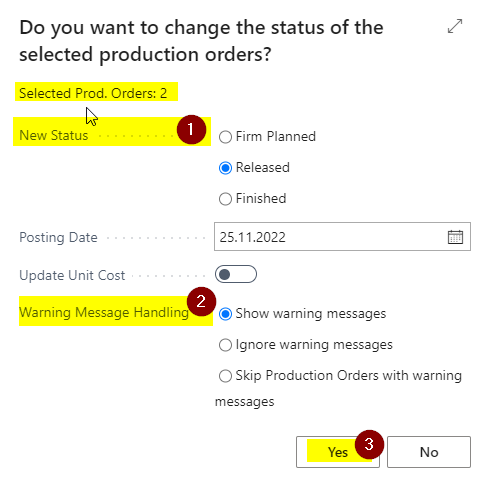
Then choose the new status and the required Warning Message Handling option:
- Show warning messages: show warnings and confirmation dialogs for remaining output and consumption quantities.
- Ignore warning messages: suppress warnings and process production orders as if all dialogs were confirmed.
- Skip POs with warning messages: suppress warnings, but skip production orders with remaining quantities.
Set Planning Flexibility on Change Status
Sometimes firm planned or released production orders should be fixed so that the planning worksheet no longer creates change proposals for them.
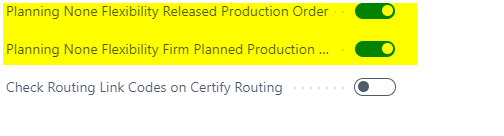
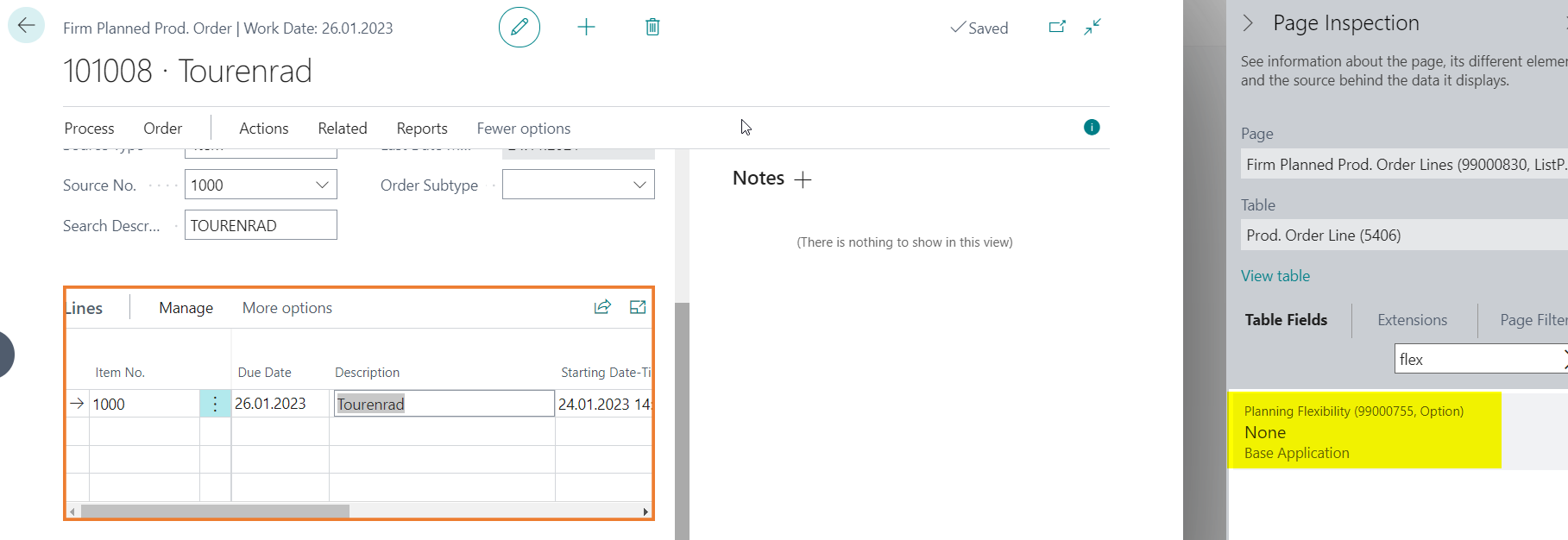
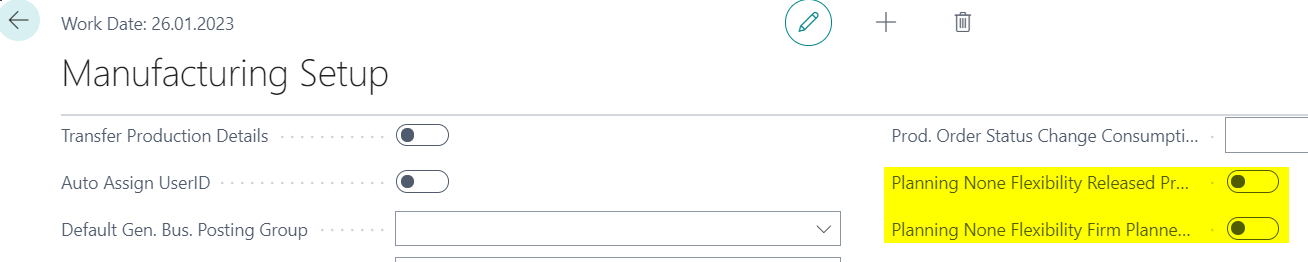
With the options Planning None Flexibility Released Production Order and Planning None Flexibility Firm Planned Production Order in Manufacturing Setup, the Planning Flexibility value of the production order lines can be set automatically to None when a planned production order changes to firm planned, or a firm planned production order changes to released.
Setup
- Open Manufacturing Setup.
- Enable Planning None Flexibility Released Production Order and/or Planning None Flexibility Firm Planned Production Order.
Check the Functionality
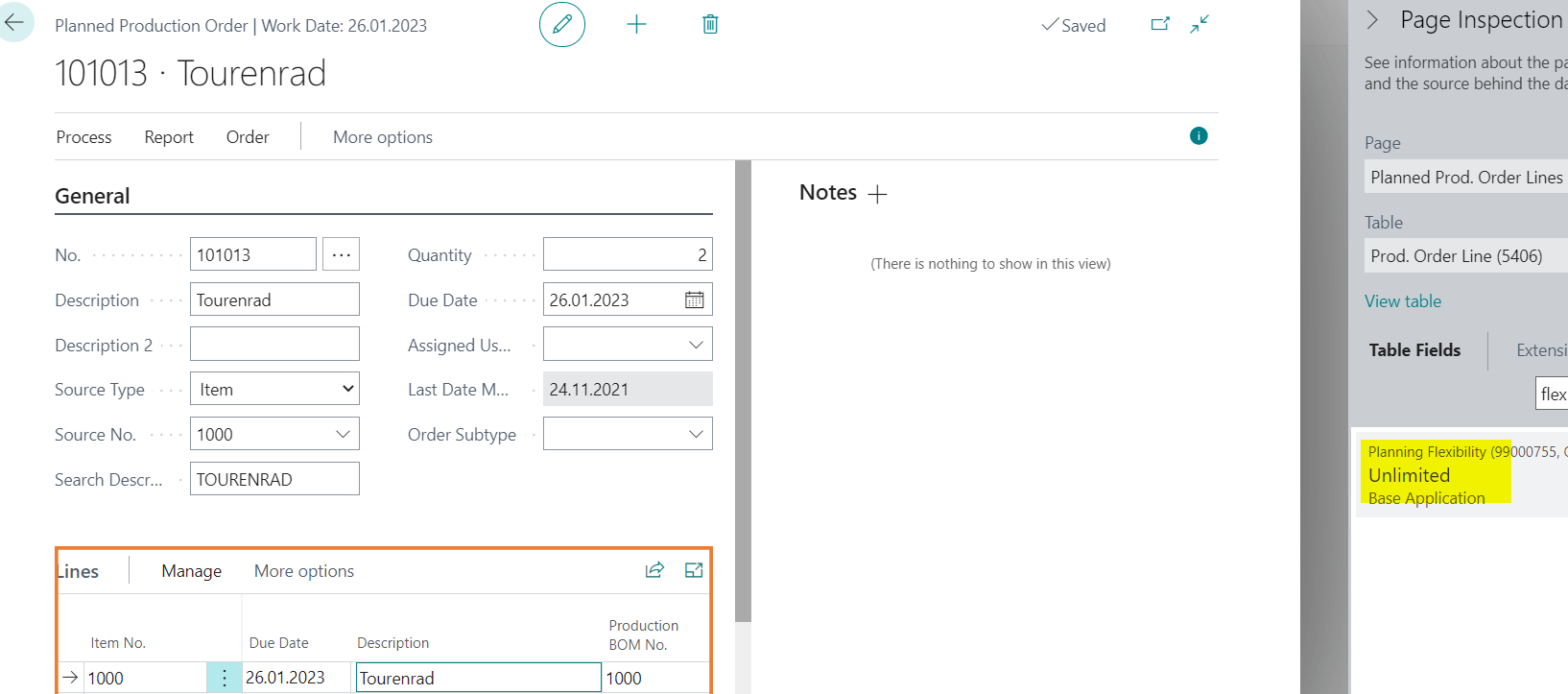
- Create a new planned production order and check the Planning Flexibility value.
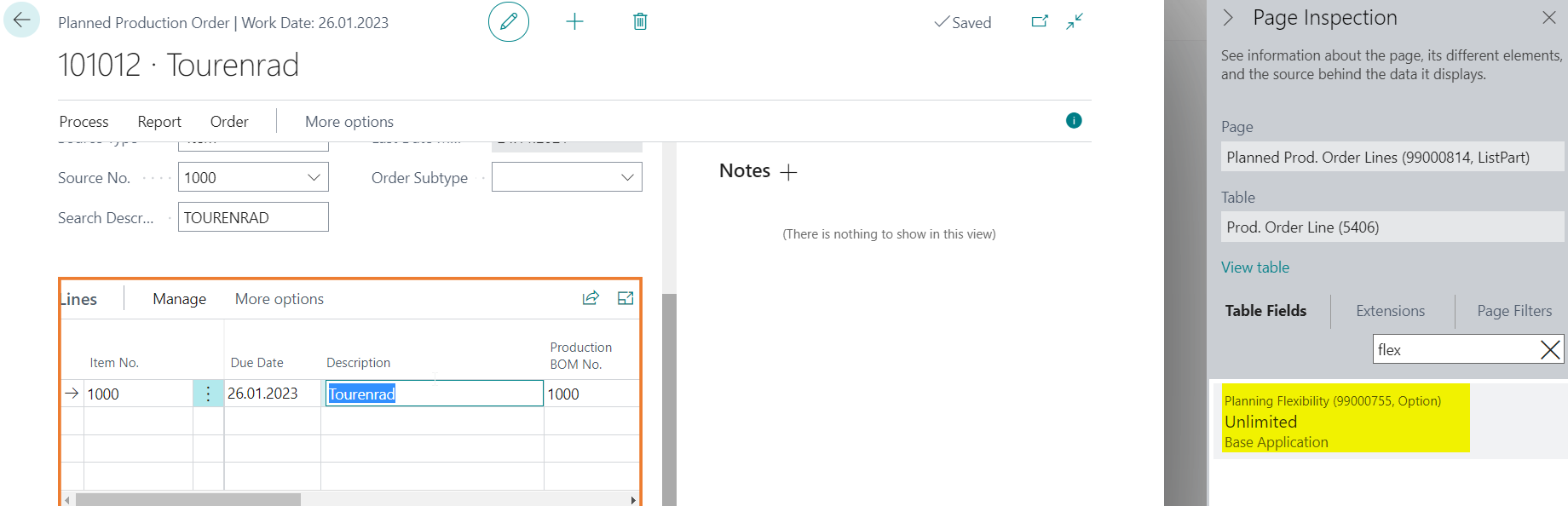
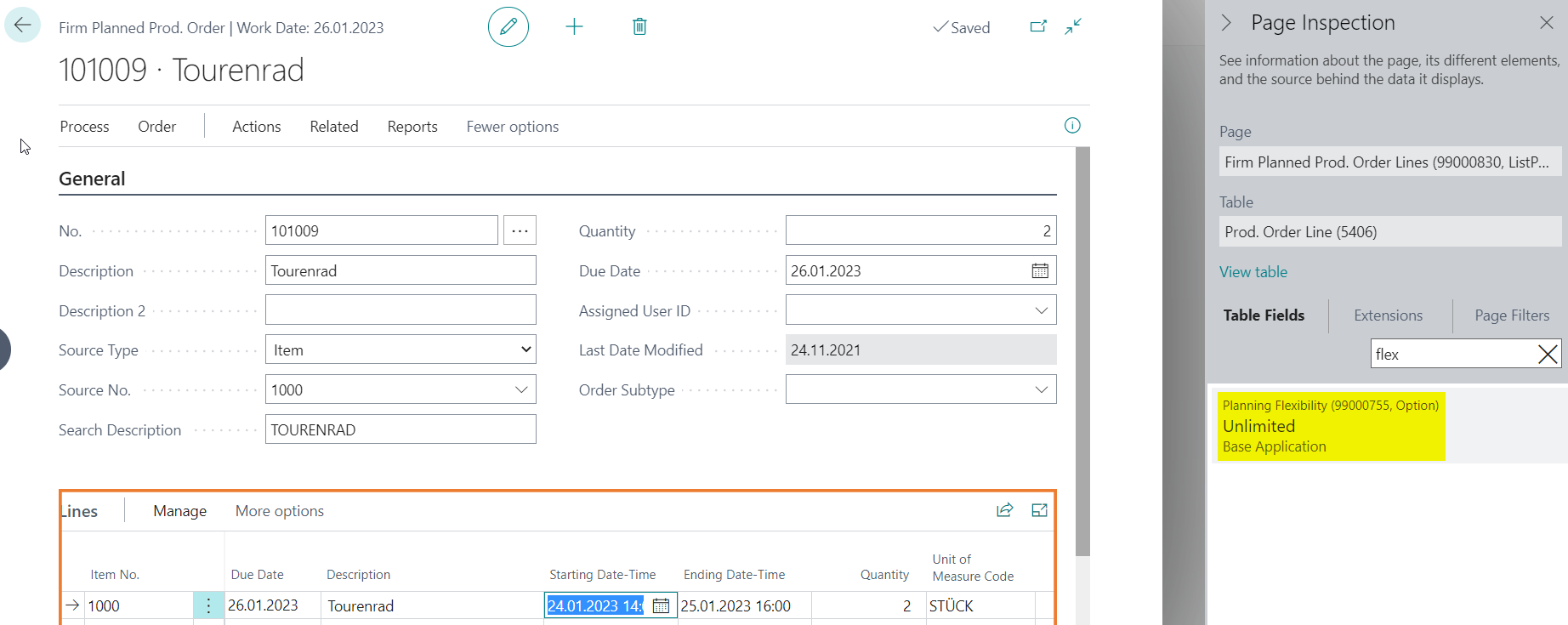
- Change the status of the planned production order to Firm Planned and check Planning Flexibility again.
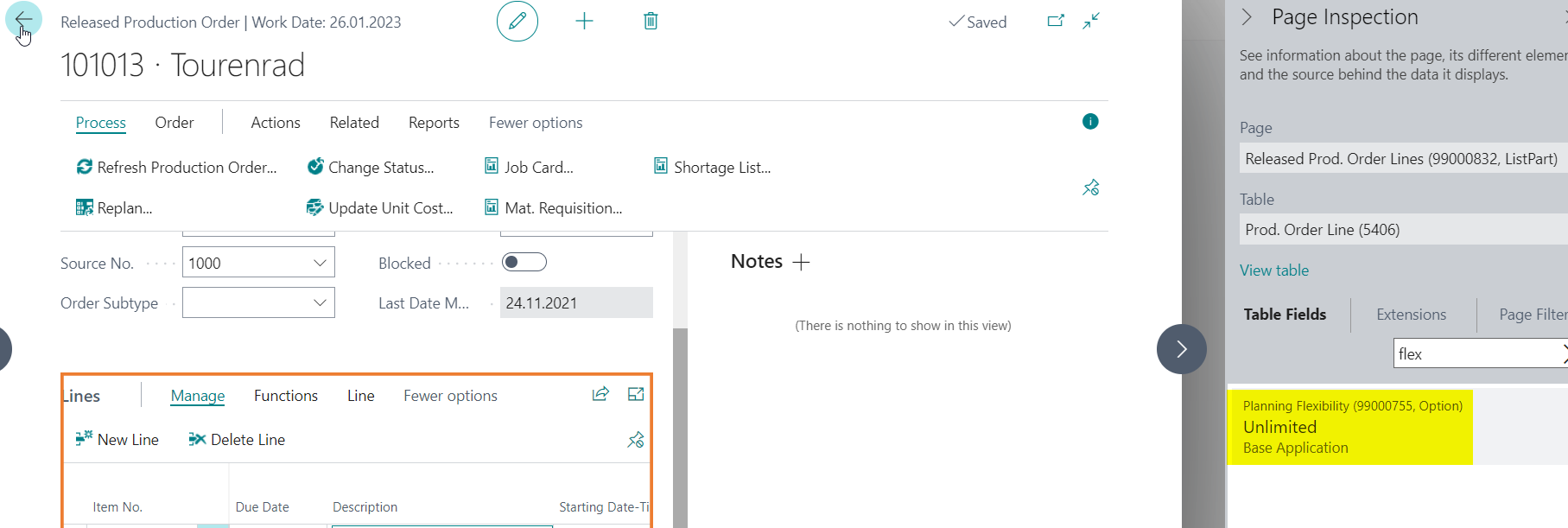
- Change the status of the firm planned production order to Released and check Planning Flexibility again.
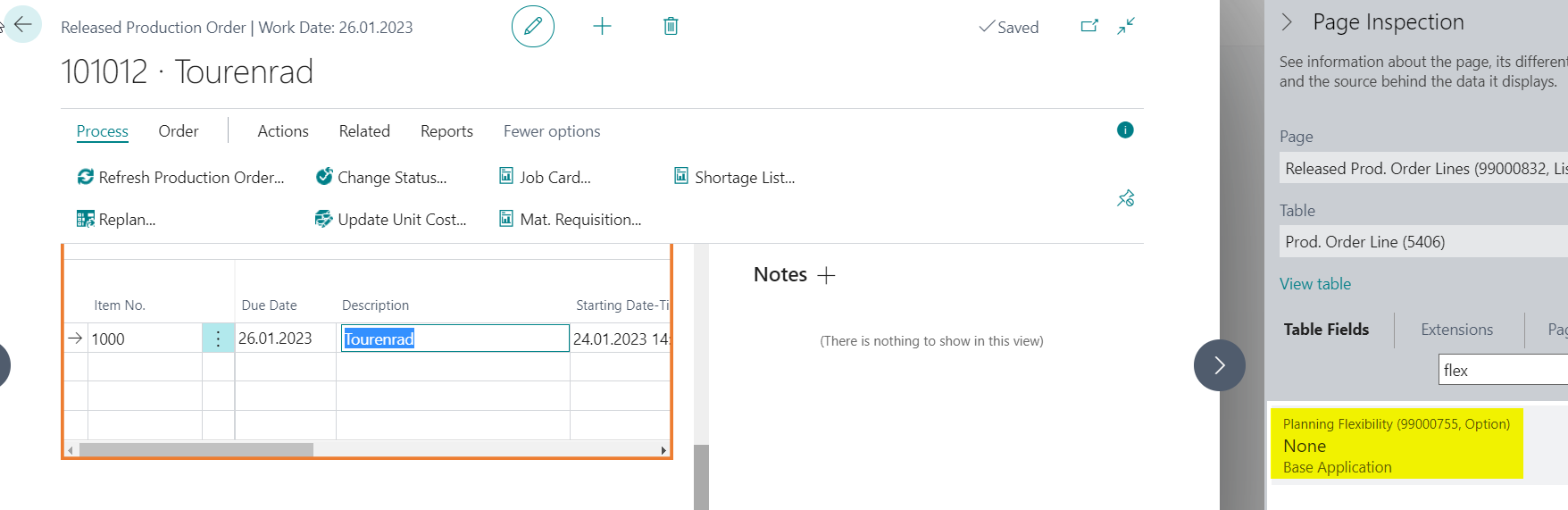
If the functionality is deactivated in Manufacturing Setup, the original Planning Flexibility Unlimited value stays unchanged on every status change:
Result
After setup, you can review production orders before release and finish, prepare large order sets through predefined filters, print status changes, and change several orders to Finished in a controlled way.
Links