Planning Worksheet
Purpose
The Planning Worksheet and Order Planning help users review demand and create supply documents such as production orders, purchase orders, or transfer orders. BE-terna Manufacturing extends this flow in two areas:
- In order planning from sales orders, Unit of Measure and Quantity from the sales line are transferred to the production order.
- In the planning worksheet, several lines can be marked and then set to Accept Action Message or reset in one step.
Business Value
- Sales and production can work with the same quantity view, for example package, pallet, or piece.
- Order planning creates production orders with the unit and quantity from the sales line instead of only the base unit.
- Several planning worksheet lines can be prepared for action messages in one step.
- Users do not have to set or clear Accept Action Message manually on every single line.
- Planning parameters in the FactBox can be shown by location from stockkeeping unit data.
Use Order Planning with Sales Units of Measure
By default, Business Central converts planning from sales orders to the base unit of measure. BE-terna Manufacturing can instead transfer Unit of Measure and Quantity from the sales line into the derived production order.
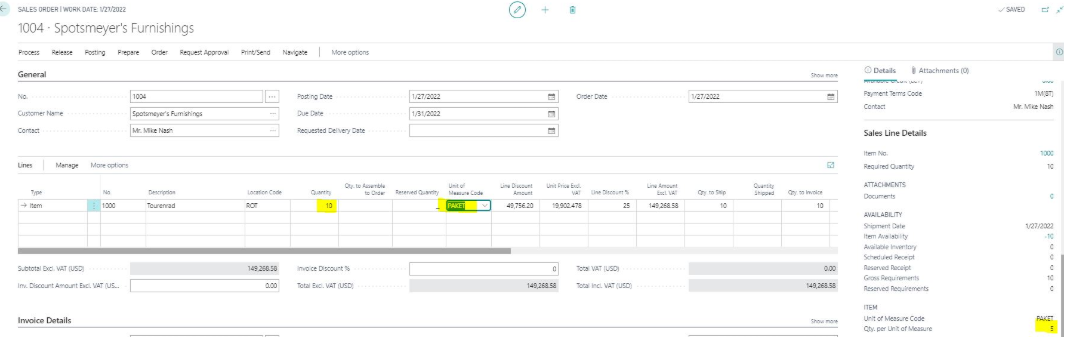
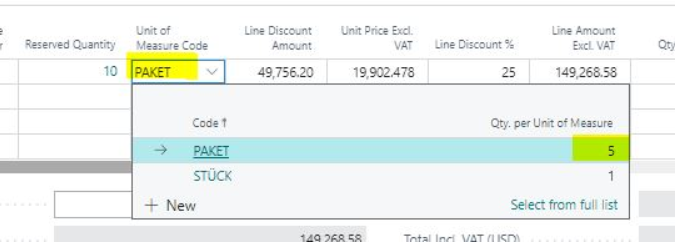
This is useful when you sell in packages and also want to plan production in packages. In the example, item 1000 Bicycle is sold with unit PAKET. One package contains 5 pieces. A quantity of 10 PAKET therefore represents a total demand of 50 pieces.
Create a Production Order from the Sales Order
- Create a new Sales Order.
- Enter an item line.
- Select the required Unit of Measure and Quantity.
- Release the sales order.
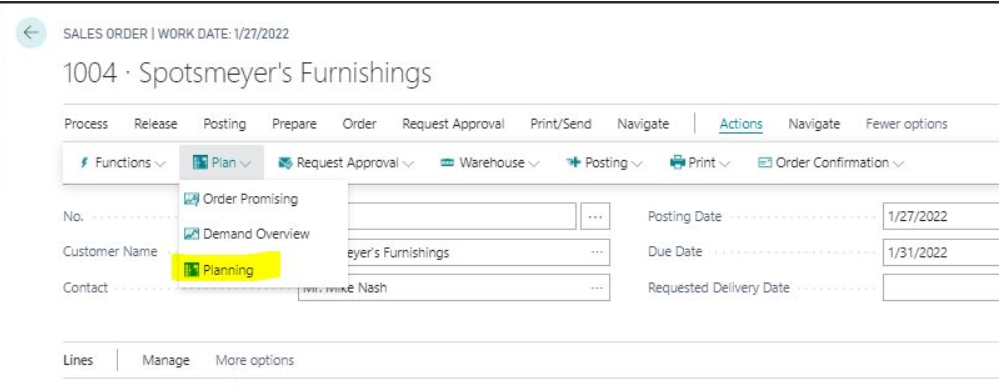
- Open Order Planning through Actions > Plan > Planning.
The Order Planning page shows availability for the order line. In the example, no inventory is available, so a production order must be created to cover the customer demand.
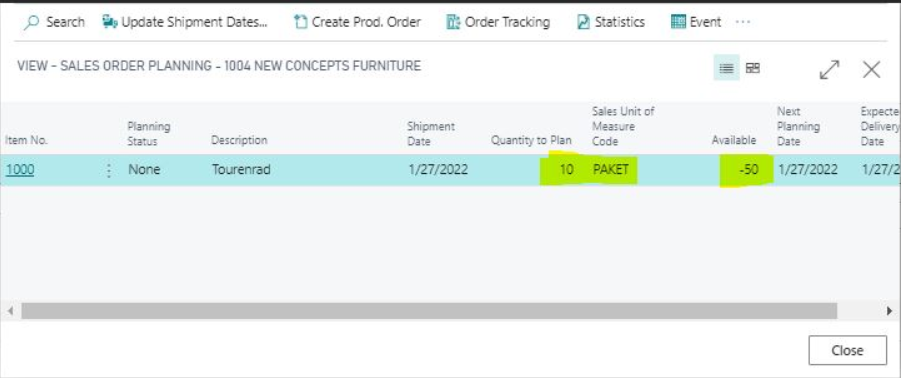
- Choose Create Prod. Order.
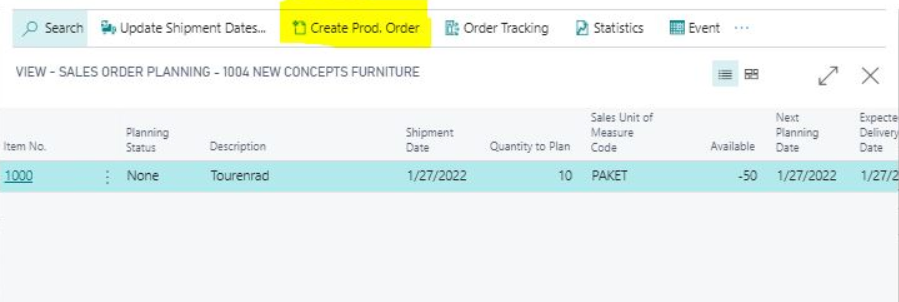
- Select the required Prod. Order Status and Order Type.
For this function, the selected status and order type are not important. In the example, the preselected values Firm Planned and Item Order can be used.
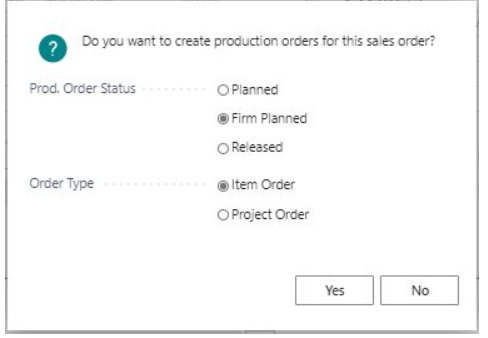
- Confirm with Yes.
Business Central creates the production order.
Open and Check the Created Production Order
- In order planning, choose Order Tracking.
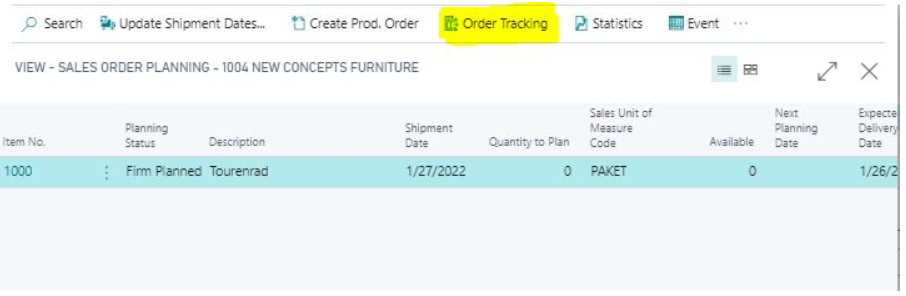
- Choose Show.
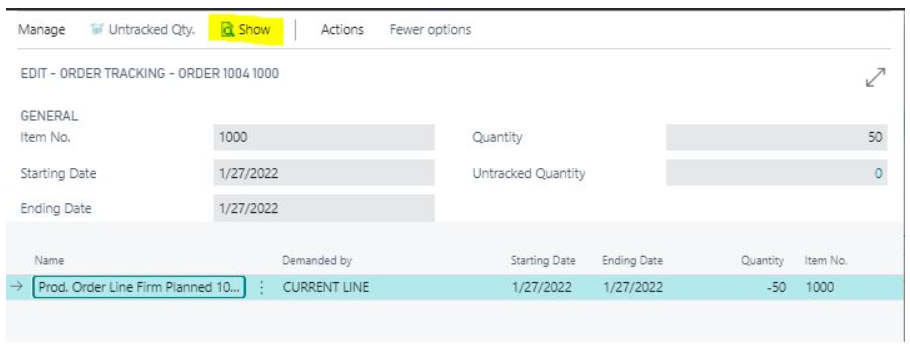
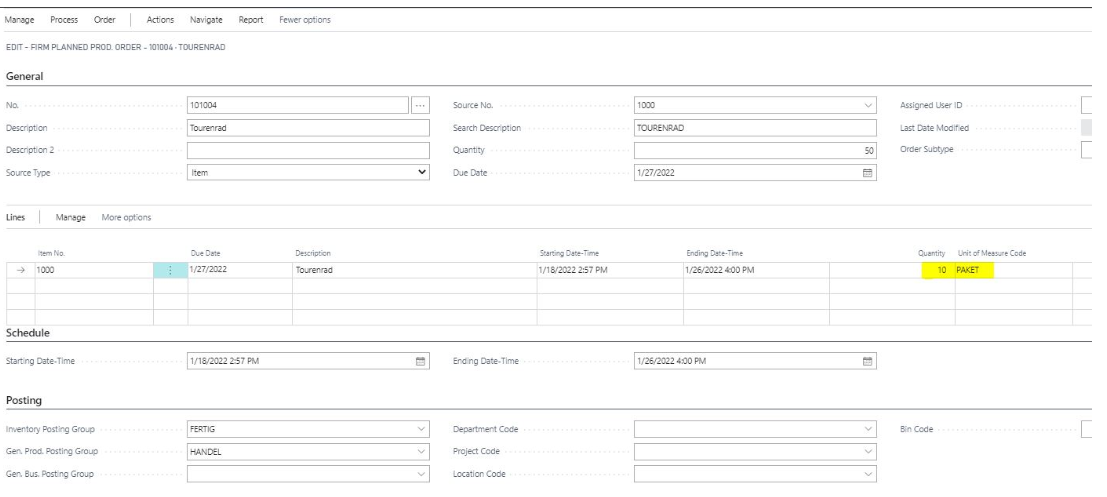
The newly created production order opens. In the production order line, check that Unit of Measure and Quantity were transferred from the sales line. In the example, the production order still shows 10 PAKET instead of 50 pieces as base-unit quantity.
Process Action Messages in Bulk in the Planning Worksheet
Planning worksheets are used to calculate item demand. This demand can be covered through documents such as purchase orders, production orders, or transfer orders. To create a document from demand, Accept Action Message must be set to Yes.
If you want to process several lines, you do not have to set this field line by line. BE-terna Manufacturing provides bulk actions that activate or reset selected lines together.
Calculate the Planning Worksheet and Select Lines
- Open Planning Worksheets.
- Fill the worksheet through Prepare > Calculate Regenerative Plan.
For more information about planning worksheets, see Microsoft Learn: Run MPS and MRP.
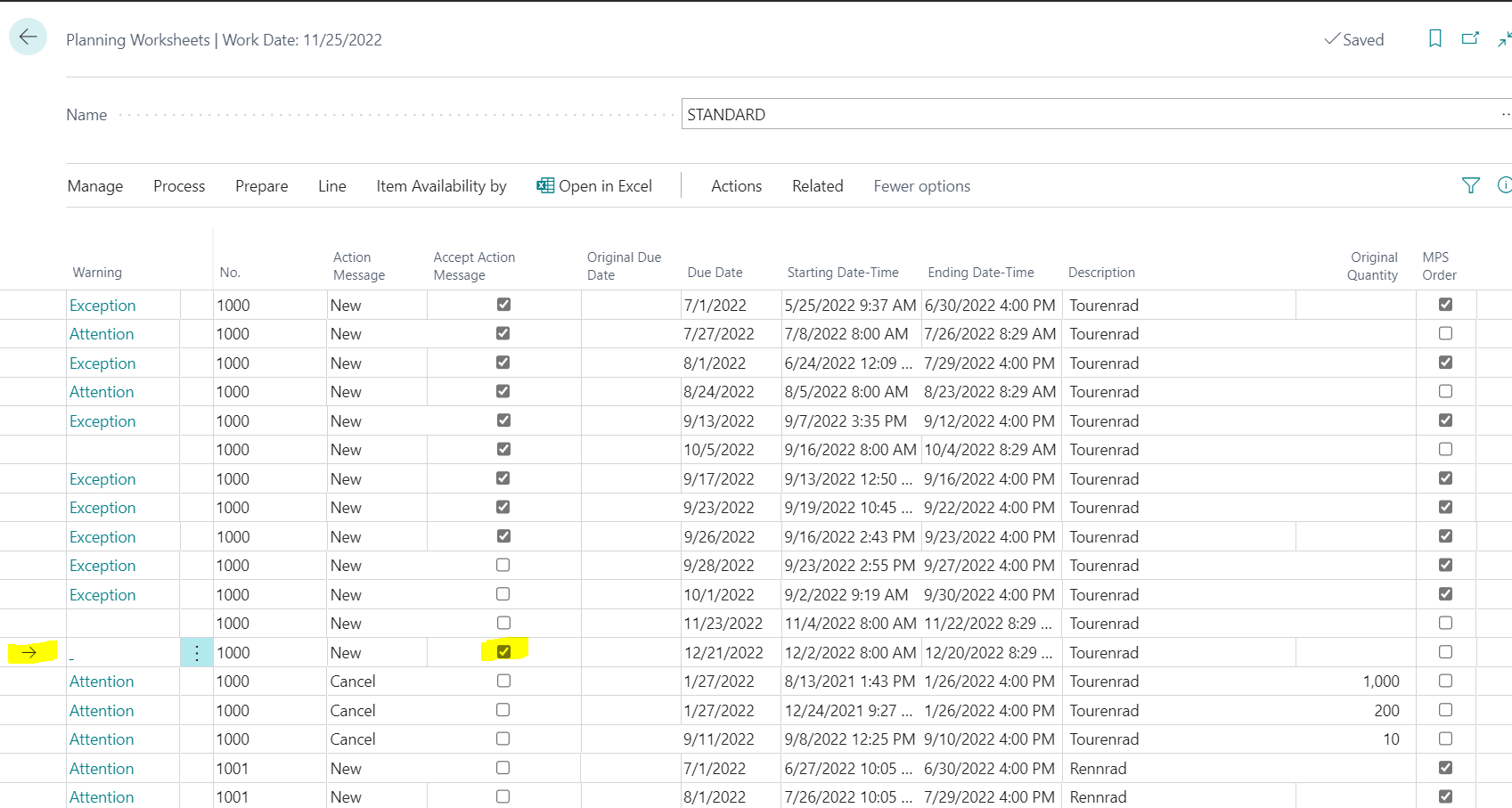
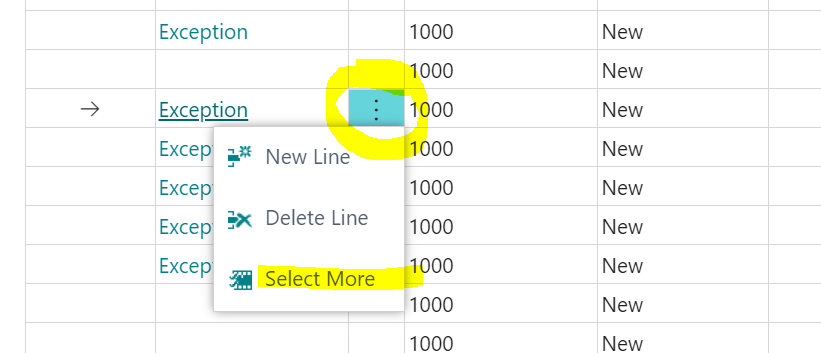
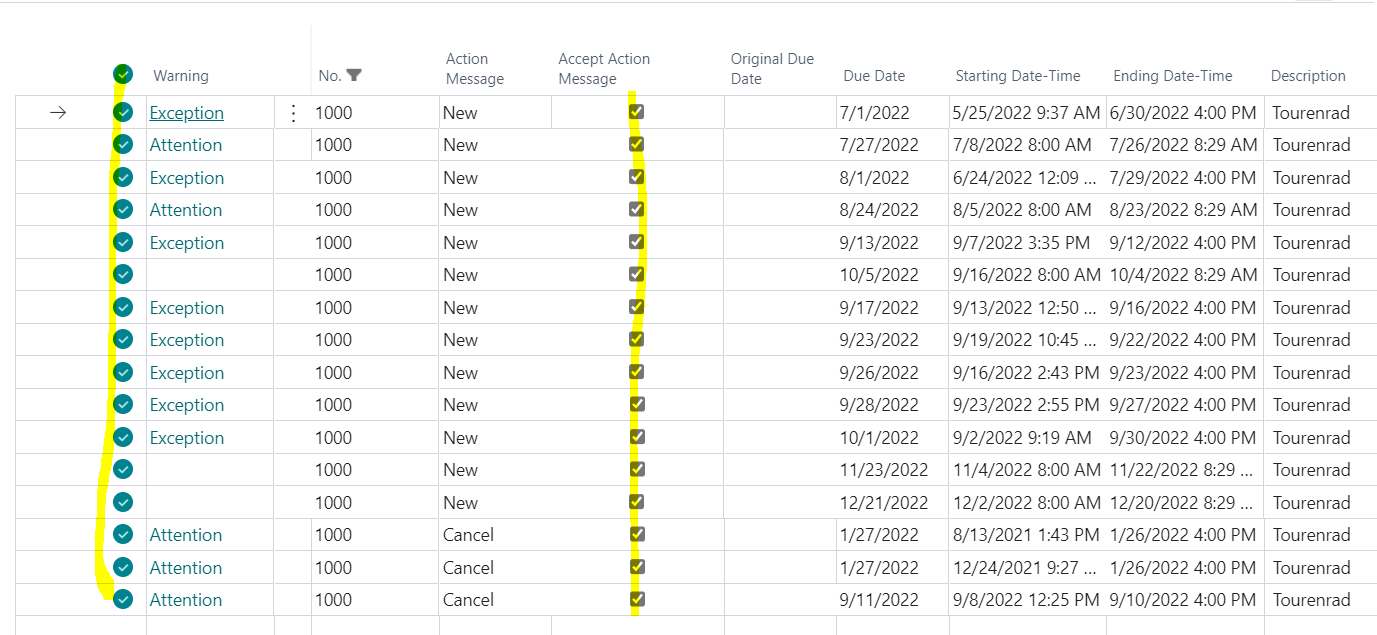
- Select one line, several lines, or all lines.
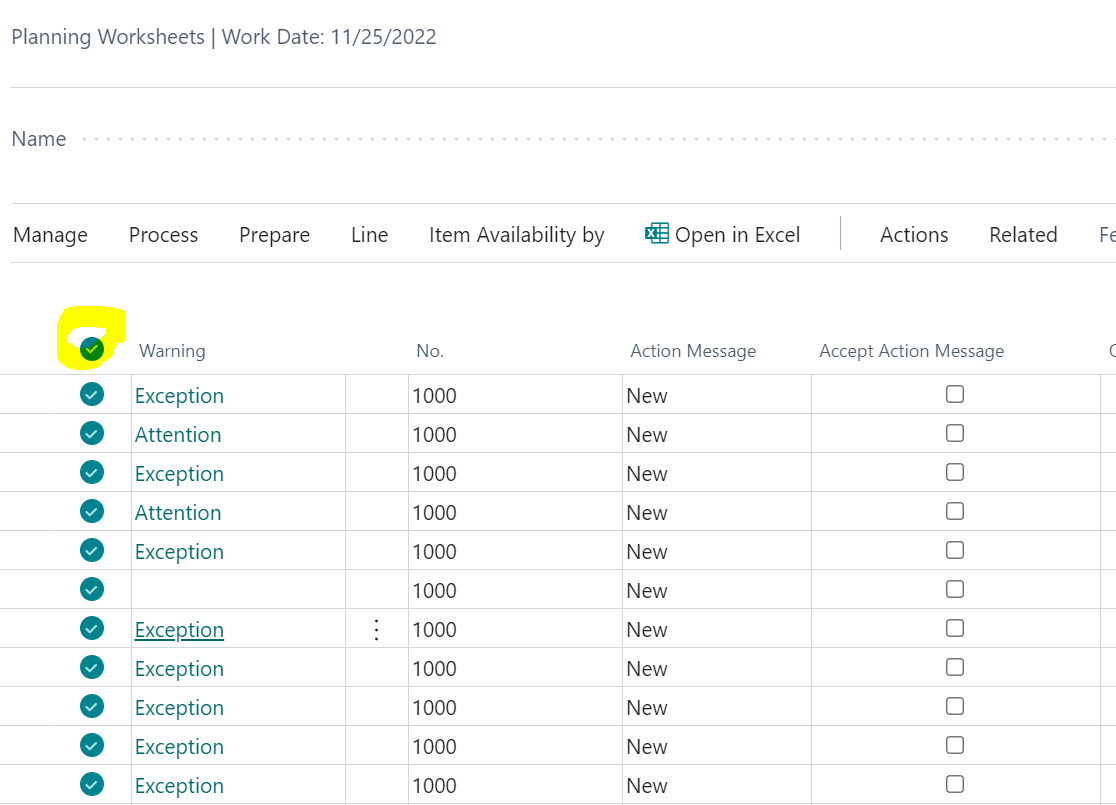
You can also use the selection mark in the header row to select all lines.
Accept Action Messages
- Choose Actions > Functions > Accept All Action Messages.
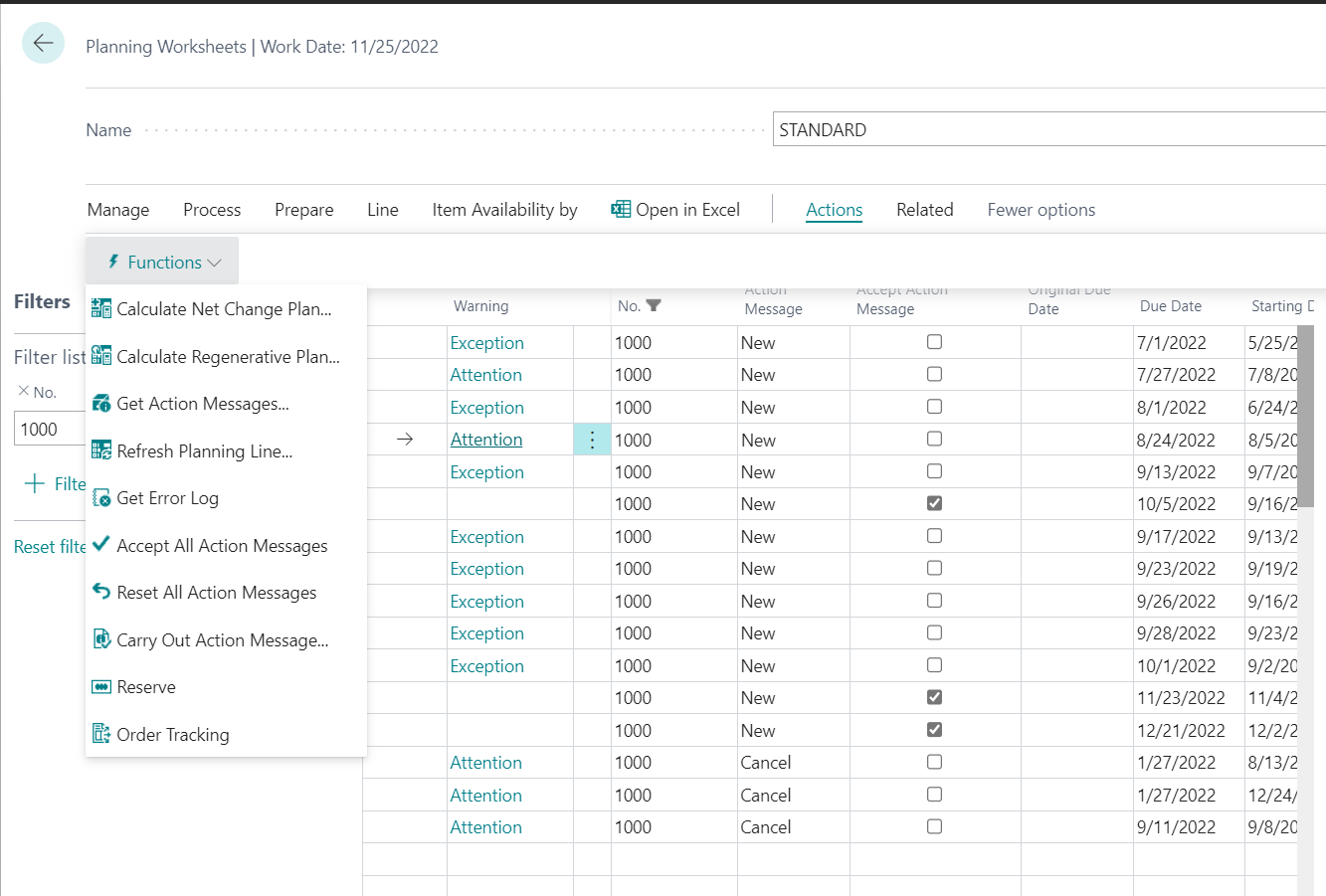
All selected lines are set to Accept Action Message = Yes.
Reset Action Messages
- Select the required lines.
- Choose Actions > Functions > Reset All Action Messages.
All selected lines are set to Accept Action Message = No.
Check Planning Details in the FactBox by Location
In standard Business Central, the FactBox in requisition worksheets or planning worksheets shows planning and replenishment parameters from the item card. This display does not always reflect whether separate Stockkeeping Unit data exists for the selected location.
BE-terna Manufacturing extends this display: If stockkeeping unit data exists for the location of the worksheet line, the FactBox shows planning and replenishment parameters from the matching stockkeeping unit card. If no stockkeeping unit data exists for the location, the values from the item card are still shown.
Typical check:
- Open the Planning Worksheet or Requisition Worksheet.
- Select a line with item and location.
- Check the planning details in the FactBox.
- Compare whether the displayed values come from the item card or from the stockkeeping unit data for the location.
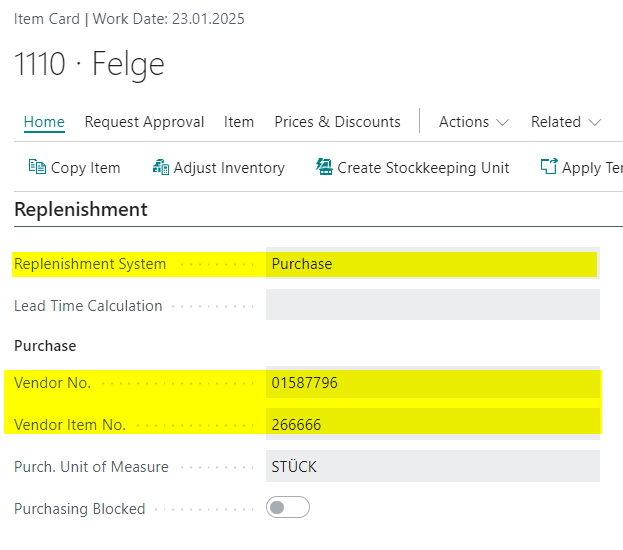
Replenishment parameters on the item card:
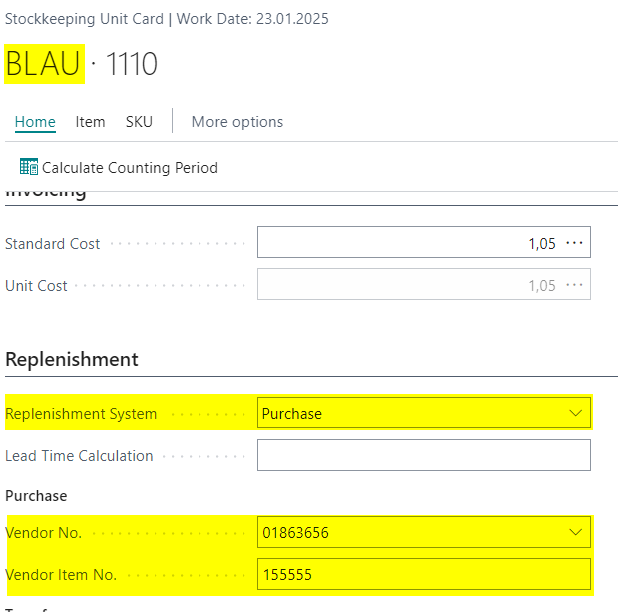
Replenishment parameters in the stockkeeping unit data for location BLAU:
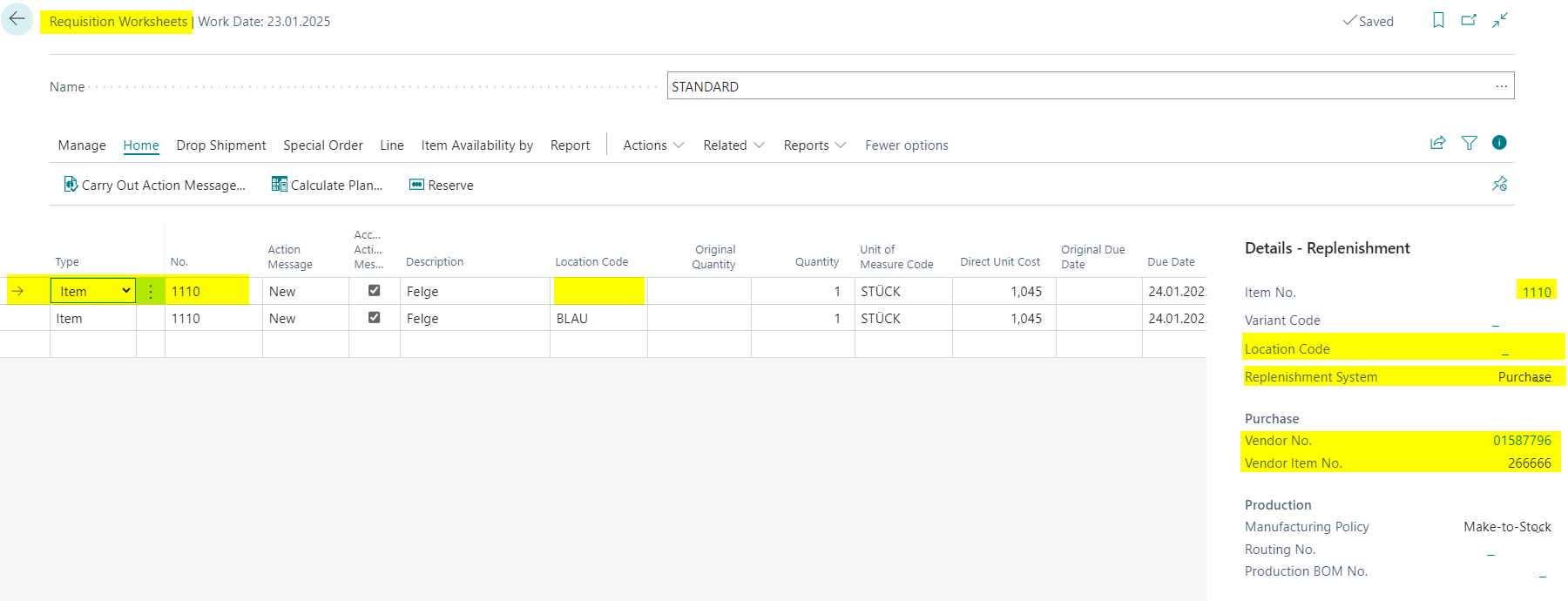
FactBox in the requisition worksheet for a location without stockkeeping unit data; values come from the item card:
FactBox in the requisition worksheet for location BLAU with stockkeeping unit data; values come from the stockkeeping unit card:
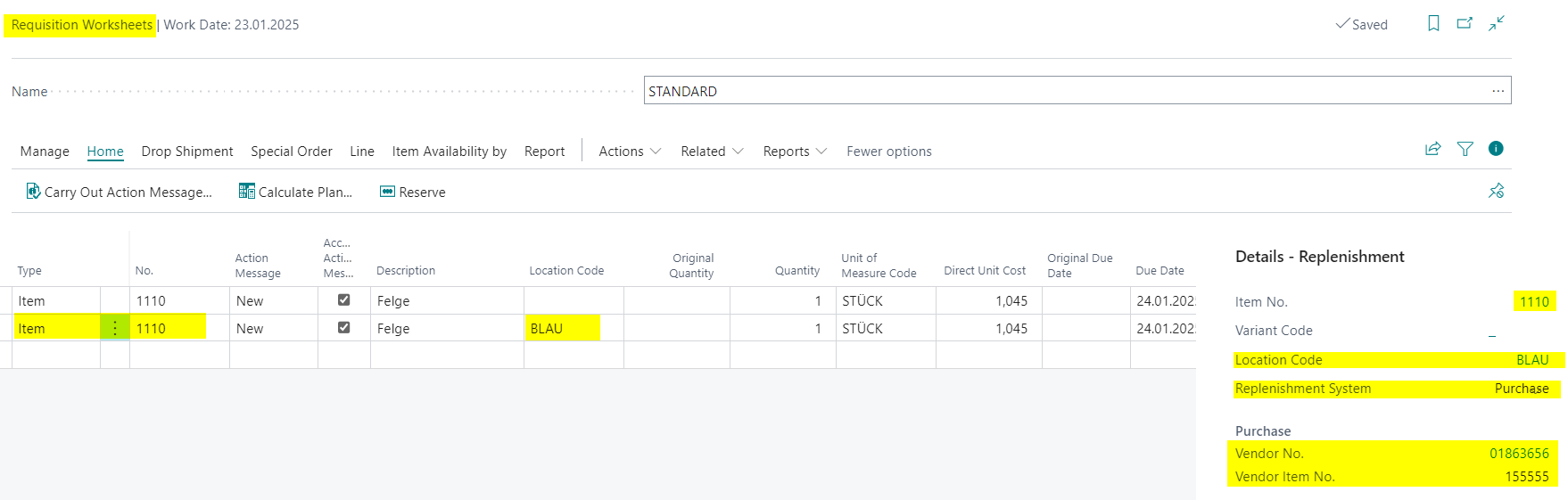
Example: For a location without stockkeeping unit data, the parameters from the item card are displayed. For location BLAU with maintained stockkeeping unit data, the parameters from the stockkeeping unit card for that location are displayed.
Result
After processing, you can use order planning and planning worksheets more precisely: production orders created from sales orders keep the sales unit of measure, planning worksheet lines can be prepared or reset for action messages in bulk, and the FactBox shows planning parameters that match the item or stockkeeping unit data.
Links