Automatic Planning
Purpose
For automatic requirement planning, BE-terna Manufacturing uses the Job Queue. The job queue starts one or more Planning Run Setup records. In these setup records, you define timing, target worksheet, and item filter criteria.
The planning run can then be calculated automatically, for example every night. The result is written to the configured planning worksheet.
Business Value
- Recurring planning runs can be executed automatically at fixed times.
- Several planning run setup records can represent different item groups, planning groups, or responsible users.
- Worksheet template and journal batch name control where planning results are written.
- Filters on item fields limit which items are planned.
- Optionally, action messages can be carried out automatically to create production orders, assembly orders, purchase orders, or transfer orders.
Setup Overview
Automatic planning requires two setup areas:
- Job Queue Entry: controls the automatic run and is generally set up once for this function.
- Planning Run Setup: defines target worksheet, filters, and planning parameters. Multiple setup records can exist.
Set Up the Job Queue Entry
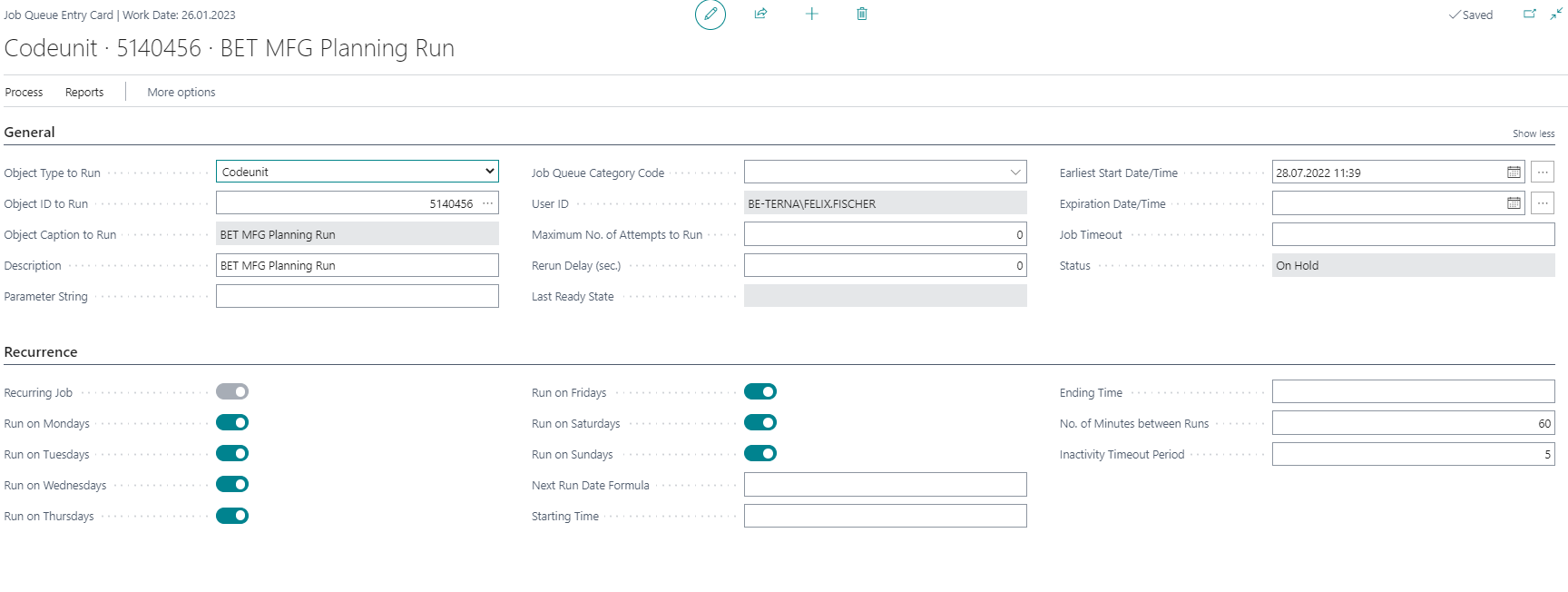
Job queues in Business Central let users schedule reports and codeunits. Jobs can run once or on a recurring basis. For automatic planning, codeunit 5140456 is used.
- Open Job Queue Entries.
- Choose New.
- On the General FastTab, maintain at least the following fields:
- Object Type to Run = Codeunit
- Object ID to Run = 5140456
- Description, for example
Planning Run - Earliest Start Date/Time, for example tomorrow at 2 AM
- On the Recurrence FastTab, maintain the required fields:
- weekdays on which the run should start
- Starting Time
- No. of Minutes between Runs, for example
60
For general information about job queues, see Microsoft Learn: Use job queues to schedule tasks.
Create a Planning Run Setup
Individual planning runs are maintained on the Planning Run Setup List page.
- Open Planning Run Setup List.
- Choose New.

The Planning Run Setup page opens. When you start filling fields, Business Central automatically assigns a unique ID. This number cannot be changed. If needed, you can hide the field through personalization.

Maintain General Fields
On the General FastTab, maintain the fields that control the planning run target:
- ID: assigned automatically by Business Central and not editable.
- Worksheet Template Name: worksheet template in which the planning results are stored; normally a template of type Planning.
- Journal Batch Name: select an existing batch or create a new journal batch name, for example with the user name.
- Active: activates the completed planning run setup for automatic planning.
- Planning Group: optional integer value for grouping several planning runs.
- Worksheet Error Log: indicates that the current worksheet has entries in the planning error log.
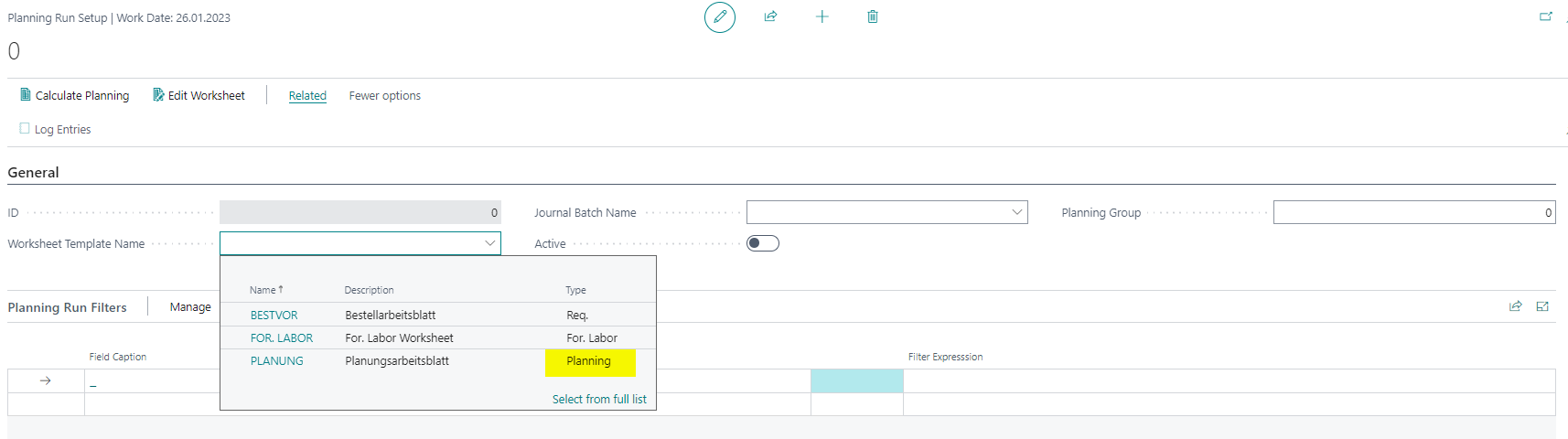
Use the Parameter String field of the calling Job Queue Entry to filter which Planning Run Setup records should be executed by that job. The filter expression must start with %. Example: If the parameter string contains start planning groups %1..3, the job queue entry only starts planning run setups with Planning Group 1, 2, or 3.
Define Planning Run Filters
In Planning Run Filters, define which items the planning run includes.
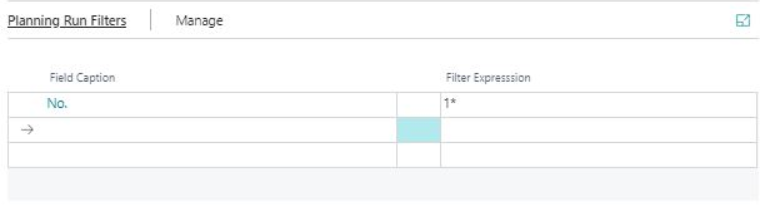
- In Field Caption, select a field from the Item table, for example No..
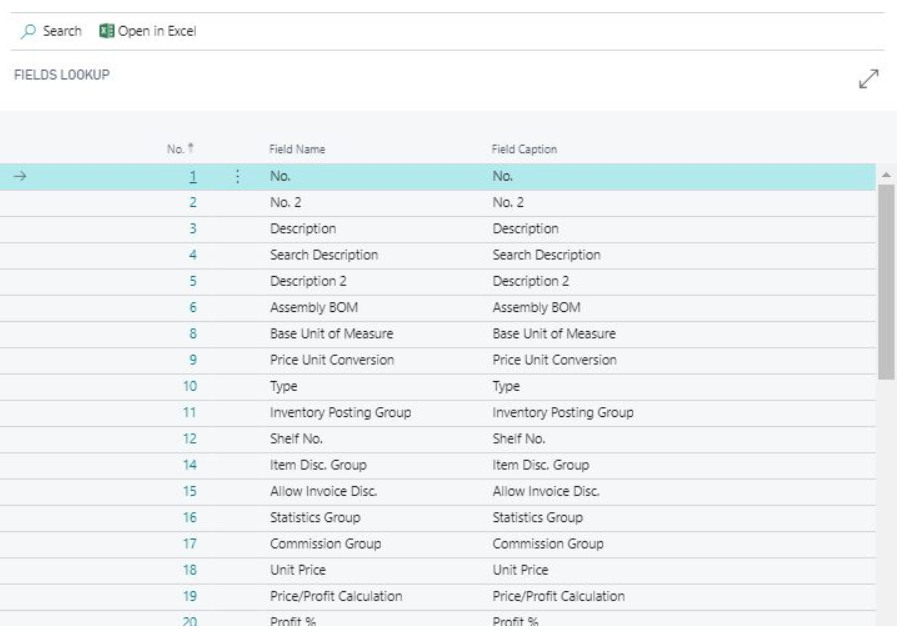
- In Filter Expression, enter the required filter, for example
1*for all items starting with1, or1000..1999for a number range.
You can add more lines and filters, for example:
- No. = 1000..1999
- Replenishment System = Prod. Order
- Reordering Policy = Fixed Reorder Qty.
All filters are linked with AND. Only items that match all criteria are included in the planning run. For more information about filter expressions, see Microsoft Learn: Enter criteria in filters.
Maintain Planning Setup
The Planning Setup FastTab contains the defaults for the planning run. These are the same options used in the planning worksheet through Prepare > Calculate Regenerative Plan.

Important fields include:
- Starting Date Formula: defines the earliest date for new orders. The formula uses the current date of the run and adds the period, for example
+1Dfor tomorrow. - Planning Horizon: period from the starting date until demands should be calculated, for example
3Mfor three months. You can use values such asD,W,M,Q, andY. - Use Forecast: includes the selected forecast in the planning run.
- Exclude Planning Before: defines from which date the selected forecast is included.
- MPS: calculates a master production schedule based on independent demand.
- MRP: calculates dependent demand based on the MPS.
- Stop and Show First Error: stops the planning run at the first error and stores the message in the job queue.
- Respect Planning Parameter: defines whether planning lines with exception warnings respect planning parameters from the item or SKU card.
- Planning Scale: defines whether Refresh Planning or Net Change Planning is run. The field is shown only when Show more is enabled.
For more information about date formulas, see Microsoft Learn: Enter date ranges.
Carry Out Action Messages Automatically
In Carry Out Messages, define whether the planning run should directly carry out action messages.

Important fields include:
- Carry Out Action Messages: enable this if the planning run should directly create orders.
- Production Order Choice: status for new production orders, for example Planned, Firm Planned, Firm Planned & Print, or Remove.
- Assembly Order Choice: action for new assembly orders, for example Make Assembly Orders or Remove.
- Purchase Order Choice: action for new purchase orders, for example Make Purch. Orders, Make Purch. Orders & Print, or Remove.
- Transfer Order Choice: action for new transfer orders, for example Make Transfer Orders, Make Transfer Orders & Print, or Remove.
- Combine Transfer Orders: defines whether transfer orders should be combined with other orders sent to and from the same locations.
Maintain Planning Time
In Planning Time, define starting time, weekdays, and priority.
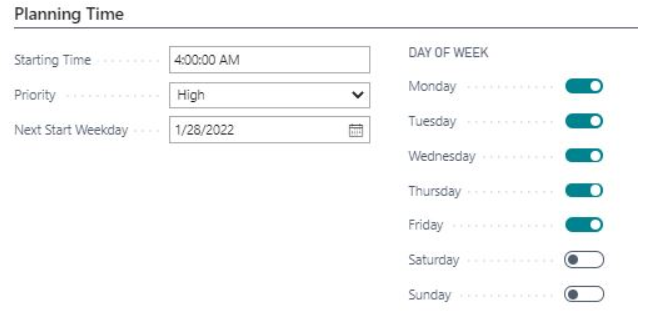
Priority is used when several planning run setup records start at the same time.
Test the Planning Run
After setup is complete, you can test the planning run manually.
- Open Planning Run Setup.
- Choose Calculate Planning.
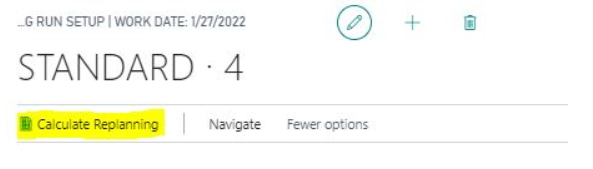
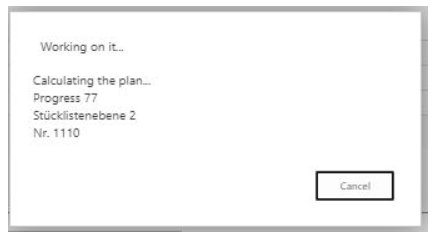
Business Central calculates the selected items based on the planning run filters.
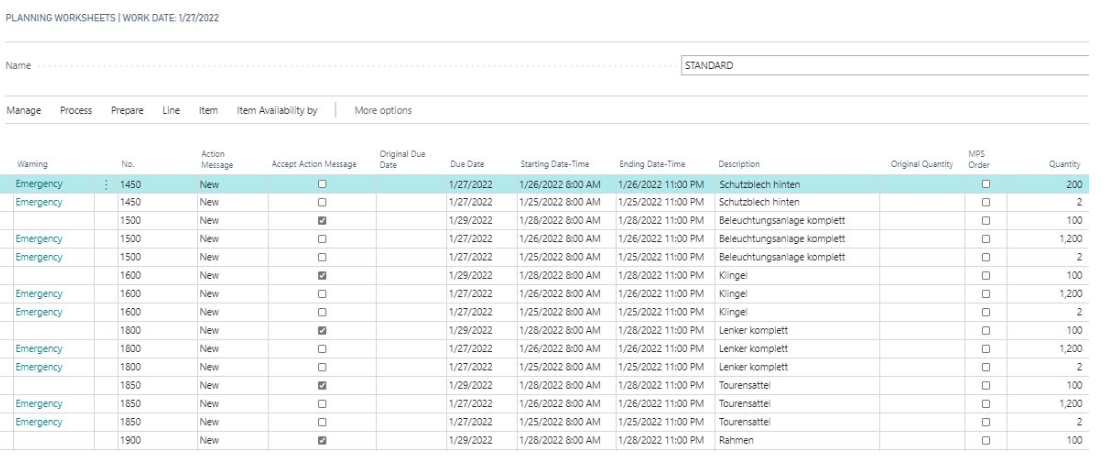
The results of the planning run are written to the worksheet and journal batch name defined on the General FastTab.
Keep Multiple Planning Runs Separate
If you use more than one planning run, for example for different item groups or employees, carefully check the item filters. One item can be included in more than one planning run setup.
In that case, the result for this item is shown in the worksheet of the last planning run. With each check, all requisition lines for this item are deleted and calculated again. If an item is missing in one worksheet, first check whether it may have been calculated again in another worksheet.
Result
After setup, BE-terna Manufacturing can calculate planning worksheets automatically through the job queue. Planning run setup records control target worksheet, filters, planning parameters, action messages, and execution time. This lets you organize recurring planning runs by item group, planning group, or responsibility area.
Links