Item Category and Location Codes
Purpose
This function transfers location codes and the item category code from item master data into downstream manufacturing data. The Consumption Location Code can be transferred from the item card to production BOM lines, production order components, production journal lines, and planning components. The Output Location Code is used for output of the produced item in production orders and production journal lines.
Automatic defaulting is especially useful when production orders are often created manually or when several locations are managed by item. Location codes can still be changed manually if a specific process requires it.
Business Value
- Less manual maintenance of location codes in production BOMs, production orders, components, and planning.
- Lower risk of incorrectly entered locations.
- Item-specific location logic remains visible in manufacturing.
- The item category code is carried into production BOM lines.
- Consumption and output locations can be transferred from item templates into new items.
Prepare Manufacturing Setup
First activate transfer of production details in Manufacturing Setup.
- Open Manufacturing Setup.
- On the General FastTab, enable Transfer Production Details.
- Set Default Output Location Code.
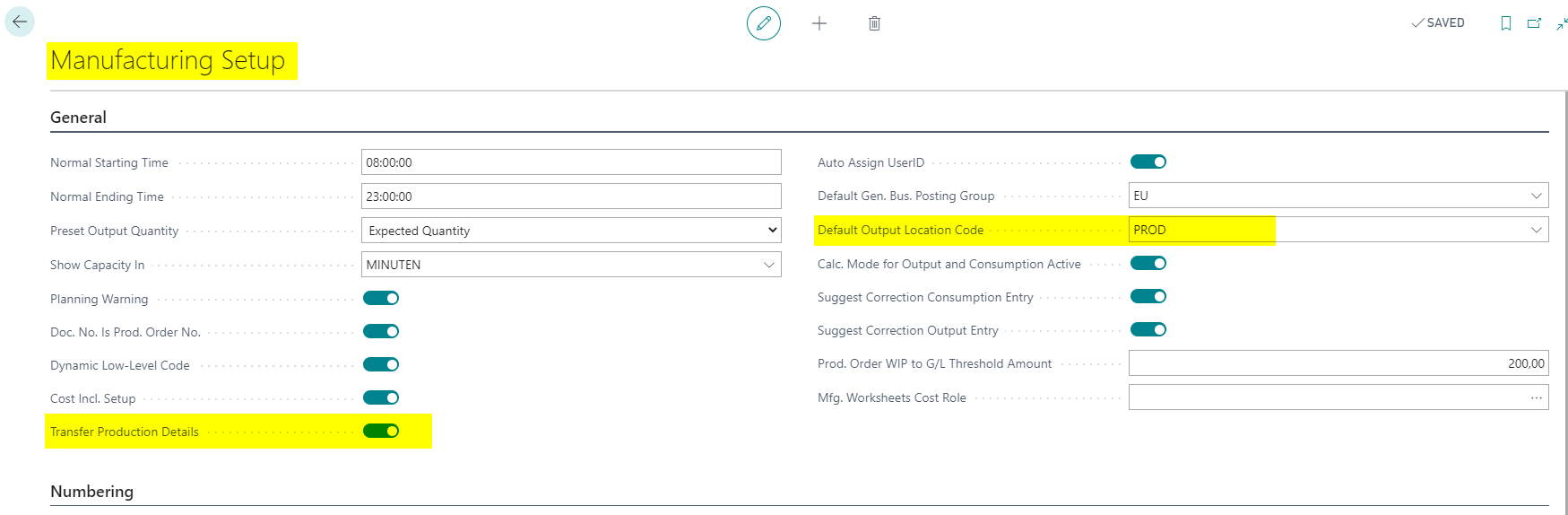
The default output location can be used as a general default. Item-specific values from the item card or item templates can supplement this default for specific items.
If you only need one standard location, you can alternatively work with Manufacturing Setup and Stockkeeping Units. The item-specific defaulting described here is especially useful when locations should be controlled differently per item.
Maintain Locations in Item Templates
Item templates can default consumption and output locations into newly created items.
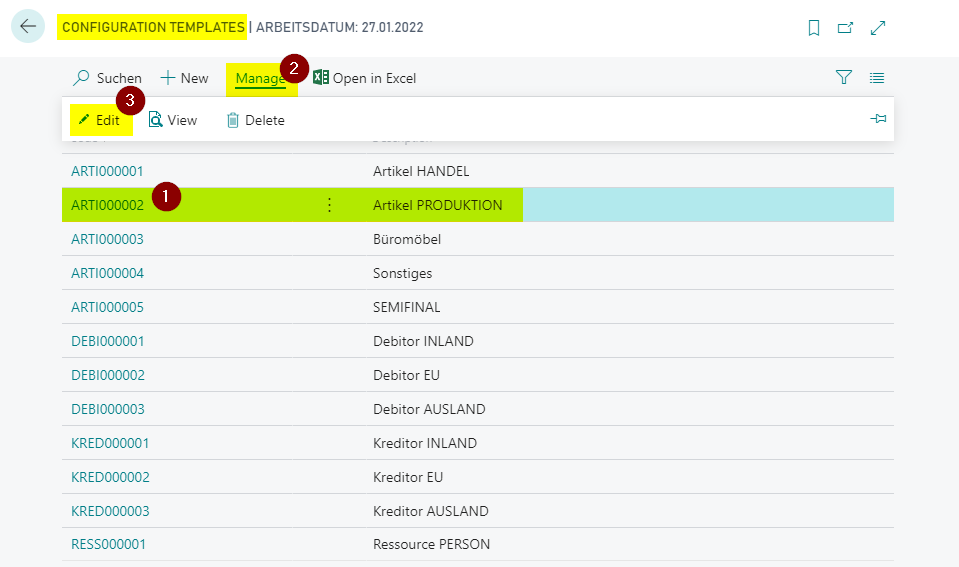
- Open Configuration Templates.
- Choose the item template that you want to maintain.
- Open the template for editing.
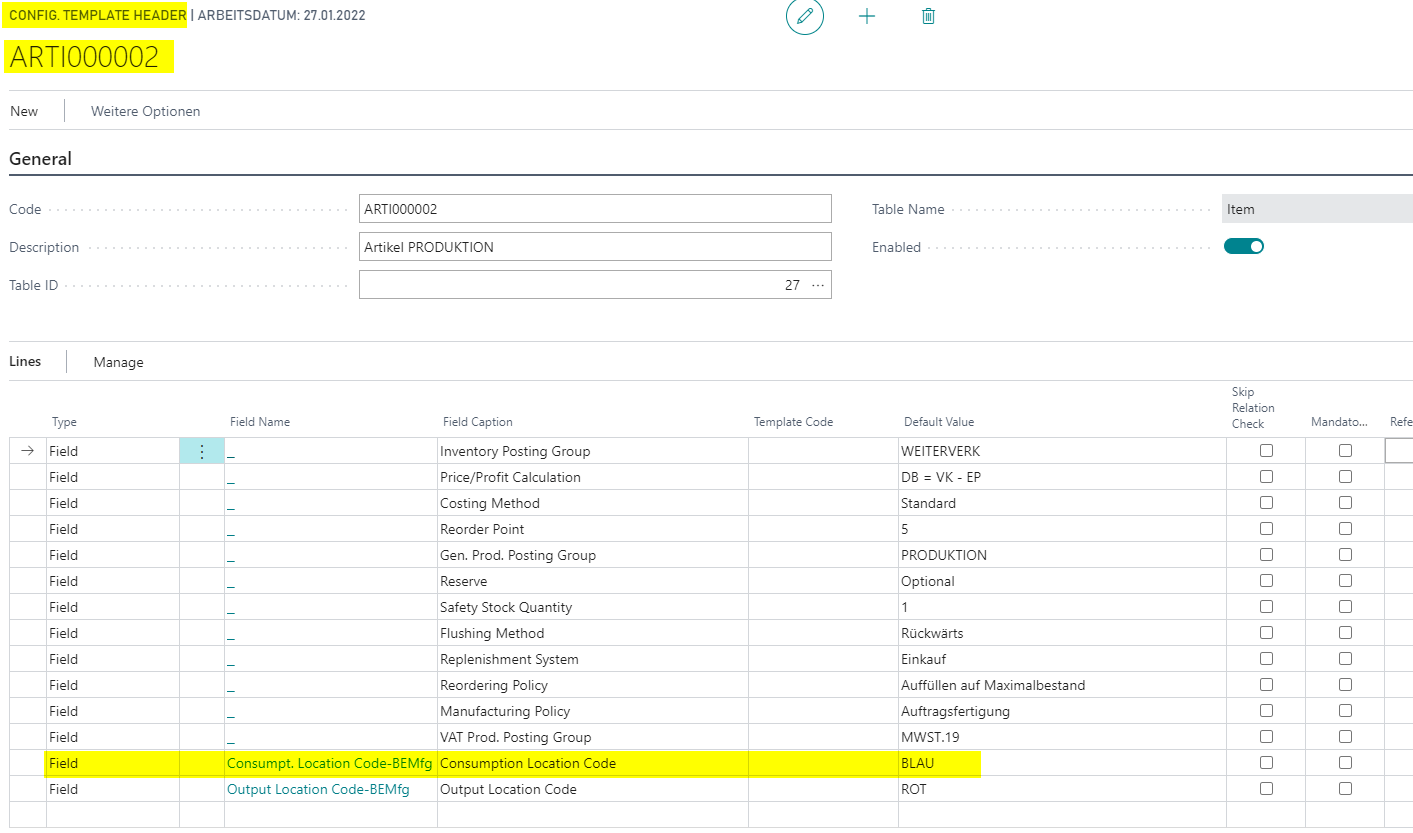
- Add or maintain Consumption Location Code.
- Add or maintain Output Location Code.
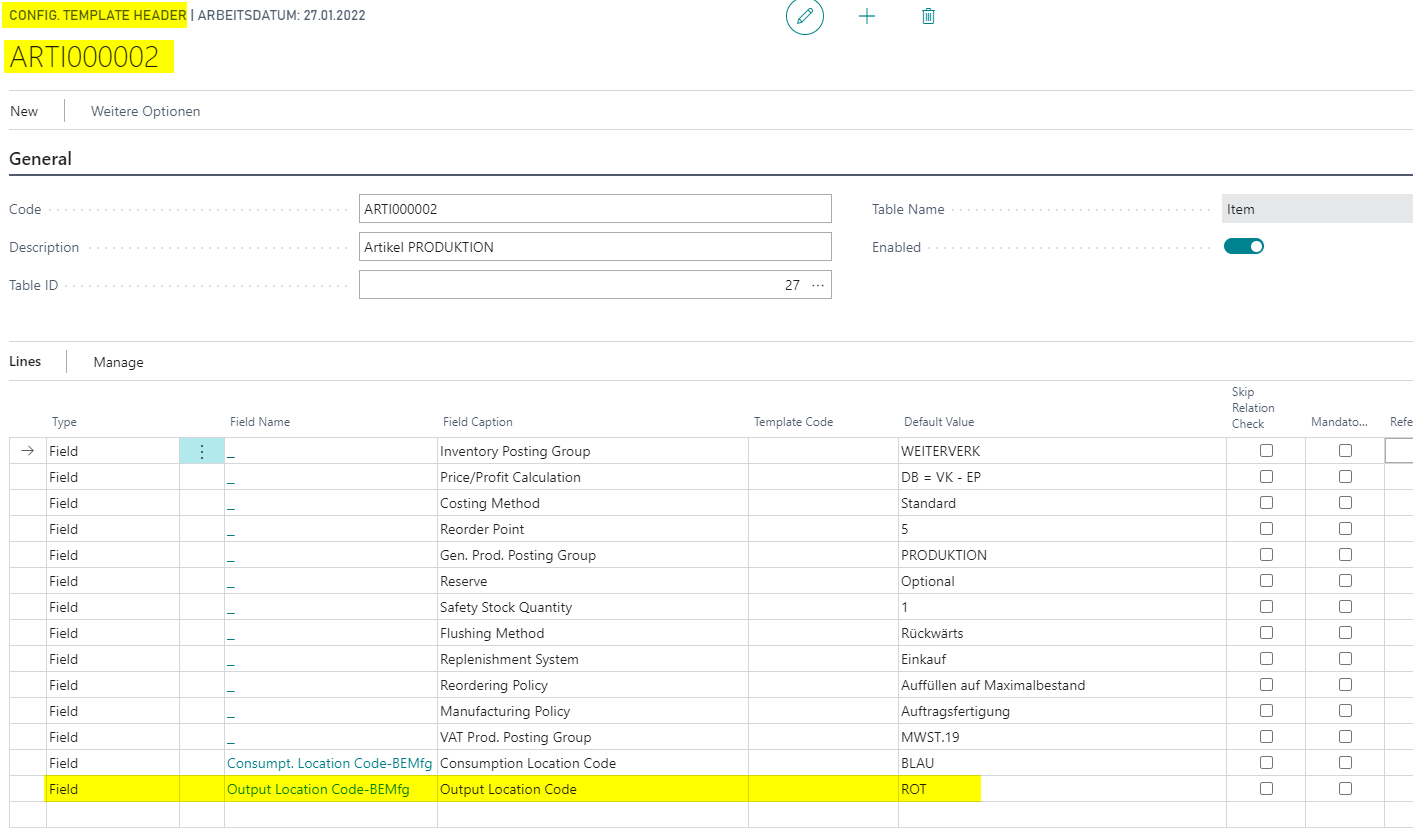
These values are transferred from the template into the item card when a new item is created.
Create an Item from a Template and Check the Fields
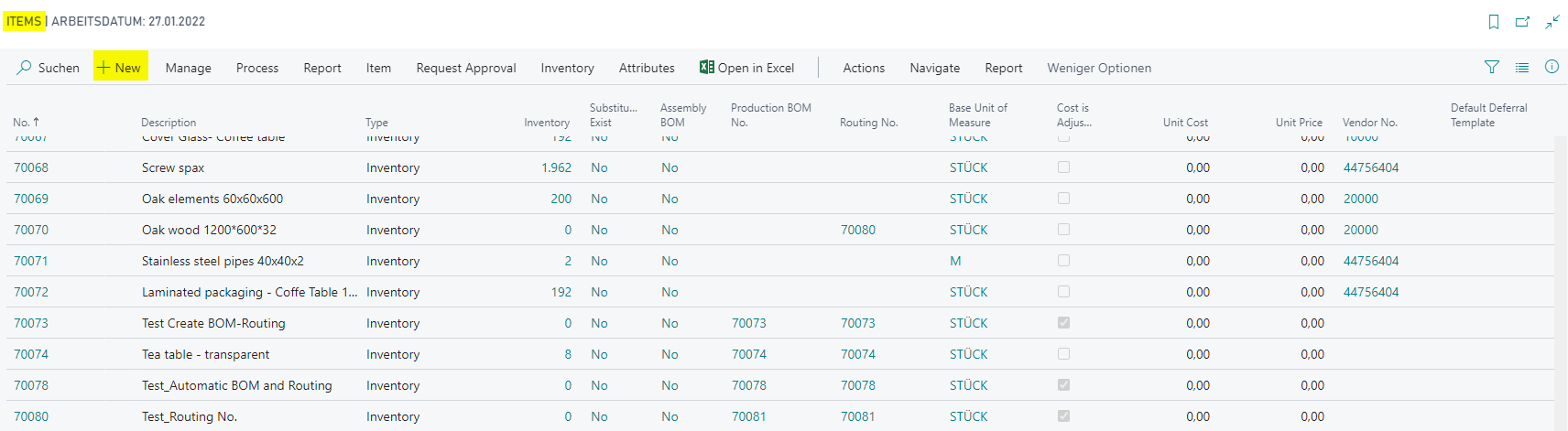
- Open the item list.
- Choose New to create a new item.
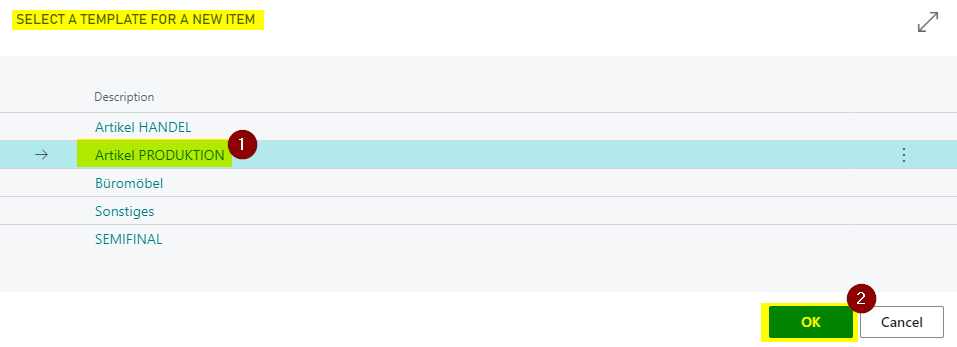
- Select the required item template and confirm with OK.
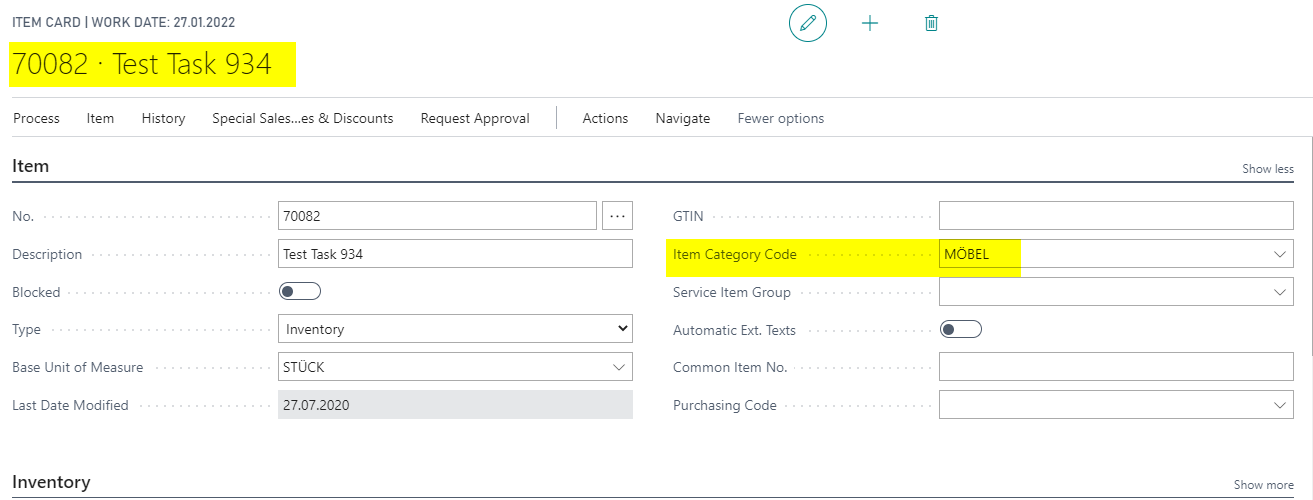
- On the item card, check Item Category Code.
- Open the Replenishment FastTab and check Consumption Location Code and Output Location Code.
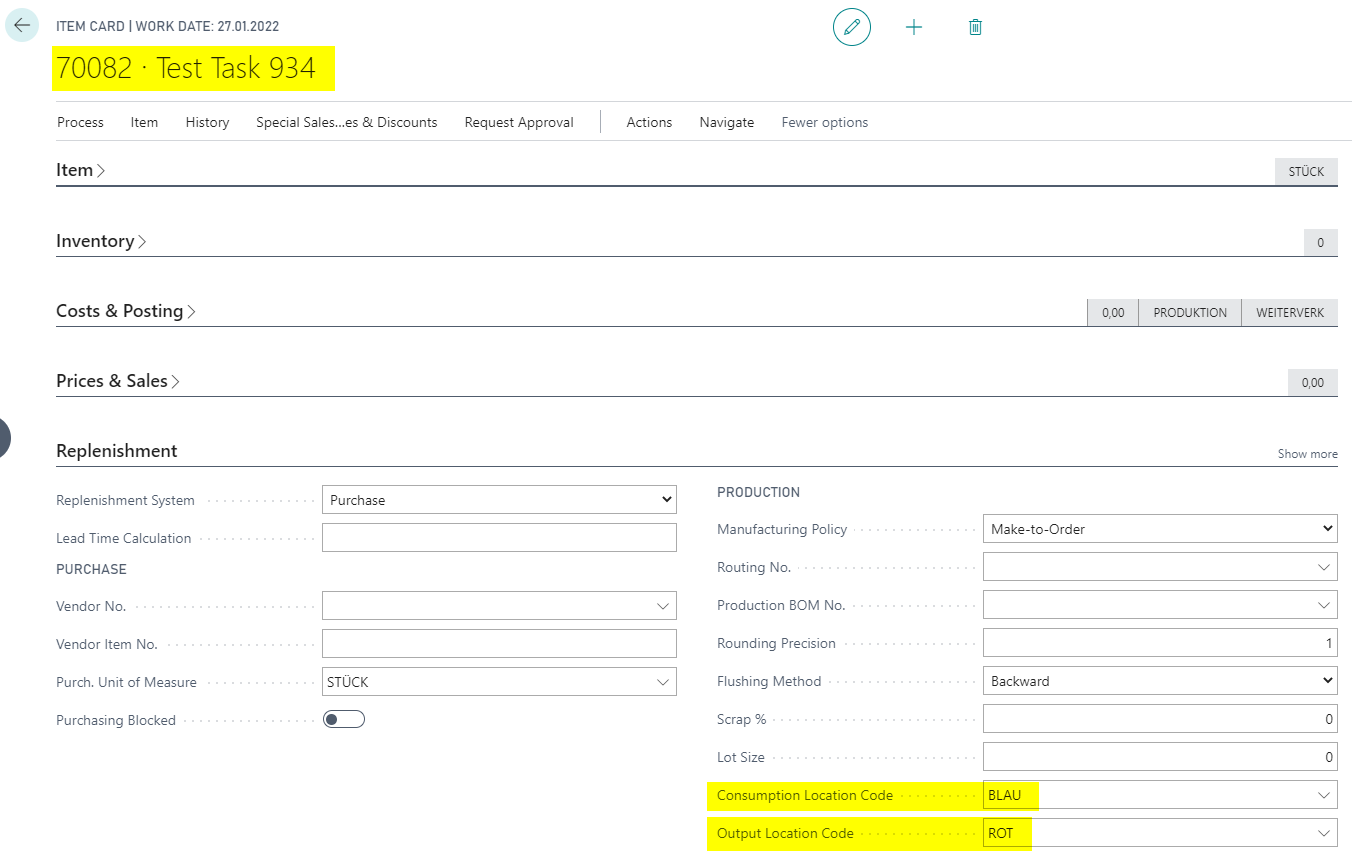
The Consumption Location Code is later used for production BOM lines, production order components, production journal lines, and planning components. The Output Location Code is transferred to production order lines and output processes.
Transfer Values to Production BOMs
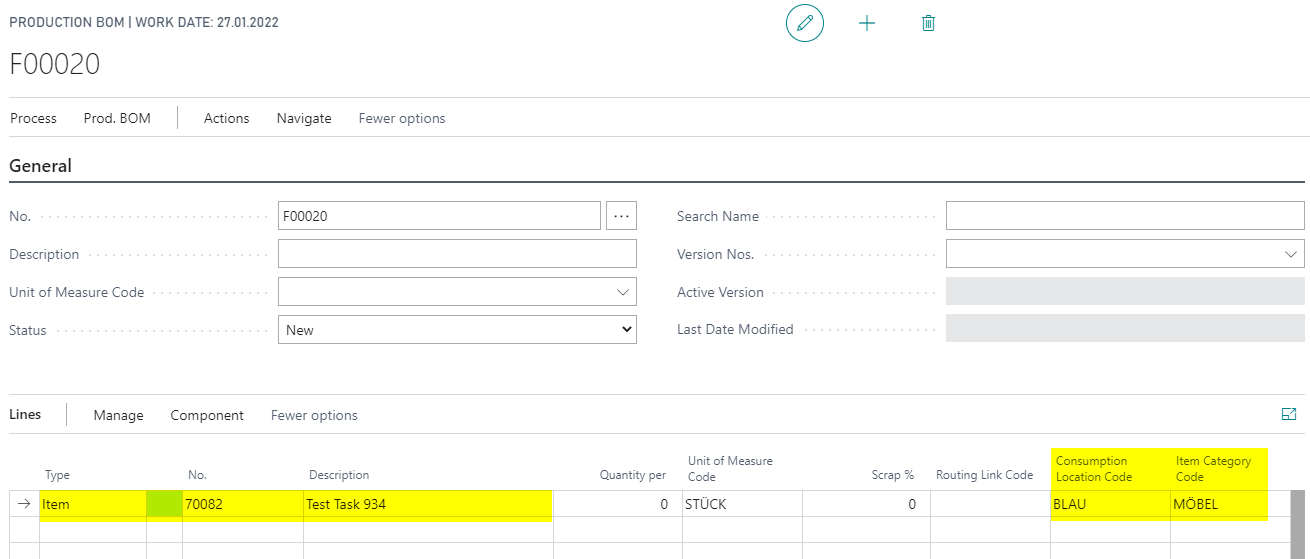
When you add an item to a production BOM line, the system transfers values from the item card.
- Open the Production BOM.
- Maintain at least No., Description, and Unit of Measure Code in the header.
- In a line, choose Type = Item.
- Enter Item No..
The following fields are transferred:
- Consumption Location Code from the item
- Item Category Code from the item
Transfer Values to Production Orders
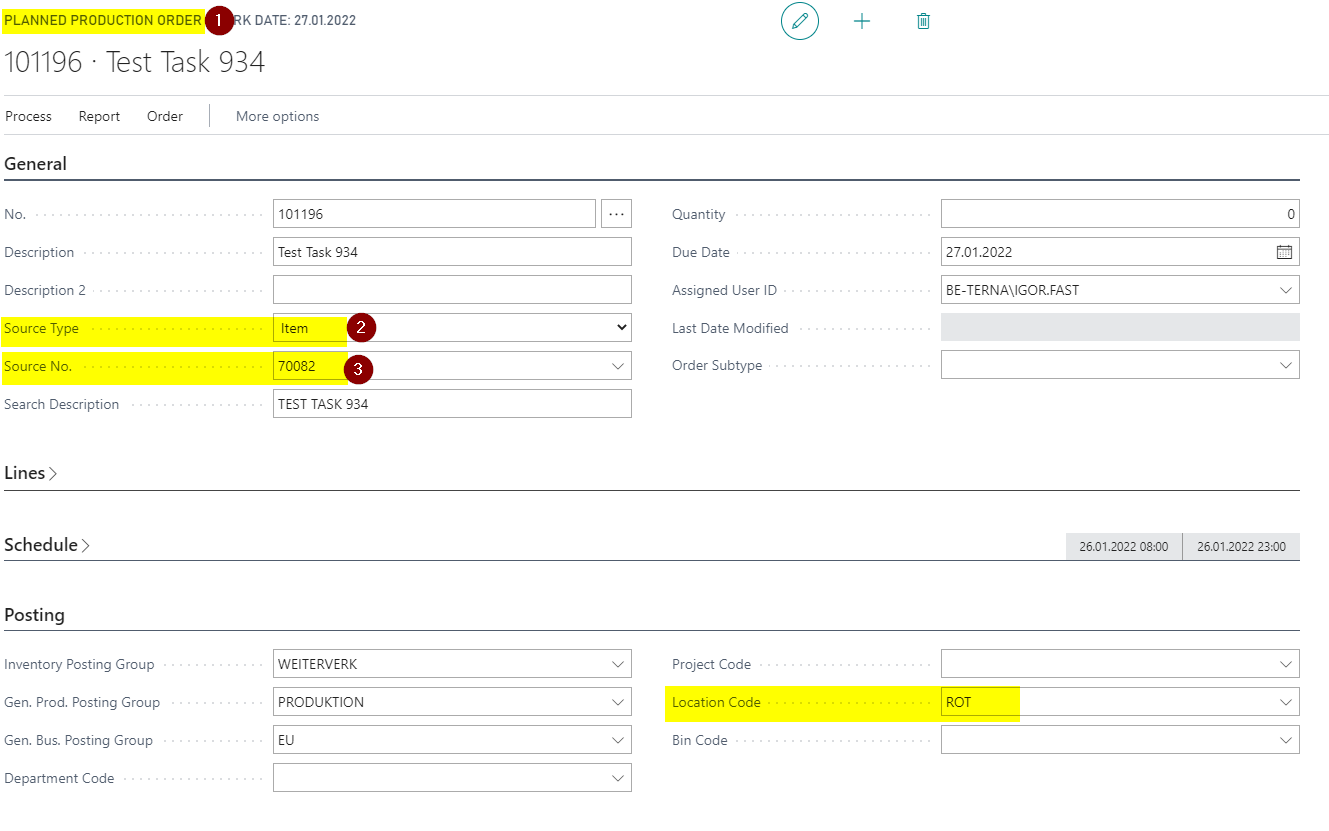
The Location Code in the production order is transferred from the item’s Output Location Code.
- Open a production order in any of the statuses Simulated, Planned, Firm Planned, or Released.
- Set Source Type = Item.
- Enter the item in Source No..
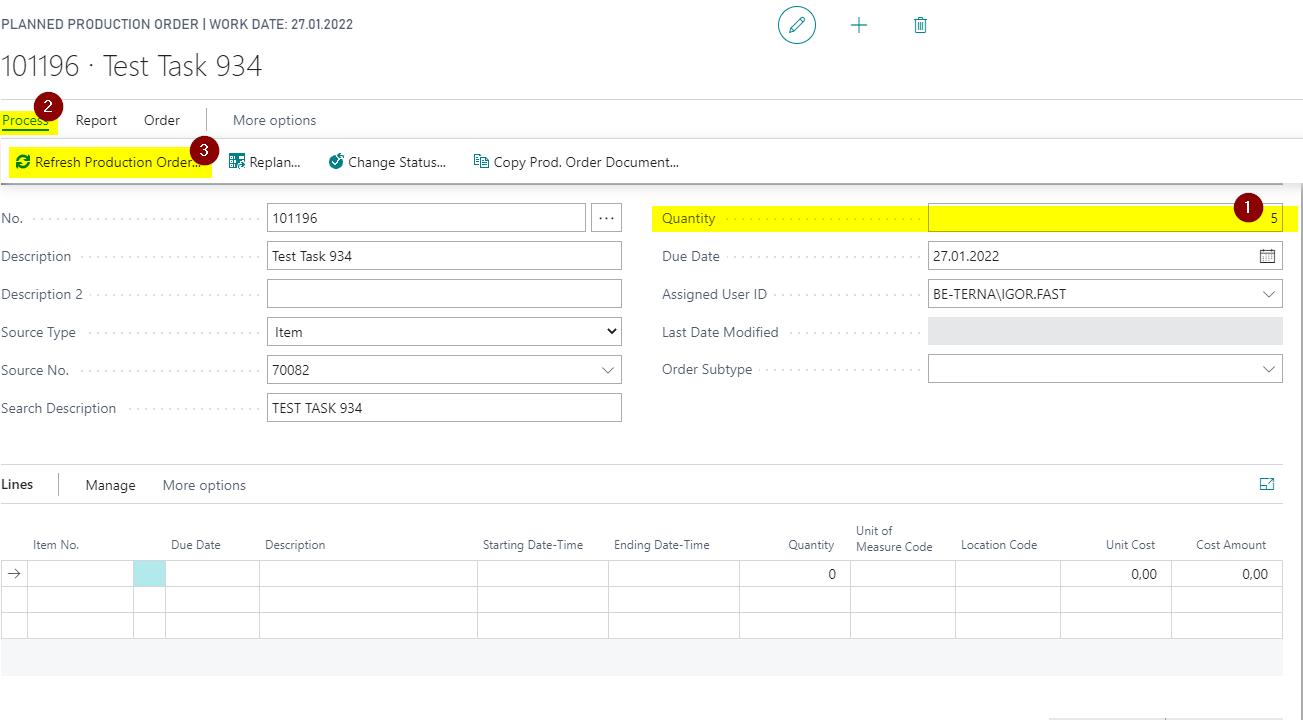
- Enter a quantity.
- Choose Process > Refresh Production Order.
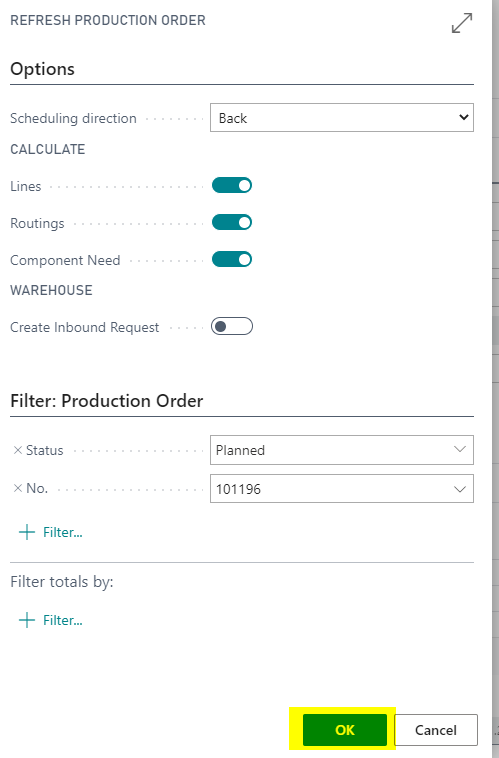
- Confirm the options with OK.
After the refresh, the production order line is created. Item No., Location Code, and Quantity are transferred from the header data.
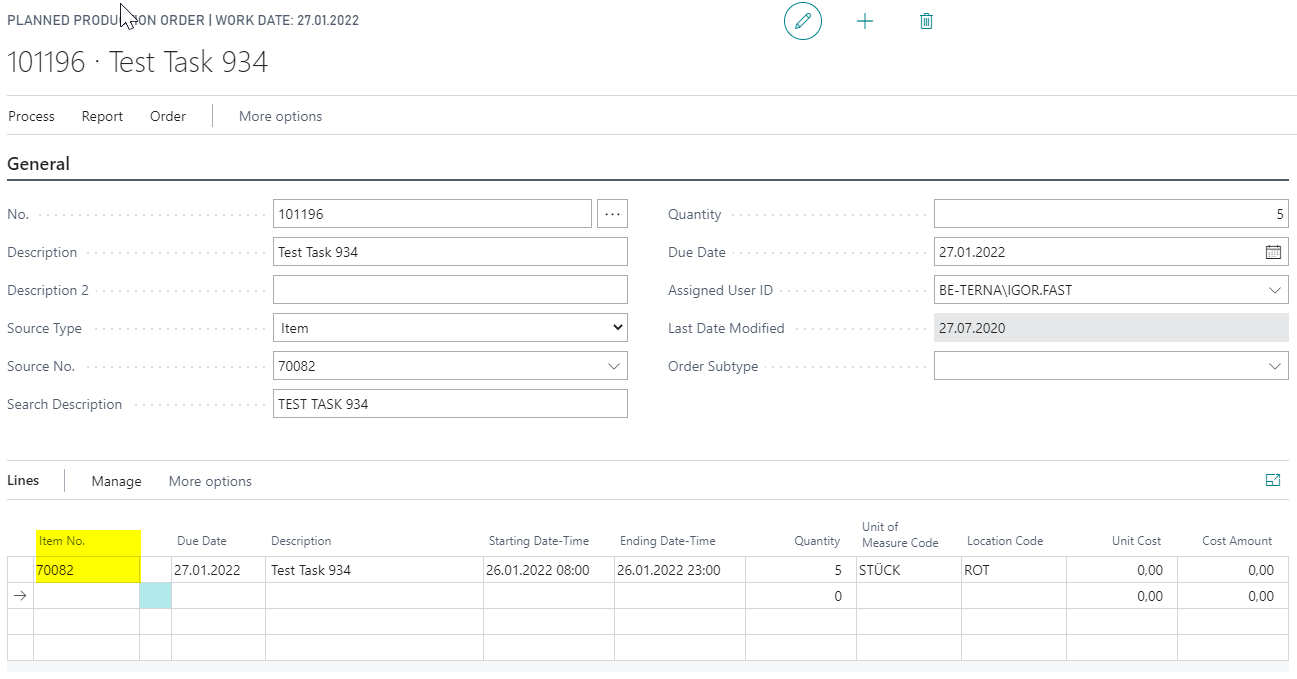
Then open components by using Line > Components. The component Location Code is transferred per component line from the Consumption Location Code of the component item.

Check Values in Production Order Components
For manually created production order components, the location code is also defaulted from the component item.
- Open Production Order Components.
- Create a new line.
- Enter Item No..
The system transfers Location Code from the item’s Consumption Location Code.
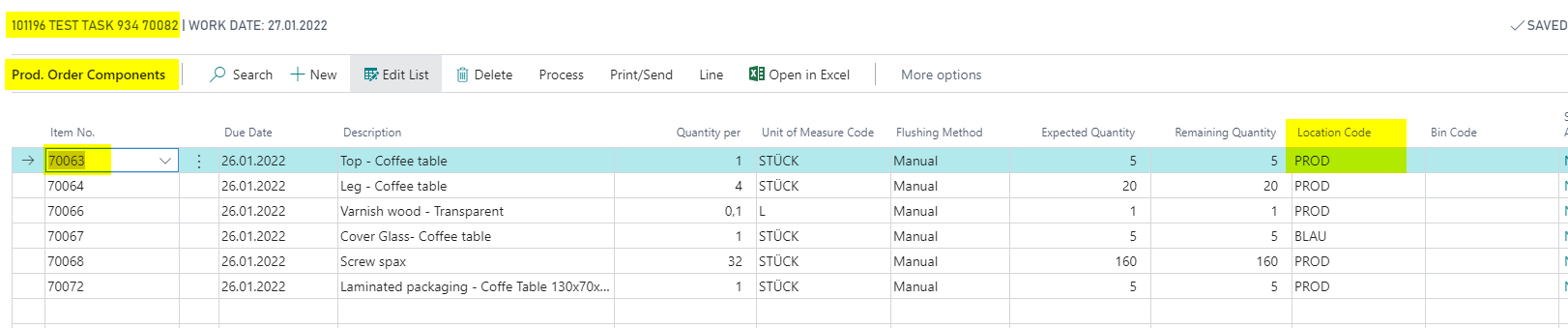
The location comes from the selected component item. In the following example, item 70063 has Consumption Location Code = PROD.
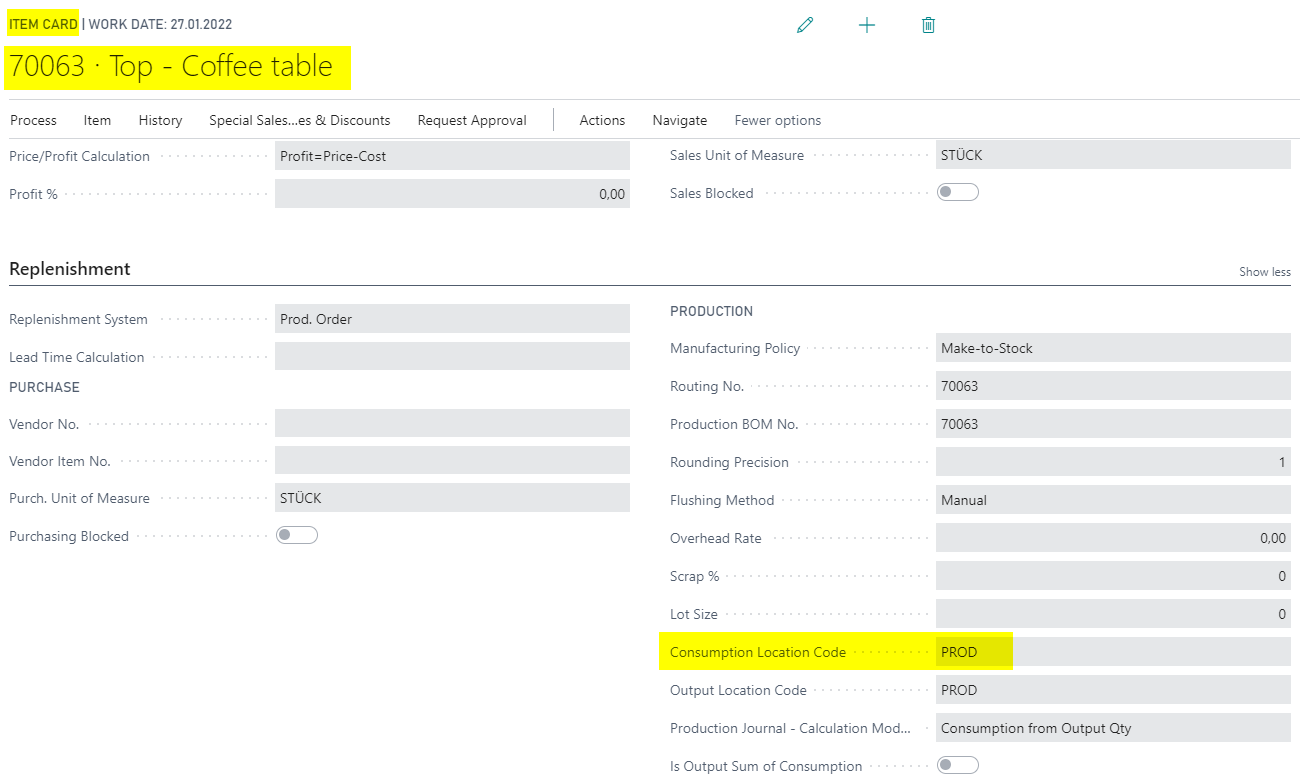
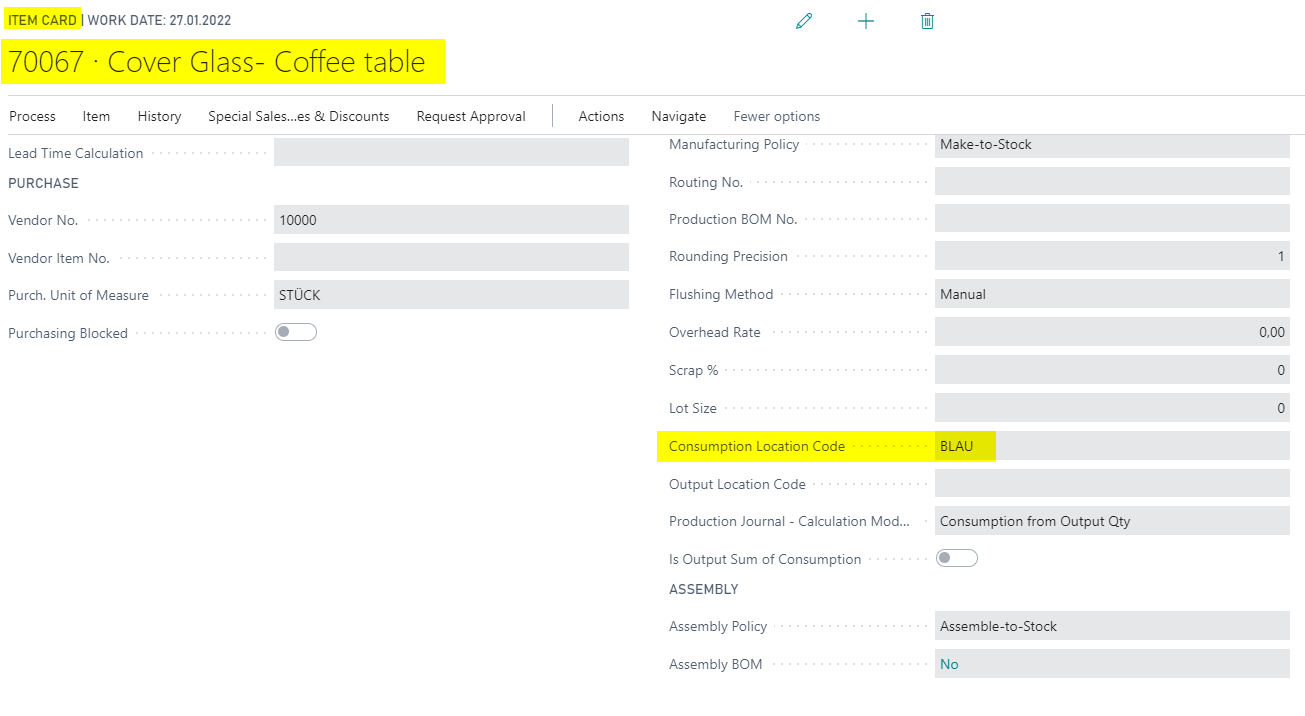
If another component item has another consumption location, that value is transferred. In the example, item 70067 uses location BLAU.
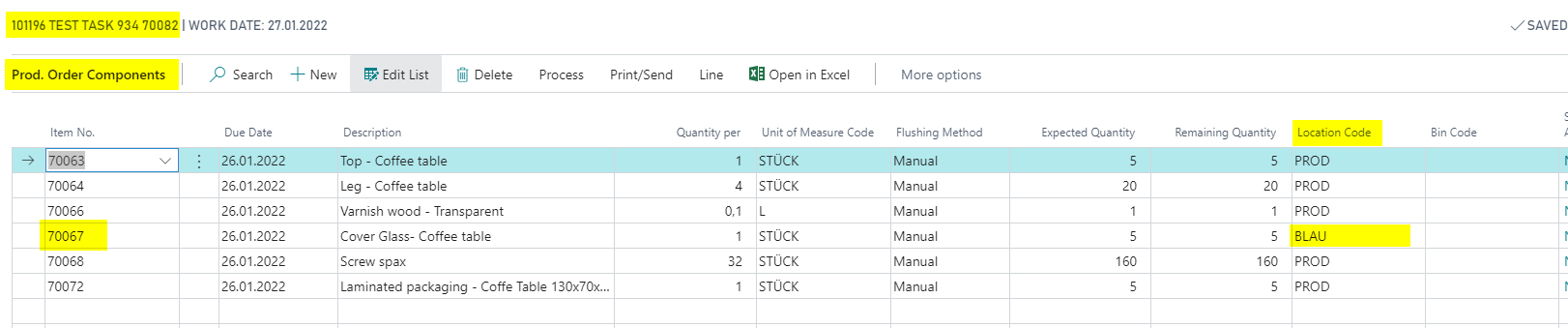
The item card shows the underlying Consumption Location Code of the item.
Check Values in Planning Components
Planning components also use the Consumption Location Code from item master data.
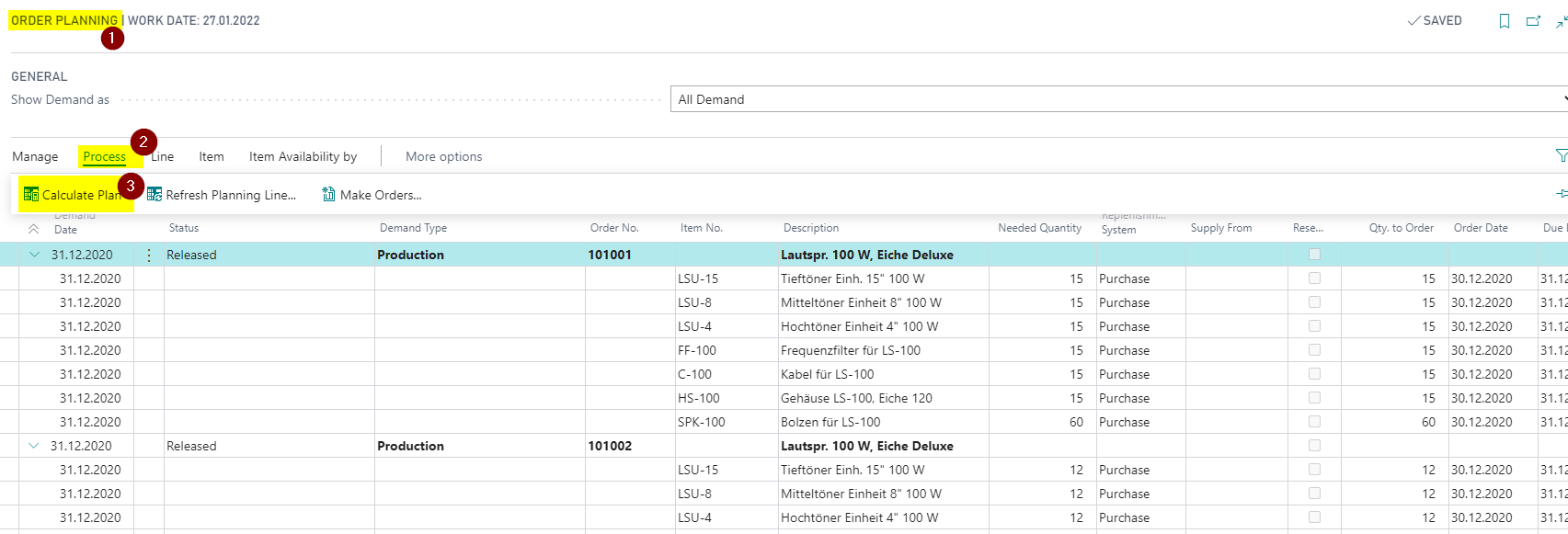
- Open Order Planning.
- Choose Process > Calculate Plan and confirm the calculation.
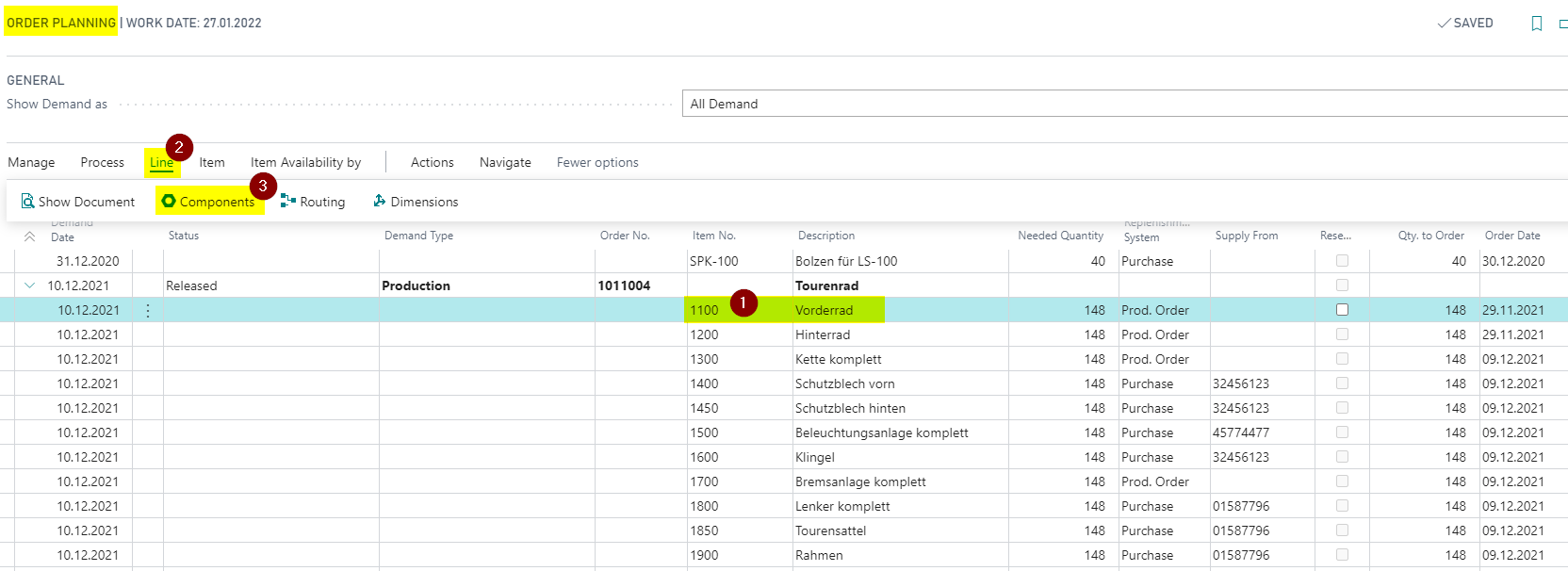
- Select the required line.
- Open the components of the planning line through Line > Components.
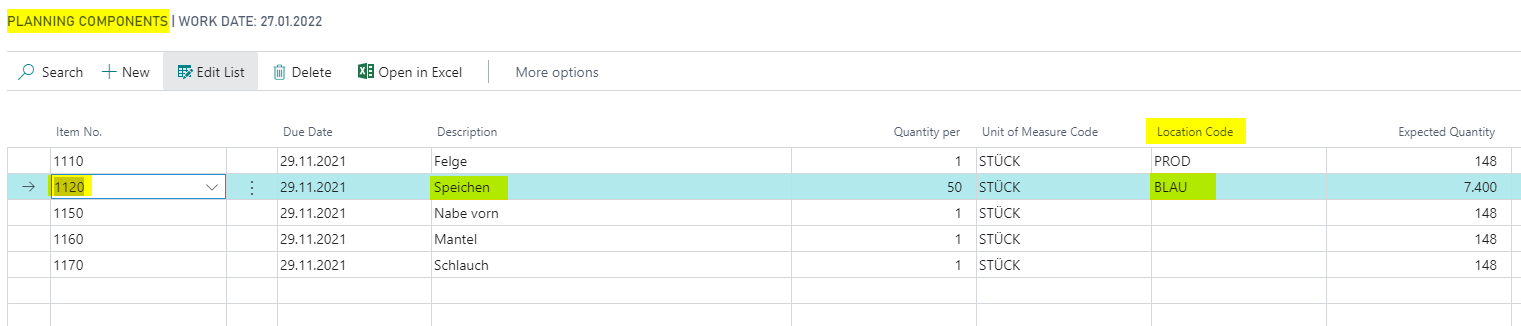
The Planning Components page shows the required components for the item. Location Code is transferred from the Consumption Location Code of the respective component item.
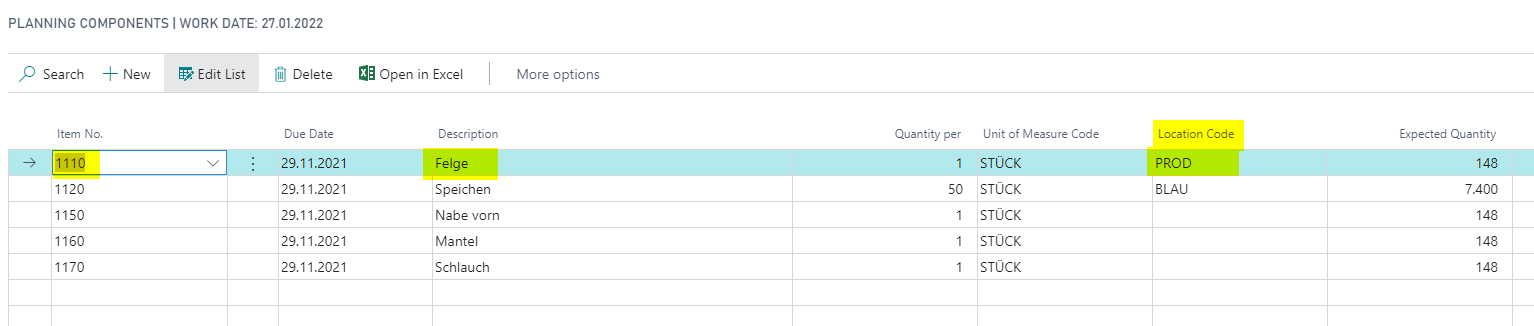
You can trace the value back to the component item card.
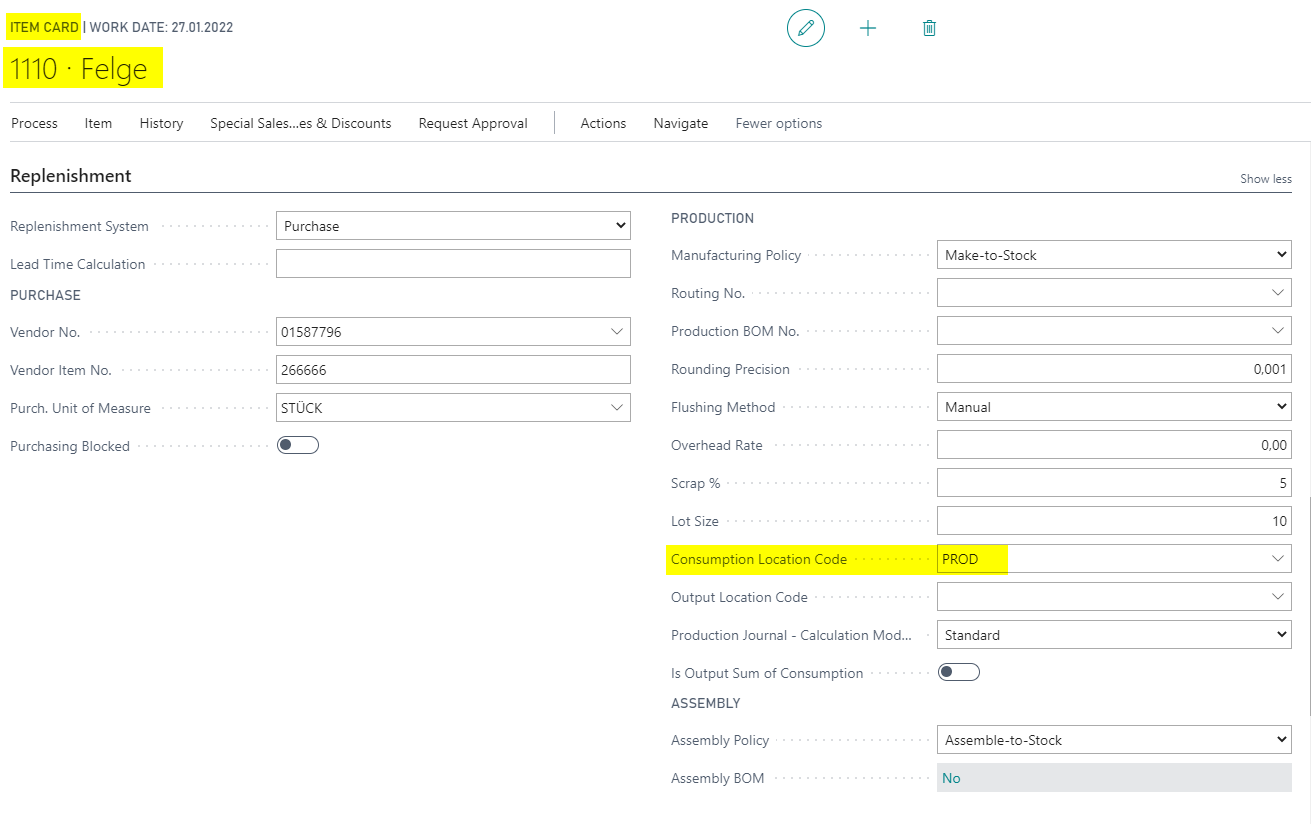
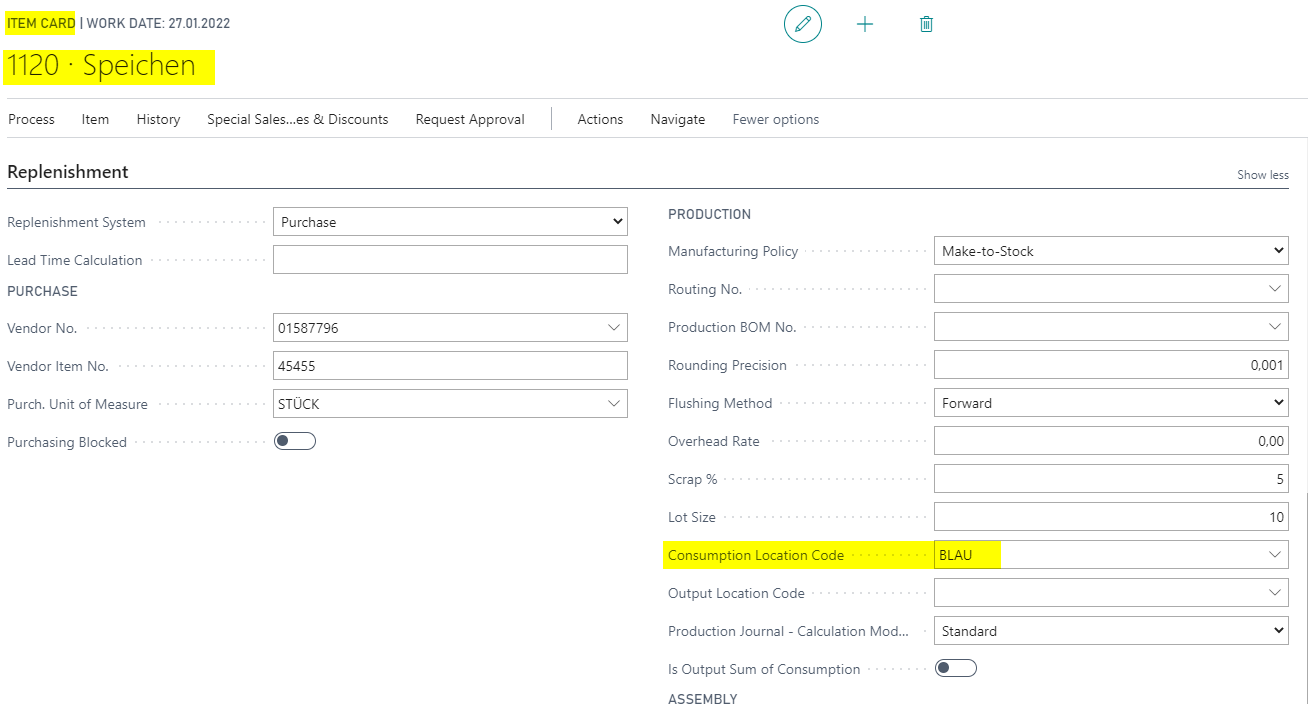
For another component item, the corresponding consumption location is transferred.
This value also comes from the item card.
Result
After setup, location codes and item category information are defaulted along manufacturing data. Item templates fill the relevant fields on the item, production BOMs transfer consumption location and item category, production orders transfer the output location, and components as well as planning components transfer the consumption location of the respective item.
Links