Reports
Purpose
Reports in the Production Order area support operational and financial analysis. They structure production order information for shop floor papers, material and capacity lists, final costing, and WIP valuation.
BE-terna Manufacturing extends standard Business Central reports with additional columns, clearer grouping, and analysis across multiple production levels.
Business Value
- Production orders can be printed with header, lines, routing lines, and components in a structured format.
- Shop floor papers contain additional descriptions, quantities, units, times, and QR information.
- Operation and material requirement lists can be sorted and filtered more precisely.
- Final costing shows expected and actual costs across several production levels.
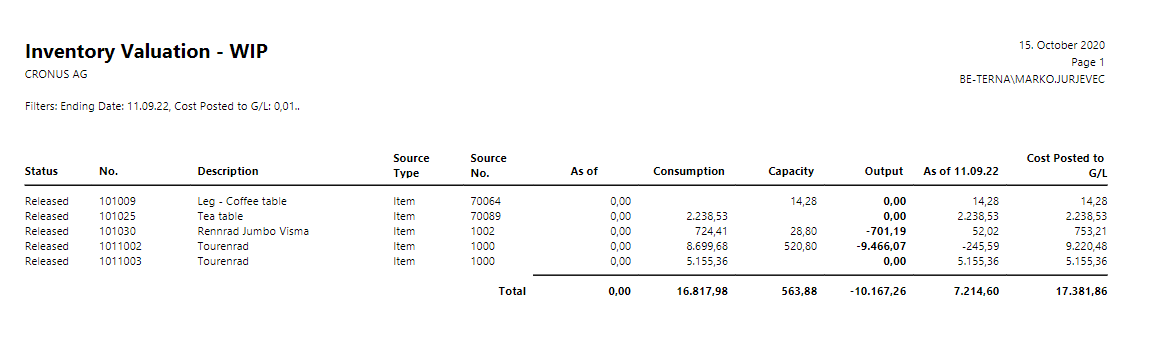
- WIP reports can be reduced to relevant production orders through a threshold.
Use Prod. Order Printout BE
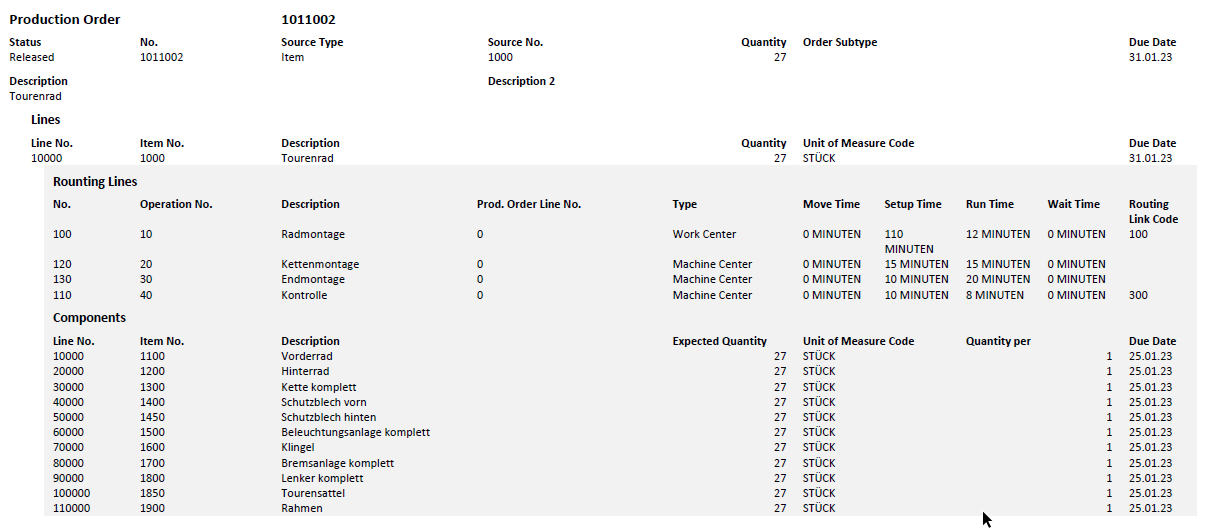
Prod. Order Printout BE arranges production order information in a structured way. It shows information from the production order header, production order lines, routing lines, and components.
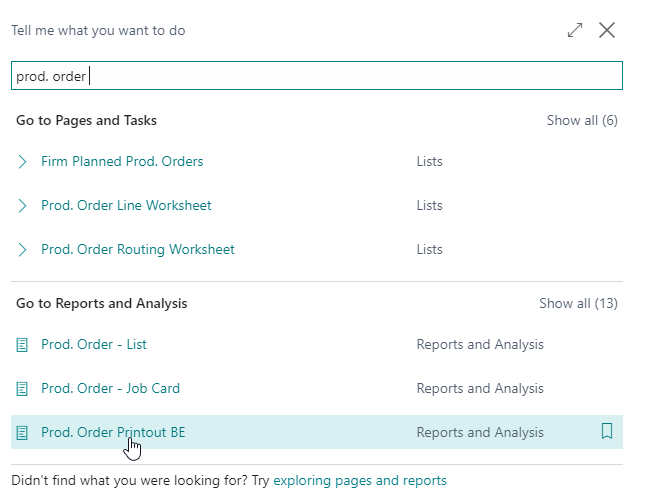
- Search for Prod. Order Printout BE.
- Set the required filters for the production order.
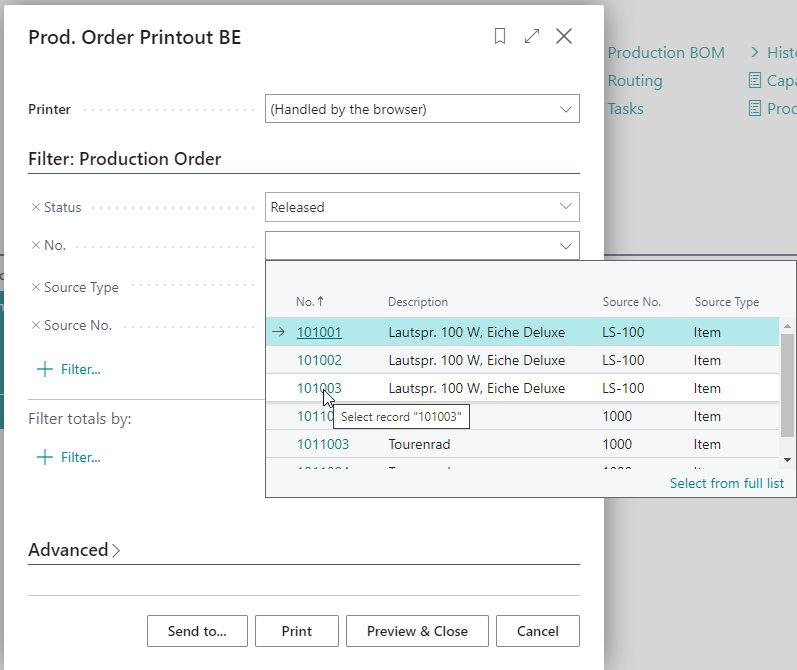
- Choose Print to generate the report.
The report is structured as follows:
- Production order header
- Production order line
- Routing lines of the production order line
- Components of the production order line
- Production order line
This structure repeats for all lines in the production order.
Use Production Order Job Card BE
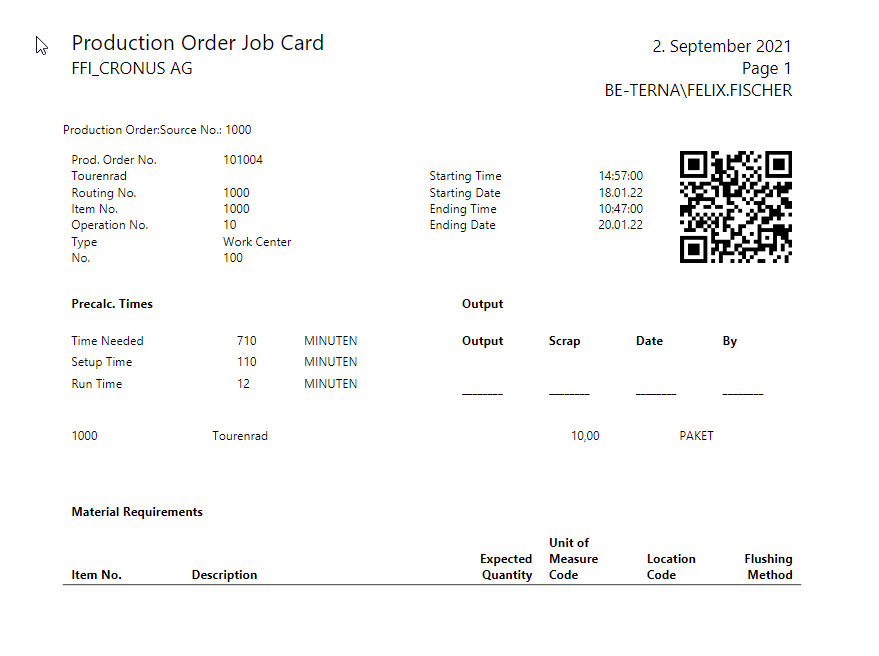
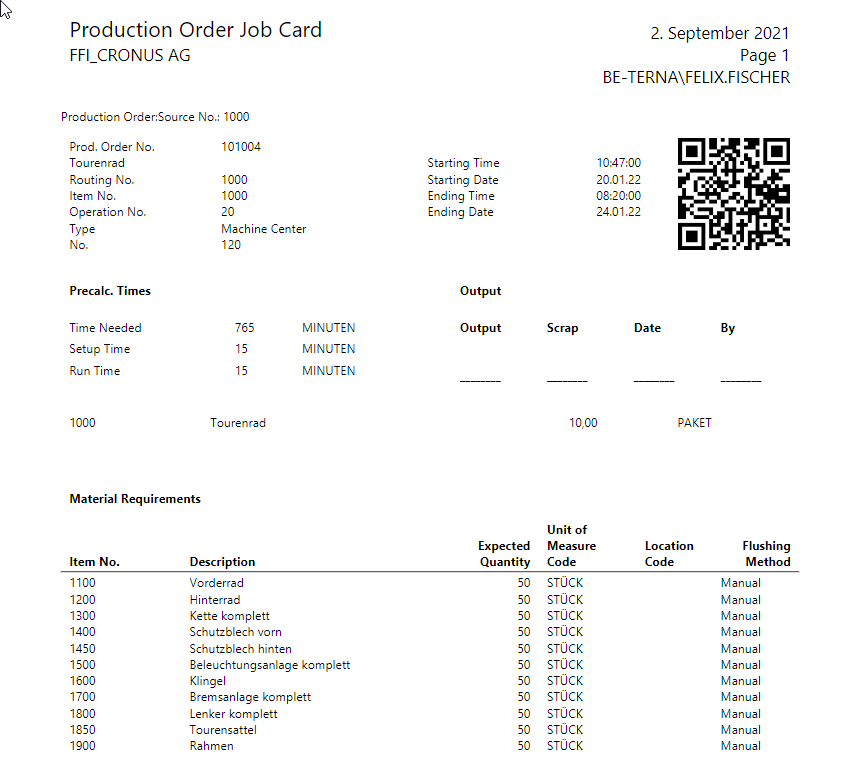
The Production Order Job Card BE extends the standard Prod. Order - Job Card. It adds information to production order lines, routing lines, and component lines.
On production order lines, the report adds:
- Description
- Quantity
- Unit of Measure
On production order routing lines, the report adds:
- Description
- Routing Line QR Code
- Time Needed
- Setup Time
- Run Time
On production order component lines, the report adds:
- Item No.
- Description
- Expected Quantity
- Unit of Measure Code
- Location Code
- Flushing Method
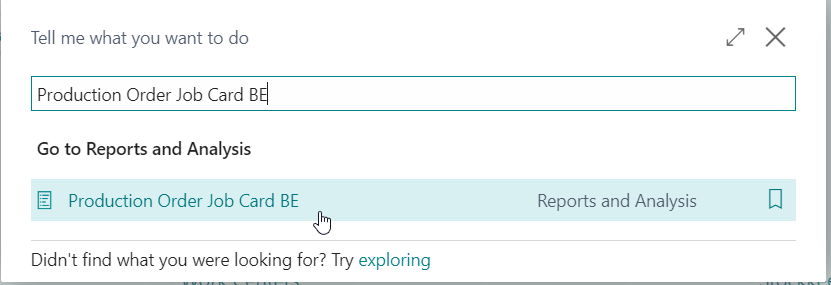
- Search for and open Production Order Job Card BE.
- Set the required filters.
- Open or print the job card.
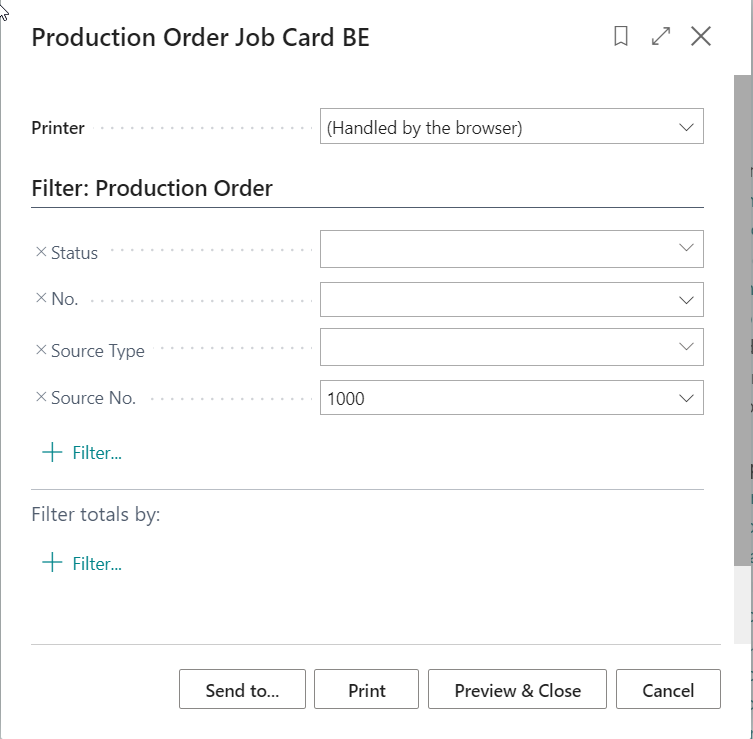
Example pages of the report:
Use Capacity Task List BE
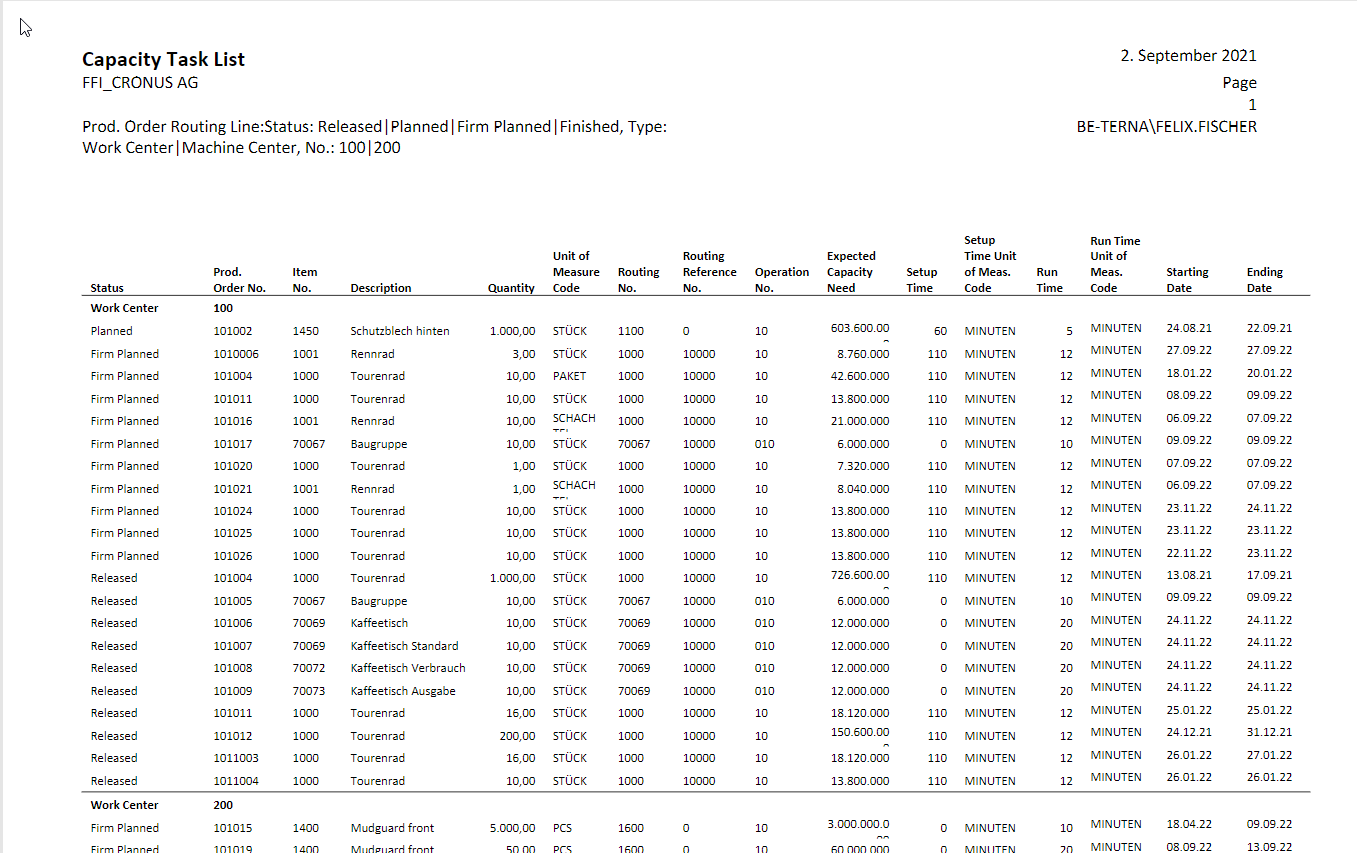
The Capacity Task List BE extends the standard Prod. Order - Capacity Task List. Lines are sorted by Location Code and Line No.
The report adds columns such as:
- Status
- Item No.
- Unit of Measure Code
- Routing Reference No.
- Expected Capacity Need
- Setup Time and Setup Time Unit of Meas. Code
- Run Time and Run Time Unit of Meas. Code
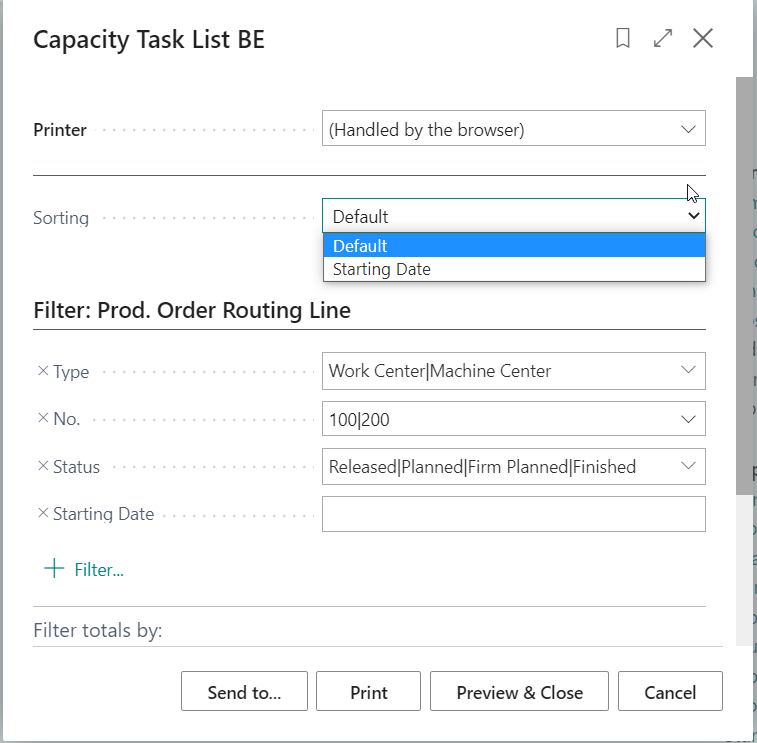
- Search for and open Capacity Task List BE.
- Set the required filters.
- Select Starting Date or Default as the sorting.
- Open or print the capacity task list.
Use Prod Order - Material Requisition BE
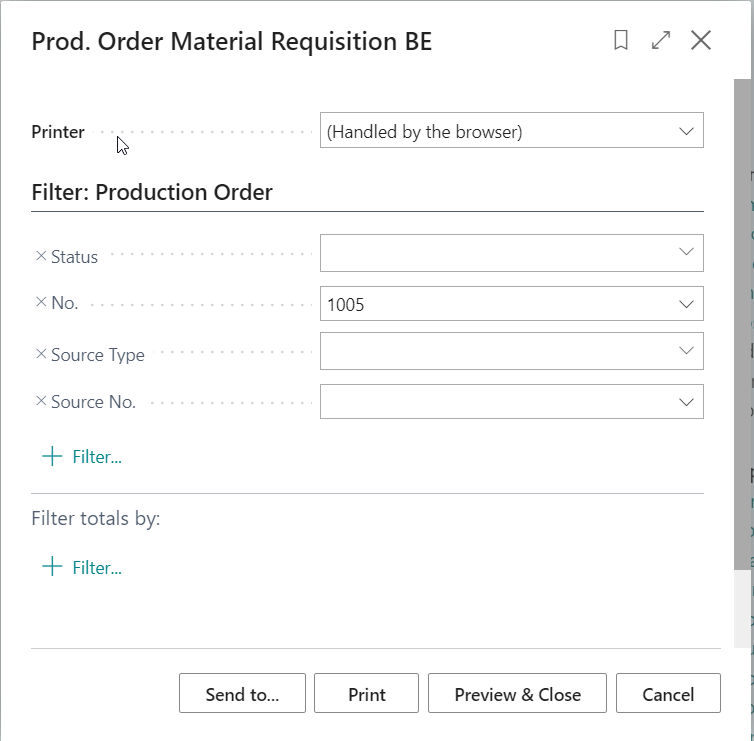
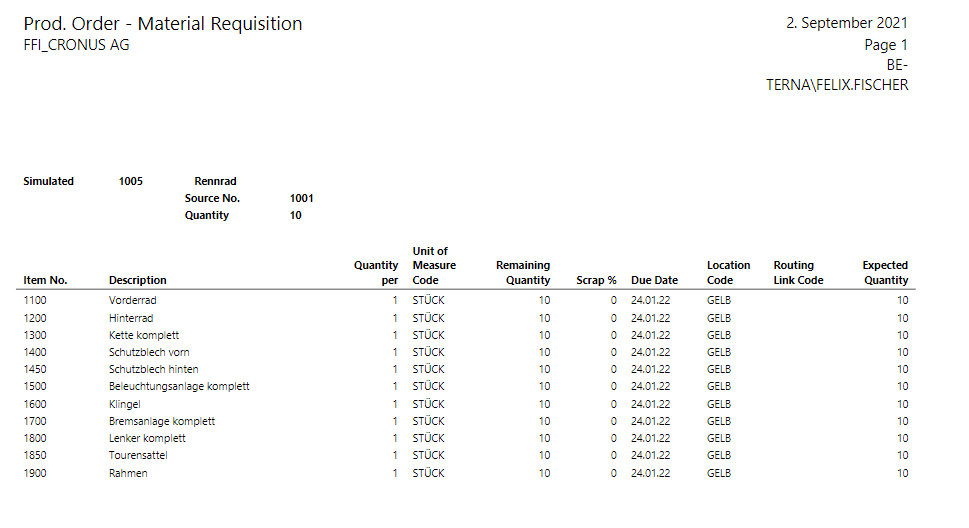
The Prod Order - Material Requisition BE extends the standard Prod. Order - Mat. Requisition. The report adds Routing Link Code and Expected Quantity. Lines are sorted by Location Code and Line No.
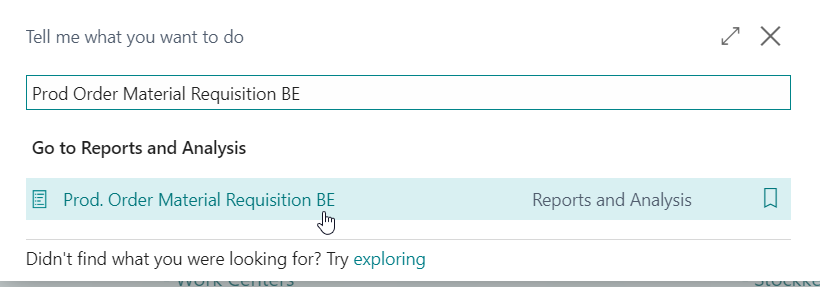
- Search for and open Prod Order Material Requisition BE.
- Set the required filters.
- Open or print the material requisition list.
Use Production Order - Final Costing
The Production Order - Final Costing report shows costs across all production levels. It helps users understand how material and capacity costs from lower levels roll up into the monitored item.
The report shows in particular:
- Quantity and cost information for all production orders involved in producing the monitored item.
- Comparison between expected and actual costs by level.
- Separate material and capacity cost totals.
- Accumulated costs by production order and production level.
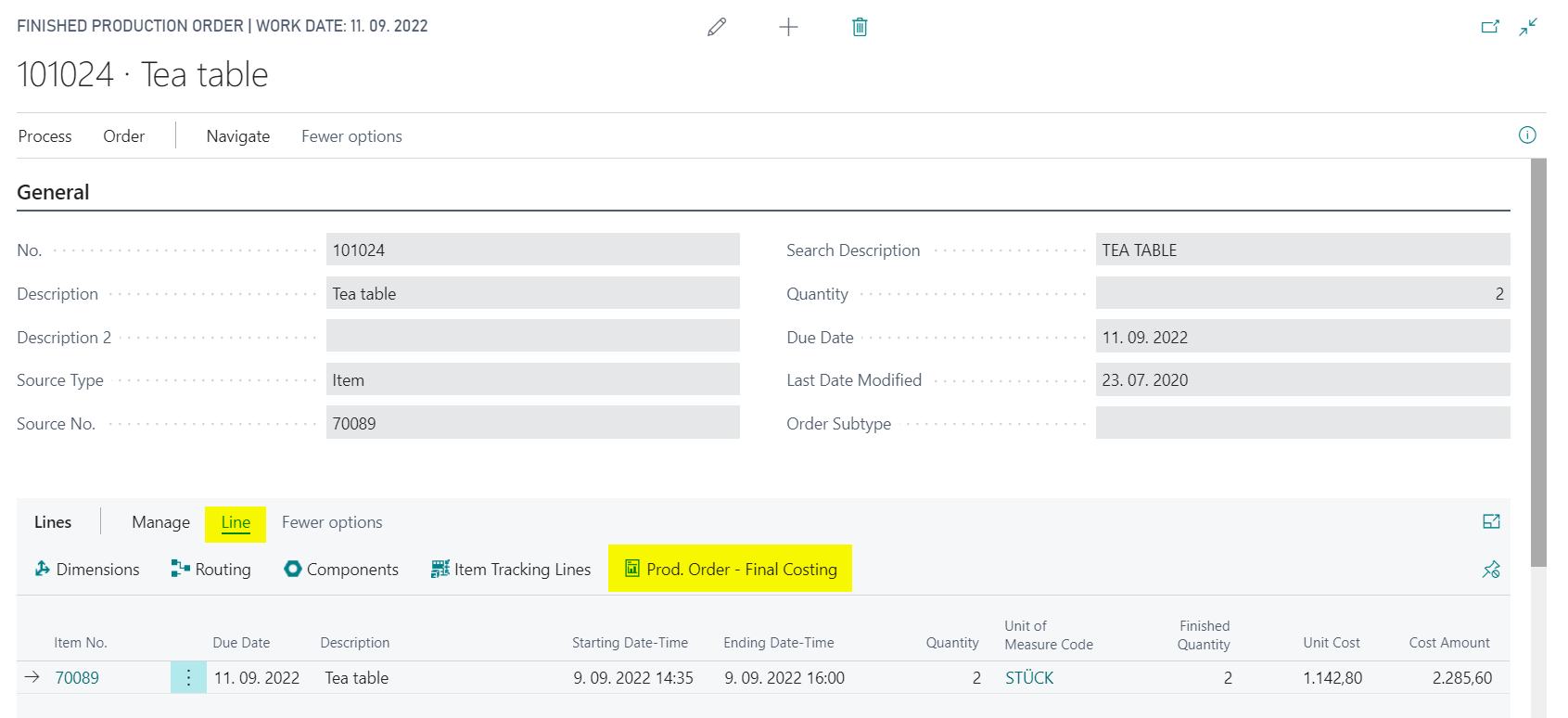
- Open the Finished Production Order Card of the item you want to analyze.
- Select the production order line.
- Choose Line > Production Order - Final Costing.
- On the request page, decide whether details should be shown.
- Choose Print or Preview.
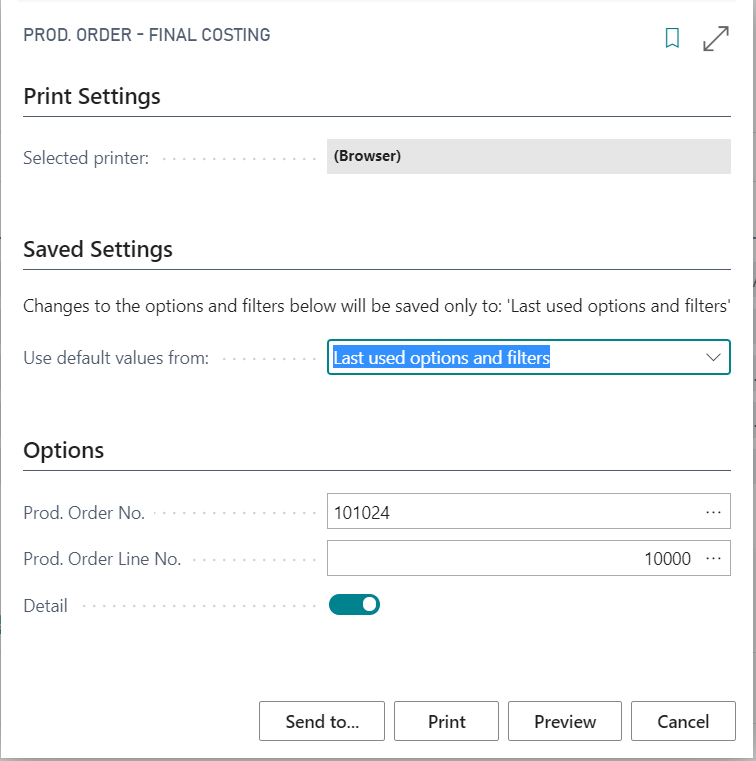
When Detail is enabled, the report shows a detailed analysis for each production order involved in producing the monitored item. Without details, only the summary page is shown.
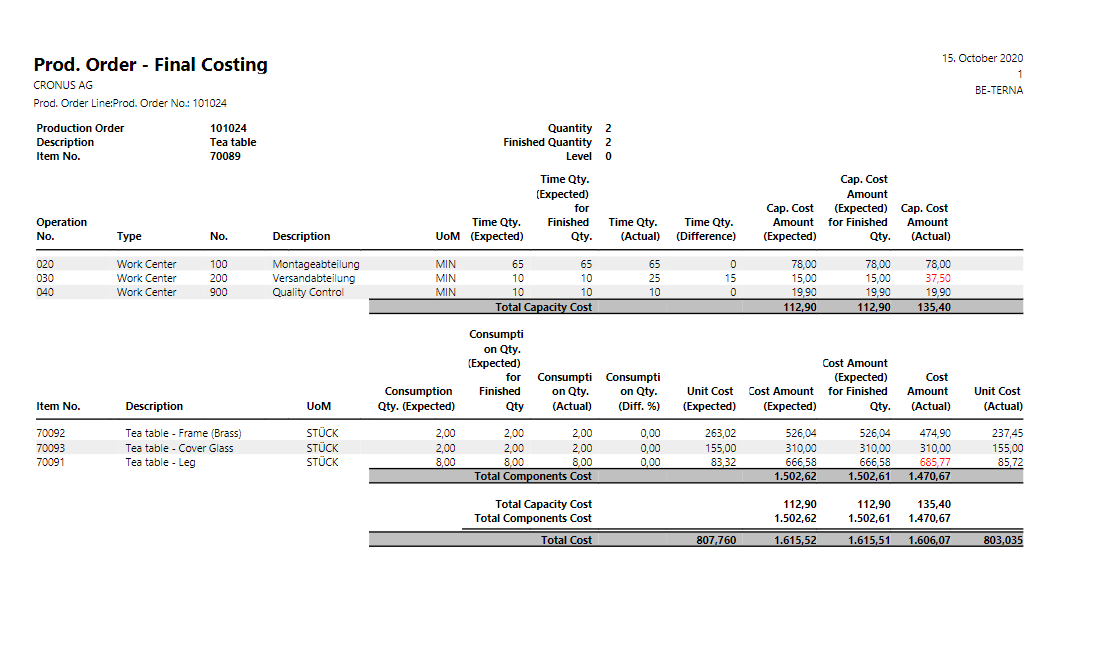
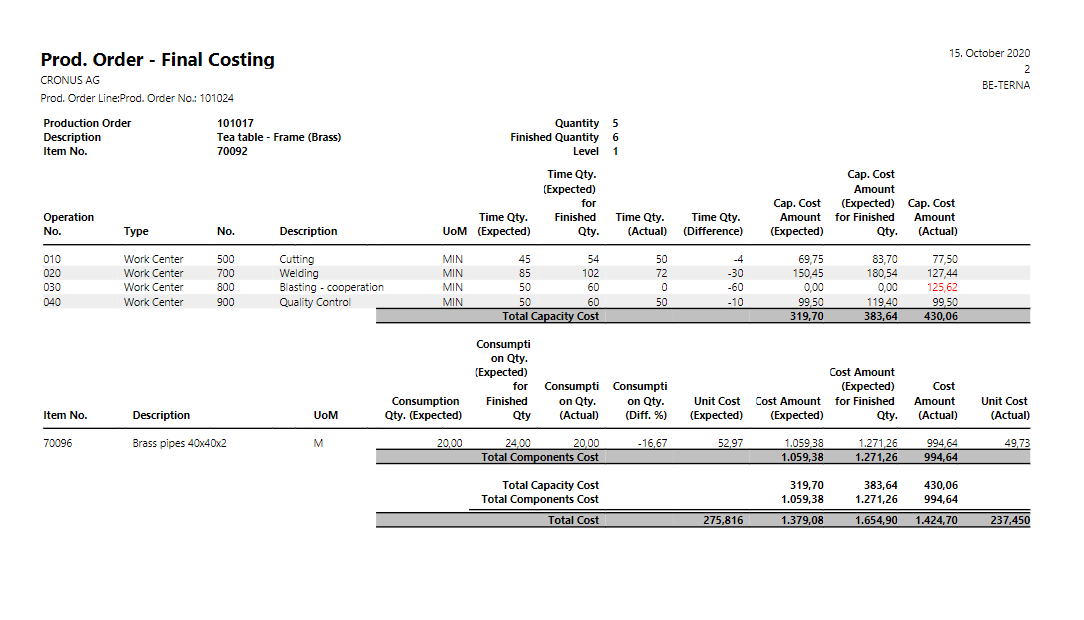
Detail pages include, among other things:
- Production order number, item, description, planned quantity, and finished quantity.
- Level in the production hierarchy, where the monitored item is level 0.
- Routing lines with expected and actual time and capacity costs.
- Components with expected and actual consumption, deviations, and costs.
The All Level Summary page aggregates the detail pages across all levels.
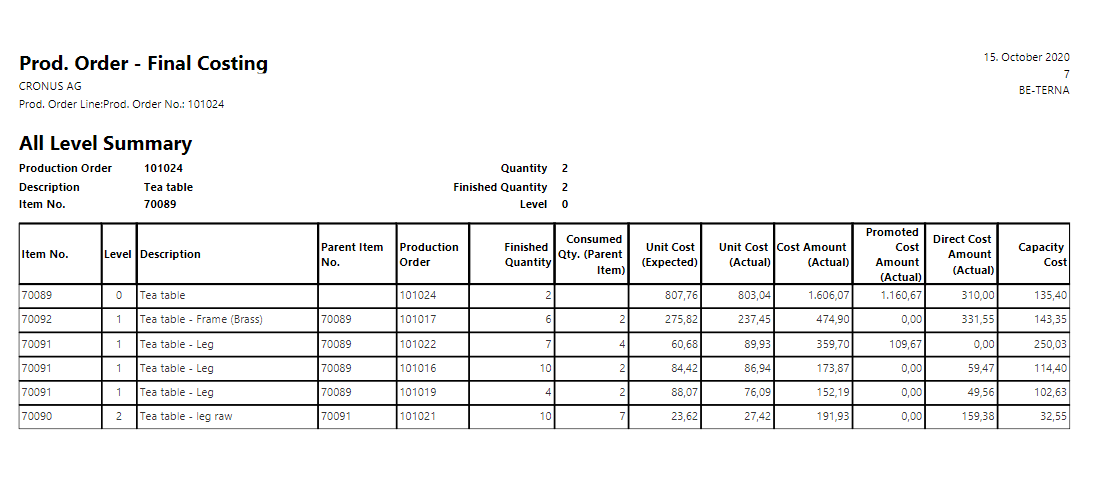
Important interpretation points:
- Cost Amount (Actual) is the sum of Promoted Cost Amount (Actual), Direct Cost Amount (Actual), and Capacity Cost on the same line.
- Promoted Cost Amount (Actual) of one level represents the costs from the lower level that roll up into the parent product.
- Consumed Qty. (Parent Item) shows the quantity consumed into the parent item.
Use WIP Valuation with a Threshold
WIP valuation shows Work in Progress for selected production orders. It includes values from consumption, capacity usage, and output. The extension is based on the standard Production Order - WIP report and adds the ability to skip entries below a defined threshold.
The report shows invoiced amounts. Run Adjust Cost - Item Entries before reviewing production WIP.
Prepare the Threshold
- Open Manufacturing Setup.
- Enter the required value in Prod. Order WIP to G/L Threshold Amount.
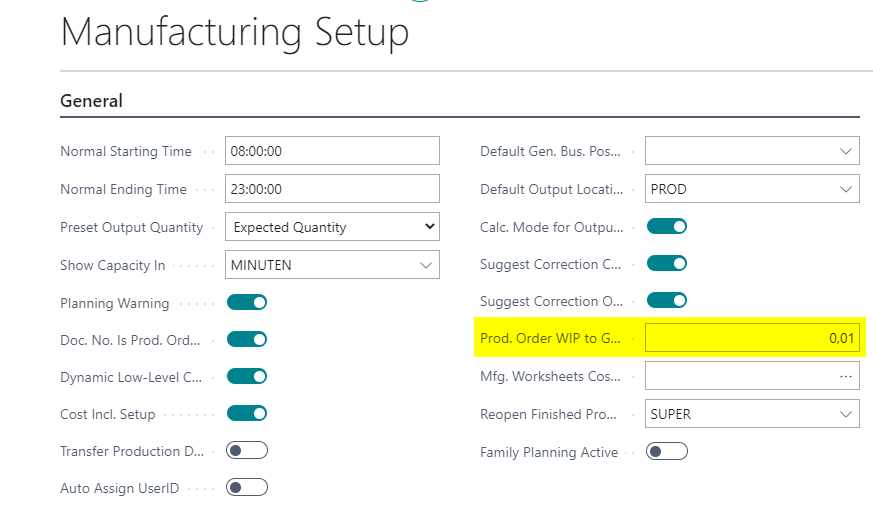
The value is transferred to Production Order - WIP Additional and can be adjusted before printing.
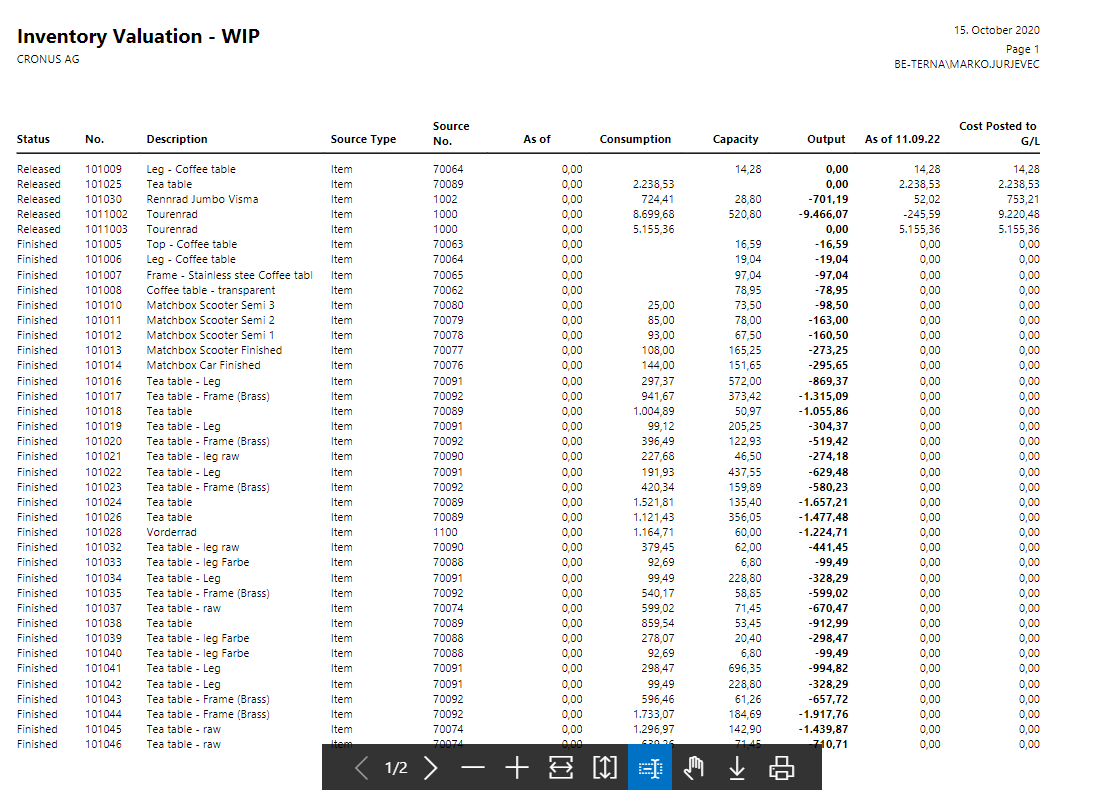
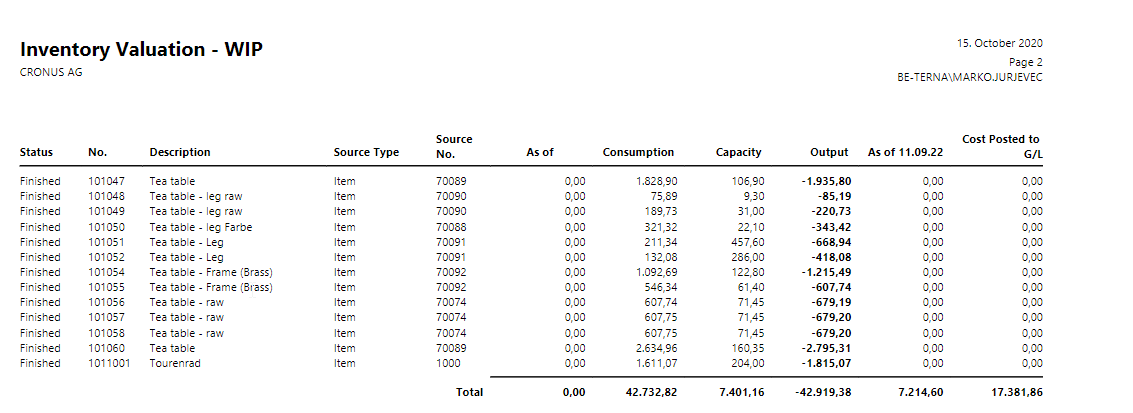
Review the Standard Production Order - WIP Report
- Start Production Order - WIP.
- Enter starting date and ending date.
- Filter production orders if needed.
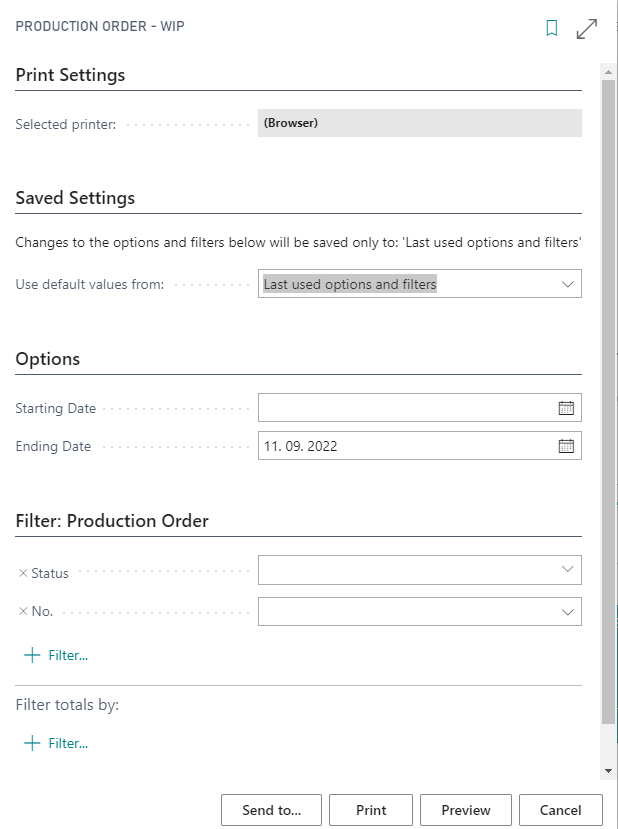
The standard report shows all WIP values including zero amounts.
Use Production Order - WIP Additional
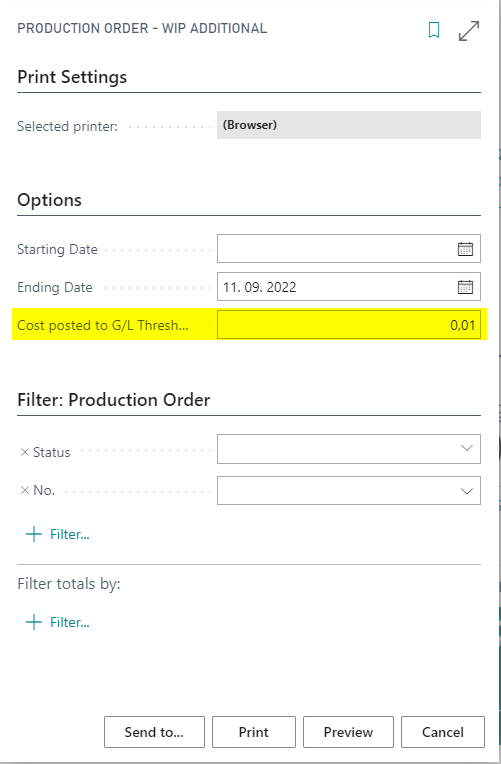
- Start Production Order - WIP Additional.
- Enter starting date and ending date.
- Review or change the G/L threshold amount.
- Filter production orders if needed.
The report shows WIP values above the threshold and therefore reduces report length.
Result
After setup and use, you can print production orders in a structured format, print operational operation and material lists, trace costs across production levels, and limit WIP valuation to relevant production orders.
Links