Setup
Purpose
Before workers can register time, worker master records, authentication, and filters must be set up. The setup defines who can sign in, how sign-in works, and which operations are shown in time registration.
Create a Worker
- In the BE-Manufacturing Worker role center, open Workers.
- Select Worker.
- Select +New.
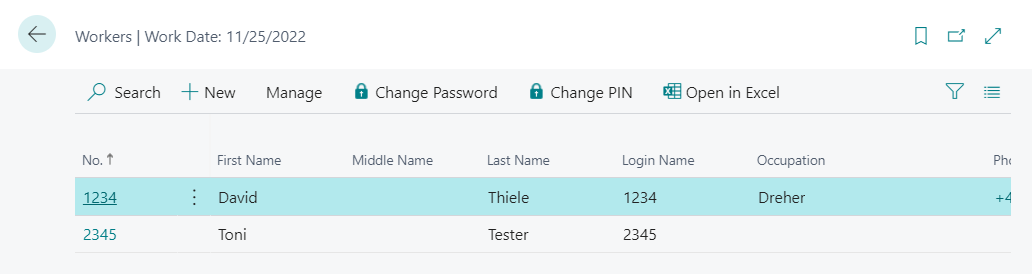
- In No., enter a unique identifier for the worker.
No number series is currently provided for workers. In practice, employee numbers, chip IDs, or other unique identifiers are often used.
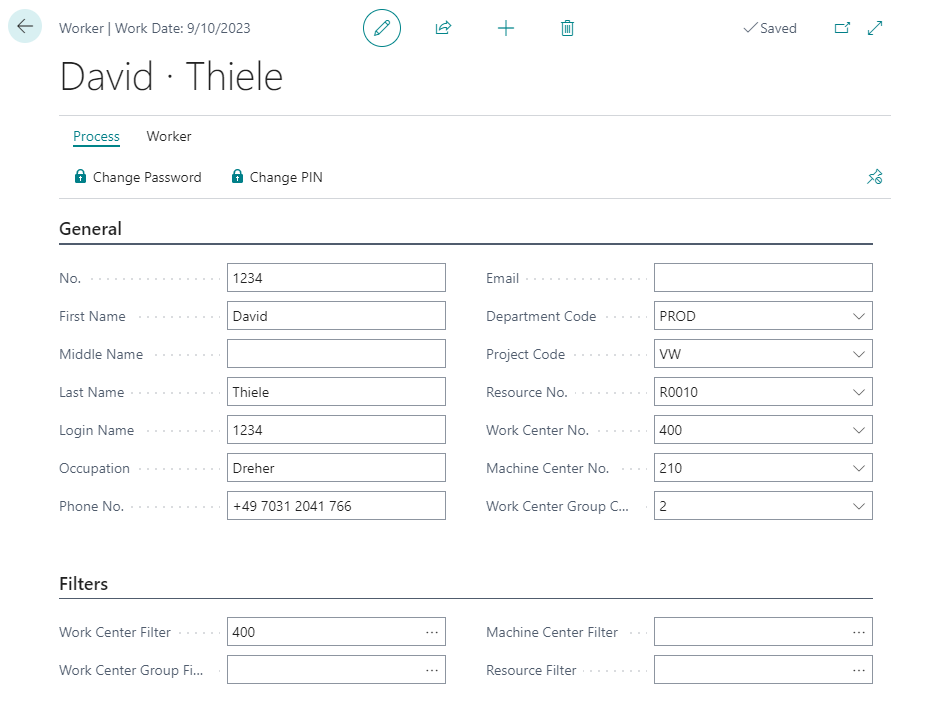
Maintain General Data
Add the required data on the worker card. This can include:
- name and communication details,
- department,
- cost center,
- work center group or work center reference where this is used for later filtering.
Maintain Dimensions
- Open the worker card.
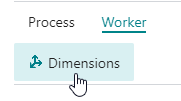
- Select Worker > Dimensions.
- Maintain the required default dimensions.
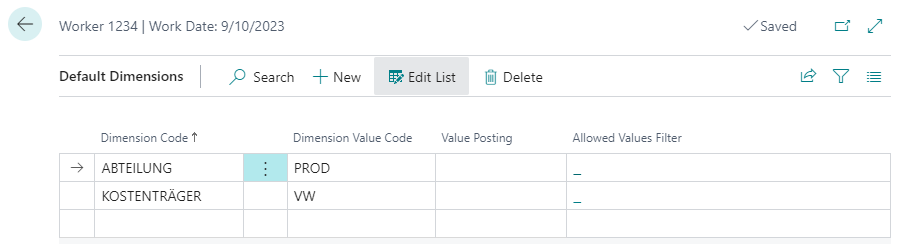
In Manufacturing Setup, in the BE-terna Manufacturing Worker area, you can define whether dimensions from worker time registration are transferred into the journal.
Define Authentication
Workers can sign in in two ways:
- Number and Password: The worker enters the worker number and an additional password.
- PIN: The worker enters only one PIN or scans a barcode or RFID chip.
The main difference is the handling at the terminal. Number and Password requires two keyboard entries. PIN requires only one entry. The PIN must be unique within the company.
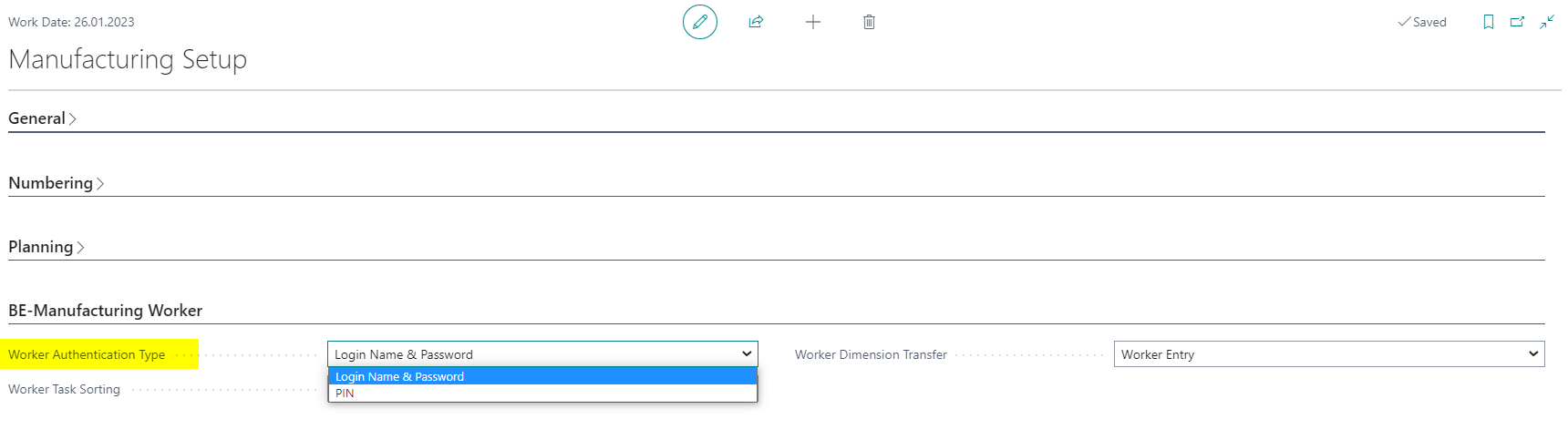
Define Worker Authentication Type in Manufacturing Setup.
Set Up Password Authentication
If workers sign in with Number and Password:
- Open the worker master record.
- Select Process > Change Password.
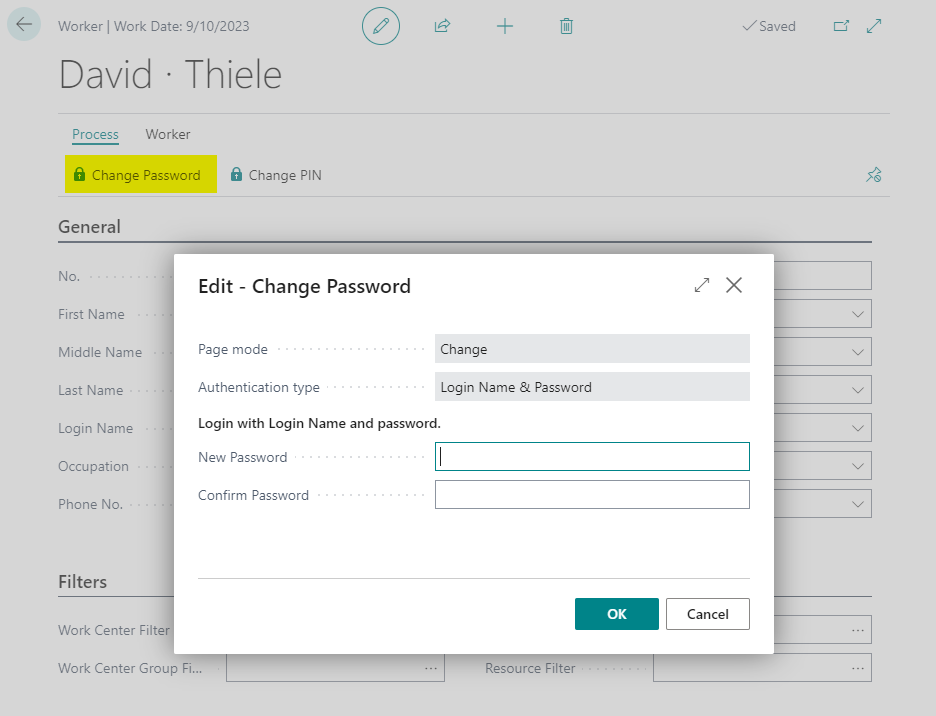
- Enter the password.
- Confirm the password with a second entry.
- Confirm with OK.
During later sign-in, the worker number is used together with this password.
Set Up PIN Authentication
If workers sign in with PIN:
- Open the worker master record.
- Select Process > Change PIN.
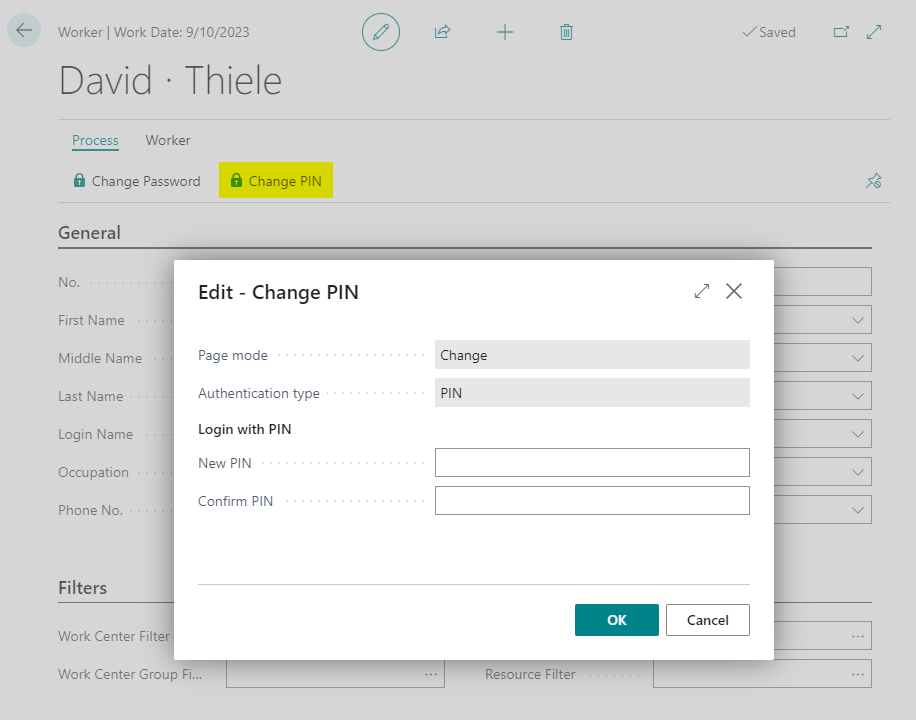
- Enter the required PIN.
- Confirm the PIN with a second entry.
- Confirm with OK.
PIN authentication is especially useful for barcode or RFID scenarios because no additional password prompt is required.
Maintain Filters
For a clearer overview, you can assign filters to the worker. In time registration, the worker then sees only the operations that match the worker’s responsibility.
Possible filters are:
- Work Center Group,
- Work Center,
- Department.
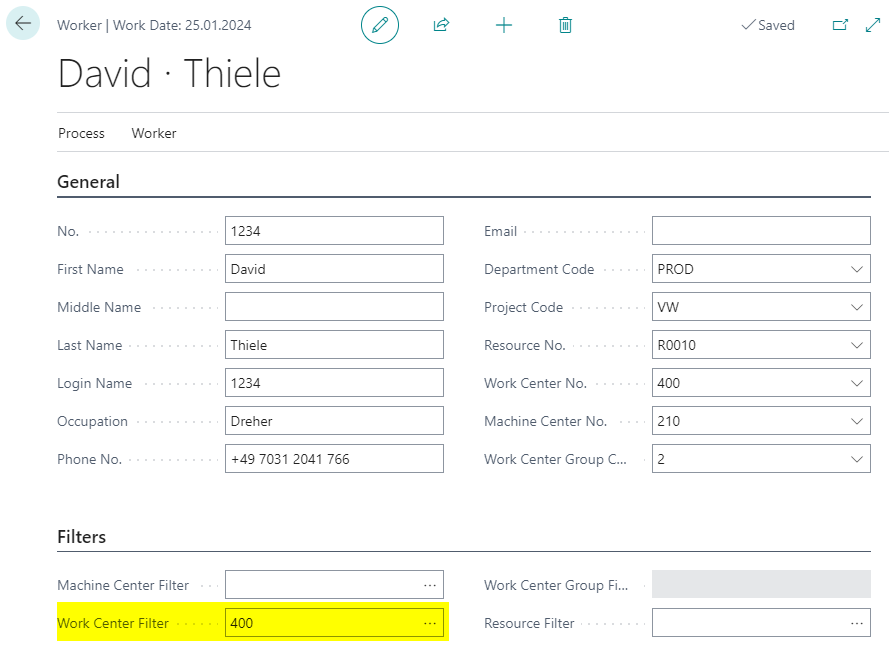
If no filters are maintained, all matching released operations are shown. You can see the effect of the filters on the Time Registration page.
Result
After setup, the worker can sign in with the selected authentication method. Time registration shows only operations that match the production order status and the maintained filter criteria.
Links