Family Production Planning
Purpose
Family production planning helps you create production orders for item families directly from the planning worksheet. Item families let you plan and produce several items and different quantities within one production order.
Typical use cases are co-products, where several items are produced together, or tools where one operation produces more than one unit, for example cavities in injection molding tools.
Business Value
- Families can be considered in the planning worksheet.
- An action message can create a production order with Source Type = Family.
- Several item lines are combined in one production order.
- Shared routings can represent several items and quantities at the same time.
- Users can still use item families manually through production orders.
Activate Family Planning
Item families themselves are standard Business Central functionality. For general information, see Microsoft Learn: Work with production families.
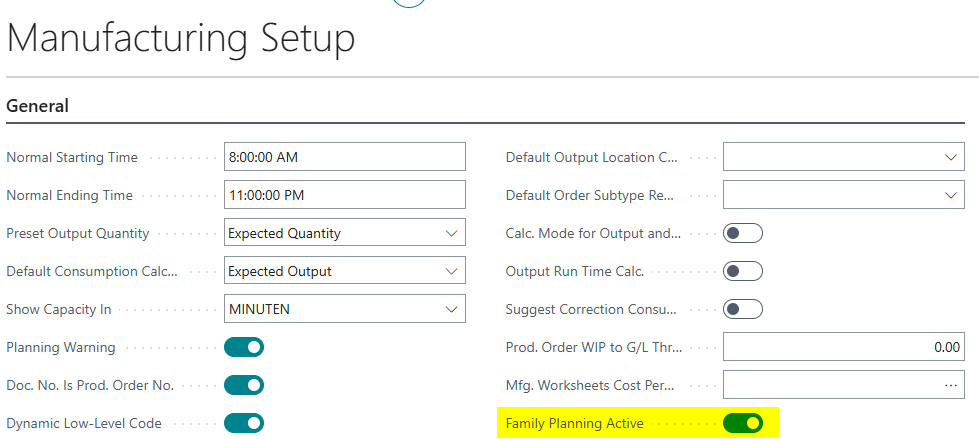
To use item families in the planning worksheet with BE-terna Manufacturing, first activate the function for the company.
- Open Manufacturing Setup.
- Go to the General FastTab.
- Enable Family Planning Active.
Example: Prepare an Item Family
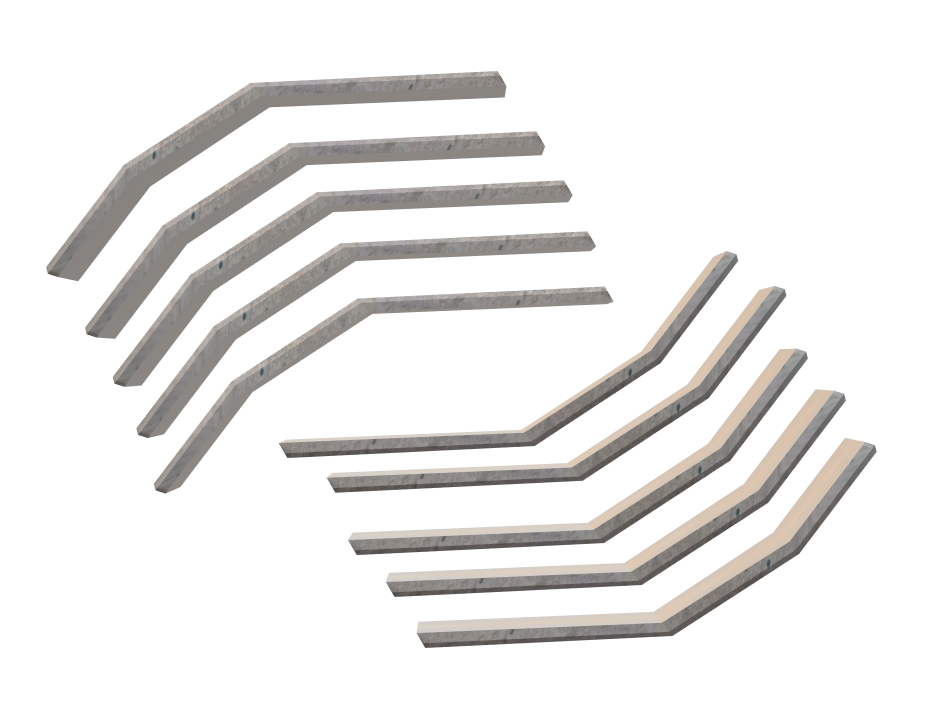
The example uses an item family MUDGUARD. Items 1400 and 1450 represent mudguard front and mudguard back. In the CRONUS demo company, these items are initially purchased items. For this example, they are produced in manufacturing.
One tool can produce both items at the same time. This means that one operation does not produce only one unit, but for example 5 pieces of mudguard front and 5 pieces of mudguard back.
Create the Item Family
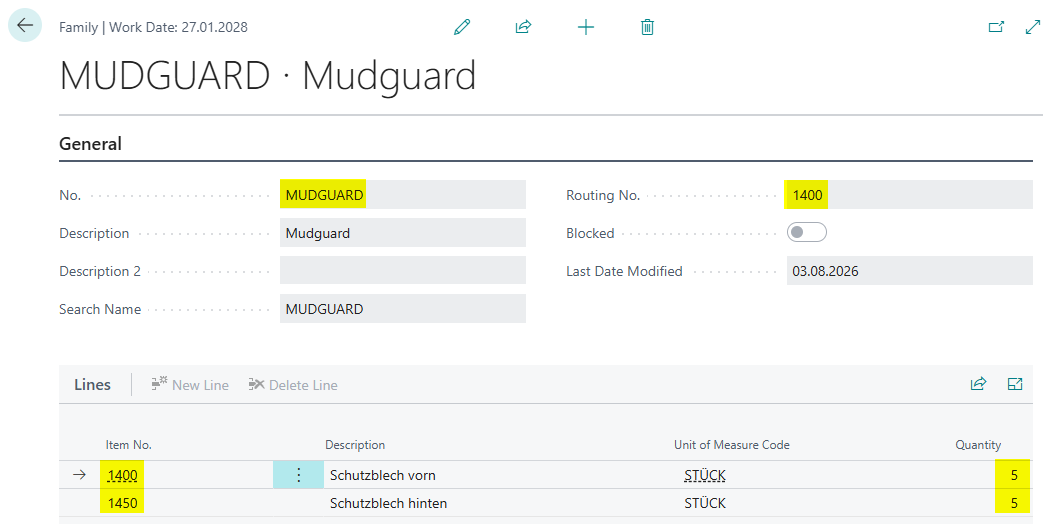
- Create a new item family.
- In the header, assign the shared routing, in the example 1400.
- Add the family lines, for example:
- item 1400 with quantity 5 PCS
- item 1450 with quantity 5 PCS
Up to this point, you are working with standard Business Central functionality. If you want to use item families manually, create a production order and choose Source Type = Family and the item family as Source No..
Create Demand for the Family Items
In the example, demand for item 1400 is created by creating and refreshing a production order for item 1000 Bicycle. This makes the mudguard visible as demand.
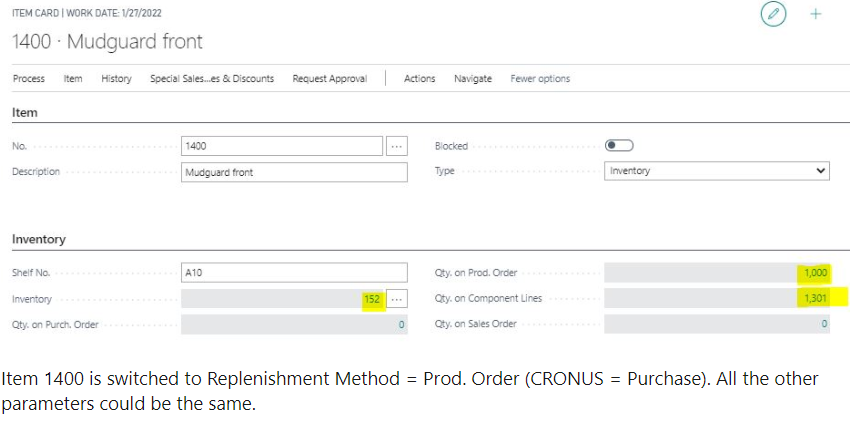
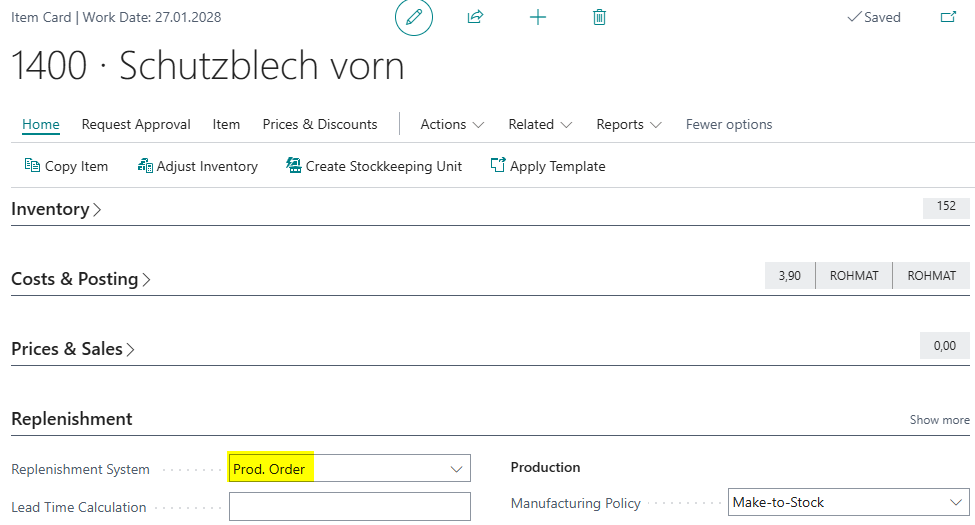
Also check the Replenishment System of the family item. In the demo company, item 1400 is initially a purchased item. For this example, Replenishment System = Prod. Order is used. Other parameters can remain unchanged.
Calculate the Planning Worksheet
- Open Planning Worksheets.
- Choose Prepare > Calculate Regenerative Plan.
- Select the required items and planning date.
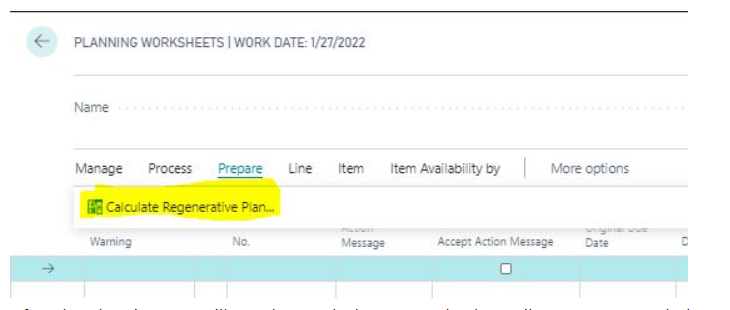
After planning, the planning worksheet shows that one or both family items are required.

Check whether Accept Action Message is enabled. The planning run should set this field. If not, enable it for the affected lines, for example 1400 or 1450.
Carry Out the Action Message
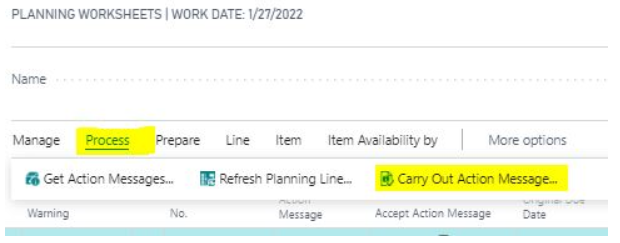
- In the planning worksheet, choose Process > Carry Out Action Message.
- Choose the required status for new production orders, for example Planned or Firm Planned.
- Confirm with OK.
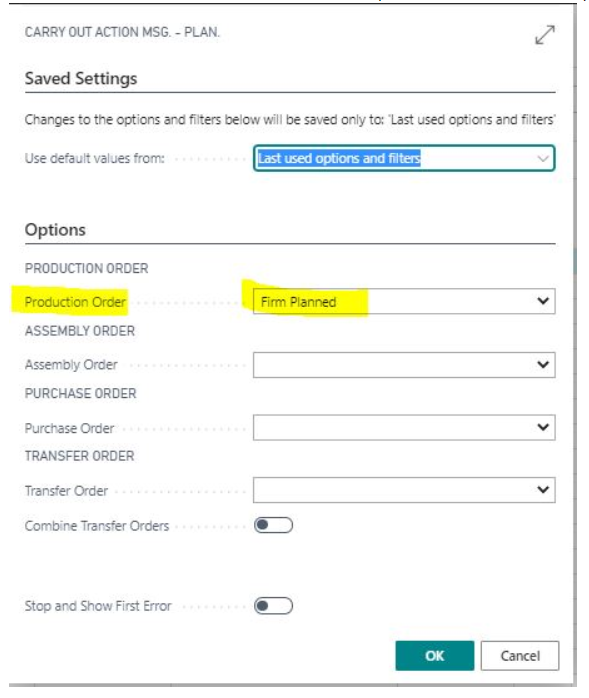
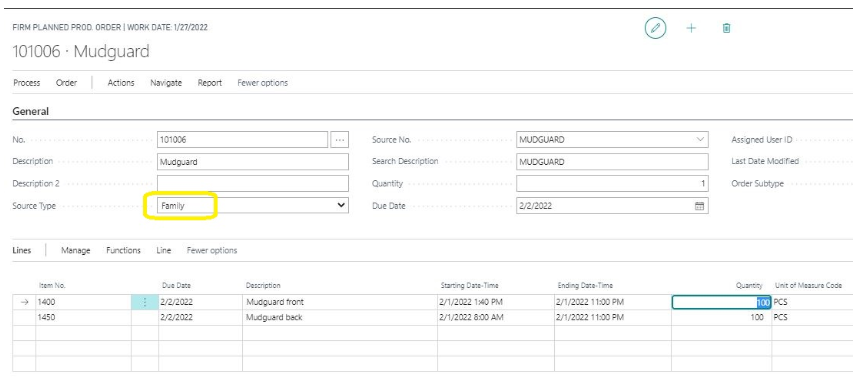
Business Central creates the production order with Source Type = Family. The production order is calculated from the family and contains all item lines of the family.
Check the Result
In the newly created production order, check at least:
- Source Type = Family
- Source No. of the item family
- included item lines
- quantities of the family lines
- status of the created production order
This confirms that demand from the planning worksheet was not converted into a single item order, but into a family production order.
Result
After setup, you can use item families in the planning worksheet. When demand exists for a family item, BE-terna Manufacturing can use the action message to create a production order with Source Type = Family and transfer the family lines into the order together.
Links