Picking Proposal
Overview
The picking proposal covers the calculation of possible allocation of available warehouse stock to outgoing customer orders based on internal criteria, as well as the preparation of the goods issue by generating the corresponding documents. The picking proposal provides central control over which order lines are transferred to the goods issue process.
The picking proposal is primarily used in wholesale when multiple customer orders must be allocated against a shared warehouse stock simultaneously. The allocation sequence defines the priority in which orders are considered when stock is limited. You can choose between allocation by maximum delivery value or by order priority and order date.
Variants
| Variant | Description |
|---|---|
| Base (without threshold) | Allocation is purely stock-driven. Each color and variant is allocated as far as available stock allows. |
| With threshold (from BC-FN 27.2) | Allocation only includes colors and variants that reach a defined minimum delivery rate. Enables targeted control of delivery quality per picking proposal. |
| Batch processing (automatic) | Picking proposals are automatically created and allocated based on predefined templates. Depending on configuration, warehouse shipments are created and released directly. |
| Directly from sales order | The picking proposal is started directly from an individual sales order. |
Process flow
graph LR;

%% Nodes
A(PPP<br>Picking Proposal)
B(PPP-0010<br>Create picking<br>proposal)
C(PPP-0020<br>Set<br>filters)
D(PPP-0030<br>Block irrelevant<br>lines)
E(PPP-0040<br>Suggest<br>allocation)
F(PPP-0050<br>Edit picking<br>proposal)
G(PPP-0060<br>Adjust<br>allocation)
H(PPP-0070<br>Create warehouse<br>shipments)

%% Flow
A -.- B
linkStyle 0 stroke:#ffffff
B ==> C
C ==> D
D ==> E
E ==> F
F ==> G
G ==> H

%% Classes
class A btProcessTitle
class B,C,D,E,F,G,H btProcessActive
Process PPP-0010 – Create picking proposal Create and configure a new picking proposal.
Navigation: Sales > Sales Orders > Actions > Picking Proposal
- Open the “Picking Proposals” list and create a new entry using the “New” tab.
- Enter a meaningful description in the new document.
- Optionally select a picking proposal template code.
- In the header, set the threshold value if allocation should not be purely stock-driven.
- Define whether “Use Threshold Value” should be activated.
Result: A new picking proposal has been created with status “Open”.
Process PPP-0020 – Set filters Narrow down the preselection of sales orders using filters.
Navigation: Picking Proposal > Filter area / Preselection
- Set the location code.
- Set the shipment date (goods issue date).
- Optionally restrict to a specific customer.
- If needed, set additional filters (e.g. order number, currency, shipment method).
- Create or update the preselection.
Result: Status changes to “Preselection created”.
Process PPP-0030 – Block irrelevant lines Manually exclude preselection lines from allocation.
Navigation: Picking Proposal > Preselection lines
- Review the preselection lines.
- Block irrelevant lines using “Block Allocation”.
- Optionally enter a blocking reason.
Note: Blocking at customer level automatically applies to all associated order lines.
Result: Blocked lines are excluded from allocation.
Process PPP-0040 – Suggest allocation BC calculates the possible allocation quantities.
Navigation: Picking Proposal > Suggest Allocation
- Run the “Suggest Allocation” action.
- BC calculates the allocation based on stock, filters, and allocation sequence.
- If a threshold is set, only colors and variants meeting the threshold logic are included.
- Metrics in the lines (e.g. No. Of Colours, Qty. Allocate Threshold Value, Qty. allocate 100 %) are calculated accordingly.
- Review the suggested quantities in the lines.
Result: Status changes to “Allocated”.
Process PPP-0050 – Edit picking proposal Evaluate the allocation result and identify any need for adjustment.
- Identify lines with unsuitable or incomplete allocation.
- When the threshold is in use, review and evaluate the threshold-related metrics per line.
Result: Allocation has been assessed. Need for adjustment is identified.
Process PPP-0060 – Adjust allocation Block individual lines or reset and recalculate the entire allocation.
Available actions:
- Block individual lines using “Block Allocation” and re-suggest allocation.
- Reset the entire allocation and repeat PPP-0040 until the result is satisfactory.
Result: Allocation has been corrected.
Process PPP-0070 – Create warehouse shipments Transfer allocated positions to warehouse shipments.
Navigation: Picking Proposal > Create Warehouse Shipments
- Start the “Create Warehouse Shipments” action.
- Optionally specify the user for whom warehouse shipments are created.
- Check whether “Use Threshold Value” is active: if so, shipments are created according to the threshold allocation.
- If “Use Threshold Value” is inactive, shipments can be created for the entire allocated stock.
- Confirm creation and wait for the result.
Result: Allocated positions are transferred to warehouse shipments. Then close the picking proposal using “Finish Picking Proposal” (status: “Finished”).
Allocation with threshold
The threshold allows you to control delivery quality per picking proposal. Colors or variants that do not reach the defined minimum delivery rate are excluded from allocation.
Header fields
| Field | Description |
|---|---|
| Threshold Value | Minimum delivery accuracy in percent (0–100 %) that a color or variant must reach to be included in the allocation. |
| Use Threshold Value | Activates the threshold logic for this picking proposal. If inactive, allocation and warehouse shipment creation proceed without threshold filtering. |
Metrics in the lines
| Metric | Description |
|---|---|
| No. Of Colours | Total number of colors or variants in the order line. |
| Min. Delivery Accuracy item/colour | Minimum delivery accuracy across all colors and variants of the line (0–100 %). |
| No. Of Colours Threshold Value | Number of colors or variants that meet or exceed the threshold. |
| Qty. Allocate Threshold Value | Total allocable quantity taking the threshold into account. |
| No. Of Colours 100% | Number of colors or variants that are fully allocable. |
| Qty. allocate 100% | Total allocable quantity when all colors and variants are fully deliverable. |
Calculation example: Preventing partial deliveries
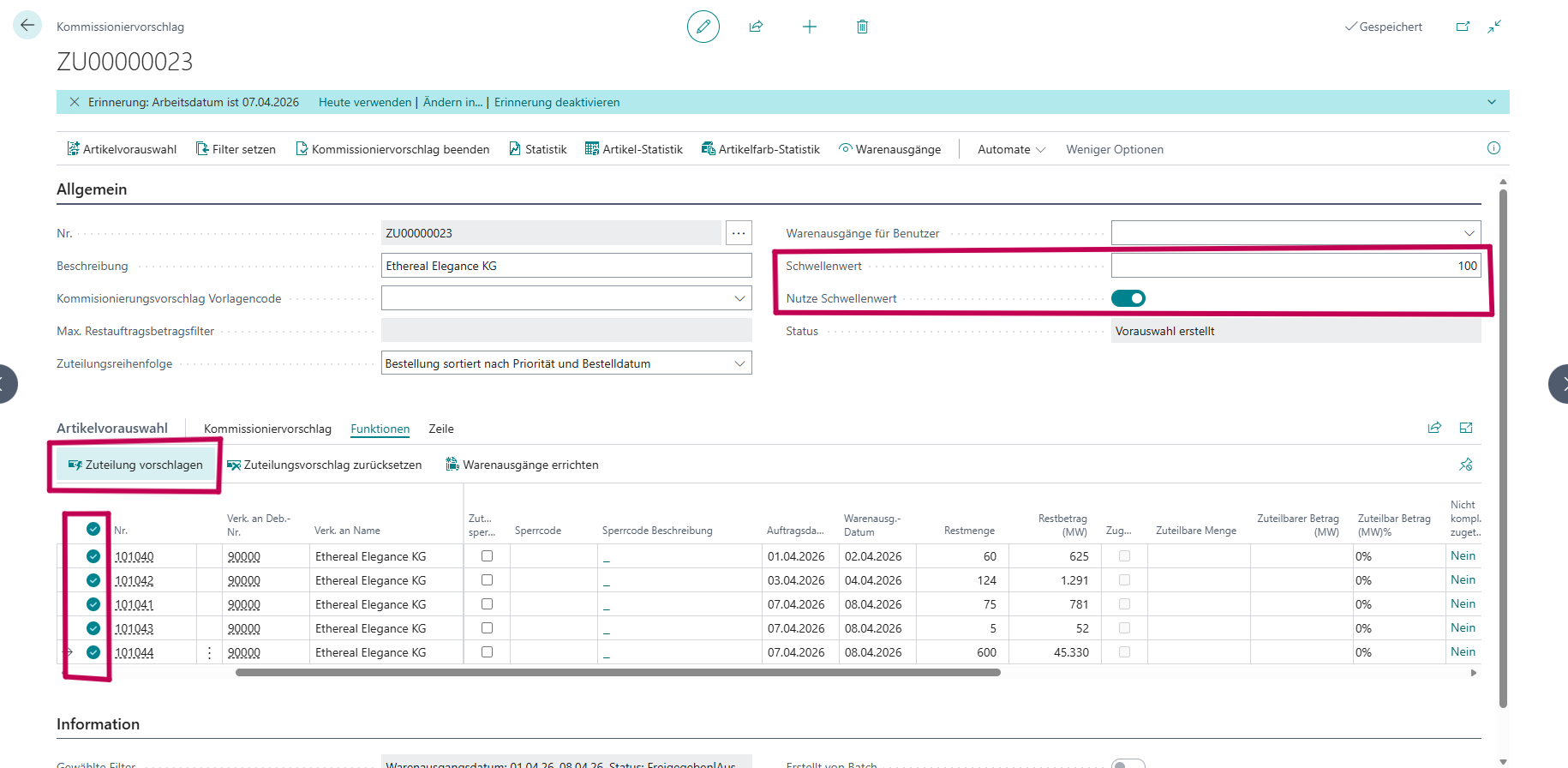
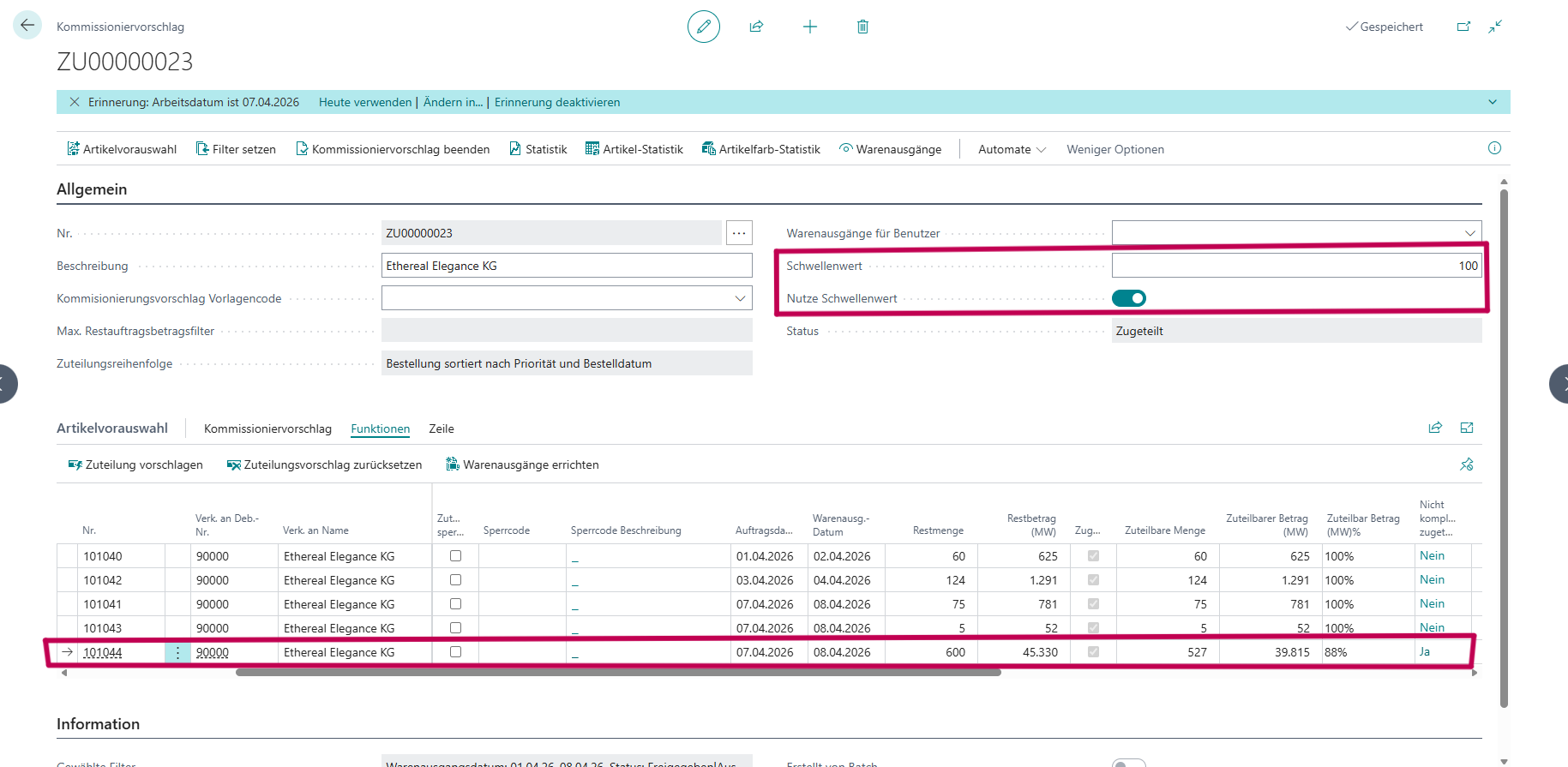
Scenario: Threshold Value = 100, “Use Threshold Value” active. Goal: Only transfer fully deliverable orders to the warehouse shipment.
In the first screenshot, the threshold is set to 100 % and “Use Threshold Value” is activated. The allocation is started using the Suggest Allocation button.
After allocation, the second screenshot shows the result. The highlighted line for order 101044 reaches a delivery accuracy of only 88 %, falling below the threshold. The field “Not Completely Allocated” shows Yes – this line is excluded from warehouse shipment creation. All other lines reach 100 % and are included.
Statistics views
The picking proposal provides statistics views that deliver an aggregated overview of allocation quantities, non-allocable quantities, and threshold metrics at header level. These views support the assessment of the overall result before warehouse shipments are created.
Batch processing
In addition to the manual process flow (PPP-MAN), batch processing is available as an automated variant. Picking proposals are automatically created, allocated, and – depending on configuration – the corresponding warehouse shipments are generated and released directly based on predefined templates.
The setup of batch processing, including template configuration, filters, automation options, and threshold settings, is described in Picking Proposal Setup.
Directly from sales order
A picking proposal can be created directly from an open sales order without manually creating a separate picking proposal document.
Navigation: Sales Order Card > “Start” tab > Create Warehouse Shipment (Pick. Prop.)
This variant is suitable when a single order should be transferred to the goods issue process immediately. The created picking proposal then behaves like a manually created document and follows the same process flow from PPP-0030.
FAQ
Why is my item not being allocated?
There are several possible reasons why an item or variant is not included in the allocation:
- Line manually blocked: The line or the associated customer was blocked using “Block Allocation.” Blocked lines are never allocated.
- Insufficient stock: Available warehouse stock is not sufficient to fully or partially cover the ordered quantity.
- Threshold not reached: If “Use Threshold Value” is active and the minimum delivery accuracy of the color or variant falls below the defined threshold, that position is excluded from allocation.
- Filter excludes the order: The location code, shipment date, or another filter does not match the order. The line therefore does not appear in the preselection.
- Non-allocable quantity: The “Not Allocable Amount” value is greater than 0. The line is not fully allocable and, depending on configuration, will not be included in the warehouse shipment.