Order Subtype
Purpose
Use Order Subtype to split production orders into custom-defined groups. This is useful when orders need to be identified by business purpose, for example management orders, complaints, or rework. Standard Business Central does not provide a flexible custom grouping for production orders.
The function enables custom production order groups for different types of production order data defaulting, customer-specific production order processing, and additional analysis. One order subtype can be specified for each production order.
Business Value
- Production orders can be identified by freely defined groups.
- Order subtypes can default values into production orders.
- Default dimensions and the location code are transferred when the order subtype is assigned to the production order, if they are maintained on the order subtype.
- The Order Subtype column supports checking and analysis in production order lists.
Set Up an Order Subtype
- Open the Order Subtype page.
- Add a new line.
- Set Order Type to Production.
- Maintain at least Code and Description so that the later use in the production order is clear.
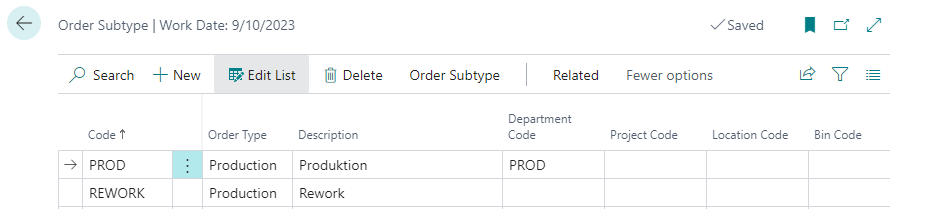
Additional properties can be specified for each record. These values can be used as defaults when the order subtype is assigned to a production order. Several fields are already prepared. Currently, the default dimensions and the location code are transferred. Other prepared fields are not used yet, but can be used for customer-specific requirements.
Maintain Dimensions on the Order Subtype
Shortcut Dimension 1 Code and Shortcut Dimension 2 Code can be maintained directly in the order subtype list.
Open additional dimensions by using one of the following paths:
- Order Subtype > Dimensions
- Related > Dimensions
These dimensions are later transferred to the production order when the order subtype is selected on the order.
Check Order Subtype in Production Order Lists
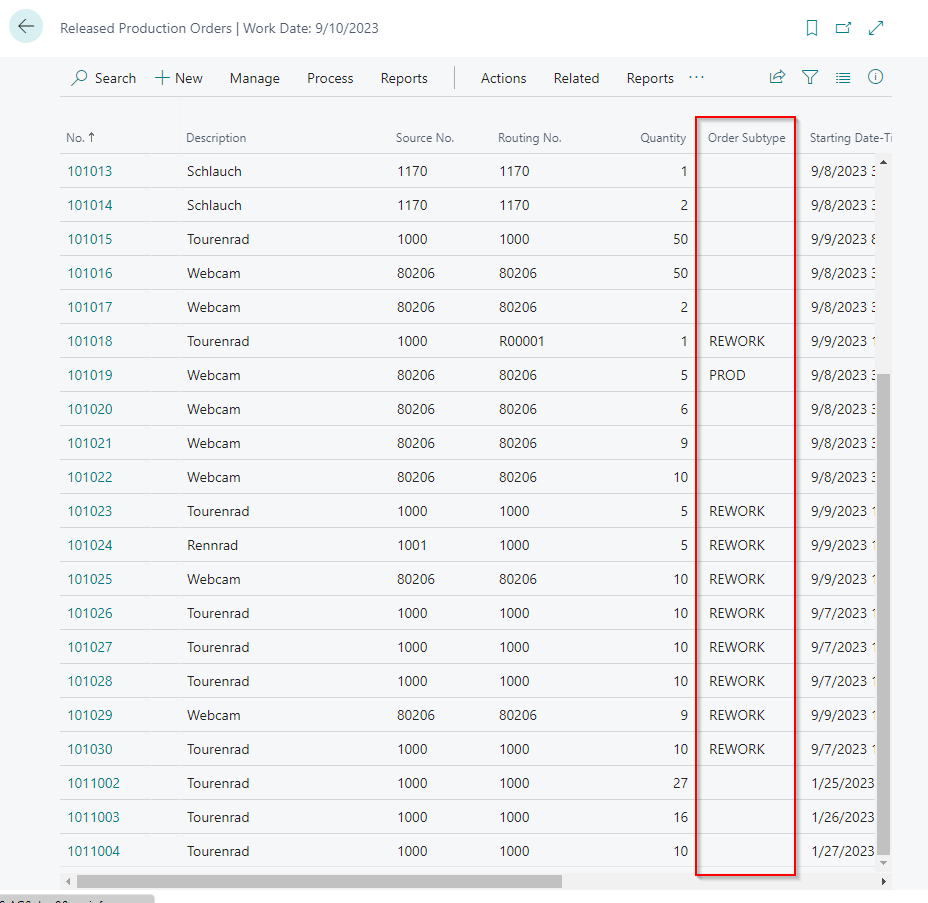
- Open a production order list, for example Released Production Orders.
- Check whether the Order Subtype column is visible.
The column should be available in production order lists so that users can identify and check the grouping directly from the list.
Assign an Order Subtype to a Production Order
- Open a production order with one of the following statuses:
- Simulated
- Planned
- Firm Planned
- Released
- Alternatively, create a new production order.
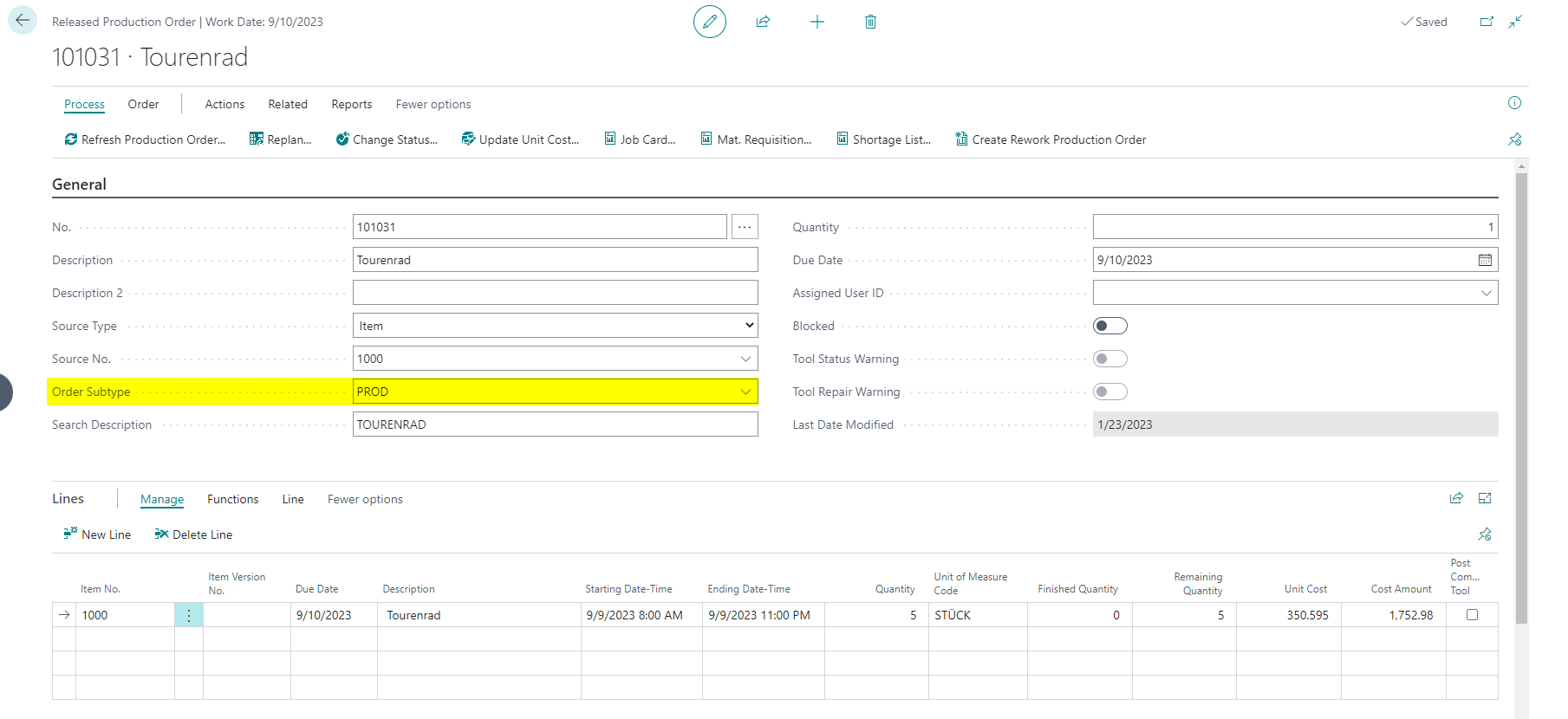
- Select the required value in the Order Subtype field.
Check Transferred Values on the Posting FastTab
If values are maintained on the order subtype, the default dimensions and the location code are transferred to the production order.
Check the following fields on the Posting FastTab of the production order:
- Shortcut Dimension 1 Code
- Shortcut Dimension 2 Code
- Location Code

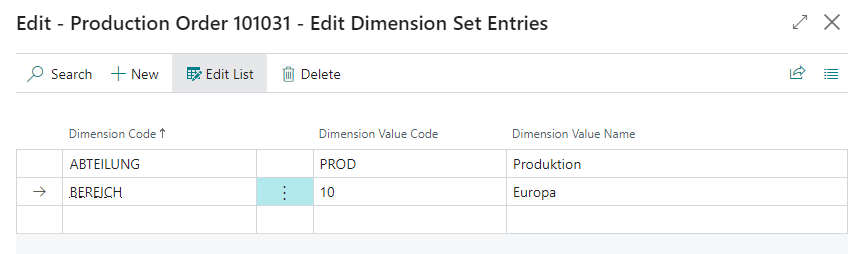
Check Dimensions on the Production Order
Open the dimensions of the production order by using one of the following paths:
- Order > Dimensions
- Related > Order > Dimensions
Result
After setup and assignment, the order subtype is visible on the production order. The relevant production order group can be analyzed in lists, and the maintained defaults from the order subtype are available on the production order.
Links